remote control HUMMER H2 2008 Owner's Manual
[x] Cancel search | Manufacturer: HUMMER, Model Year: 2008, Model line: H2, Model: HUMMER H2 2008Pages: 504, PDF Size: 7.12 MB
Page 259 of 504
Video Screen
The video screen is located in the overhead console.
To use the video screen, do the following:
1. Push the release button located on the overhead
console.
2. Move the screen to the desired position.
When the video screen is not in use, push it up into its
locked position.
If a DVD is playing and the screen is raised to its locked
position, the screen remains on. This is normal, and
the DVD continues to play through the previous audio
source. Use the remote control power button or eject the
disc to turn off the screen.
The overhead console contains the infrared transmitters
for the wireless headphones and the infrared receivers
for the remote control. They are located at the rear
of the console.
Notice:Avoid directly touching the video screen,
as damage may occur. See “Cleaning the Video
Screen” later in this section for more information.
Remote Control
To use the remote control, aim it at the transmitter
window at the rear of the RSE overhead console and
press the desired button. Direct sunlight or very bright
light could affect the ability of the RSE transmitter to
receive signals from the remote control. If the remote
control does not seem to be working, the batteries might
need to be replaced. See “Battery Replacement” later in
this section. Objects blocking the line of sight could also
affect the function of the remote control.
If a CD or DVD is in the Radio DVD slot, the remote
control power button can be used to turn on the video
screen display and start the disc. The radio can also
turn on the video screen display. SeeRadio(s) (MP3)
on page 3-75for more information.
Notice:Storing the remote control in a hot area or
in direct sunlight can damage it, and the repairs
will not be covered by your warranty. Storage
in extreme cold can weaken the batteries. Keep
the remote control stored in a cool, dry place.
If the remote control becomes lost or damaged, a
new universal remote control can be purchased. If this
happens, make sure the universal remote control uses a
code set of Toshiba
®.
3-109
Page 260 of 504
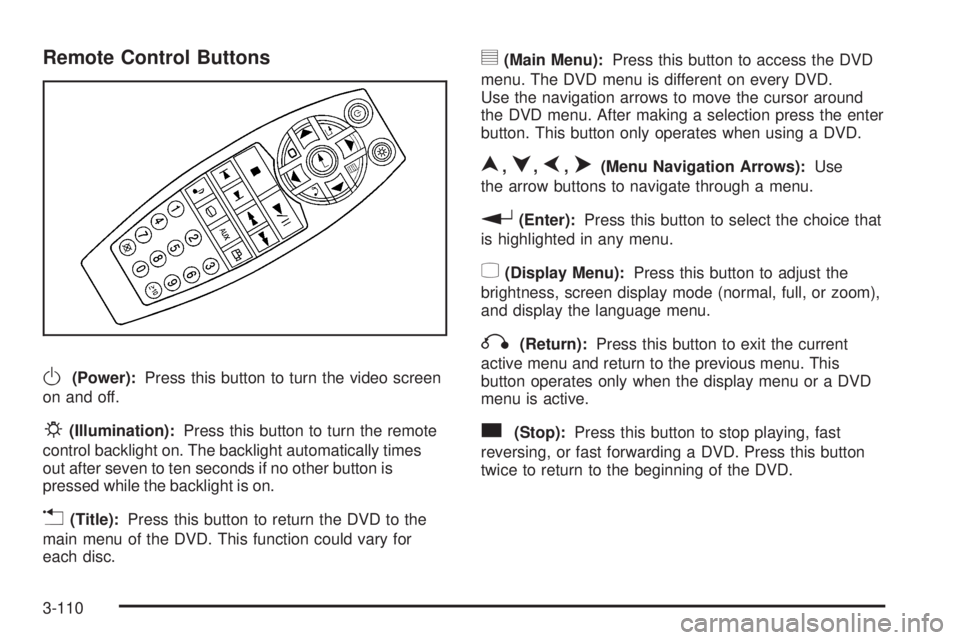
Remote Control Buttons
O(Power):Press this button to turn the video screen
on and off.
P(Illumination):Press this button to turn the remote
control backlight on. The backlight automatically times
out after seven to ten seconds if no other button is
pressed while the backlight is on.
v(Title):Press this button to return the DVD to the
main menu of the DVD. This function could vary for
each disc.
y(Main Menu):Press this button to access the DVD
menu. The DVD menu is different on every DVD.
Use the navigation arrows to move the cursor around
the DVD menu. After making a selection press the enter
button. This button only operates when using a DVD.
n,q,p,o(Menu Navigation Arrows):Use
the arrow buttons to navigate through a menu.
r(Enter):Press this button to select the choice that
is highlighted in any menu.
z(Display Menu):Press this button to adjust the
brightness, screen display mode (normal, full, or zoom),
and display the language menu.
q(Return):Press this button to exit the current
active menu and return to the previous menu. This
button operates only when the display menu or a DVD
menu is active.
c(Stop):Press this button to stop playing, fast
reversing, or fast forwarding a DVD. Press this button
twice to return to the beginning of the DVD.
3-110
Page 262 of 504

\(Clear):Press this button within three seconds after
entering a numeric selection, to clear all numerical
inputs.
}10 (Double Digit Entries):Press this button to
select chapter or track numbers greater than nine.
Press this button before entering the number.
Battery Replacement
To change the remote control batteries, do the following:
1. Slide the rear cover back on the remote control.
2. Replace the two batteries in the compartment. Make
sure that they are installed correctly, using the
diagram on the inside of the battery compartment.
3. Replace the battery cover.
If the remote control is to be stored for a long period of
time, remove the battery and keep it in a cool, dry place.
Problem Recommended Action
No power. The ignition might not be
turned ON/RUN or in
ACC/ACCESSORY.
The picture does not ll
the screen. There are
black borders on the
top and bottom or on
both sides or it looks
stretched out.Check the display mode
settings in the setup menu
by pressing the display
menu button on the remote
control.
In auxiliary mode, the
picture moves or scrolls.Check the auxiliary input
connections at both
devices.
The remote control does
not work.Check to make sure there
is no obstruction between
the remote control and the
transmitter window.
Check the batteries to
make sure they are not
dead or installed
incorrectly.
After stopping the player,
I push Play but sometimes
the DVD starts where I left
off and sometimes at the
beginning.If the stop button was
pressed one time, the DVD
player resumes playing
where the DVD was
stopped. If the stop button
was pressed two times the
DVD player begins to play
from the beginning of
the DVD.
3-112
Page 499 of 504
O
Odometer......................................................3-33
Odometer, Trip...............................................3-33
Off-Road Driving.............................................4-13
Off-Road Recovery..........................................4-11
Oil
Engine.......................................................5-13
Pressure Gage............................................3-45
Pressure Light.............................................3-46
Oil, Engine Oil Life System..............................5-16
Older Children, Restraints................................1-36
Online Owner Center........................................ 7-4
OnStar, Privacy..............................................7-17
OnStar
®System, see OnStar®Manual...............2-53
Operation, Universal Home Remote System........2-57
Other Warning Devices...................................... 3-6
Outlet Adjustment............................................3-29
Outlets
Accessory Power.........................................3-20
Outside
Automatic Dimming Mirror.............................2-49
Convex Mirror.............................................2-49
Heated Mirrors............................................2-49
Power Foldaway Mirrors...............................2-48
Overheated Engine Protection Operating Mode....5-28
Owner Checks and Services.............................. 6-8
Owners, Canadian............................................... ii
P
Paint, Damage..............................................5-107
Park Aid........................................................2-50
Park Brake....................................................2-40
Park (P)
Shifting Into................................................2-41
Shifting Out of............................................2-42
Parking
Over Things That Burn.................................2-43
Passing.........................................................4-12
PASS-Key
®III+..............................................2-26
PASS-Key®III+ Operation................................2-26
Perchlorate Materials Requirements, California...... 5-4
Power
Door Locks.................................................2-11
Electrical System.......................................5-110
Lumbar Controls........................................... 1-3
Reclining Seatbacks...................................... 1-5
Retained Accessory (RAP)............................2-29
Seat............................................................ 1-2
Steering Fluid.............................................5-34
Windows....................................................2-20
Power Winch Platform.....................................4-43
Privacy..........................................................7-16
Event Data Recorders..................................7-16
Navigation System.......................................7-17
OnStar.......................................................7-17
Radio Frequency Identication.......................7-17
Programmable Automatic Door Locks.................2-11
9
Page 500 of 504

R
Radio Frequency Identication (RFID), Privacy....7-17
Radios..........................................................3-72
Radio(s)........................................................3-75
Radios
Navigation/Radio System,
see Navigation Manual............................3-104
Rear Seat Audio........................................3-114
Reception.................................................3-117
Setting the Clock.........................................3-73
Theft-Deterrent..........................................3-116
Reading Lamps..............................................3-19
Rear Air Conditioning and Heating System
and Electronic Climate Controls.....................3-29
Rear Axle......................................................5-45
Locking........................................................ 4-6
Rear Door Security Locks................................2-12
Rear Heated Seats........................................... 1-8
Rear Seat Armrest..........................................2-65
Rear Seat Audio (RSA)..................................3-114
Rear Seat Entertainment System.....................3-105
Rear Vision Camera........................................2-50
Rear Windshield Washer/Wiper.........................3-11
Rearview Mirror, Automatic Dimming with
Compass and Temperature Display................2-45
Reclining Seatbacks, Power............................... 1-5Recommended Fluids and Lubricants.................6-12
Recovery Loops..............................................4-40
Recreational Vehicle Towing.............................4-51
Remote Keyless Entry (RKE) System.................. 2-4
Remote Keyless Entry (RKE) System, Operation . . . 2-5
Remote Vehicle Start........................................ 2-8
Removing the Flat Tire and Installing
the Spare Tire.............................................5-88
Removing the Spare Tire and Tools...........5-80, 5-84
Replacement Bulbs.........................................5-53
Replacement Parts, Maintenance......................6-14
Reporting Safety Defects
Canadian Government..................................7-14
General Motors...........................................7-14
United States Government............................7-14
Restraint System Check
Checking the Restraint Systems....................1-76
Replacing Restraint System Parts
After a Crash..........................................1-77
Retained Accessory Power (RAP)......................2-29
Ride Height, Selectable Extended Rear Ride......4-53
Roadside
Assistance Program....................................... 7-6
Rocking Your Vehicle to Get it Out....................4-40
Routing, Engine Drive Belt...............................6-15
Running the Engine While Parked.....................2-44
10
Page 503 of 504
Towing
Recreational Vehicle.....................................4-51
Towing a Trailer..........................................4-55
Your Vehicle...............................................4-51
Traction
Control System (TCS).................................... 4-5
StabiliTrak
®System....................................... 4-7
Trailer
Recommendations.......................................4-67
Transmission
Fluid, Automatic...........................................5-21
Transmission Operation, Automatic....................2-32
Trip Odometer................................................3-33
Turn and Lane-Change Signals.......................... 3-8
Turn Signal/Multifunction Lever........................... 3-7
U
Uniform Tire Quality Grading............................5-72
Universal Home Remote System.......................2-57
Operation...................................................2-57
Using this Manual............................................... iii
V
Vehicle
Control........................................................ 4-3
Damage Warnings........................................... iv
Loading......................................................4-44
Symbols......................................................... iv
Vehicle Customization, DIC..............................3-63
Vehicle Data Recording and Privacy..................7-16
Vehicle Identication
Number (VIN)............................................5-109
Service Parts Identication Label..................5-109
Vehicle, Remote Start....................................... 2-8
Ventilation Adjustment......................................3-29
Visors...........................................................2-23
Voltmeter Gage..............................................3-37
13