reset HUMMER H2 2009 Owner's Guide
[x] Cancel search | Manufacturer: HUMMER, Model Year: 2009, Model line: H2, Model: HUMMER H2 2009Pages: 524, PDF Size: 3.1 MB
Page 229 of 524
This system provides access to many audio and non
audio listings.
To minimize taking your eyes off the road while driving,
do the following while the vehicle is parked:
Become familiar with the operation and controls of
the audio system.
Set up the tone, speaker adjustments, and preset
radio stations.
For more information, seeDefensive Driving on
page 4-2.
Notice:Contact your dealer/retailer before adding
any equipment.
Adding audio or communication equipment could
interfere with the operation of the vehicle’s engine,
radio, or other systems, and could damage them.
Follow federal rules covering mobile radio and
telephone equipment.
The vehicle has Retained Accessory Power (RAP).
With RAP, the audio system can be played even after
the ignition is turned off. SeeRetained Accessory
Power (RAP) on page 2-29for more information.
Setting the Clock
MP3 Radio with a Single CD and DVD
Player
If the vehicle has a radio with a single CD and DVD
player, it has a
Hbutton for setting the time and date.
To set the time and date:
1. Press the
Hbutton and the HR, MIN, MM, DD,
YYYY (hour, minute, month, day, and year)
displays.
2. Press the pushbutton located under any one of the
labels to change. Every time the pushbutton is
pressed again, the time or the date if selected,
increases by one.
Another way to increase the time or date,
is to press the right
¨SEEK arrow or
the
\FWD (forward) button.
3. To decrease, press the left
©SEEK arrow or
the
sREV (reverse) button, or turn thefknob,
located on the upper right side of the radio, to adjust
the selected setting.
3-73
Page 235 of 524
Storing a Radio Station as a Favorite
Drivers are encouraged to set up their radio station
favorites while the vehicle is parked. Tune to favorite
stations using the presets, favorites button, and
steering wheel controls, if the vehicle has this feature.
SeeDefensive Driving on page 4-2.
FAV (Favorites):A maximum of 36 stations can be
programmed as favorites using the six pushbuttons
positioned below the radio station frequency labels and
by using the radio favorites page button (FAV button).
Press the FAV button to go through up to six pages
of favorites, each having six favorite stations available
per page. Each page of favorites can contain any
combination of AM, FM, or XM (if equipped) stations.
The balance/fade and tone settings that were previously
adjusted, are stored with the favorite stations.
To store a station as a favorite, perform the following
steps:
1. Tune to the desired radio station.
2. Press the FAV button to display the page where the
station is to be stored.3. Press and hold one of the six pushbuttons until a
beep sounds. When that pushbutton is pressed
and released, the station that was set, returns.
4. Repeat the steps for each pushbutton radio station
to store as a favorite.
The number of favorites pages can be setup using
the MENU button. To setup the number of favorites
pages, perform the following steps:
1. Press the MENU button to display the radio
setup menu.
2. Press the pushbutton located below the FAV 1-6
label.
3. Select the desired number of favorites pages
by pressing the pushbutton located below the
displayed page numbers.
4. Press the FAV button, or let the menu time out,
to return to the original main radio screen showing
the radio station frequency labels and to begin
the process of programming favorites for the chosen
amount of numbered pages.
3-79
Page 262 of 524

Channel Unavail:This previously assigned channel
is no longer assigned. Tune to another station.
If this station was one of the presets, choose another
station for that preset button.
No Artist Info:No artist information is available at this
time on this channel. The system is working properly.
No Title Info:No song title information is available
at this time on this channel. The system is working
properly.
No CAT Info:No category information is available
at this time on this channel. The system is working
properly.
No Information:No text or informational messages are
available at this time on this channel. The system is
working properly.
CAT Not Found:There are no channels available for
the selected category. The system is working properly.XM Theftlocked:The XM™ receiver in your vehicle
could have previously been in another vehicle.
For security purposes, XM™ receivers cannot be
swapped between vehicles. If this message is received
after having your vehicle serviced, check with your
dealer/retailer.
XM Radio ID:If tuned to channel 0, this message
alternates with the XM™ Radio 8 digit radio ID label.
This label is needed to activate the service.
Unknown:If this message is received when tuned to
channel 0, there could be a receiver fault. Consult
with your dealer/retailer.
Check XM Receivr:If this message does not clear
within a short period of time, the receiver could have
a fault. Consult with your dealer/retailer.
XM Not Available:If this message does not clear
within a short period of time, the receiver could have
a fault. Consult with your dealer/retailer.
3-106
Page 284 of 524
©¨(Seek):When listening to FM, AM, or XM™
(if equipped), press the left
©or right¨seek arrow
to go to the next or the previous station or channels and
stay there. This function is inactive, with some radios,
if the front seat passengers are listening to the radio.
Press and hold either the left
©or right¨seek arrow
until the display ashes, to tune to an individual station.
The display stops ashing after the buttons have not
been pushed for more than two seconds. This function is
inactive, with some radios, if the front seat passengers
are listening to the radio.
While listening to a disc, press the
©seek arrow to go
back to the start of the current track or chapter (if more
than ten seconds have played). Press the right
¨seek
arrow to go to the next track or chapter on the disc.
This function is inactive, with some radios, if the front
seat passengers are listening to the radio.
When a DVD video menu is being displayed, press either
the left
©or right¨seek arrow to perform a cursor up
or down on the menu. Hold either the left
©or right¨
seek arrow to perform a cursor left or right on the menu.PROG (Program):Press this button to go to the next
preset radio station or channel set on the main radio.
This function is inactive, with some radios, if the front
seat passengers are listening to the radio.
When a CD or DVD audio disc is playing, press this
button to go to the beginning of the CD or DVD audio.
This function is inactive, with some radios, if the front seat
passengers are listening to the disc.
When a disc is playing in the CD or DVD changer, press
this button to select the next disc, if multiple discs are
loaded. This function is inactive, with some radios, if the
front seat passengers are listening to the disc.
When a DVD video menu is being displayed, press the
PROG button to perform the menu function, Enter.
Theft-Deterrent Feature
THEFTLOCK®is designed to discourage theft of the
vehicle’s radio by learning a portion of the Vehicle
Identication Number (VIN). The radio does not operate
if it is stolen or moved to a different vehicle.
3-128
Page 292 of 524

Using ABS
Do not pump the brakes. Just hold the brake pedal
down rmly and let antilock work. The brakes might
vibrate or some noise might be heard, but this is normal.
Braking in Emergencies
ABS allows the driver to steer and brake at the same
time. In many emergencies, steering can help more than
even the very best braking.
StabiliTrak®System
The vehicle has the StabiliTrak system which combines
antilock brake, traction and stability control systems
and helps the driver maintain directional control of the
vehicle in most driving conditions.
When the vehicle is started and begins to move, the
system performs several diagnostic checks to insure
there are no problems. The system may be heard or felt
while it is working. This is normal and does not mean
there is a problem with the vehicle. The system should
initialize before the vehicle reaches 20 mph (32 km/h).
In some cases, it may take approximately two miles of
driving before the system initializes.If the system fails to turn on or activate, the StabiliTrak
light along with one of the following messages will be
displayed on the Driver Information Center (DIC):
TRACTION CONTROL OFF, SERVICE TRACTION
CONTROL, STABILITRAK OFF, SERVICE
STABILITRAK. If these DIC messages appear, make
sure the StabiliTrak system has not been turned off using
the StabiliTrak on/off button. If this clears the message(s),
the vehicle does not need servicing. If this does not
clear the message(s), then turn the vehicle off, wait
15 seconds, and then turn it back on again to reset the
system. If any of these messages still appear on the
Driver Information Center (DIC), the vehicle should be
taken in for service. For more information on the DIC
messages, seeDriver Information Center (DIC) on
page 3-46.
The StabiliTrak light will
ash on the instrument
panel cluster when the
system is both on and
activated.
The system may be heard or felt while it is working; this
is normal.
4-6
Page 296 of 524

To turn the system off,
press and release the
TCS button.
This light will come on
steady when the traction
control system has been
turned off. This light ashes
when TCS is active.
If the TCS button is pressed, the traction control system
will turn off and a TRACTION CONTROL OFF message
will appear on the DIC. Press the TCS button again to
turn the system back on. The TRACTION CONTROL
OFF message will then go off. The Traction Control
System will reset itself at each ignition cycle.
Adding non-dealer/non-retailer accessories can affect
the vehicle’s performance. SeeAccessories and
Modifications on page 5-3.Locking Rear Axle
The locking rear axle can give the vehicle additional
traction from the rear wheels when traveling in off-road
situations such as mud, snow, sand, steep hills and
uneven terrain.
The button used to turn
this feature on or off is
located below the transfer
case dial to the right of
the steering wheel.
To lock the rear axle:
1. Place the transfer case in the Four-Wheel-Low Lock
mode. This is the only mode which will allow the rear
axle to lock. SeeFull-Time Four-Wheel Drive on
page 2-37for more information regarding the transfer
case and Four-Wheel-Low-Lock mode.
2. Press the button with the vehicle stopped or moving
less than 2 mph (3 km/h).
4-10
Page 328 of 524
First Aid Kit and Tool Kit
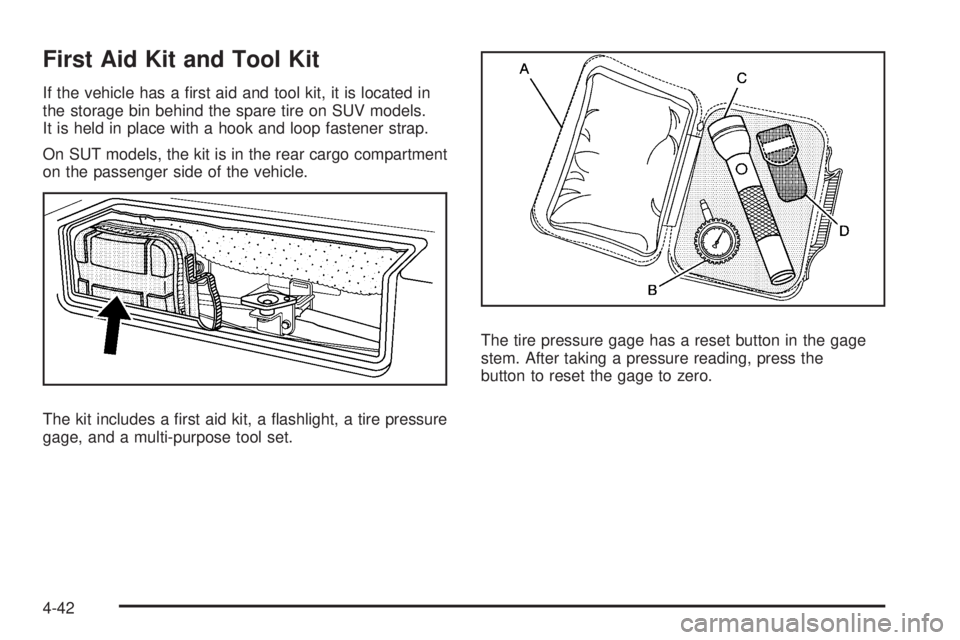
If the vehicle has a rst aid and tool kit, it is located in
the storage bin behind the spare tire on SUV models.
It is held in place with a hook and loop fastener strap.
On SUT models, the kit is in the rear cargo compartment
on the passenger side of the vehicle.
The kit includes a rst aid kit, a ashlight, a tire pressure
gage, and a multi-purpose tool set.The tire pressure gage has a reset button in the gage
stem. After taking a pressure reading, press the
button to reset the gage to zero.
4-42
Page 372 of 524
Engine Oil Additives / Engine Oil
Flushes
Do not add anything to the oil. The recommended oils
with the starburst symbol that meet GM Standard
GM6094M are all that is needed for good performance
and engine protection.
Engine oil system ushes are not recommended and
could cause engine damage not covered by the vehicle
warranty.
Engine Oil Life System
When to Change Engine Oil
This vehicle has a computer system that indicates when
to change the engine oil and lter. This is based on
engine revolutions and engine temperature, and not on
mileage. Based on driving conditions, the mileage at
which an oil change is indicated can vary considerably.
For the oil life system to work properly, the system must
be reset every time the oil is changed.When the system has calculated that oil life has been
diminished, it indicates that an oil change is necessary.
A CHANGE ENGINE OIL SOON message comes on.
SeeDIC Warnings and Messages on page 3-56. Change
the oil as soon as possible within the next 600 miles
(1 000 km). It is possible that, if driving under the best
conditions, the oil life system might not indicate that an oil
change is necessary for over a year. However, the engine
oil and lter must be changed at least once a year and at
this time the system must be reset. Your dealer/retailer
has trained service people who will perform this work
using genuine parts and reset the system. It is also
important to check the oil regularly and keep it at the
proper level.
If the system is ever reset accidentally, the oil must be
changed at 3,000 miles (5 000 km) since the last oil
change. Remember to reset the oil life system whenever
the oil is changed.
5-18
Page 373 of 524

How to Reset the Engine Oil Life
System
The Engine Oil Life System calculates when to change
the engine oil and lter based on vehicle use. Whenever
the oil is changed, reset the system so it can calculate
when the next oil change is required. If a situation occurs
where the oil is changed prior to a CHANGE ENGINE OIL
SOON message being turned on, reset the system.
Always reset the engine oil life to 100% after every oil
change. It will not reset itself. To reset the Engine Oil Life
System:
1. Display the OIL LIFE REMAINING on the DIC.
2. Press and hold the SET/RESET button on the DIC
for more than ve seconds. The oil life will change
to 100%.
If the CHANGE ENGINE OIL SOON message comes
back on when the vehicle is started, the Engine Oil Life
System has not reset. Repeat the procedure.
What to Do with Used Oil
Used engine oil contains certain elements that can be
unhealthy for your skin and could even cause cancer.
Do not let used oil stay on your skin for very long. Clean
your skin and nails with soap and water, or a good
hand cleaner. Wash or properly dispose of clothing or
rags containing used engine oil. See the manufacturer’s
warnings about the use and disposal of oil products.
Used oil can be a threat to the environment. If you
change your own oil, be sure to drain all the oil from the
lter before disposal. Never dispose of oil by putting it
in the trash, pouring it on the ground, into sewers, or into
streams or bodies of water. Recycle it by taking it to a
place that collects used oil.
5-19
Page 375 of 524

How to Inspect the Engine Air
Cleaner/Filter
Vehicles With an Air Filter Restriction
Indicator
Locate the air lter restriction indicator on the engine
air duct. When the indicator turns black or is in the
red/orange change zone, replace the lter and reset the
indicator. See “Inspecting the Engine Air Cleaner/Filter
and Resetting the Air Filter Restriction Indicator” later in
this section for further instructions.
Vehicles Without an Air Filter Restriction
Indicator
To inspect the air cleaner/lter, remove it from the
vehicle and lightly shake the lter to release loose dust
and dirt. If the engine air cleaner/lter remains caked
with dirt, a new lter is required. See “Inspecting
the Engine Air Cleaner/Filter and Resetting the Air Filter
Restriction Indicator” later in this section for further
instructions.
Inspecting the Engine Air Cleaner/Filter
and Resetting the Air Filter Restriction
Indicator
1. Loosen the screws on the engine air cleaner/lter
cover.
5-21