reset HUMMER H3 2010 User Guide
[x] Cancel search | Manufacturer: HUMMER, Model Year: 2010, Model line: H3, Model: HUMMER H3 2010Pages: 410, PDF Size: 2.24 MB
Page 138 of 410
5-24 Instruments and Controls
Fuel System Messages
FUEL CAP
This message displays if the
vehicle's fuel cap is either off or
loose. Pull over as soon as possible
and check to see if the fuel cap is
secure. You may also see the check
engine light on the instrument panel
cluster. If the check engine light
does come on when the fuel cap
was loose, it may take a few driving
trips before the light turns off.
SeeMalfunction Indicator Lamp
on
page 5‑12for more information if
the light still remains on. Press
and release the reset stem to
acknowledge the message and
clear it from the display.
LOW FUEL
This message displays if the level of
fuel in the vehicle is low. Also check
the fuel gauge. See Fuel Gauge
on
page 5‑8for more information.
Refill the fuel tank as soon as
possible.
Lamp Messages
TURN SIGNAL
This message displays when the
turn signal is on for about 1.2 km
(0.75 miles) of travel. Press
and release the reset stem to
acknowledge the message and
clear it from the display.
Ride Control System
Messages
SERVICE STAB (Stability)
SYS (System)
This message displays if there is
a problem with the StabiliTrak®
system. Have the vehicle serviced
by your dealer. See StabiliTrak
System
on page 9‑53for more
information.
STAB (Stability)
SYS (System) OFF
This message displays when the
StabiliTrak®system is turned off.
See StabiliTrak Systemon
page 9‑53for more information.
TRAC (Traction) OFF
This message along with the
traction off light displays when the
Traction Control System (TCS) is
turned off by pressing the TCS
button. See Traction Control System
(TCS)
on page 9‑52and Traction
Control System (TCS)/StabiliTrak®
Lighton page 5‑16for more
information.
Page 139 of 410

Instruments and Controls 5-25
TRACTION FAILED
This message displays if there is a
problem with the Traction Control
System (TCS). Check the TCS as
soon as possible and have the
vehicle serviced by your dealer.
SeeTraction Control System (TCS)/
StabiliTrak
®Lighton page 5‑16for
more information. Press and release
the reset stem to acknowledge the
message and clear it from the
display.
Service Vehicle Messages
SERV (Service) VEH (Vehicle)
This message displays if the vehicle
needs service. Have the vehicle
serviced by your dealer as soon as
possible.
Tire Messages
LOW TIRE
On vehicles with the Tire Pressure
Monitor System (TPMS), this
message displays if a low tire
pressure is detected in any of the
vehicle's tires. Press and release
the reset stem to acknowledge the
message and clear it from the
display. The message appears at
each ignition cycle until the tires
are inflated to the correct inflation
pressure. See Tires
on page 10‑44andTire Pressureon page 10‑51for
more information on tires and the
correct inflation pressures.
SERV (Service)
TPM (Tire Pressure Monitor)
On vehicles with the Tire Pressure
Monitor System (TPMS), this
message displays if a part on the
TPMS is not working properly.
The tire pressure light also flashes and then remains on during the
same ignition cycle. See
Tire
Pressure Light
on page 5‑16.
Several conditions may cause this
message to appear. See Tire
Pressure Monitor Operation
on
page 10‑53for more information.
If the warning comes on and stays
on, there may be a problem with the
TPMS. See your dealer.
Transmission Messages
SERV (Service)
4WD (Four-Wheel Drive)
This message displays when
there is a problem with the transfer
case control system. Check the
transfer case on the vehicle and
have it serviced by your dealer.
See Four-Wheel Drive
on
page 9‑46for more information
about the transfer case. Press
and release the reset stem to
acknowledge the message and
clear it from the display.
Page 155 of 410
Infotainment System 7-1
Infotainment
System
Introduction
Introduction . . . . . . . . . . . . . . . . . . . 7-1
Theft-Deterrent Feature . . . . . . . 7-2
Operation . . . . . . . . . . . . . . . . . . . . . 7-2
Radio
AM-FM Radio . . . . . . . . . . . . . . . . . 7-5
Satellite Radio . . . . . . . . . . . . . . . . 7-6
Radio Reception . . . . . . . . . . . . . . 7-9
Fixed Mast Antenna . . . . . . . . . 7-10
Satellite Radio Antenna . . . . . . 7-10
Audio Players
CD Player . . . . . . . . . . . . . . . . . . . 7-10
Phone
Bluetooth . . . . . . . . . . . . . . . . . . . . 7-15
Introduction
Determine which radio the vehicle
has and read the following pages to
become familiar with its features.
{WARNING
Taking your eyes off the road
for extended periods could
cause a crash resulting in injury
or death to you or others. Do not
give extended attention to
entertainment tasks while driving.
This system provides access to
many audio and non‐audio listings.
To minimize taking your eyes off the
road while driving, do the following
while the vehicle is parked:
.Become familiar with the
operation and controls of the
audio system.
.Set up the tone, speaker
adjustments, and preset radio
stations. For more information, see
Defensive
Driving on page 9‑2.
Notice: Contact your dealer
before adding any equipment.
Adding audio or communication
equipment could interfere with
the operation of the vehicle's
engine, radio, or other systems,
and could damage them. Follow
federal rules covering mobile
radio and telephone equipment.
The vehicle has Retained
Accessory Power (RAP). With RAP,
the audio system can be played
even after the ignition is turned off.
See Retained Accessory Power
(RAP)
on page 9‑35for more
information.
For vehicles with a navigation radio
system, see the separate Navigation
System manual.
Page 157 of 410
Infotainment System 7-3
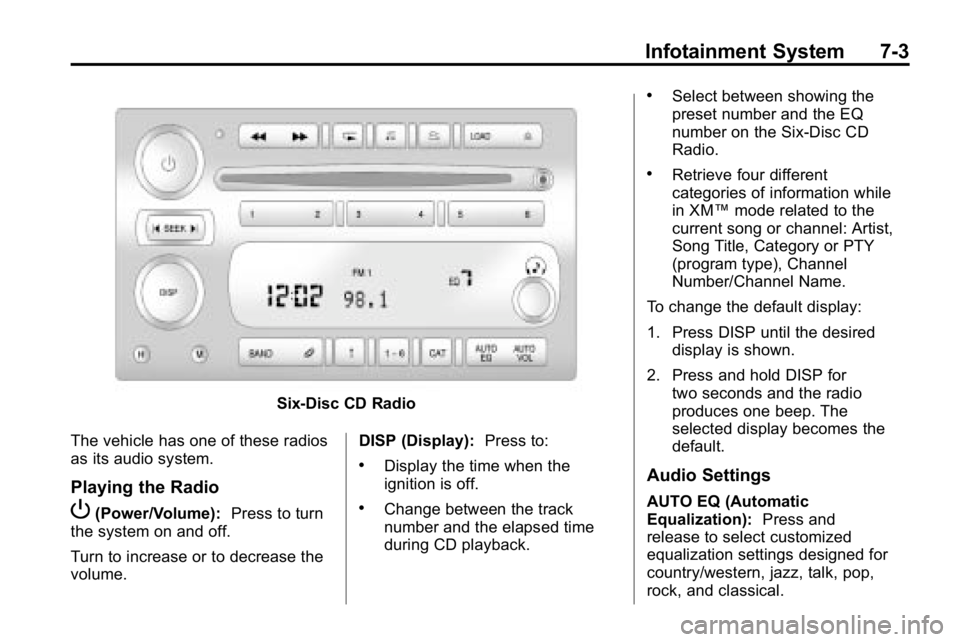
Six-Disc CD Radio
The vehicle has one of these radios
as its audio system.
Playing the Radio
P(Power/Volume): Press to turn
the system on and off.
Turn to increase or to decrease the
volume. DISP (Display):
Press to:
.Display the time when the
ignition is off.
.Change between the track
number and the elapsed time
during CD playback.
.Select between showing the
preset number and the EQ
number on the Six-Disc CD
Radio.
.Retrieve four different
categories of information while
in XM™mode related to the
current song or channel: Artist,
Song Title, Category or PTY
(program type), Channel
Number/Channel Name.
To change the default display:
1. Press DISP until the desired display is shown.
2. Press and hold DISP for two seconds and the radio
produces one beep. The
selected display becomes the
default.
Audio Settings
AUTO EQ (Automatic
Equalization): Press and
release to select customized
equalization settings designed for
country/western, jazz, talk, pop,
rock, and classical.
Page 159 of 410
Infotainment System 7-5
Radio
AM-FM Radio
Finding a Station
BAND:Press to select FM1, FM2,
AM, XM1, if equipped, or XM2,
if equipped.
Manual Tuning
Single CD Radio:
e(Tune): Turn to select a radio
station.
Six-Disc CD Radio:
DISP: Turn to select a radio station.
Automatic Tuning
1-6 (Preset Pushbuttons): Press
to select preset stations.
tSEEKu: Press and release to
go to the previous or next station
and stay there. The radio only stops
at stations with a strong signal.
Press and hold to scan stations or
preset stations. To scan stations:
1. Press and hold
torufor more
than two seconds. SC or SCAN
displays and the radio beeps
once. The radio goes to a
station, plays for a few seconds,
then goes to the next station.
2. Press
toruagain or one of
the pushbuttons to stop
scanning presets.
To scan preset stations:
1. Press and hold
torufor
more than four seconds. PSC or
PSCN displays and the radio
beeps twice. The radio goes
to a preset station, plays for a
few seconds, then goes to the
next preset station.
2. Press
toruagain or one of
the pushbuttons to stop
scanning presets. Setting Preset Stations
Up to 30 stations (six FM1, six FM2,
and six AM, six XM1, if equipped,
and six XM2, if equipped), and
equalization settings for each
station can be programmed on the
six numbered pushbuttons.
To program presets:
1. Turn the radio on.
2. Press BAND to select FM1,
FM2, AM, or XM1 or XM2.
3. Tune in the desired station.
4. Press AUTO EQ to select the equalization.
5. Press and hold one of the six numbered pushbuttons
until the radio beeps once.
6. Repeat the steps for each pushbutton.
Page 160 of 410
7-6 Infotainment System
Satellite Radio
XM™Satellite Radio Service
For vehicles with XM, it is a satellite
radio service that is based in the
48 contiguous United States and
10 Canadian provinces. XM Satellite
Radio has a wide variety of
programming and commercial-free
music, coast-to-coast, and in
digital-quality sound. A service
fee is required to receive the XM
service. For more information,
contact XM at xmradio.com or
call 1-800-929-2100 in the
U.S. and xmradio.ca or call
1-877-438-9677 in Canada.
4(Information): Press to display
additional information current XM
station when
4is shown on the
display. When the complete
message has shown,
4disappears
from the display. The last message
can be viewed until a new message
is received or the station is
changed.
.Parts of the message appear
every three seconds if the entire
message cannot be shown on
the display at once.
.Press and release4to manually
scroll through the message.
.When4is pressed and a
message is not available from
the station, NO INFO is shown
on the display.
Finding a Station
BAND: Press to select FM1, FM2,
AM, XM1, or XM2.
Manual Tuning
Single CD Radio:
e(Tune): Turn to select a radio
station.
Six-Disc CD Radio:
DISP: Turn to select a radio station.
Automatic Tuning
1-6 (Preset Pushbuttons): Press
to select preset stations.
tSEEKu: Press and release to
go to the previous or next station
and stay there. The radio only stops
at stations with a strong signal.
Press and hold to scan stations or
preset stations.
Page 161 of 410
Infotainment System 7-7
To scan stations:
1. Press and hold
torufor more
than two seconds. SC or SCAN
displays and the radio beeps
once. The radio goes to a
station, plays for a few seconds,
then goes to the next station.
2. Press
toruagain or one of
the pushbuttons to stop
scanning presets.
To scan preset stations:
1. Press and hold
torufor more
than four seconds. PSC or
PSCN displays and the radio
beeps twice. The radio goes to a
preset station, plays for a few
seconds, then goes to the next
preset station.
2. Press
toruagain or one of
the pushbuttons to stop
scanning presets. Finding a Category (CAT) Station
To select an XM station by category
for the Single CD Radio:
1. Press CAT to select a
category mode.
2. Press CAT repeatedly to change the category.
3. Press
toruto select the
first station in the category.
4. To go to another station in the selected category:
.Press CAT once if the
category is displayed.
.Press CAT twice if the
category is not displayed.
5. Press CAT to exit program type select mode. If CAT times out
and is no longer on the display,
go back to Step 1.
If the desired program type cannot
be found, NONE or NOT FOUND
displays and the radio returns to the
previous station. To select an XM station by category
for the Six-Disc CD Radio:
1. Press CAT to select a
category mode.
2. Turn
eto select a category.
3. Press
toruto select the
first station in the category.
4. Press
toruto go to another
station within the category if
category is displayed. If CAT
times out and is no longer on the
display, go back to Step 1.
5. Press CAT to exit program type select mode.
If the desired program type cannot
be found, NONE or NOT FOUND
displays and the radio returns to the
previous station.
Page 162 of 410
7-8 Infotainment System
Setting Preset Stations
Up to 30 stations (six FM1, six FM2,
and six AM, six XM1 and six XM2)
and equalization settings for each
station can be programmed on the
six numbered pushbuttons.
To program presets:
1. Turn the radio on.
2. Press BAND to select FM1,FM2, AM, or XM1 or XM2.
3. Tune in the desired station.
4. Press AUTO EQ to select the equalization.
5. Press and hold one of the six numbered pushbuttons until
the radio beeps once.
6. Repeat the steps for each pushbutton.XM Messages
XL (Explicit Language
Channels): These channels, or any
others, can be blocked by calling
1-800-852-XMXM (9696).
Updating: The encryption code in
the receiver is being updated, and
no action is required. This process
should take no longer than
30 seconds.
No Signal: The system is
functioning correctly, but the vehicle
is in a location that is blocking the
XM signal. When the vehicle is
moved into an open area, the signal
should return.
Loading XM: The audio system is
acquiring and processing audio and
text data. No action is needed. This
message should disappear shortly.
CH Off Air: This channel is not
currently in service. Tune in to
another channel.
CH Unauth: This channel is
blocked or cannot be received with
your XM Subscription package. CH Unavail:
This previously
assigned channel is no longer
assigned. Tune to another station.
If this station was one of the
presets, choose another station for
that preset button.
No Info: No artist, song title,
category, or text information is
available at this time on this
channel. The system is working
properly.
Not Found: There are no channels
available for the selected category.
The system is working properly.
XM Locked: The XM receiver in
the vehicle may have previously
been in another vehicle. For security
purposes, XM receivers cannot be
swapped between vehicles. If this
message is received after having
the vehicle serviced, check with
your dealer.
Radio ID: If tuned to channel 0, this
message will alternate with the XM
Radio 8 digit radio ID label. This
label is needed to activate the
service.
Page 166 of 410
7-12 Infotainment System
The CD is automatically pulled
back into the player if the CD is not
removed after 25 seconds. Pushing
a CD back into the player, before
the 25 second time period is
complete causes the player to
sense an error and the CD player
tries to eject the CD several times
before stopping.
Pressing
Zrepeatedly after trying
to push a CD in manually causes
the CD players 25-second eject
timer to reset. Wait for the timer to
expire before pressing
Zagain.
Playing CDs
Single CD Radio
B(CD): Press to play a CD while
listening to the radio.
1
r(Previous): Press to go to the
start of the current track after more
than eight seconds have played.
Press or hold 1
rmore than once
to continue moving backward
through the CD. 2
[(Next):
Press to go to the next
track. Press or hold 2
[more than
once to continue moving forward
through the CD.
4
y(Random): Press to hear
the tracks in random order.
Press 4
yagain to turn off
random play.
tSEEKu: Press to go to the
start of the current or the previous
track. Press uto go to the start of
the next track. To continue moving
backward or forward through the
tracks press and hold
toru,
or press multiple times.
Six-Disc CD Radio
B(CD): Press to play a CD while
listening to the radio.
r(Reverse): Press to reverse
within the track.
[(Fast Forward): Press to fast
forward within the track.
tSEEKu: Press tto go to the
start of the current track, if more
than ten seconds have played.
Press uto go to the next track.
To continue moving backward or
forward through the tracks press
and hold
toru, or press multiple
times.
Press and hold
torufor more
than two seconds until SCAN
displays and a beep sounds to
scan one CD. The radio goes to
the next track, plays for 10 seconds,
then goes to the next track.
Press
toruagain, to stop
scanning.
Press and hold
torufor more
than four seconds until ALL CD
SCAN displays and a beep sounds
to scan all loaded CDs. Use this
feature to listen to 10 seconds of
the first track of each loaded CD.
Press
toruagain, to stop
scanning.
Page 237 of 410
Driving and Operating 9-53
Examples of these conditions
include hard acceleration in a turn,
an abrupt upshift or downshift of the
transmission or driving on rough
roads.
If cruise control is being used when
TCS begins to limit wheel spin,
the cruise control automatically
disengages. The cruise control
can be re-engaged when road
conditions allow. SeeCruise Control
on page 9‑57for more information.
TRACTION FAILED appears on the
Driver information Center (DIC)
when a TCS or antilock brake
system problem has been detected
and the vehicle needs service.
When this message is on, the
system will not limit wheel spin.
Adjust your driving accordingly.
See Driver Information Center (DIC)
on page 5‑18for more information.
It is recommended to leave the
system on for normal driving
conditions, but it may be necessary
to turn the system off if the vehicle
is stuck in sand, mud, ice, or snow, and it is necessary to
“rock”the
vehicle to attempt to free it. See If
the Vehicle is Stuck
on page 9‑26for more information.
To turn the system off, press and
release the TCS/StabiliTrak button.
When TCS has been turned off, this
light comes on steady and TRAC
OFF appears on the DIC. This light
flashes when TCS is active.
Press and release the
TCS/StabiliTrak button again to
turn the system back on. The TRAC
OFF message then goes off. TCS automatically comes on
whenever the vehicle is started and
resets itself at each ignition cycle.
Adding non‐dealer/non‐retailer
accessories can affect the vehicle's
performance. See
Accessories and
Modifications on page 10‑3.
StabiliTrak System
The vehicle has a vehicle stability
enhancement system called
StabiliTrak. It is an advanced
computer controlled system that
assists the driver with directional
control of the vehicle in difficult
driving conditions.
StabiliTrak activates when the
computer senses a difference
between the intended path and the
direction the vehicle is actually
traveling. StabiliTrak selectively
applies braking pressure at any
one of the vehicle's brakes to assist
the driver with keeping the vehicle
on the intended path.