audio Hyundai Accent 2012 Owner's Guide
[x] Cancel search | Manufacturer: HYUNDAI, Model Year: 2012, Model line: Accent, Model: Hyundai Accent 2012Pages: 370
Page 190 of 370
Features of your vehicle
112
4
■Talking on the Phone
When talking on the phone, “Active Call”
message and the other party’s phone
number (if available) are displayed on the
audio.
- Press button on the steering wheel.
✽ ✽
NOTICE
In the following situations, you or the
other party may have difficulty hearing
each other:
1. Speaking at the same time, your voice
may not reach each other parties. (This
is not a malfunction.) Speak alternate-
ly with the other party on the phone.
2. Keep the Bluetooth
®volume to a low
level. High-level volume may result in
distortion and echo.
3. When driving on a rough road.
4. When driving at high speeds.
5. When the window is open.
6. When the air conditioning vents are facing the microphone.
7. When the sound of the air condition- ing fan is loud.
■Bluetooth®Audio Music Streaming
The audio system supports Bluetooth®
A2DP (Audio Advanced Distribution
Profile) and AVRCP (Audio Video
Remote Control Profile) technologies.
Both profiles provide steaming of music
via compatible “PAIRED” Bluetooth
®
Cellular phone.
To stream music from the Bluetooth® cel-
lular phone, play your music files on your
cellular phone according to your cellular
phone user’s manual and press the button on the audio system until
“MP3 play” is displayed on the LCD.
The audio system head unit displays
‘MP3 MODE’.
NOTE:
all music and sound files your cellu-
lar phone supports can be played
by the audio system.
®compatible cellular
phones must include A2DP and
AVRCP capabilities.
AVRCP compatible Bluetooth
®cellular phones may not
play music through the audio sys-
tem initially. These cellular phones
may need to have the Bluetooth
®
streaming enabled, for example;
i.e : Menu
➟Filemanager➟Music➟Option➟Play via Bluetooth
cellular phone for more information.
To cancel Bluetooth
®cellular phone
music streaming, stop music play-
back on the cellular phone or
change the audio mode to AM, FM,
XM, CD, iPod, etc.
CD/AUX
Page 191 of 370
4113
Features of your vehicle
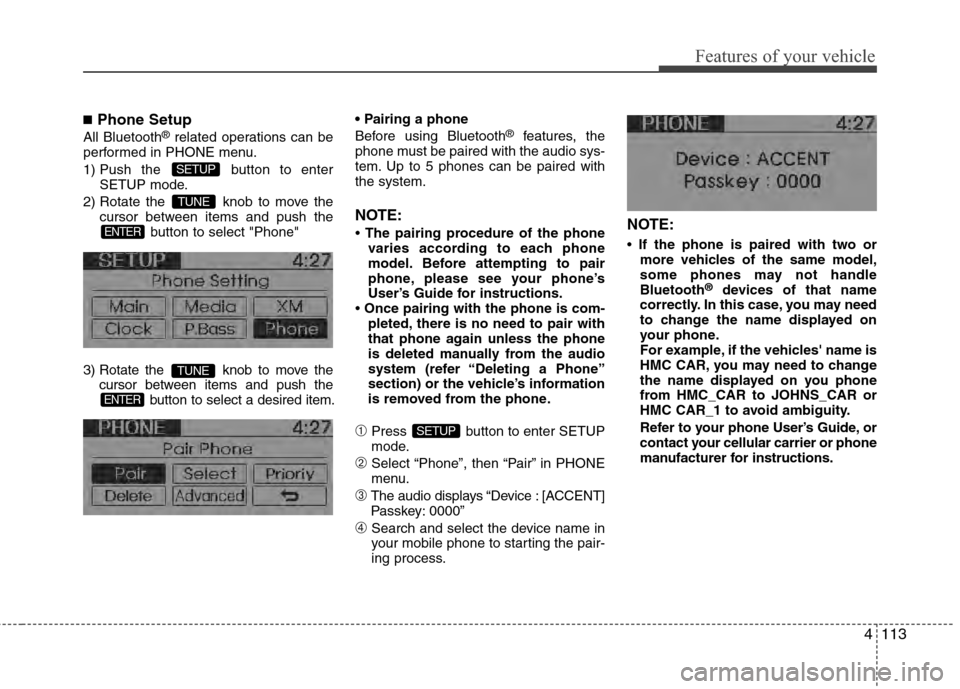
■Phone Setup
All Bluetooth®related operations can be
performed in PHONE menu.
1) Push the button to enter SETUP mode.
2) Rotate the knob to move the cursor between items and push the button to select "Phone"
3) Rotate the knob to move the cursor between items and push the button to select a desired item.
Before using Bluetooth®features, the
phone must be paired with the audio sys-
tem. Up to 5 phones can be paired with
the system.
NOTE:
• The pairing procedure of the phone varies according to each phone
model. Before attempting to pair
phone, please see your phone’s
User’s Guide for instructions.
• Once pairing with the phone is com- pleted, there is no need to pair with
that phone again unless the phone
is deleted manually from the audio
system (refer “Deleting a Phone”
section) or the vehicle’s information
is removed from the phone.
\bPress button to enter SETUP
mode.
➁Select “Phone”, then “Pair” in PHONE
menu.
➂The audio displays “Device : [ACCENT]
Passkey: 0000”
➃Search and select the device name in
your mobile phone to starting the pair-
ing process.
NOTE:
• If the phone is paired with two ormore vehicles of the same model,
some phones may not handle
Bluetooth
®devices of that name
correctly. In this case, you may need
to change the name displayed on
your phone.
For example, if the vehicles' name is
HMC CAR, you may need to change
the name displayed on you phone
from HMC_CAR to JOHNS_CAR or
HMC CAR_1 to avoid ambiguity.
Refer to your phone User’s Guide, or
contact your cellular carrier or phone
manufacturer for instructions.
SETUP
ENTER
TUNE
ENTER
TUNE
SETUP
Page 192 of 370
Features of your vehicle
114
4
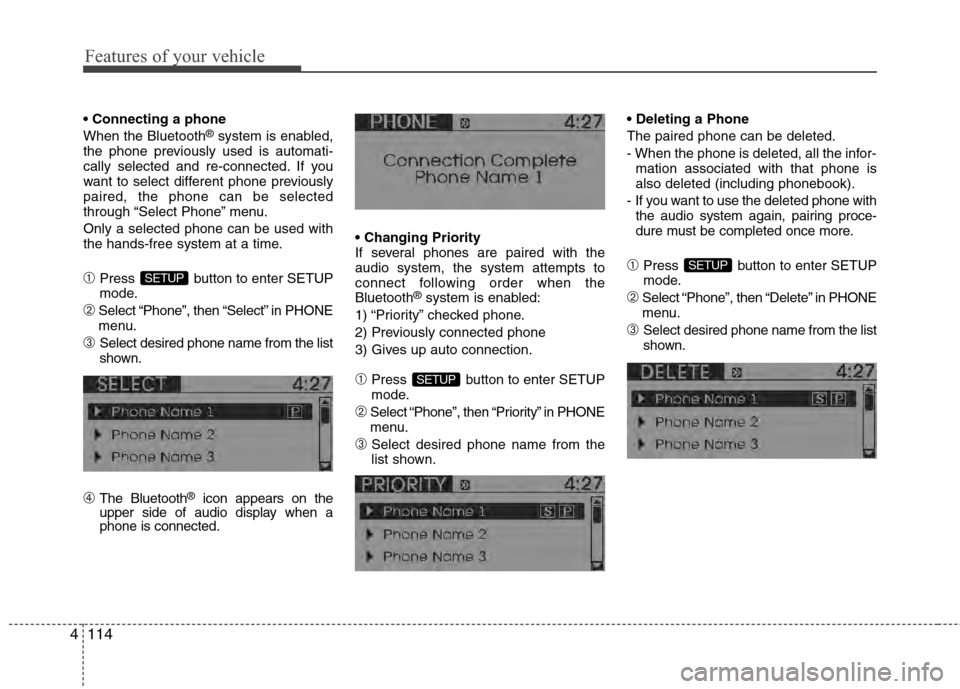
When the Bluetooth®system is enabled,
the phone previously used is automati-
cally selected and re-connected. If you
want to select different phone previously
paired, the phone can be selected
through “Select Phone” menu.
Only a selected phone can be used with
the hands-free system at a time.
\bPress button to enter SETUP
mode.
➁Select “Phone”, then “Select” in PHONE
menu.
➂Select desired phone name from the list
shown.
➃The Bluetooth®icon appears on the
upper side of audio display when a
phone is connected.
If several phones are paired with the
audio system, the system attempts to
connect following order when the
Bluetooth
®system is enabled:
1) “Priority” checked phone.
2) Previously connected phone
3) Gives up auto connection.
\bPress button to enter SETUP
mode.
➁Select “Phone”, then “Priority” in PHONE
menu.
➂Select desired phone name from the
list shown.
The paired phone can be deleted.
- When the phone is deleted, all the infor-
mation associated with that phone is
also deleted (including phonebook).
- If you want to use the deleted phone with the audio system again, pairing proce-
dure must be completed once more.
\bPress button to enter SETUP
mode.
➁Select “Phone”, then “Delete” in PHONE
menu.
➂Select desired phone name from the list
shown.
SETUP
SETUP
SETUP
Page 193 of 370
4115
Features of your vehicle
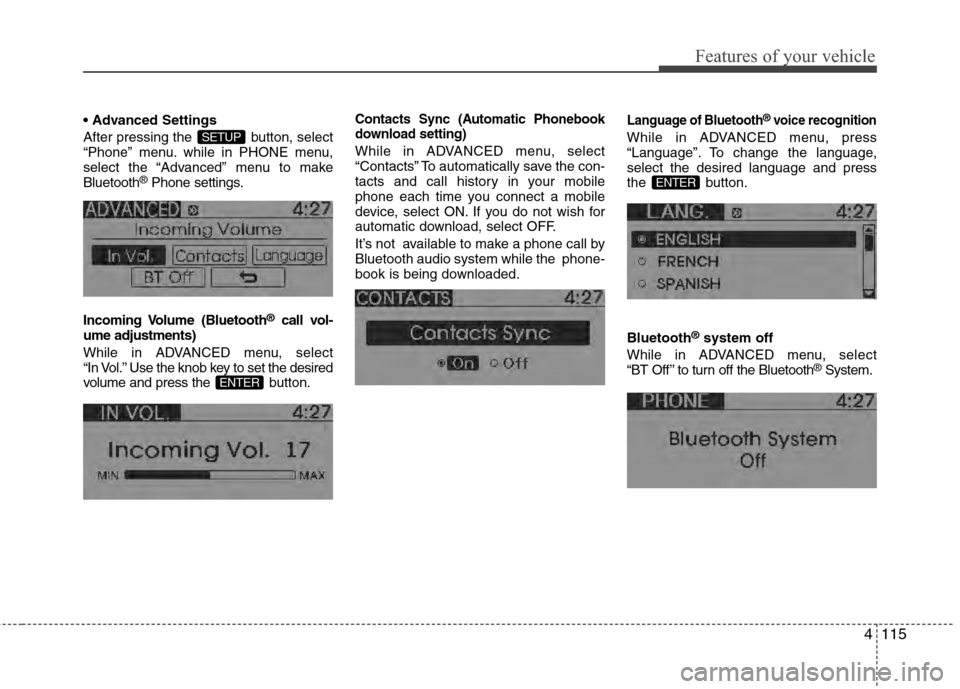
After pressing the button, select
“Phone” menu. while in PHONE menu,
select the “Advanced” menu to make
Bluetooth
®Phone settings.
Incoming Volume (Bluetooth
®call vol-
ume adjustments)
While in ADVANCED menu, select
“In Vol.” Use the knob key to set the desired
volume and press the b utton.
Contacts Sync (Automatic Phonebook
download setting)
While in ADVANCED menu, select
“Contacts” To automatically save the con-
tacts and call history in your mobile
phone each time you connect a mobile
device, select ON. If you do not wish for
automatic download, select OFF.
It’s not available to make a phone call by
Bluetooth audio system while the phone-
book is being downloaded.
Language of Bluetooth®voice recognition
While in ADVANCED menu, press
“Language”. To change the language,
select the desired language and press
the button.
Bluetooth
®system off
While in ADVANCED menu, select
“BT Off ” to turn off the Bluetooth
®System.
ENTER
ENTER
SETUP
Page 195 of 370
4117
Features of your vehicle
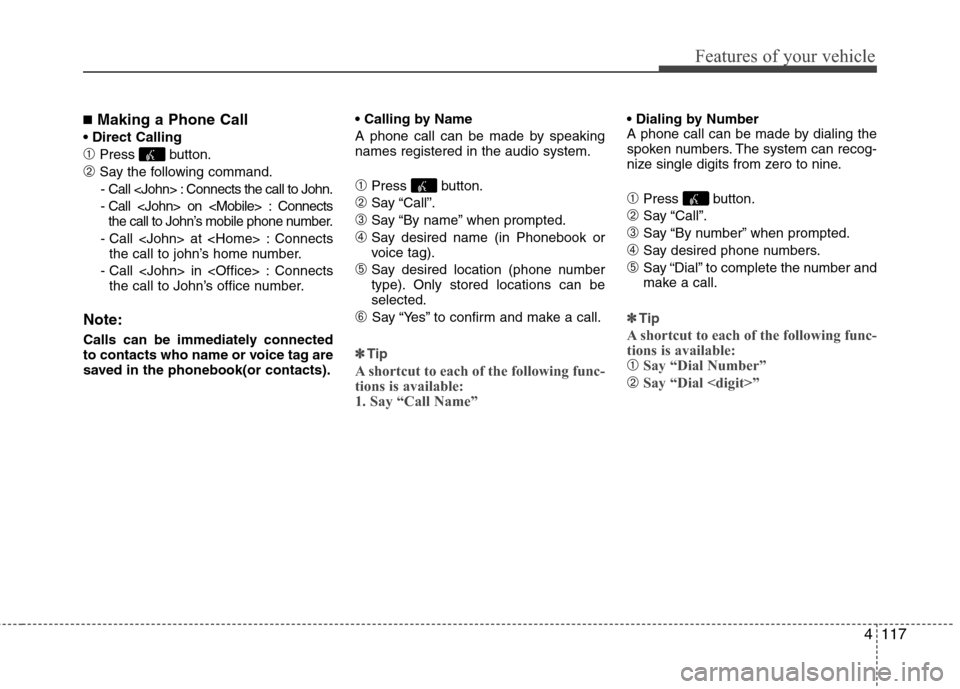
■Making a Phone Call
\bPress button.
➁Say the following command.- Call
- Call
- Call
- Call
Note:
Calls can be immediately connected
to contacts who name or voice tag are
saved in the phonebook(or contacts).
A phone call can be made by speaking
names registered in the audio system.
\bPress button.
➁Say “Call”.
➂Say “By name” when prompted.
➃Say desired name (in Phonebook or
voice tag).
\fSay desired location (phone number
type). Only stored locations can be
selected.
➅ Say “Yes” to confirm and make a call.
✽ ✽ Tip
A shortcut to each of the following func-
tions is available:
1. Say “Call Name”
A phone call can be made by dialing the
spoken numbers. The system can recog-
nize single digits from zero to nine.
\bPress button.
➁Say “Call”.
➂Say “By number” when prompted.
➃Say desired phone numbers.
\fSay “Dial” to complete the number and
make a call.
✽ ✽ Tip
A shortcut to each of the following func-
tions is available:
\bSay “Dial Number”
➁Say “Dial
Page 196 of 370
Features of your vehicle
118
4
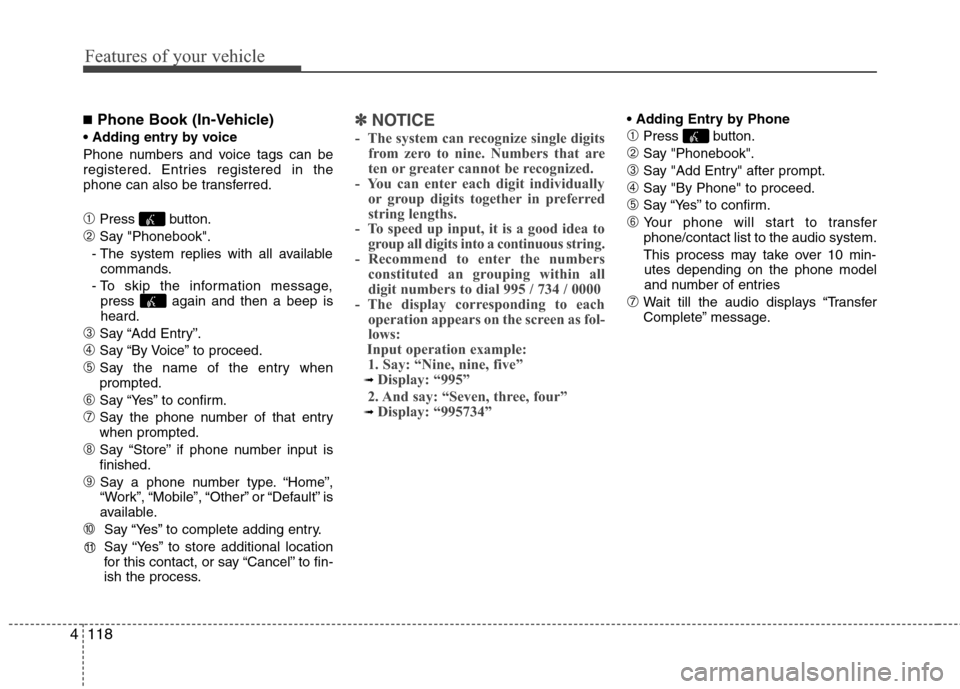
■Phone Book (In-Vehicle)
Phone numbers and voice tags can be
registered. Entries registered in the
phone can also be transferred.
\bPress button.
➁Say "Phonebook".
- The system replies with all available commands.
- To skip the information message, press again and then a beep is
heard.
➂Say “Add Entry”.
➃Say “By Voice” to proceed.
\fSay the name of the entry when
prompted.
➅Say “Yes” to confirm.
➆Say the phone number of that entry
when prompted.
➇Say “Store” if phone number input is
finished.
➈ Say a phone number type. “Home”,
“Work”, “Mobile”, “Other” or “Default” is
available.
➉ Say “Yes” to complete adding entry.
Say “Yes” to store additional location
for this contact, or say “Cancel” to fin-
ish the process.
✽ ✽ NOTICE
- The system can recognize single digits
from zero to nine. Numbers that are
ten or greater cannot be recognized.
- You can enter each digit individually or group digits together in preferred
string lengths.
- To speed up input, it is a good idea to group all digits into a continuous string.
- Recommend to enter the numbers constituted an grouping within all
digit numbers to dial 995 / 734 / 0000
- The display corresponding to each operation appears on the screen as fol-
lows:
Input operation example: 1. Say: “Nine, nine, five”
➟ Display: “995”
2. And say: “Seven, three, four”
➟ Display: “995734”
\bPress button.
➁Say "Phonebook".
➂Say "Add Entry" after prompt.
➃Say "By Phone" to proceed.
\fSay “Yes” to confirm.
➅ Your phone will start to transfer
phone/contact list to the audio system.
This process may take over 10 min- utes depending on the phone model
and number of entries
➆Wait till the audio displays “Transfer
Complete” message.
11
Page 197 of 370
4119
Features of your vehicle
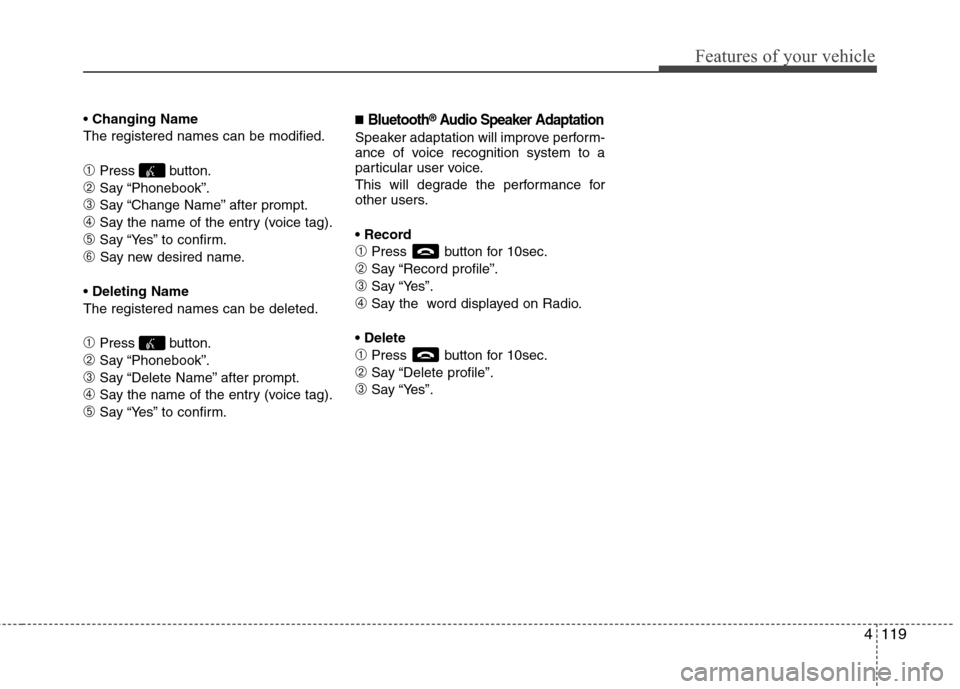
Changing Name
The registered names can be modified.
\bPress button.
➁Say “Phonebook”.
➂Say “Change Name” after prompt.
➃Say the name of the entry (voice tag).
\fSay “Yes” to confirm.
➅ Say new desired name.
Deleting Name
The registered names can be deleted.
\bPress button.
➁Say “Phonebook”.
➂Say “Delete Name” after prompt.
➃Say the name of the entry (voice tag).
\fSay “Yes” to confirm.
■Bluetooth®Audio Speaker Adaptation
Speaker adaptation will improve perform-
ance of voice recognition system to a
particular user voice.
This will degrade the performance for
other users.
\bPress button for 10sec.
➁Say “Record profile”.
➂Say “Yes”.
➃Say the word displayed on Radio.
\bPress button for 10sec.
➁Say “Delete profile”.
➂Say “Yes”.
Page 202 of 370
Driving your vehicle
45
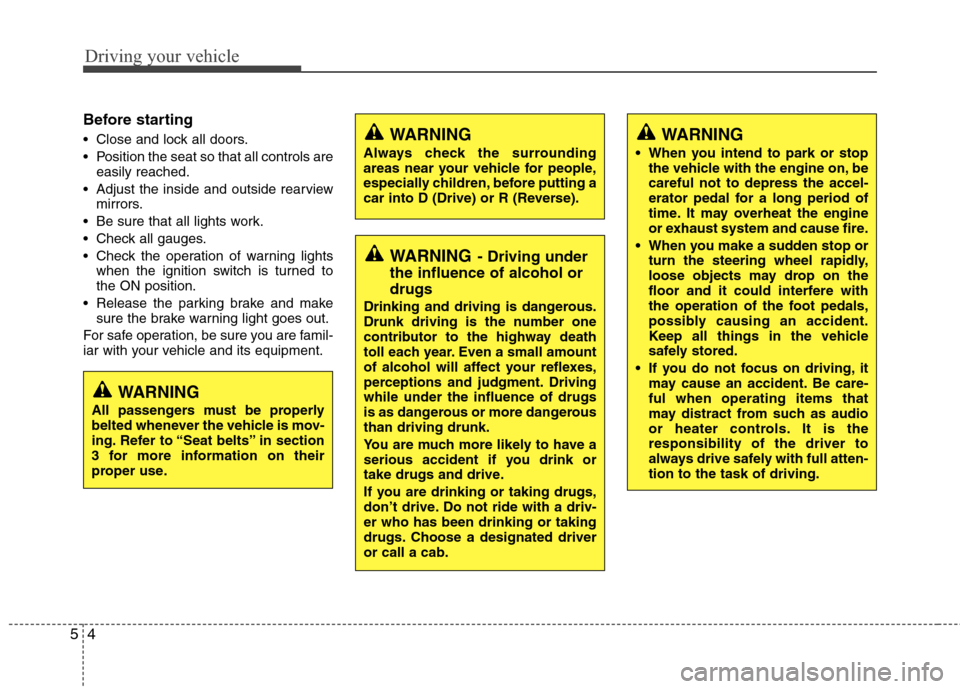
Before starting
Close and lock all doors.
Position the seat so that all controls areeasily reached.
Adjust the inside and outside rearview mirrors.
Be sure that all lights work.
Check all gauges.
Check the operation of warning lights when the ignition switch is turned to
the ON position.
Release the parking brake and make sure the brake warning light goes out.
For safe operation, be sure you are famil-
iar with your vehicle and its equipment.WARNING
Always check the surrounding
areas near your vehicle for people,
especially children, before putting a
car into D (Drive) or R (Reverse).
WARNING- Driving under
the influence of alcohol or
drugs
Drinking and driving is dangerous.
Drunk driving is the number one
contributor to the highway death
toll each year. Even a small amount
of alcohol will affect your reflexes,
perceptions and judgment. Driving
while under the influence of drugs
is as dangerous or more dangerous
than driving drunk.
You are much more likely to have a
serious accident if you drink or
take drugs and drive.
If you are drinking or taking drugs,
don’t drive. Do not ride with a driv-
er who has been drinking or taking
drugs. Choose a designated driver
or call a cab.
WARNING
When you intend to park or stop
the vehicle with the engine on, be
careful not to depress the accel-
erator pedal for a long period of
time. It may overheat the engine
or exhaust system and cause fire.
When you make a sudden stop or turn the steering wheel rapidly,
loose objects may drop on the
floor and it could interfere with
the operation of the foot pedals,
possibly causing an accident.
Keep all things in the vehicle
safely stored.
If you do not focus on driving, it may cause an accident. Be care-
ful when operating items that
may distract from such as audio
or heater controls. It is the
responsibility of the driver to
always drive safely with full atten-
tion to the task of driving.
WARNING
All passengers must be properly
belted whenever the vehicle is mov-
ing. Refer to “Seat belts” in section
3 for more information on their
proper use.
Page 311 of 370
Maintenance
36
7
Reset items
Items should be reset after the battery
has been discharged or the battery has
been disconnected.
Auto up/down window (See section 4)
Sunroof (See section 4)
Trip computer (See section 4)
Climate control system
(See section 4)
Clock (See section 4)
Audio (See section 4)WARNING
Before performing maintenance or recharging the battery, turn off
all accessories and stop the
engine.
The negative battery cable must be removed first and installed
last when the battery is discon-
nected.
Operation related to the battery should be done in an authorized
HYUNDAI dealer.
WARNING- Rechargingbattery
When recharging the battery,
observe the following precautions:
The battery must be removed
from the vehicle and placed in an
area with good ventilation.
Do not allow cigarettes, sparks, or flame near the battery.
Watch the battery during charg- ing, and stop or reduce the charg-
ing rate if the battery cells begin
gassing (boiling) violently or if
the temperature of the electrolyte
of any cell exceeds 120°F (49°C).
Wear eye protection when check- ing the battery during charging.
Disconnect the battery charger in the following order.
1. Turn off the battery charger main switch.
2. Unhook the negative clamp from the negative battery terminal.
3. Unhook the positive clamp from the positive battery terminal.
Page 327 of 370
Maintenance
52
7
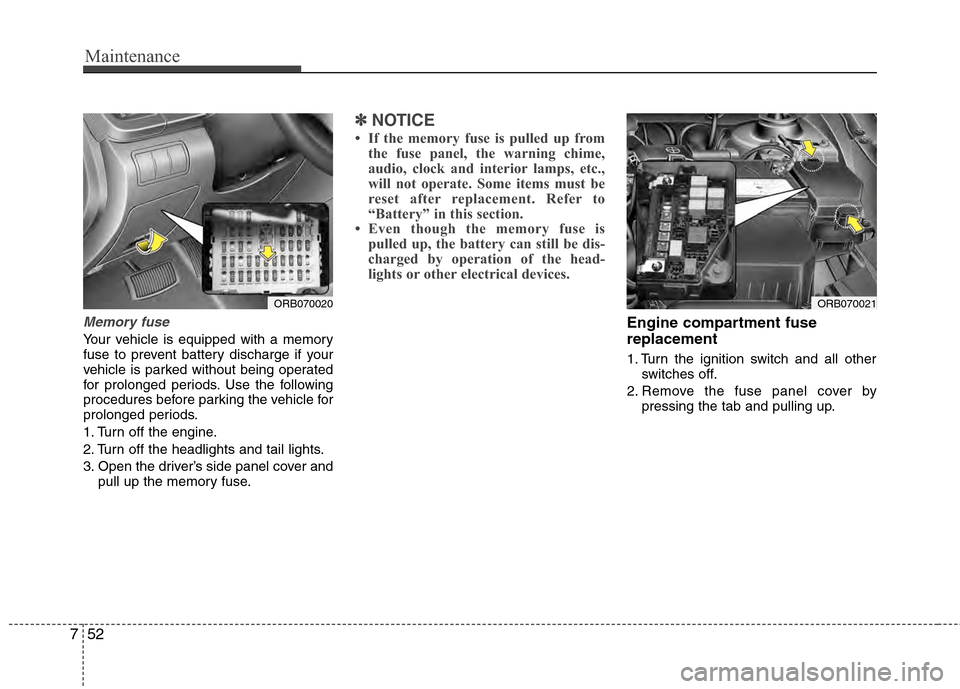
Memory fuse
Your vehicle is equipped with a memory
fuse to prevent battery discharge if your
vehicle is parked without being operated
for prolonged periods. Use the following
procedures before parking the vehicle for
prolonged periods.
1. Turn off the engine.
2. Turn off the headlights and tail lights.
3. Open the driver’s side panel cover and
pull up the memory fuse.
✽ ✽NOTICE
• If the memory fuse is pulled up from
the fuse panel, the warning chime,
audio, clock and interior lamps, etc.,
will not operate. Some items must be
reset after replacement. Refer to
“Battery” in this section.
• Even though the memory fuse is pulled up, the battery can still be dis-
charged by operation of the head-
lights or other electrical devices.
Engine compartment fuse
replacement
1. Turn the ignition switch and all other
switches off.
2. Remove the fuse panel cover by pressing the tab and pulling up.
ORB070020ORB070021