my music Hyundai Accent 2012 Owner's Manual
[x] Cancel search | Manufacturer: HYUNDAI, Model Year: 2012, Model line: Accent, Model: Hyundai Accent 2012Pages: 370
Page 177 of 370
499
Features of your vehicle
Using XM satellite Radio
Your vehicle is equipped with 3 months
complimentary period of XM Satellite
Radio. XM provides access to over 130
channels of music, information, and
entertainment programming.
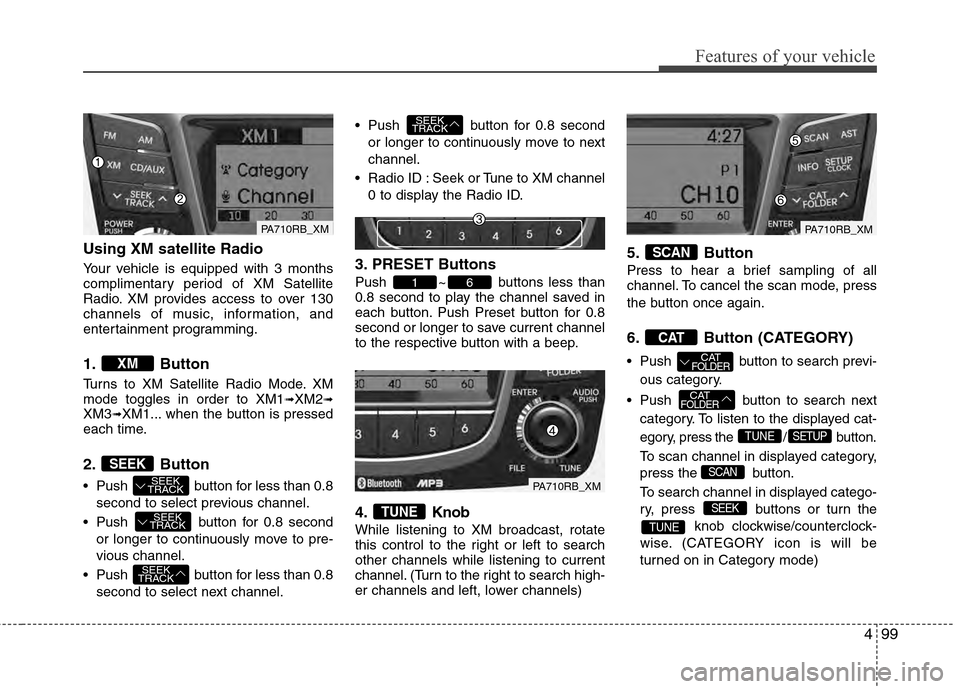
1. Button
Turns to XM Satellite Radio Mode. XM
mode toggles in order to XM1➟XM2➟XM3➟XM1... when the button is pressed
each time.
2. Button
Push button for less than 0.8
second to select previous channel.
Push button for 0.8 second or longer to continuously move to pre-
vious channel.
Push button for less than 0.8 second to select next channel. Push button for 0.8 second
or longer to continuously move to next
channel.
Radio ID : Seek or Tune to XM channel 0 to display the Radio ID.
3. PRESET Buttons
Push ~ buttons less than
0.8 second to play the channel saved in
each button. Push Preset button for 0.8
second or longer to save current channel
to the respective button with a beep.
4. Knob
While listening to XM broadcast, rotate
this control to the right or left to search
other channels while listening to current
channel. (Turn to the right to search high-
er channels and left, lower channels)
5. Button
Press to hear a brief sampling of all
channel. To cancel the scan mode, press
the button once again.
6. Button (CATEGORY)
Push button to search previ-
ous category.
Push button to search next category. To listen to the displayed cat-
egory, press the / button.
To scan channel in displayed category,
press the button.
To search channel in displayed catego-
ry, press buttons or turn the knob clockwise/counterclock-
wise. (CATEGORY icon is will be
turned on in Category mode)
TUNE
SEEK
SCAN
SETUPTUNE
CATFOLDER
CATFOLDER
CAT
SCAN
TUNE
61
SEEK
TRACK
SEEK
TRACK
SEEK
TRACK
SEEK
TRACK
SEEK
XM
PA710RB_XMPA710RB_XM
PA710RB_XM
Page 182 of 370
Features of your vehicle
104
4
CAUTION IN USING
USB DEVICE
To use an external USB device,
make sure the device is not con-nected when starting up the vehi-cle. Connect the device afterstarting up.
If you start the engine when the USB device is connected, it maydamage the USB device. (USBflashdrives are very sensitive toelectric shock.)
If the engine is started up or turned off while the external USBdevice is connected, the externalUSB device may not work.
It may not play inauthentic MP3 or WMA files.
1) It can only play MP3 files with the compression rate between8Kbps~320Kbps.
2) It can only play WMA music files with the compression ratebetween 8Kbps~320Kbps.
Take precautions for static electrici- ty when connecting or disconnect-ing the external USB device.
(Continued)
(Continued) An encrypted MP3 PLAYER is not recognizable.
Depending on the condition of the external USB device, the con-nected external USB device canbe unrecognizable.
When the formatted byte/sector setting of External USB device isnot either 512BYTE or 2048BYTE,then the device will not be recog- nized.
Use only a USB device formatted to FAT 12/16/32.
USB devices without USB I/F authentication may not be recog-nizable.
Make sure the USB connection terminal does not come in contactwith the human body or otherobjects.
If you repeatedly connect or dis- connect the USB device in a shortperiod of time, it may break thedevice.
You may hear a strange noise when connecting or disconnect-ing a USB device.
(Continued)(Continued) If you disconnect the external USB device during playback in USBmode, the external USB device canbe damaged or may malfunction. Therefore, disconnect the externalUSB device when the audio is turned off or in another mode. (e.g,Radio, XM or CD)
Depending on the type and capacity of the external USB device or thetype of the files stored in the device, there is a difference in the timetaken for recognition of the device.
Do not use the USB device for pur- poses other than playing music files.
Playing videos through the USB isnot supported.
Use of USB accessories such as rechargers or heaters using USBI/F may lower performance or cause trouble.
If you use devices such as a USB hub purchased separately, thevehicle’s audio system may notrecognize the USB device. In that case, connect the USB devicedirectly to the multimedia termi-nal of the vehicle.
(Continued)
Page 183 of 370
4105
Features of your vehicle
(Continued) If the USB device is divided by logical drives, only the music fileson the highest-priority drive arerecognized by car audio.
Devices such as MP3 Player/ Cellular phone/Digital camera canbe unrecognizable by standardUSB I/F can be unrecognizable.
Charging through the USB may not be supported in some mobiledevices.
❋ A car exclusive cable (sold sep-arately) is required to use theiPod.
Some non-standard USB devices (METAL COVER TYPE USB) can beunrecognizable.
Some USB flash memory readers (such as CF, SD, microSD, etc.) orexternal-HDD type devices can beunrecognizable.
Music files protected by DRM (DIGITAL RIGHTS MANAGEMENT)are not recognizable.
The data in the USB memory may be lost while using this audio.Always back up important data on a personal storage device.
(Continued)
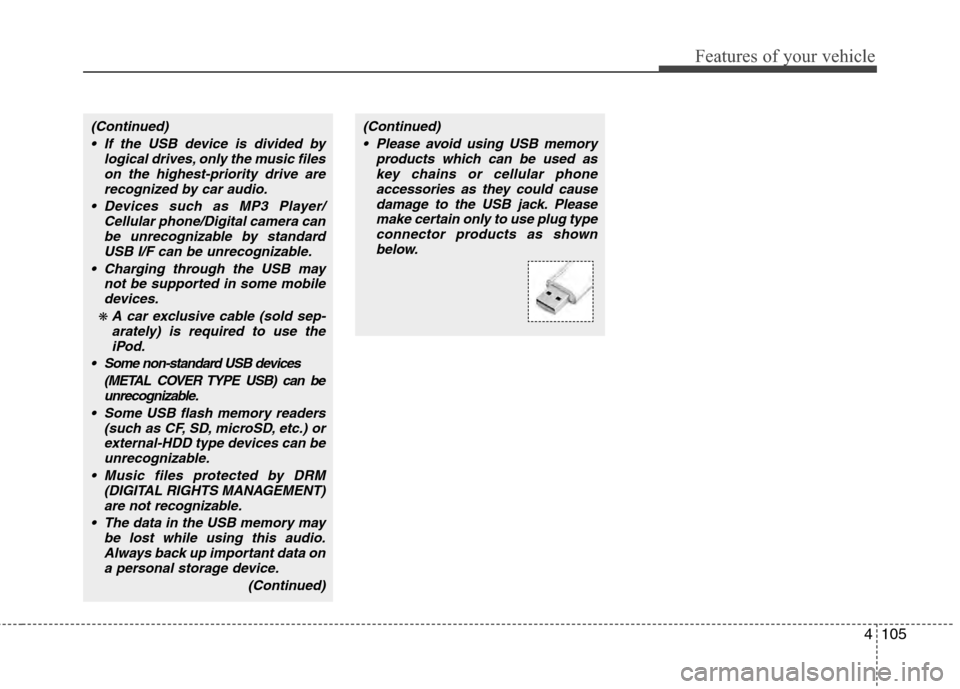
(Continued) Please avoid using USB memory products which can be used askey chains or cellular phoneaccessories as they could causedamage to the USB jack. Pleasemake certain only to use plug type connector products as shownbelow.
Page 189 of 370
4111
Features of your vehicle
BLUETOOTH®PHONE OPERATION
(if equipped)
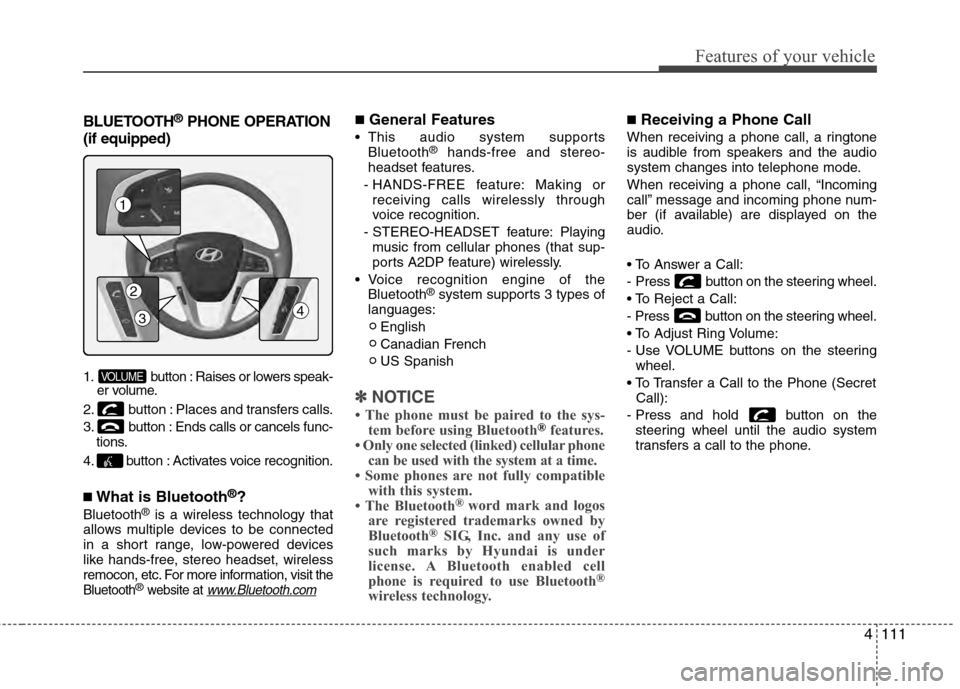
1. button : Raises or lowers speak- er volume.
2. button : Places and transfers calls.
3. button : Ends calls or cancels func- tions.
4. button : Activates voice recognition.
■What is Bluetooth®?
Bluetooth®is a wireless technology that
allows multiple devices to be connected
in a short range, low-powered devices
like hands-free, stereo headset, wireless
remocon, etc. For more information, visit
the
Bluetooth®website at www.Bluetooth.com
■General Features
This audio system supports Bluetooth®hands-free and stereo-
headset features.
- HANDS-FREE feature: Making or receiving calls wirelessly through
voice recognition.
- STEREO-HEADSET feature: Playing music from cellular phones (that sup-
ports A2DP feature) wirelessly.
Voice recognition engine of the Bluetooth
®system supports 3 types of
languages:
English
Canadian French
US Spanish
✽ ✽ NOTICE
• The phone must be paired to the sys-
tem before using Bluetooth®features.
• Only one selected (linked) cellular phone can be used with the system at a time.
• Some phones are not fully compatible with this system.
• The Bluetooth
® word mark and logos
are registered trademarks owned by
Bluetooth
®SIG, Inc. and any use of
such marks by Hyundai is under
license. A Bluetooth enabled cell
phone is required to use Bluetooth
®
wireless technology.
■Receiving a Phone Call
When receiving a phone call, a ringtone
is audible from speakers and the audio
system changes into telephone mode.
When receiving a phone call, “Incoming
call” message and incoming phone num-
ber (if available) are displayed on the
audio.
- Press button on the steering wheel.
- Press button on the steering wheel.
- Use VOLUME buttons on the steering
wheel.
Call):
- Press and hold button on the steering wheel until the audio system
transfers a call to the phone.
VOLUME
1
4
2
3
Page 190 of 370
Features of your vehicle
112
4
■Talking on the Phone
When talking on the phone, “Active Call”
message and the other party’s phone
number (if available) are displayed on the
audio.
- Press button on the steering wheel.
✽ ✽
NOTICE
In the following situations, you or the
other party may have difficulty hearing
each other:
1. Speaking at the same time, your voice
may not reach each other parties. (This
is not a malfunction.) Speak alternate-
ly with the other party on the phone.
2. Keep the Bluetooth
®volume to a low
level. High-level volume may result in
distortion and echo.
3. When driving on a rough road.
4. When driving at high speeds.
5. When the window is open.
6. When the air conditioning vents are facing the microphone.
7. When the sound of the air condition- ing fan is loud.
■Bluetooth®Audio Music Streaming
The audio system supports Bluetooth®
A2DP (Audio Advanced Distribution
Profile) and AVRCP (Audio Video
Remote Control Profile) technologies.
Both profiles provide steaming of music
via compatible “PAIRED” Bluetooth
®
Cellular phone.
To stream music from the Bluetooth® cel-
lular phone, play your music files on your
cellular phone according to your cellular
phone user’s manual and press the button on the audio system until
“MP3 play” is displayed on the LCD.
The audio system head unit displays
‘MP3 MODE’.
NOTE:
all music and sound files your cellu-
lar phone supports can be played
by the audio system.
®compatible cellular
phones must include A2DP and
AVRCP capabilities.
AVRCP compatible Bluetooth
®cellular phones may not
play music through the audio sys-
tem initially. These cellular phones
may need to have the Bluetooth
®
streaming enabled, for example;
i.e : Menu
➟Filemanager➟Music➟Option➟Play via Bluetooth
cellular phone for more information.
To cancel Bluetooth
®cellular phone
music streaming, stop music play-
back on the cellular phone or
change the audio mode to AM, FM,
XM, CD, iPod, etc.
CD/AUX