display Hyundai Accent 2013 User Guide
[x] Cancel search | Manufacturer: HYUNDAI, Model Year: 2013, Model line: Accent, Model: Hyundai Accent 2013Pages: 402, PDF Size: 8.49 MB
Page 176 of 402
Features of your vehicle
106 4
Defogging logic
To reduce the probability of fogging up
the inside of the windshield, the air intake
or air conditioning are controlled auto-
matically according to certain conditions
such as or position. To cancel or
return the defogging logic, do the follow-
ing.
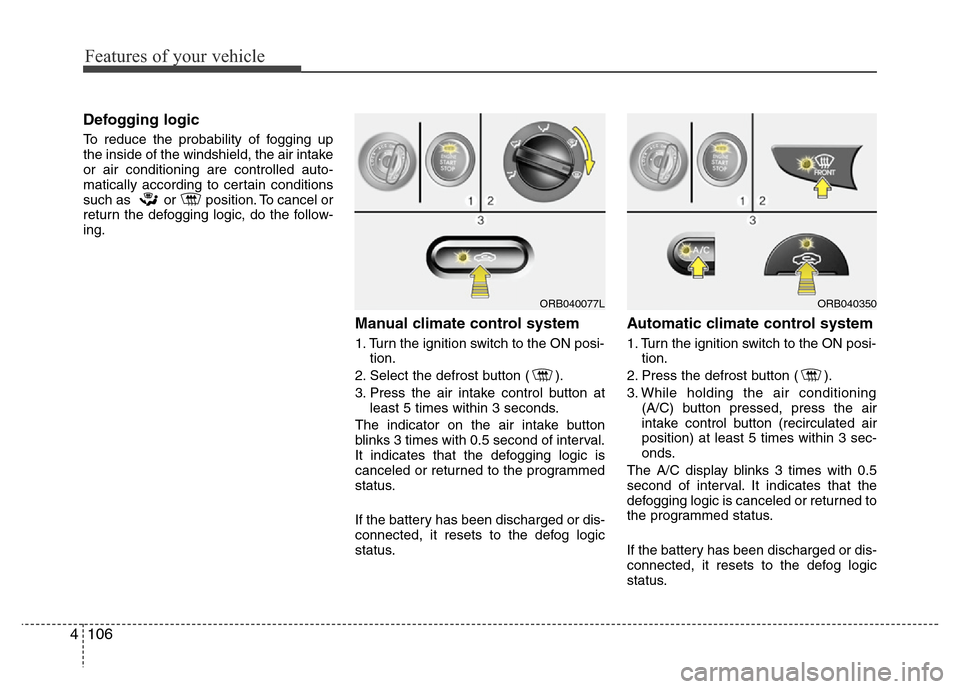
Manual climate control system
1. Turn the ignition switch to the ON posi-
tion.
2. Select the defrost button ( ).
3. Press the air intake control button at
least 5 times within 3 seconds.
The indicator on the air intake button
blinks 3 times with 0.5 second of interval.
It indicates that the defogging logic is
canceled or returned to the programmed
status.
If the battery has been discharged or dis-
connected, it resets to the defog logic
status.
Automatic climate control system
1. Turn the ignition switch to the ON posi-
tion.
2. Press the defrost button ( ).
3. While holding the air conditioning
(A/C) button pressed, press the air
intake control button (recirculated air
position) at least 5 times within 3 sec-
onds.
The A/C display blinks 3 times with 0.5
second of interval. It indicates that the
defogging logic is canceled or returned to
the programmed status.
If the battery has been discharged or dis-
connected, it resets to the defog logic
status.
ORB040077LORB040350
Page 182 of 402
Features of your vehicle
112 4
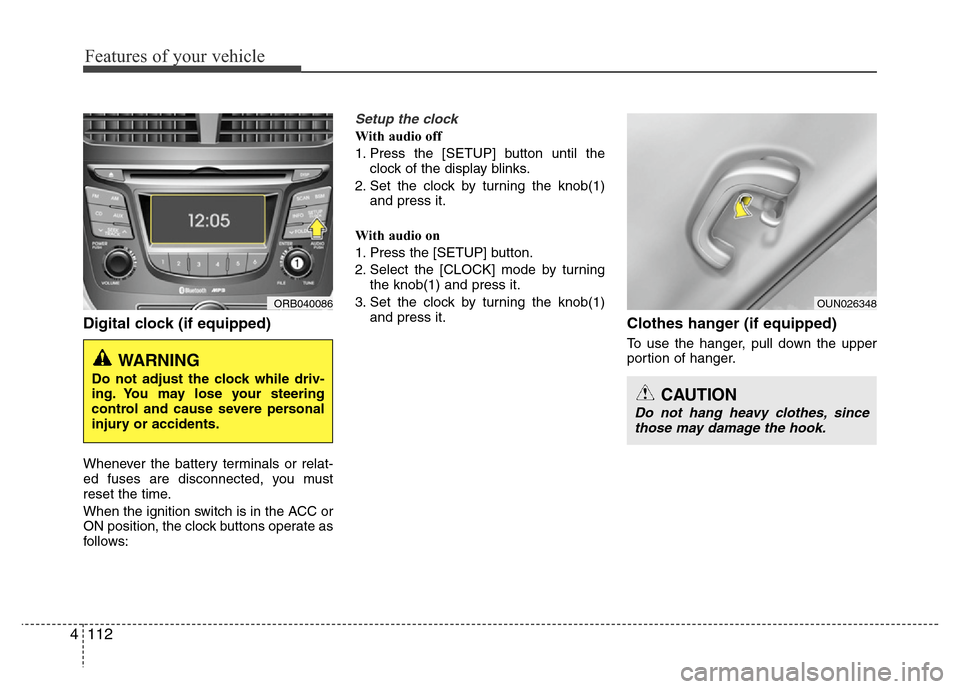
Digital clock (if equipped)
Whenever the battery terminals or relat-
ed fuses are disconnected, you must
reset the time.
When the ignition switch is in the ACC or
ON position, the clock buttons operate as
follows:
Setup the clock
With audio off
1. Press the [SETUP] button until the
clock of the display blinks.
2. Set the clock by turning the knob(1)
and press it.
With audio on
1. Press the [SETUP] button.
2. Select the [CLOCK] mode by turning
the knob(1) and press it.
3. Set the clock by turning the knob(1)
and press it.
Clothes hanger (if equipped)
To use the hanger, pull down the upper
portion of hanger.
ORB040086
WARNING
Do not adjust the clock while driv-
ing. You may lose your steering
control and cause severe personal
injury or accidents.
OUN026348
CAUTION
Do not hang heavy clothes, since
those may damage the hook.
Page 192 of 402
Features of your vehicle
122 4
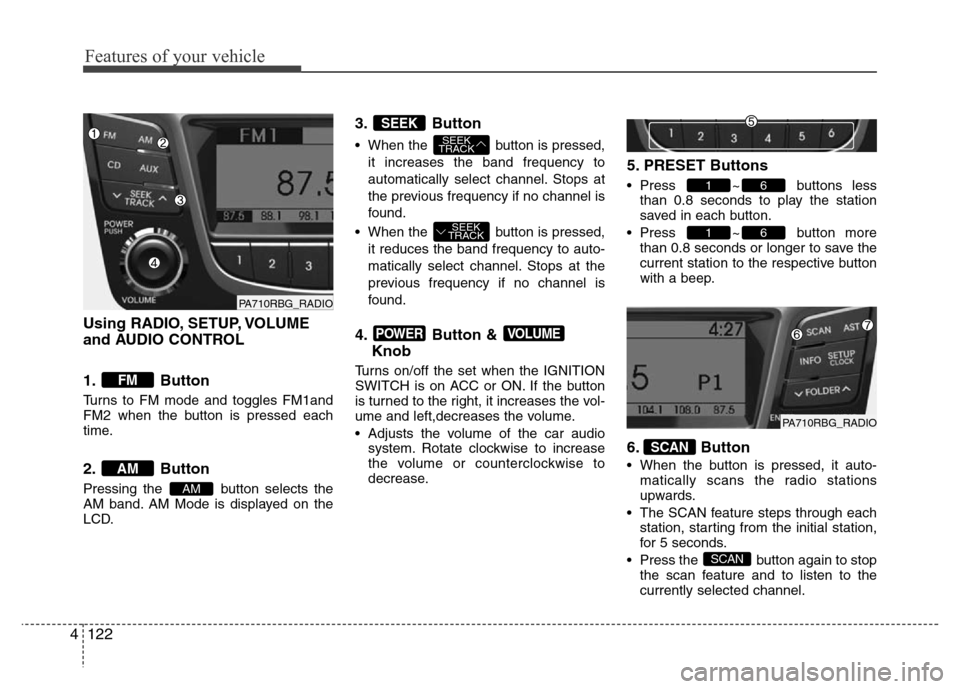
Using RADIO, SETUP, VOLUME
and AUDIO CONTROL
1. Button
Turns to FM mode and toggles FM1and
FM2 when the button is pressed each
time.
2. Button
Pressing the button selects the
AM band. AM Mode is displayed on the
LCD.
3. Button
• When the button is pressed,
it increases the band frequency to
automatically select channel. Stops at
the previous frequency if no channel is
found.
• When the button is pressed,
it reduces the band frequency to auto-
matically select channel. Stops at the
previous frequency if no channel is
found.
4. Button &
Knob
Turns on/off the set when the IGNITION
SWITCH is on ACC or ON. If the button
is turned to the right, it increases the vol-
ume and left,decreases the volume.
• Adjusts the volume of the car audio
system. Rotate clockwise to increase
the volume or counterclockwise to
decrease.
5. PRESET Buttons
• Press ~ buttons less
than 0.8 seconds to play the station
saved in each button.
• Press ~ button more
than 0.8 seconds or longer to save the
current station to the respective button
with a beep.
6. Button
• When the button is pressed, it auto-
matically scans the radio stations
upwards.
• The SCAN feature steps through each
station, starting from the initial station,
for 5 seconds.
• Press the button again to stop
the scan feature and to listen to the
currently selected channel.
SCAN
SCAN
61
61
VOLUMEPOWER
SEEK
TRACK
SEEK
TRACK
SEEK
AM
AM
FM
PA710RBG_RADIO
PA710RBG_RADIO
Page 193 of 402
4123
Features of your vehicle
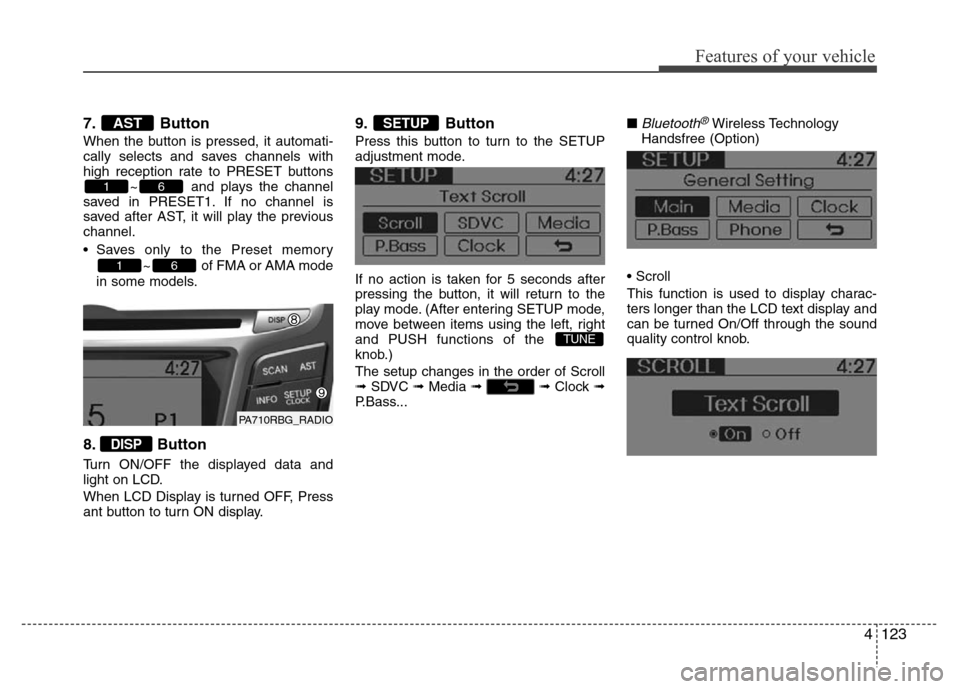
7. Button
When the button is pressed, it automati-
cally selects and saves channels with
high reception rate to PRESET buttons
~ and plays the channel
saved in PRESET1. If no channel is
saved after AST, it will play the previous
channel.
• Saves only to the Preset memory
~ of FMA or AMA mode
in some models.
8. Button
Turn ON/OFF the displayed data and
light on LCD.
When LCD Display is turned OFF, Press
ant button to turn ON display.
9. Button
Press this button to turn to the SETUP
adjustment mode.
If no action is taken for 5 seconds after
pressing the button, it will return to the
play mode. (After entering SETUP mode,
move between items using the left, right
and PUSH functions of the
knob.)
The setup changes in the order of Scroll
➟ SDVC ➟ Media ➟ ➟ Clock ➟
P.Bass...■
Bluetooth®Wireless Technology
Handsfree (Option)
• Scroll
This function is used to display charac-
ters longer than the LCD text display and
can be turned On/Off through the sound
quality control knob.
TUNE
SETUP
DISP
61
61
AST
PA710RBG_RADIO
Page 194 of 402
Features of your vehicle
124 4
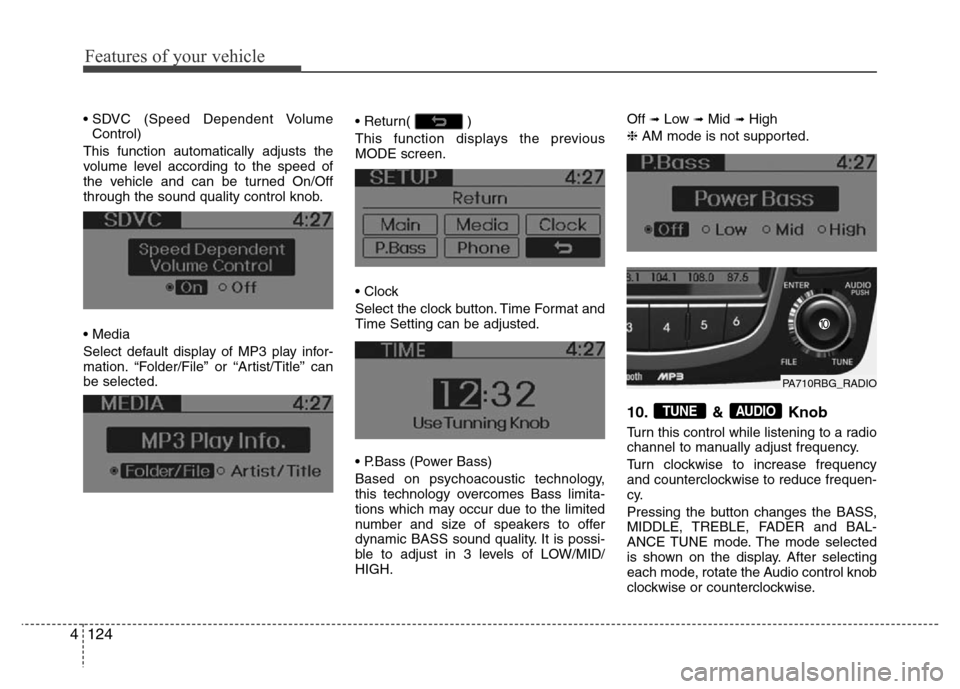
• SDVC (Speed Dependent Volume
Control)
This function automatically adjusts the
volume level according to the speed of
the vehicle and can be turned On/Off
through the sound quality control knob.
• Media
Select default display of MP3 play infor-
mation. “Folder/File” or “Artist/Title” can
be selected.• Return( )
This function displays the previous
MODE screen.
• Clock
Select the clock button. Time Format and
Time Setting can be adjusted.
• P.Bass (Power Bass)
Based on psychoacoustic technology,
this technology overcomes Bass limita-
tions which may occur due to the limited
number and size of speakers to offer
dynamic BASS sound quality. It is possi-
ble to adjust in 3 levels of LOW/MID/
HIGH.Off ➟Low ➟Mid ➟High
❈AM mode is not supported.
10. & Knob
Turn this control while listening to a radio
channel to manually adjust frequency.
Turn clockwise to increase frequency
and counterclockwise to reduce frequen-
cy.
Pressing the button changes the BASS,
MIDDLE, TREBLE, FADER and BAL-
ANCE TUNE mode. The mode selected
is shown on the display. After selecting
each mode, rotate the Audio control knob
clockwise or counterclockwise.
AUDIOTUNE
PA710RBG_RADIO
Page 196 of 402
Features of your vehicle
126 4
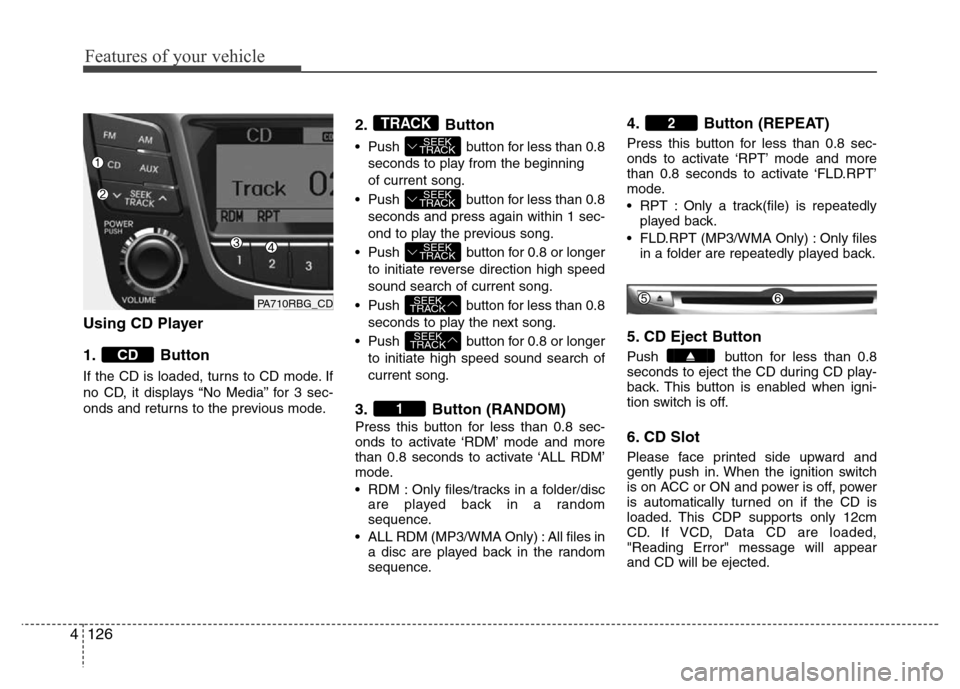
Using CD Player
1. Button
If the CD is loaded, turns to CD mode. If
no CD, it displays “No Media” for 3 sec-
onds and returns to the previous mode.
2. Button
• Push button for less than 0.8
seconds to play from the beginning
of current song.
• Push button for less than 0.8
seconds and press again within 1 sec-
ond to play the previous song.
• Push button for 0.8 or longer
to initiate reverse direction high speed
sound search of current song.
• Push button for less than 0.8
seconds to play the next song.
• Push button for 0.8 or longer
to initiate high speed sound search of
current song.
3. Button (RANDOM)
Press this button for less than 0.8 sec-
onds to activate ‘RDM’ mode and more
than 0.8 seconds to activate ‘ALL RDM’
mode.
• RDM : Only files/tracks in a folder/disc
are played back in a random
sequence.
• ALL RDM (MP3/WMA Only) : All files in
a disc are played back in the random
sequence.
4. Button (REPEAT)
Press this button for less than 0.8 sec-
onds to activate ‘RPT’ mode and more
than 0.8 seconds to activate ‘FLD.RPT’
mode.
• RPT : Only a track(file) is repeatedly
played back.
• FLD.RPT (MP3/WMA Only) : Only files
in a folder are repeatedly played back.
5. CD Eject Button
Push button for less than 0.8
seconds to eject the CD during CD play-
back. This button is enabled when igni-
tion switch is off.
6. CD Slot
Please face printed side upward and
gently push in. When the ignition switch
is on ACC or ON and power is off, power
is automatically turned on if the CD is
loaded. This CDP supports only 12cm
CD. If VCD, Data CD are loaded,
"Reading Error" message will appear
and CD will be ejected.
2
1
SEEK
TRACK
SEEK
TRACK
SEEK
TRACK
SEEK
TRACK
SEEK
TRACK
TRACK
CD
PA710RBG_CD
Page 197 of 402
4127
Features of your vehicle
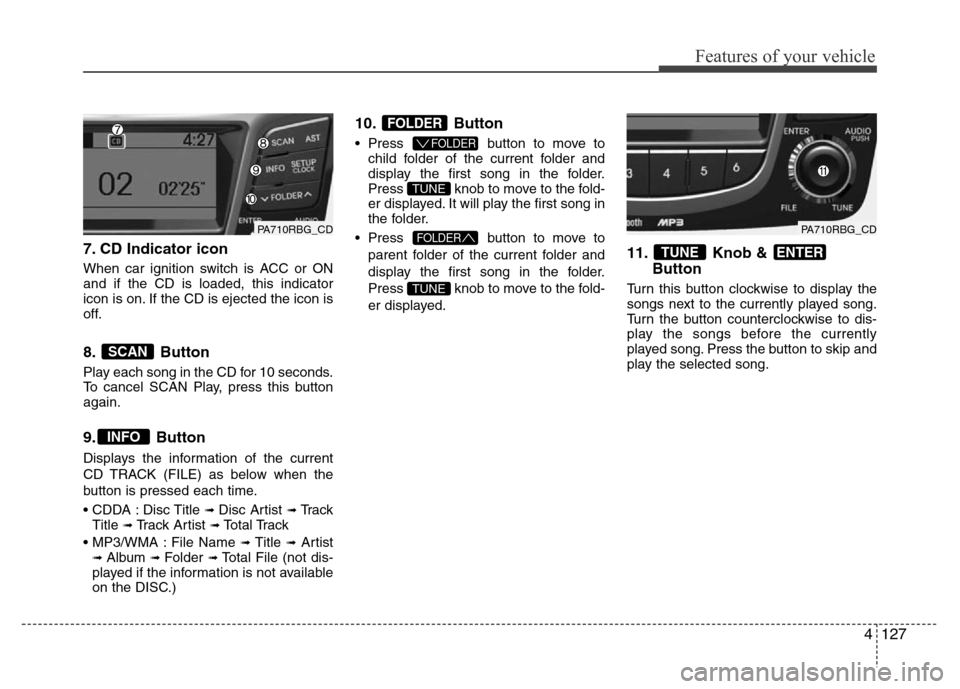
7. CD Indicator icon
When car ignition switch is ACC or ON
and if the CD is loaded, this indicator
icon is on. If the CD is ejected the icon is
off.
8. Button
Play each song in the CD for 10 seconds.
To cancel SCAN Play, press this button
again.
9. Button
Displays the information of the current
CD TRACK (FILE) as below when the
button is pressed each time.
• CDDA : Disc Title
➟ Disc Artist ➟Tr a c k
Title ➟ Track Artist ➟Total Track
• MP3/WMA : File Name
➟ Title ➟Artist➟ Album ➟ Folder ➟Total File (not dis-
played if the information is not available
on the DISC.)
10. Button
• Press button to move to
child folder of the current folder and
display the first song in the folder.
Press knob to move to the fold-
er displayed. It will play the first song in
the folder.
• Press button to move to
parent folder of the current folder and
display the first song in the folder.
Press knob to move to the fold-
er displayed.
11. Knob &
Button
Turn this button clockwise to display the
songs next to the currently played song.
Turn the button counterclockwise to dis-
play the songs before the currently
played song. Press the button to skip and
play the selected song.
ENTERTUNE
TUNE
FOLDER
TUNE
FOLDER
FOLDER
INFO
SCAN
PA710RBG_CDPA710RBG_CD
Page 198 of 402
Features of your vehicle
128 4
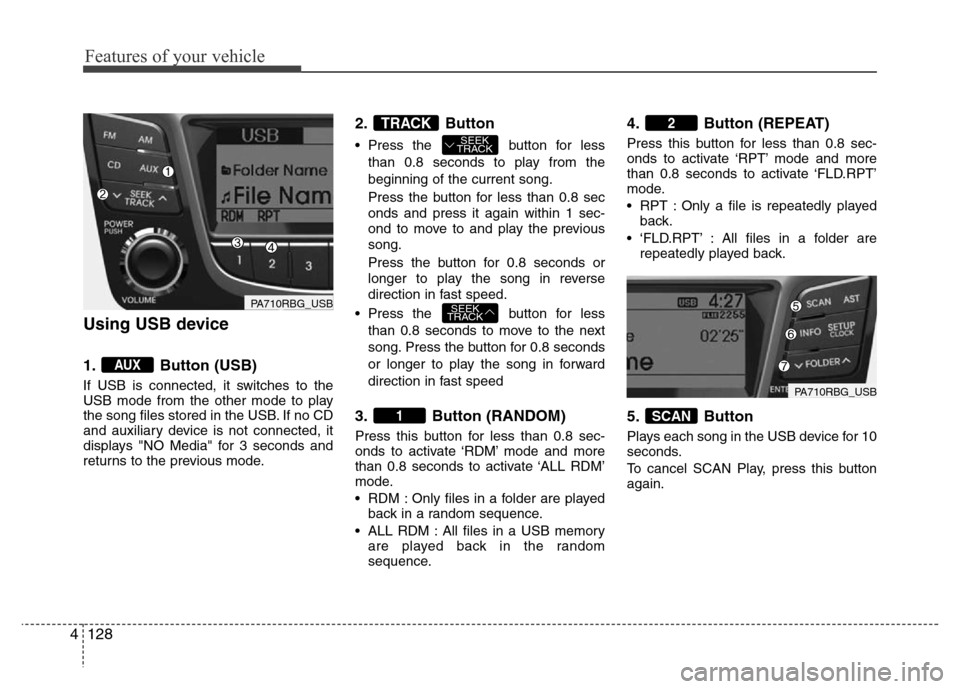
Using USB device
1. Button (USB)
If USB is connected, it switches to the
USB mode from the other mode to play
the song files stored in the USB. If no CD
and auxiliary device is not connected, it
displays "NO Media" for 3 seconds and
returns to the previous mode.
2. Button
• Press the button for less
than 0.8 seconds to play from the
beginning of the current song.
Press the button for less than 0.8 sec
onds and press it again within 1 sec-
ond to move to and play the previous
song.
Press the button for 0.8 seconds or
longer to play the song in reverse
direction in fast speed.
• Press the button for less
than 0.8 seconds to move to the next
song. Press the button for 0.8 seconds
or longer to play the song in forward
direction in fast speed
3. Button (RANDOM)
Press this button for less than 0.8 sec-
onds to activate ‘RDM’ mode and more
than 0.8 seconds to activate ‘ALL RDM’
mode.
• RDM : Only files in a folder are played
back in a random sequence.
• ALL RDM : All files in a USB memory
are played back in the random
sequence.
4. Button (REPEAT)
Press this button for less than 0.8 sec-
onds to activate ‘RPT’ mode and more
than 0.8 seconds to activate ‘FLD.RPT’
mode.
• RPT : Only a file is repeatedly played
back.
• ‘FLD.RPT’ : All files in a folder are
repeatedly played back.
5. Button
Plays each song in the USB device for 10
seconds.
To cancel SCAN Play, press this button
again.
SCAN
2
1
SEEK
TRACK
SEEK
TRACKTRACK
AUX
PA710RBG_USB
PA710RBG_USB
Page 199 of 402
4129
Features of your vehicle
6. Button
Displays the information of the file cur-
rently played in the order of File Name ➟
Title ➟ Artist ➟ Album ➟ Folder ➟ Total
File ➟ Normal Display ➟ File Name...
(Displays no information if the file has no
song information.)
7. Button
• Press button to move to
child folder of the current folder and
display the first song in the folder.
Press / knob to move
to the folder displayed. It will play the
first song in the folder.
• Press button to move to
parent folder display the first song in
the folder.
Press / knob to move
to the folder displayed.
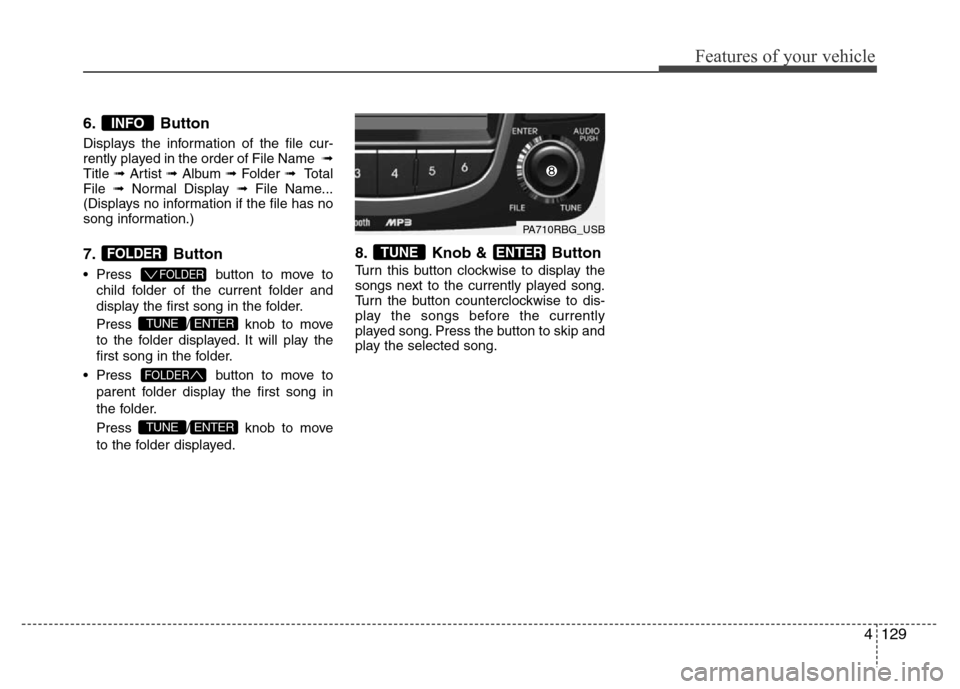
8. Knob & Button
Turn this button clockwise to display the
songs next to the currently played song.
Turn the button counterclockwise to dis-
play the songs before the currently
played song. Press the button to skip and
play the selected song.
ENTERTUNE
ENTERTUNE
FOLDER
ENTERTUNE
FOLDER
FOLDER
INFO
PA710RBG_USB
Page 202 of 402
Features of your vehicle
132 4
Using iPod®
❋iPod® is a trademark of Apple Inc.
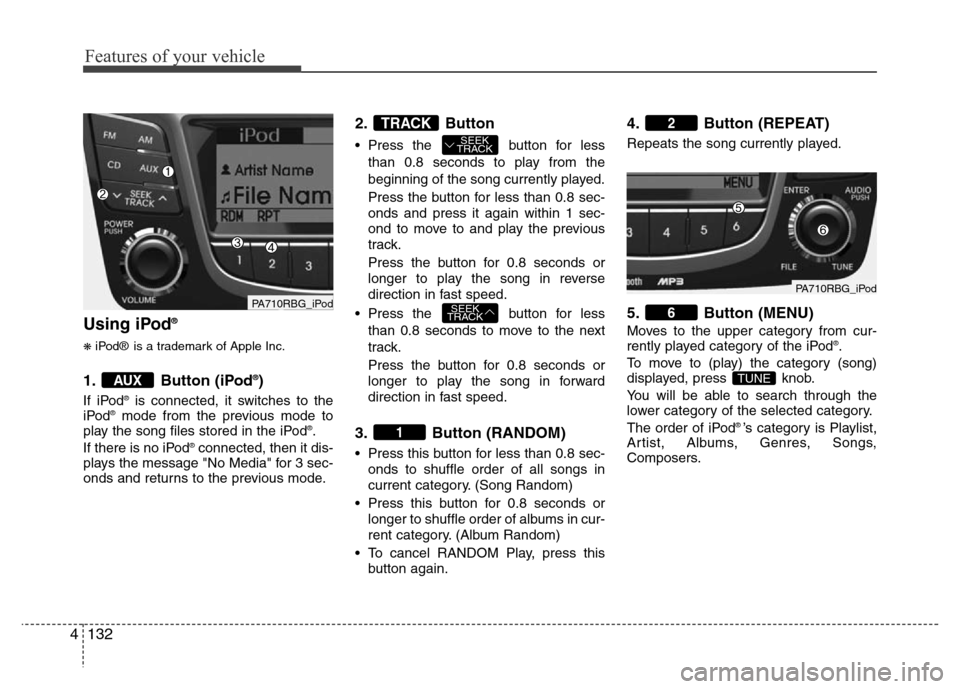
1. Button (iPod®)
If iPod®is connected, it switches to the
iPod®mode from the previous mode to
play the song files stored in the iPod®.
If there is no iPod®connected, then it dis-
plays the message "No Media" for 3 sec-
onds and returns to the previous mode.
2. Button
• Press the button for less
than 0.8 seconds to play from the
beginning of the song currently played.
Press the button for less than 0.8 sec-
onds and press it again within 1 sec-
ond to move to and play the previous
track.
Press the button for 0.8 seconds or
longer to play the song in reverse
direction in fast speed.
• Press the button for less
than 0.8 seconds to move to the next
track.
Press the button for 0.8 seconds or
longer to play the song in forward
direction in fast speed.
3. Button (RANDOM)
• Press this button for less than 0.8 sec-
onds to shuffle order of all songs in
current category. (Song Random)
• Press this button for 0.8 seconds or
longer to shuffle order of albums in cur-
rent category. (Album Random)
• To cancel RANDOM Play, press this
button again.
4. Button (REPEAT)
Repeats the song currently played.
5. Button (MENU)
Moves to the upper category from cur-
rently played category of the iPod®.
To move to (play) the category (song)
displayed, press knob.
You will be able to search through the
lower category of the selected category.
The order of iPod
® ’s category is Playlist,
Artist, Albums, Genres, Songs,
Composers.
TUNE
6
2
1
SEEK
TRACK
SEEK
TRACKTRACK
AUX
PA710RBG_iPodPA710RBG_iPod