ESP Hyundai Accent 2015 User Guide
[x] Cancel search | Manufacturer: HYUNDAI, Model Year: 2015, Model line: Accent, Model: Hyundai Accent 2015Pages: 406, PDF Size: 33.11 MB
Page 183 of 406
Features of your vehicle
106 4
✽
✽NOTICE - USING THE Voice
Recognition
• When using the voice recognition fea-
ture, only commands listed within the
user's manual are supported.
• Be aware that during the operation of
the voice recognition system, pressing
any key other than the key termi-
nate voice recognition mode.
• For superior voice recognition per-
formance, position the microphone
used for voice recognition above the
head of the driver’s seat and maintain
a proper position when saying com-
mands.
• Within the following situations, voice
recognition may not function properly
due to external sound.
- When the windows and sunroof are
open
- When the wind of the cooling / heat-
ing device is strong
- When entering and passing through
tunnels
(Continued)(Continued)
- When driving on rugged and
uneven roads
- During severe rain (heavy rains,
windstorms)
• Phone related voice commands can be
used only when a Bluetooth
®Wireless
Technology device is connected.
• When making calls by stating a name,
the corresponding contact must be
downloaded and stored within the
audio system.
• After downloading the Bluetooth
®
Wireless Technology phone book, it
takes some times to convert the phone
book data into voice information.
During this time, voice recognition
may not properly operate.
• Pronounce the voice commands natu-
rally and clearly as if in a normal con-
versation.
Page 191 of 406
![Hyundai Accent 2015 User Guide Features of your vehicle
114 4
SYSTEM SETTINGS
Press the key Select [System]
Select menu through TUNE knob
Memory Information
Displays currently used memory and
total system memory.
Select [Memory I](/img/35/14361/w960_14361-190.png "Hyundai Accent 2015 User Guide Features of your vehicle
114 4
SYSTEM SETTINGS
Press the key Select [System]
Select menu through TUNE knob
Memory Information
Displays currently used memory and
total system memory.
Select [Memory I")
Features of your vehicle
114 4
SYSTEM SETTINGS
Press the key Select [System]
Select menu through TUNE knob
Memory Information
Displays currently used memory and
total system memory.
Select [Memory Information] OK
The currently used memory is displayed
on the left side while the total system
memory is displayed on the right side.
Prompt Feedback
This feature is used to change voice
command feedback between Normal and
Expert modes.
Select [Prompt Feedback] Set through
TUNEknob
Normal(On) : This mode is for beginner
users and provides detailed instruc-
tions during voice command operation.
Expert(Off) : This mode is for expert
users and omits some information dur-
ing voice command operation. (When
using Expert mode, guidance instruc-
tions can be heard through the [Help]
or [Menu] commands.
Language
This menu is used to set the display and
voice recognition language.
Select [Language] Set through
TUNE knob
❈ The system will reboot after the lan-
guage is changed.
❈ Language support by region
- English, Francais, Espanol
SETUP
Page 192 of 406
4115
Features of your vehicle
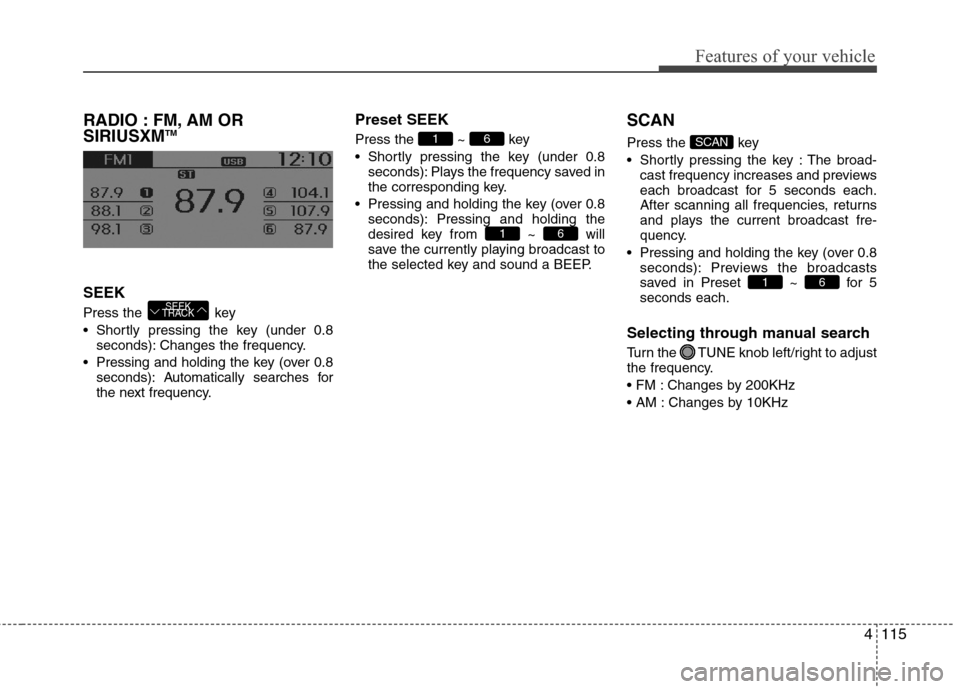
RADIO : FM, AM OR
SIRIUSXMTM
SEEK
Press the key
Shortly pressing the key (under 0.8
seconds): Changes the frequency.
Pressing and holding the key (over 0.8
seconds): Automatically searches for
the next frequency.
Preset SEEK
Press the ~ key
Shortly pressing the key (under 0.8
seconds): Plays the frequency saved in
the corresponding key.
Pressing and holding the key (over 0.8
seconds): Pressing and holding the
desired key from ~ will
save the currently playing broadcast to
the selected key and sound a BEEP.
SCAN
Press the key
Shortly pressing the key : The broad-
cast frequency increases and previews
each broadcast for 5 seconds each.
After scanning all frequencies, returns
and plays the current broadcast fre-
quency.
Pressing and holding the key (over 0.8
seconds): Previews the broadcasts
saved in Preset ~ for 5
seconds each.
Selecting through manual search
Turn the TUNE knob left/right to adjust
the frequency.
Changes by 200KHz
Changes by 10KHz
61
SCAN
61
61
SEEK
TRACK
Page 195 of 406
Features of your vehicle
118 4
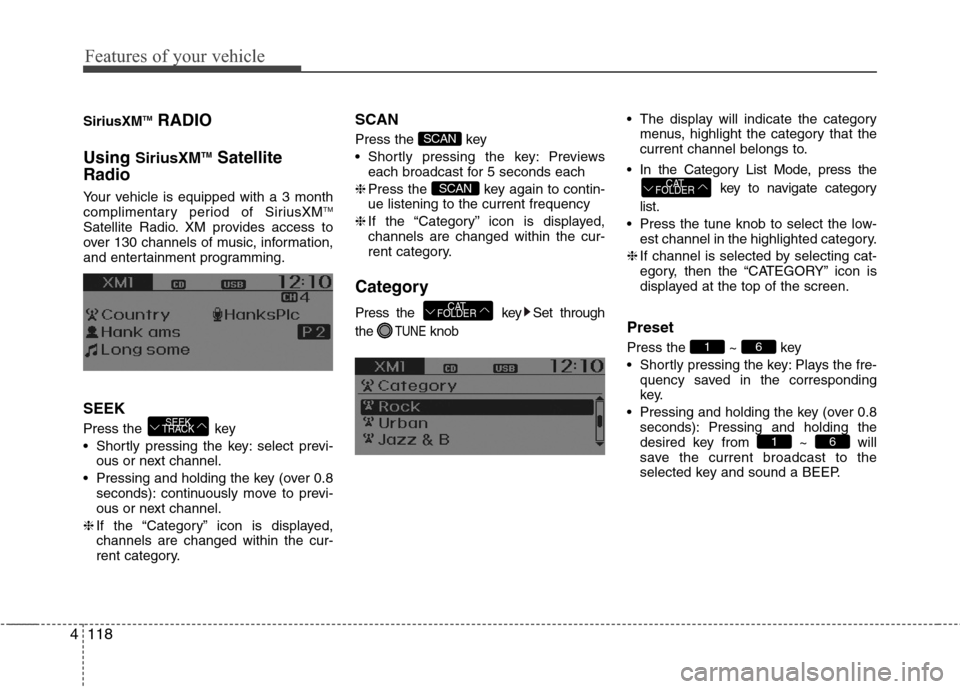
SiriusXMTMRADIO
Using
SiriusXMTMSatellite
Radio
Your vehicle is equipped with a 3 month
complimentary period of SiriusXMTM
Satellite Radio. XM provides access to
over 130 channels of music, information,
and entertainment programming.
SEEK
Press the key
Shortly pressing the key: select previ-
ous or next channel.
Pressing and holding the key (over 0.8
seconds): continuously move to previ-
ous or next channel.
❈If the “Category” icon is displayed,
channels are changed within the cur-
rent category.
SCAN
Press the key
Shortly pressing the key: Previews
each broadcast for 5 seconds each
❈Press the key again to contin-
ue listening to the current frequency
❈If the “Category” icon is displayed,
channels are changed within the cur-
rent category.
Category
Press the key Set through
the
TUNEknob The display will indicate the category
menus, highlight the category that the
current channel belongs to.
In the Category List Mode, press the
key to navigate category
list.
Press the tune knob to select the low-
est channel in the highlighted category.
❈If channel is selected by selecting cat-
egory, then the “CATEGORY” icon is
displayed at the top of the screen.Preset
Press the ~ key
Shortly pressing the key: Plays the fre-
quency saved in the corresponding
key.
Pressing and holding the key (over 0.8
seconds): Pressing and holding the
desired key from ~ will
save the current broadcast to the
selected key and sound a BEEP.
61
61
CAT
FOLDER
CAT
FOLDER
SCAN
SCAN
SEEK
TRACK
Page 206 of 406
4129
Features of your vehicle
Bluetooth®Wireless Technology
(if equipped model)
Pairing a
Bluetooth®Wireless
Technology Device
What is Bluetooth®Wireless
Technology Pairing?
Pairing refers to the process of synchro-
nizing your Bluetooth®Wireless
Technology phone or device with the car
audio system for connection. Pairing is
necessary to connect and use the
Bluetooth®Wireless Technology feature.
WARNING
Driving while distracted can
result in a loss of vehicle control
that may lead to an accident,
severe personal injury, and death.
The driver’s primary responsibili-
ty is in the safe and legal opera-
tion of a vehicle, and use of any
handheld devices, other equip-
ment, or vehicle systems which
take the driver’s eyes, attention
and focus away from the safe
operation of a vehicle or which
are not permissible by law should
never be used during operation
of the vehicle.
Page 209 of 406
Features of your vehicle
132 4
• Bluetooth related operations are pos-
sible only within devices that support
Handsfree or audio features, such as a
Bluetooth
®Wireless Technology
mobile phone or a Bluetooth audio
device.
• If a connected Bluetooth
®Wireless
Technology device becomes discon-
nected due to being out of communi-
cation range, turning the device OFF,
or a Bluetooth
®Wireless Technology
communication error, corresponding
Bluetooth
®Wireless Technology
devices are automatically searched
and reconnected.
• If the system becomes unstable due to
communication errors between the
car Handsfree and the Bluetooth
®
Wireless Technology device, reset the
device by turning off and back on
again. Upon resetting Bluetooth
®
Wireless Technology device, the sys-
tem will be restored.• After pairing is complete, a contacts
download request is sent once to the
mobile phone. Some mobile phones
may require confirmation upon
receiving a download request, ensure
your mobile phone accepts the con-
nection. Refer to your phones user’s
manual for additional information
regarding phone pairing and connec-
tions.
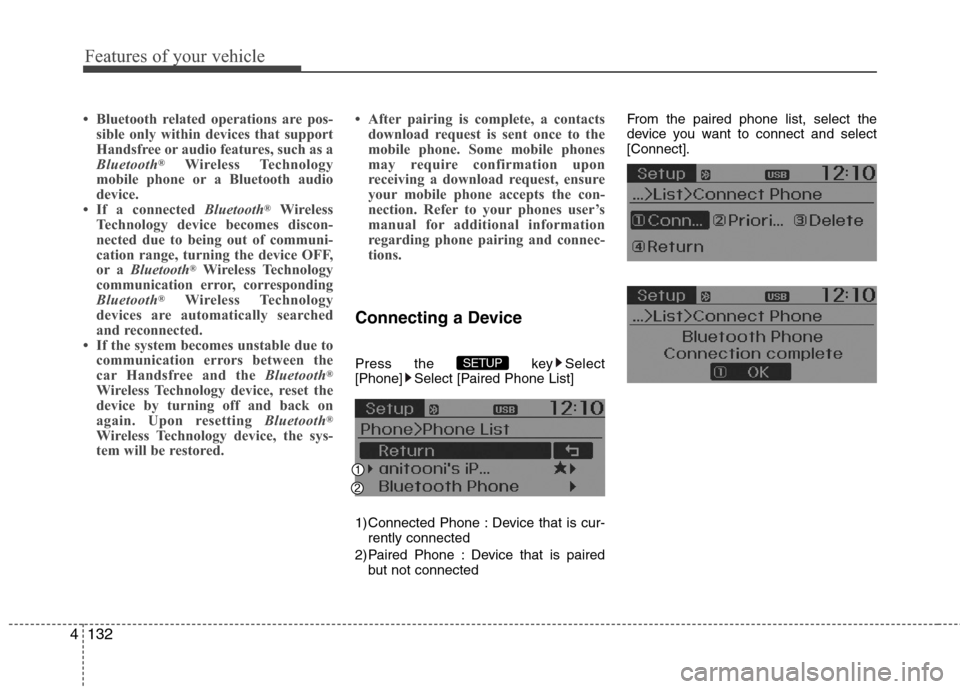
Connecting a Device
Press the key Select
[Phone] Select [Paired Phone List]
1) Connected Phone : Device that is cur-
rently connected
2) Paired Phone : Device that is paired
but not connectedFrom the paired phone list, select the
device you want to connect and select
[Connect].SETUP
Page 216 of 406
4139
Features of your vehicle
✽ ✽
NOTICE BEFORE DOWN-
LOADING CONTACTS
• Only contacts within connected
phones can be downloaded. Also
check to see that your mobile phone
supports the download feature.
• To learn more about whether your
mobile phone supports contacts
downloads, refer to your mobile
phone user’s manual.
• The contacts for only the connected
phone can be downloaded.
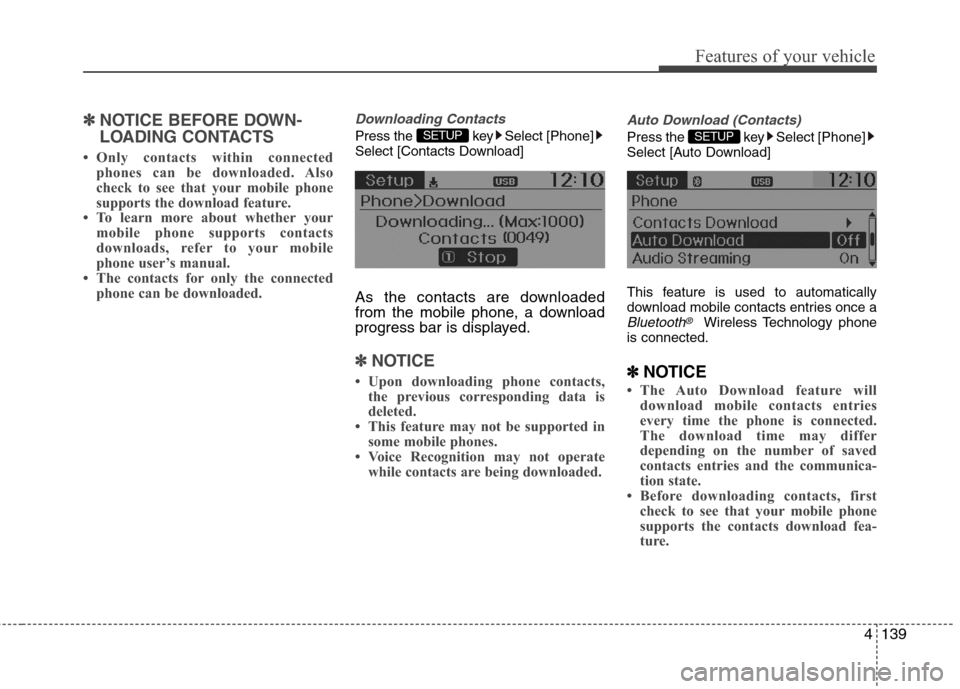
Downloading Contacts
Press the key Select [Phone]
Select [Contacts Download]
As the contacts are downloaded
from the mobile phone, a download
progress bar is displayed.
✽ ✽
NOTICE
• Upon downloading phone contacts,
the previous corresponding data is
deleted.
• This feature may not be supported in
some mobile phones.
• Voice Recognition may not operate
while contacts are being downloaded.
Auto Download (Contacts)
Press the key Select [Phone]
Select [Auto Download]
This feature is used to automatically
download mobile contacts entries once a
Bluetooth®Wireless Technology phone
is connected.
✽ ✽
NOTICE
• The Auto Download feature will
download mobile contacts entries
every time the phone is connected.
The download time may differ
depending on the number of saved
contacts entries and the communica-
tion state.
• Before downloading contacts, first
check to see that your mobile phone
supports the contacts download fea-
ture.
SETUP SETUP
Page 221 of 406
Features of your vehicle
144 4
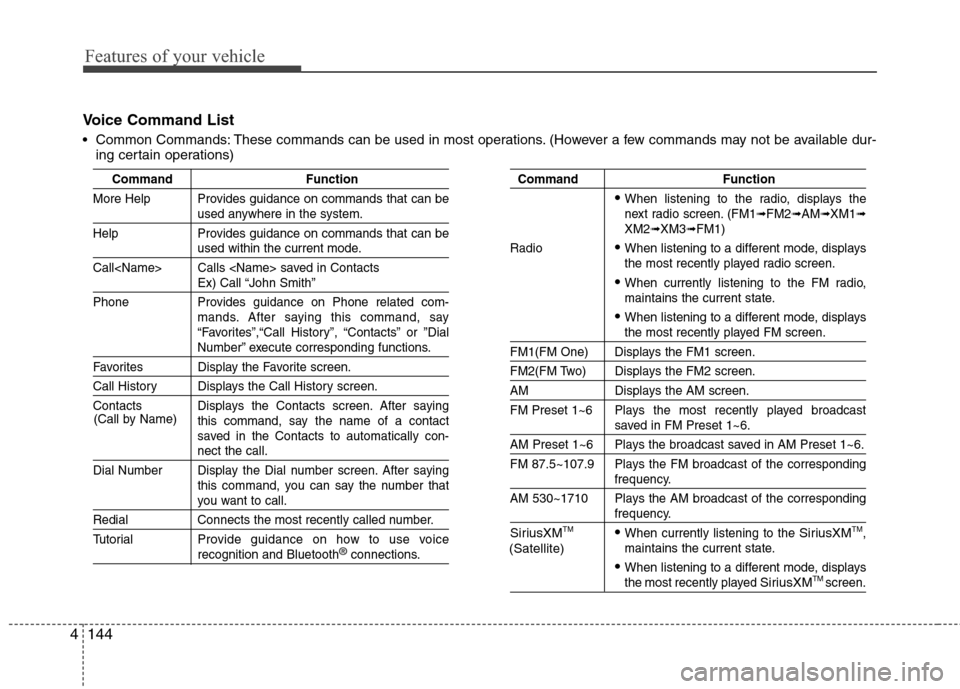
Voice Command List
Common Commands: These commands can be used in most operations. (However a few commands may not be available dur-
ing certain operations)
Command Function
More Help Provides guidance on commands that can be
used anywhere in the system.
Help Provides guidance on commands that can be
used within the current mode.
Call
Ex) Call “John Smith”
Phone Provides guidance on Phone related com-
mands. After saying this command, say
“Favorites”,“Call History”, “Contacts” or ”Dial
Number” execute corresponding functions.
Favorites Display the Favorite screen.
Call History Displays the Call History screen.
Contacts Displays the Contacts screen. After saying
this command, say the name of a contact
saved in the Contacts to automatically con-
nect the call.
Dial Number Display the Dial number screen. After saying
this command, you can say the number that
you want to call.
Redial Connects the most recently called number.
Tutorial Provide guidance on how to use voice
recognition and Bluetooth®connections.
Command Function
When listening to the radio, displays the
next radio screen. (FM1➟FM2➟AM➟XM1➟XM2➟XM3➟FM1)
Radio
When listening to a different mode, displays
the most recently played radio screen.
When currently listening to the FM radio,
maintains the current state.
When listening to a different mode, displaysthe most recently played FM screen.
FM1(FM One) Displays the FM1 screen.
FM2(FM Two) Displays the FM2 screen.
AM Displays the AM screen.
FM Preset 1~6 Plays the most recently played broadcast
saved in FM Preset 1~6.
AM Preset 1~6 Plays the broadcast saved in AM Preset 1~6.
FM 87.5~107.9 Plays the FM broadcast of the corresponding
frequency.
AM 530~1710 Plays the AM broadcast of the corresponding
frequency.
SiriusXMTMWhen currently listening to the SiriusXMTM,
maintains the current state.
When listening to a different mode, displaysthe most recently played SiriusXMTM screen. (Call by Name)
(Satellite)
Page 229 of 406
53
Driving your vehicle
Before entering vehicle
• Be sure that all windows, outside mir-
ror(s), and outside lights are clean.
Check the condition of the tires.
Check under the vehicle for any sign of
leaks.
Be sure there are no obstacles behind
you if you intend to back up.
Necessary inspections
Fluid levels, such as engine oil, engine
coolant, brake fluid, and washer fluid
should be checked on a regular basis,
with the exact interval depending on the
fluid. Further details are provided in sec-
tion 7, “Maintenance”.
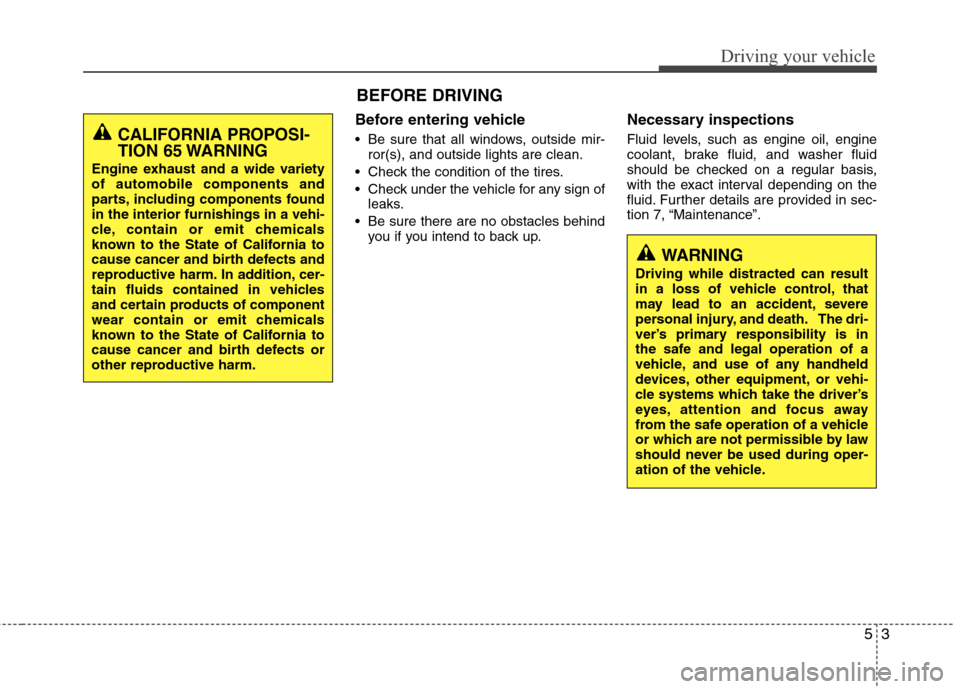
BEFORE DRIVING
CALIFORNIA PROPOSI-
TION 65 WARNING
Engine exhaust and a wide variety
of automobile components and
parts, including components found
in the interior furnishings in a vehi-
cle, contain or emit chemicals
known to the State of California to
cause cancer and birth defects and
reproductive harm. In addition, cer-
tain fluids contained in vehicles
and certain products of component
wear contain or emit chemicals
known to the State of California to
cause cancer and birth defects or
other reproductive harm.
WARNING
Driving while distracted can result
in a loss of vehicle control, that
may lead to an accident, severe
personal injury, and death. The dri-
ver’s primary responsibility is in
the safe and legal operation of a
vehicle, and use of any handheld
devices, other equipment, or vehi-
cle systems which take the driver’s
eyes, attention and focus away
from the safe operation of a vehicle
or which are not permissible by law
should never be used during oper-
ation of the vehicle.
Page 230 of 406
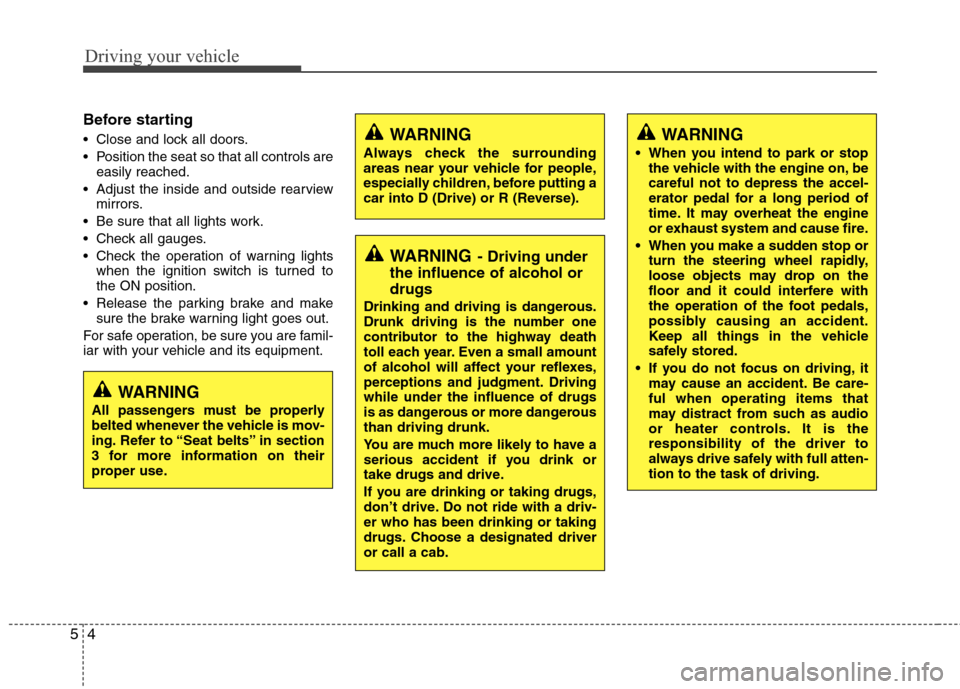
Driving your vehicle
4 5
Before starting
Close and lock all doors.
Position the seat so that all controls are
easily reached.
Adjust the inside and outside rearview
mirrors.
Be sure that all lights work.
Check all gauges.
Check the operation of warning lights
when the ignition switch is turned to
the ON position.
Release the parking brake and make
sure the brake warning light goes out.
For safe operation, be sure you are famil-
iar with your vehicle and its equipment.WARNING
Always check the surrounding
areas near your vehicle for people,
especially children, before putting a
car into D (Drive) or R (Reverse).
WARNING- Driving under
the influence of alcohol or
drugs
Drinking and driving is dangerous.
Drunk driving is the number one
contributor to the highway death
toll each year. Even a small amount
of alcohol will affect your reflexes,
perceptions and judgment. Driving
while under the influence of drugs
is as dangerous or more dangerous
than driving drunk.
You are much more likely to have a
serious accident if you drink or
take drugs and drive.
If you are drinking or taking drugs,
don’t drive. Do not ride with a driv-
er who has been drinking or taking
drugs. Choose a designated driver
or call a cab.
WARNING
When you intend to park or stop
the vehicle with the engine on, be
careful not to depress the accel-
erator pedal for a long period of
time. It may overheat the engine
or exhaust system and cause fire.
When you make a sudden stop or
turn the steering wheel rapidly,
loose objects may drop on the
floor and it could interfere with
the operation of the foot pedals,
possibly causing an accident.
Keep all things in the vehicle
safely stored.
If you do not focus on driving, it
may cause an accident. Be care-
ful when operating items that
may distract from such as audio
or heater controls. It is the
responsibility of the driver to
always drive safely with full atten-
tion to the task of driving.
WARNING
All passengers must be properly
belted whenever the vehicle is mov-
ing. Refer to “Seat belts” in section
3 for more information on their
proper use.