But Hyundai Accent 2015 Workshop Manual
[x] Cancel search | Manufacturer: HYUNDAI, Model Year: 2015, Model line: Accent, Model: Hyundai Accent 2015Pages: 406, PDF Size: 33.11 MB
Page 160 of 406
483
Features of your vehicle
Defogging logic
To reduce the probability of fogging up
the inside of the windshield, the air intake
or air conditioning are controlled auto-
matically according to certain conditions
such as or position. To cancel or
return the defogging logic, do the follow-
ing.
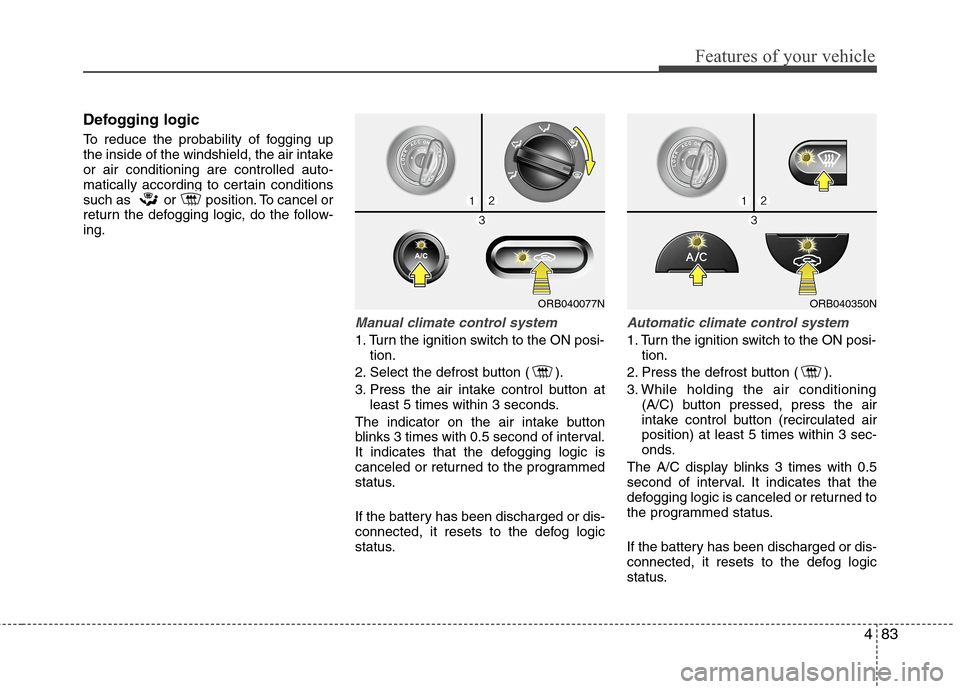
Manual climate control system
1. Turn the ignition switch to the ON posi-
tion.
2. Select the defrost button ( ).
3. Press the air intake control button at
least 5 times within 3 seconds.
The indicator on the air intake button
blinks 3 times with 0.5 second of interval.
It indicates that the defogging logic is
canceled or returned to the programmed
status.
If the battery has been discharged or dis-
connected, it resets to the defog logic
status.
Automatic climate control system
1. Turn the ignition switch to the ON posi-
tion.
2. Press the defrost button ( ).
3. While holding the air conditioning
(A/C) button pressed, press the air
intake control button (recirculated air
position) at least 5 times within 3 sec-
onds.
The A/C display blinks 3 times with 0.5
second of interval. It indicates that the
defogging logic is canceled or returned to
the programmed status.
If the battery has been discharged or dis-
connected, it resets to the defog logic
status.
ORB040077NORB040350N
Page 162 of 406
485
Features of your vehicle
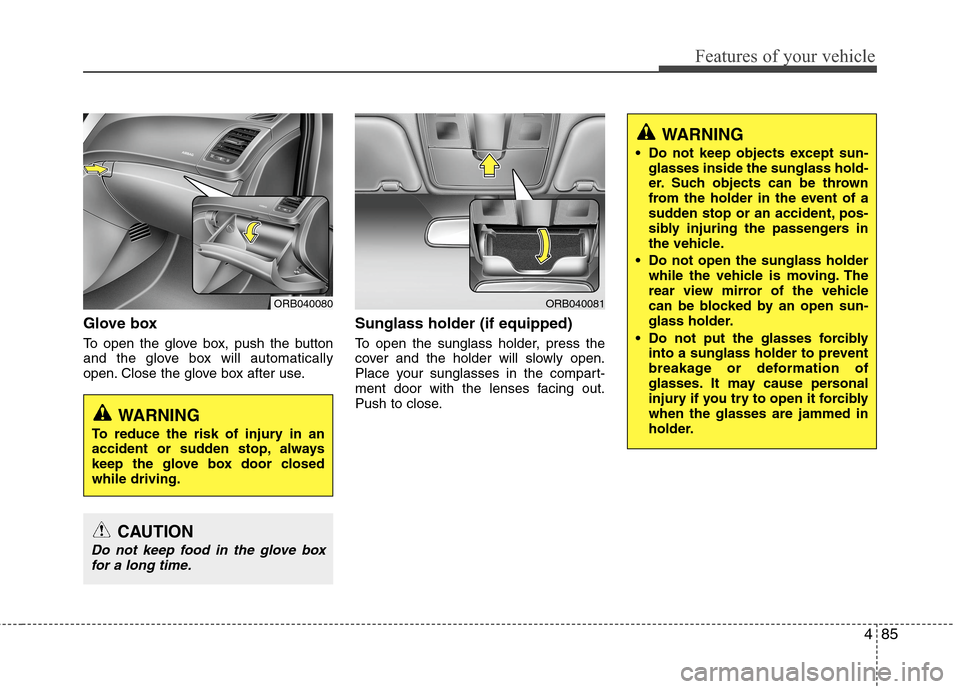
Glove box
To open the glove box, push the button
and the glove box will automatically
open. Close the glove box after use.
Sunglass holder (if equipped)
To open the sunglass holder, press the
cover and the holder will slowly open.
Place your sunglasses in the compart-
ment door with the lenses facing out.
Push to close.
WARNING
Do not keep objects except sun-
glasses inside the sunglass hold-
er. Such objects can be thrown
from the holder in the event of a
sudden stop or an accident, pos-
sibly injuring the passengers in
the vehicle.
Do not open the sunglass holder
while the vehicle is moving. The
rear view mirror of the vehicle
can be blocked by an open sun-
glass holder.
Do not put the glasses forcibly
into a sunglass holder to prevent
breakage or deformation of
glasses. It may cause personal
injury if you try to open it forcibly
when the glasses are jammed in
holder.
WARNING
To reduce the risk of injury in an
accident or sudden stop, always
keep the glove box door closed
while driving.
CAUTION
Do not keep food in the glove box
for a long time.
ORB040081ORB040080
Page 166 of 406
489
Features of your vehicle
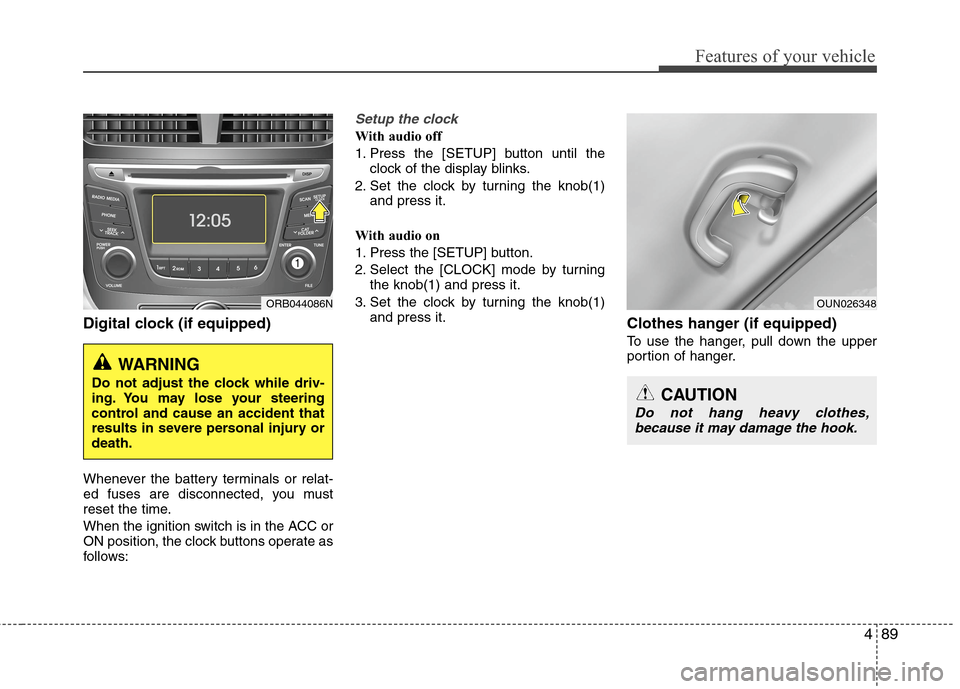
Digital clock (if equipped)
Whenever the battery terminals or relat-
ed fuses are disconnected, you must
reset the time.
When the ignition switch is in the ACC or
ON position, the clock buttons operate as
follows:
Setup the clock
With audio off
1. Press the [SETUP] button until the
clock of the display blinks.
2. Set the clock by turning the knob(1)
and press it.
With audio on
1. Press the [SETUP] button.
2. Select the [CLOCK] mode by turning
the knob(1) and press it.
3. Set the clock by turning the knob(1)
and press it.
Clothes hanger (if equipped)
To use the hanger, pull down the upper
portion of hanger.
WARNING
Do not adjust the clock while driv-
ing. You may lose your steering
control and cause an accident that
results in severe personal injury or
death.
ORB044086NOUN026348
CAUTION
Do not hang heavy clothes,
because it may damage the hook.
Page 171 of 406
Features of your vehicle
94 4
✽
✽
NOTICE
If you install an after market HID (high
intensity discharge) head lamp, your
vehicle's audio and electronic device
may malfunction.
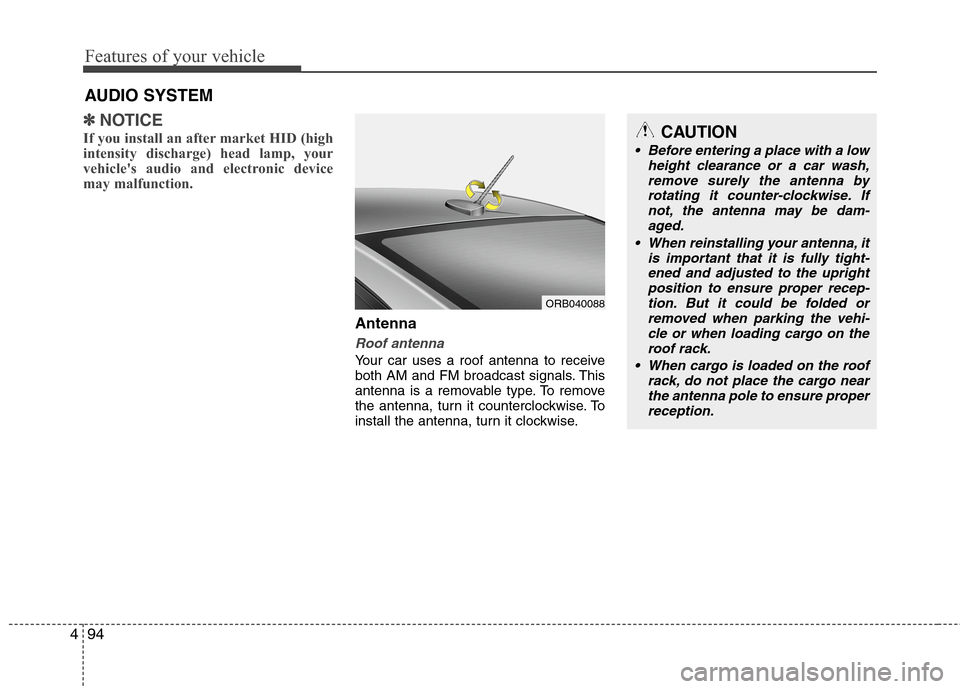
Antenna
Roof antenna
Your car uses a roof antenna to receive
both AM and FM broadcast signals. This
antenna is a removable type. To remove
the antenna, turn it counterclockwise. To
install the antenna, turn it clockwise.
AUDIO SYSTEM
CAUTION
Before entering a place with a low
height clearance or a car wash,
remove surely the antenna by
rotating it counter-clockwise. If
not, the antenna may be dam-
aged.
When reinstalling your antenna, it
is important that it is fully tight-
ened and adjusted to the upright
position to ensure proper recep-
tion. But it could be folded or
removed when parking the vehi-
cle or when loading cargo on the
roof rack.
When cargo is loaded on the roof
rack, do not place the cargo near
the antenna pole to ensure proper
reception.
ORB040088
Page 172 of 406
495
Features of your vehicle
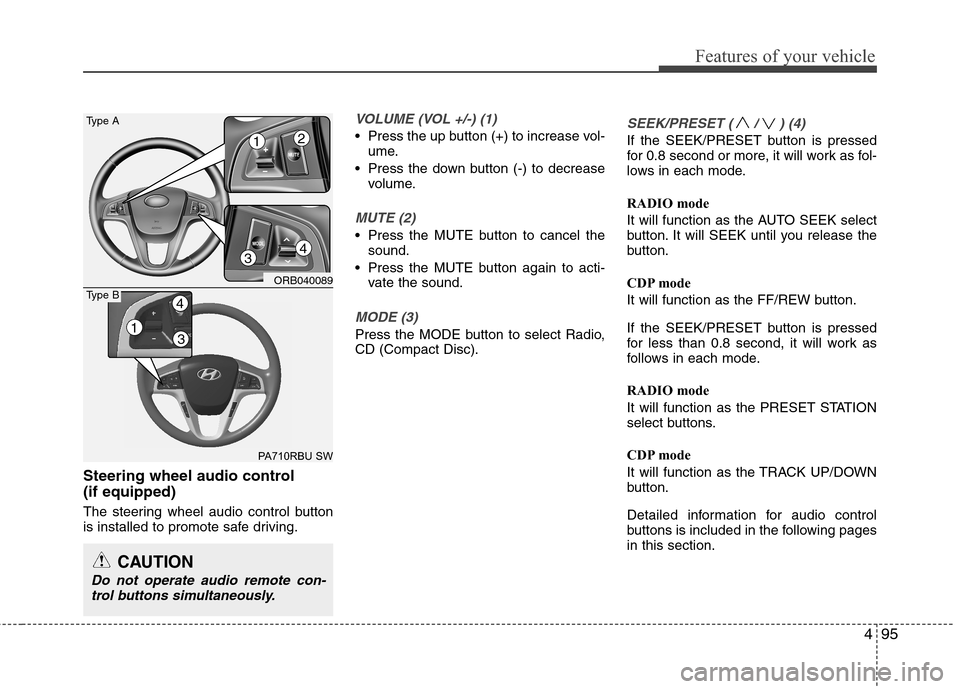
Steering wheel audio control
(if equipped)
The steering wheel audio control button
is installed to promote safe driving.
VOLUME (VOL +/-) (1)
Press the up button (+) to increase vol-
ume.
Press the down button (-) to decrease
volume.
MUTE (2)
Press the MUTE button to cancel the
sound.
Press the MUTE button again to acti-
vate the sound.
MODE (3)
Press the MODE button to select Radio,
CD (Compact Disc).
SEEK/PRESET ( / ) (4)
If the SEEK/PRESET button is pressed
for 0.8 second or more, it will work as fol-
lows in each mode.
RADIO mode
It will function as the AUTO SEEK select
button. It will SEEK until you release the
button.
CDP mode
It will function as the FF/REW button.
If the SEEK/PRESET button is pressed
for less than 0.8 second, it will work as
follows in each mode.
RADIO mode
It will function as the PRESET STATION
select buttons.
CDP mode
It will function as the TRACK UP/DOWN
button.
Detailed information for audio control
buttons is included in the following pages
in this section.
CAUTION
Do not operate audio remote con-
trol buttons simultaneously.
ORB040089
PA710RBU SW
Type A
4
12
3
13
4Type B
Page 180 of 406
4103
Features of your vehicle
✽ ✽
NOTICE - USING THE
iPod®DEVICE
• Some iPod®models may not sup-
port communication protocol and
files may not properly play.
Supported iPod
®models:
- iPhone®3GS/4
- iPod®touch 1st~4th generation
- iPod®nano 1st~6th generation
- iPod®classic
• The order of search or playback of
songs in the iPod
®can be different
from the order searched in the
audio system.
• If the iPod
®is disabled due to its
own malfunction, reset the iPod®.
(Reset: Refer to iPod®manual)
• An iPod®may not operate normal-
ly on low battery.
(Continued)(Continued)
• Some iPod
®devices, such as the
iPhone®, can be connected through
the Bluetooth®Wireless Technology
interface. The device must have
audio Bluetooth
®Wireless
Technology capability (such as for
stereo headphone Bluetooth
®
Wireless Technology).
The device can play, but it will not
be controlled by the audio system.
• To use iPod
®features within the
audio, use the cable provided upon
purchasing an iPod
®device.
• Skipping or improper operation
may occur depending on the char-
acteristics of your iPod
®/ iPhone®
device.
• If your iPhone®is connected to
both the Bluetooth®Wireless
Technology and USB, the sound
may not be properly played. In
your iPhone
®, select the Dock con-
nector orBluetooth®Wireless
Technology to change the sound
output (source).
(Continued)(Continued)
• When connecting iPod
®with the
iPod®Power Cable, insert the con-
nector to the multimedia socket
completely. If not inserted com-
pletely, communications between
iPod
®and audio may be interrupt-
ed.
• When adjusting the sound effects of
the iPod
®and the audio system, the
sound effects of both devices will
overlap and might reduce or distort
the quality of the sound.
• Deactivate (turn off) the equalizer
function of an iPod
®when adjust-
ing the audio system’s volume, and
turn off the equalizer of the audio
system when using the equalizer of
an iPod
®.
• When not using iPod®with car
audio, detach the iPod®cable from
iPod®. Otherwise, iPod®may
remain in accessory mode, and may
not work properly.
Page 205 of 406
Features of your vehicle
128 4
PHONE
Before using the Bluetooth®Wireless
Technology phone features
In order to use
Bluetooth®Wireless
Technology phone, you must first pair
and connect the
Bluetooth®Wireless
Technology mobile phone.
If the mobile phone is not paired or con-
nected, it is not possible to enter Phone
mode. Once a phone is paired or con-
nected, the guidance screen will be dis-
played.
If Priority is set upon vehicle
ignition(IGN/ACC ON), the
Bluetooth®
Wireless Technology phone will be auto-
matically connected. Even if you are out-
side, the first
Bluetooth® Wireless
Technology phone will be automatically
connected once you are in the vicinity of
the vehicle. If you do not want automatic
Bluetooth®Wireless Technology phone
connection, set the Bluetooth®Wireless
Technology power to OFF.
PHONE
(if equipped model)
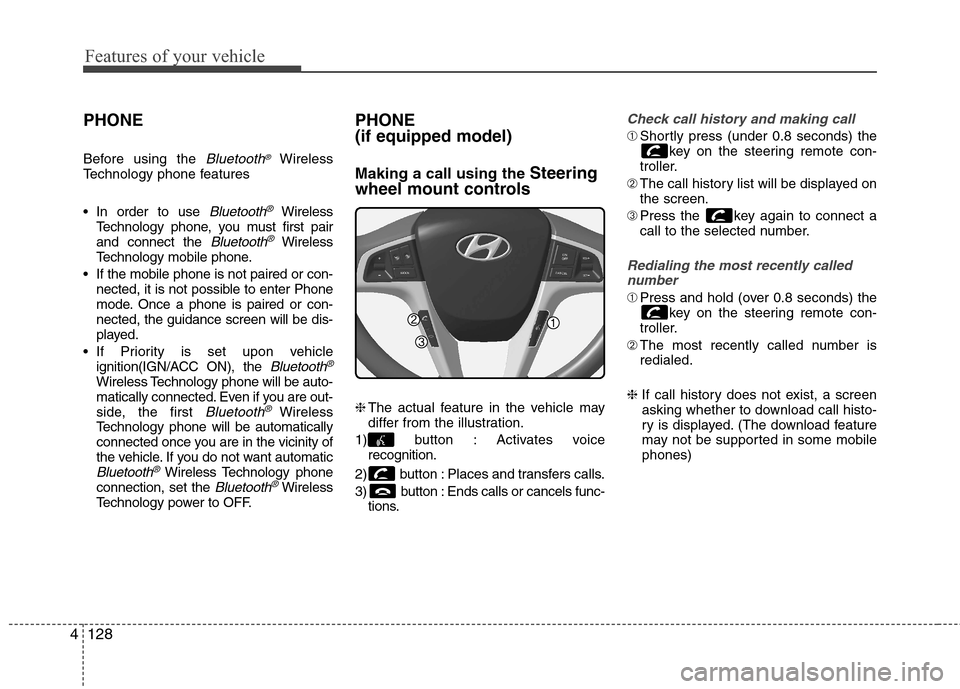
Making a call using the Steering
wheel mount controls
❈The actual feature in the vehicle may
differ from the illustration.
1) button : Activates voice
recognition.
2) button : Places and transfers calls.
3) button : Ends calls or cancels func-
tions.
Check call history and making call
➀Shortly press (under 0.8 seconds) the
key on the steering remote con-
troller.
➁The call history list will be displayed on
the screen.
➂Press the key again to connect a
call to the selected number.
Redialing the most recently called
number
➀Press and hold (over 0.8 seconds) the
key on the steering remote con-
troller.
➁The most recently called number is
redialed.
❈ If call history does not exist, a screen
asking whether to download call histo-
ry is displayed. (The download feature
may not be supported in some mobile
phones)
Page 207 of 406
Features of your vehicle
130 4
Pairing Key / Key on
the Steering Remote Controller
When No Devices have been Paired
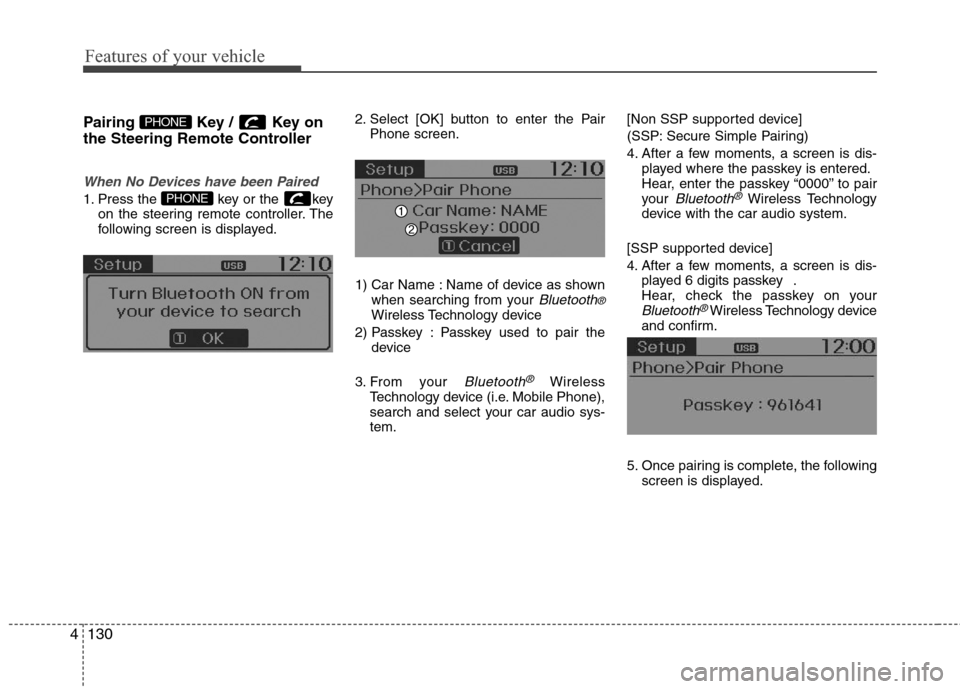
1. Press the key or the key
on the steering remote controller. The
following screen is displayed.2. Select [OK] button to enter the Pair
Phone screen.
1) Car Name : Name of device as shown
when searching from your
Bluetooth®Wireless Technology device
2) Passkey : Passkey used to pair the
device
3. From your
Bluetooth®Wireless
Technology device (i.e. Mobile Phone),
search and select your car audio sys-
tem.[Non SSP supported device]
(SSP: Secure Simple Pairing)
4. After a few moments, a screen is dis-
played where the passkey is entered.
Hear, enter the passkey “0000” to pair
your
Bluetooth®Wireless Technology
device with the car audio system.
[SSP supported device]
4. After a few moments, a screen is dis-
played 6 digits passkey .
Hear, check the passkey on your
Bluetooth®Wireless Technology device
and confirm.
5. Once pairing is complete, the following
screen is displayed.
PHONE
PHONE
Page 208 of 406
4131
Features of your vehicle
✽ ✽
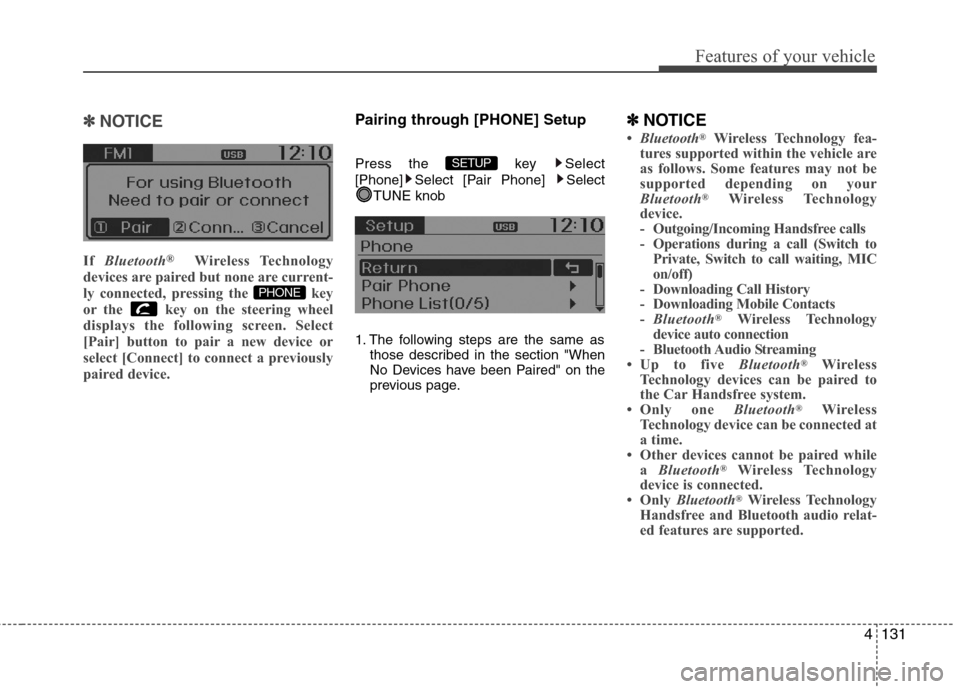
NOTICE
If Bluetooth®Wireless Technology
devices are paired but none are current-
ly connected, pressing the key
or the key on the steering wheel
displays the following screen. Select
[Pair] button to pair a new device or
select [Connect] to connect a previously
paired device.
Pairing through [PHONE] Setup
Press the key Select
[Phone] Select [Pair Phone] Select
TUNE knob
1. The following steps are the same as
those described in the section "When
No Devices have been Paired" on the
previous page.
✽ ✽
NOTICE
•Bluetooth®Wireless Technology fea-
tures supported within the vehicle are
as follows. Some features may not be
supported depending on your
Bluetooth
®Wireless Technology
device.
- Outgoing/Incoming Handsfree calls
- Operations during a call (Switch to
Private, Switch to call waiting, MIC
on/off)
- Downloading Call History
- Downloading Mobile Contacts
-Bluetooth
®Wireless Technology
device auto connection
- Bluetooth Audio Streaming
• Up to five Bluetooth
®Wireless
Technology devices can be paired to
the Car Handsfree system.
• Only one Bluetooth
®Wireless
Technology device can be connected at
a time.
• Other devices cannot be paired while
a Bluetooth
®Wireless Technology
device is connected.
• Only Bluetooth
®Wireless Technology
Handsfree and Bluetooth audio relat-
ed features are supported.
SETUP
PHONE
Page 209 of 406
Features of your vehicle
132 4
• Bluetooth related operations are pos-
sible only within devices that support
Handsfree or audio features, such as a
Bluetooth
®Wireless Technology
mobile phone or a Bluetooth audio
device.
• If a connected Bluetooth
®Wireless
Technology device becomes discon-
nected due to being out of communi-
cation range, turning the device OFF,
or a Bluetooth
®Wireless Technology
communication error, corresponding
Bluetooth
®Wireless Technology
devices are automatically searched
and reconnected.
• If the system becomes unstable due to
communication errors between the
car Handsfree and the Bluetooth
®
Wireless Technology device, reset the
device by turning off and back on
again. Upon resetting Bluetooth
®
Wireless Technology device, the sys-
tem will be restored.• After pairing is complete, a contacts
download request is sent once to the
mobile phone. Some mobile phones
may require confirmation upon
receiving a download request, ensure
your mobile phone accepts the con-
nection. Refer to your phones user’s
manual for additional information
regarding phone pairing and connec-
tions.
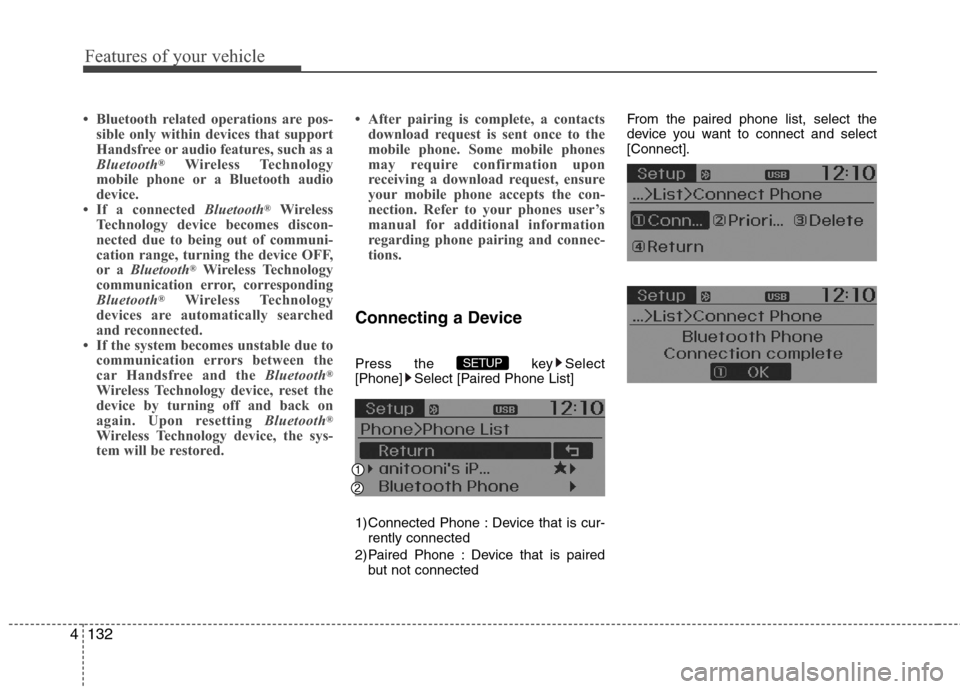
Connecting a Device
Press the key Select
[Phone] Select [Paired Phone List]
1) Connected Phone : Device that is cur-
rently connected
2) Paired Phone : Device that is paired
but not connectedFrom the paired phone list, select the
device you want to connect and select
[Connect].SETUP