clock setting Hyundai Accent 2016 User Guide
[x] Cancel search | Manufacturer: HYUNDAI, Model Year: 2016, Model line: Accent, Model: Hyundai Accent 2016Pages: 456, PDF Size: 16.41 MB
Page 239 of 456
![Hyundai Accent 2016 User Guide Features of your vehicle
162
4
SYSTEM SETTINGS
Press the keySelect [System]
Select menu through TUNE knob
Memory Information
Displays currently used memory and
total system memory.
Select [Memory Inf](/img/35/14353/w960_14353-238.png "Hyundai Accent 2016 User Guide Features of your vehicle
162
4
SYSTEM SETTINGS
Press the keySelect [System]
Select menu through TUNE knob
Memory Information
Displays currently used memory and
total system memory.
Select [Memory Inf")
Features of your vehicle
162
4
SYSTEM SETTINGS
Press the keySelect [System]
Select menu through TUNE knob
Memory Information
Displays currently used memory and
total system memory.
Select [Memory Information] OK
The currently used memory is displayed
on the left side while the total system
memory is displayed on the right side.
Prompt Feedback
This feature is used to change voice
command feedback between Normal and
Expert modes.
Select [Prompt Feedback] Set through
TUNEknob
Normal(On) : This mode is for beginner users and provides detailed instruc-
tions during voice command operation.
Expert(Off) : This mode is for expert users and omits some information dur-
ing voice command operation. (When
using Expert mode, guidance instruc-
tions can be heard through the [Help]
or [Menu] commands.
Language
This menu is used to set the display and
voice recognition language.
Select [Language] Set through
TUNE knob
❈ The system will reboot after the lan-
guage is changed.
❈ Language support by region
- English, Français, EspañolSETUPCLOCK
Page 257 of 456
Features of your vehicle
180
4
(Continued)
Bluetooth related operations are pos-
sible only within devices that support
Handsfree or audio features, such as a
Bluetooth
®Wireless Technology
mobile phone or a Bluetooth audio
device.
• If a connected Bluetooth
®Wireless
Technology device becomes discon-
nected due to being out of communi-
cation range, turning the device OFF,
or a Bluetooth
®Wireless Technology
communication error, corresponding
Bluetooth
®Wireless Technology
devices are automatically searched
and reconnected.
• If the system becomes unstable due to communication errors between the
car Handsfree and the Bluetooth
®
Wireless Technology device, reset the
device by turning off and back on
again. Upon resetting Bluetooth
®
Wireless Technology device, the sys-
tem will be restored. (Continued)(Continued)
• After pairing is complete, a contacts
download request is sent once to the
mobile phone. Some mobile phones
may require confirmation upon
receiving a download request, ensure
your mobile phone accepts the con-
nection. Refer to your phones user’s
manual for additional information
regarding phone pairing and connec-
tions.
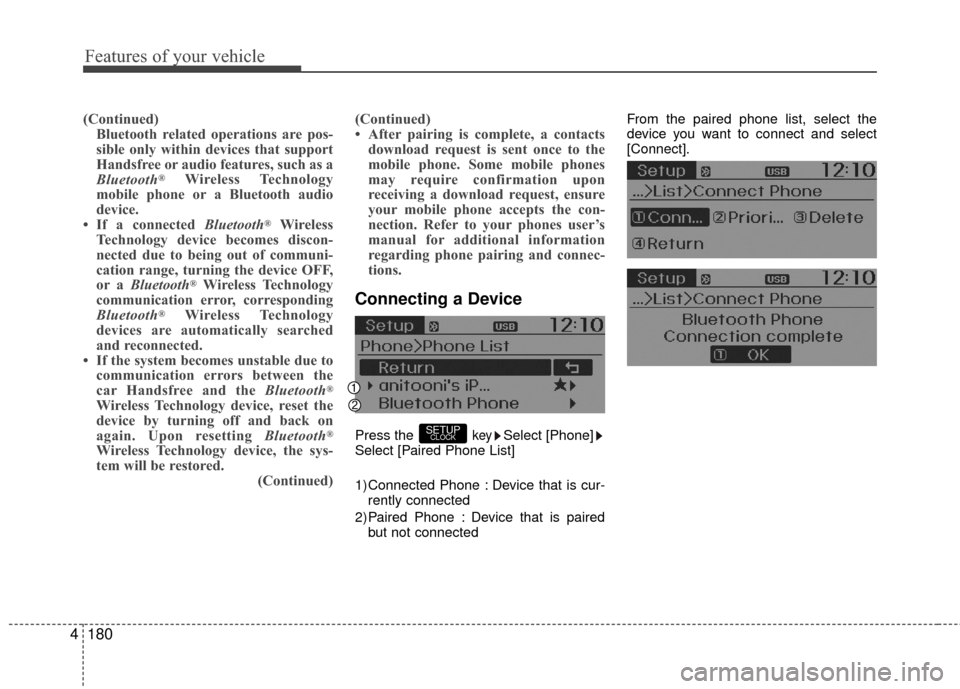
Connecting a Device
Press the keySelect [Phone]
Select [Paired Phone List]
1) Connected Phone : Device that is cur- rently connected
2) Paired Phone : Device that is paired but not connected From the paired phone list, select the
device you want to connect and select
[Connect].SETUPCLOCK
Page 263 of 456
![Hyundai Accent 2016 User Guide Features of your vehicle
186
4
Bluetooth®Wireless
Technology Setting
Pairing a New Device
Press the keySelect [Phone]
Select [Pair Phone]
Bluetooth®Wireless Technology devices
can be paired with the](/img/35/14353/w960_14353-262.png "Hyundai Accent 2016 User Guide Features of your vehicle
186
4
Bluetooth®Wireless
Technology Setting
Pairing a New Device
Press the keySelect [Phone]
Select [Pair Phone]
Bluetooth®Wireless Technology devices
can be paired with the")
Features of your vehicle
186
4
Bluetooth®Wireless
Technology Setting
Pairing a New Device
Press the keySelect [Phone]
Select [Pair Phone]
Bluetooth®Wireless Technology devices
can be paired with the audio system.
For more information, refer to the “Pairing
through Phone Setup” section within
Bluetooth®Wireless Technology.
Viewing Paired Phone List
Press the keySelect [Phone]
Select [Paired Phone List]
This feature is used to view mobile
phones that have been paired with the
audio system. Upon selecting a paired
phone, the setup menu is displayed.
For more information, refer to the “Setting
Bluetooth®Wireless Technology
Connection” section within Bluetooth®
Wireless Technology. 1) Connect/Disconnect Phone : Connect/
disconnects currently selected phone
2) Change Priority : Sets currently select- ed phone to highest connection priori-
ty
3) Delete : Deletes the currently selected phone
4) Return : Moves to the previous screen
SETUPCLOCK
SETUPCLOCK