phone Hyundai Accent 2016 User Guide
[x] Cancel search | Manufacturer: HYUNDAI, Model Year: 2016, Model line: Accent, Model: Hyundai Accent 2016Pages: 456, PDF Size: 16.41 MB
Page 186 of 456
4109
Features of your vehicle
✽
✽NOTICE - WHEN CONNECT-
ING A
Bluetooth®PHONE
• Before connecting the head unit with
the mobile phone, check to see that the
mobile phone supports Bluetooth
®
features.
• Even if the phone supports Bluetooth
®, the phone will not be
found during device searches if the
phone has been set to hidden state or
the Bluetooth
®power is turned off.
Disable the hidden state or turn on the
Bluetooth
®power prior to
searching/connecting with the Head
unit.
• Bluetooth phone is automatically con- nected when the ignition on.
• If you do not want automatic connec- tion with your Bluetooth
®device, turn
off the Bluetooth®feature within your
mobile phone.
• The Handsfree call volume and quality may differ depending on the mobile
phone. (Continued)(Continued)
• Park the vehicle when connecting the
head unit with the mobile phone.
• Bluetooth
®connection may become
intermittently disconnected in some
mobile phones. Follow these steps to
try again.
1. Within the mobile phone, turn the Bluetooth
®function off/on and try
again.
2. Turn the mobile phone power Off/On and try again.
3. Completely remove the mobile phone battery, reboot, and then
again.
4. Reboot the
AudioSystem and try
again.
5. Delete all paired devices, pair and try again.
• Handsfree call quality and volume may differ depending on the model of
your mobile phone.
Page 187 of 456
Features of your vehicle
110
4
✽
✽NOTICE - USING THE VOICE
RECOGNITION
• When using the voice recognition fea-
ture, only commands listed within the
user's manual are supported.
• Be aware that during the operation of the voice recognition system, pressing
any key other than the key termi-
nate voice recognition mode.
• For superior voice recognition per- formance, position the microphone
used for voice recognition above the
head of the driver’s seat and maintain
a proper position when saying com-
mands.
• Within the following situations, voice recognition may not function properly
due to external sound.
- When the windows and sunroof areopen
- When the wind of the cooling / heat- ing device is strong
- When entering and passing through tunnels (Continued)(Continued)
- When driving on rugged anduneven roads
- During severe rain (heavy rains, windstorms)
• Phone related voice commands can be used only when a Bluetooth
®Wireless
Technology device is connected.
• When making calls by stating a name, the corresponding contact must be
downloaded and stored within the
audio system.
• After downloading the Bluetooth
®
Wireless Technology phone book, it
takes some times to convert the phone
book data into voice information.
During this time, voice recognition
may not properly operate.
• Pronounce the voice commands natu- rally and clearly as if in a normal con-
versation.
Page 190 of 456
4113
Features of your vehicle
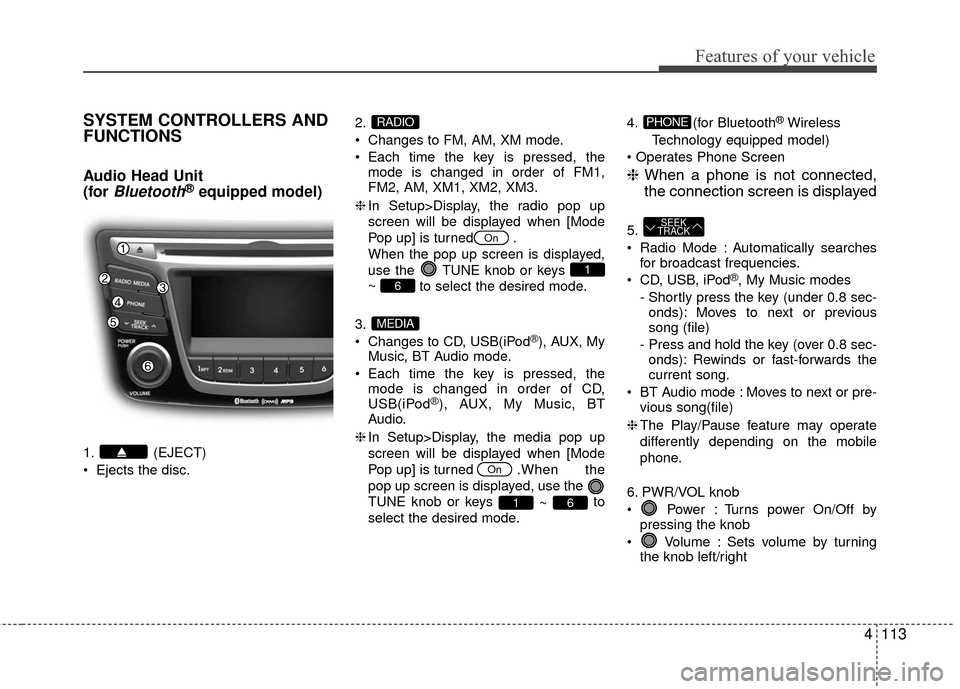
SYSTEM CONTROLLERS AND
FUNCTIONS
Audio Head Unit
(for
Bluetooth®equipped model)
1. (EJECT)
Ejects the disc.2.
Changes to FM, AM, XM mode.
Each time the key is pressed, the
mode is changed in order of FM1,
FM2, AM, XM1, XM2, XM3.
❈ In Setup>Display, the radio pop up
screen will be displayed when [Mode
Pop up] is turned .
When the pop up screen is displayed,
use the TUNE knob or keys
~ to select the desired mode.
3.
Changes to CD, USB(iPod
®), AUX, My
Music, BT Audio mode.
Each time the key is pressed, the mode is changed in order of CD,
USB(iPod
®), AUX, My Music, BT
Audio.
❈ In Setup>Display, the media pop up
screen will be displayed when [Mode
Pop up] is turned . When the
pop up screen is displayed, use the
TUNE knob or keys ~ to
select the desired mode. 4. (for Bluetooth
®Wireless
Technology equipped model)
❈ When a phone is not connected,
the connection screen is displayed
5.
Radio Mode : Automatically searches
for broadcast frequencies.
CD, USB, iPod
®, My Music modes
- Shortly press the key (under 0.8 sec- onds): Moves to next or previous
song (file)
- Press and hold the key (over 0.8 sec- onds): Rewinds or fast-forwards the
current song.
BT Audio mode : Moves to next or pre- vious song(file)
❈ The Play/Pause feature may operate
differently depending on the mobile
phone.
6. PWR/VOL knob
Power : Turns power On/Off by pressing the knob
Volume : Sets volume by turning the knob left/right
SEEK
TRACK
PHONE
61
On
MEDIA
6
1
On
RADIO
Page 191 of 456
Features of your vehicle
114
4
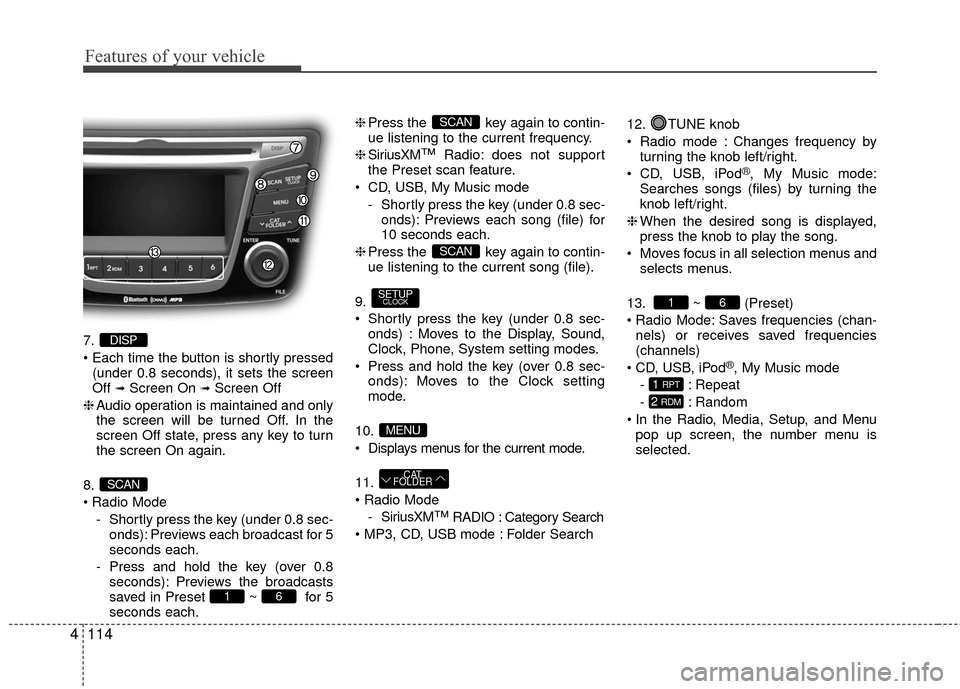
7.
(under 0.8 seconds), it sets the screen
Off
➟Screen On ➟Screen Off
❈ Audio operation is maintained and only
the screen will be turned Off. In the
screen Off state, press any key to turn
the screen On again.
8.
Radio Mode - Shortly press the key (under 0.8 sec-onds): Previews each broadcast for 5
seconds each.
- Press and hold the key (over 0.8 seconds): Previews the broadcasts
saved in Preset ~ for 5
seconds each. ❈
Press the key again to contin-
ue listening to the current frequency.
❈ SiriusXM
™Radio: does not support
the Preset scan feature.
CD, USB, My Music mode - Shortly press the key (under 0.8 sec-onds): Previews each song (file) for
10 seconds each.
❈ Press the key again to contin-
ue listening to the current song (file).
9.
Shortly press the key (under 0.8 sec- onds) : Moves to the Display, Sound,
Clock, Phone, System setting modes.
Press and hold the key (over 0.8 sec- onds): Moves to the Clock setting
mode.
10.
Displays menus for the current mode.
11.
- SiriusXM
™RADIO : Category Search
Folder Search 12. TUNE knob
Radio mode : Changes frequency by
turning the knob left/right.
CD, USB, iPod
®, My Music mode:
Searches songs (files) by turning the
knob left/right.
❈ When the desired song is displayed,
press the knob to play the song.
Moves focus in all selection menus and selects menus.
13. ~ (Preset)
Radio Mode: Saves frequencies (chan- nels) or receives saved frequencies
(channels)
CD, USB, iPod
®, My Music mode
- : Repeat
- : Random
In the Radio, Media, Setup, and Menu pop up screen, the number menu is
selected.
2 RDM
1 RPT
61
CAT
FOLDER
MENU
SETUPCLOCK
SCAN
SCAN
61
SCAN
DISP
Page 209 of 456
Features of your vehicle
132
4
Bluetooth®Wireless Technology
AUDIO (if equipped model)
What is
Bluetooth®Wireless
Technology
?
Bluetooth®Wireless Technology allows
devices to be connected in a short distance,
including hands-free devices, stereo head-
sets, wireless remote controllers, etc. For
more information, visit
the Bluetooth®
Wireless Technologywebsite atwww.Bluetooth.com
Before using Bluetooth®Wireless
Technology audio features
Bluetooth®Wireless Technology audio
may not be supported depending on
the compatibility of your
Bluetooth®
Wireless Technology mobile phone.
In order to use
Bluetooth®Wireless
Technology audio, you must first pair
and connect the
Bluetooth®Wireless
Technology mobile phone.
Bluetooth®Wireless Technology audio
can be used only when the [Audio
Streaming] of Phone is turned .
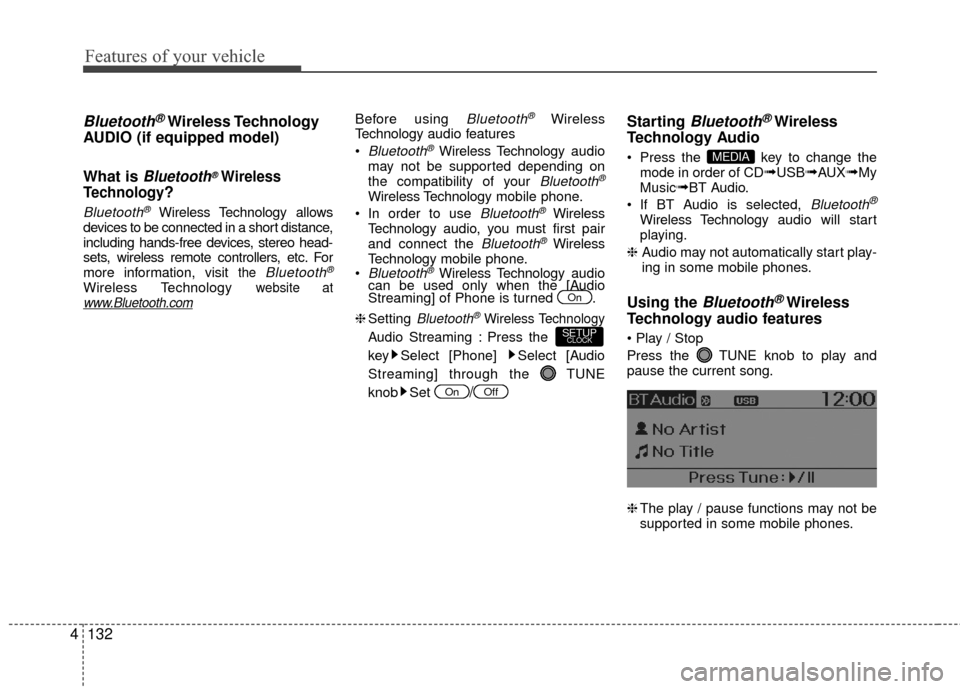
❈ Setting
Bluetooth®Wireless Technology
Audio Streaming : Press the
key Select [Phone] Select [Audio
Streaming] through the TUNE
knob Set
/
Starting Bluetooth®Wireless
Technology Audio
Press the key to change the
mode in order of CD➟USB➟AUX➟My
Music➟BT Audio.
If BT Audio is selected,
Bluetooth®
Wireless Technology audio will start
playing.
❈ Audio may not automatically start play-
ing in some mobile phones.
Using the Bluetooth®Wireless
Technology audio features
Press the TUNE knob to play and
pause the current song.
❈ The play / pause functions may not be
supported in some mobile phones.
MEDIA
OffOn
SETUPCLOCK
On
Page 210 of 456
4133
Features of your vehicle
PHONE
Before using the Bluetooth®Wireless
Technology phone features
In order to use Bluetooth®Wireless
Technology phone, you must first pair
and connect the
Bluetooth®Wireless
Technology mobile phone.
If the mobile phone is not paired or connected, it is not possible to enter
Phone mode. Once a phone is paired
or connected, the guidance screen will
be displayed.
If Priority is set upon vehicle ignition(IGN/ACC ON), the
Bluetooth®
Wireless Technology phone will be
automatically connected. Even if you
are outside, the first
Bluetooth®
Wireless Technology phone will be
automatically connected once you are
in the vicinity of the vehicle. If you do
not want automatic
Bluetooth®
Wireless Technology phone connec-
tion, set the Bluetooth®Wireless
Technology power to OFF.
PHONE
(if equipped model)
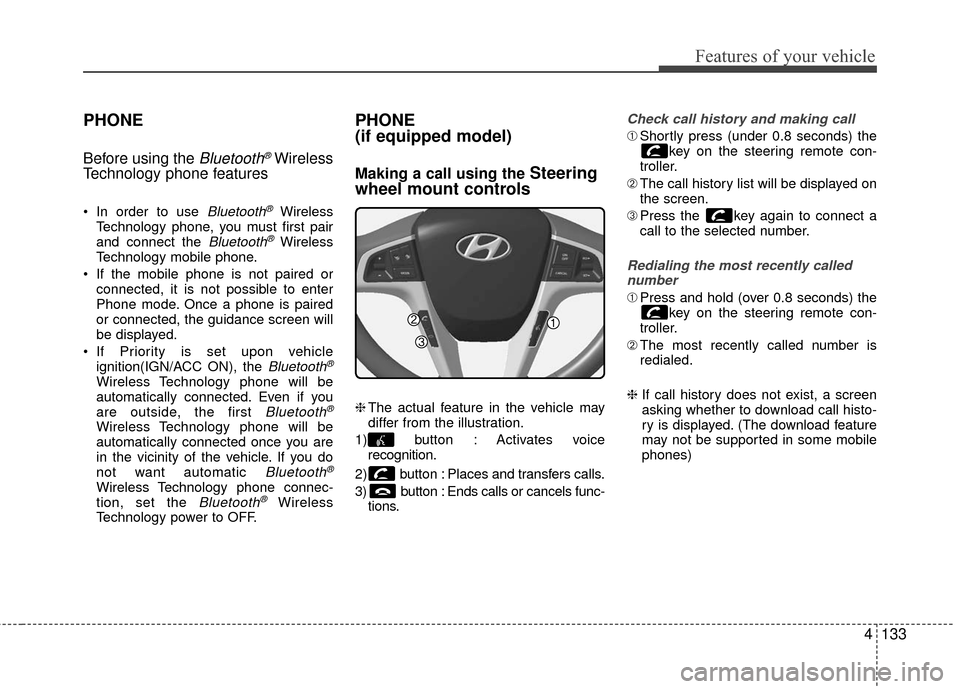
Making a call using the Steering
wheel mount controls
❈ The actual feature in the vehicle may
differ from the illustration.
1) button : Activates voice recognition.
2) button : Places and transfers calls.
3) button : Ends calls or cancels func- tions.
Check call history and making call
➀Shortly press (under 0.8 seconds) the
key on the steering remote con-
troller.
➁ The call history list will be displayed on
the screen.
\f Press the key again to connect a
call to the selected number.
Redialing the most recently called
number
➀ Press and hold (over 0.8 seconds) the
key on the steering remote con-
troller.
➁ The most recently called number is
redialed.
❈ If call history does not exist, a screen
asking whether to download call histo-
ry is displayed. (The download feature
may not be supported in some mobile
phones)
Page 211 of 456
Features of your vehicle
134
4
Bluetooth®Wireless Technology
(if equipped model)
Pairing a
Bluetooth®Wireless
Technology Device
What is Bluetooth®Wireless
Technology Pairing?
Pairing refers to the process of synchro-
nizing your Bluetooth®Wireless
Technology phone or device with the car
audio system for connection. Pairing is
necessary to connect and use the
Bluetooth®Wireless Technology feature.
WARNING
Driving while distracted can
result in a loss of vehicle control
that may lead to an accident,
severe personal injury, and death.
The driver’s primary responsibili-
ty is in the safe and legal opera-
tion of a vehicle, and use of any
handheld devices, other equip-
ment, or vehicle systems which
take the driver’s eyes, attention
and focus away from the safe
operation of a vehicle or which
are not permissible by law should
never be used during operation
of the vehicle.
Page 212 of 456
4135
Features of your vehicle
Pairing Key / Key on
the Steering Remote Controller
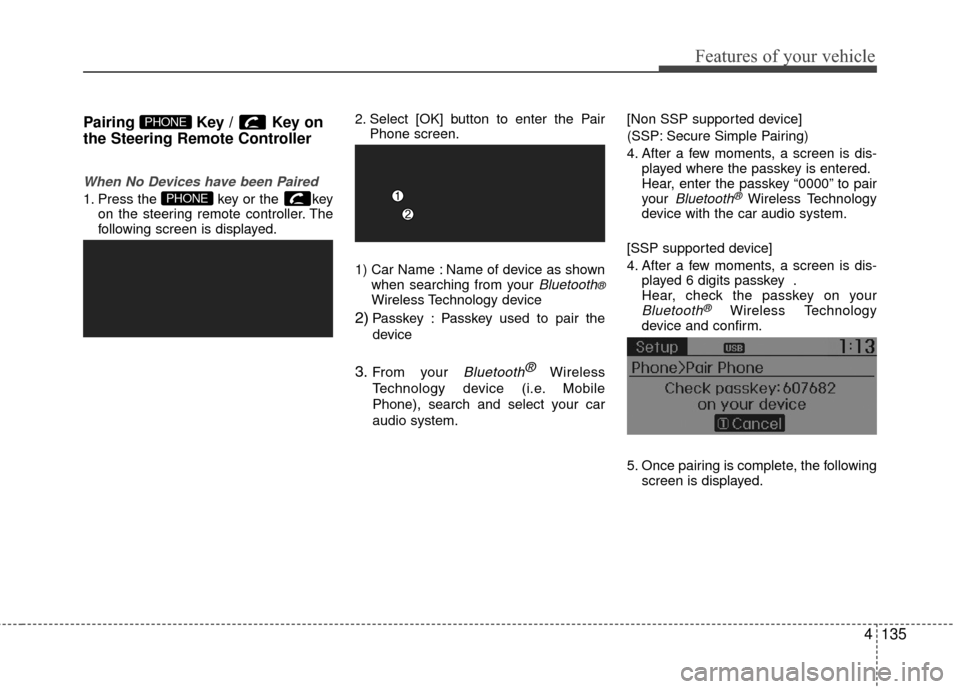
When No Devices have been Paired
1. Press the key or the keyon the steering remote controller. The
following screen is displayed. 2. Select [OK] button to enter the Pair
Phone screen.
1) Car Name : Name of device as shown when searching from your
Bluetooth®Wireless Technology device
2)Passkey : Passkey used to pair the
device
3.From your Bluetooth ®Wireless
Technology device (i.e. Mobile
Phone), search and select your car
audio system. [Non SSP supported device]
(SSP: Secure Simple Pairing)
4. After a few moments, a screen is dis-
played where the passkey is entered.
Hear, enter the passkey “0000” to pair
your
Bluetooth®Wireless Technology
device with the car audio system.
[SSP supported device]
4. After a few moments, a screen is dis- played 6 digits passkey .
Hear, check the passkey on your
Bluetooth®Wireless Technology
device and confirm.
5. Once pairing is complete, the following screen is displayed.
PHONE
PHONE
Page 213 of 456
Features of your vehicle
136
4
✽
✽
NOTICE
If Bluetooth®Wireless Technology
devices are paired but none are current-
ly connected, pressing the key
or the key on the steering wheel
displays the following screen. Select
[Pair] button to pair a new device or
select [Connect] to connect a previously
paired device.
Pairing through [PHONE] Setup
Press the key Select
[Phone] Select [Pair Phone] Select
TUNE knob
1. The following steps are the same as those described in the section "When
No Devices have been Paired" on the
previous page.
✽ ✽NOTICE
•Bluetooth®Wireless Technology fea-
tures supported within the vehicle are
as follows. Some features may not be
supported depending on your
Bluetooth
®Wireless Technology
device.
- Outgoing/Incoming Handsfree calls
- Operations during a call (Switch to Private, Switch to call waiting, MIC
on/off)
- Downloading Call History
- Downloading Mobile Contacts
- Bluetooth
®Wireless Technology
device auto connection
- Bluetooth Audio Streaming
• Up to five Bluetooth
®Wireless
Technology devices can be paired to
the Car Handsfree system.
• Only one Bluetooth
®Wireless
Technology device can be connected at
a time.
• Other devices cannot be paired while a Bluetooth
®Wireless Technology
device is connected.
• Only Bluetooth
®Wireless Technology
Handsfree and Bluetooth audio relat-
ed features are supported.
(Continued)
SETUPCLOCK
PHONE
Page 214 of 456
4137
Features of your vehicle
(Continued)Bluetooth related operations are pos-
sible only within devices that support
Handsfree or audio features, such as a
Bluetooth
®Wireless Technology
mobile phone or a Bluetooth audio
device.
• If a connected Bluetooth
®Wireless
Technology device becomes discon-
nected due to being out of communi-
cation range, turning the device OFF,
or a Bluetooth
®Wireless Technology
communication error, corresponding
Bluetooth
®Wireless Technology
devices are automatically searched
and reconnected.
• If the system becomes unstable due to communication errors between the
car Handsfree and the Bluetooth
®
Wireless Technology device, reset the
device by turning off and back on
again. Upon resetting Bluetooth
®
Wireless Technology device, the sys-
tem will be restored. (Continued)(Continued)
• After pairing is complete, a contacts
download request is sent once to the
mobile phone. Some mobile phones
may require confirmation upon
receiving a download request, ensure
your mobile phone accepts the con-
nection. Refer to your phones user’s
manual for additional information
regarding phone pairing and connec-
tions.
Connecting a Device
Press the key Select [Phone]
Select [Paired Phone List]
1) Connected Phone : Device that is cur-
rently connected
2) Paired Phone : Device that is paired but not connected From the paired phone list, select the
device you want to connect and select
[Connect].SETUPCLOCK