lock Hyundai Accent 2016 Manual PDF
[x] Cancel search | Manufacturer: HYUNDAI, Model Year: 2016, Model line: Accent, Model: Hyundai Accent 2016Pages: 456, PDF Size: 16.41 MB
Page 256 of 456
4179
Features of your vehicle
✽
✽NOTICE
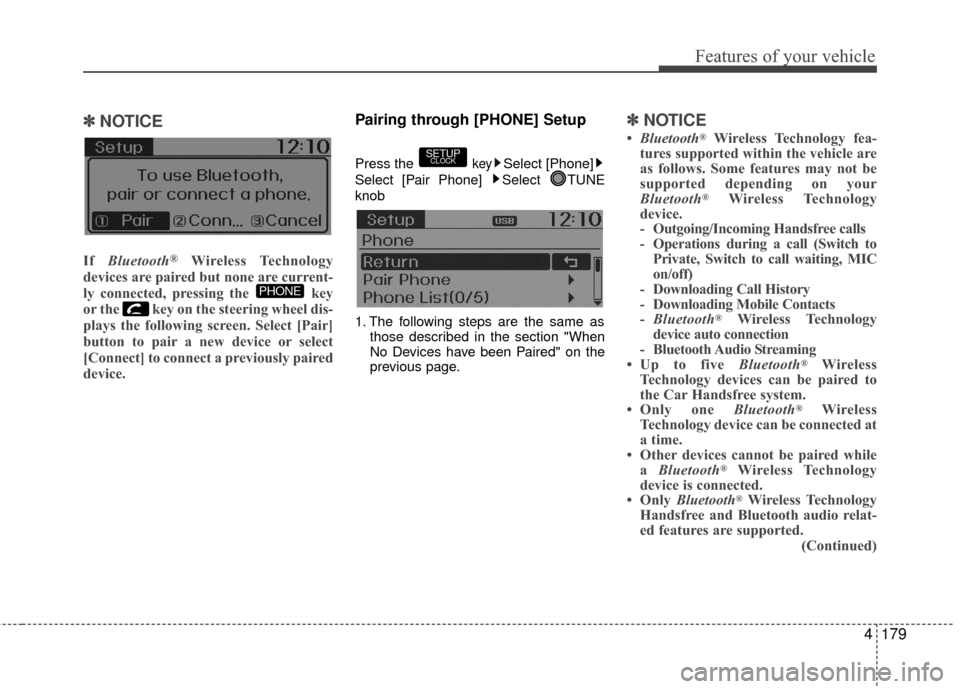
If Bluetooth®Wireless Technology
devices are paired but none are current-
ly connected, pressing the key
or the key on the steering wheel dis-
plays the following screen. Select [Pair]
button to pair a new device or select
[Connect] to connect a previously paired
device.
Pairing through [PHONE] Setup
Press the keySelect [Phone]
Select [Pair Phone] Select TUNE
knob
1. The following steps are the same as those described in the section "When
No Devices have been Paired" on the
previous page.
✽ ✽NOTICE
•Bluetooth®Wireless Technology fea-
tures supported within the vehicle are
as follows. Some features may not be
supported depending on your
Bluetooth
®Wireless Technology
device.
- Outgoing/Incoming Handsfree calls
- Operations during a call (Switch to Private, Switch to call waiting, MIC
on/off)
- Downloading Call History
- Downloading Mobile Contacts
- Bluetooth
®Wireless Technology
device auto connection
- Bluetooth Audio Streaming
• Up to five Bluetooth
®Wireless
Technology devices can be paired to
the Car Handsfree system.
• Only one Bluetooth
®Wireless
Technology device can be connected at
a time.
• Other devices cannot be paired while a Bluetooth
®Wireless Technology
device is connected.
• Only Bluetooth
®Wireless Technology
Handsfree and Bluetooth audio relat-
ed features are supported.
(Continued)
SETUPCLOCK
PHONE
Page 257 of 456
Features of your vehicle
180
4
(Continued)
Bluetooth related operations are pos-
sible only within devices that support
Handsfree or audio features, such as a
Bluetooth
®Wireless Technology
mobile phone or a Bluetooth audio
device.
• If a connected Bluetooth
®Wireless
Technology device becomes discon-
nected due to being out of communi-
cation range, turning the device OFF,
or a Bluetooth
®Wireless Technology
communication error, corresponding
Bluetooth
®Wireless Technology
devices are automatically searched
and reconnected.
• If the system becomes unstable due to communication errors between the
car Handsfree and the Bluetooth
®
Wireless Technology device, reset the
device by turning off and back on
again. Upon resetting Bluetooth
®
Wireless Technology device, the sys-
tem will be restored. (Continued)(Continued)
• After pairing is complete, a contacts
download request is sent once to the
mobile phone. Some mobile phones
may require confirmation upon
receiving a download request, ensure
your mobile phone accepts the con-
nection. Refer to your phones user’s
manual for additional information
regarding phone pairing and connec-
tions.
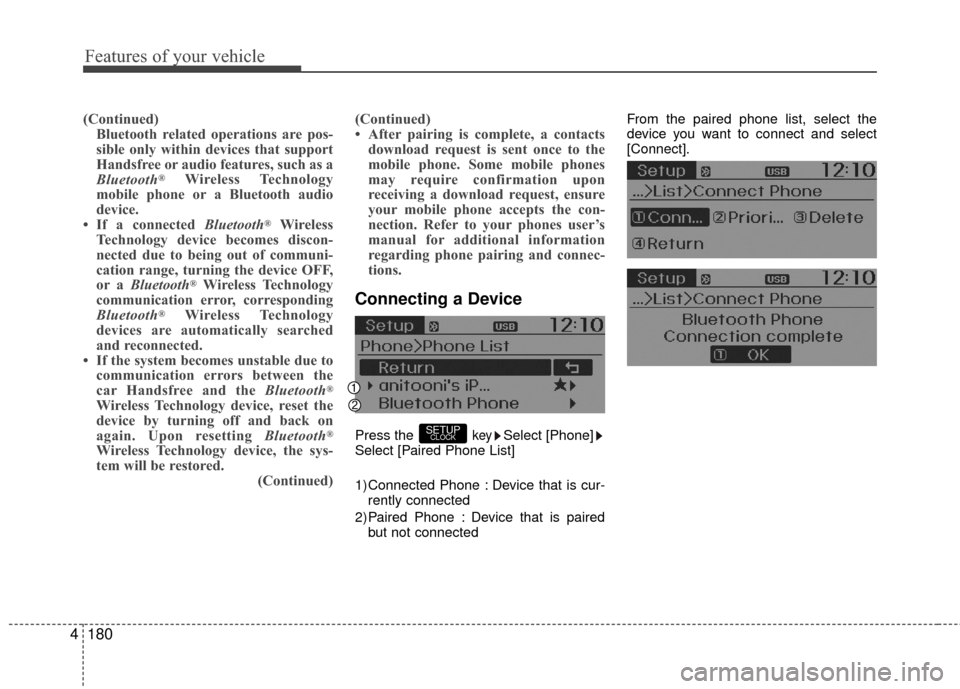
Connecting a Device
Press the keySelect [Phone]
Select [Paired Phone List]
1) Connected Phone : Device that is cur- rently connected
2) Paired Phone : Device that is paired but not connected From the paired phone list, select the
device you want to connect and select
[Connect].SETUPCLOCK
Page 258 of 456
4181
Features of your vehicle
Changing Priority
What is Priority?
It is possible to pair up to five Bluetooth®
Wireless Technology devices with the car
audio system. The "Change Priority" fea-
ture is used to set the connection priority
of paired phones.
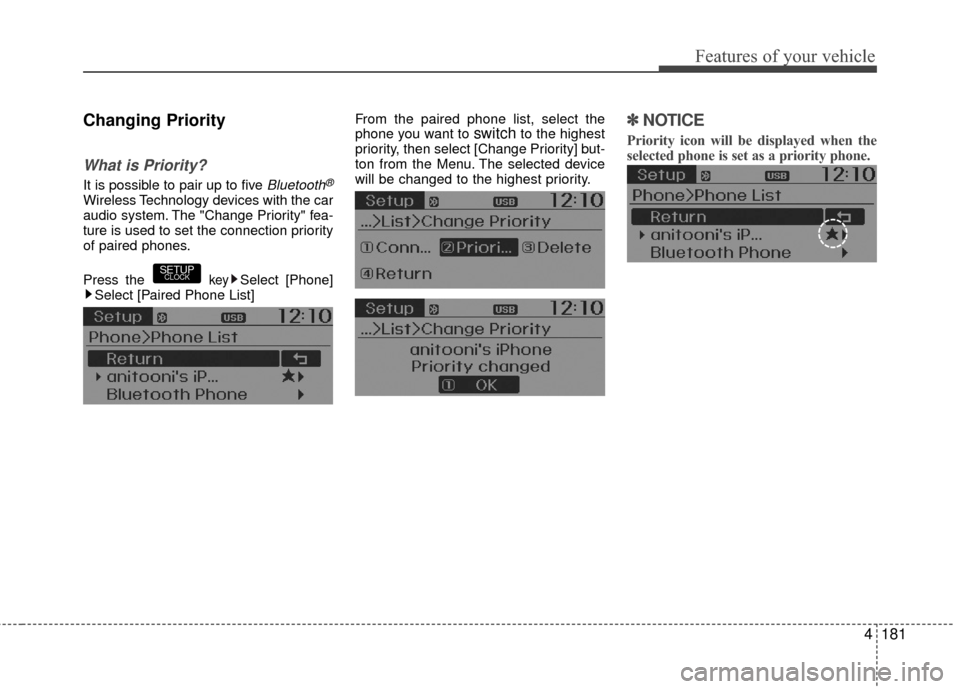
Press the
keySelect [Phone]
Select [Paired Phone List] From the paired phone list, select the
phone you want to
switchto the highest
priority, then select [Change Priority] but-
ton from the Menu. The selected device
will be changed to the highest priority.✽ ✽ NOTICE
Priority icon will be displayed when the
selected phone is set as a priority phone.
SETUPCLOCK
Page 259 of 456
![Hyundai Accent 2016 Manual PDF Features of your vehicle
182
4
Disconnecting a Device
Press the keySelect [Phone]
Select [Paired Phone List]
From the paired phone list, select the
currently connected device and select
[Disconnect] b](/img/35/14353/w960_14353-258.png "Hyundai Accent 2016 Manual PDF Features of your vehicle
182
4
Disconnecting a Device
Press the keySelect [Phone]
Select [Paired Phone List]
From the paired phone list, select the
currently connected device and select
[Disconnect] b")
Features of your vehicle
182
4
Disconnecting a Device
Press the keySelect [Phone]
Select [Paired Phone List]
From the paired phone list, select the
currently connected device and select
[Disconnect] button.
Deleting a Device
Press the key Select [Phone]
Select [Paired Phone List]
From the paired phone list, select the
device you want to delete and select
[Delete] button.
✽ ✽ NOTICE
• When deleting the currently connect-
ed device, the device will automatical-
ly be disconnected to proceed with the
deleting process.
• If a paired Bluetooth
®Wireless
Technology device is deleted, the
device’s call history and contacts data
will also be deleted.
• To re-use a deleted device, you must pair the device again.
SETUPCLOCKSETUPCLOCK
Page 263 of 456
![Hyundai Accent 2016 Manual PDF Features of your vehicle
186
4
Bluetooth®Wireless
Technology Setting
Pairing a New Device
Press the keySelect [Phone]
Select [Pair Phone]
Bluetooth®Wireless Technology devices
can be paired with the](/img/35/14353/w960_14353-262.png "Hyundai Accent 2016 Manual PDF Features of your vehicle
186
4
Bluetooth®Wireless
Technology Setting
Pairing a New Device
Press the keySelect [Phone]
Select [Pair Phone]
Bluetooth®Wireless Technology devices
can be paired with the")
Features of your vehicle
186
4
Bluetooth®Wireless
Technology Setting
Pairing a New Device
Press the keySelect [Phone]
Select [Pair Phone]
Bluetooth®Wireless Technology devices
can be paired with the audio system.
For more information, refer to the “Pairing
through Phone Setup” section within
Bluetooth®Wireless Technology.
Viewing Paired Phone List
Press the keySelect [Phone]
Select [Paired Phone List]
This feature is used to view mobile
phones that have been paired with the
audio system. Upon selecting a paired
phone, the setup menu is displayed.
For more information, refer to the “Setting
Bluetooth®Wireless Technology
Connection” section within Bluetooth®
Wireless Technology. 1) Connect/Disconnect Phone : Connect/
disconnects currently selected phone
2) Change Priority : Sets currently select- ed phone to highest connection priori-
ty
3) Delete : Deletes the currently selected phone
4) Return : Moves to the previous screen
SETUPCLOCK
SETUPCLOCK
Page 264 of 456
4187
Features of your vehicle
✽
✽NOTICE BEFORE DOWN-
LOADING CONTACTS
• Only contacts within connected
phones can be downloaded. Also
check to see that your mobile phone
supports the download feature.
• To learn more about whether your mobile phone supports contacts
downloads, refer to your mobile
phone user’s manual.
• The contacts for only the connected phone can be downloaded.
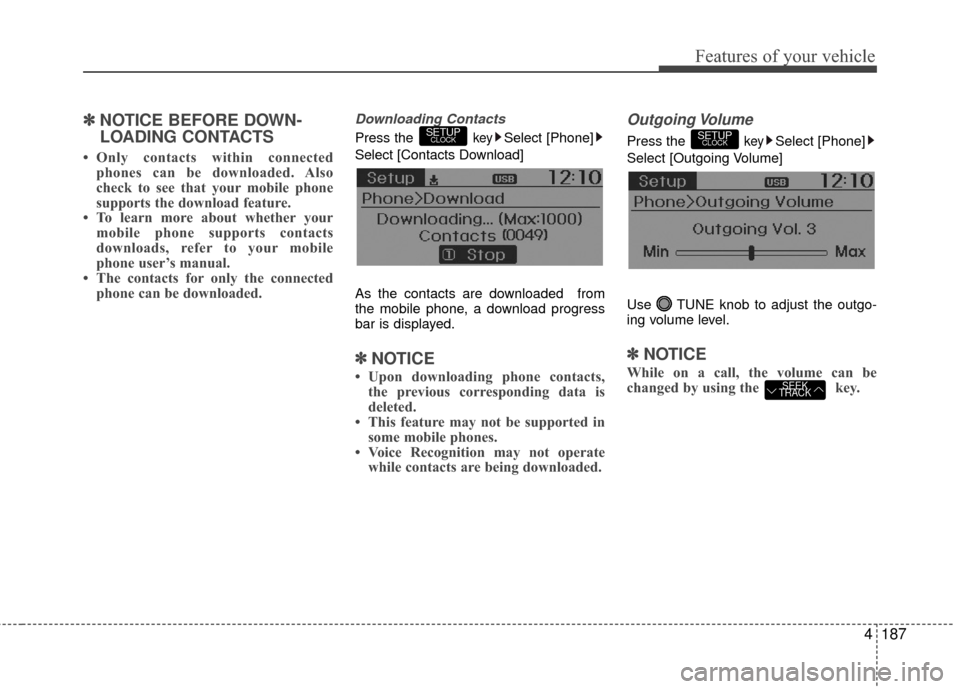
Downloading Contacts
Press the keySelect [Phone]
Select [Contacts Download]
As the contacts are downloaded from
the mobile phone, a download progress
bar is displayed.
✽ ✽ NOTICE
• Upon downloading phone contacts,
the previous corresponding data is
deleted.
• This feature may not be supported in some mobile phones.
• Voice Recognition may not operate while contacts are being downloaded.
Outgoing Volume
Press thekeySelect [Phone]
Select [Outgoing Volume]
Use TUNE knob to adjust the outgo-
ing volume level.
✽ ✽ NOTICE
While on a call, the volume can be
changed by using the key.SEEK
TRACK
SETUPCLOCKSETUPCLOCK
Page 265 of 456
![Hyundai Accent 2016 Manual PDF Features of your vehicle
188
4
Turning Bluetooth System Off
Press the keySelect [Phone]
Select [Bluetooth System Off]
Once
Bluetooth®Wireless Technology is
turned off, Bluetooth®Wireless
Technology](/img/35/14353/w960_14353-264.png "Hyundai Accent 2016 Manual PDF Features of your vehicle
188
4
Turning Bluetooth System Off
Press the keySelect [Phone]
Select [Bluetooth System Off]
Once
Bluetooth®Wireless Technology is
turned off, Bluetooth®Wireless
Technology")
Features of your vehicle
188
4
Turning Bluetooth System Off
Press the keySelect [Phone]
Select [Bluetooth System Off]
Once
Bluetooth®Wireless Technology is
turned off, Bluetooth®Wireless
Technology related features will not be
supported within the audio system.
✽ ✽ NOTICE
To turn Bluetooth®Wireless Technology
back on, go to [Phone] and
select “Yes”.SETUPCLOCK
SETUPCLOCK
Page 266 of 456
4189
Features of your vehicle
VOICE RECOGNITION
(if equipped model)
Using Voice Recognition
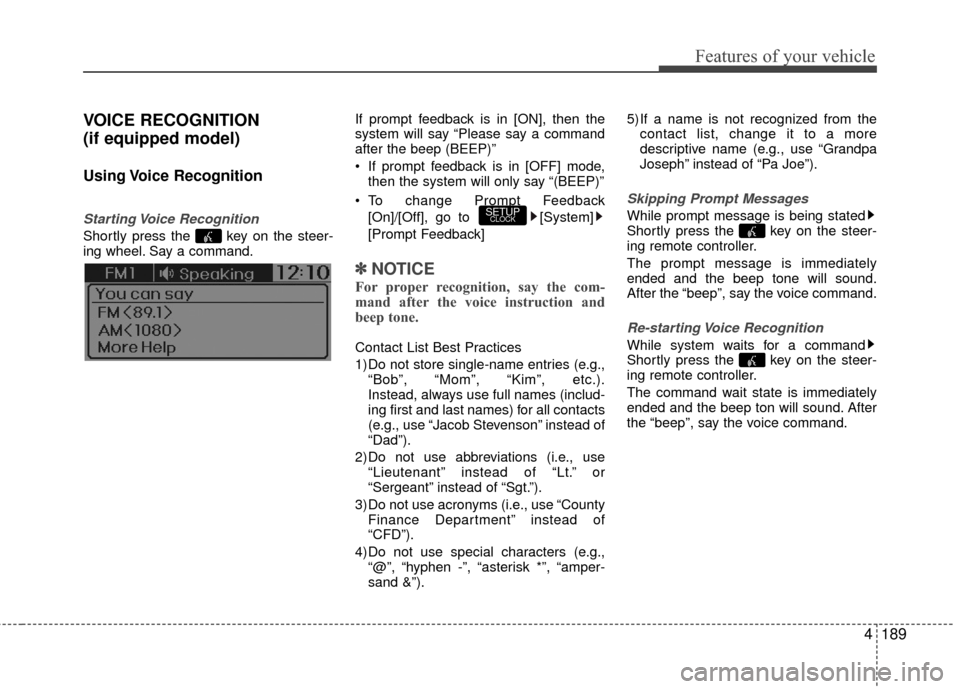
Starting Voice Recognition
Shortly press the key on the steer-
ing wheel. Say a command.If prompt feedback is in [ON], then the
system will say “Please say a command
after the beep (BEEP)”
If prompt feedback is in [OFF] mode,
then the system will only say “(BEEP)”
To change Prompt Feedback [On]/[Off], go to [System]
[Prompt Feedback]
✽ ✽ NOTICE
For proper recognition, say the com-
mand after the voice instruction and
beep tone.
Contact List Best Practices
1) Do not store single-name entries (e.g.,
“Bob”, “Mom”, “Kim”, etc.).
Instead, always use full names (includ-
ing first and last names) for all contacts
(e.g., use “Jacob Stevenson” instead of
“Dad”).
2) Do not use abbreviations (i.e., use “Lieutenant” instead of “Lt.” or
“Sergeant” instead of “Sgt.”).
3) Do not use acronyms (i.e., use “County Finance Department” instead of
“CFD”).
4) Do not use special characters (e.g., “@”, “hyphen -”, “asterisk *”, “amper-
sand &”). 5) If a name is not recognized from the
contact list, change it to a more
descriptive name (e.g., use “Grandpa
Joseph” instead of “Pa Joe”).
Skipping Prompt Messages
While prompt message is being stated
Shortly press the key on the steer-
ing remote controller.
The prompt message is immediately
ended and the beep tone will sound.
After the “beep”, say the voice command.
Re-starting Voice Recognition
While system waits for a command
Shortly press the key on the steer-
ing remote controller.
The command wait state is immediately
ended and the beep ton will sound. After
the “beep”, say the voice command.
SETUPCLOCK
Page 278 of 456
Driving your vehicle
45
Before starting
Close and lock all doors.
Position the seat so that all controls areeasily reached.
Adjust the inside rearview mirror and side view mirrors.
Be sure that all lights work.
Check all gauges.
Check the operation of warning lights when the ignition switch is turned to
the ON position.
Release the parking brake and make sure the brake warning light goes out.
For safe operation, be sure you are famil-
iar with your vehicle and its equipment.WARNING
Always check the surrounding
areas near your vehicle for people,
especially children, before putting a
car into D (Drive) or R (Reverse).
WARNING- Driving under
the influence of alcohol or
drugs
Drinking and driving is dangerous.
Drunk driving is the number one
contributor to the highway death
toll each year. Even a small amount
of alcohol will affect your reflexes,
perceptions and judgment. Driving
while under the influence of drugs
is as dangerous or more dangerous
than driving drunk.
You are much more likely to have a
serious accident if you drink or
take drugs and drive.
If you are drinking or taking drugs,
don’t drive. Do not ride with a driv-
er who has been drinking or taking
drugs. Choose a designated driver
or call a cab.
WARNING
When you intend to park or stop
the vehicle with the engine on, be
careful not to depress the accel-
erator pedal for a long period of
time. It may overheat the engine
or exhaust system and cause fire.
When you make a sudden stop or turn the steering wheel rapidly,
loose objects may drop on the
floor and it could interfere with
the operation of the foot pedals,
possibly causing an accident.
Keep all things in the vehicle
safely stored.
If you do not focus on driving, it may cause an accident. Be care-
ful when operating items that
may distract from such as audio
or heater controls. It is the
responsibility of the driver to
always drive safely with full atten-
tion to the task of driving.
WARNING
All passengers must be properly
belted whenever the vehicle is mov-
ing. Refer to "Seat belts" in section
3 for more information on their
proper use.
Page 279 of 456
55
Driving your vehicle
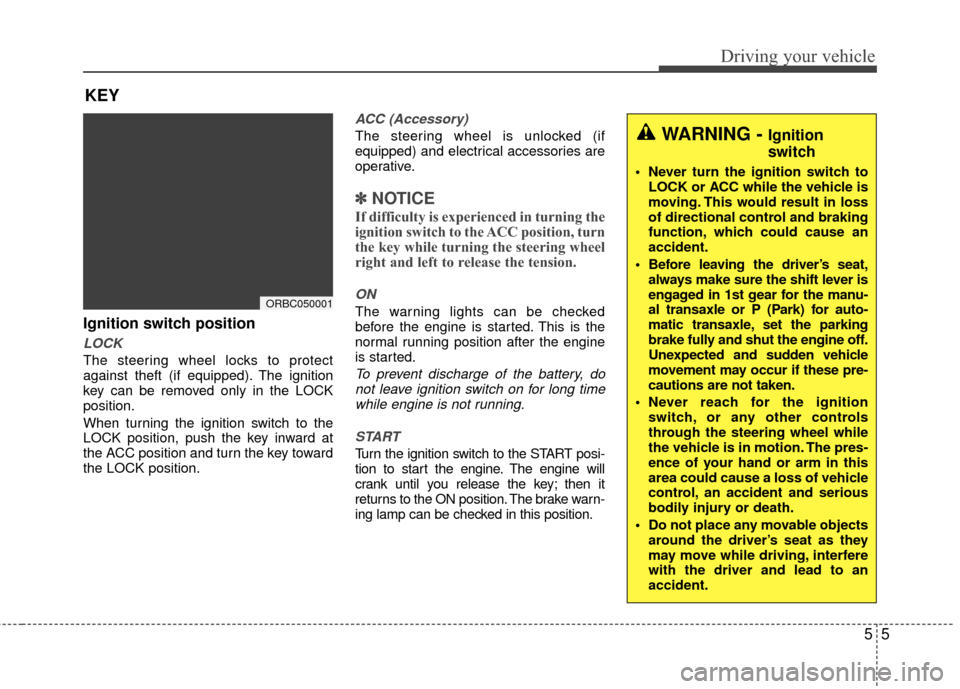
Ignition switch position
LOCK
The steering wheel locks to protect
against theft (if equipped). The ignition
key can be removed only in the LOCK
position.
When turning the ignition switch to the
LOCK position, push the key inward at
the ACC position and turn the key toward
the LOCK position.
ACC (Accessory)
The steering wheel is unlocked (if
equipped) and electrical accessories are
operative.
✽ ✽NOTICE
If difficulty is experienced in turning the
ignition switch to the ACC position, turn
the key while turning the steering wheel
right and left to release the tension.
ON
The warning lights can be checked
before the engine is started. This is the
normal running position after the engine
is started.
To prevent discharge of the battery, do
not leave ignition switch on for long timewhile engine is not running.
START
Turn the ignition switch to the START posi-
tion to start the engine. The engine will
crank until you release the key; then it
returns to the ON position. The brake warn-
ing lamp can be checked in this position.
KEY
ORBC050001
WARNING - Ignition
switch
Never turn the ignition switch to LOCK or ACC while the vehicle is
moving. This would result in loss
of directional control and braking
function, which could cause an
accident.
Before leaving the driver’s seat, always make sure the shift lever is
engaged in 1st gear for the manu-
al transaxle or P (Park) for auto-
matic transaxle, set the parking
brake fully and shut the engine off.
Unexpected and sudden vehicle
movement may occur if these pre-
cautions are not taken.
Never reach for the ignition switch, or any other controls
through the steering wheel while
the vehicle is in motion. The pres-
ence of your hand or arm in this
area could cause a loss of vehicle
control, an accident and serious
bodily injury or death.
Do not place any movable objects around the driver’s seat as they
may move while driving, interfere
with the driver and lead to an
accident.