clock Hyundai Accent 2017 User Guide
[x] Cancel search | Manufacturer: HYUNDAI, Model Year: 2017, Model line: Accent, Model: Hyundai Accent 2017Pages: 380, PDF Size: 12.45 MB
Page 189 of 380
![Hyundai Accent 2017 User Guide 4-115
Features of your vehicle
Pairing through [PHONE] Setup
Press the keySelect [Phone]
Select [Pair Phone] Select TUNE
knob
1. The following steps are the same as those described in the section "W](/img/35/14348/w960_14348-188.png "Hyundai Accent 2017 User Guide 4-115
Features of your vehicle
Pairing through [PHONE] Setup
Press the keySelect [Phone]
Select [Pair Phone] Select TUNE
knob
1. The following steps are the same as those described in the section \"W")
4-115
Features of your vehicle
Pairing through [PHONE] Setup
Press the keySelect [Phone]
Select [Pair Phone] Select TUNE
knob
1. The following steps are the same as those described in the section "When
No Devices have been Paired" on the
previous page.
✽ ✽NOTICE
•Bluetooth®Wireless Technology fea-
tures supported within the vehicle are
as follows. Some features may not be
supported depending on your
Bluetooth
®Wireless Technology
device.
- Outgoing/Incoming Handsfree calls
- Operations during a call (Switch to Private, Switch to call waiting, MIC
on/off)
- Downloading Call History
- Downloading Mobile Contacts
- Bluetooth
®Wireless Technology
device auto connection
- Bluetooth Audio Streaming
• Up to five Bluetooth
®Wireless
Technology devices can be paired to
the Car Handsfree system.
• Only one Bluetooth
®Wireless
Technology device can be connected at
a time.
• Other devices cannot be paired while a Bluetooth
®Wireless Technology
device is connected.
• Only Bluetooth
®Wireless Technology
Handsfree and Bluetooth audio relat-
ed features are supported.
(Continued)(Continued)
Bluetooth related operations are pos-
sible only within devices that support
Handsfree or audio features, such as a
Bluetooth
®Wireless Technology
mobile phone or a Bluetooth audio
device.
• If a connected Bluetooth
®Wireless
Technology device becomes discon-
nected due to being out of communi-
cation range, turning the device OFF,
or a Bluetooth
®Wireless Technology
communication error, corresponding
Bluetooth
®Wireless Technology
devices are automatically searched
and reconnected.
• If the system becomes unstable due to communication errors between the
car Handsfree and the Bluetooth
®
Wireless Technology device, reset the
device by turning off and back on
again. Upon resetting Bluetooth
®
Wireless Technology device, the sys-
tem will be restored.
• After pairing is complete, a contacts download request is sent once to the
mobile phone. Some mobile phones
may require confirmation upon
receiving a download request, ensure
your mobile phone accepts the connec-
tion. Refer to your phones user’s man-
ual for additional information regard-
ing phone pairing and connections.
SETUPCLOCK
Page 190 of 380
![Hyundai Accent 2017 User Guide Features of your vehicle
4-116
Connecting a Device
Press the keySelect [Phone]
Select [Paired Phone List]
1) Connected Phone : Device that is cur- rently connected
2) Paired Phone : Device that is pa](/img/35/14348/w960_14348-189.png "Hyundai Accent 2017 User Guide Features of your vehicle
4-116
Connecting a Device
Press the keySelect [Phone]
Select [Paired Phone List]
1) Connected Phone : Device that is cur- rently connected
2) Paired Phone : Device that is pa")
Features of your vehicle
4-116
Connecting a Device
Press the keySelect [Phone]
Select [Paired Phone List]
1) Connected Phone : Device that is cur- rently connected
2) Paired Phone : Device that is paired but not connected
From the paired phone list, select the
device you want to connect and select
[Connect].
Changing Priority
What is Priority?
It is possible to pair up to five Bluetooth®
Wireless Technology devices with the car
audio system. The "Change Priority" fea-
ture is used to set the connection priority
of paired phones.
Press the
keySelect [Phone]
Select [Paired Phone List] From the paired phone list, select the
phone you want to
switchto the highest
priority, then select [Change Priority] but-
ton from the Menu. The selected device
will be changed to the highest priority.
✽ ✽ NOTICE
Priority icon will be displayed when the
selected phone is set as a priority phone.
SETUPCLOCK
SETUPCLOCK
Page 191 of 380
![Hyundai Accent 2017 User Guide 4-117
Features of your vehicle
Disconnecting a Device
Press the keySelect [Phone]
Select [Paired Phone List]
From the paired phone list, select the
currently connected device and select
[Disconnect] b](/img/35/14348/w960_14348-190.png "Hyundai Accent 2017 User Guide 4-117
Features of your vehicle
Disconnecting a Device
Press the keySelect [Phone]
Select [Paired Phone List]
From the paired phone list, select the
currently connected device and select
[Disconnect] b")
4-117
Features of your vehicle
Disconnecting a Device
Press the keySelect [Phone]
Select [Paired Phone List]
From the paired phone list, select the
currently connected device and select
[Disconnect] button.
Deleting a Device
Press the key Select [Phone]
Select [Paired Phone List]
From the paired phone list, select the
device you want to delete and select
[Delete] button.
✽ ✽ NOTICE
• When deleting the currently connect-
ed device, the device will automatical-
ly be disconnected to proceed with the
deleting process.
• If a paired Bluetooth
®Wireless
Technology device is deleted, the
device's call history and contacts data
will also be deleted.
• To re-use a deleted device, you must pair the device again.
SETUPCLOCKSETUPCLOCK
Page 194 of 380
Features of your vehicle
4-120
✽
✽NOTICE
• Up to 1,000 contacts saved in your
Bluetooth®Wireless Technology phone
can be downloaded into the car con-
tacts. Contacts that have been down-
loaded to the car cannot be edited or
deleted on the phone.
• Mobile phone contacts are managed separately for each paired Bluetooth
®
Wireless Technology device (max 5
devices x 1,000 contacts each).
Previously downloaded data is main-
tained even if the Bluetooth
®Wireless
Technology device has been discon-
nected.
(However, the contacts and call histo-
ry saved to the phone will be deleted if
a paired phone is deleted.)
• It is possible to download contacts during Bluetooth streaming audio.
• When downloading contacts, the icon will be displayed within the status bar. (Continued)(Continued)
• It is not possible to begin downloading
a contact list when the contact down-
load feature has been turned off with-
in the Bluetooth
®Wireless Technology
device. In addition, some devices may
require device authorization upon
attempting to download contacts. If
downloading does not normally occur,
check the Bluetooth
®Wireless
Technology device settings or the
screen state.
• The contacts download feature may not be supported in some mobile
phones. For more information of sup-
ported Bluetooth
®devices and func-
tion support, refer to your phone’s
user manual.
Bluetooth®Wireless
Technology Setting
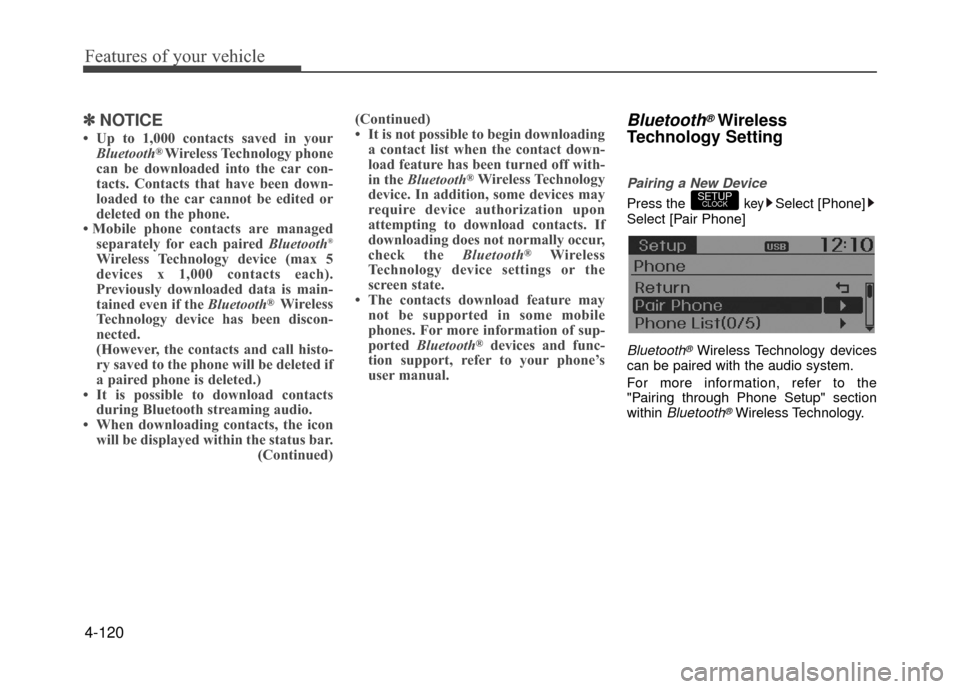
Pairing a New Device
Press the keySelect [Phone]
Select [Pair Phone]
Bluetooth®Wireless Technology devices
can be paired with the audio system.
For more information, refer to the
"Pairing through Phone Setup" section
within
Bluetooth®Wireless Technology.
SETUPCLOCK
Page 195 of 380
![Hyundai Accent 2017 User Guide 4-121
Features of your vehicle
Viewing Paired Phone List
Press the keySelect [Phone]
Select [Paired Phone List]
This feature is used to view mobile
phones that have been paired with the
audio system.](/img/35/14348/w960_14348-194.png "Hyundai Accent 2017 User Guide 4-121
Features of your vehicle
Viewing Paired Phone List
Press the keySelect [Phone]
Select [Paired Phone List]
This feature is used to view mobile
phones that have been paired with the
audio system.")
4-121
Features of your vehicle
Viewing Paired Phone List
Press the keySelect [Phone]
Select [Paired Phone List]
This feature is used to view mobile
phones that have been paired with the
audio system. Upon selecting a paired
phone, the setup menu is displayed.
For more information, refer to the
"Setting
Bluetooth®Wireless Technology
Connection" section within Bluetooth®
Wireless Technology.
1) Connect/Disconnect Phone : Connect/ disconnects currently selected phone
2) Change Priority : Sets currently select- ed phone to highest connection priori-
ty 3) Delete : Deletes the currently selected
phone
4) Return : Moves to the previous screen
✽ ✽ NOTICE BEFORE DOWN-
LOADING CONTACTS
• Only contacts within connected
phones can be downloaded. Also
check to see that your mobile phone
supports the download feature.
• To learn more about whether your mobile phone supports contacts
downloads, refer to your mobile
phone user's manual.
• The contacts for only the connected phone can be downloaded.
Downloading Contacts
Press the keySelect [Phone]
Select [Contacts Download]
As the contacts are downloaded from
the mobile phone, a download progress
bar is displayed.
✽ ✽ NOTICE
• Upon downloading phone contacts,
the previous corresponding data is
deleted.
• This feature may not be supported in some mobile phones.
• Voice Recognition may not operate while contacts are being downloaded.
Outgoing Volume
Press thekeySelect [Phone]
Select [Outgoing Volume]
Use TUNE knob to adjust the outgo-
ing volume level.
✽ ✽ NOTICE
While on a call, the volume can be
changed by using the key.SEEK
TRACK
SETUPCLOCK
SETUPCLOCK
SETUPCLOCK
Page 196 of 380
![Hyundai Accent 2017 User Guide Features of your vehicle
4-122
Turning Bluetooth System Off
Press the keySelect [Phone]
Select [Bluetooth System Off]
Once
Bluetooth®Wireless Technology is
turned off, Bluetooth®Wireless
Technology](/img/35/14348/w960_14348-195.png "Hyundai Accent 2017 User Guide Features of your vehicle
4-122
Turning Bluetooth System Off
Press the keySelect [Phone]
Select [Bluetooth System Off]
Once
Bluetooth®Wireless Technology is
turned off, Bluetooth®Wireless
Technology")
Features of your vehicle
4-122
Turning Bluetooth System Off
Press the keySelect [Phone]
Select [Bluetooth System Off]
Once
Bluetooth®Wireless Technology is
turned off, Bluetooth®Wireless
Technology related features will not be
supported within the audio system.
✽ ✽ NOTICE
To turn Bluetooth®Wireless Technology
back on, go to [Phone] and
select "Yes".
VOICE RECOGNITION
(if equipped model)
Using Voice Recognition
Starting Voice Recognition
Shortly press the key on the steer-
ing wheel. Say a command.
If prompt feedback is in [ON], then the
system will say "Please say a command
after the beep (BEEP)"
If prompt feedback is in [OFF] mode, then the system will only say "(BEEP)"
To change Prompt Feedback [On]/[Off], go to [System]
[Prompt Feedback]
✽ ✽ NOTICE
For proper recognition, say the com-
mand after the voice instruction and
beep tone.
Contact List Best Practices
1) Do not store single-name entries (e.g.,
"Bob", "Mom", "Kim", etc.).
Instead, always use full names (includ-
ing first and last names) for all contacts
(e.g., use "Jacob Stevenson" instead
of "Dad").
2) Do not use abbreviations (i.e., use "Lieutenant" instead of "Lt." or
"Sergeant" instead of "Sgt.").
3) Do not use acronyms (i.e., use "County Finance Department" instead of
"CFD").
4) Do not use special characters (e.g., "@", "hyphen -", "asterisk *", "amper-
sand &").
5) If a name is not recognized from the contact list, change it to a more
descriptive name (e.g., use "Grandpa
Joseph" instead of "Pa Joe").
SETUPCLOCKSETUPCLOCK
SETUPCLOCK
Page 266 of 380
What to do in an emergency
6-18
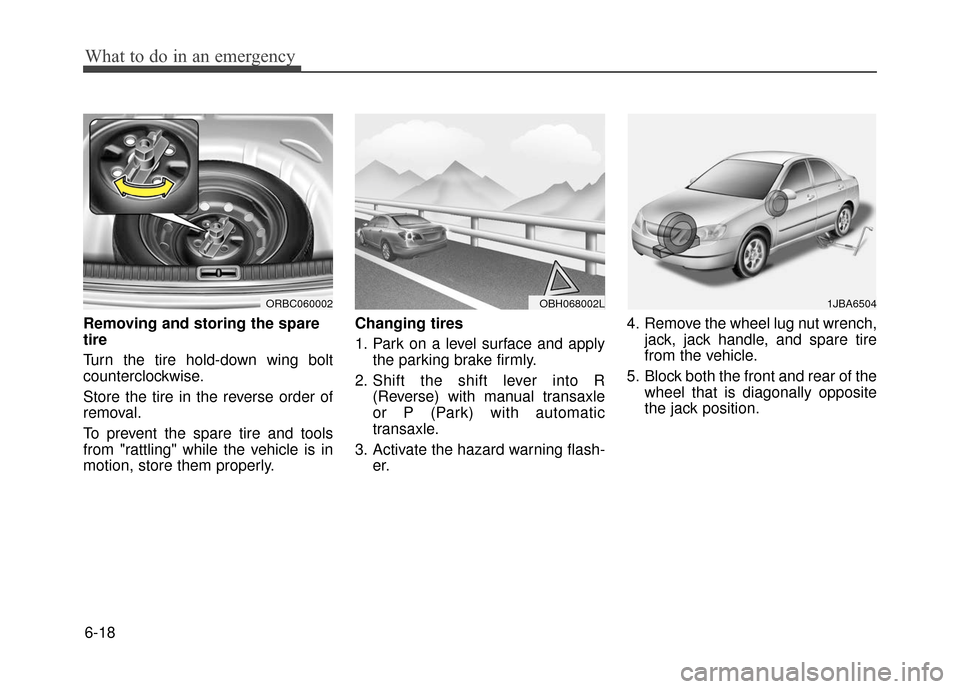
Removing and storing the spare
tire
Turn the tire hold-down wing bolt
counterclockwise.
Store the tire in the reverse order of
removal.
To prevent the spare tire and tools
from "rattling" while the vehicle is in
motion, store them properly.Changing tires
1. Park on a level surface and apply
the parking brake firmly.
2. Shift the shift lever into R (Reverse) with manual transaxle
or P (Park) with automatic
transaxle.
3. Activate the hazard warning flash- er. 4. Remove the wheel lug nut wrench,
jack, jack handle, and spare tire
from the vehicle.
5. Block both the front and rear of the wheel that is diagonally opposite
the jack position.
ORBC060002OBH068002L1JBA6504
Page 267 of 380
6-19
What to do in an emergency
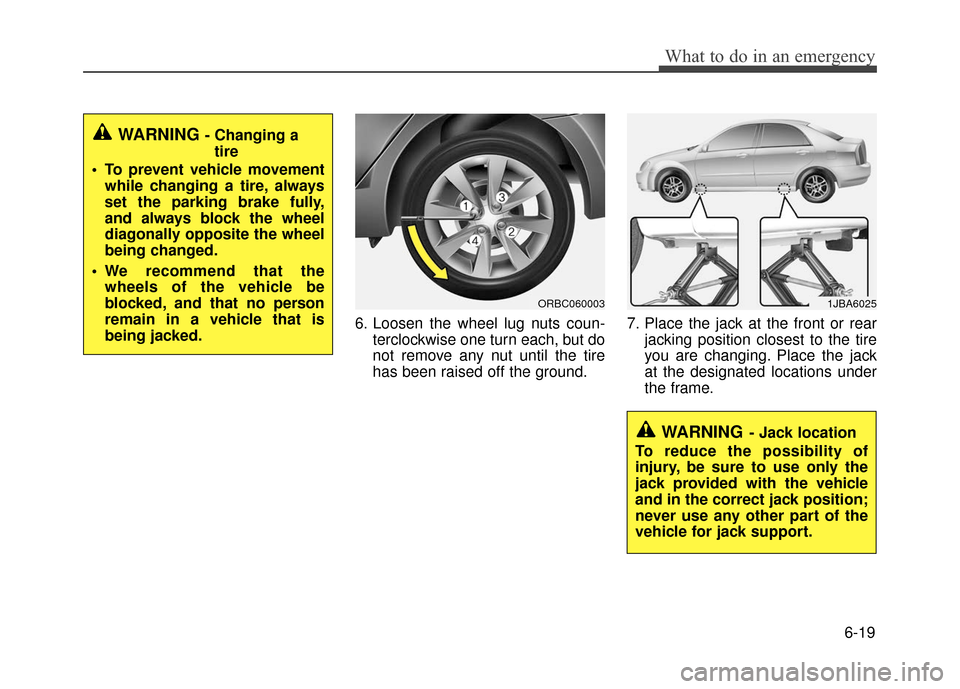
6. Loosen the wheel lug nuts coun-terclockwise one turn each, but do
not remove any nut until the tire
has been raised off the ground. 7. Place the jack at the front or rear
jacking position closest to the tire
you are changing. Place the jack
at the designated locations under
the frame.
WARNING - Changing atire
To prevent vehicle movement while changing a tire, always
set the parking brake fully,
and always block the wheel
diagonally opposite the wheel
being changed.
We recommend that the wheels of the vehicle be
blocked, and that no person
remain in a vehicle that is
being jacked.
ORBC060003
WARNING- Jack location
To reduce the possibility of
injury, be sure to use only the
jack provided with the vehicle
and in the correct jack position;
never use any other part of the
vehicle for jack support.
1JBA6025
Page 268 of 380
What to do in an emergency
6-20
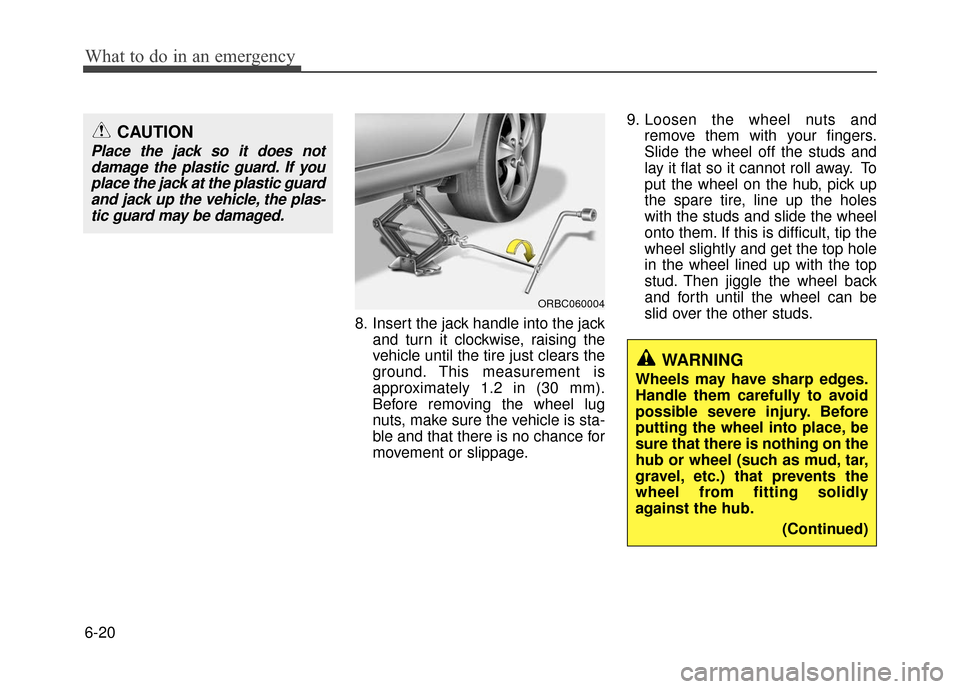
8. Insert the jack handle into the jackand turn it clockwise, raising the
vehicle until the tire just clears the
ground. This measurement is
approximately 1.2 in (30 mm).
Before removing the wheel lug
nuts, make sure the vehicle is sta-
ble and that there is no chance for
movement or slippage. 9. Loosen the wheel nuts and
remove them with your fingers.
Slide the wheel off the studs and
lay it flat so it cannot roll away. To
put the wheel on the hub, pick up
the spare tire, line up the holes
with the studs and slide the wheel
onto them. If this is difficult, tip the
wheel slightly and get the top hole
in the wheel lined up with the top
stud. Then jiggle the wheel back
and forth until the wheel can be
slid over the other studs.
ORBC060004
CAUTION
Place the jack so it does notdamage the plastic guard. If youplace the jack at the plastic guardand jack up the vehicle, the plas-tic guard may be damaged.
WARNING
Wheels may have sharp edges.
Handle them carefully to avoid
possible severe injury. Before
putting the wheel into place, be
sure that there is nothing on the
hub or wheel (such as mud, tar,
gravel, etc.) that prevents the
wheel from fitting solidly
against the hub.
(Continued)
Page 269 of 380
6-21
What to do in an emergency
10. To reinstall the wheel, hold it onthe studs, put the wheel nuts on
the studs and tighten them finger
tight. The nuts should be installed
with their tapered small diameter
ends directed inward. Jiggle the
tire to be sure it is completely
seated, then tighten the nuts as
much as possible with your fin-
gers again.
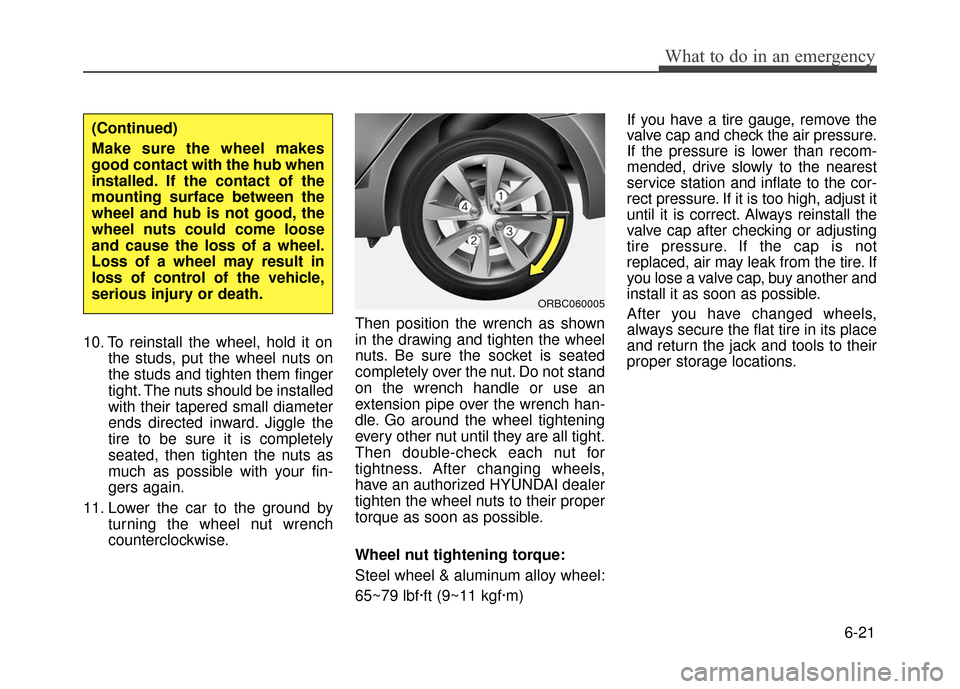
11. Lower the car to the ground by turning the wheel nut wrench
counterclockwise. Then position the wrench as shown
in the drawing and tighten the wheel
nuts. Be sure the socket is seated
completely over the nut. Do not stand
on the wrench handle or use an
extension pipe over the wrench han-
dle. Go around the wheel tightening
every other nut until they are all tight.
Then double-check each nut for
tightness. After changing wheels,
have an authorized HYUNDAI dealer
tighten the wheel nuts to their proper
torque as soon as possible.
Wheel nut tightening torque:
Steel wheel & aluminum alloy wheel:
65~79 lbf·ft (9~11 kgf·m) If you have a tire gauge, remove the
valve cap and check the air pressure.
If the pressure is lower than recom-
mended, drive slowly to the nearest
service station and inflate to the cor-
rect pressure. If it is too high, adjust it
until it is correct. Always reinstall the
valve cap after checking or adjusting
tire pressure. If the cap is not
replaced, air may leak from the tire. If
you lose a valve cap, buy another and
install it as soon as possible.
After you have changed wheels,
always secure the flat tire in its place
and return the jack and tools to their
proper storage locations.
(Continued)
Make sure the wheel makes
good contact with the hub when
installed. If the contact of the
mounting surface between the
wheel and hub is not good, the
wheel nuts could come loose
and cause the loss of a wheel.
Loss of a wheel may result in
loss of control of the vehicle,
serious injury or death.
ORBC060005