change time Hyundai Accent 2018 Owner's Guide
[x] Cancel search | Manufacturer: HYUNDAI, Model Year: 2018, Model line: Accent, Model: Hyundai Accent 2018Pages: 442, PDF Size: 13.99 MB
Page 225 of 442
4-18
Multimedia System
Information on status icons
Icons showing audio status are shown
in the upper-right corner of the screen.
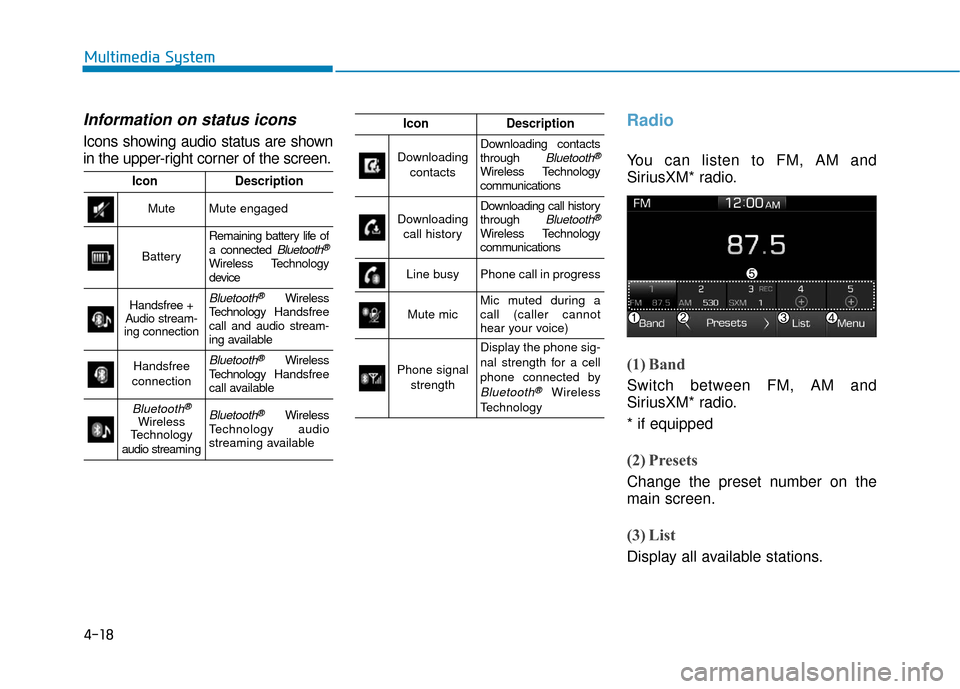
Radio
You can listen to FM, AM and
SiriusXM* radio.
(1) Band
Switch between FM, AM and
SiriusXM* radio.
* if equipped
(2) Presets
Change the preset number on the
main screen.
(3) List
Display all available stations.
IconDescription
MuteMute engaged
Battery
Remaining battery life of
a connected Bluetooth®
Wireless Technology
device
Handsfree +
Audio stream-
ing connectionBluetooth®Wireless
Technology Handsfree
call and audio stream-
ing available
Handsfree
connectionBluetooth®Wireless
Technology Handsfree
call available
Bluetooth®
Wireless
Technology
audio streami n gBluetooth®Wireless
Technology audio
streaming available
IconDescription
Downloading
contactsDownloading contacts
through Bluetooth®
Wireless Technology
communications
Downloading call historyDownloading call history
through Bluetooth®
Wireless Technology
communications
Line busyPhone call in progress
Mute micMic muted during a
call (caller cannot
hear your voice)
Phone signal strength
Display the phone sig-
nal strength for a cell
phone connected by
Bluetooth®Wireless
Technology
Page 226 of 442
![Hyundai Accent 2018 Owners Guide 4-19
Multimedia System
4
(4) Menu
Navigate to the menu screen.
(5) Presets 1~40
Save or listen to favorite stations.
Switching between FM, AM and
SiriusXM* radio
Press the [RADIO]button on the
audio](/img/35/14346/w960_14346-225.png "Hyundai Accent 2018 Owners Guide 4-19
Multimedia System
4
(4) Menu
Navigate to the menu screen.
(5) Presets 1~40
Save or listen to favorite stations.
Switching between FM, AM and
SiriusXM* radio
Press the [RADIO]button on the
audio")
4-19
Multimedia System
4
(4) Menu
Navigate to the menu screen.
(5) Presets 1~40
Save or listen to favorite stations.
Switching between FM, AM and
SiriusXM* radio
Press the [RADIO]button on the
audio system to switch between
FM, AM and SiriusXM* radio.
Select [Band] on the screen to switch between FM, AM and
SiriusXM* radio.
* if equipped
Searching stations
Searching stations by pressing the
[SEEK/TRACK] button on the prod-
uct.
< Presets >
By selecting [< Presets >], the but-
tons for Presets 1~40 displayed on
the screen can be changed.
Presets 1~40
Select the button to listen to a preset.
Press and hold the button number to
save the current station. If the slot is
empty, simply selecting saves the
station to the slot.
List
A list of all available stations is dis-
played. Select the desired station.
Favorite stations can be saved to
[Presets] by selecting the [+].
Menu
Select [Menu], and select the desired
function.
Presets: Save up to 40 frequently used stations. To listen to a preset,
select the desired station. Press
and hold the desired slot from 1
through 40. This saves the current
station in the selected slot. If the
slot is empty, simply selecting
saves the station to the slot.
Scan: All stations available in the current location of the vehicle are
played for five seconds each.
Information: View detailed station information.
Sound Settings: Audio sound set- tings can be changed.
Station Info: Set whether to receive station information such as Station
Name, Program Type or Information.
Page 227 of 442
4-20
Multimedia System
Information- SiriusXM®
Satellite Radio information
(if equipped)
• Satellite Radio channels: Enjoy SiriusXM Satellite Radio
with a 3-month trial subscription to
the Sirius Select package. You’ll get
over variable channels, including
commercial free music, plus all your
favorite sports, exclusive talk, enter-
tainment, and a selection of premi-
um programming. For more infor-
mation and a complete list of
SiriusXM channels, visit siriusxm.com
in the United States, siriusxm.ca in
Canada, or call SiriusXM at 1-888-
539-7474.
• Satellite Radio reception factors: To receive the satellite signal, your
vehicle has been equipped with a
satellite radio antenna located on the
roof of your vehicle. The vehicle roof
provides the best location for an
unobstructed, open view of the sky, a
requirement of a satellite radio sys-
tem. Like AM/FM, there are several
factors that can affect satellite radio
reception performance: (Continued)(Continued)
- Antenna obstructions: For opti-mal reception performance, keep
the antenna clear of snow and ice
build-up and keep luggage and
other material as far away from
the antenna as possible.
• SiriusXM Satellite Radio service: SiriusXM is a subscription-based
satellite radio service that broad-
casts music, sports, news and enter-
tainment programming to radio
receivers, which are available for
installation in motor vehicles or fac-
tory installed, as well as for the
home, portable and wireless devices,
and through an Internet connection
on a personal computer.
Vehicles that are equipped with a
factory installed SiriusXM Satellite
Radio system include:
- Hardware and an introductory trialsubscription term, which begins on
the date of sale or lease of the vehicle.
- For a small upgrade fee, access to SiriusXM music channels, and other
select channels over the Internet
using any computer connected to the
Internet (U.S. customers only).
(Continued)(Continued)
• SiriusXM services require a sub-
scription sold separately, or as a
package, by Sirius XM Radio Inc. If
you decide to continue service after
your trial, the subscription plan you
choose will automatically renew
thereafter and you will be charged
according to your chosen payment
method at then-current rates. Fees
and taxes apply. To cancel you must
call SiriusXM at 1-866-635-2349.
See SiriusXM Customer Agreement
for complete terms at www.sir-
iusxm.com. SiriusXM U.S. satellite
and data services are available only
in the 48 contiguous states, DC and
Puerto Rico (with coverage limita-
tions). SiriusXM satellite service is
also available in Canada; see
www.siriusxm.ca. All fees and pro-
gramming subject to change. Sirius,
XM and all related marks and logos
are trademarks of Sirius XM Radio
Inc.
i
Page 228 of 442
4-21
Multimedia System
4
SiriusXM Radio (if equipped)
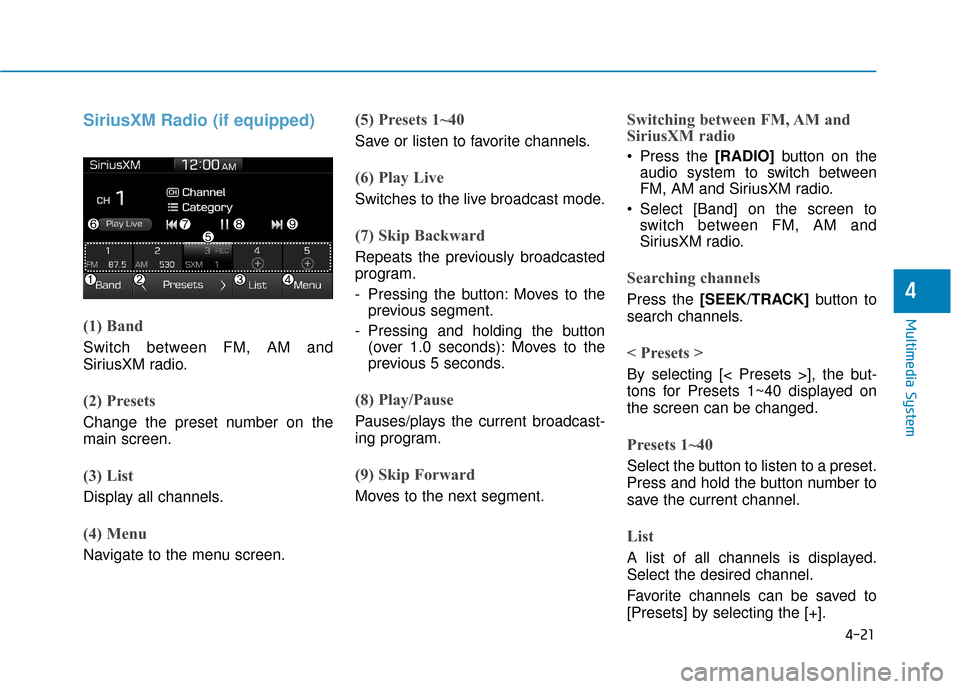
(1) Band
Switch between FM, AM and
SiriusXM radio.
(2) Presets
Change the preset number on the
main screen.
(3) List
Display all channels.
(4) Menu
Navigate to the menu screen.
(5) Presets 1~40
Save or listen to favorite channels.
(6) Play Live
Switches to the live broadcast mode.
(7) Skip Backward
Repeats the previously broadcasted
program.
- Pressing the button: Moves to theprevious segment.
- Pressing and holding the button (over 1.0 seconds): Moves to the
previous 5 seconds.
(8) Play/Pause
Pauses/plays the current broadcast-
ing program.
(9) Skip Forward
Moves to the next segment.
Switching between FM, AM and
SiriusXM radio
Press the [RADIO] button on the
audio system to switch between
FM, AM and SiriusXM radio.
Select [Band] on the screen to switch between FM, AM and
SiriusXM radio.
Searching channels
Press the [SEEK/TRACK] button to
search channels.
< Presets >
By selecting [< Presets >], the but-
tons for Presets 1~40 displayed on
the screen can be changed.
Presets 1~40
Select the button to listen to a preset.
Press and hold the button number to
save the current channel.
List
A list of all channels is displayed.
Select the desired channel.
Favorite channels can be saved to
[Presets] by selecting the [+].
Page 229 of 442
![Hyundai Accent 2018 Owners Guide 4-22
Multimedia System
Menu
Select [Menu], and select the desired
function.
Presets: Save up to 40 frequentlyused channels. To listen to a pre-
set, select the desired channel.
Press and hold the des](/img/35/14346/w960_14346-228.png "Hyundai Accent 2018 Owners Guide 4-22
Multimedia System
Menu
Select [Menu], and select the desired
function.
Presets: Save up to 40 frequentlyused channels. To listen to a pre-
set, select the desired channel.
Press and hold the des")
4-22
Multimedia System
Menu
Select [Menu], and select the desired
function.
Presets: Save up to 40 frequentlyused channels. To listen to a pre-
set, select the desired channel.
Press and hold the desired slot
from 1 through 40. This saves the
current channel in the selected
slot. If the slot is empty, simply
selecting saves the channel to the
slot.
Categories: Channels can be searched by category.
Direct Tune: The desired channel can be selected by entering num-
bers.
Sound Settings: Audio sound set- tings can be changed.
Tag Song: Tag the current song information. When an Apple device
(iPhone
®, iPod®) is connected,
tagged song information is sent
automatically to the connected
device.
Information
Up to 50 songs can be tagged.
Scan: All channels available in the vehicle’s current location are
played for ten seconds each.
Program Schedule: View the Program schedule.
Featured Favorites: The Featured Favorites feature allows
SiriusXM™ to broadcast additional
presets.
- Example 1: During holidays,"Holiday Music" might include all
SiriusXM™ channels that are
playing holiday music for easy
access by users.
Multiple sets of Featured Favorites
data can be broadcast by
SiriusXM™ and can change from
time to time.
Information: View detailed channel information.
Category Lock: Search or scan channels in the current category
only.
Media
Information
- Using MP3
Supported audio formats
File formats other than the for-
mats above may not be recog-
nized or playable. Information
such as filename may not be dis-
played.
NOTICE
i
i
Page 234 of 442
![Hyundai Accent 2018 Owners Guide 4-27
Multimedia System
4
(4) Save: Save the selected file(s).- Select the files you want to save,and select [Save]. This saves the
selected files to My Music.
- If phone calls are received or made whi](/img/35/14346/w960_14346-233.png "Hyundai Accent 2018 Owners Guide 4-27
Multimedia System
4
(4) Save: Save the selected file(s).- Select the files you want to save,and select [Save]. This saves the
selected files to My Music.
- If phone calls are received or made whi")
4-27
Multimedia System
4
(4) Save: Save the selected file(s).- Select the files you want to save,and select [Save]. This saves the
selected files to My Music.
- If phone calls are received or made while saving, saving will be
canceled.
- Up to 6,000 files can be saved.
- The currently playing file on the USB device cannot be changed
while saving.
- My Music cannot be used while saving.
- Up to 700 MB can be saved.
Information: Detailed information on the currently playing song is dis-
played.
Sound Settings: Audio sound set- tings can be changed.Information
- Using the iPod®Devices
• To use the audio system’s iPod
®con-
trol function, use the dedicated
cable provided with your iPod
®.
• Connecting the iPod
®to the vehicle
during play may result in a loud
noise that lasts about one to two sec-
onds. Connect the iPod
®to the vehi-
cle after stopping or pausing play.
• Connect the iPod
®with the vehicle in
the ACC ON state to begin charging.
• When connecting the iPod
®cable,
be sure to fully push the cable into
the port.
• When EQ effects are enabled simul- taneously on external devices, such
as iPod
®s and the audio system, the
EQ effects may overlap, causing
sound quality deterioration or dis-
tortion. Deactivate the EQ function
for all external devices, if possible.
• Noise may occur when your iPod
®
or the AUX port is connected.
Disconnect and store separately
when not in use. (Continued)(Continued)
• There may be noise if the audio sys-
tem is used with an iPod
®or AUX
external device connected to the
power jack. In these cases, discon-
nect the iPod
®or external device
from the power jack.
• Play may be interrupted, or device malfunctions may occur depending
on the characteristics of your
iPod
®/iPhone®/iPad®.
• Play may fail if your iPhone
®is con-
nected through both Bluetooth®
Wireless Technology and USB. In
this case, select Dock connector or
Bluetooth
®Wireless Technology on
your iPhone®to change the sound
output settings.
• If your software version does not support the communication proto-
col or your iPod
®is not recognized
due to device failure, anomalies or
defects, iPod
®mode cannot be used.
• iPod
®nano (5th generation) devices
may not be recognized if the battery
is low. Charge sufficiently before use.
(Continued)
i
Page 236 of 442
![Hyundai Accent 2018 Owners Guide 4-29
Multimedia System
4
Repeat play
Select [Repeat] to enable or disable
Repeat category, Repeat current
song play.
Repeat category: Repeat allsongs in the current category.
Repeat current song](/img/35/14346/w960_14346-235.png "Hyundai Accent 2018 Owners Guide 4-29
Multimedia System
4
Repeat play
Select [Repeat] to enable or disable
Repeat category, Repeat current
song play.
Repeat category: Repeat allsongs in the current category.
Repeat current song")
4-29
Multimedia System
4
Repeat play
Select [Repeat] to enable or disable
'Repeat category', 'Repeat current
song' play.
Repeat category: Repeat allsongs in the current category.
Repeat current song: The cur- rently playing song is repeated.
Shuffle play
Select [Shuffle] to enable or disable
'Shuffle category' play.
Shuffle category: Songs withinthe current category are played in
random order.
Menu
Select [Menu], and select the desired
function.
Information: Detailed info on thecurrently playing song is displayed.
Sound Settings: Audio sound set- tings can be changed.
When other music programs are
running
When songs saved on your iPod®
are playing through a separate music
app, the above screen is displayed.
(1) Play/Pause: Pause or play music
.
(2) Play iPod Files: Play m usic saved
on your iPod®.
(3) Sound Settngs: Audio sound set- tings can be changed.
(4) Album Image: View playback info
.
Playing iPod files
Select [Play iPod Files] to play songs
saved on your iPod®.
If there are no songs saved on your
iPod
®, the [Play iPod Files] is dis-
abled.
Information
Operation cannot be carried out cor-
rectly due to iPod®application mal-
function.
i
Page 238 of 442
4-31
Multimedia System
4
Information
• Some cell phone models may notsupport particular functions.
• Bluetooth
®Wireless Technology
audio volume is synced with cell
phone media volume.
Playback
Press the [MEDIA] button, and
select [BT Audio].
Changing songs
Press the [SEEK/TRACK] button to
play the previous or next song.
Information
Some cell phones may not support this
function.
Repeat play
Select [Repeat] to enable or disable
'Repeat all', 'Repeat current song' or
'Repeat category' play.
Repeat all: All songs in the playlist are repeated.
Repeat current song: The cur- rently playing song is repeated.
Repeat category: Repeat all songs in the current category.
Information
The repeat play function is engaged,
depending on the operation of the connect-
ed Bluetooth
®Wireless Technology
device.
Shuffle play
Select [Shuffle] to enable or disable
'Shuffle', 'Shuffle category' play.
Shuffle: Songs are played in random order.
Shuffle category: Songs within the current category are played in
random order.
Information
The shuffle function is engaged,
depending on the operation of the con-
nected Bluetooth
®Wireless
Technology device.
Menu
Select [Menu], and select the desired
function.
Connections: The currently con- nected
Bluetooth®Wireless
Technology device can be
changed.
Information: Detailed information on the currently playing song is dis-
played.
Sound Settings: Audio sound set- tings can be changed.
i
i
i
i
Page 239 of 442
![Hyundai Accent 2018 Owners Guide 4-32
Multimedia System
AUX
Running AUX
Press the [MEDIA]button, and
select [AUX].
Connect the external device connec-
tion jack to the AUX terminal to run
AUX.
(1) Sound Settings: Audio sound set- tin](/img/35/14346/w960_14346-238.png "Hyundai Accent 2018 Owners Guide 4-32
Multimedia System
AUX
Running AUX
Press the [MEDIA]button, and
select [AUX].
Connect the external device connec-
tion jack to the AUX terminal to run
AUX.
(1) Sound Settings: Audio sound set- tin")
4-32
Multimedia System
AUX
Running AUX
Press the [MEDIA]button, and
select [AUX].
Connect the external device connec-
tion jack to the AUX terminal to run
AUX.
(1) Sound Settings: Audio sound set- tings can be changed.
My Music (if equipped)
(1) Repeat
Enable/disable repeat play.
(2) Shuffle
Enable/disable shuffle play.
(3) List
View a list of all songs.
(4) Menu
Navigate to the menu screen.
(5) Album Image
View song info.
(6) Pause
Pause or play music.
(7) Playback progress
Select to skip to the desired location.
Playback
Press the [MEDIA] button, and
select [My Music].
My Music cannot be selected if it does not contain music.
Check the content of your USB drive before saving music to My
Music.
Changing songs
Press the [SEEK/TRACK] button to
play the previous or next song.
Press and hold the [SEEK/TRACK]
button to rewind or fast forward the
currently playing song.
Search songs by turning the TUNE
knob, and press the knob to play.
Page 240 of 442
![Hyundai Accent 2018 Owners Guide 4-33
Multimedia System
4
Selecting songs from a list
Select [List] to see a list of songs
available for play.
Select and play the desired song.
Repeat play
Select [Repeat] to enable or disable
Repeat](/img/35/14346/w960_14346-239.png "Hyundai Accent 2018 Owners Guide 4-33
Multimedia System
4
Selecting songs from a list
Select [List] to see a list of songs
available for play.
Select and play the desired song.
Repeat play
Select [Repeat] to enable or disable
Repeat")
4-33
Multimedia System
4
Selecting songs from a list
Select [List] to see a list of songs
available for play.
Select and play the desired song.
Repeat play
Select [Repeat] to enable or disable
'Repeat all', 'Repeat current song' or
'Repeat category' play.
Repeat all: All songs in theplaylist are repeated.
Repeat current song: The cur- rently playing song is repeated.
Repeat category: Repeat all songs in the current category.
Shuffle play
Select [Shuffle] to enable or disable
'Shuffle' or 'Shuffle category' play.
Shuffle: Songs are played inrandom order.
Shuffle category: Songs within the current category are played in
random order.
Menu
Select [Menu], and select the desired
function.
Delete Files: You can delete filesfrom My Music.
(1) File: Select saved file.
(2) Mark All: Select all files.
(3) Unmark All: Deselect all files. (4) Delete: Delete the selected file(s).
- Select the file to delete, thenselect [Delete] to delete it.
- If phone calls are received or made during delete, delete will
be canceled.
Add to Playlist: Frequently played songs can be paired in a [Playlist].
- Songs can be played from the[Playlist].
Information: Detailed info on the currently playing song is displayed.
Sound Settings: Audio sound set- tings can be changed.
Delete from Playlist
When a song in the playlist is play-
ing, select [Menu] and select [Delete
from Playlist].
Select the song to delete, then select
[Delete].