Ac system Hyundai Accent 2019 Owner's Manual
[x] Cancel search | Manufacturer: HYUNDAI, Model Year: 2019, Model line: Accent, Model: Hyundai Accent 2019Pages: 442, PDF Size: 14.14 MB
Page 245 of 442
![Hyundai Accent 2019 Owners Manual 4-38
Multimedia System
Connecting Bluetooth®Wireless
Technology devices
If there are no connected devices
Press the [PHONE] button on the
audio system or the [CALL] button in
the steering wheel remot](/img/35/14345/w960_14345-244.png "Hyundai Accent 2019 Owners Manual 4-38
Multimedia System
Connecting Bluetooth®Wireless
Technology devices
If there are no connected devices
Press the [PHONE] button on the
audio system or the [CALL] button in
the steering wheel remot")
4-38
Multimedia System
Connecting Bluetooth®Wireless
Technology devices
If there are no connected devices
Press the [PHONE] button on the
audio system or the [CALL] button in
the steering wheel remote control ➟
List of paired
Bluetooth®Wireless
Technology devices ➟ Select the
desired
Bluetooth®Wireless
Technology devices from the list ➟
Connect
Bluetooth®Wireless
Technology.
If there are connected devices
Press the [PHONE] button on the
audio system ➟ Select [Settings] ➟
Select [Connections] ➟Select
Bluetooth®Wireless Technology
device to connect ➟ Select [Connect]
➟ Connect
Bluetooth®Wireless
Technology.
Information
• Only one Bluetooth®Wireless
Technology device can be connected
at a time.
• When a Bluetooth
®Wireless
Technology device is connected,
other devices cannot be paired.
Accepting/rejecting phone calls
Receiving phone calls with
Bluetooth®Wireless Technology con-
nected.
(1) Caller name: If the caller number is in your contacts, the correspon-
ding name is displayed.
(2) Incoming phone number: Incoming phone number is displayed.
(3) Accept: Accept call.
(4) Reject: Reject call.
i
Page 246 of 442
4-39
Information
• When the incoming call screen isdisplayed, audio mode and the set-
tings screen cannot be shown. Only
call volume control is supported.
• Some Bluetooth
®Wireless Technology
devices may not support the call
reject function.
• Some Bluetooth
®Wireless Technology
devices may not support the phone
number display function.
Operation during calls
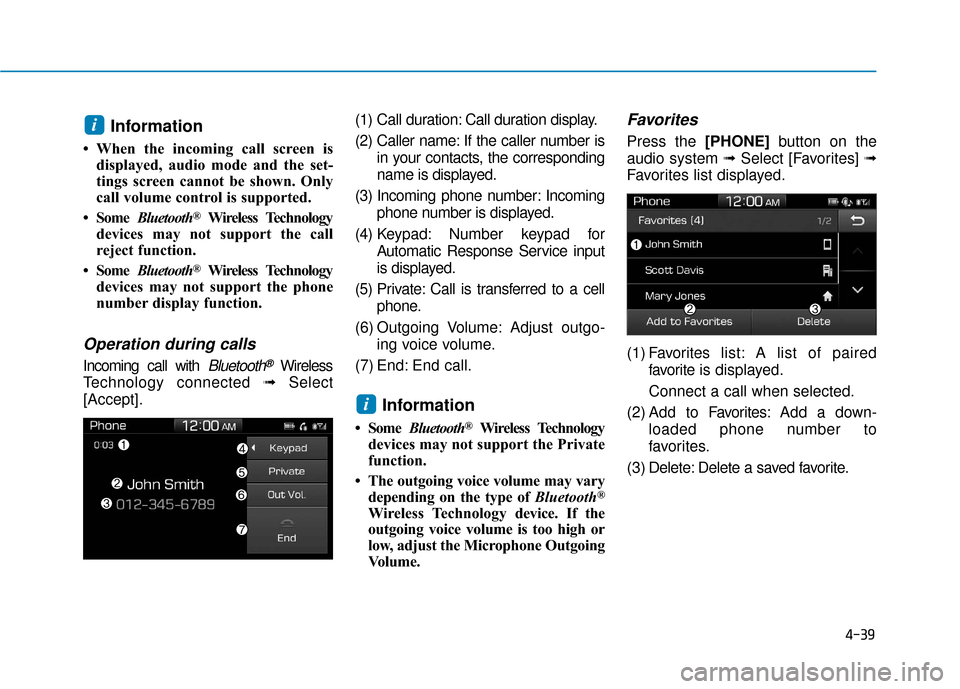
Incoming call with Bluetooth®Wireless
Technology connected ➟Select
[Accept]. (1) Call duration: Call duration display.
(2) Caller name: If the caller number is
in your contacts, the corresponding
name is displayed.
(3) Incoming phone number: Incoming phone number is displayed.
(4) Keypad: Number keypad for Automatic Response Service input
is displayed.
(5) Private: Call is transferred to a cell phone.
(6) Outgoing Volume: Adjust outgo- ing voice volume.
(7) End: End call.
Information
• Some Bluetooth®Wireless Technology
devices may not support the Private
function.
• The outgoing voice volume may vary depending on the type of Bluetooth
®
Wireless Technology device. If the
outgoing voice volume is too high or
low, adjust the Microphone Outgoing
Volume.
Favorites
Press the [PHONE] button on the
audio system ➟ Select [Favorites] ➟
Favorites list displayed.
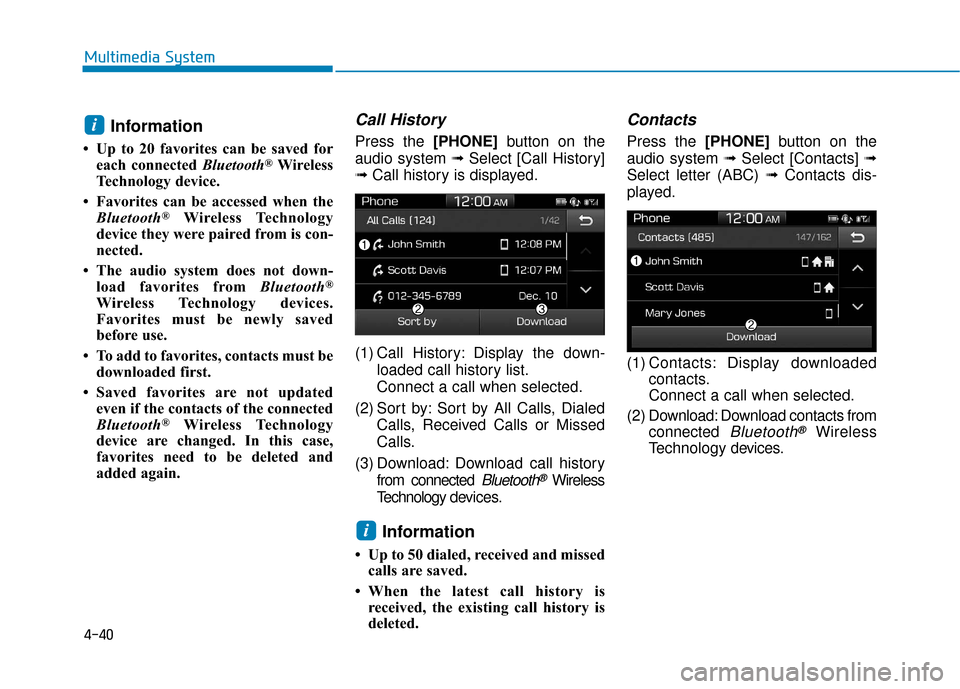
(1) Favorites list: A list of paired
favorite is displayed.
Connect a call when selected.
(2) Add to Favor ites:Add a down-
loaded phone number to
favorites.
(3) Delete: Delete a saved favorite.
i
i
Page 247 of 442
4-40
Multimedia System
Information
• Up to 20 favorites can be saved foreach connected Bluetooth®Wireless
Technology device.
• Favorites can be accessed when the Bluetooth
®Wireless Technology
device they were paired from is con-
nected.
• The audio system does not down- load favorites from Bluetooth
®
Wireless Technology devices.
Favorites must be newly saved
before use.
• To add to favorites, contacts must be downloaded first.
• Saved favorites are not updated even if the contacts of the connected
Bluetooth
®Wireless Technology
device are changed. In this case,
favorites need to be deleted and
added again.
Call History
Press the [PHONE] button on the
audio system ➟ Select [Call History]
➟ Call history is displayed.
(1) Call History: Display the down- loaded call history list.
Connect a call when selected.
(2) Sort by: Sort by All Calls, Dialed Calls, Received Calls or Missed
Calls.
(3) Download: Download call history from connected
Bluetooth®Wireless
Technology de vices.
Information
• Up to 50 dialed, received and missed
calls are saved.
• When the latest call history is received, the existing call history is
deleted.
Contacts
Press the [PHONE] button on the
audio system ➟ Select [Contacts] ➟
Select letter (ABC) ➟ Contacts dis-
played.
(1) Contacts: Display downloaded contacts.
Connect a call when selected.
(2) Download: Download contacts from connected
Bluetooth®Wireless
Technology de vices.
i
i
Page 248 of 442
4-41
Multimedia System
4
Multimedia System
4
Information
• Only supported contacts format canbe downloaded and displayed from
the Bluetooth
®Wireless Technology
device, contacts from some applica-
tions will not be included.
• Up to 2,000 contacts can be saved.
• In some cases, additional confirmation from your Bluetooth
®Wireless
Technology device is necessary when
downloading contacts. If downloading
of contacts unsuccessful, consult your
Bluetooth
®Wireless Technology
device’s settings or the audio screen to
approve the download.
• Contacts without phone numbers are not displayed.
Dial
Press the [PHONE] button on the
audio system ➟ Select [Dial].
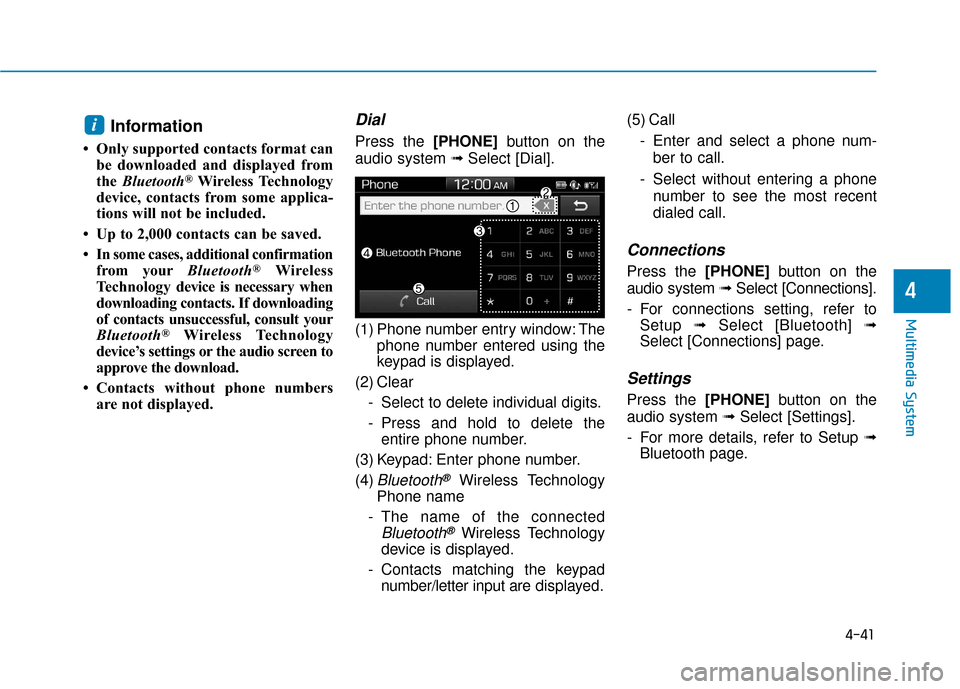
(1) Phone number entry window: The phone number entered using the
keypad is displayed.
(2) Clear - Select to delete individual digits.
- Press and hold to delete theentire phone number.
(3) Keypad: Enter phone number.
(4)
Bluetooth®Wireless Technology
Phone name
- The name of the connected
Bluetooth®Wireless Technology
device is displayed.
- Contacts matching the keypad number/letter input are displayed.(5) Call
- Enter and select a phone num-ber to call.
- Select without entering a phone number to see the most recent
dialed call.
Connections
Press the [PHONE] button on the
audio system ➟Select [Connections].
- For connections setting, refer to Setup ➟Select [Bluetooth] ➟
Select [Connections] page.
Settings
Press the [PHONE] button on the
audio system ➟ Select [Settings].
- For more details, refer to Setup ➟ Bluetooth page.
i
Page 249 of 442
![Hyundai Accent 2019 Owners Manual 4-42
Multimedia System
Setup
Access Display, Sound, Date/Time,
Bluetooth*, System, Screen Saver
and Display Off settings.
Press the [SETUP]button on the
audio system.
* if equipped
Display
Press the](/img/35/14345/w960_14345-248.png "Hyundai Accent 2019 Owners Manual 4-42
Multimedia System
Setup
Access Display, Sound, Date/Time,
Bluetooth*, System, Screen Saver
and Display Off settings.
Press the [SETUP]button on the
audio system.
* if equipped
Display
Press the")
4-42
Multimedia System
Setup
Access Display, Sound, Date/Time,
Bluetooth*, System, Screen Saver
and Display Off settings.
Press the [SETUP]button on the
audio system.
* if equipped
Display
Press the [SETUP] button on the
audio system ➟ Select [Display].
Mode: Brightness is automatically adjusted according to the headlight
use.
Illumination: The brightness of the audio screen can be changed.
Sound
Press the [SETUP] button on the
audio system ➟ Select [Sound].
Position: Sound balance and fader can be adjusted.
Tone: Sound tone color can be adjusted.
Back-up Warning Priority: Automatically lower audio volume
while reversing.
Speed Dependent Volume: Automatically adjust volume based
on vehicle speed.
Beep: Select whether to play a beep sound when the screen is
touched.
Date/Time
Press the [SETUP] button on the
audio system ➟ Select [Date/Time].
Set Time: Set the time displayed on the audio screen.
Time Format: Choose between 12- hour and 24-hour time formats.
Set Date: Set the date displayed on the audio screen.
Date/Time Setting Distraction
Adjusting the date/time setting
while driving can result in a loss
of vehicle control that may lead
to an accident, severe personal
injury, and death.
WARNING
Page 250 of 442
![Hyundai Accent 2019 Owners Manual 4-43
Multimedia System
4
Bluetooth (if equipped)
Press the [SETUP]button on the
audio system ➟ Select [Bluetooth].
• Connections: Control pairing, dele- tion, connection and disconnection
of
Blue](/img/35/14345/w960_14345-249.png "Hyundai Accent 2019 Owners Manual 4-43
Multimedia System
4
Bluetooth (if equipped)
Press the [SETUP]button on the
audio system ➟ Select [Bluetooth].
• Connections: Control pairing, dele- tion, connection and disconnection
of
Blue")
4-43
Multimedia System
4
Bluetooth (if equipped)
Press the [SETUP]button on the
audio system ➟ Select [Bluetooth].
• Connections: Control pairing, dele- tion, connection and disconnection
of
Bluetooth®Wireless Technology
devices.
Auto Connection Priority: Set the
connection priority of
Bluetooth®
Wireless Technology de vices when
the vehicle is started.
Download Contacts: Contacts can be downloaded from connected
Bluetooth®Wireless Technology
devices.
Bluetooth Voice Prompts: Play or mute voice prompts for
Bluetooth®
Wireless Technology device pair-
ing, connection and errors.
Information
• When paired devices are deleted,the call history and contacts of the
device saved to the audio system are
deleted.
•For Bluetooth
®Wireless Technology
connections with low connection
priority, some time may be required
for the connection to be established.
• Contacts can be downloaded only from the currently connected
Bluetooth
®Wireless Technology
device.
• If no Bluetooth
®Wireless Technology
device is connected, the Download
Contacts button is disabled.
System
Press the [SETUP] button on the
audio system ➟ Select [System].
Memory Information: View My Music memory usage.
Language: Change the user lan- guage.
System Information: At the System Information screen, Software ver-
sion information, updates are avail-
able.
- System Update: At the SystemInformation screen, insert the
USB memory with the latest file
downloaded, and then select the
[Update] to begin updating. The
system with then reboot auto-
matically.
(if equipped)
i
Page 251 of 442
4-44
Multimedia System
Information
• This product needs supplementedsoftware updates and additional
functions, which collectively may
take some time to complete, depend-
ing on the amount of data.
• If the Power is disconnected or the USB is removed during an update,
the data might be damaged. Please
wait until the update is complete
while engine is on.
Screen Saver
Set the information displayed when
the audio system is switched off or
the screen is turned off.
Press the [SETUP] button on the
audio system ➟Select [Screen
Saver].
Analog: An analog clock is dis-
played.
Digital: A digital clock is displayed.
None: No information is displayed.
Display Off
To prevent glare, the screen can be
turned off with the audio system in
operation.
Press the [SETUP] button on the
audio system ➟ Select [Display Off].
Information
Use ‘Screen Saver’ to set the informa-
tion to be displayed when the screen is
turned off.
i
i
Page 252 of 442
4-45
Multimedia System
4
FCC Warning
This equipment has been tested and found to comply with the limits for a Class B digital device, pursuant to part 15
of the FCC Rules. These limits are designed to provide reasonable protection against harmful interference in a resi-
dential installation.
This equipment generates, uses and can radiate radio frequency energy and, if not installed and used in accordance
with the instructions, may cause harmful interference to radio communications. However, there is no guarantee that
interference will not occur in a particular installation. If this equipment does cause harmful interference to radio or tel-
evision reception, which can be determined by turning the equipment off and on, the user is encouraged to try to cor-
rect the interference by one or more of the following measures: Reorient or relocate the receiving antenna.
Increase the separation between the equipment and receiver.
Connect the equipment into an outlet on a circuit different from that to which the receiver is connected.
Consult the dealer or an experienced radio/TV technician for help
This device complies with part 15 of the FCC Rules. Operation is subject to the following two conditions: (1) This
device may not cause harmful interference, and (2) this device must accept any interference received, including inter-
ference that may cause undesired operation.
Caution: Any changes or modifications to this device not expressly approved by the party responsible for compliance
could void your authority to operate the equipment.
This equipment complies with FCC radiation exposure limits set forth for an uncontrolled environment.
This equipment should be installed and operated with minimum 20 cm between the radiator and your body. This trans-
mitter must not be collocated or operating in conjunction with any other antenna or transmitter unless authorized to
do so by the FCC.
Page 253 of 442
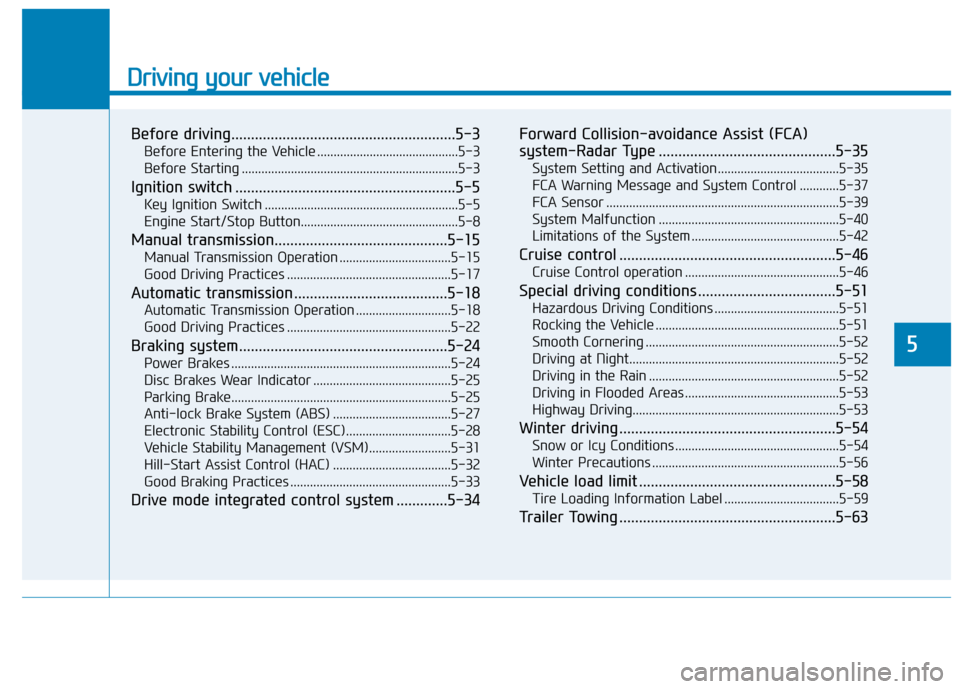
Driving your vehicle
5
Before driving.........................................................5-3
Before Entering the Vehicle ...........................................5-3
Before Starting ..................................................................5-3
Ignition switch ........................................................5-5
Key Ignition Switch ...........................................................5-5
Engine Start/Stop Button................................................5-8
Manual transmission............................................5-15
Manual Transmission Operation ..................................5-15
Good Driving Practices ..................................................5-17
Automatic transmission .......................................5-18
Automatic Transmission Operation .............................5-18
Good Driving Practices ..................................................5-22
Braking system.....................................................5-24
Power Brakes ...................................................................5-24
Disc Brakes Wear Indicator ..........................................5-25
Parking Brake...................................................................5-25
Anti-lock Brake System (ABS) ....................................5-27
Electronic Stability Control (ESC)................................5-28
Vehicle Stability Management (VSM).........................5-31
Hill-Start Assist Control (HAC) ....................................5-32
Good Braking Practices .................................................5-33
Drive mode integrated control system .............5-34Forward Collision-avoidance Assist (FCA)
system-Radar Type .............................................5-35
System Setting and Activation.....................................5-35
FCA Warning Message and System Control ............5-37
FCA Sensor .......................................................................5\
-39
System Malfunction .......................................................5-40
Limitations of the System .............................................5-42
Cruise control .......................................................5-46
Cruise Control operation ...............................................5-46
Special driving conditions ...................................5-51
Hazardous Driving Conditions ......................................5-51
Rocking the Vehicle ........................................................5-51
Smooth Cornering ...........................................................5-52
Driving at Night................................................................5-52
Driving in the Rain ..........................................................5-52
Driving in Flooded Areas ...............................................5-53
Highway Driving...............................................................5-53
Winter driving .......................................................5-54
Snow or Icy Conditions ..................................................5-54
Winter Precautions .........................................................5-56
Vehicle load limit ..................................................5-58
Tire Loading Information Label ...................................5-59
Trailer Towing .......................................................5-63
Page 254 of 442
5-2
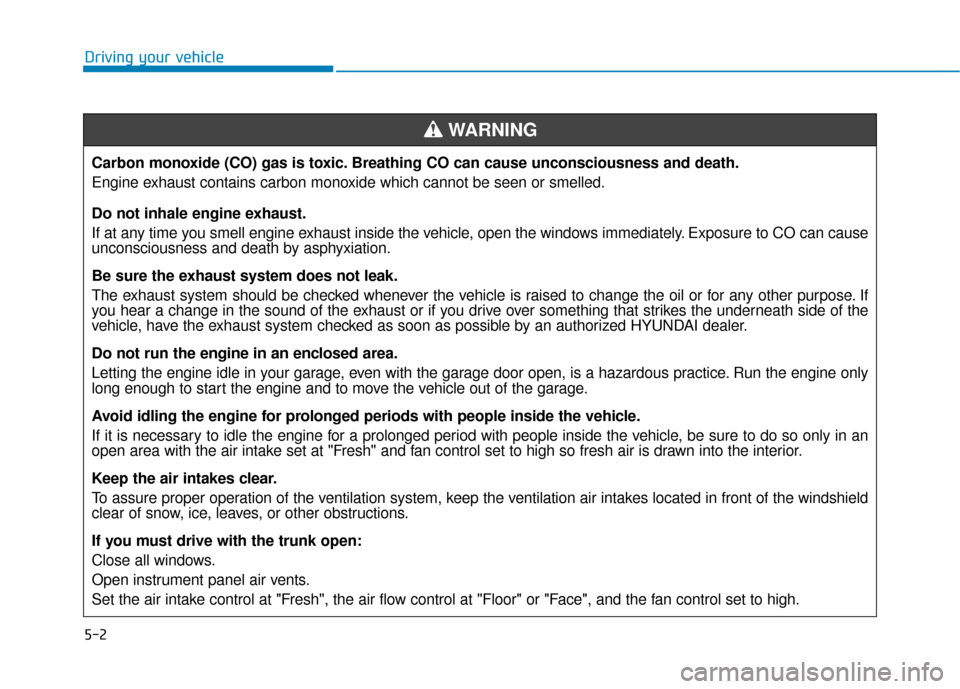
Driving your vehicleCarbon monoxide (CO) gas is toxic. Breathing CO can cause unconsciousness and death.
Engine exhaust contains carbon monoxide which cannot be seen or smelled.
Do not inhale engine exhaust.
If at any time you smell engine exhaust inside the vehicle, open the windows immediately. Exposure to CO can cause
unconsciousness and death by asphyxiation.
Be sure the exhaust system does not leak.
The exhaust system should be checked whenever the vehicle is raised to change the oil or for any other purpose. If
you hear a change in the sound of the exhaust or if you drive over something that strikes the underneath side of the
vehicle, have the exhaust system checked as soon as possible by an authorized HYUNDAI dealer.
Do not run the engine in an enclosed area.
Letting the engine idle in your garage, even with the garage door open, is a hazardous practice. Run the engine only
long enough to start the engine and to move the vehicle out of the garage.
Avoid idling the engine for prolonged periods with people inside the vehicle.
If it is necessary to idle the engine for a prolonged period with people inside the vehicle, be sure to do so only in an
open area with the air intake set at "Fresh" and fan control set to high so fresh air is drawn into the interior.
Keep the air intakes clear.
To assure proper operation of the ventilation system, keep the ventilation air intakes located in front of the windshield
clear of snow, ice, leaves, or other obstructions.
If you must drive with the trunk open:
Close all windows.
Open instrument panel air vents.
Set the air intake control at "Fresh", the air flow control at "Floor" or "Face", and the fan control set to high.
WARNING