USB Hyundai Accent 2020 User Guide
[x] Cancel search | Manufacturer: HYUNDAI, Model Year: 2020, Model line: Accent, Model: Hyundai Accent 2020Pages: 445, PDF Size: 42.28 MB
Page 245 of 445
4-28
Multimedia System
(Continued)
• The search and song play order in
the iPod
®device may be different
from the search order in the audio
system.
• If the iPod
®has failed due to an
internal defect, please reset the
iPod
®(consult your iPod®manual).
• Depending on the software version,
the iPod
®may fail to sync with the
system. If the media is removed or
disconnected before recognition, the
previous mode may not be restored
(iPad
®cannot be charged).
• Cables other than the 1-meter cable
provided with iPod
®/iPhone®/iPad®
products may not be recognized.
• When other music apps are used on
your iPod
®, the system sync func-
tion may fail due to malfunction of
the iPod
®application.
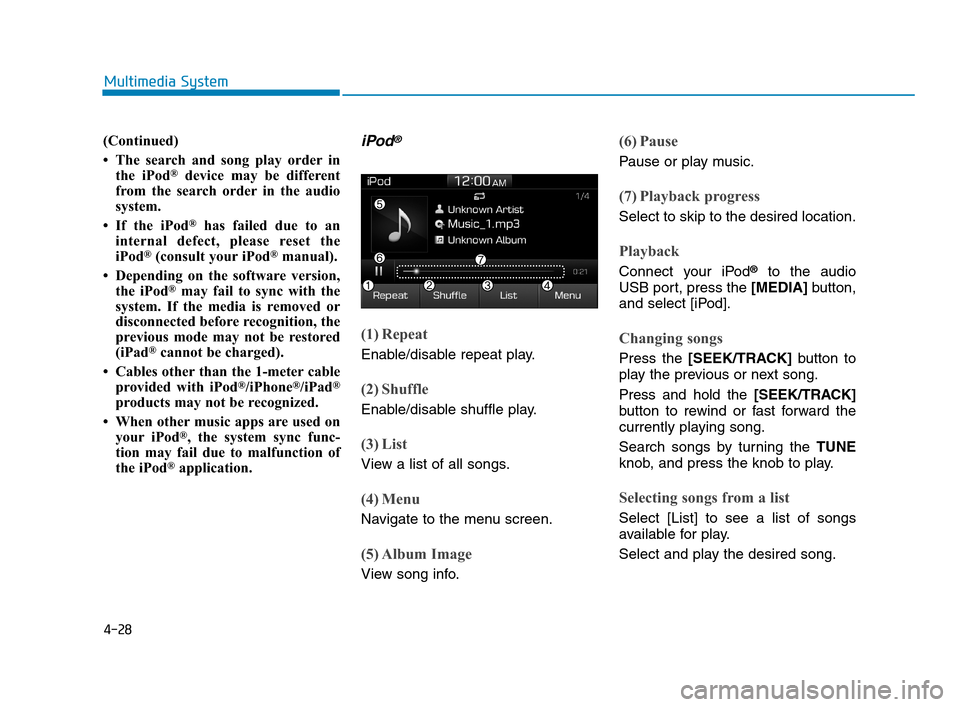
iPod®
(1) Repeat
Enable/disable repeat play.
(2) Shuffle
Enable/disable shuffle play.
(3) List
View a list of all songs.
(4) Menu
Navigate to the menu screen.
(5) Album Image
View song info.
(6) Pause
Pause or play music.
(7) Playback progress
Select to skip to the desired location.
Playback
Connect your iPod®to the audio
USB port, press the [MEDIA]button,
and select [iPod].
Changing songs
Press the [SEEK/TRACK]button to
play the previous or next song.
Press and hold the [SEEK/TRACK]
button to rewind or fast forward the
currently playing song.
Search songs by turning the TUNE
knob, and press the knob to play.
Selecting songs from a list
Select [List] to see a list of songs
available for play.
Select and play the desired song.
HCa HMA 4.qxp 12/1/2017 5:30 PM Page 28
Page 249 of 445
![Hyundai Accent 2020 User Guide 4-32
Multimedia System
AUX
Running AUX
Press the [MEDIA]button, and
select [AUX].
Connect the external device connec-
tion jack to the AUX terminal to run
AUX.
(1) Sound Settings: Audio sound set-
tin](/img/35/14344/w960_14344-248.png "Hyundai Accent 2020 User Guide 4-32
Multimedia System
AUX
Running AUX
Press the [MEDIA]button, and
select [AUX].
Connect the external device connec-
tion jack to the AUX terminal to run
AUX.
(1) Sound Settings: Audio sound set-
tin")
4-32
Multimedia System
AUX
Running AUX
Press the [MEDIA]button, and
select [AUX].
Connect the external device connec-
tion jack to the AUX terminal to run
AUX.
(1) Sound Settings: Audio sound set-
tings can be changed.
My Music (if equipped)
(1) Repeat
Enable/disable repeat play.
(2) Shuffle
Enable/disable shuffle play.
(3) List
View a list of all songs.
(4) Menu
Navigate to the menu screen.
(5) Album Image
View song info.
(6) Pause
Pause or play music.
(7) Playback progress
Select to skip to the desired location.
Playback
Press the [MEDIA]button, and
select [My Music].
My Music cannot be selected if it
does not contain music.
Check the content of your USB
drive before saving music to My
Music.
Changing songs
Press the [SEEK/TRACK]button to
play the previous or next song.
Press and hold the [SEEK/TRACK]
button to rewind or fast forward the
currently playing song.
Search songs by turning the TUNE
knob, and press the knob to play.
HCa HMA 4.qxp 12/1/2017 5:31 PM Page 32
Page 260 of 445
![Hyundai Accent 2020 User Guide 4-43
Multimedia System
4
Bluetooth (if equipped)
Press the [SETUP]button on the
audio system ➟Select [Bluetooth].
• Connections: Control pairing, dele-
tion, connection and disconnection
of
Bluet](/img/35/14344/w960_14344-259.png "Hyundai Accent 2020 User Guide 4-43
Multimedia System
4
Bluetooth (if equipped)
Press the [SETUP]button on the
audio system ➟Select [Bluetooth].
• Connections: Control pairing, dele-
tion, connection and disconnection
of
Bluet")
4-43
Multimedia System
4
Bluetooth (if equipped)
Press the [SETUP]button on the
audio system ➟Select [Bluetooth].
• Connections: Control pairing, dele-
tion, connection and disconnection
of
Bluetooth®Wireless Technology
devices.
Auto Connection Priority:Set the
connection priority of
Bluetooth®
Wireless Technology devices when
the vehicle is started.
Download Contacts: Contacts can
be downloaded from connected
Bluetooth®Wireless Technology
devices.
Bluetooth Voice Prompts: Play or
mute voice prompts for
Bluetooth®
Wireless Technology device pair-
ing, connection and errors.
Information
• When paired devices are deleted,
the call history and contacts of the
device saved to the audio system are
deleted.
•ForBluetooth
®Wireless Technology
connections with low connection
priority, some time may be required
for the connection to be established.
• Contacts can be downloaded only
from the currently connected
Bluetooth
®Wireless Technology
device.
• If no Bluetooth
®Wireless Technology
device is connected, the Download
Contacts button is disabled.
System
Press the [SETUP]button on the
audio system ➟Select [System].
Memory Information: View My
Music memory usage.
Language: Change the user lan-
guage.
System Information: At the System
Information screen, Software ver-
sion information, updates are avail-
able.
- System Update: At the System
Information screen, insert the
USB memory with the latest file
downloaded, and then select the
[Update] to begin updating. The
system with then reboot auto-
matically.
(if equipped)
i
HCa HMA 4.qxp 8/2/2018 12:48 PM Page 43
Page 261 of 445
4-44
Multimedia System
Information
• This product needs supplemented
software updates and additional
functions, which collectively may
take some time to complete, depend-
ing on the amount of data.
• If the Power is disconnected or the
USB is removed during an update,
the data might be damaged. Please
wait until the update is complete
while engine is on.
Screen Saver
Set the information displayed when
the audio system is switched off or
the screen is turned off.
Press the [SETUP]button on the
audio system ➟Select [Screen
Saver].
Analog: An analog clock is dis-
played.
Digital: A digital clock is displayed.
None: No information is displayed.
Display Off
To prevent glare, the screen can be
turned off with the audio system in
operation.
Press the [SETUP]button on the
audio system ➟Select [Display Off].
Information
Use ‘Screen Saver’ to set the informa-
tion to be displayed when the screen is
turned off.
i
i
HCa HMA 4.qxp 8/2/2018 12:48 PM Page 44
Page 403 of 445

7-54
Maintenance
Fuse NameFuse RatingCircuit Protected
MODULE17.5ABCM, SLM, Key Interlock
SMART KEY25ASmart Key Control Module
A/C27.5A-
WIPER RR15AMultifunction Switch, Rear Wiper Motor, Rear Wiper Relay
WIPER FRT25AMultifunction Switch, Front Wiper Motor, E/R Junction Block(Wiper Lo Relay)
ACC10AI/P Junction Block(Power Outlet Relay), BCM, SLM, Audio,
Key Interlock Power Outside Mirror Switch, Smart Key Control Module, USB Charging Connecto
SPARE320ASpare
A/BAG IND7.5AInstrument Cluster, A/C Control Module
CLUSTER7.5AInstrument Cluster
MDPS27.5AMDPS Unit
AUDIO20AAudio
ROOM LP10AI/P Junction Block(Room Lamp Relay), Overhead Console Lamp , A/C Control Module, SLM, BCM,
Auto Light & Photo Sensor, TPMS Unit ,Instrument Cluster, Data Link Connector, Room Lamp,
Trunk Room Lamp, Electro Chromic Mirror
HCa HMA 7.qxp 4/9/2019 2:49 PM Page 54