ad blue Hyundai Accent 2020 Owner's Guide
[x] Cancel search | Manufacturer: HYUNDAI, Model Year: 2020, Model line: Accent, Model: Hyundai Accent 2020Pages: 445, PDF Size: 42.28 MB
Page 255 of 445
![Hyundai Accent 2020 Owners Guide 4-38
Multimedia System
Connecting Bluetooth®Wireless
Technology devices
If there are no connected devices
Press the [PHONE]button on the
audio system or the [CALL]button in
the steering wheel remote](/img/35/14344/w960_14344-254.png "Hyundai Accent 2020 Owners Guide 4-38
Multimedia System
Connecting Bluetooth®Wireless
Technology devices
If there are no connected devices
Press the [PHONE]button on the
audio system or the [CALL]button in
the steering wheel remote")
4-38
Multimedia System
Connecting Bluetooth®Wireless
Technology devices
If there are no connected devices
Press the [PHONE]button on the
audio system or the [CALL]button in
the steering wheel remote control ➟
List of paired
Bluetooth®Wireless
Technology devices ➟Select the
desired
Bluetooth®Wireless
Technology devices from the list ➟
Connect
Bluetooth®Wireless
Technology.
If there are connected devices
Press the [PHONE]button on the
audio system ➟Select [Settings] ➟
Select [Connections] ➟Select
Bluetooth®Wireless Technology
device to connect ➟Select [Connect]
➟Connect
Bluetooth®Wireless
Technology.
Information
• Only one Bluetooth®Wireless
Technology device can be connected
at a time.
• When a Bluetooth
®Wireless
Technology device is connected,
other devices cannot be paired.
Accepting/rejecting phone calls
Receiving phone calls with
Bluetooth®Wireless Technology con-
nected.
(1) Caller name: If the caller number
is in your contacts, the correspon-
ding name is displayed.
(2) Incoming phone number: Incoming
phone number is displayed.
(3) Accept: Accept call.
(4) Reject: Reject call.
i
HCa HMA 4.qxp 12/1/2017 5:31 PM Page 38
Page 256 of 445
4-39
Information
• When the incoming call screen is
displayed, audio mode and the set-
tings screen cannot be shown. Only
call volume control is supported.
• Some Bluetooth
®Wireless Technology
devices may not support the call
reject function.
• Some Bluetooth
®Wireless Technology
devices may not support the phone
number display function.
Operation during calls
Incoming call with Bluetooth®Wireless
Technology connected ➟Select
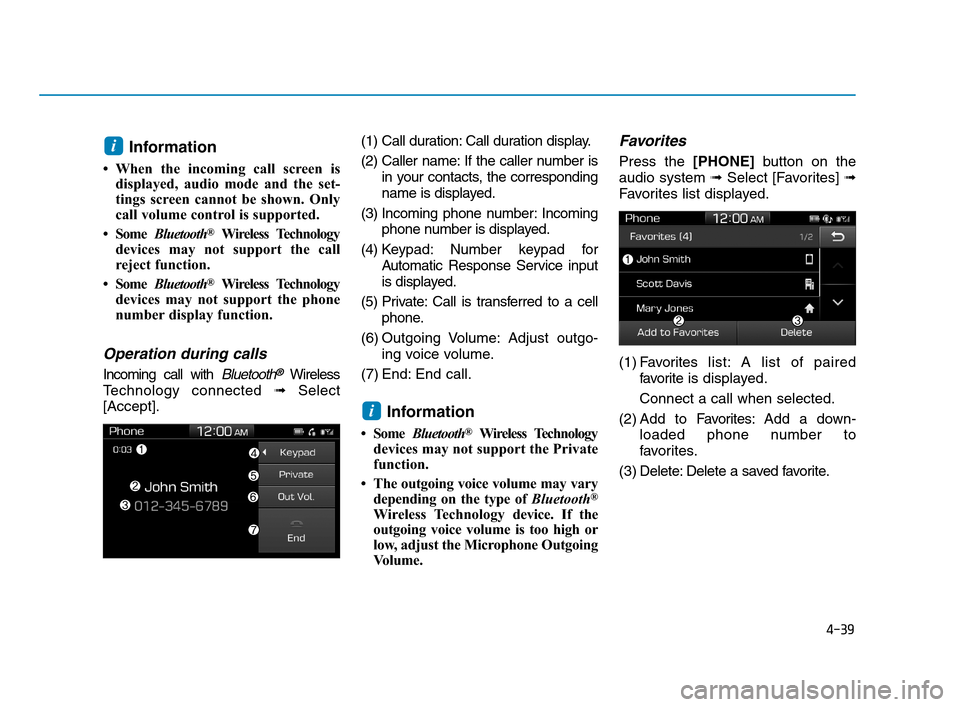
[Accept].(1) Call duration: Call duration display.
(2) Caller name: If the caller number is
in your contacts, the corresponding
name is displayed.
(3) Incoming phone number: Incoming
phone number is displayed.
(4) Keypad: Number keypad for
Automatic Response Service input
is displayed.
(5) Private: Call is transferred to a cell
phone.
(6) Outgoing Volume: Adjust outgo-
ing voice volume.
(7) End: End call.
Information
• Some Bluetooth®Wireless Technology
devices may not support the Private
function.
• The outgoing voice volume may vary
depending on the type of Bluetooth
®
Wireless Technologydevice. If the
outgoing voice volume is too high or
low, adjust the Microphone Outgoing
Volume.
Favorites
Press the [PHONE]button on the
audio system ➟Select [Favorites] ➟
Favorites list displayed.
(1) Favoriteslist: A list of paired
favorite is displayed.
Connect a call when selected.
(2) Add to Favorites:Add a down-
loaded phone number to
favorites.
(3) Delete: Delete a saved favorite.
i
i
HCa HMA 4.qxp 12/1/2017 5:31 PM Page 39
Page 257 of 445
4-40
Multimedia System
Information
• Up to 20 favorites can be saved for
each connected Bluetooth®Wireless
Technology device.
• Favorites can be accessed when the
Bluetooth
®Wireless Technology
device they were paired from is con-
nected.
• The audio system does not down-
load favorites from Bluetooth
®
Wireless Technology devices.
Favorites must be newly saved
before use.
• To add to favorites, contacts must be
downloaded first.
• Saved favorites are not updated
even if the contacts of the connected
Bluetooth
®Wireless Technology
device are changed. In this case,
favorites need to be deleted and
added again.
Call History
Press the [PHONE]button on the
audio system ➟Select [Call History]
➟Call history is displayed.
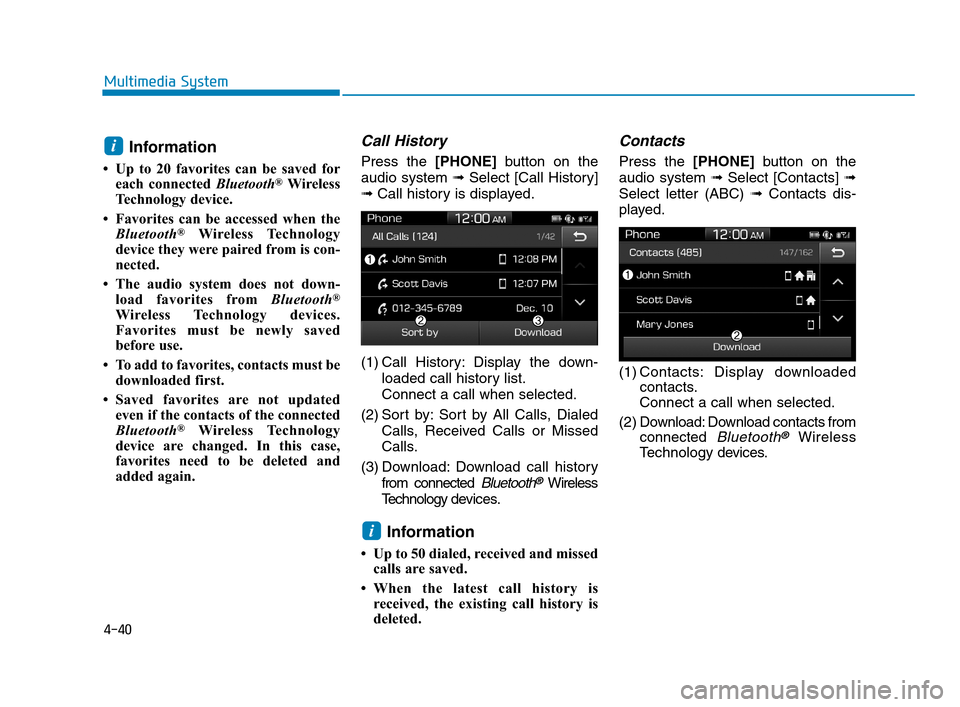
(1) Call History: Display the down-
loaded call history list.
Connect a call when selected.
(2) Sort by: Sort by All Calls, Dialed
Calls, Received Calls or Missed
Calls.
(3) Download: Download call history
from connected
Bluetooth®Wireless
Technology devices.
Information
• Up to 50 dialed, received and missed
calls are saved.
• When the latest call history is
received, the existing call history is
deleted.
Contacts
Press the [PHONE]button on the
audio system ➟Select [Contacts] ➟
Select letter (ABC) ➟Contacts dis-
played.
(1) Contacts: Display downloaded
contacts.
Connect a call when selected.
(2) Download: Download contacts from
connected
Bluetooth®Wireless
Technology devices.
i
i
HCa HMA 4.qxp 12/1/2017 5:31 PM Page 40
Page 258 of 445
4-41
Multimedia System
4
Multimedia System
4
Information
• Only supported contacts format can
be downloaded and displayed from
the Bluetooth
®Wireless Technology
device, contacts from some applica-
tions will not be included.
• Up to 2,000 contacts can be saved.
• In some cases, additional confirmation
from yourBluetooth
®Wireless
Technologydevice is necessary when
downloading contacts. If downloading
of contacts unsuccessful, consult your
Bluetooth
®Wireless Technology
device’s settings or the audio screen to
approve the download.
• Contacts without phone numbers
are not displayed.
Dial
Press the [PHONE]button on the
audio system ➟Select [Dial].
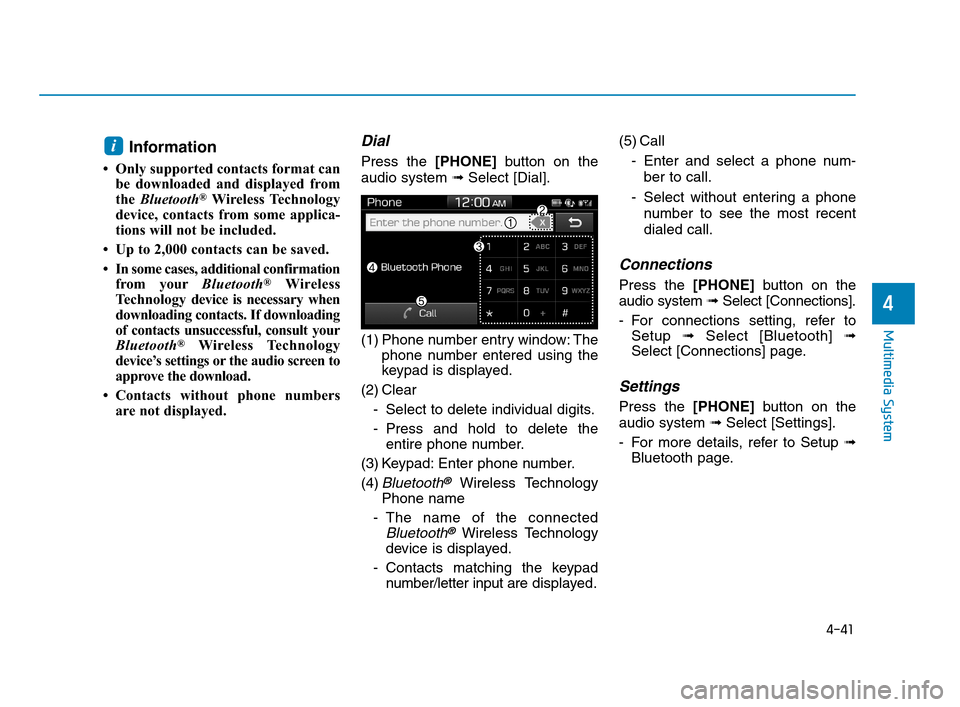
(1) Phone number entry window: The
phone number entered using the
keypad is displayed.
(2) Clear
- Select to delete individual digits.
- Press and hold to delete the
entire phone number.
(3) Keypad: Enter phone number.
(4)
Bluetooth®Wireless Technology
Phone name
- The name of the connected
Bluetooth®Wireless Technology
device is displayed.
- Contacts matching the keypad
number/letter input aredisplayed.(5) Call
- Enter and select a phone num-
ber to call.
- Select without entering a phone
number to see the most recent
dialed call.
Connections
Press the [PHONE]button on the
audio system ➟Select [Connections].
- For connections setting, refer to
Setup ➟Select [Bluetooth] ➟
Select [Connections] page.
Settings
Press the [PHONE]button on the
audio system ➟Select [Settings].
- For more details, refer to Setup ➟
Bluetooth page.
i
HCa HMA 4.qxp 12/1/2017 5:31 PM Page 41
Page 259 of 445
![Hyundai Accent 2020 Owners Guide 4-42
Multimedia System
Setup
Access Display, Sound, Date/Time,
Bluetooth*, System, Screen Saver
and Display Off settings.
Press the [SETUP]button on the
audio system.
* if equipped
Display
Press the](/img/35/14344/w960_14344-258.png "Hyundai Accent 2020 Owners Guide 4-42
Multimedia System
Setup
Access Display, Sound, Date/Time,
Bluetooth*, System, Screen Saver
and Display Off settings.
Press the [SETUP]button on the
audio system.
* if equipped
Display
Press the")
4-42
Multimedia System
Setup
Access Display, Sound, Date/Time,
Bluetooth*, System, Screen Saver
and Display Off settings.
Press the [SETUP]button on the
audio system.
* if equipped
Display
Press the [SETUP]button on the
audio system ➟Select [Display].
Mode: Brightness is automatically
adjusted according to the headlight
use.
Illumination: The brightness of the
audio screen can be changed.
Sound
Press the [SETUP]button on the
audio system ➟Select [Sound].
Position: Sound balance and fader
can be adjusted.
Tone: Sound tone color can be
adjusted.
Back-up Warning Priority:
Automatically lower audio volume
while reversing.
Speed Dependent Volume:
Automatically adjust volume based
on vehicle speed.
Beep: Select whether to play a
beep sound when the screen is
touched.
Date/Time
Press the [SETUP]button on the
audio system ➟Select [Date/Time].
Set Time: Set the time displayed on
the audio screen.
Time Format: Choose between 12-
hour and 24-hour time formats.
Set Date: Set the date displayed on
the audio screen.
Date/Time Setting Distraction
Adjusting the date/time setting
while driving can result in a loss
of vehicle control that may lead
to an accident, severe personal
injury, and death.
WARNING
HCa HMA 4.qxp 12/1/2017 5:31 PM Page 42
Page 260 of 445
![Hyundai Accent 2020 Owners Guide 4-43
Multimedia System
4
Bluetooth (if equipped)
Press the [SETUP]button on the
audio system ➟Select [Bluetooth].
• Connections: Control pairing, dele-
tion, connection and disconnection
of
Bluet](/img/35/14344/w960_14344-259.png "Hyundai Accent 2020 Owners Guide 4-43
Multimedia System
4
Bluetooth (if equipped)
Press the [SETUP]button on the
audio system ➟Select [Bluetooth].
• Connections: Control pairing, dele-
tion, connection and disconnection
of
Bluet")
4-43
Multimedia System
4
Bluetooth (if equipped)
Press the [SETUP]button on the
audio system ➟Select [Bluetooth].
• Connections: Control pairing, dele-
tion, connection and disconnection
of
Bluetooth®Wireless Technology
devices.
Auto Connection Priority:Set the
connection priority of
Bluetooth®
Wireless Technology devices when
the vehicle is started.
Download Contacts: Contacts can
be downloaded from connected
Bluetooth®Wireless Technology
devices.
Bluetooth Voice Prompts: Play or
mute voice prompts for
Bluetooth®
Wireless Technology device pair-
ing, connection and errors.
Information
• When paired devices are deleted,
the call history and contacts of the
device saved to the audio system are
deleted.
•ForBluetooth
®Wireless Technology
connections with low connection
priority, some time may be required
for the connection to be established.
• Contacts can be downloaded only
from the currently connected
Bluetooth
®Wireless Technology
device.
• If no Bluetooth
®Wireless Technology
device is connected, the Download
Contacts button is disabled.
System
Press the [SETUP]button on the
audio system ➟Select [System].
Memory Information: View My
Music memory usage.
Language: Change the user lan-
guage.
System Information: At the System
Information screen, Software ver-
sion information, updates are avail-
able.
- System Update: At the System
Information screen, insert the
USB memory with the latest file
downloaded, and then select the
[Update] to begin updating. The
system with then reboot auto-
matically.
(if equipped)
i
HCa HMA 4.qxp 8/2/2018 12:48 PM Page 43
Page 272 of 445
5-10
Driving your vehicle
Button Position Action Notice
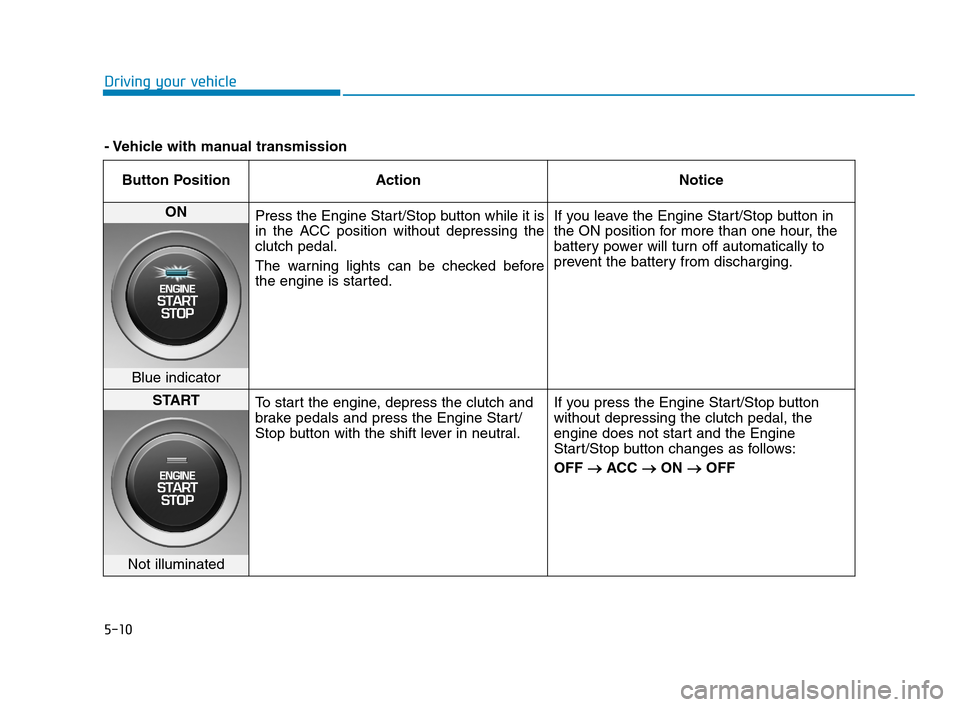
ON
Press the Engine Start/Stop button while it is
in the ACC position without depressing the
clutch pedal.
The warning lights can be checked before
the engine is started.If you leave the Engine Start/Stop button in
the ON position for more than one hour, the
battery power will turn off automatically to
prevent the battery from discharging.
Blue indicator
START
To start the engine, depress the clutch and
brake pedals and press the Engine Start/
Stop button with the shift lever in neutral.If you press the Engine Start/Stop button
without depressing the clutch pedal, the
engine does not start and the Engine
Start/Stop button changes as follows:
OFF → →
ACC → →
ON → →
OFF
Not illuminated
- Vehicle with manual transmission
HCa HMA 5.QXP 4/9/2019 2:38 PM Page 10