old change HYUNDAI ACCENT 2022 User Guide
[x] Cancel search | Manufacturer: HYUNDAI, Model Year: 2022, Model line: ACCENT, Model: HYUNDAI ACCENT 2022Pages: 443, PDF Size: 42.78 MB
Page 151 of 443
3-73
Convenient features of your vehicle
3
Engage parking brake to edit
settings/Shift to P to edit set-
tings
This warning message appears if
you try to adjust the User Settings
while driving.
- Manual transmission
For your safety, change the User
Settings after parking the vehicle,
applying the parking brake and
moving the shift lever to neutral.
- Intelligent variable transmission
For your safety, change the User
Settings after parking the vehicle,
applying the parking brake and
moving the shift lever to P (Park).
Quick guide help
This mode provides quick guides for
the systems in the User Settings
mode.
Select an item, press and hold the
OK button.
For more information about each
system, refer to this Owner's
Manual.
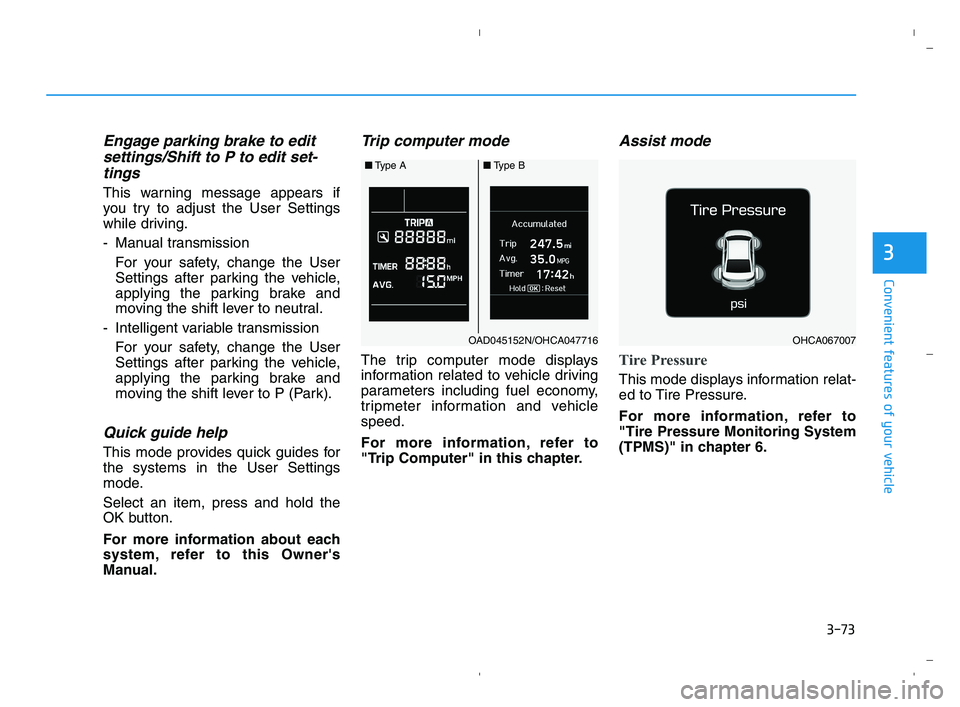
Trip computer mode
The trip computer mode displays
information related to vehicle driving
parameters including fuel economy,
tripmeter information and vehicle
speed.
For more information, refer to
"Trip Computer" in this chapter.
Assist mode
Tire Pressure
This mode displays information relat-
ed to Tire Pressure.
For more information, refer to
"Tire Pressure Monitoring System
(TPMS)" in chapter 6.
■Type A ■Type B
OAD045152N/OHCA047716OHCA067007
HCa HMA 3a(~84).qxp 5/25/2020 10:39 AM Page 73
Page 166 of 443
3-88
Convenient features of your vehicle
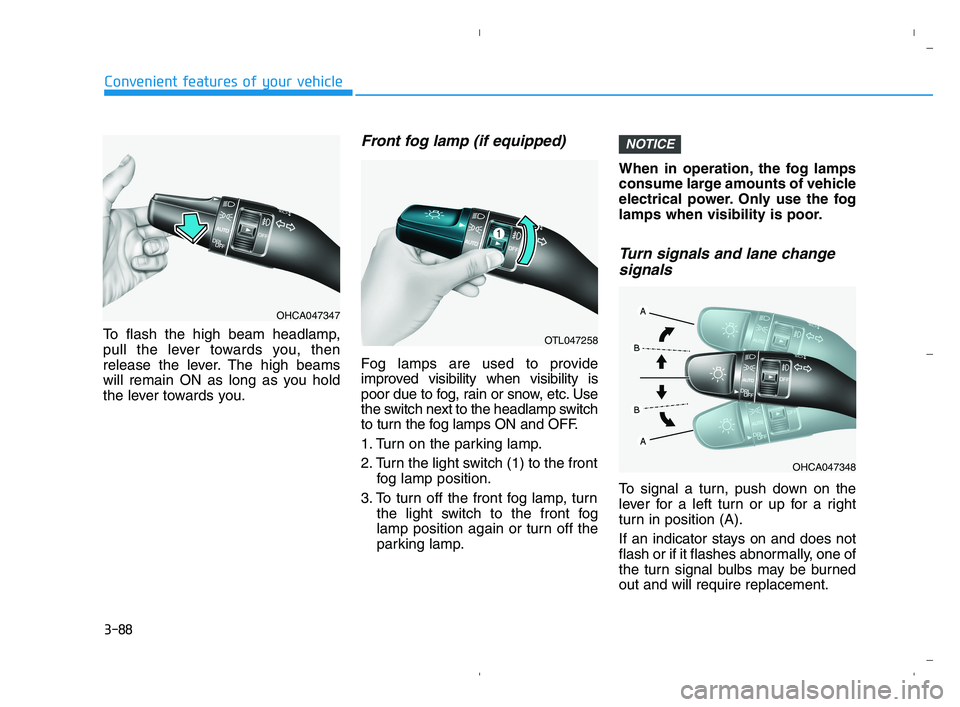
To flash the high beam headlamp,
pull the lever towards you, then
release the lever. The high beams
will remain ON as long as you hold
the lever towards you.
Front fog lamp (if equipped)
Fog lamps are used to provide
improved visibility when visibility is
poor due to fog, rain or snow, etc. Use
the switch next to the headlamp switch
to turn the fog lamps ON and OFF.
1. Turn on the parking lamp.
2. Turn the light switch (1) to the front
fog lamp position.
3. To turn off the front fog lamp, turn
the light switch to the front fog
lamp position again or turn off the
parking lamp.When in operation, the fog lamps
consume large amounts of vehicle
electrical power. Only use the fog
lamps when visibility is poor.
Turn signals and lane change
signals
To signal a turn, push down on the
lever for a left turn or up for a right
turn in position (A).
If an indicator stays on and does not
flash or if it flashes abnormally, one of
the turn signal bulbs may be burned
out and will require replacement.
NOTICE
OTL047258
OHCA047347
OHCA047348
HCa HMA 3b(85~).qxp 5/25/2020 10:44 AM Page 88
Page 183 of 443
3-105
Convenient features of your vehicle
3
Automatic Heating and Air
Conditioning
The Automatic Climate Control
System is controlled by setting the
desired temperature.
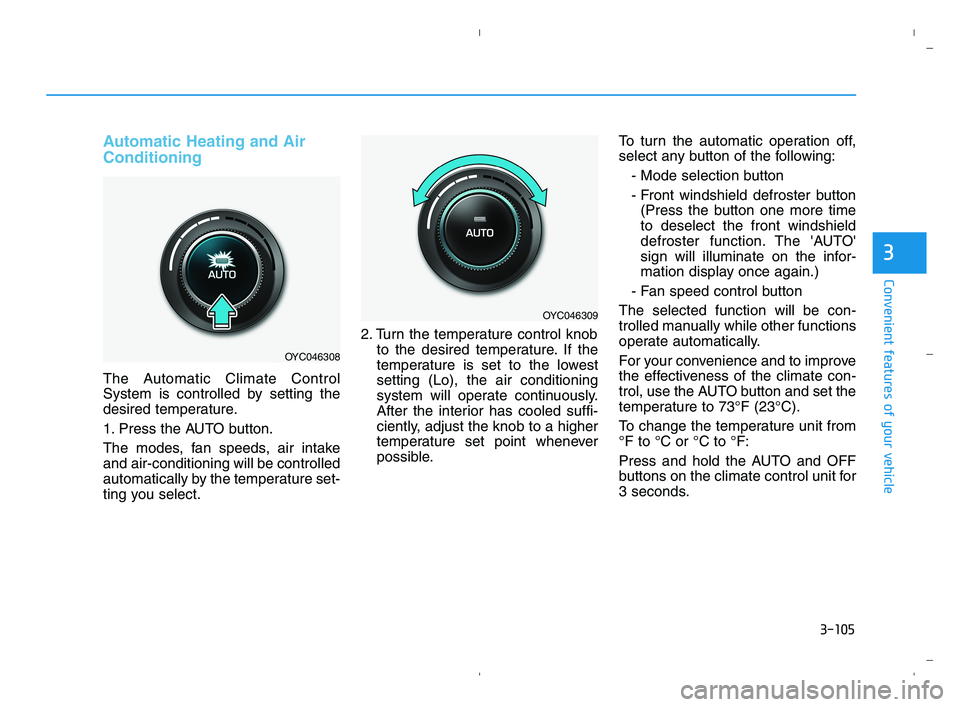
1. Press the AUTO button.
The modes, fan speeds, air intake
and air-conditioning will be controlled
automatically by the temperature set-
ting you select.2. Turn the temperature control knob
to the desired temperature. If the
temperature is set to the lowest
setting (Lo), the air conditioning
system will operate continuously.
After the interior has cooled suffi-
ciently, adjust the knob to a higher
temperature set point whenever
possible.To turn the automatic operation off,
select any button of the following:
- Mode selection button
- Front windshield defroster button
(Press the button one more time
to deselect the front windshield
defroster function. The 'AUTO'
sign will illuminate on the infor-
mation display once again.)
- Fan speed control button
The selected function will be con-
trolled manually while other functions
operate automatically.
For your convenience and to improve
the effectiveness of the climate con-
trol, use the AUTO button and set the
temperature to 73°F (23°C).
To change the temperature unit from
°F to °C or °C to °F:
Press and hold the AUTO and OFF
buttons on the climate control unit for
3 seconds.
OYC046308
OYC046309
HCa HMA 3b(85~).qxp 5/25/2020 10:46 AM Page 105
Page 222 of 443
4-15
Infotainment System
4
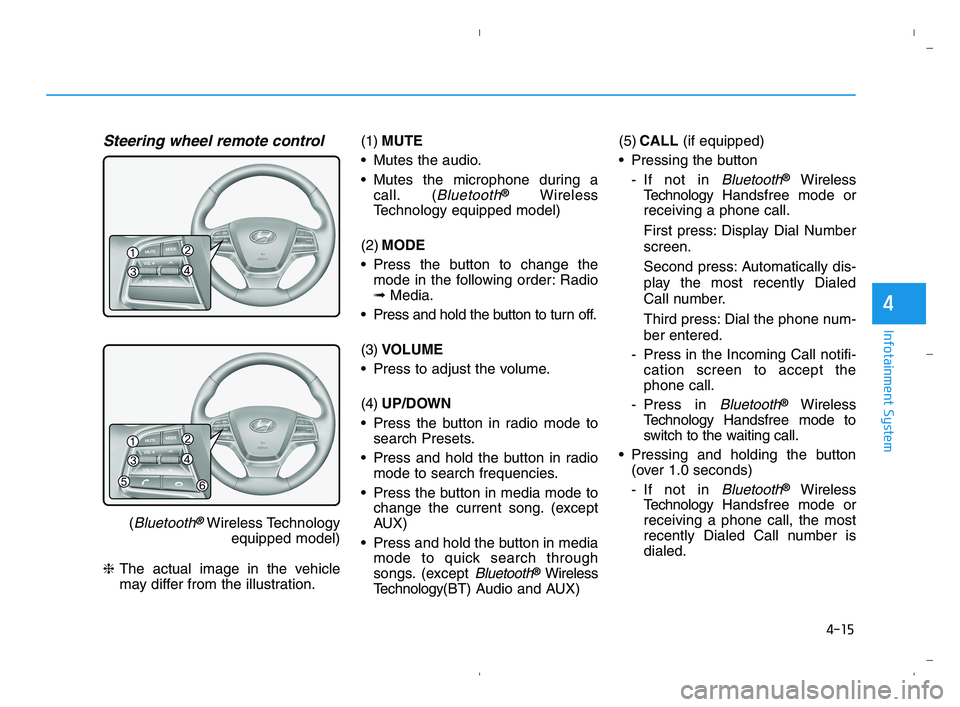
Steering wheel remote control
(Bluetooth®Wireless Technology
equipped model)
❈The actual image in the vehicle
may differ from the illustration.(1)MUTE
Mutes the audio.
Mutes the microphone during a
call. (
Bluetooth®Wireless
Technology equipped model)
(2)MODE
Press the button to change the
mode in the following order: Radio
➟Media.
Press and hold the button to turn off.
(3)VOLUME
Press to adjust the volume.
(4)UP/DOWN
Press the button in radio mode to
search Presets.
Press and hold the button in radio
mode to search frequencies.
Press the button in media mode to
change the current song. (except
AUX)
Press and hold the button in media
mode to quick search through
songs. (except
Bluetooth®Wireless
Technology(BT) Audio and AUX)(5)CALL (if equipped)
Pressing the button
- If not in
Bluetooth®Wireless
TechnologyHandsfree mode or
receiving a phone call.
First press: Display Dial Number
screen.
Second press: Automatically dis-
play the most recently Dialed
Call number.
Third press: Dial the phone num-
ber entered.
- Press in the Incoming Call notifi-
cation screen to accept the
phone call.
- Press in
Bluetooth®Wireless
TechnologyHandsfree mode to
switch to the waiting call.
Pressing and holding the button
(over 1.0 seconds)
- If not in
Bluetooth®Wireless
TechnologyHandsfree mode or
receiving a phone call, the most
recently Dialed Call number is
dialed.
HCa HMA 4.qxp 5/25/2020 10:58 AM Page 15
Page 226 of 443
![HYUNDAI ACCENT 2022 User Guide 4-19
Infotainment System
4
(4) Menu
Navigate to the menu screen.
(5) Presets 1~40
Save or listen to favorite stations.
Switching between FM, AM and
SiriusXM* radio
Press the [RADIO]button on the
audi](/img/35/41159/w960_41159-225.png "HYUNDAI ACCENT 2022 User Guide 4-19
Infotainment System
4
(4) Menu
Navigate to the menu screen.
(5) Presets 1~40
Save or listen to favorite stations.
Switching between FM, AM and
SiriusXM* radio
Press the [RADIO]button on the
audi")
4-19
Infotainment System
4
(4) Menu
Navigate to the menu screen.
(5) Presets 1~40
Save or listen to favorite stations.
Switching between FM, AM and
SiriusXM* radio
Press the [RADIO]button on the
audio system to switch between
FM, AM and SiriusXM* radio.
Select [Band] on the screen to
switch between FM, AM and
SiriusXM* radio.
* if equipped
Searching stations
Searching stations by pressing the
[SEEK/TRACK]button on the prod-
uct.
< Presets >
By selecting [< Presets >], the but-
tons for Presets 1~40 displayed on
the screen can be changed.
Presets 1~40
Select the button to listen to a preset.
Press and hold the button number to
save the current station. If the slot is
empty, simply selecting saves the
station to the slot.
List
A list of all available stations is dis-
played. Select the desired station.
Favorite stations can be saved to
[Presets] by selecting the [+].
Menu
Select [Menu], and select the desired
function.
Presets: Save up to 40 frequently
used stations. To listen to a preset,
select the desired station. Press
and hold the desired slot from 1
through 40. This saves the current
station in the selected slot. If the
slot is empty, simply selecting
saves the station to the slot.
Scan: All stations available in the
current location of the vehicle are
played for five seconds each.
Information: View detailed station
information.
Sound Settings: Audio sound set-
tings can be changed.
Station Info: Set whether to receive
station information such as Station
Name, Program Type or Information.
HCa HMA 4.qxp 5/25/2020 10:58 AM Page 19
Page 227 of 443
4-20
Infotainment System
Information- SiriusXM®
Satellite Radio information
(if equipped)
• Satellite Radio channels:
Enjoy SiriusXM Satellite Radio
with a 3-month trial subscription to
the Sirius Select package. You’ll get
over variable channels, including
commercial free music, plus all your
favorite sports, exclusive talk, enter-
tainment, and a selection of premi-
um programming. For more infor-
mation and a complete list of
SiriusXM channels, visit siriusxm.com
in the United States, siriusxm.ca in
Canada, or call SiriusXM at 1-888-
539-7474.
• Satellite Radio reception factors:
To receive the satellite signal, your
vehicle has been equipped with a
satellite radio antenna located on the
roof of your vehicle. The vehicle roof
provides the best location for an
unobstructed, open view of the sky, a
requirement of a satellite radio sys-
tem. Like AM/FM, there are several
factors that can affect satellite radio
reception performance:
(Continued)(Continued)
- Antenna obstructions: For opti-
mal reception performance, keep
the antenna clear of snow and ice
build-up and keep luggage and
other material as far away from
the antenna as possible.
• SiriusXM Satellite Radio service:
SiriusXM is a subscription-based
satellite radio service that broad-
casts music, sports, news and enter-
tainment programming to radio
receivers, which are available for
installation in motor vehicles or fac-
tory installed, as well as for the
home, portable and wireless devices,
and through an Internet connection
on a personal computer.
Vehicles that are equipped with a
factory installed SiriusXM Satellite
Radio system include:
- Hardware and an introductory trial
subscription term, which begins on
the date of sale or lease of the vehicle.
- For a small upgrade fee, access to
SiriusXM music channels, and other
select channels over the Internet
using any computer connected to the
Internet (U.S. customers only).
(Continued)(Continued)
• SiriusXM services require a sub-
scription sold separately, or as a
package, by Sirius XM Radio Inc. If
you decide to continue service after
your trial, the subscription plan you
choose will automatically renew
thereafter and you will be charged
according to your chosen payment
method at then-current rates. Fees
and taxes apply. To cancel you must
call SiriusXM at 1-866-635-2349.
See SiriusXM Customer Agreement
for complete terms at www.sir-
iusxm.com. SiriusXM U.S. satellite
and data services are available only
in the 48 contiguous states, DC and
Puerto Rico (with coverage limita-
tions). SiriusXM satellite service is
also available in Canada; see
www.siriusxm.ca. All fees and pro-
gramming subject to change. Sirius,
XM and all related marks and logos
are trademarks of Sirius XM Radio
Inc.
i
HCa HMA 4.qxp 5/25/2020 10:58 AM Page 20
Page 228 of 443
4-21
Infotainment System
4
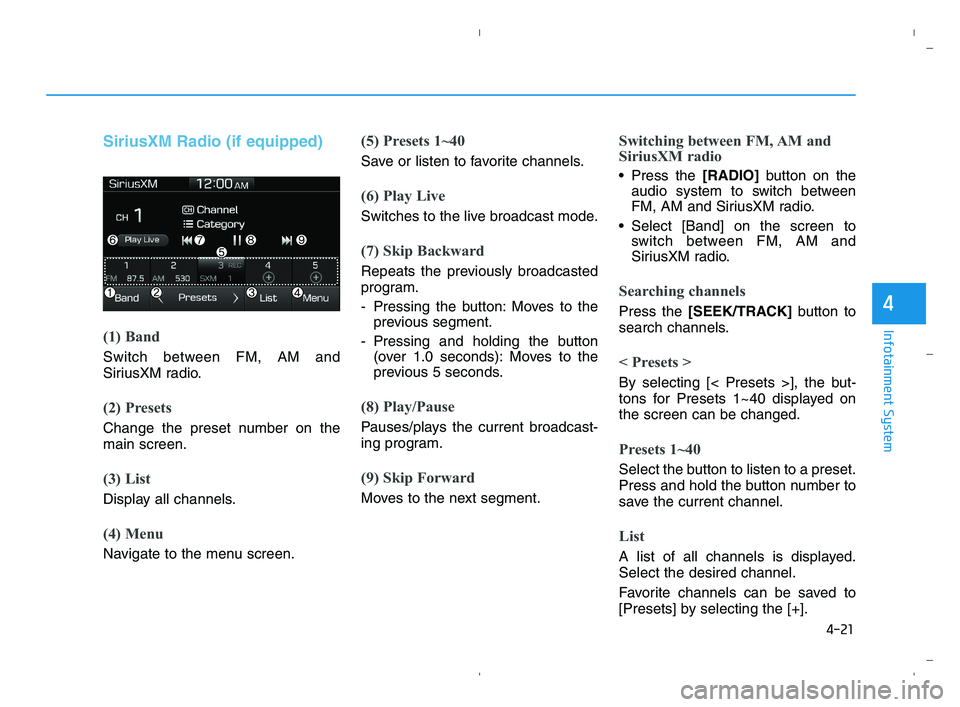
SiriusXM Radio (if equipped)
(1) Band
Switch between FM, AM and
SiriusXM radio.
(2) Presets
Change the preset number on the
main screen.
(3) List
Display all channels.
(4) Menu
Navigate to the menu screen.
(5) Presets 1~40
Save or listen to favorite channels.
(6) Play Live
Switches to the live broadcast mode.
(7) Skip Backward
Repeats the previously broadcasted
program.
- Pressing the button: Moves to the
previous segment.
- Pressing and holding the button
(over 1.0 seconds): Moves to the
previous 5 seconds.
(8) Play/Pause
Pauses/plays the current broadcast-
ing program.
(9) Skip Forward
Moves to the next segment.
Switching between FM, AM and
SiriusXM radio
Press the [RADIO]button on the
audio system to switch between
FM, AM and SiriusXM radio.
Select [Band] on the screen to
switch between FM, AM and
SiriusXM radio.
Searching channels
Press the [SEEK/TRACK]button to
search channels.
< Presets >
By selecting [< Presets >], the but-
tons for Presets 1~40 displayed on
the screen can be changed.
Presets 1~40
Select the button to listen to a preset.
Press and hold the button number to
save the current channel.
List
A list of all channels is displayed.
Select the desired channel.
Favorite channels can be saved to
[Presets] by selecting the [+].
HCa HMA 4.qxp 5/25/2020 10:58 AM Page 21
Page 229 of 443
![HYUNDAI ACCENT 2022 User Guide 4-22
Infotainment System
Menu
Select [Menu], and select the desired
function.
Presets: Save up to 40 frequently
used channels. To listen to a pre-
set, select the desired channel.
Press and hold the](/img/35/41159/w960_41159-228.png "HYUNDAI ACCENT 2022 User Guide 4-22
Infotainment System
Menu
Select [Menu], and select the desired
function.
Presets: Save up to 40 frequently
used channels. To listen to a pre-
set, select the desired channel.
Press and hold the")
4-22
Infotainment System
Menu
Select [Menu], and select the desired
function.
Presets: Save up to 40 frequently
used channels. To listen to a pre-
set, select the desired channel.
Press and hold the desired slot
from 1 through 40. This saves the
current channel in the selected
slot. If the slot is empty, simply
selecting saves the channel to the
slot.
Categories: Channels can be
searched by category.
Direct Tune: The desired channel
can be selected by entering num-
bers.
Sound Settings: Audio sound set-
tings can be changed.
Tag Song: Tag the current song
information. When an Apple device
(iPhone
®, iPod®) is connected,
tagged song information is sent
automatically to the connected
device.
Information
Up to 50 songs can be tagged.
Scan: All channels available in the
vehicle’s current location are
played for ten seconds each.
Program Schedule: View the
Program schedule.
Featured Favorites: The Featured
Favorites feature allows
SiriusXM™ to broadcast additional
presets.
- Example 1: During holidays,
"Holiday Music" might include all
SiriusXM™ channels that are
playing holiday music for easy
access by users.
Multiple sets of Featured Favorites
data can be broadcast by
SiriusXM™ and can change from
time to time.
Information: View detailed channel
information.
Category Lock: Search or scan
channels in the current category
only.
Media
Information
- Using MP3
Supported audio formats
File formats other than the for-
mats above may not be recog-
nized or playable. Information
such as filename may not be dis-
played.
NOTICE
i
i
HCa HMA 4.qxp 5/25/2020 10:58 AM Page 22
Page 239 of 443
![HYUNDAI ACCENT 2022 User Guide 4-32
Infotainment System
AUX
Running AUX
Press the [MEDIA]button, and
select [AUX].
Connect the external device connec-
tion jack to the AUX terminal to run
AUX.
(1) Sound Settings: Audio sound set-
t](/img/35/41159/w960_41159-238.png "HYUNDAI ACCENT 2022 User Guide 4-32
Infotainment System
AUX
Running AUX
Press the [MEDIA]button, and
select [AUX].
Connect the external device connec-
tion jack to the AUX terminal to run
AUX.
(1) Sound Settings: Audio sound set-
t")
4-32
Infotainment System
AUX
Running AUX
Press the [MEDIA]button, and
select [AUX].
Connect the external device connec-
tion jack to the AUX terminal to run
AUX.
(1) Sound Settings: Audio sound set-
tings can be changed.
My Music (if equipped)
(1) Repeat
Enable/disable repeat play.
(2) Shuffle
Enable/disable shuffle play.
(3) List
View a list of all songs.
(4) Menu
Navigate to the menu screen.
(5) Album Image
View song info.
(6) Pause
Pause or play music.
(7) Playback progress
Select to skip to the desired location.
Playback
Press the [MEDIA]button, and
select [My Music].
My Music cannot be selected if it
does not contain music.
Check the content of your USB
drive before saving music to My
Music.
Changing songs
Press the [SEEK/TRACK]button to
play the previous or next song.
Press and hold the [SEEK/TRACK]
button to rewind or fast forward the
currently playing song.
Search songs by turning the TUNE
knob, and press the knob to play.
HCa HMA 4.qxp 5/25/2020 10:59 AM Page 32
Page 241 of 443
4-34
Infotainment System
Phone (if equipped)
Information
- Using Bluetooth®Wireless
Technology(BT) Cellular
Phone
•Bluetooth
®Wireless Technology is a
near-field wireless networking tech-
nology that uses the 2.4 GHz fre-
quency to connect various devices
within a certain distance wirelessly.
• The technology is used in PCs,
peripherals, Bluetooth
®Wireless
Technology phones, tablet PCs,
household appliances and automo-
biles. Devices supporting Bluetooth
®
Wireless Technology can exchange
data at high speeds without physical
cable connections.
•Bluetooth
®Wireless Technology
Handsfree devices enable convenient
access to phone functions through cell
phones equipped with Bluetooth
®
Wireless Technology.
• Some Bluetooth
®Wireless Technology
devices may not be supported by
the Bluetooth
®Wireless Technology
Handsfree function.
(Continued)(Continued)
• When Bluetooth
®Wireless Technology
is connected and calls are attempted
through a connected cell phone
from outside the vehicle, the call is
connected through the Bluetooth
®
Wireless Technology Handsfree
function of the vehicle.
• Please be sure to disconnect the
Bluetooth
®Wireless Technology
Handsfree function throughyour
Bluetooth
®Wireless Technology
device or the audio screen.
• See https://www.hyundaiusa.com/
BlueTooth/for a list of supported
Bluetooth
®Wireless Technology
devices.
Safety precautions
The Bluetooth®Wireless Technology
Handsfree function helps drivers to
drive safely. By connecting a
Bluetooth®Wireless Technology-
enabled phone to the vehicle’s
audio system, phone calls can be
made and received through the
audio system and contacts can be
managed. Consult the user manual
before use. Excessive manipulation of controls
while driving, making it difficult to
pay attention to the road ahead,
can lead to accidents. Do not oper-
ate the device excessively while
driving.
Looking at the screen for a pro-
longed time increases the risk of
accidents. Keep time spent looking
at the screen to a minimum.
Precautions when connecting
Bluetooth®Wireless Technology
devices
The vehicle supports the following
Bluetooth®Wireless Technology
functions. Some
Bluetooth®
Wireless Technology devices may
not support some functions.
1)
Bluetooth®Wireless Technology
Handsfree phone calls
2) Operations during a call
(Private, Switch, Out Vol. con-
trols)
3) Download call history saved to the
Bluetooth®Wireless Technology
device
4) Download contacts saved to the
Bluetooth®Wireless Technology
device
i
HCa HMA 4.qxp 5/25/2020 10:59 AM Page 34