ECO mode Hyundai Azera 2017 Owner's Guide
[x] Cancel search | Manufacturer: HYUNDAI, Model Year: 2017, Model line: Azera, Model: Hyundai Azera 2017Pages: 520, PDF Size: 16.33 MB
Page 213 of 520
Features of your vehicle
134
4
Operating the air conditioning sys-
tem in the recirculated air position
provides maximum cooling, how-
ever, continual operation in this
mode may cause the air inside the
vehicle to become stale.
After sufficient cooling has been
achieved, switch back from the
recirculated air to the fresh outside
air position.
During cooling operation, you may occasionally notice a misty air flow
because of rapid cooling and
humid air intake. This is a normal
system operation characteristic.
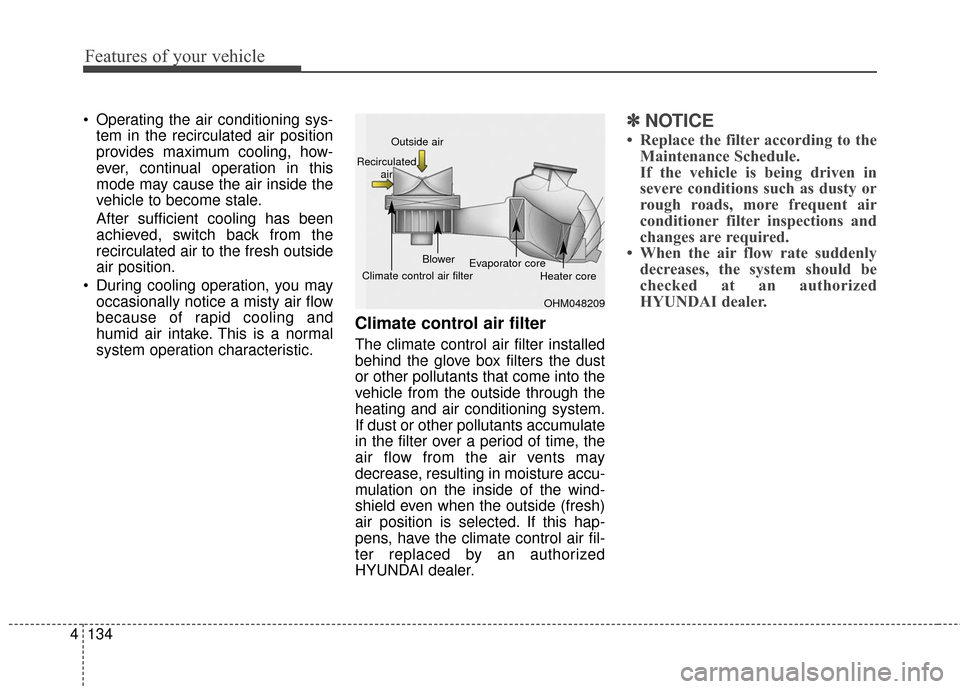
Climate control air filter
The climate control air filter installed
behind the glove box filters the dust
or other pollutants that come into the
vehicle from the outside through the
heating and air conditioning system.
If dust or other pollutants accumulate
in the filter over a period of time, the
air flow from the air vents may
decrease, resulting in moisture accu-
mulation on the inside of the wind-
shield even when the outside (fresh)
air position is selected. If this hap-
pens, have the climate control air fil-
ter replaced by an authorized
HYUNDAI dealer.
✽ ✽ NOTICE
• Replace the filter according to the
Maintenance Schedule.
If the vehicle is being driven in
severe conditions such as dusty or
rough roads, more frequent air
conditioner filter inspections and
changes are required.
• When the air flow rate suddenly decreases, the system should be
checked at an authorized
HYUNDAI dealer.
OHM048209
Outside air
Recirculated air
Climate control air filter Blower
Evaporator core
Heater core
Page 225 of 520
Features of your vehicle
146
4
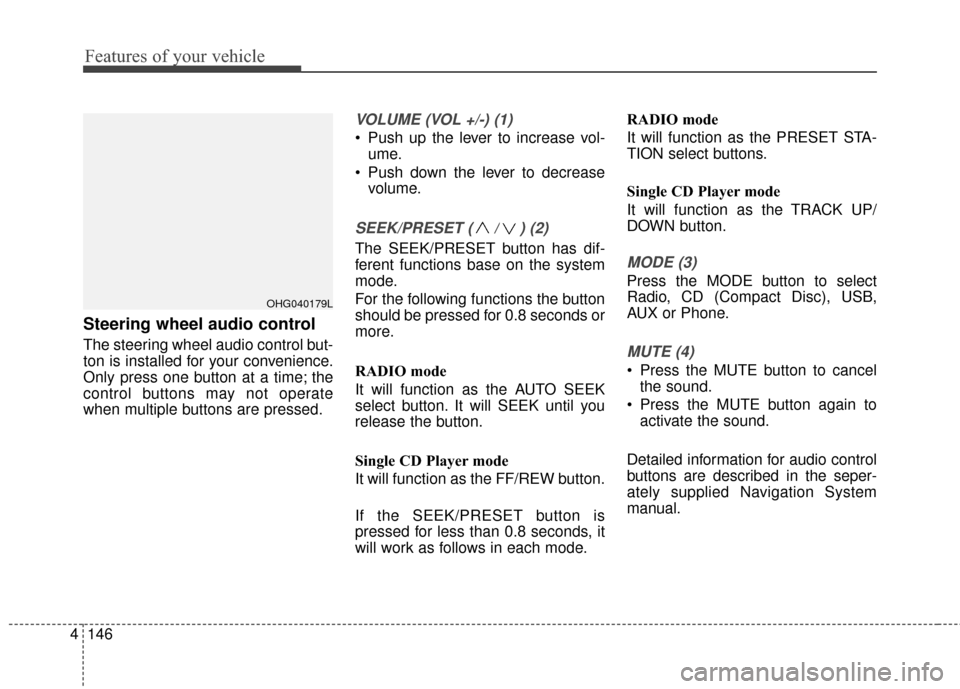
Steering wheel audio control
The steering wheel audio control but-
ton is installed for your convenience.
Only press one button at a time; the
control buttons may not operate
when multiple buttons are pressed.
VOLUME (VOL +/-) (1)
Push up the lever to increase vol-
ume.
Push down the lever to decrease volume.
SEEK/PRESET ( / ) (2)
The SEEK/PRESET button has dif-
ferent functions base on the system
mode.
For the following functions the button
should be pressed for 0.8 seconds or
more.
RADIO mode
It will function as the AUTO SEEK
select button. It will SEEK until you
release the button.
Single CD Player mode
It will function as the FF/REW button.
If the SEEK/PRESET button is
pressed for less than 0.8 seconds, it
will work as follows in each mode. RADIO mode
It will function as the PRESET STA-
TION select buttons.
Single CD Player mode
It will function as the TRACK UP/
DOWN button.MODE (3)
Press the MODE button to select
Radio, CD (Compact Disc), USB,
AUX or Phone.
MUTE (4)
Press the MUTE button to cancel
the sound.
Press the MUTE button again to activate the sound.
Detailed information for audio control
buttons are described in the seper-
ately supplied Navigation System
manual.
OHG040179L
Page 229 of 520
XM RADIO MODE
Features of your vehicle
Satellite radio reception
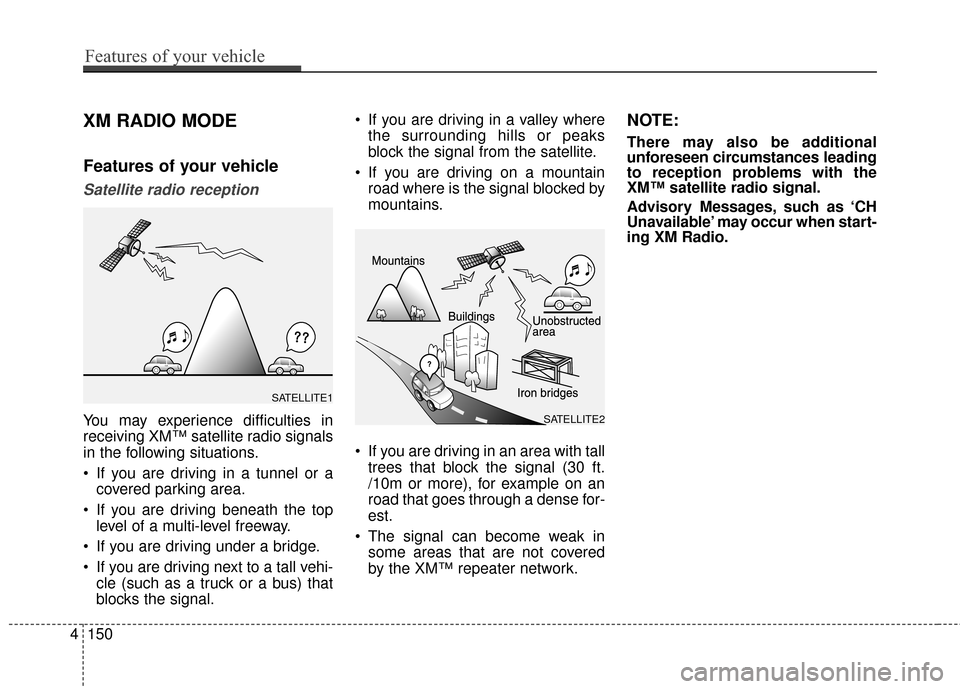
You may experience difficulties in
receiving XM™ satellite radio signals
in the following situations.
If you are driving in a tunnel or acovered parking area.
If you are driving beneath the top level of a multi-level freeway.
If you are driving under a bridge.
If you are driving next to a tall vehi- cle (such as a truck or a bus) that
blocks the signal. If you are driving in a valley where
the surrounding hills or peaks
block the signal from the satellite.
If you are driving on a mountain road where is the signal blocked by
mountains.
If you are driving in an area with tall trees that block the signal (30 ft.
/10m or more), for example on an
road that goes through a dense for-
est.
The signal can become weak in some areas that are not covered
by the XM™ repeater network.
NOTE:
There may also be additional
unforeseen circumstances leading
to reception problems with the
XM™ satellite radio signal.
Advisory Messages, such as ‘CH
Unavailable’ may occur when start-
ing XM Radio.
4150
Features of your vehicle
SATELLITE2
SATELLITE1
Page 236 of 520
(Continued)
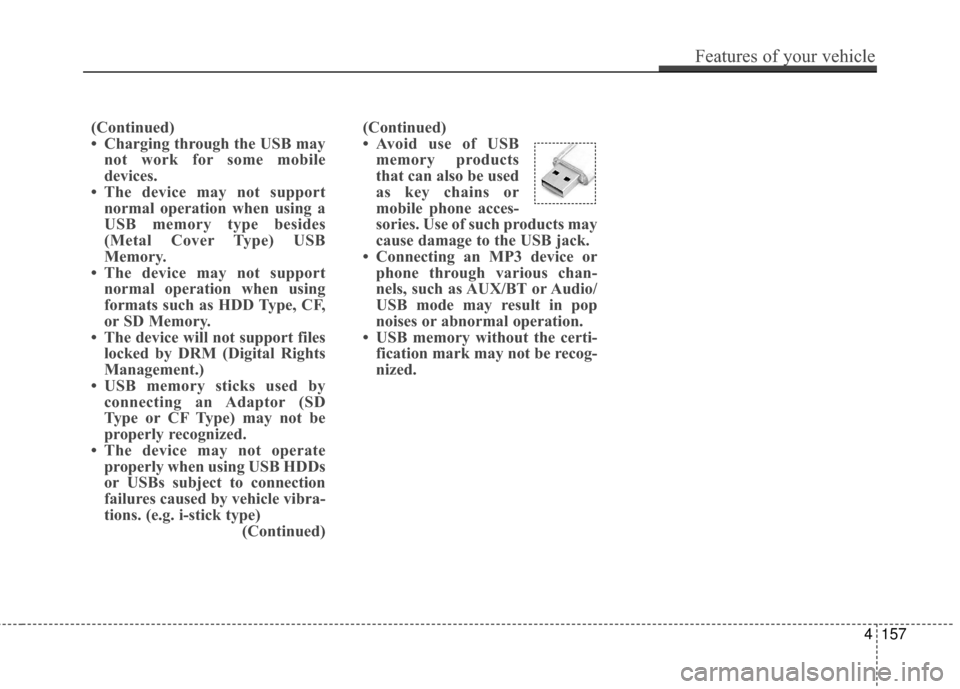
• Avoid use of USBmemory products
that can also be used
as key chains or
mobile phone acces-
sories. Use of such products may
cause damage to the USB jack.
• Connecting an MP3 device or phone through various chan-
nels, such as AUX/BT or Audio/
USB mode may result in pop
noises or abnormal operation.
• USB memory without the certi- fication mark may not be recog-
nized.
(Continued)
• Charging through the USB may
not work for some mobile
devices.
• The device may not support normal operation when using a
USB memory type besides
(Metal Cover Type) USB
Memory.
• The device may not support normal operation when using
formats such as HDD Type, CF,
or SD Memory.
• The device will not support files locked by DRM (Digital Rights
Management.)
• USB memory sticks used by connecting an Adaptor (SD
Type or CF Type) may not be
properly recognized.
• The device may not operate properly when using USB HDDs
or USBs subject to connection
failures caused by vehicle vibra-
tions. (e.g. i-stick type) (Continued)
Features of your vehicle
157
4
Page 237 of 520
✽
✽NOTICE - USING THE iPod®
DEVICE
• iPod®is a registered trademark
of Apple Inc.
• In order to use the iPod while operating the keys, you must use
a dedicated iPod cable. (the
cable that is supplied when pur-
chasing iPod/iPhone products)
• If the iPod is connected to the vehicle while it is playing, a high
pitch sound could occur for
approximately 1-2 seconds
immediately after connecting. If
possible, connect the iPod to the
vehicle with the iPod
stopped/paused.
• During ACC ON state, connect- ing the iPod through the iPod
cable will charge the iPod
through the car audio system.
• When connecting with the iPod cable, make sure to fully insert
the jack to prevent communica-
tion interference. (Continued)(Continued)
• When the EQ features of an
external device, such as the
iPod, and the audio system are
both active, EQ effects could
overlap and cause sound deteri-
oration and distortion.
Whenever possible, turn off the
EQ feature within the external
device upon use by connecting
with the audio system.
• Noise may occur when an iPod or AUX device is connected.
When such devices are not
being used, disconnect the
device for storage.
• When the iPod or AUX device power is connected to the power
jack, playing the external device
may result in noise. In such cas-
es, disconnect the power connec-
tion before use.
• Skipping or improper operation may occur depending on the
characteristics of your
iPod/Phone device. (Continued)(Continued)
• If your iPhone is connected to
both the Bluetooth®Wireless
Technology and USB, the sound
may not be properly played. In
your iPhone, select the Dock
connector or Bluetooth
®
Wireless Technology to change
the sound output (source).
• iPod mode cannot be operated when the iPod cannot be recog-
nized due to versions that do not
support communication proto-
cols.
• For fifth generation iPod Nano devices, the iPod may not be
recognized when the battery
level is low. Please charge the
iPod for use.
• Search/play orders shown with- in the iPod device may differ
with the orders shown within
the audio system.
• If the iPod malfunctions due to an iPod device defect, reset the
iPod and try again. (To learn
more, refer to your iPod manual) (Continued)
4158
Features of your vehicle
Page 238 of 520
(Continued)
• Some iPods may not sync with theSystem depending on its version.
If the Media is removed before the
Media is recognized, then the sys-
tem may not properly restore the
previously operated mode. (iPad
charging is not supported.)✽ ✽ NOTICE - USING THE
Bluetooth®Wireless
Technology Audio Mode
• Bluetooth®Wireless Technology
Audio Mode can be used only
when a Bluetooth
®Wireless
Technology phone has been con-
nected.
• Bluetooth
®Wireless Technology
Audio Mode will not be available
when connecting mobile phones
that do not support this feature.
• While Bluetooth
®Wireless
Technology Audio is playing, if the
Bluetooth
®Wireless Technology
phone is connected, then the music
will also stop.
• Moving the Track up/down while playing Bluetooth
®Wireless
Technology audio mode may
result in pop noises in some mobile
phones.
• Bluetooth
®Wireless Technology
streaming audio may not be sup-
ported in some mobile phones. (Continued)(Continued)
• When returning to Bluetooth
®
Wireless Technology Audio mode
after ending a call, the mode may
not automatically restart in some
mobile phones.
• Receiving an incoming call or mak- ing an outgoing call while playing
Bluetooth
®Wireless Technology
Audio may result in audio interfer-
ence.
Features of your vehicle
159
4
Page 241 of 520
✽
✽NOTICE - USING THE Voice
Recognition
• When using the voice recognition feature, only commands listed
within the user's manual are sup-
ported.
• Be aware that during the opera- tion of the voice recognition sys-
tem, pressing any key other than
the key or touching the screen
will terminate voice recognition
mode.
• For superior voice recognition performance, position the micro-
phone used for voice recognition
above the head of the driver’s seat
and maintain a proper position
when saying commands.
• Within the following situations, voice recognition may not function
properly due to external sound.
- When the windows and sunroofare open
- When the wind of the cooling / heating device is strong
- When entering and passing through tunnels (Continued)(Continued)
- When driving on rugged anduneven roads
- During severe rain (heavy rains, windstorms)
• Phone related voice commands can be used only when a
Bluetooth
®Wireless Technology
device is connected.
• When making calls by stating a name, the corresponding contact
must be downloaded and stored
within the audio system.
• After downloading the Bluetooth
®
Wireless Technology phone book,
it takes some times to convert the
phone book data into voice infor-
mation. During this time, voice
recognition may not properly
operate.
• Pronounce the voice commands naturally and clearly as if in a nor-
mal conversation.
4162
Features of your vehicle
Page 243 of 520
4164
Features of your vehicle
COMPONENT NAMES AND
FUNCTIONS
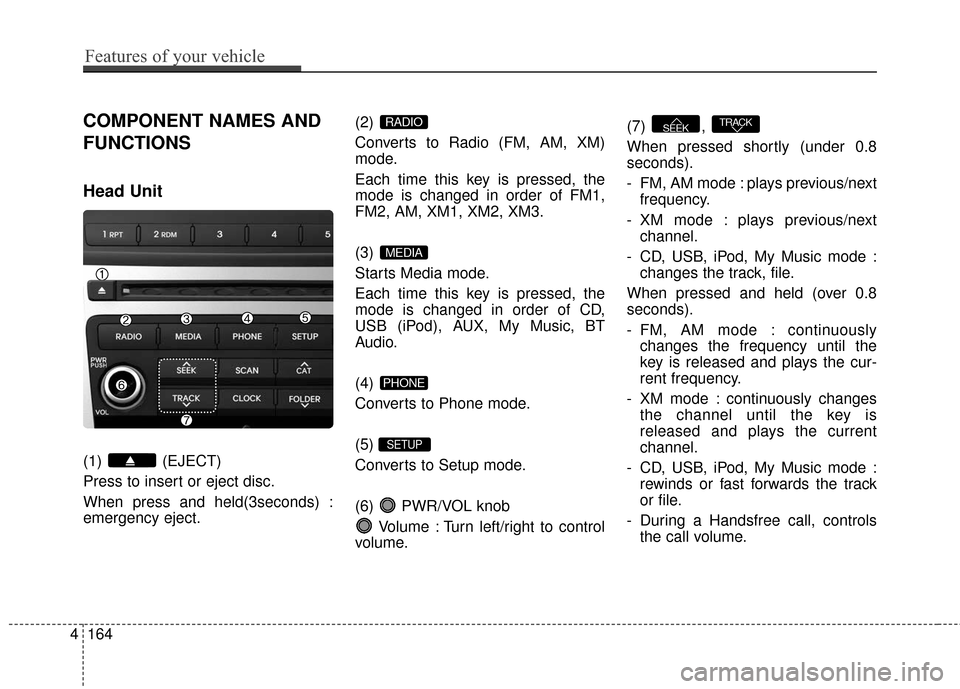
Head Unit
(1) (EJECT)
Press to insert or eject disc.
When press and held(3seconds) :
emergency eject.(2)
Converts to Radio (FM, AM, XM)
mode.
Each time this key is pressed, the
mode is changed in order of FM1,
FM2, AM, XM1, XM2, XM3.
(3)
Starts Media mode.
Each time this key is pressed, the
mode is changed in order of CD,
USB (iPod), AUX, My Music, BT
Audio.
(4)
Converts to Phone mode.
(5)
Converts to Setup mode.
(6) PWR/VOL knob
Volume : Turn left/right to control
volume. (7) ,
When pressed shortly (under 0.8
seconds).
- FM, AM mode : plays previous/next
frequency.
- XM mode : plays previous/next channel.
- CD, USB, iPod, My Music mode : changes the track, file.
When pressed and held (over 0.8
seconds).
- FM, AM mode : continuously changes the frequency until the
key is released and plays the cur-
rent frequency.
- XM mode : continuously changes the channel until the key is
released and plays the current
channel.
- CD, USB, iPod, My Music mode : rewinds or fast forwards the track
or file.
- During a Handsfree call, controls the call volume.
TRACKSEEK
SETUP
PHONE
MEDIA
RADIO
Page 244 of 520
Features of your vehicle
165
4
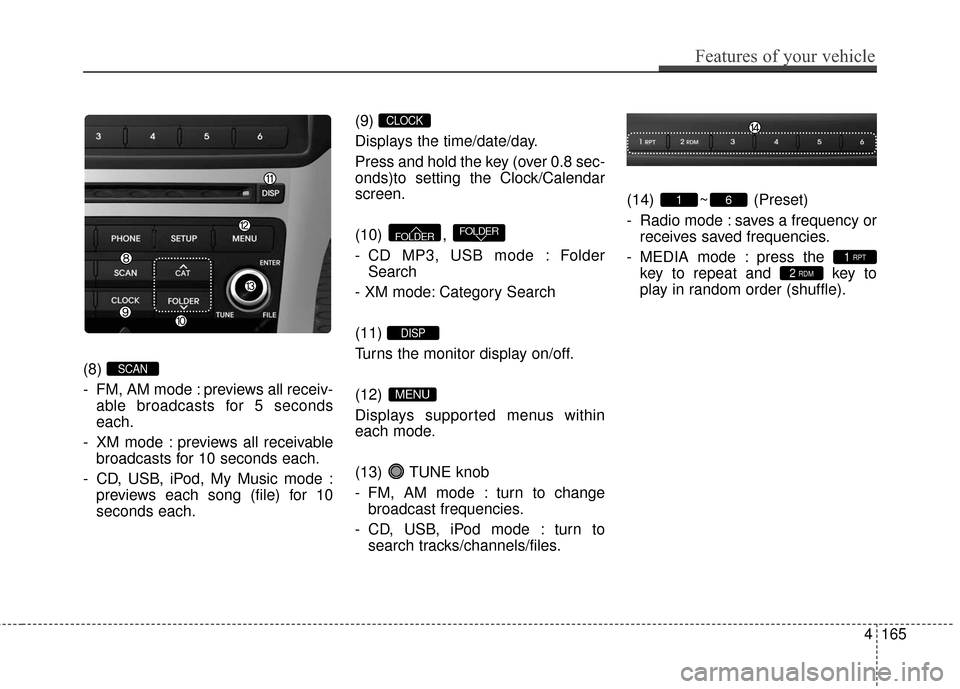
(8)
- FM, AM mode : previews all receiv-
able broadcasts for 5 seconds
each.
- XM mode : previews all receivable broadcasts for 10 seconds each.
- CD, USB, iPod, My Music mode : previews each song (file) for 10
seconds each. (9)
Displays the time/date/day.
Press and hold the key (over 0.8 sec-
onds)to setting the Clock/Calendar
screen.
(10) ,
- CD MP3, USB mode : Folder
Search
- XM mode: Category Search
(11)
Turns the monitor display on/off.
(12)
Displays supported menus within
each mode.
(13) TUNE knob
- FM, AM mode : turn to change broadcast frequencies.
- CD, USB, iPod mode : turn to search tracks/channels/files. (14) ~ (Preset)
- Radio mode : saves a frequency or
receives saved frequencies.
- MEDIA mode : press the key to repeat and key to
play in random order (shuffle).
2 RDM1 RPT
61
MENU
DISP
FOLDERFOLDER
CLOCK
SCAN
Page 245 of 520
4166
Features of your vehicle
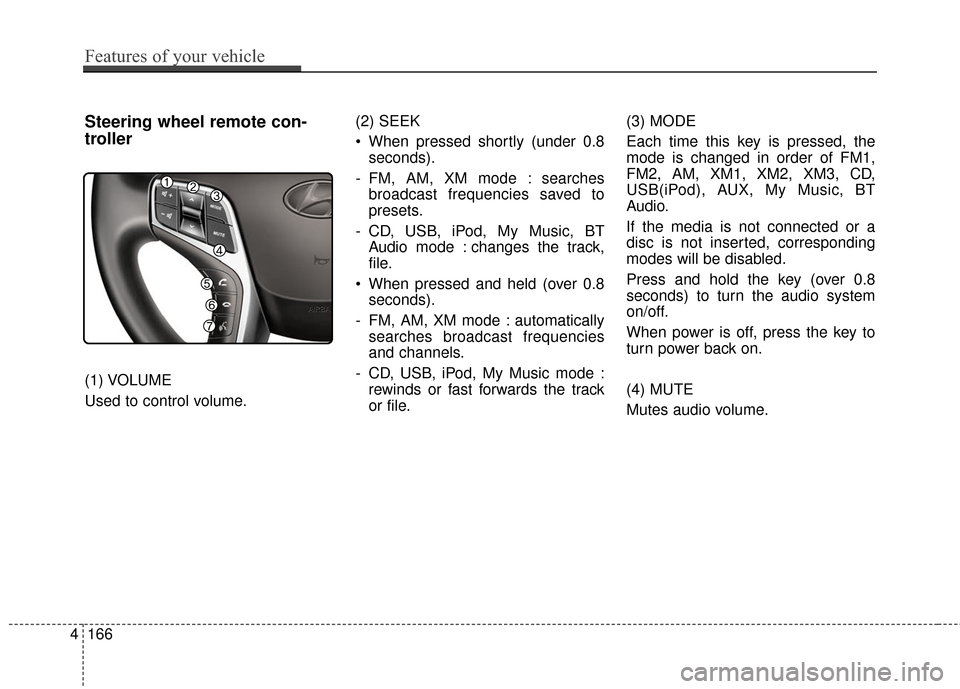
Steering wheel remote con-
troller
(1) VOLUME
Used to control volume.(2) SEEK
When pressed shortly (under 0.8
seconds).
- FM, AM, XM mode : searches broadcast frequencies saved to
presets.
- CD, USB, iPod, My Music, BT Audio mode : changes the track,
file.
When pressed and held (over 0.8 seconds).
- FM, AM, XM mode : automatically searches broadcast frequencies
and channels.
- CD, USB, iPod, My Music mode : rewinds or fast forwards the track
or file. (3) MODE
Each time this key is pressed, the
mode is changed in order of FM1,
FM2, AM, XM1, XM2, XM3, CD,
USB(iPod), AUX, My Music, BT
Audio.
If the media is not connected or a
disc is not inserted, corresponding
modes will be disabled.
Press and hold the key (over 0.8
seconds) to turn the audio system
on/off.
When power is off, press the key to
turn power back on.
(4) MUTE
Mutes audio volume.