ECO mode HYUNDAI COUPE 2012 User Guide
[x] Cancel search | Manufacturer: HYUNDAI, Model Year: 2012, Model line: COUPE, Model: HYUNDAI COUPE 2012Pages: 391, PDF Size: 6.88 MB
Page 164 of 391
487
Features of your vehicle
When using the air conditioning sys-tem, you may notice clear water drip-
ping (or even puddling) on the ground
under the passenger side of the vehi-
cle. This is a normal system operation
characteristic.
Operating the air conditioning system in the recirculated air position provides
maximum cooling, however, continual
operation in this mode may cause the
air inside the vehicle to become stale.
During cooling operation, you may occasionally notice a misty air flow
because of rapid cooling and humid air
intake. This is a normal system opera-
tion characteristics.
D230300AEN
Climate control air filter
(if equipped)
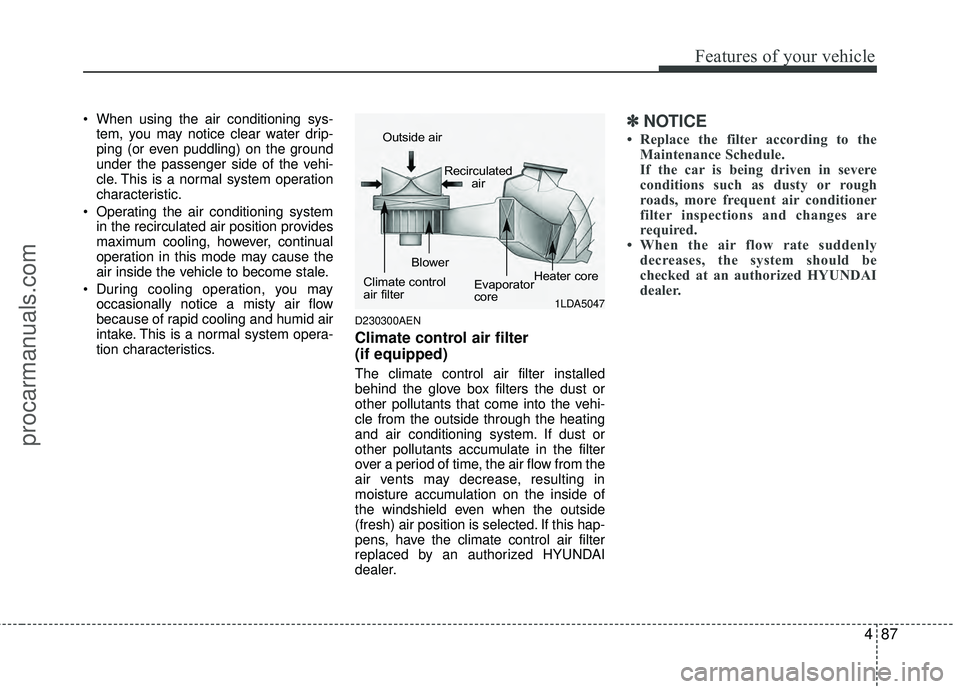
The climate control air filter installed
behind the glove box filters the dust or
other pollutants that come into the vehi-
cle from the outside through the heating
and air conditioning system. If dust or
other pollutants accumulate in the filter
over a period of time, the air flow from the
air vents may decrease, resulting in
moisture accumulation on the inside of
the windshield even when the outside
(fresh) air position is selected. If this hap-
pens, have the climate control air filter
replaced by an authorized HYUNDAI
dealer.
✽ ✽ NOTICE
• Replace the filter according to the
Maintenance Schedule.
If the car is being driven in severe
conditions such as dusty or rough
roads, more frequent air conditioner
filter inspections and changes are
required.
• When the air flow rate suddenly decreases, the system should be
checked at an authorized HYUNDAI
dealer.
1LDA5047
Outside air
Recirculatedair
Climate control
air filter Blower
Evaporator
coreHeater core
procarmanuals.com
Page 177 of 391
Features of your vehicle
100
4
D300200AEN
Steering wheel audio controls
(if equipped)
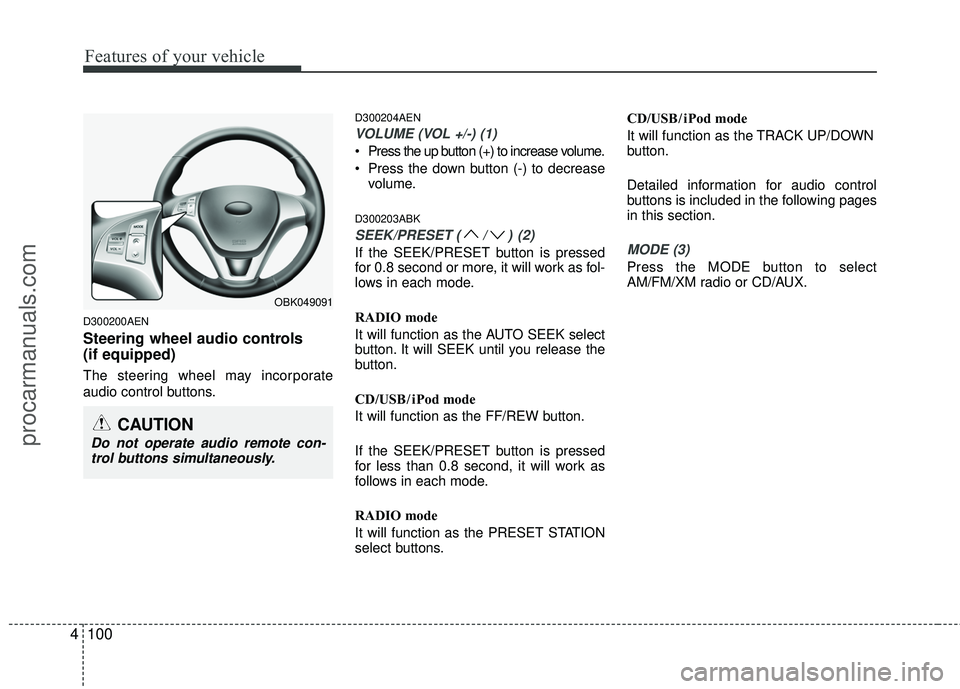
The steering wheel may incorporate
audio control buttons.
D300204AEN
VOLUME (VOL +/-) (1)
Press the up button (+) to increase volume.
Press the down button (-) to decrease
volume.
D300203ABK
SEEK/PRESET (/)(2)
If the SEEK/PRESET button is pressed
for 0.8 second or more, it will work as fol-
lows in each mode.
RADIO mode
It will function as the AUTO SEEK select
button. It will SEEK until you release the
button.
CD/USB/ iPod mode
It will function as the FF/REW button.
If the SEEK/PRESET button is pressed
for less than 0.8 second, it will work as
follows in each mode.
RADIO mode
It will function as the PRESET STATION
select buttons. CD/USB/ iPod mode
It will function as the TRACK UP/DOWN
button.
Detailed information for audio control
buttons is included in the following pages
in this section.MODE (3)
Press the MODE button to select
AM/FM/XM radio or CD/AUX.
OBK049091
CAUTION
Do not operate audio remote con-
trol buttons simultaneously.
procarmanuals.com
Page 183 of 391
Features of your vehicle
106
4
Using RADIO, SET UP, VOLUME
CONTROL
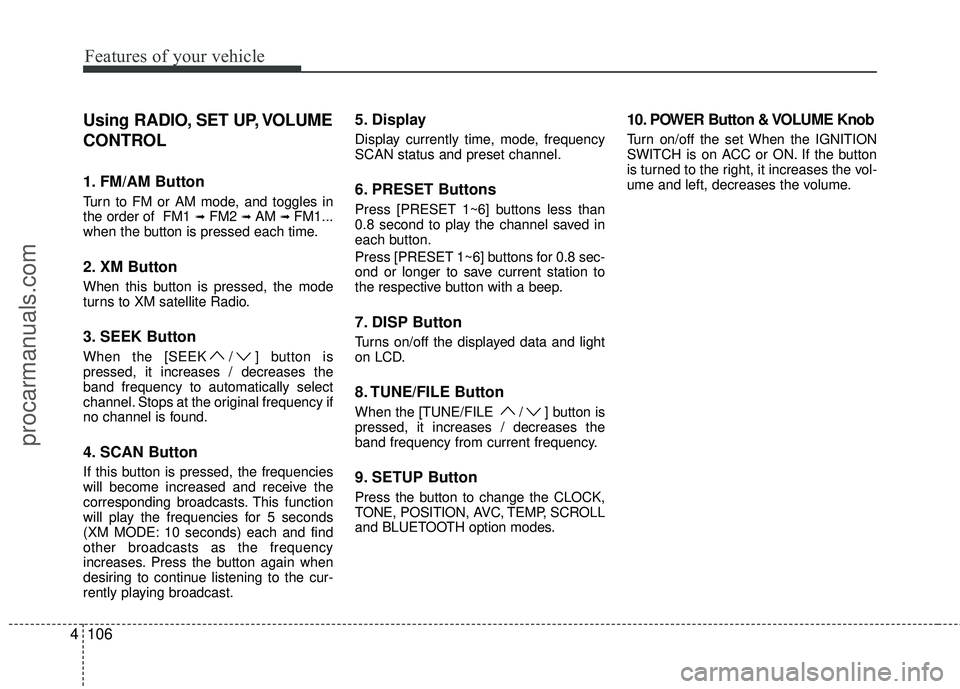
1. FM/AM Button
Turn to FM or AM mode, and toggles in
the order of FM1 ➟FM2 ➟ AM ➟ FM1...
when the button is pressed each time.
2. XM Button
When this button is pressed, the mode
turns to XM satellite Radio.
3. SEEK Button
When the [SEEK / ] button is
pressed, it increases / decreases the
band frequency to automatically select
channel. Stops at the original frequency if
no channel is found.
4. SCAN Button
If this button is pressed, the frequencies
will become increased and receive the
corresponding broadcasts. This function
will play the frequencies for 5 seconds
(XM MODE: 10 seconds) each and find
other broadcasts as the frequency
increases. Press the button again when
desiring to continue listening to the cur-
rently playing broadcast.
5. Display
Display currently time, mode, frequency
SCAN status and preset channel.
6. PRESET Buttons
Press [PRESET 1~6] buttons less than
0.8 second to play the channel saved in
each button.
Press [PRESET 1~6] buttons for 0.8 sec-
ond or longer to save current station to
the respective button with a beep.
7. DISP Button
Turns on/off the displayed data and light
on LCD.
8. TUNE/FILE Button
When the [TUNE/FILE / ] button is
pressed, it increases / decreases the
band frequency from current frequency.
9. SETUP Button
Press the button to change the CLOCK,
TONE, POSITION, AVC, TEMP, SCROLL
and BLUETOOTH option modes.
10. POWER Button & VOLUME Knob
Turn on/off the set When the IGNITION
SWITCH is on ACC or ON. If the button
is turned to the right, it increases the vol-
ume and left, decreases the volume.
procarmanuals.com
Page 185 of 391
Features of your vehicle
108
4
Using CD Player
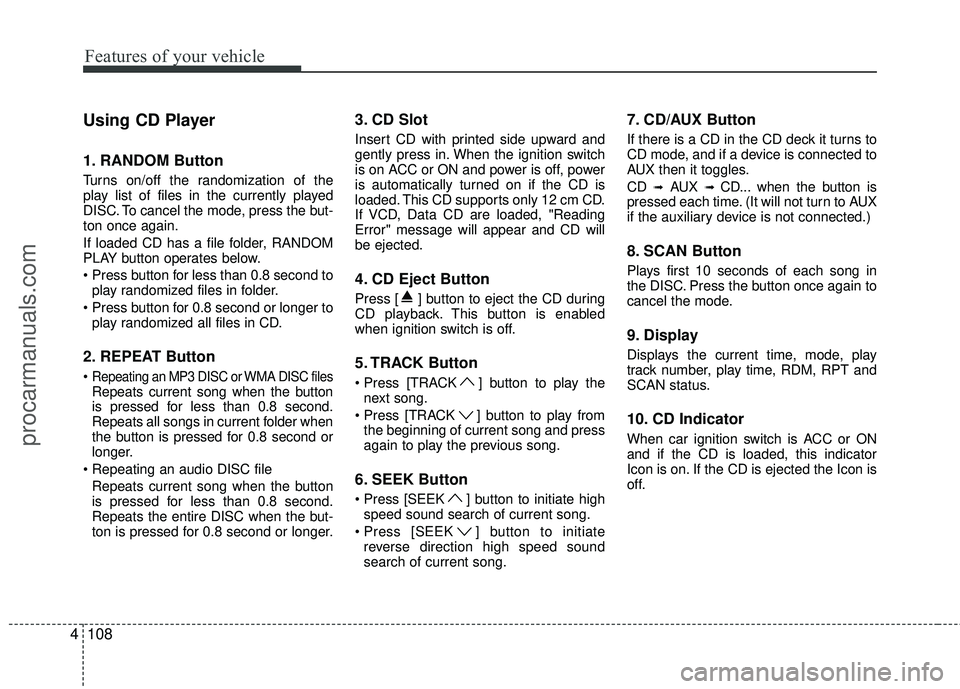
1. RANDOM Button
Turns on/off the randomization of the
play list of files in the currently played
DISC. To cancel the mode, press the but-
ton once again.
If loaded CD has a file folder, RANDOM
PLAY button operates below.
play randomized files in folder.
play randomized all files in CD.
2. REPEAT Button
Repeating an MP3 DISC or WMA DISC filesRepeats current song when the button
is pressed for less than 0.8 second.
Repeats all songs in current folder when
the button is pressed for 0.8 second or
longer.
Repeats current song when the button
is pressed for less than 0.8 second.
Repeats the entire DISC when the but-
ton is pressed for 0.8 second or longer.
3. CD Slot
Insert CD with printed side upward and
gently press in. When the ignition switch
is on ACC or ON and power is off, power
is automatically turned on if the CD is
loaded. This CD supports only 12 cm CD.
If VCD, Data CD are loaded, "Reading
Error" message will appear and CD will
be ejected.
4. CD Eject Button
Press [ ] button to eject the CD during
CD playback. This button is enabled
when ignition switch is off.
5. TRACK Button
] button to play the next song.
] button to play from the beginning of current song and press
again to play the previous song.
6. SEEK Button
] button to initiate highspeed sound search of current song.
] button to initiate reverse direction high speed sound
search of current song.
7. CD/AUX Button
If there is a CD in the CD deck it turns to
CD mode, and if a device is connected to
AUX then it toggles.
CD
➟AUX ➟ CD... when the button is
pressed each time. (It will not turn to AUX
if the auxiliary device is not connected.)
8. SCAN Button
Plays first 10 seconds of each song in
the DISC. Press the button once again to
cancel the mode.
9. Display
Displays the current time, mode, play
track number, play time, RDM, RPT and
SCAN status.
10. CD Indicator
When car ignition switch is ACC or ON
and if the CD is loaded, this indicator
Icon is on. If the CD is ejected the Icon is
off.
procarmanuals.com
Page 188 of 391
4111
Features of your vehicle
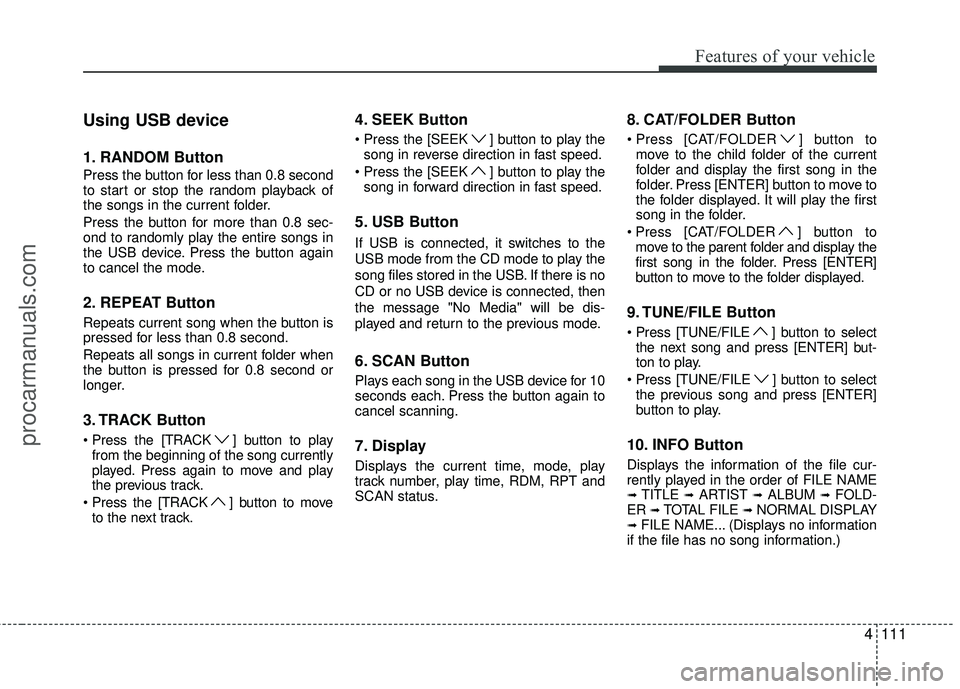
Using USB device
1. RANDOM Button
Press the button for less than 0.8 second
to start or stop the random playback of
the songs in the current folder.
Press the button for more than 0.8 sec-
ond to randomly play the entire songs in
the USB device. Press the button again
to cancel the mode.
2. REPEAT Button
Repeats current song when the button is
pressed for less than 0.8 second.
Repeats all songs in current folder when
the button is pressed for 0.8 second or
longer.
3. TRACK Button
] button to playfrom the beginning of the song currently
played. Press again to move and play
the previous track.
] button to move to the next track.
4. SEEK Button
] button to play thesong in reverse direction in fast speed.
] button to play the song in forward direction in fast speed.
5. USB Button
If USB is connected, it switches to the
USB mode from the CD mode to play the
song files stored in the USB. If there is no
CD or no USB device is connected, then
the message "No Media" will be dis-
played and return to the previous mode.
6. SCAN Button
Plays each song in the USB device for 10
seconds each. Press the button again to
cancel scanning.
7. Display
Displays the current time, mode, play
track number, play time, RDM, RPT and
SCAN status.
8. CAT/FOLDER Button
[CAT/FOLDER ] button to move to the child folder of the current
folder and display the first song in the
folder. Press [ENTER] button to move to
the folder displayed. It will play the first
song in the folder.
] button to move to the parent folder and display the
first song in the folder. Press [ENTER]
button to move to the folder displayed.
9. TUNE/FILE Button
Press [TUNE/FILE ] button to select the next song and press [ENTER] but-
ton to play.
] button to select the previous song and press [ENTER]
button to play.
10. INFO Button
Displays the information of the file cur-
rently played in the order of FILE NAME
➟TITLE ➟ARTIST ➟ALBUM ➟FOLD-
ER ➟TOTAL FILE ➟NORMAL DISPLAY➟FILE NAME... (Displays no information
if the file has no song information.)
procarmanuals.com
Page 189 of 391
Features of your vehicle
112
4
CAUTION IN USING
USB DEVICE
To use an external USB device,
make sure the device is not con-nected when starting up the vehi-cle. Connect the device afterstarting up.
If you start the engine when the USB device is connected, it maydamage the USB device. (USBflashdrives are very sensitive toelectric shock.)
If the engine is started up or turned off while the external USBdevice is connected, the externalUSB device may not work.
It may not play inauthentic MP3 or WMA files.
1) It can only play MP3 files with the compression rate between8Kbps~320Kbps.
2) It can only play WMA music files with the compression ratebetween 8Kbps~320Kbps.
Take precautions for static electrici- ty when connecting or disconnect-ing the external USB device.
(Continued)
(Continued) An encrypted MP3 PLAYER is not recognizable.
Depending on the condition of the external USB device, the con-nected external USB device canbe unrecognizable.
When the formatted byte/sector setting of External USB device isnot either 512BYTE or 2048BYTE,then the device will not be recog- nized.
Use only a USB device formatted to FAT 12/16/32.
USB devices without USB I/F authentication may not be recog-nizable.
Make sure the USB connection terminal does not come in contactwith the human body or otherobjects.
If you repeatedly connect or dis- connect the USB device in a shortperiod of time, it may break thedevice.
You may hear a strange noise when connecting or disconnect-ing a USB device.
(Continued)(Continued) If you disconnect the external USB device during playback in USBmode, the external USB device canbe damaged or may malfunction. Therefore, disconnect the externalUSB device when the audio is turned off or in another mode. (e.g,Radio, XM or CD)
Depending on the type and capac- ity of the external USB device orthe type of the files stored in thedevice, there is a difference in the time taken for recognition of thedevice.
Do not use the USB device for pur- poses other than playing musicfiles.
Use of USB accessories such as rechargers or heaters using USBI/F may lower performance orcause trouble.
If you use devices such as a USB hub purchased separately, thevehicle’s audio system may not recognize the USB device. In thatcase, connect the USB devicedirectly to the multimedia termi- nal of the vehicle.
(Continued)
procarmanuals.com
Page 192 of 391
4115
Features of your vehicle
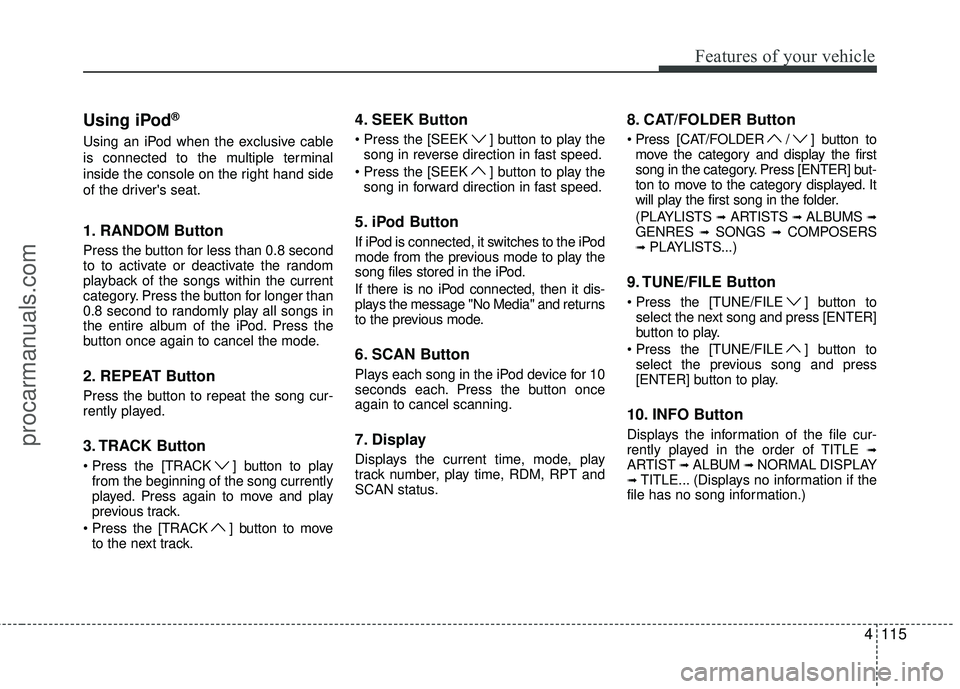
Using iPod®
Using an iPod when the exclusive cable
is connected to the multiple terminal
inside the console on the right hand side
of the driver's seat.
1. RANDOM Button
Press the button for less than 0.8 second
to to activate or deactivate the random
playback of the songs within the current
category. Press the button for longer than
0.8 second to randomly play all songs in
the entire album of the iPod. Press the
button once again to cancel the mode.
2. REPEAT Button
Press the button to repeat the song cur-
rently played.
3. TRACK Button
] button to playfrom the beginning of the song currently
played. Press again to move and play
previous track.
] button to move to the next track.
4. SEEK Button
] button to play thesong in reverse direction in fast speed.
] button to play the song in forward direction in fast speed.
5. iPod Button
If iPod is connected, it switches to the iPod
mode from the previous mode to play the
song files stored in the iPod.
If there is no iPod connected, then it dis-
plays the message "No Media" and returns
to the previous mode.
6. SCAN Button
Plays each song in the iPod device for 10
seconds each. Press the button once
again to cancel scanning.
7. Display
Displays the current time, mode, play
track number, play time, RDM, RPT and
SCAN status.
8. CAT/FOLDER Button
/ ] button tomove the category and display the first
song in the category. Press [ENTER] but-
ton to move to the category displayed. It
will play the first song in the folder.
(PLAYLISTS
➟ARTISTS ➟ALBUMS ➟GENRES ➟SONGS ➟COMPOSERS➟ PLAYLISTS...)
9. TUNE/FILE Button
] button to select the next song and press [ENTER]
button to play.
] button to select the previous song and press
[ENTER] button to play.
10. INFO Button
Displays the information of the file cur-
rently played in the order of TITLE ➟ARTIST ➟ALBUM ➟NORMAL DISPLAY➟TITLE... (Displays no information if the
file has no song information.)
procarmanuals.com
Page 198 of 391
4121
Features of your vehicle
■Bluetooth®wireless technology
Language Setting
The system language can be changed by
the following steps:
1. Power on the audio system with the
volume set to an audible level.
2. Press and hold button on the steering wheel until the audio displays
“Please Wait”.
- The Bluetooth
®wireless technology
system will reply in currently selected
language that it is changing to the next
language.
- System language cycles between English, US Spanish.
3. When completed, the audio display returns to normal.
4. Repeat steps 2 and 3 for the next lan- guage selection.
NOTE:
The phone needs to be paired again
after changing system language.
- Avoid resting your thumb or fingeron the as the language could
unintentionally change.
■Voice Recognition Activation
in the Bluetooth®wireless technology
System can be activated in the follow-
ing conditions:
- Button Activation The voice recognition system will be
active when the button is pressed
and after the sound of a Beep.
- Active Listening The voice recognition system will be
active for a period of time when the
Voice Recognition system has asked
for a customer response.
from zero to nine while numbers greater
than ten will not be recognized.
system will announce "Pardon" or No
input voice signal from microphone. (No
response)
tion mode in following cases : When
pressing the button and saying
cancel following the beep. When not
making a call and pressing the but-
ton 0.8 second or longer When voice
recognition has failed 3 consecutive
times.
will announce what commands are
available.
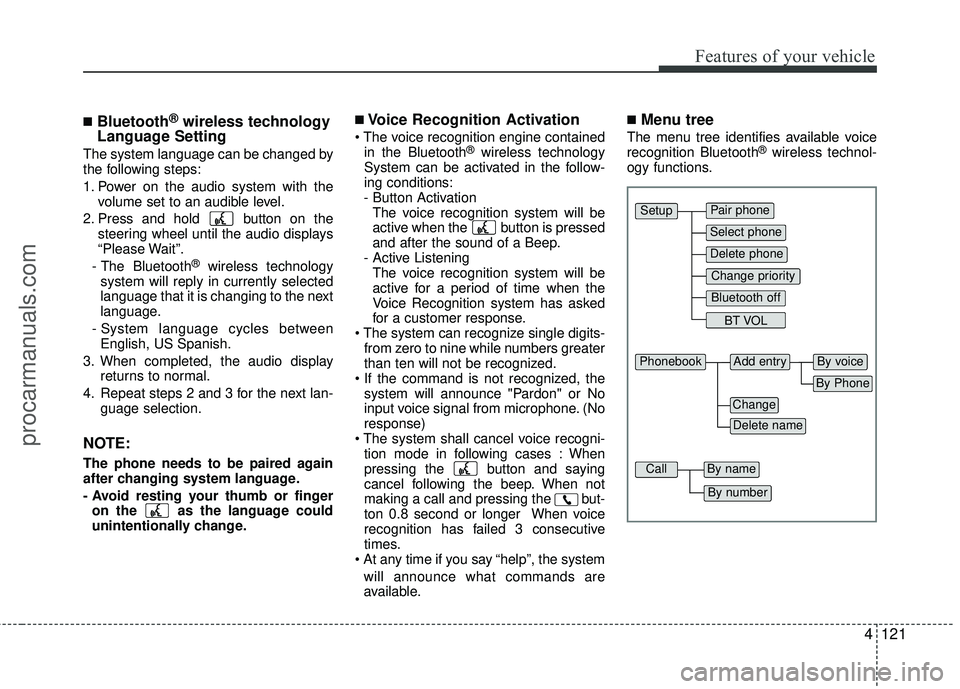
■Menu tree
The menu tree identifies available voice
recognition Bluetooth®wireless technol-
ogy functions.
Pair phone
Select phone
Change priority
Delete phone
Bluetooth off
BT VOL
Setup
Add entryPhonebook
Change
Delete name
By Phone
By voice
CallBy name
By number
procarmanuals.com
Page 199 of 391
Features of your vehicle
122
4
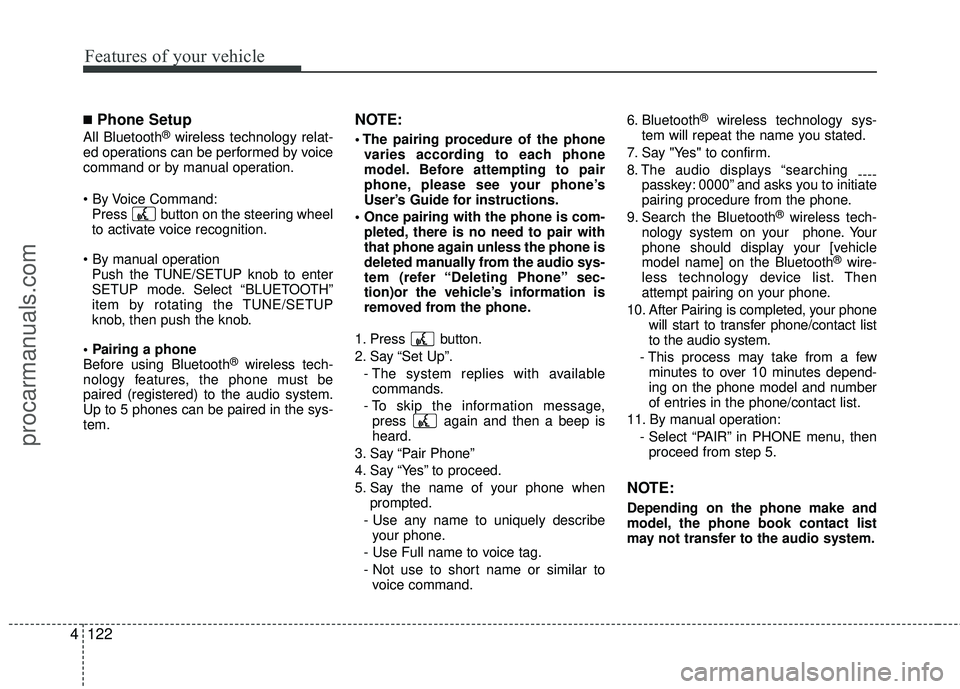
■Phone Setup
All Bluetooth®wireless technology relat-
ed operations can be performed by voice
command or by manual operation.
Press button on the steering wheelto activate voice recognition.
Push the TUNE/SETUP knob to enterSETUP mode. Select “BLUETOOTH”
item by rotating the TUNE/SETUP
knob, then push the knob.
Before using Bluetooth
®wireless tech-
nology features, the phone must be
paired (registered) to the audio system.
Up to 5 phones can be paired in the sys-
tem.
NOTE:
varies according to each phone
model. Before attempting to pair
phone, please see your phone’s
User’s Guide for instructions.
pleted, there is no need to pair with
that phone again unless the phone is
deleted manually from the audio sys-
tem (refer “Deleting Phone” sec-
tion)or the vehicle’s information is
removed from the phone.
1. Press button.
2. Say “Set Up”. - The system replies with availablecommands.
- To skip the information message, press again and then a beep is
heard.
3. Say “Pair Phone”
4. Say “Yes” to proceed.
5. Say the name of your phone when prompted.
- Use any name to uniquely describe your phone.
- Use Full name to voice tag.
- Not use to short name or similar to voice command. 6. Bluetooth
®wireless technology sys-
tem will repeat the name you stated.
7. Say "Yes" to confirm.
8. The audio displays “searching ----
passkey: 0000” and asks you to initiate
pairing procedure from the phone.
9. Search the Bluetooth
®wireless tech-
nology system on your phone. Your
phone should display your [vehicle
model name] on the Bluetooth
®wire-
less technology device list. Then
attempt pairing on your phone.
10. After Pairing is completed, your phone will start to transfer phone/contact list
to the audio system.
- This process may take from a few minutes to over 10 minutes depend-
ing on the phone model and number
of entries in the phone/contact list.
11. By manual operation: - Select “PAIR” in PHONE menu, thenproceed from step 5.
NOTE:
Depending on the phone make and
model, the phone book contact list
may not transfer to the audio system.
procarmanuals.com
Page 202 of 391
4125
Features of your vehicle
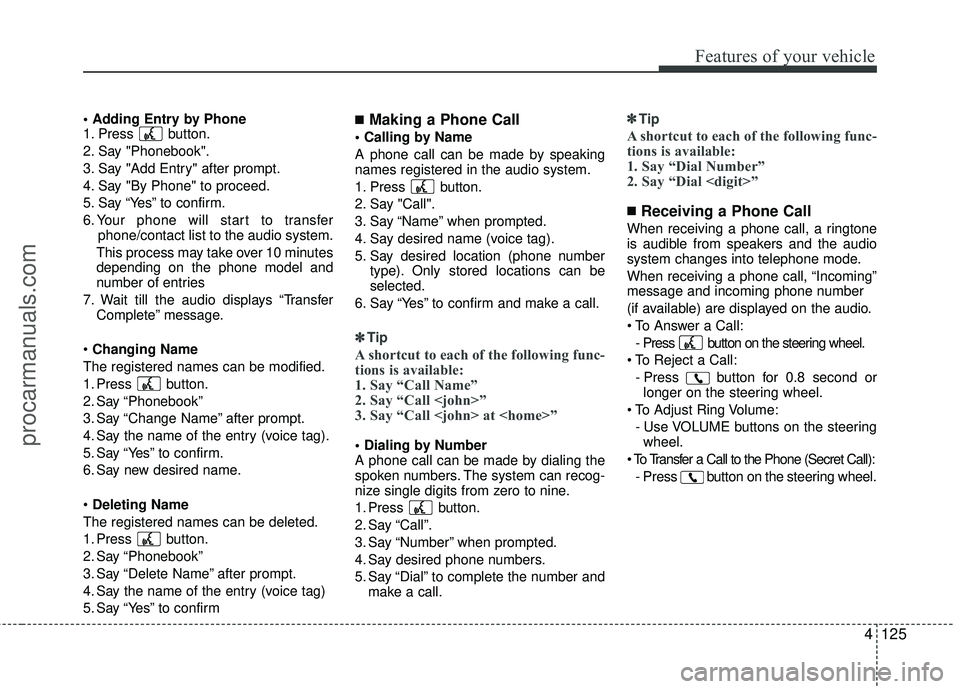
1. Press button.
2. Say "Phonebook".
3. Say "Add Entry" after prompt.
4. Say "By Phone" to proceed.
5. Say “Yes” to confirm.
6. Your phone will start to transferphone/contact list to the audio system.
This process may take over 10 minutes
depending on the phone model and
number of entries
7. Wait till the audio displays “Transfer Complete” message.
Changing Name
The registered names can be modified.
1. Press button.
2. Say “Phonebook”
3. Say “Change Name” after prompt.
4. Say the name of the entry (voice tag).
5. Say “Yes” to confirm.
6. Say new desired name.
Deleting Name
The registered names can be deleted.
1. Press button.
2. Say “Phonebook”
3. Say “Delete Name” after prompt.
4. Say the name of the entry (voice tag)
5. Say “Yes” to confirm■Making a Phone Call
A phone call can be made by speaking
names registered in the audio system.
1. Press button.
2. Say "Call".
3. Say “Name” when prompted.
4. Say desired name (voice tag).
5. Say desired location (phone number type). Only stored locations can be
selected.
6. Say “Yes” to confirm and make a call.
✽ ✽ Tip
A shortcut to each of the following func-
tions is available:
1. Say “Call Name”
2. Say “Call
3. Say “Call
A phone call can be made by dialing the
spoken numbers. The system can recog-
nize single digits from zero to nine.
1. Press button.
2. Say “Call”.
3. Say “Number” when prompted.
4. Say desired phone numbers.
5. Say “Dial” to complete the number and
make a call. ✽ ✽
Tip
A shortcut to each of the following func-
tions is available:
1. Say “Dial Number”
2. Say “Dial
■Receiving a Phone Call
When receiving a phone call, a ringtone
is audible from speakers and the audio
system changes into telephone mode.
When receiving a phone call, “Incoming”
message and incoming phone number
(if available) are displayed on the audio.
- Press button on the steering wheel.
- Press button for 0.8 second orlonger on the steering wheel.
- Use VOLUME buttons on the steeringwheel.
- Press button on the steering wheel.
procarmanuals.com