phone HYUNDAI COUPE 2016 User Guide
[x] Cancel search | Manufacturer: HYUNDAI, Model Year: 2016, Model line: COUPE, Model: HYUNDAI COUPE 2016Pages: 475, PDF Size: 14.78 MB
Page 218 of 475
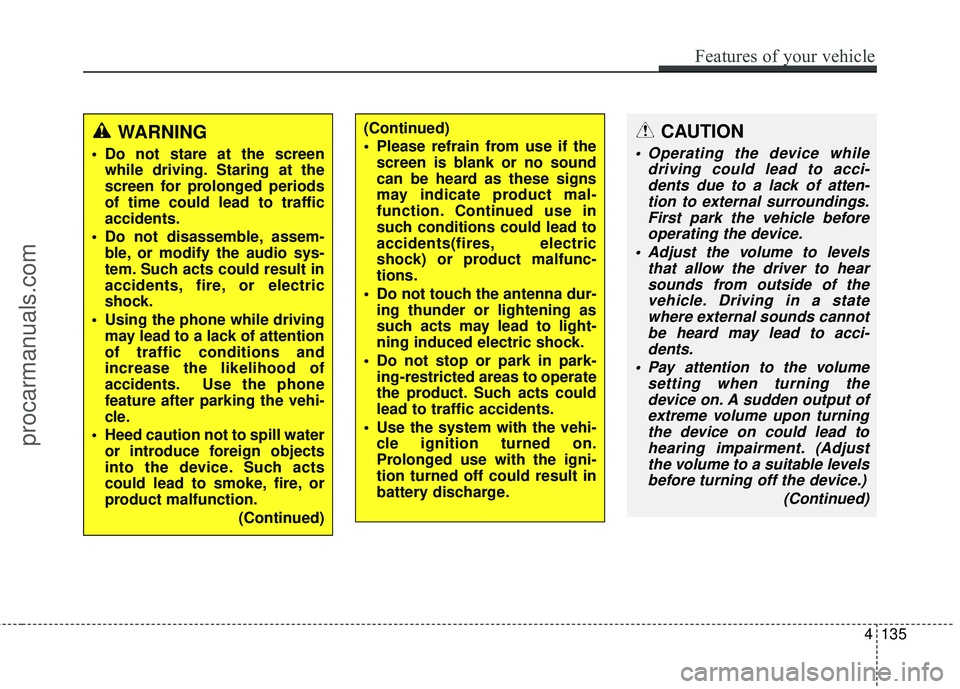
CAUTION
Operating the device whiledriving could lead to acci-dents due to a lack of atten-tion to external surroundings.First park the vehicle beforeoperating the device.
Adjust the volume to levels that allow the driver to hearsounds from outside of thevehicle. Driving in a statewhere external sounds cannotbe heard may lead to acci-dents.
Pay attention to the volume setting when turning thedevice on. A sudden output ofextreme volume upon turningthe device on could lead tohearing impairment. (Adjustthe volume to a suitable levelsbefore turning off the device.)
(Continued)
WARNING
Do not stare at the screenwhile driving. Staring at the
screen for prolonged periods
of time could lead to traffic
accidents.
Do not disassemble, assem- ble, or modify the audio sys-
tem. Such acts could result in
accidents, fire, or electric
shock.
Using the phone while driving may lead to a lack of attention
of traffic conditions and
increase the likelihood of
accidents. Use the phone
feature after parking the vehi-
cle.
Heed caution not to spill water or introduce foreign objects
into the device. Such acts
could lead to smoke, fire, or
product malfunction.
(Continued)
(Continued)
Please refrain from use if thescreen is blank or no sound
can be heard as these signs
may indicate product mal-
function. Continued use in
such conditions could lead to
accidents(fires, electric
shock) or product malfunc-
tions.
Do not touch the antenna dur- ing thunder or lightening as
such acts may lead to light-
ning induced electric shock.
Do not stop or park in park- ing-restricted areas to operate
the product. Such acts could
lead to traffic accidents.
Use the system with the vehi- cle ignition turned on.
Prolonged use with the igni-
tion turned off could result in
battery discharge.
Features of your vehicle
135
4
procarmanuals.com
Page 221 of 475
✽
✽NOTICE - USING THE USB
DEVICE
• Connect the USB device after turning on the engine. The USB
device may become damaged if
it is already connected when the
ignition is turned on.The USB
device may not operate properly
if the car ignition is turned on or
off with the USB device connect-
ed.
• Heed caution to static electricity when connecting/disconnecting
USB devices.
• Encoded MP3 Players will not be recognized when connected
as an external device.
• When connecting an external USB device, the device may not
properly recognize the USB is in
some states.
• Only products formatted with byte/sectors under 64Kbyte will
be recognized.
• This device recognizes USB devices formatted in FAT
12/16/32 file formats. This
device does not recognize files in
NTFS file format. (Continued)(Continued)
• Some USB devices may not be supported due to compatibility
issues.
• Avoid contact between the USB connector with bodily parts or
foreign objects.
• Repeated connecting/discon- necting of USB devices within
short periods of time may result
in product malfunction.
• A strange noise may occur when disconnecting the USB.
• Make sure to connect/discon- nect external USB devices with
the audio power turned off.
• The amount of time required to recognize the USB device may
differ depending on the type,
size or file formats stored in the
USB. Such differences in time
are not indications of malfunc-
tions.
• The device only supports USB devices used to play music files.
• USB images and videos are not supported. (Continued)(Continued)
• Do not use the USB I/F to charge batteries or USB acces-
sories that generate heat. Such
acts may lead to worsened per-
formance or damage to the
device.
• The device may not recognize the USB device if separately
purchased USB hubs and exten-
sion cables are being used.
Connect the USB directly with
the multimedia terminal of the
vehicle.
• When using mass storage USB devices with separate logical
drives, only files saved to the
root drive can be played.
• Files may not properly operate if application programs are
installed to the USBs.
• The device may not operate nor- mally if MP3 Players, cellular
phones, digital cameras, or oth-
er electronic devices (USB
devices not recognized as
portable disk drives) are con-
nected with the device. (Continued)
4138
Features of your vehicle
procarmanuals.com
Page 222 of 475
(Continued)
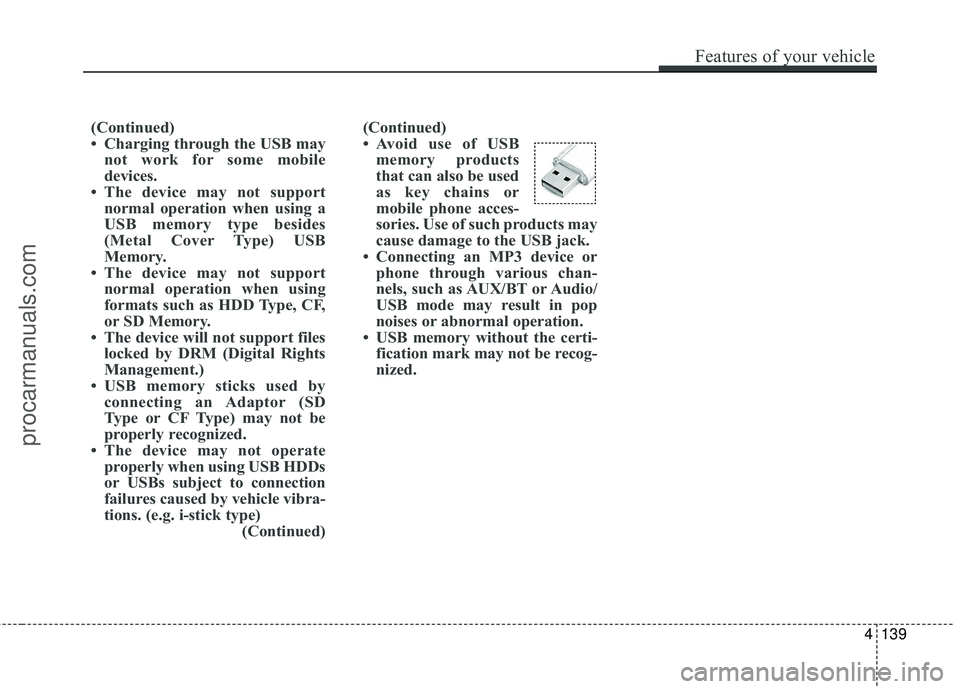
• Avoid use of USBmemory products
that can also be used
as key chains or
mobile phone acces-
sories. Use of such products may
cause damage to the USB jack.
• Connecting an MP3 device or phone through various chan-
nels, such as AUX/BT or Audio/
USB mode may result in pop
noises or abnormal operation.
• USB memory without the certi- fication mark may not be recog-
nized.
(Continued)
• Charging through the USB may
not work for some mobile
devices.
• The device may not support normal operation when using a
USB memory type besides
(Metal Cover Type) USB
Memory.
• The device may not support normal operation when using
formats such as HDD Type, CF,
or SD Memory.
• The device will not support files locked by DRM (Digital Rights
Management.)
• USB memory sticks used by connecting an Adaptor (SD
Type or CF Type) may not be
properly recognized.
• The device may not operate properly when using USB HDDs
or USBs subject to connection
failures caused by vehicle vibra-
tions. (e.g. i-stick type) (Continued)
Features of your vehicle
139
4
procarmanuals.com
Page 223 of 475
✽
✽NOTICE - USING THE iPod®
DEVICE
• iPod®is a registered trademark
of Apple Inc.
• In order to use the iPod while operating the keys, you must use
a dedicated iPod cable. (the
cable that is supplied when pur-
chasing iPod/iPhone products)
• If the iPod is connected to the vehicle while it is playing, a high
pitch sound could occur for
approximately 1-2 seconds
immediately after connecting. If
possible, connect the iPod to the
vehicle with the iPod
stopped/paused.
• During ACC ON state, connect- ing the iPod through the iPod
cable will charge the iPod
through the car audio system.
• When connecting with the iPod cable, make sure to fully insert
the jack to prevent communica-
tion interference. (Continued)(Continued)
• When the EQ features of an
external device, such as the
iPod, and the audio system are
both active, EQ effects could
overlap and cause sound deteri-
oration and distortion.
Whenever possible, turn off the
EQ feature within the external
device upon use by connecting
with the audio system.
• Noise may occur when an iPod or AUX device is connected.
When such devices are not
being used, disconnect the
device for storage.
• When the iPod or AUX device power is connected to the power
jack, playing the external device
may result in noise. In such cas-
es, disconnect the power connec-
tion before use.
• Skipping or improper operation may occur depending on the
characteristics of your
iPod/Phone device. (Continued)(Continued)
• If your iPhone is connected to
both the Bluetooth®Wireless
Technology and USB, the sound
may not be properly played. In
your iPhone, select the Dock
connector or Bluetooth
®
Wireless Technology to change
the sound output (source).
• iPod mode cannot be operated when the iPod cannot be recog-
nized due to versions that do not
support communication proto-
cols.
• For fifth generation iPod Nano devices, the iPod may not be
recognized when the battery
level is low. Please charge the
iPod for use.
• Search/play orders shown with- in the iPod device may differ
with the orders shown within
the audio system.
• If the iPod malfunctions due to an iPod device defect, reset the
iPod and try again. (To learn
more, refer to your iPod manual) (Continued)
4140
Features of your vehicle
procarmanuals.com
Page 224 of 475
(Continued)
• Some iPods may not sync with theSystem depending on its version.
If the Media is removed before the
Media is recognized, then the sys-
tem may not properly restore the
previously operated mode. (iPad
charging is not supported.)
• Beside support 1M cable when purchasing iPod/iPhone products,
Long Cable cannot be recognized.✽ ✽ NOTICE - USING THE
Bluetooth®Wireless
Technology AUDIO
MODE
• Bluetooth®Wireless Technology
Audio Mode can be used only
when a Bluetooth
®Wireless
Technology phone has been con-
nected.
• Bluetooth
®Wireless Technology
Audio Mode will not be available
when connecting mobile phones
that do not support this feature.
• While Bluetooth
®Wireless
Technology Audio is playing, if the
Bluetooth
®Wireless Technology
phone is connected, then the music
will also stop.
• Moving the Track up/down while playing Bluetooth
®Wireless
Technology audio mode may
result in pop noises in some mobile
phones.
• Bluetooth
®Wireless Technology
streaming audio may not be sup-
ported in some mobile phones. (Continued)(Continued)
• When returning to Bluetooth
®
Wireless Technology Audio mode
after ending a call, the mode may
not automatically restart in some
mobile phones.
• Receiving an incoming call or mak- ing an outgoing call while playing
Bluetooth
®Wireless Technology
Audio may result in audio interfer-
ence.
Features of your vehicle
141
4
procarmanuals.com
Page 225 of 475
✽
✽NOTICE - USING UPON
CONNECTING
Bluetooth®Wireless
Technology PHONE
• Before connecting the car audio system with the mobile phone,
check to see that the mobile phone
supports Bluetooth
®Wireless
Technology features.
• Even if the phone supports Bluetooth
®Wireless Technology,
the phone will not be found during
device searches if the phone has
been set to hidden state or the
Bluetooth
®Wireless Technology
power is turned off. Disable the
hidden state or turn on the
Bluetooth
®Wireless Technology
power prior to searching/connect-
ing with the car audio system.
• If you do not want to automatical- ly connect your Bluetooth
®
Wireless Technology phone, try
the following.
1. Turn off the Bluetooth
®feature
in your mobile phone. (Continued)(Continued)
- For more information on Bluetooth
®Wireless Technology
features within your mobile,
refer to your mobile phone
user’s manual.
2. Turn off the Bluetooth
®
Wireless Technology feature in
your car audio system.
- To turn off the Bluetooth
®
Wireless Technology feature in
your car audio system, go to [Phone] and [turn off]
the Bluetooth
®Wireless
Technology feature.
• Park the vehicle when connecting the car audio system with your
mobile phone.
• Bluetooth
®Wireless Technology
connection may become intermit-
tently disconnected in some
mobile phones. Follow these steps
to try again.
1. Turn the Bluetooth
®Wireless
Technology function within the
mobile phone off/on and try
again.
2. Turn the mobile phone power Off/On and try again. (Continued)(Continued)
3. Completely remove the mobile phone battery, reboot, and then
again.
4. Reboot the audio system and try again.
5. Delete all paired devices, pair and try again.
• The Handsfree call volume and quality may differ depending on
the mobile phone.
• Bluetooth
®Wireless Technology
features supported within the
vehicle are as follows. Some fea-
tures may not be supported
depending on your Bluetooth
®
Wireless Technology device.
- Answering and placing
Bluetooth
®Wireless Technology
Handsfree calls
- Menu operation during call (Switch to Private, Switch to
call waiting, Outgoing volume)
- Download Call History
- Download Mobile Phone book
- Phone book/Call History Auto Download (Continued)
SETUP
4142
Features of your vehicle
procarmanuals.com
Page 226 of 475
(Continued)
• It is possible to pair up to fiveBluetooth
®Wireless Technology
devices to the car system.
• Only one Bluetooth
®Wireless
Technology device can be connect-
ed at a time.
• Other devices cannot be paired while a Bluetooth
®Wireless
Technologydevice is already con-
nected.
• When a Bluetooth
®Wireless
Technology device is being con-
nected, the connection process
cannot be canceled.
• Only Bluetooth
®Wireless
Technology Handsfree and
Bluetooth
®Wireless Technology
audio related features will operate
within this system.
• Normal operation is possible only for devices that support Handsfree
or audio features, such as a
Bluetooth
®Wireless Technology
mobile phone or a Bluetooth®
Wireless Technology audio device. (Continued)(Continued)
• Only one function can be used at a
time between the Bluetooth
®
Wireless Technology Handsfree
and Bluetooth®Wireless
Technology audio. (While playing
Bluetooth
®Wireless Technology
audio, streaming will end upon
entering the Bluetooth
®Wireless
Technology phone screen.)
• If a connected Bluetooth
®Wireless
Technology device becomes dis-
connected for various reasons,
such as being out of range, turning
the device OFF, or a Bluetooth
®
Wireless Technology communica-
tion error, Bluetooth®Wireless
Technology devices are automati-
cally searched and connected.
• Bluetooth
®Handsfree is a feature
that enables drivers to practice
safe driving. Connecting the head
unit with a Bluetooth
®phone
allows the user to conveniently
make calls, receive calls, and man-
age the phone book. Before using
the Bluetooth
®, carefully read the
contents of thisuser’s manual.
Features of your vehicle
143
4
procarmanuals.com
Page 227 of 475
✽
✽NOTICE - USING THE Voice
Recognition
• When using the voice recognition feature, only commands listed
within the user's manual are sup-
ported.
• Be aware that during the opera- tion of the voice recognition sys-
tem, pressing any key other than
the key or touching the screen
will terminate voice recognition
mode.
• For superior voice recognition performance, position the micro-
phone used for voice recognition
above the head of the driver’s seat
and maintain a proper position
when saying commands.
• Within the following situations, voice recognition may not function
properly due to external sound.
- When the windows and sunroof are open
- When the wind of the cooling / heating device is strong
- When entering and passing through tunnels (Continued)(Continued)
- When driving on rugged and uneven roads
- During severe rain (heavy rains, windstorms)
• Phone related voice commands can be used only when a
Bluetooth
®Wireless Technology
device is connected.
• When making calls by stating a name, the corresponding contact
must be downloaded and stored
within the audio system.
• After downloading the Bluetooth
®
Wireless Technology phone book,
it takes some times to convert the
phone book data into voice infor-
mation. During this time, voice
recognition may not properly
operate.
• Pronounce the voice commands naturally and clearly as if in a nor-
mal conversation.
4144
Features of your vehicle
procarmanuals.com
Page 229 of 475
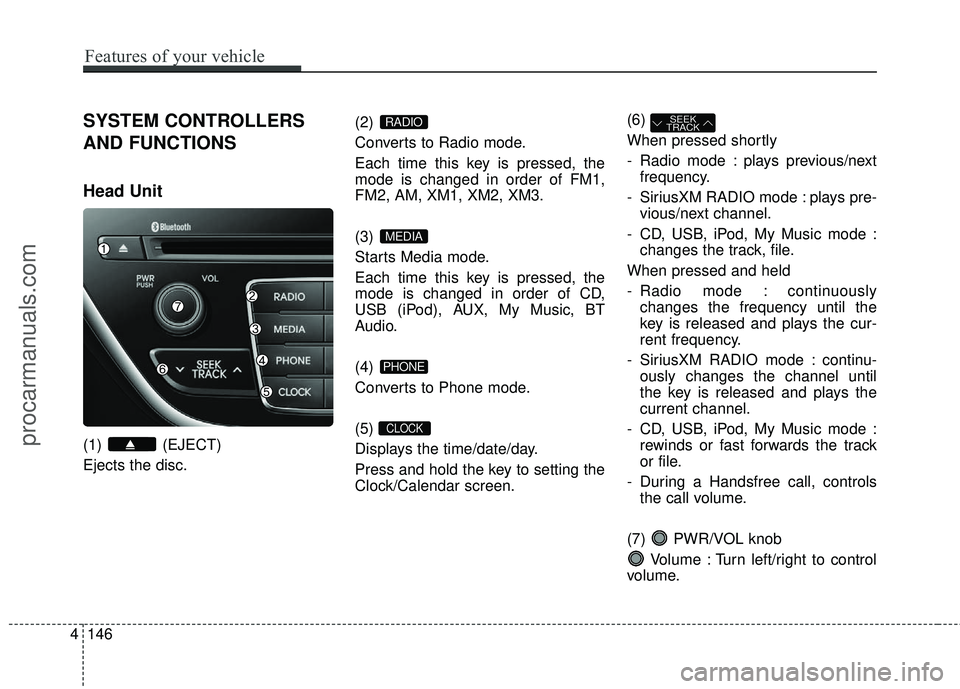
4146
Features of your vehicle
SYSTEM CONTROLLERS
AND FUNCTIONS
Head Unit
(1) (EJECT)
Ejects the disc.(2)
Converts to Radio mode.
Each time this key is pressed, the
mode is changed in order of FM1,
FM2, AM, XM1, XM2, XM3.
(3)
Starts Media mode.
Each time this key is pressed, the
mode is changed in order of CD,
USB (iPod), AUX, My Music, BT
Audio.
(4)
Converts to Phone mode.
(5)
Displays the time/date/day.
Press and hold the key to setting the
Clock/Calendar screen.(6)
When pressed shortly
- Radio mode : plays previous/next
frequency.
- SiriusXM RADIO mode : plays pre- vious/next channel.
- CD, USB, iPod, My Music mode : changes the track, file.
When pressed and held
- Radio mode : continuously changes the frequency until the
key is released and plays the cur-
rent frequency.
- SiriusXM RADIO mode : continu- ously changes the channel until
the key is released and plays the
current channel.
- CD, USB, iPod, My Music mode : rewinds or fast forwards the track
or file.
- During a Handsfree call, controls the call volume.
(7) PWR/VOL knob Volume : Turn left/right to control
volume.
SEEK
TRACK
CLOCK
PHONE
MEDIA
RADIO
procarmanuals.com
Page 232 of 475
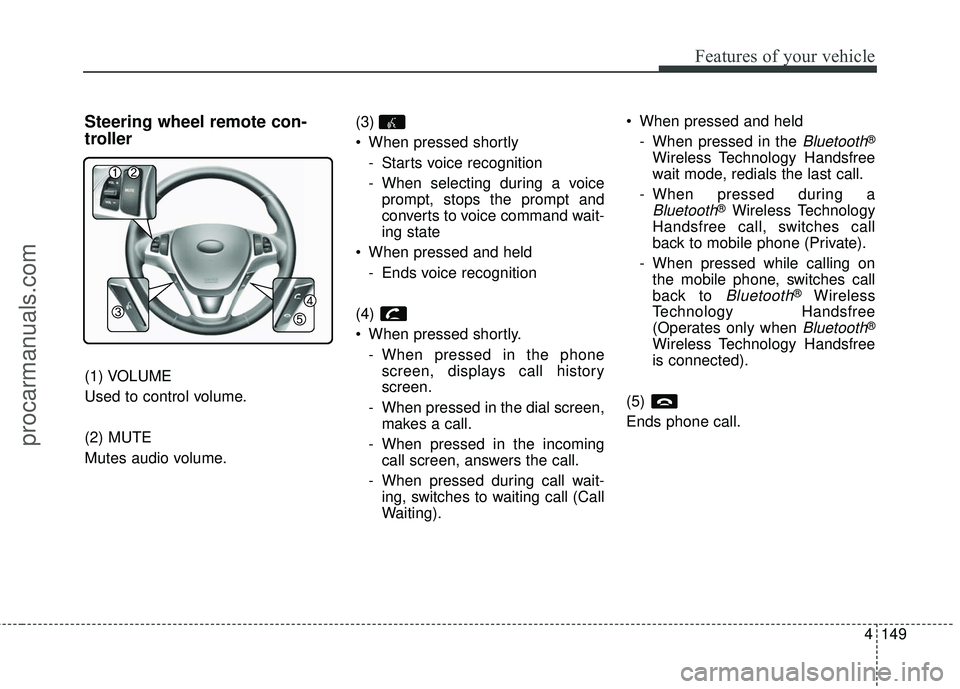
4149
Features of your vehicle
Steering wheel remote con-
troller
(1) VOLUME
Used to control volume.
(2) MUTE
Mutes audio volume.(3)
When pressed shortly
- Starts voice recognition
- When selecting during a voiceprompt, stops the prompt and
converts to voice command wait-
ing state
When pressed and held - Ends voice recognition
(4)
When pressed shortly. - When pressed in the phonescreen, displays call history
screen.
- When pressed in the dial screen, makes a call.
- When pressed in the incoming call screen, answers the call.
- When pressed during call wait- ing, switches to waiting call (Call
Waiting). When pressed and held
- When pressed in the
Bluetooth®
Wireless Technology Handsfree
wait mode, redials the last call.
- When pressed during a
Bluetooth®Wireless Technology
Handsfree call, switches call
back to mobile phone (Private).
- When pressed while calling on the mobile phone, switches call
back to
Bluetooth®Wireless
Technology Handsfree
(Operates only when
Bluetooth®
Wireless Technology Handsfree
is connected).
(5)
Ends phone call.
procarmanuals.com