change time Hyundai Creta 2018 Owner's Guide
[x] Cancel search | Manufacturer: HYUNDAI, Model Year: 2018, Model line: Creta, Model: Hyundai Creta 2018Pages: 472, PDF Size: 11.87 MB
Page 258 of 472
![Hyundai Creta 2018 Owners Guide 4-44
Multimedia System
Playing in random order
On the USB mode screen, select
[Shuffle]. The shuffle play mode is
activated or deactivated each time
you press it. When you activate the
shuffle mode, t](/img/35/14530/w960_14530-257.png "Hyundai Creta 2018 Owners Guide 4-44
Multimedia System
Playing in random order
On the USB mode screen, select
[Shuffle]. The shuffle play mode is
activated or deactivated each time
you press it. When you activate the
shuffle mode, t")
4-44
Multimedia System
Playing in random order
On the USB mode screen, select
[Shuffle]. The shuffle play mode is
activated or deactivated each time
you press it. When you activate the
shuffle mode, the corresponding
mode icon will be displayed on the
screen.
Menu
Select [Menu], and select the desired
function.
Information: Detailed information
on the currently playing song is dis-
played.
Sound Settings: Audio sound set-
tings can be changed.
Information
- Using the iPod®Devices
• To use the audio system’s iPod
®con-
trol function, use the dedicated
cable provided with your iPod
®.
• Connecting the iPod
®to the vehicle
during play may result in a loud
noise that lasts about one to two sec-
onds. Connect the iPod
®to the vehi-
cle after stopping or pausing play.
• Connect the iPod
®with the vehicle in
the ACC ON state to begin charging.
• When connecting the iPod
®cable,
be sure to fully push the cable into
the port.
• When Equalizer effects are enabled
simultaneously on external devices,
such as iPod
®s and the audio sys-
tem, the Equalizer effects may over-
lap, causing sound quality deterio-
ration or distortion. Deactivate the
Equalizer function for all external
devices, if possible.
• There may be noise if the audio sys-
tem is used with an iPod
®. In these
cases, disconnect the iPod®or exter-
nal device from the power jack.
(Continued)(Continued)
• Play may be interrupted, or device
malfunctions may occur depending
on the characteristics of your
iPod
®/iPhone®/iPad®.
• Play may fail if your iPhone
®is con-
nected through both Bluetooth®and
USB. In this case, select Dock con-
nector or Bluetooth
®on your
iPhone®to change the sound output
settings.
• If your software version does not
support the communication proto-
col or your iPod
®is not recognized
due to device failure, anomalies or
defects, iPod
®mode cannot be used.
• iPod
®nano (5th generation) devices
may not be recognized if the battery
is low. Charge sufficiently before use.
• The search and song play order in
the iPod
®device may be different
from the search order in the audio
system.
• If the iPod
®has failed due to an
internal defect, please reset the
iPod
®(consult your iPod®manual).
(Continued)
i
Page 260 of 472
![Hyundai Creta 2018 Owners Guide 4-46
Multimedia System
Selecting songs from a list
Select [List] to see a list of songs
available for play.
Select and play the desired song.
Playing repeatedly
On the iPod®mode screen, select
[Repea](/img/35/14530/w960_14530-259.png "Hyundai Creta 2018 Owners Guide 4-46
Multimedia System
Selecting songs from a list
Select [List] to see a list of songs
available for play.
Select and play the desired song.
Playing repeatedly
On the iPod®mode screen, select
[Repea")
4-46
Multimedia System
Selecting songs from a list
Select [List] to see a list of songs
available for play.
Select and play the desired song.
Playing repeatedly
On the iPod®mode screen, select
[Repeat]. The repeat play mode
changes each time you press it. The
corresponding mode icon will be dis-
played on the screen.
Playing in random order
On the iPod®mode screen, select
[Shuffle]. The shuffle play mode is
activated or deactivated each time
you press it. When you activate the
shuffle mode, the corresponding
mode icon will be displayed on the
screen.
Menu
Select [Menu], and select the desired
function.
Information: Detailed info on the
currently playing song is displayed.
Sound Settings: Audio sound set-
tings can be changed.
When other music programs are
running
When songs saved on your iPod®
are playing through a separate music
app, the above screen is displayed.
(1) Play/Pause: Pause or play music
.
(2) Play iPod Files: Play music saved
on your iPod®.
(3) Sound Settings: Audio sound set-
tings can be changed.(4) Album Image: View playback info
.
Play iPod Files
Select [Play iPod Files] to play songs
saved on your iPod®.
If there are no songs saved on your
iPod
®, the [Play iPod Files] is dis-
abled.
Information
Operation cannot be carried out cor-
rectly due to iPod®application mal-
function.
i
Page 262 of 472
4-48
Multimedia System
Information
• Depending on the connected
Bluetooth device, mobile phone, or
the music player you are using,
playback controls may differ.
• Depending on the music player you
are using, streaming may not be
supported.
• Some cell phone models may not
support particular functions.
• Bluetooth
®audio volume is synced
with cell phone media volume.
Playback
Press the [MEDIA]button, and
select [BT Audio].
Changing songs
Press the [SEEK/TRACK]button to
play the previous or next song.
Information
Some cell phones may not support this
function.
Playing repeatedly
On the Bluetooth®(BT) Audio mode
screen, select [Repeat]. The repeat
play mode changes each time you
press it. The corresponding mode
icon will be displayed on the screen.
Information
The repeat play function is engaged,
depending on the operation of the con-
nected Bluetooth
®device.
Playing in random order
On the Bluetooth®(BT) Audio
screen, select [Shuffle]. The shuffle
play mode is activated or deactivated
each time you press it. When you
activate the shuffle mode, the corre-
sponding mode icon will be displayed
on the screen.
Information
The shuffle function is engaged,
depending on the operation of the con-
nected Bluetooth
®device.
Menu
Select [Menu], and select the desired
function.
Connections: The currently connected
Bluetooth
®device can be changed.
Information: Detailed information
on the currently playing song is dis-
played.
Sound Settings: Audio sound set-
tings can be changed.
i
i
i
i
Page 263 of 472
4-49
Multimedia System
4
Phone
Information
- Using Bluetooth®(BT) Phone
• Bluetooth
®is a near-field wireless
networking technology that uses the
2.4 GHz frequency to connect vari-
ous devices within a certain distance
wirelessly.
• The technology is used in PCs,
peripherals, Bluetooth
®phones,
tablet PCs, household appliances
and automobiles. Devices support-
ing Bluetooth
®can exchange data at
high speeds without physical cable
connections.
• Bluetooth
®Handsfree devices enable
convenient access to phone functions
through cell phones equipped with
Bluetooth
®.
• Some Bluetooth
®devices may not be
supported by the Bluetooth®
Handsfree function.
(Continued)(Continued)
• When Bluetooth
®is connected and
calls are attempted through a con-
nected cell phone from outside the
vehicle, the call is connected
through the Bluetooth
®Handsfree
function of the vehicle.
• Please be sure to disconnect the
Bluetooth
®Handsfree function
throughyour Bluetooth®device or
the audio screen.
Safety precautions
The Bluetooth®Handsfree function
helps drivers to drive safely. By
connecting a Bluetooth
®-enabled
phone to the vehicle’s audio sys-
tem, phone calls can be made and
received through the audio system
and contacts can be managed.
Consult the user manual before
use.
Excessive manipulation of controls
while driving, making it difficult to
pay attention to the road ahead,
can lead to accidents. Do not oper-
ate the device excessively while
driving.
Looking at the screen for a pro-
longed time increases the risk of
accidents. Keep time spent looking
at the screen to a minimum.
i
Page 269 of 472
4-55
Multimedia System
4
Information
• Up to 20 favorites can be saved for
each connected Bluetooth®device.
• Favorites can be accessed when the
Bluetooth
®device they were paired
from is connected.
• The audio system does not down-
load favorites from Bluetooth
®
devices. Favorites must be newly
saved before use.
• To add to favorites, contacts must be
downloaded first.
• Saved favorites are not updated
even if the contacts of the connected
Bluetooth
®device are changed. In
this case, favorites need to be delet-
ed and added again.
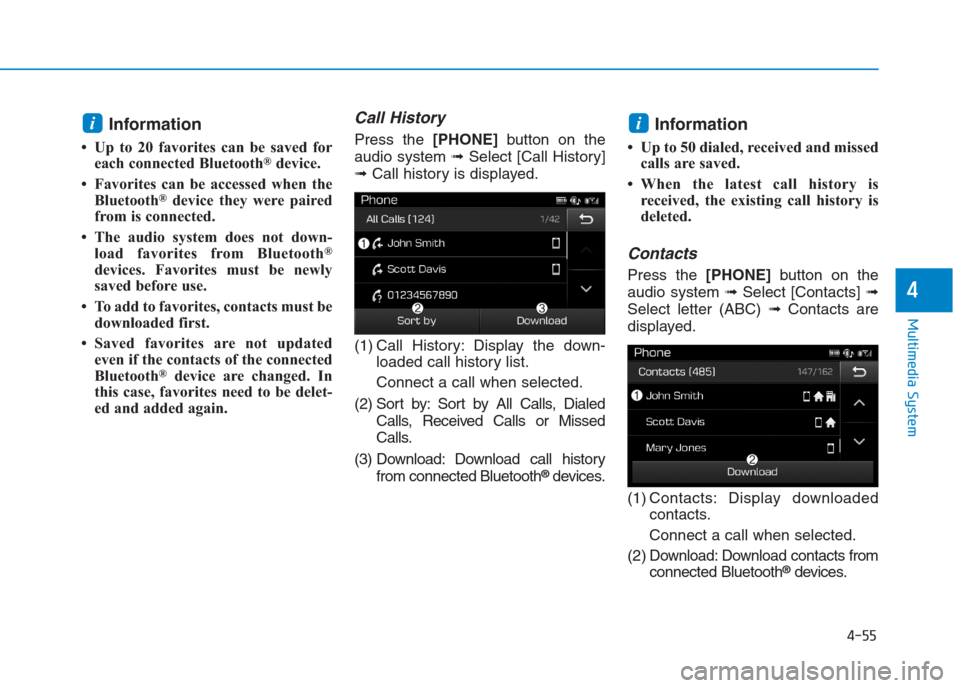
Call History
Press the [PHONE]button on the
audio system ➟Select [Call History]
➟Call history is displayed.
(1) Call History: Display the down-
loaded call history list.
Connect a call when selected.
(2) Sort by: Sort by All Calls, Dialed
Calls, Received Calls or Missed
Calls.
(3) Download: Download call history
from connected Bluetooth
®devices.
Information
• Up to 50 dialed, received and missed
calls are saved.
• When the latest call history is
received, the existing call history is
deleted.
Contacts
Press the [PHONE]button on the
audio system ➟Select [Contacts] ➟
Select letter (ABC) ➟Contacts are
displayed.
(1) Contacts: Display downloaded
contacts.
Connect a call when selected.
(2) Download: Download contacts from
connected Bluetooth
®devices.
ii
Page 271 of 472
![Hyundai Creta 2018 Owners Guide 4-57
Multimedia System
4
Setup
Setup is the screen to control Audio
system settings.
Press the [SETUP]button on the
audio system.
Display
Press the [SETUP]button on the
audio system ➟Select [Displa](/img/35/14530/w960_14530-270.png "Hyundai Creta 2018 Owners Guide 4-57
Multimedia System
4
Setup
Setup is the screen to control Audio
system settings.
Press the [SETUP]button on the
audio system.
Display
Press the [SETUP]button on the
audio system ➟Select [Displa")
4-57
Multimedia System
4
Setup
Setup is the screen to control Audio
system settings.
Press the [SETUP]button on the
audio system.
Display
Press the [SETUP]button on the
audio system ➟Select [Display].
Mode: Set the screen brightness to
be adjusted automatically accord-
ing to ambient lighting conditions
or set the screen to stay bright or
dark continuously.
Illumination: The brightness of the
audio screen can be changed.
Text Scroll: If text is too long to be
displayed on the screen, enable
the text scroll function.
Sound
Press the [SETUP]button on the
audio system ➟Select [Sound].
Position: Sound balance and fader
can be adjusted.
Tone: Sound tone color can be
adjusted.
Back-up Warning Priority:
- Automatically lower audio vol-
ume while reversing.
- Control the audio volume level
automatically in R-Position.
If volume level over “5 level” then
down to “5 level”.If volume level under “5 level”
then maintain the volume level.
Return the volume level when R-
Position was cancelled.
In R-Positon, if driver change the
volume level then volume
changed.
Apply the volume control option
“On/Off ” in “Setup”: Default is
“On”.
Speed Dependent Volume:
Automatically adjust volume based
on vehicle speed.
Beep: Select whether to play a
beep sound when the screen is
touched.
Page 272 of 472
![Hyundai Creta 2018 Owners Guide 4-58
Multimedia System
Bluetooth
Press the [SETUP]button on the
audio system ➟Select [Bluetooth].
Connections: Control pairing, dele-
tion, connection and disconnection
of Bluetooth
®devices.
Aut](/img/35/14530/w960_14530-271.png "Hyundai Creta 2018 Owners Guide 4-58
Multimedia System
Bluetooth
Press the [SETUP]button on the
audio system ➟Select [Bluetooth].
Connections: Control pairing, dele-
tion, connection and disconnection
of Bluetooth
®devices.
Aut")
4-58
Multimedia System
Bluetooth
Press the [SETUP]button on the
audio system ➟Select [Bluetooth].
Connections: Control pairing, dele-
tion, connection and disconnection
of Bluetooth
®devices.
Auto Connection Priority: Set the
connection priority of Bluetooth
®
devices when the vehicle is start-
ed.
Download Contacts: Contacts can
be downloaded from connected
Bluetooth
®devices.
Information
• When paired devices are deleted,
the call history and contacts of the
device saved to the audio system are
deleted.
• For Bluetooth
®connections with
low connection priority, some time
may be required for the connection
to be established.
• Contacts can be downloaded only
from the currently connected
Bluetooth
®device.
• If no Bluetooth
®device is connected,
the Download Contacts button is
disabled.
System
Press the [SETUP]button on the
audio system ➟Select [System].
Language: Change the user lan-
guage.
Default: Reset the audio system.
Information
• The system resets to the default val-
ues, and all saved data and settings
are lost.
Display Off
To prevent glare, the screen can be
turned off with the audio system in
operation.
Press the [SETUP]button on the
audio system ➟Select [Display Off].
i
i
Page 274 of 472
4-60
Multimedia System
FCC Warning
This equipment has been tested and found to comply with the limits for a Class B digital device, pursuant to part 15
of the FCC Rules. These limits are designed to provide reasonable protection against harmful interference in a resi-
dential installation.
This equipment generates, uses and can radiate radio frequency energy and, if not installed and used in accordance
with the instructions, may cause harmful interference to radio communications. However, there is no guarantee that
interference will not occur in a particular installation. If this equipment does cause harmful interference to radio or tel-
evision reception, which can be determined by turning the equipment off and on, the user is encouraged to try to cor-
rect the interference by one or more of the following measures:
Reorient or relocate the receiving antenna.
Increase the separation between the equipment and receiver.
Connect the equipment into an outlet on a circuit different from that to which the receiver is connected.
Consult the dealer or an experienced radio/TV technician for help.
This device complies with part 15 of the FCC Rules. Operation is subject to the following two conditions: (1) This
device may not cause harmful interference, and (2) this device must accept any interference received, including inter-
ference that may cause undesired operation.
Caution: Any changes or modifications to this device not expressly approved by the party responsible for compliance
could void your authority to operate the equipment.
This equipment complies with FCC radiation exposure limits set forth for an uncontrolled environment.
This equipment should be installed and operated with minimum 20 cm between the radiator and your body. This trans-
mitter must not be collocated or operating in conjunction with any other antenna or transmitter unless authorized to
do so by the FCC.
Page 277 of 472
5-2
Driving your vehicle
Carbon monoxide (CO) gas is toxic. Breathing CO can cause unconsciousness and death.
Engine exhaust contains carbon monoxide which cannot be seen or smelled.
Do not inhale engine exhaust.
If at any time you smell engine exhaust inside the vehicle, open the windows immediately. Exposure to CO can cause
unconsciousness and death by asphyxiation.
Be sure the exhaust system does not leak.
The exhaust system should be checked whenever the vehicle is raised to change the oil or for any other purpose. If
you hear a change in the sound of the exhaust or if you drive over something that strikes the underneath side of the
vehicle, we recommend that the exhaust system be checked as soon as possible by an authorized HYUNDAI dealer.
Do not run the engine in an enclosed area.
Letting the engine idle in your garage, even with the garage door open, is a hazardous practice. Run the engine only
long enough to start the engine and to move the vehicle out of the garage.
Avoid idling the engine for prolonged periods with people inside the vehicle.
If it is necessary to idle the engine for a prolonged period with people inside the vehicle , be sure to do so only in an
open area with the air intake set at "Fresh" and fan control set to high so fresh air is drawn into the interior.
Keep the air intakes clear.
To assure proper operation of the ventilation system, keep the ventilation air intakes located in front of the windshield
clear of snow, ice, leaves, or other obstructions.
If you must drive with the tailgate open:
Close all windows.
Open instrument panel air vents.
Set the air intake control at "Fresh", the air flow control at "Floor" or "Face", and the fan control set to high.
WARNING
Page 296 of 472
5-21
Driving your vehicle
5
To prevent damage to the engine,
clutch and transaxle:
When downshifting from 5th
gear to 4th gear, be careful not
to inadvertently push the shift
lever sideways engaging the 2nd
gear. A drastic downshift may
cause the engine speed to
increase to the point the
tachometer will enter the red-
zone.
Do not downshift more than two
gear at a time or downshift the
gear when the engine is running
at high speed (5,000 RPM or
higher). Such a downshifting
may damage the engine, clutch
and the transaxle.
Good driving practices
Never take the vehicle out of gear
and coast down a hill. This is
extremely dangerous.
Don't "ride" the brakes. This can
cause the brakes and related parts
to overheat and malfunction.
When you are driving down a long
hill, slow down and shift to a lower
gear. Engine braking will help slow
down the vehicle.
Slow down before shifting to a
lower gear. This will help avoid
over-revving the engine, which can
cause damage.
Slow down when you encounter
cross winds. This gives you much
better control of your vehicle.
Be sure the vehicle is completely
stopped before you shift into R
(Reverse) to prevent damage to
the transaxle. Exercise extreme caution when
driving on a slippery surface. Be
especially careful when braking,
accelerating or shifting gears. On a
slippery surface, an abrupt change
in vehicle speed can cause the
drive wheels to lose traction and
may cause loss of vehicle control
resulting in an accident
NOTICE
Do not use the engine brake
(shifting from a higher gear to
lower gear) rapidly on slippery
roads. The vehicle may slip
causing an accident.
WARNING