ECO mode Hyundai Creta 2019 Owner's Guide
[x] Cancel search | Manufacturer: HYUNDAI, Model Year: 2019, Model line: Creta, Model: Hyundai Creta 2019Pages: 472, PDF Size: 13.39 MB
Page 238 of 472
4-24
Multimedia System
(Continued)
If you do not want automatic
connection with your Bluetooth
®
device, turn the Bluetooth®fea-
ture off in the Bluetooth®device.
Only one Bluetooth
®device can
be connected at a time.
Bluetooth
®connection may
become intermittently discon-
nected in some Bluetooth
®
devices. Follow these steps to
try again.
1. Turn the Bluetooth
®function
within the Bluetooth®device
OFF/ON and try again.
2. Turn the Bluetooth
®device
power OFF/ON and try again.
3. Completely remove the
Bluetooth
®device battery,
reboot, and then again.
4. Reboot the Multimedia System
and try again.
5. Delete all paired devices from
both of Bluetooth
®device and
Head Unit sides and then try
again. If the Bluetooth
®device is not
connected, it is not possible to
enter Phone mode. After con-
necting your Bluetooth
®device
to your car, use the Bluetooth®
features.
You will not be able to use the
handsfree feature when your
phone is outside of the cellular
service area (e.g. in a tunnel, in a
underground, in a mountainous
area, etc.).
If the cellular phone signal is
poor or the vehicles interior
noise is too loud, it may be diffi-
cult to hear the other person’s
voice during a call.
Do not place the Bluetooth
®
device near or inside metallic
objects, otherwise communica-
tions with Bluetooth
®system or
cellular service stations can be
disturbed.
Placing the audio system within
an electromagnetic environment
may result in noise interference.
(Continued)(Continued)
Some Bluetooth
®devices may
cause interference noise or mal-
function to audio system. In this
case, store the device in a differ-
ent location may resolve the
condition.
While a device is connected
through Bluetooth
®, your device
may discharge quicker than
usual for additional Bluetooth
®-
related operations.
The handsfree call volume and
quality may differ depending on
the Bluetooth
®device.
If Connection Priority is set
upon vehicle ignition (IGN/ACC
ON), the Bluetooth
®device will
be automatically connected.
Even if you are outside, the
Bluetooth
®device will be auto-
matically connected once you
are in the vicinity of the vehicle.
If you do not want to automati-
cally connect your Bluetooth
®
device, turn off the Bluetooth®
feature in your Bluetooth®
device.
(Continued)
NOTICE
Page 249 of 472
4-35
Multimedia System
4
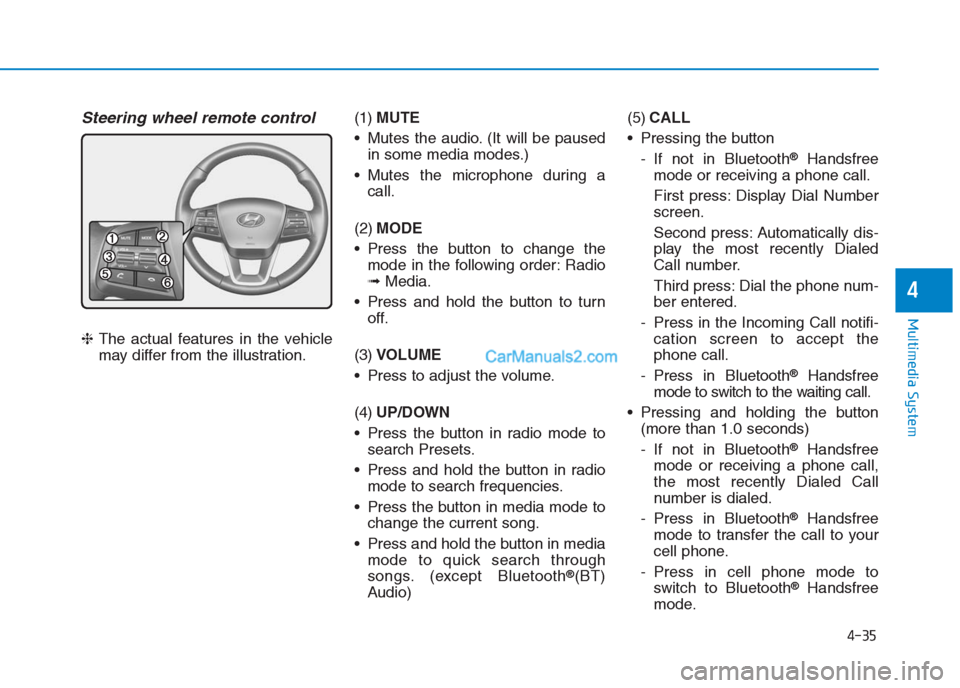
Steering wheel remote control
❈The actual features in the vehicle
may differ from the illustration.(1)MUTE
Mutes the audio. (It will be paused
in some media modes.)
Mutes the microphone during a
call.
(2)MODE
Press the button to change the
mode in the following order: Radio
➟Media.
Press and hold the button to turn
off.
(3)VOLUME
Press to adjust the volume.
(4)UP/DOWN
Press the button in radio mode to
search Presets.
Press and hold the button in radio
mode to search frequencies.
Press the button in media mode to
change the current song.
Press and hold the button in media
mode to quick search through
songs. (except Bluetooth
®(BT)
Audio)(5)CALL
Pressing the button
- If not in Bluetooth
®Handsfree
mode or receiving a phone call.
First press: Display Dial Number
screen.
Second press: Automatically dis-
play the most recently Dialed
Call number.
Third press: Dial the phone num-
ber entered.
- Press in the Incoming Call notifi-
cation screen to accept the
phone call.
- Press in Bluetooth
®Handsfree
mode to switch to the waiting call.
Pressing and holding the button
(more than 1.0 seconds)
- If not in Bluetooth
®Handsfree
mode or receiving a phone call,
the most recently Dialed Call
number is dialed.
- Press in Bluetooth
®Handsfree
mode to transfer the call to your
cell phone.
- Press in cell phone mode to
switch to Bluetooth
®Handsfree
mode.
Page 253 of 472
4-39
Multimedia System
4
Presets
Save up to 40 frequently used stations.
To listen to a preset, select the
desired station list.
Press and hold the desired slot from
1 through 40. This saves the current
station in the selected slot.
If the slot is empty, simply selecting
saves the station to the slot.
Menu
Select [Menu], and select the desired
function.
Scan: All available stations are
played for five seconds each.
Sound Settings: Audio sound set-
tings can be changed.
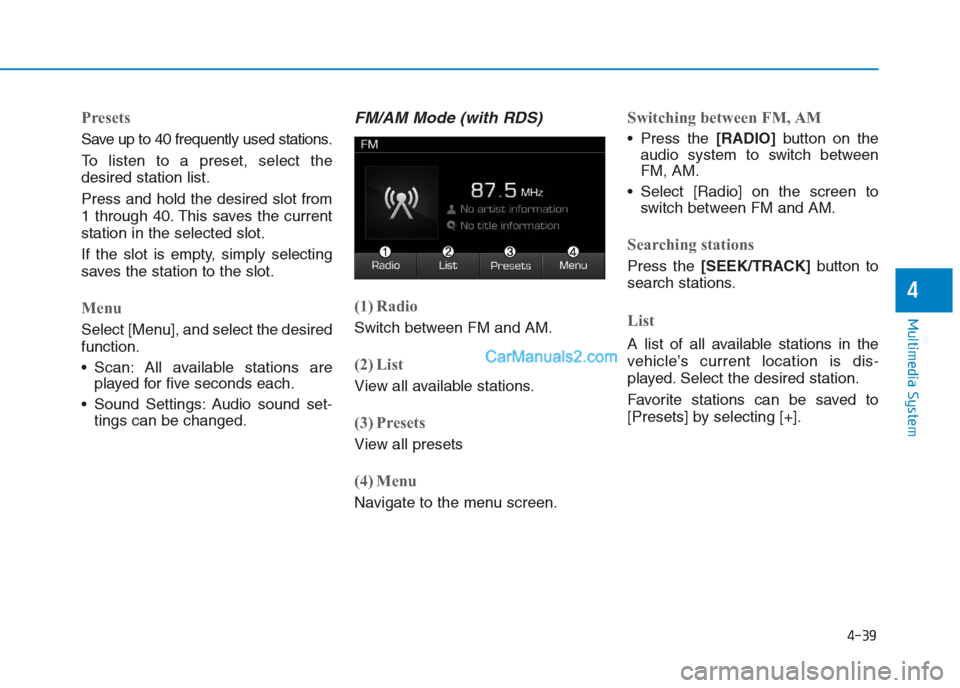
FM/AM Mode (with RDS)
(1) Radio
Switch between FM and AM.
(2) List
View all available stations.
(3) Presets
View all presets
(4) Menu
Navigate to the menu screen.
Switching between FM, AM
Press the [RADIO]button on the
audio system to switch between
FM, AM.
Select [Radio] on the screen to
switch between FM and AM.
Searching stations
Press the [SEEK/TRACK]button to
search stations.
List
A list of all available stations in the
vehicle’s current location is dis-
played. Select the desired station.
Favorite stations can be saved to
[Presets] by selecting [+].
Page 256 of 472
4-42
Multimedia System
(Continued)
• Some USB devices are not recog-
nized due to compatibility issues.
• Do not touch the USB connections.
• Connecting and disconnecting USB
devices rapidly over a short period
of time can cause equipment failure.
• Abnormal sounds may be audible
when the USB device is disconnected.
• Turn the audio off before connecting
or disconnecting external USB
devices.
• Recognition may take longer
depending on the type, capacity or
file format of the external USB
device. This is not a product mal-
function.
• Use of USB devices for purposes
other than playing music files is pro-
hibited.
• Image display and video playback
are not supported.
• Use of USB accessories, including
charge and heat though the USB
interface, can lead to reduced prod-
uct performance or malfunctions.
Do not use USB devices or acces-
sories for these purposes.
(Continued)(Continued)
• Use of aftermarket USB hubs and
extension cables can result in the
vehicle’s audio system failing to rec-
ognize your USB device. Connect
the USB device directly to the multi-
media port of your vehicle.
• When using high-capacity USB
devices with logical drive divisions,
only files saved on the highest level
logical drive can be played.
If applications are loaded on a USB
drive, file playback may fail.
• Some MP3 players, cell phones, dig-
ital cameras, etc. (USB devices that
are not recognized as mobile stor-
age) may not operate normally
when connected.
• Operation is guaranteed only for
standard (Metal Cover Type) USB
Memory drives.
• Operation of HDD, CF, SD and mem-
ory stick devices is not guaranteed.
• DRM (Digital Rights Management)
files cannot be played.
(Continued)(Continued)
• SD-type USB memory, CF-type
USB memory, and other USB mem-
ory devices that require adapters
for connection are not supported.
• Proper operation of USB HDDs or
USB drives with connectors that
loosen due to vehicle vibrations is
not guaranteed. (iStick, etc.)
• USB products that are
used as key chains or
cell phone accessories
may damage the USB
jack and affect proper
file playback. Please refrain from
use. Use only products with plug
connectors, as shown in the follow-
ing illustration.
• When MP3 devices or cell phones
are connected simultaneously
through BT Audio and USB modes,
a popping noise or malfunction may
occur.
• Use USB 2.0 devices for better com-
patibility. Maximum device size
supported is 32 GB.
Page 258 of 472
![Hyundai Creta 2019 Owners Guide 4-44
Multimedia System
Playing in random order
On the USB mode screen, select
[Shuffle]. The shuffle play mode is
activated or deactivated each time
you press it. When you activate the
shuffle mode, t](/img/35/14529/w960_14529-257.png "Hyundai Creta 2019 Owners Guide 4-44
Multimedia System
Playing in random order
On the USB mode screen, select
[Shuffle]. The shuffle play mode is
activated or deactivated each time
you press it. When you activate the
shuffle mode, t")
4-44
Multimedia System
Playing in random order
On the USB mode screen, select
[Shuffle]. The shuffle play mode is
activated or deactivated each time
you press it. When you activate the
shuffle mode, the corresponding
mode icon will be displayed on the
screen.
Menu
Select [Menu], and select the desired
function.
Information: Detailed information
on the currently playing song is dis-
played.
Sound Settings: Audio sound set-
tings can be changed.
Information
- Using the iPod®Devices
• To use the audio system’s iPod
®con-
trol function, use the dedicated
cable provided with your iPod
®.
• Connecting the iPod
®to the vehicle
during play may result in a loud
noise that lasts about one to two sec-
onds. Connect the iPod
®to the vehi-
cle after stopping or pausing play.
• Connect the iPod
®with the vehicle in
the ACC ON state to begin charging.
• When connecting the iPod
®cable,
be sure to fully push the cable into
the port.
• When Equalizer effects are enabled
simultaneously on external devices,
such as iPod
®s and the audio sys-
tem, the Equalizer effects may over-
lap, causing sound quality deterio-
ration or distortion. Deactivate the
Equalizer function for all external
devices, if possible.
• There may be noise if the audio sys-
tem is used with an iPod
®. In these
cases, disconnect the iPod®or exter-
nal device from the power jack.
(Continued)(Continued)
• Play may be interrupted, or device
malfunctions may occur depending
on the characteristics of your
iPod
®/iPhone®/iPad®.
• Play may fail if your iPhone
®is con-
nected through both Bluetooth®and
USB. In this case, select Dock con-
nector or Bluetooth
®on your
iPhone®to change the sound output
settings.
• If your software version does not
support the communication proto-
col or your iPod
®is not recognized
due to device failure, anomalies or
defects, iPod
®mode cannot be used.
• iPod
®nano (5th generation) devices
may not be recognized if the battery
is low. Charge sufficiently before use.
• The search and song play order in
the iPod
®device may be different
from the search order in the audio
system.
• If the iPod
®has failed due to an
internal defect, please reset the
iPod
®(consult your iPod®manual).
(Continued)
i
Page 259 of 472
4-45
Multimedia System
4
(Continued)
• Depending on the software version,
the iPod
®may fail to sync with the
system. If the media is removed or
disconnected before recognition, the
previous mode may not be restored
(iPad
®cannot be charged).
• Cables other than the 1-meter cable
provided with iPod
®/iPhone®/iPad®
products may not be recognized.
• When other music apps are used on
your iPod
®, the system sync func-
tion may fail due to malfunction of
the iPod
®application.
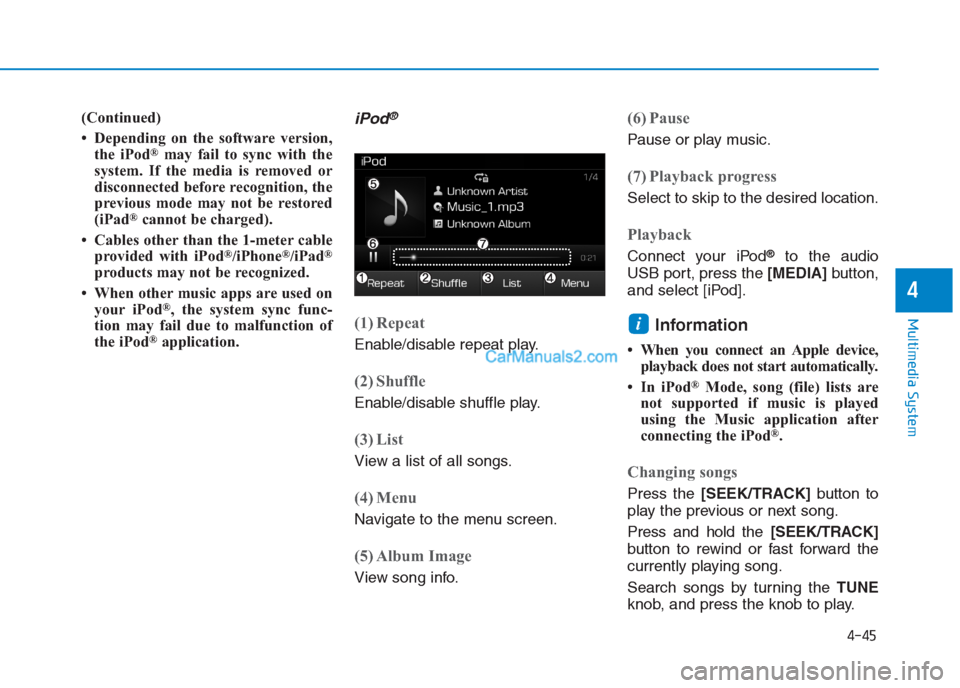
iPod®
(1) Repeat
Enable/disable repeat play.
(2) Shuffle
Enable/disable shuffle play.
(3) List
View a list of all songs.
(4) Menu
Navigate to the menu screen.
(5) Album Image
View song info.
(6) Pause
Pause or play music.
(7) Playback progress
Select to skip to the desired location.
Playback
Connect your iPod®to the audio
USB port, press the [MEDIA]button,
and select [iPod].
Information
• When you connect an Apple device,
playback does not start automatically.
• In iPod
®Mode, song (file) lists are
not supported if music is played
using the Music application after
connecting the iPod
®.
Changing songs
Press the [SEEK/TRACK]button to
play the previous or next song.
Press and hold the [SEEK/TRACK]
button to rewind or fast forward the
currently playing song.
Search songs by turning the TUNE
knob, and press the knob to play.
i
Page 266 of 472
![Hyundai Creta 2019 Owners Guide 4-52
Multimedia System
Information
The 6-digit passkey in the image
above is an example. Refer to your
vehicle for the actual passkey.
Pairing a second Bluetooth®device
Press the [SETUP]button on th](/img/35/14529/w960_14529-265.png "Hyundai Creta 2019 Owners Guide 4-52
Multimedia System
Information
The 6-digit passkey in the image
above is an example. Refer to your
vehicle for the actual passkey.
Pairing a second Bluetooth®device
Press the [SETUP]button on th")
4-52
Multimedia System
Information
The 6-digit passkey in the image
above is an example. Refer to your
vehicle for the actual passkey.
Pairing a second Bluetooth®device
Press the [SETUP]button on the
audio system ➟ Select [Bluetooth] ➟
Select [Connections] ➟Select [Add
New].
- The pairing procedure from this
point is identical to [Pairing the first
Bluetooth device].
Information
• Bluetooth®standby mode lasts for
three minutes. If a device is not
paired within three minutes, pairing
is canceled. Start over from the
beginning.
• For most Bluetooth
®devices, a con-
nection is established automatically
after pairing. Some devices, however,
require separate confirmation when
connecting after pairing. Be sure to
check your Bluetooth
®device after
pairing to confirm that it has con-
nected.
Connecting Bluetooth®devices
If there are no connected devices
Press the [PHONE]button on the
audio system or the [CALL]button in
the steering wheel remote control ➟
List of paired Bluetooth
®devices ➟
Select the desired Bluetooth®device
from the list ➟Connect Bluetooth®.
ii
Page 283 of 472
5-8
Driving your vehicle
Information
• Do not wait for the engine to warm
up while the vehicle remains station-
ary.
Start driving at moderate engine
speeds. (Steep accelerating and
decelerating should be avoided.)
• Always start the vehicle with your
foot on the brake pedal. Do not
depress the accelerator while start-
ing the vehicle. Do not race the
engine while warming it up.
Starting the diesel engine
To start the diesel engine when the
engine is cold, it has to be pre-heat-
ed before starting the engine and
then have to be warmed up before
starting to drive.
Vehicle with manual transaxle:
1. Make sure the parking brake is
applied.
2. Make sure the shift lever is in neu-
tral.
3. Depress the clutch and brake ped-
als.
4. Turn the ignition switch to the ON
position to pre-heat the engine.
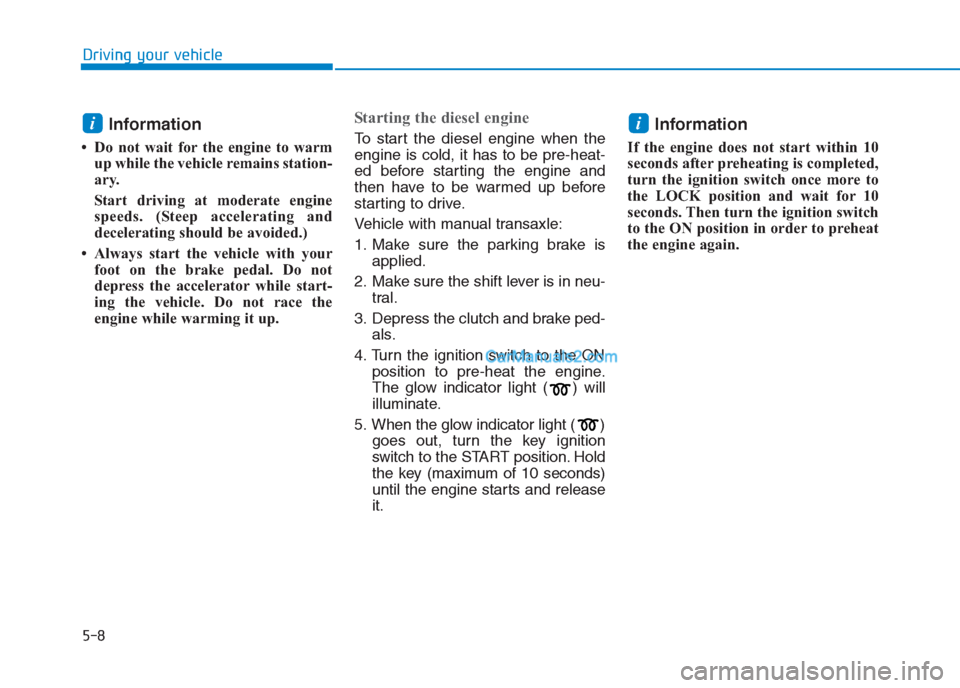
The glow indicator light ( ) will
illuminate.
5. When the glow indicator light ( )
goes out, turn the key ignition
switch to the START position. Hold
the key (maximum of 10 seconds)
until the engine starts and release
it.Information
If the engine does not start within 10
seconds after preheating is completed,
turn the ignition switch once more to
the LOCK position and wait for 10
seconds. Then turn the ignition switch
to the ON position in order to preheat
the engine again.
ii
Page 301 of 472
5-26
Driving your vehicle
D (Drive)
This is the normal driving position.
The transaxle will automatically shift
through a 6-gear sequence, provid-
ing the best fuel economy and
power.
For extra power when passing anoth-
er vehicle or driving uphill, depress
the accelerator further until you feel
the transaxle downshift to a lower
gear.
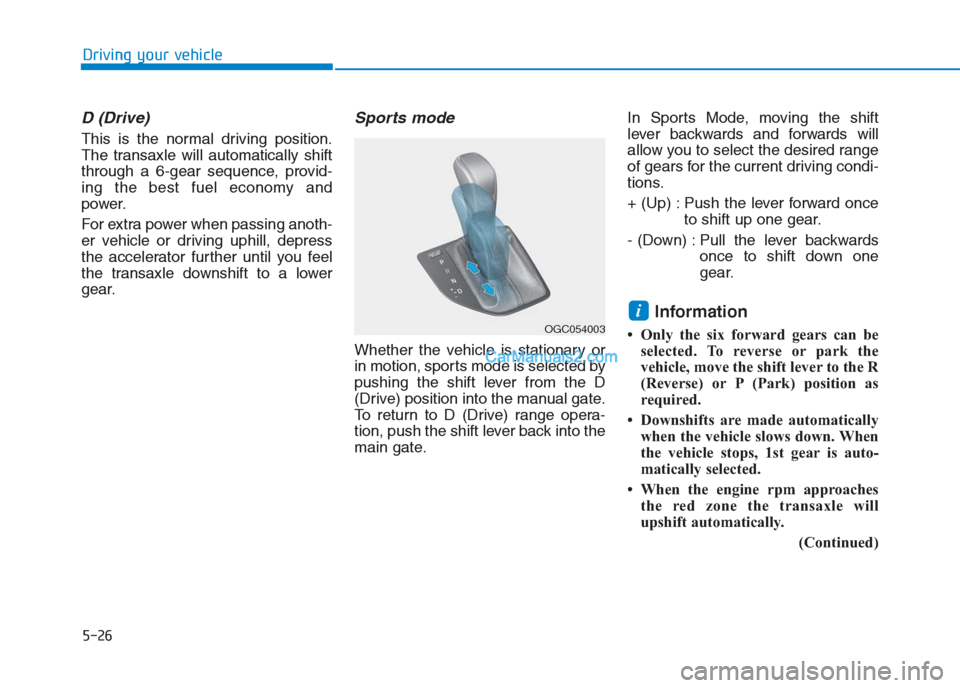
Sports mode
Whether the vehicle is stationary or
in motion, sports mode is selected by
pushing the shift lever from the D
(Drive) position into the manual gate.
To return to D (Drive) range opera-
tion, push the shift lever back into the
main gate.In Sports Mode, moving the shift
lever backwards and forwards will
allow you to select the desired range
of gears for the current driving condi-
tions.
+ (Up) : Push the lever forward once
to shift up one gear.
- (Down) : Pull the lever backwards
once to shift down one
gear.
Information
• Only the six forward gears can be
selected. To reverse or park the
vehicle, move the shift lever to the R
(Reverse) or P (Park) position as
required.
• Downshifts are made automatically
when the vehicle slows down. When
the vehicle stops, 1st gear is auto-
matically selected.
• When the engine rpm approaches
the red zone the transaxle will
upshift automatically.
(Continued)
i
OGC054003
Page 304 of 472
5-29
Driving your vehicle
5
When driving in Sports Mode, slow
down before shifting to a lower
gear. Otherwise, the lower gear
may not be engaged if the engine
rpms are outside of the allowable
range.
Always apply the parking brake
when leaving the vehicle. Do not
depend on placing the transmis-
sion in P (Park) to keep the vehicle
from moving.
Exercise extreme caution when
driving on a slippery surface. Be
especially careful when braking,
accelerating or shifting gears. On a
slippery surface, an abrupt change
in vehicle speed can cause the
drive wheels to lose traction and
may cause loss of vehicle control
resulting in an accident
Optimum vehicle performance and
economy is obtained by smoothly
depressing and releasing the
accelerator.To reduce the risk of SERIOUS
INJURY or DEATH:
ALWAYS wear your seatbelt.
In a collision, an unbelted
occupant is significantly more
likely to be seriously injured
or killed than a properly belt-
ed occupant.
Avoid high speeds when cor-
nering or turning.
Do not make quick steering
wheel movements, such as
sharp lane changes or fast,
sharp turns.
The risk of rollover is greatly
increased if you lose control
of your vehicle at highway
speeds.
Loss of control often occurs if
two or more wheels drop off
the roadway and the driver
over steers to reenter the
roadway.
(Continued)
(Continued)
In the event your vehicle
leaves the roadway, do not
steer sharply. Instead, slow
down before pulling back into
the travel lanes.
HYUNDAI recommends you
follow all posted speed limits.
WARNING