nav Hyundai Creta 2019 Owner's Manual
[x] Cancel search | Manufacturer: HYUNDAI, Model Year: 2019, Model line: Creta, Model: Hyundai Creta 2019Pages: 472, PDF Size: 13.39 MB
Page 248 of 472
4-34
Multimedia System
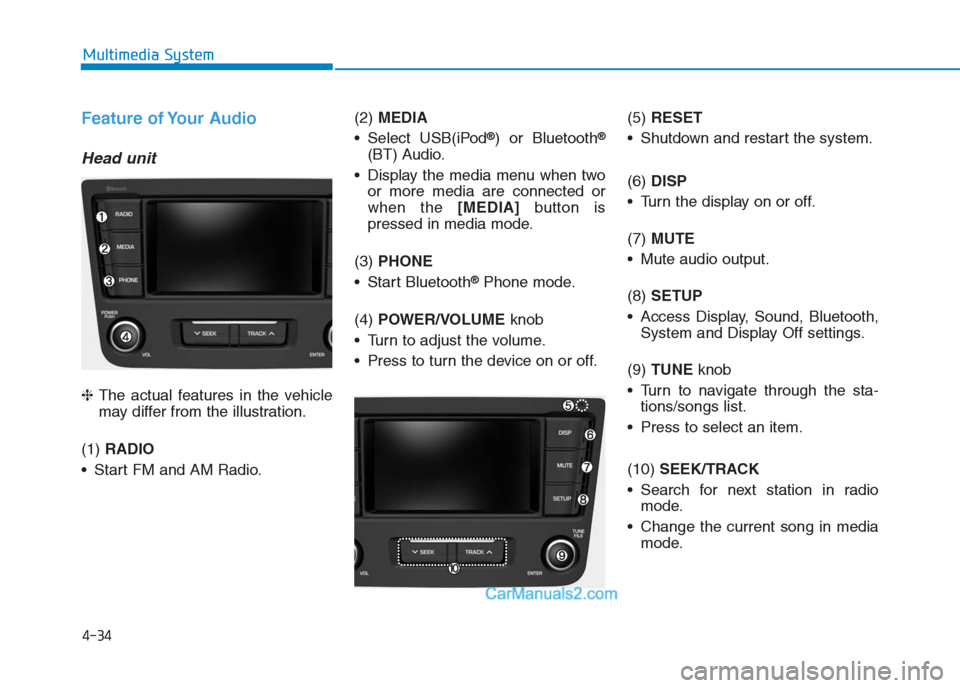
Feature of Your Audio
Head unit
❈The actual features in the vehicle
may differ from the illustration.
(1) RADIO
Start FM and AM Radio.(2)MEDIA
Select USB(iPod
®) or Bluetooth®
(BT) Audio.
Display the media menu when two
or more media are connected or
when the [MEDIA]button is
pressed in media mode.
(3) PHONE
Start Bluetooth
®Phone mode.
(4) POWER/VOLUME knob
Turn to adjust the volume.
Press to turn the device on or off.(5) RESET
Shutdown and restart the system.
(6) DISP
Turn the display on or off.
(7) MUTE
Mute audio output.
(8) SETUP
Access Display, Sound, Bluetooth,
System and Display Off settings.
(9) TUNE knob
Turn to navigate through the sta-
tions/songs list.
Press to select an item.
(10) SEEK/TRACK
Search for next station in radio
mode.
Change the current song in media
mode.
Page 252 of 472
4-38
Multimedia System
Information on status icons
Icons showing audio status are shown
in the upper-right corner of the screen.
Radio
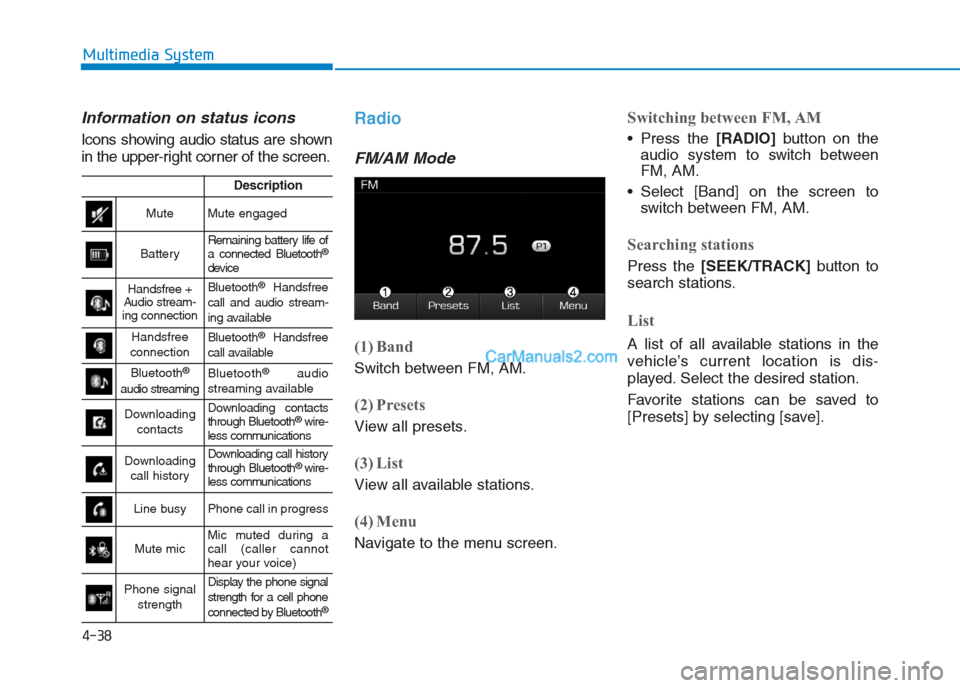
FM/AM Mode
(1) Band
Switch between FM, AM.
(2) Presets
View all presets.
(3) List
View all available stations.
(4) Menu
Navigate to the menu screen.
Switching between FM, AM
Press the [RADIO]button on the
audio system to switch between
FM, AM.
Select [Band] on the screen to
switch between FM, AM.
Searching stations
Press the [SEEK/TRACK]button to
search stations.
List
A list of all available stations in the
vehicle’s current location is dis-
played. Select the desired station.
Favorite stations can be saved to
[Presets] by selecting [save].
Description
MuteMute engaged
BatteryRemaining battery life of
a connected Bluetooth®
device
Handsfree +
Audio stream-
ing connectionBluetooth®Handsfree
call and audio stream-
ing available
Handsfree
connectionBluetooth®Handsfree
call available
Bluetooth®
audio streaming
Bluetooth®audio
streaming available
Downloading
contactsDownloading contacts
through Bluetooth®wire-
less communications
Downloading
call historyDownloading call history
through Bluetooth® wire-
less communications
Line busyPhone call in progress
Mute micMic muted during a
call (caller cannot
hear your voice)
Phone signal
strengthDisplay the phone signal
strength for a cell phone
connected by Bluetooth
®
Page 253 of 472
4-39
Multimedia System
4
Presets
Save up to 40 frequently used stations.
To listen to a preset, select the
desired station list.
Press and hold the desired slot from
1 through 40. This saves the current
station in the selected slot.
If the slot is empty, simply selecting
saves the station to the slot.
Menu
Select [Menu], and select the desired
function.
Scan: All available stations are
played for five seconds each.
Sound Settings: Audio sound set-
tings can be changed.
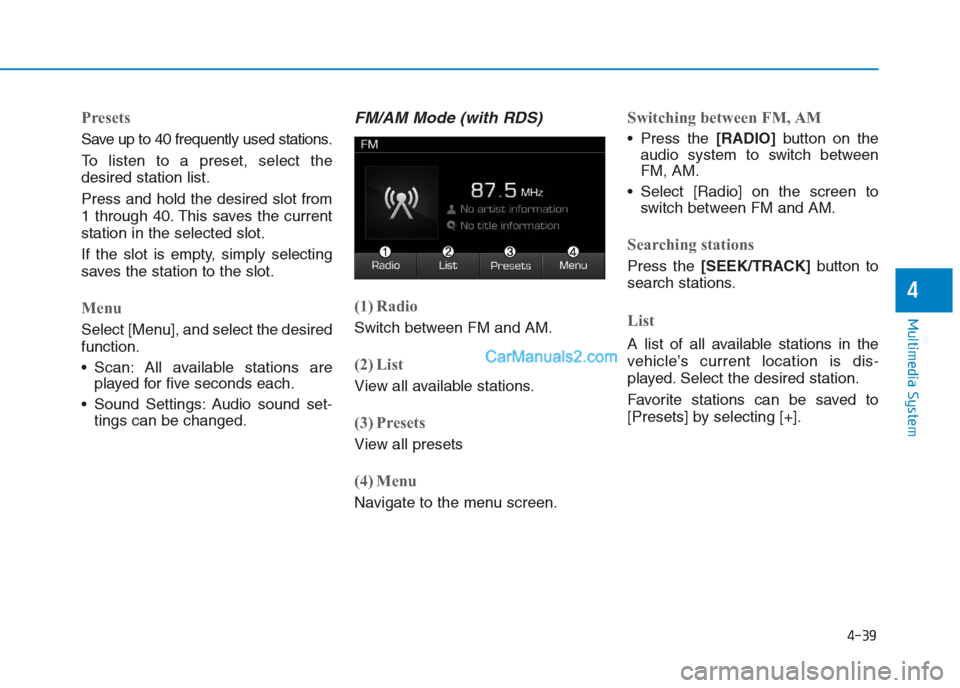
FM/AM Mode (with RDS)
(1) Radio
Switch between FM and AM.
(2) List
View all available stations.
(3) Presets
View all presets
(4) Menu
Navigate to the menu screen.
Switching between FM, AM
Press the [RADIO]button on the
audio system to switch between
FM, AM.
Select [Radio] on the screen to
switch between FM and AM.
Searching stations
Press the [SEEK/TRACK]button to
search stations.
List
A list of all available stations in the
vehicle’s current location is dis-
played. Select the desired station.
Favorite stations can be saved to
[Presets] by selecting [+].
Page 257 of 472
4-43
Multimedia System
4
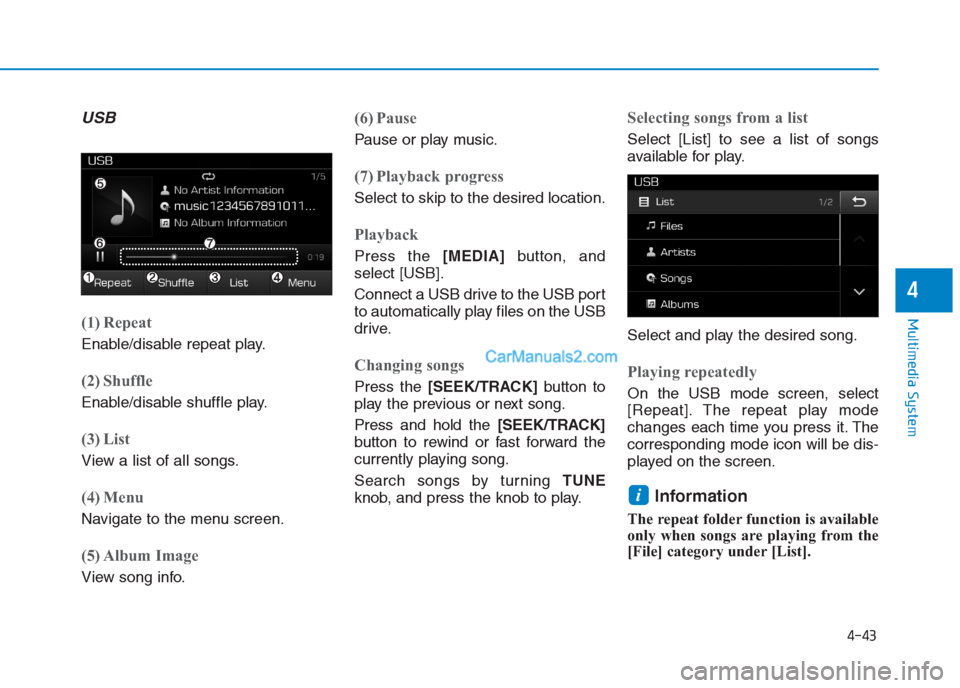
USB
(1) Repeat
Enable/disable repeat play.
(2) Shuffle
Enable/disable shuffle play.
(3) List
View a list of all songs.
(4) Menu
Navigate to the menu screen.
(5) Album Image
View song info.
(6) Pause
Pause or play music.
(7) Playback progress
Select to skip to the desired location.
Playback
Press the [MEDIA]button, and
select [USB].
Connect a USB drive to the USB port
to automatically play files on the USB
drive.
Changing songs
Press the [SEEK/TRACK]button to
play the previous or next song.
Press and hold the [SEEK/TRACK]
button to rewind or fast forward the
currently playing song.
Search songs by turning TUNE
knob, and press the knob to play.
Selecting songs from a list
Select [List] to see a list of songs
available for play.
Select and play the desired song.
Playing repeatedly
On the USB mode screen, select
[Repeat]. The repeat play mode
changes each time you press it. The
corresponding mode icon will be dis-
played on the screen.
Information
The repeat folder function is available
only when songs are playing from the
[File] category under [List].
i
Page 259 of 472
4-45
Multimedia System
4
(Continued)
• Depending on the software version,
the iPod
®may fail to sync with the
system. If the media is removed or
disconnected before recognition, the
previous mode may not be restored
(iPad
®cannot be charged).
• Cables other than the 1-meter cable
provided with iPod
®/iPhone®/iPad®
products may not be recognized.
• When other music apps are used on
your iPod
®, the system sync func-
tion may fail due to malfunction of
the iPod
®application.
iPod®
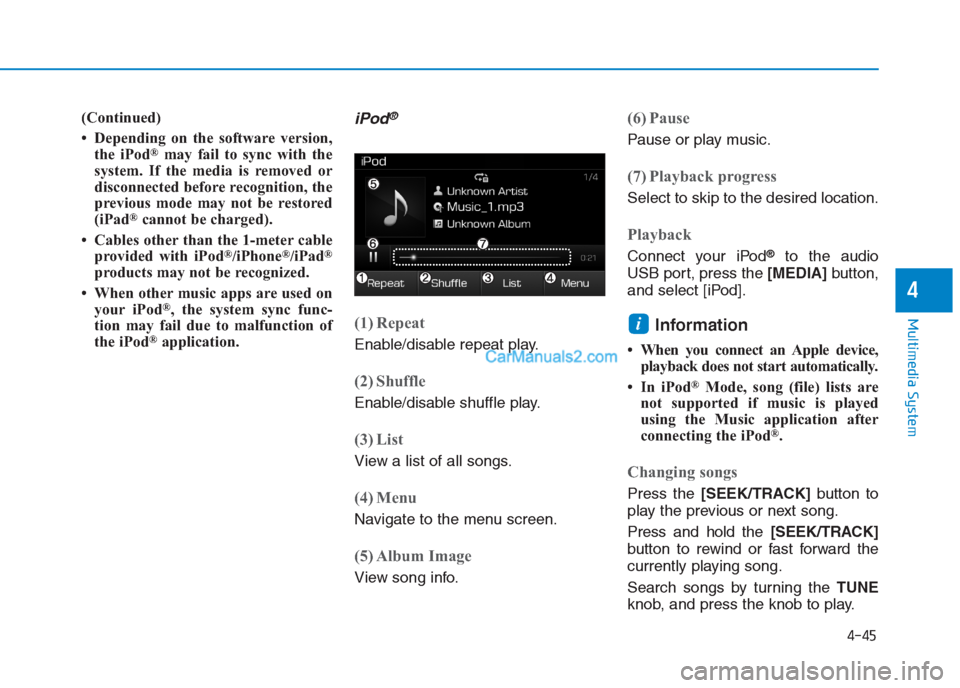
(1) Repeat
Enable/disable repeat play.
(2) Shuffle
Enable/disable shuffle play.
(3) List
View a list of all songs.
(4) Menu
Navigate to the menu screen.
(5) Album Image
View song info.
(6) Pause
Pause or play music.
(7) Playback progress
Select to skip to the desired location.
Playback
Connect your iPod®to the audio
USB port, press the [MEDIA]button,
and select [iPod].
Information
• When you connect an Apple device,
playback does not start automatically.
• In iPod
®Mode, song (file) lists are
not supported if music is played
using the Music application after
connecting the iPod
®.
Changing songs
Press the [SEEK/TRACK]button to
play the previous or next song.
Press and hold the [SEEK/TRACK]
button to rewind or fast forward the
currently playing song.
Search songs by turning the TUNE
knob, and press the knob to play.
i
Page 261 of 472
4-47
Multimedia System
4
Information
- Using Bluetooth®Audio
• Bluetooth
®Audio mode can only be
used if a Bluetooth®-enabled phone
is connected. Only devices that sup-
port Bluetooth
®audio can be used.
• If the Bluetooth
®-enabled phone is
disconnected during play, the music
stops.
• When the TRACK UP/DOWN but-
tons are used during Bluetooth
®
audio streaming, a popping noise or
sound interruptions may occur,
depending on the cell phone device.
• Depending on the cell phone model,
the audio streaming function may
not be supported.
• If a phone call is made or received
when music is playing in Bluetooth
®
Audio mode, the call may mix with
the music.
• When returning to Bluetooth
®
Audio mode after ending a call, play
might not resume automatically for
some cell phone models. Bluetooth
®Handsfree is a fea-
ture that enables drivers to prac-
tice safe driving. Connecting the
car audio system with a
Bluetooth
®phone allows the
user to conveniently make calls,
receive calls, and manage the
phone book. Before using the
Bluetooth
®, carefully read the
contents of this user’s manual.
Excessive use or operations
while driving may lead to negli-
gent driving practices and be
the cause of accidents.
Do not operate the device exces-
sively while driving.
Viewing the screen for pro-
longed periods of time is dan-
gerous and may lead to acci-
dents.
When driving, view the screen
only for short periods of time.
Bluetooth®(BT) Audio
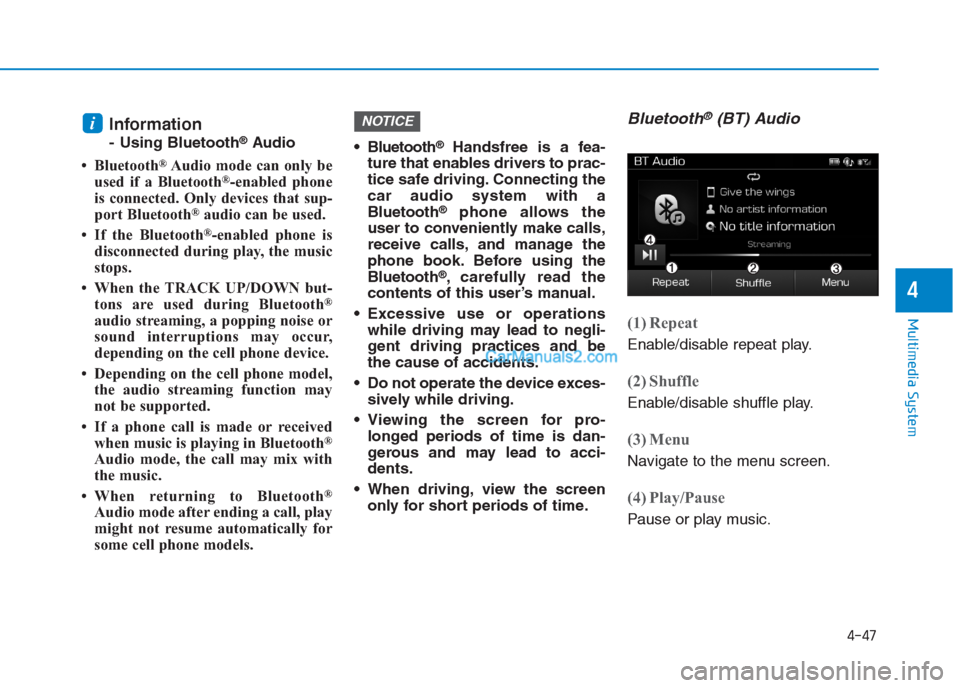
(1) Repeat
Enable/disable repeat play.
(2) Shuffle
Enable/disable shuffle play.
(3) Menu
Navigate to the menu screen.
(4) Play/Pause
Pause or play music.
NOTICEi
Page 328 of 472
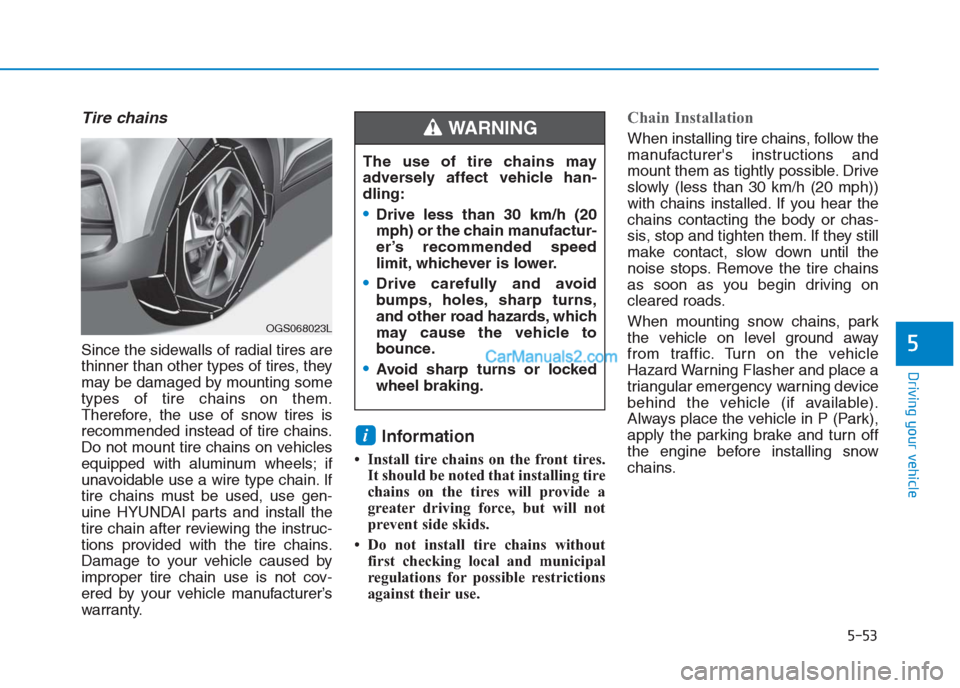
Tire chains
Since the sidewalls of radial tires are
thinner than other types of tires, they
may be damaged by mounting some
types of tire chains on them.
Therefore, the use of snow tires is
recommended instead of tire chains.
Do not mount tire chains on vehicles
equipped with aluminum wheels; if
unavoidable use a wire type chain. If
tire chains must be used, use gen-
uine HYUNDAI parts and install the
tire chain after reviewing the instruc-
tions provided with the tire chains.
Damage to your vehicle caused by
improper tire chain use is not cov-
ered by your vehicle manufacturer’s
warranty.
Information
• Install tire chains on the front tires.
It should be noted that installing tire
chains on the tires will provide a
greater driving force, but will not
prevent side skids.
• Do not install tire chains without
first checking local and municipal
regulations for possible restrictions
against their use.
Chain Installation
When installing tire chains, follow the
manufacturer's instructions and
mount them as tightly possible. Drive
slowly (less than 30 km/h (20 mph))
with chains installed. If you hear the
chains contacting the body or chas-
sis, stop and tighten them. If they still
make contact, slow down until the
noise stops. Remove the tire chains
as soon as you begin driving on
cleared roads.
When mounting snow chains, park
the vehicle on level ground away
from traffic. Turn on the vehicle
Hazard Warning Flasher and place a
triangular emergency warning device
behind the vehicle (if available).
Always place the vehicle in P (Park),
apply the parking brake and turn off
the engine before installing snow
chains.
i
OGS068023L
The use of tire chains may
adversely affect vehicle han-
dling:
Drive less than 30 km/h (20
mph) or the chain manufactur-
er’s recommended speed
limit, whichever is lower.
Drive carefully and avoid
bumps, holes, sharp turns,
and other road hazards, which
may cause the vehicle to
bounce.
Avoid sharp turns or locked
wheel braking.
WARNING
5
Driving your vehicle
5-53
5
Page 329 of 472
When using tire chains:
Wrong size chains or improperly
installed chains can damage
your vehicle's brake lines, sus-
pension, body and wheels.
Use SAE “S” class or wire
chains.
If you hear noise caused by
chains contacting the body,
retighten the chain to prevent
contact with the vehicle body.
To prevent body damage,
retighten the chains after driving
0.5~1.0 km (0.3~0.6 miles).
Do not use tire chains on vehi-
cles equipped with aluminum
wheels. If unavoidable, use a
wire type chain.
Use wire chains less than 15 mm
(0.59 in) wide to prevent damage
to the chain’s connection.
Winter precautions
Use high quality ethylene glycol
coolant
Your vehicle is delivered with high
quality ethylene glycol coolant in the
cooling system. It is the only type of
coolant that should be used because
it helps prevent corrosion in the cool-
ing system, lubricates the water
pump and prevents freezing. Be sure
to replace or replenish your coolant
in accordance with the maintenance
schedule in chapter 7. Before winter,
have your coolant tested to assure
that its freezing point is sufficient for
the temperatures anticipated during
the winter.
Check battery and cables
Winter puts additional burdens on
the battery system. Visually inspect
the battery and cables as described
in chapter 7. The level of charge in
your battery can be checked by an
authorized HYUNDAI dealer or a
service station.
Change to "winter weight" oil if
necessary
In some climates it is recommended
that a lower viscosity "winter weight"
oil be used during cold weather. See
chapter 8 for recommendations. If
you aren't sure what weight oil you
should use, we recommend that you
consult with an authorized HYUNDAI
dealer.
Check spark plugs and ignition
system
Inspect your spark plugs as
described in chapter 7 and replace
them if necessary. Also check all
ignition wiring and components to be
sure they are not cracked, worn or
damaged in any way.
NOTICE
Driving your vehicle
5-54
Page 343 of 472
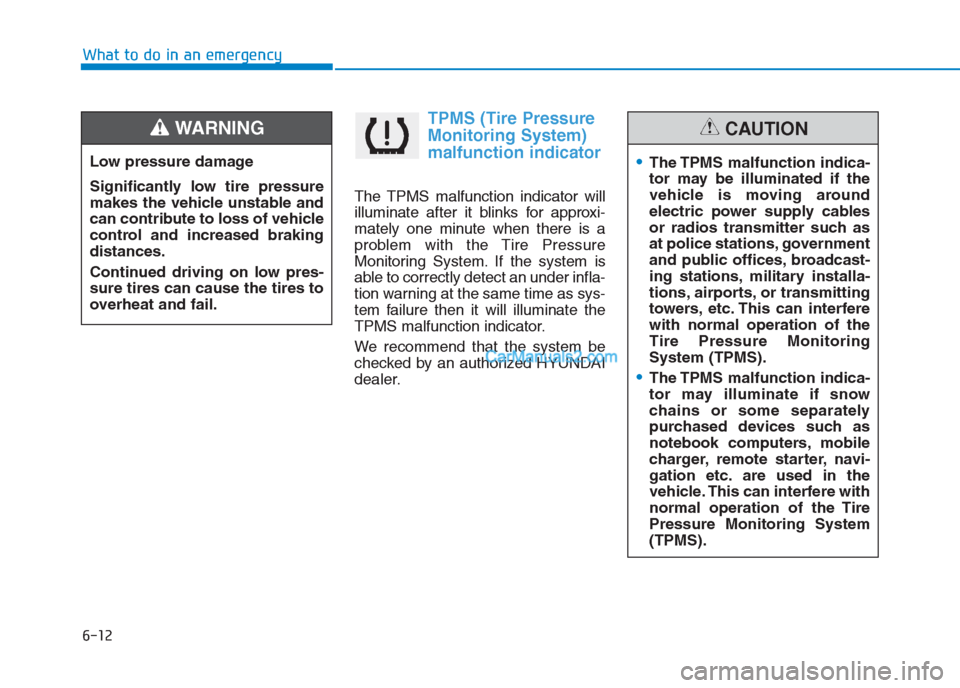
TPMS (Tire Pressure
Monitoring System)
malfunction indicator
The TPMS malfunction indicator will
illuminate after it blinks for approxi-
mately one minute when there is a
problem with the Tire Pressure
Monitoring System. If the system is
able to correctly detect an under infla-
tion warning at the same time as sys-
tem failure then it will illuminate the
TPMS malfunction indicator.
We recommend that the system be
checked by an authorized HYUNDAI
dealer.
6-12
What to do in an emergency
Low pressure damage
Significantly low tire pressure
makes the vehicle unstable and
can contribute to loss of vehicle
control and increased braking
distances.
Continued driving on low pres-
sure tires can cause the tires to
overheat and fail.
WARNING
The TPMS malfunction indica-
tor may be illuminated if the
vehicle is moving around
electric power supply cables
or radios transmitter such as
at police stations, government
and public offices, broadcast-
ing stations, military installa-
tions, airports, or transmitting
towers, etc. This can interfere
with normal operation of the
Tire Pressure Monitoring
System (TPMS).
The TPMS malfunction indica-
tor may illuminate if snow
chains or some separately
purchased devices such as
notebook computers, mobile
charger, remote starter, navi-
gation etc. are used in the
vehicle. This can interfere with
normal operation of the Tire
Pressure Monitoring System
(TPMS).
CAUTION