CD player Hyundai Elantra 2008 User Guide
[x] Cancel search | Manufacturer: HYUNDAI, Model Year: 2008, Model line: Elantra, Model: Hyundai Elantra 2008Pages: 360, PDF Size: 12.2 MB
Page 181 of 360
Features of your vehicle108 4
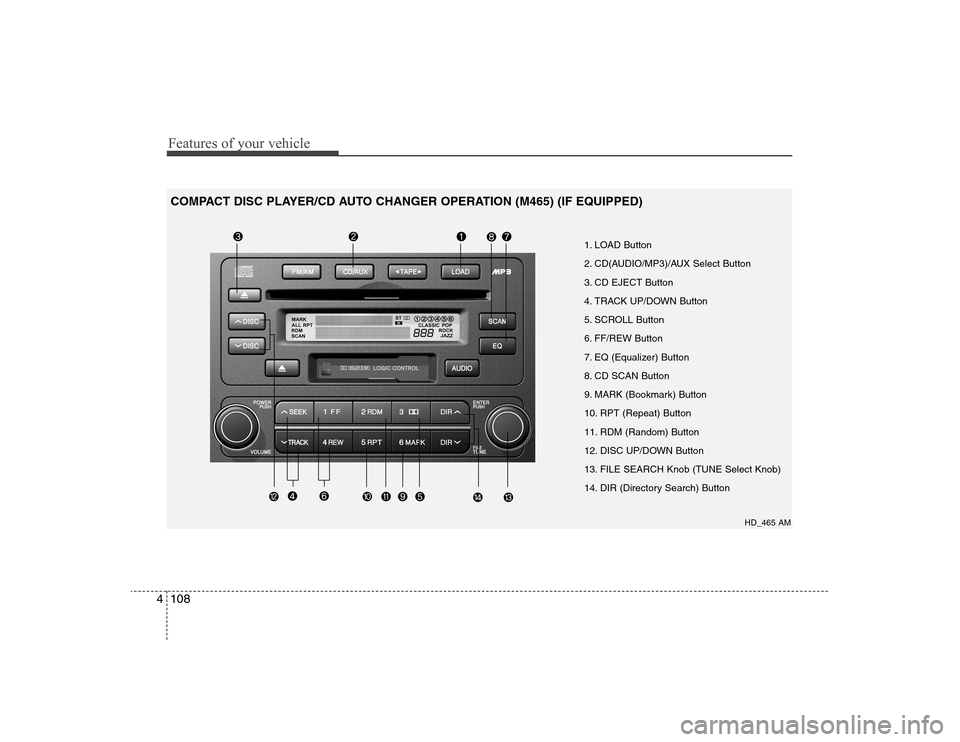
1. LOAD Button
2. CD(AUDIO/MP3)/AUX Select Button
3. CD EJECT Button
4. TRACK UP/DOWN Button
5. SCROLL Button
6. FF/REW Button
7. EQ (Equalizer) Button
8. CD SCAN Button
9. MARK (Bookmark) Button
10. RPT (Repeat) Button
11. RDM (Random) Button
12. DISC UP/DOWN Button
13. FILE SEARCH Knob (TUNE Select Knob)
14. DIR (Directory Search) Button
HD_465 AM
COMPACT DISC PLAYER/CD AUTO CHANGER OPERATION (M465) (IF EQUIPPED)
Page 182 of 360
4109
Features of your vehicle
1. LOAD ButtonThis compact disc player will accommo-
date up to six compact discs.
To insert one disc into the player, do the
following:
1. Press and release the LOAD Button.
2. Blue light on the slot will be illuminated
and the lowest number of empty slot
will blink on the display. After "WAIT" is
displayed on the LCD, the slot will open
with "INSERT" displayed on the LCD.
3. Insert a disc partway into the slot, label
side up. The player will pull the disc in.
When the disc is inserted, the disc will
begin to play automatically.✽ ✽
NOTICE• Playback of MP3, AAC, and WMA
file formats are supported. Load to
play time for these formats may be
longer due to the compressed nature
of these discs.
• The disc can be only inserted while the
green light is blinking on the slot.
• This CD player is suitable only for 12
cm discs, do not use irregular shaped
CDs.
To insert multiple discs into the player, do
the followings:
1. Press and hold the LOAD button for
one second or more. You will then hear
a beep sound and the green light on
the slot will be illuminated, and the
numbers of empty disc will blink on the
display.
2. After "WAIT" is displayed on the LCD
with the lowest number of empty slot
blinking, the slot will open with
"INSERT" displayed on the LCD.
3. Insert a disc partway into the slot, label
side up. The player will pull the disc in.
Once the disc is loaded, the numbers
of the empty disc will blink on the dis-
play continuously. If the next "DISC
NO." is displayed when the slot is illu-
minated, you can then load another
disc.
4. Load the remaining disc by following
the same procedures 1 and 2. When
you finished loading 6 discs, the CD
player will begin to play the last CD
loaded.5. To load more than one disc but less
than six, complete Steps 1 and 2.
When you have finished loading discs,
press LOAD button to cancel the load-
ing function or wait for 10 seconds.
The CD player will begin to play the
last CD loaded. As each CD starts to
play, the DISC number will appear on
the display.
✽ ✽
NOTICEThe disc player takes up to six discs.
Do not try to load more than six.2. CD(AUDIO/MP3)/AUX Select
Button Press the CD Button to start CD play-
back, during radio operation or cas-
sette tape playing.
When discs are in the CD deck, if you
press the CD button, the CD player will
begin playing even if the radio or cas-
sette player is being used.
The CD player can be used when the
ignition switch is in either the "ON" or
"ACC" position.
Push the CD button to start CD play-
back without pushing Power ON-OFF
control knob. (Only when a CD is in the
deck.
Page 183 of 360
Features of your vehicle110 4 If you press this button. you can
change to AUX mode.
AUX mode is available only when AUX
jack is plugged in and change back to
last mode if you pull it out.3. CD EJECT Button When the EJECT button is pressed
with a CD loaded, the CD will eject.
To eject all of the discs, press this but-
ton for one second or more.4. TRACK UP/DOWN Button The desired track on the disc currently
being played can be selected using the
track number.
Press ( ) once to skip forward to
the beginning of the next track.
Press ( ) once to skip back to the
beginning of the track.5. SCROLL ButtonWhen the CD is playing, you can scroll
through long file names by pressing the
DOLBY button for approximately one
second. The file name will appear on the
LCD for about three seconds.
6. FF/REW ButtonWhile the disc is playing, if you hold down
the FF button continuously, the selected
track is advanced. Holding down the
REW button continuously moves the
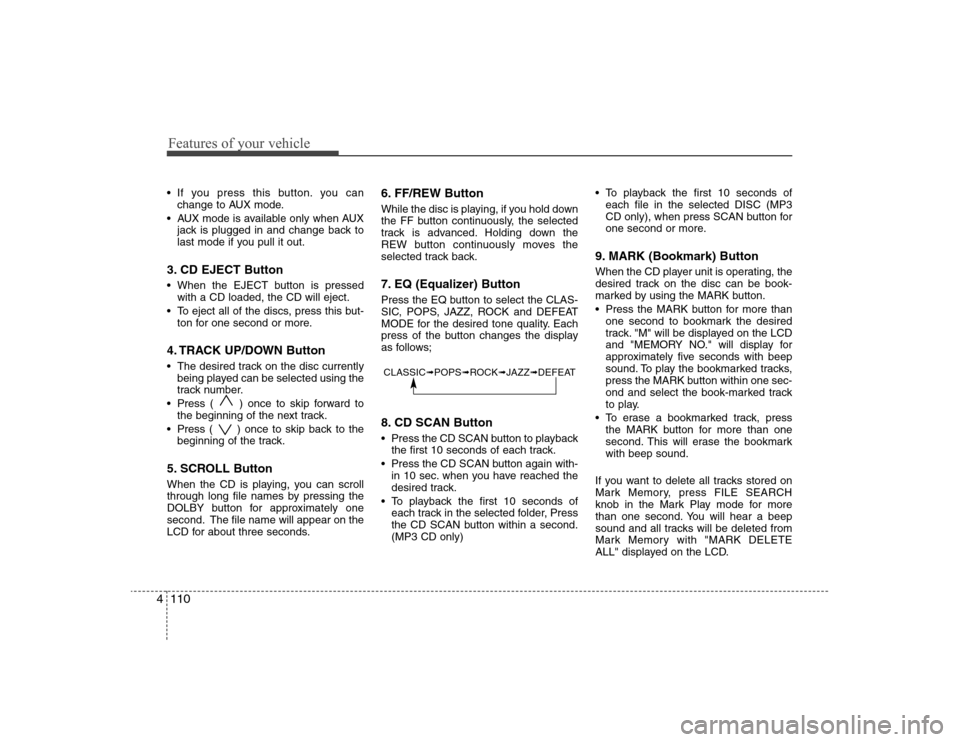
selected track back.7. EQ (Equalizer) ButtonPress the EQ button to select the CLAS-
SIC, POPS, JAZZ, ROCK and DEFEAT
MODE for the desired tone quality. Each
press of the button changes the display
as follows;8. CD SCAN Button Press the CD SCAN button to playback
the first 10 seconds of each track.
Press the CD SCAN button again with-
in 10 sec. when you have reached the
desired track.
To playback the first 10 seconds of
each track in the selected folder, Press
the CD SCAN button within a second.
(MP3 CD only) To playback the first 10 seconds of
each file in the selected DISC (MP3
CD only), when press SCAN button for
one second or more.
9. MARK (Bookmark) ButtonWhen the CD player unit is operating, the
desired track on the disc can be book-
marked by using the MARK button.
Press the MARK button for more than
one second to bookmark the desired
track. "M" will be displayed on the LCD
and "MEMORY NO." will display for
approximately five seconds with beep
sound. To play the bookmarked tracks,
press the MARK button within one sec-
ond and select the book-marked track
to play.
To erase a bookmarked track, press
the MARK button for more than one
second. This will erase the bookmark
with beep sound.
If you want to delete all tracks stored on
Mark Memory, press FILE SEARCH
knob in the Mark Play mode for more
than one second. You will hear a beep
sound and all tracks will be deleted from
Mark Memory with "MARK DELETE
ALL" displayed on the LCD.
CLASSIC➟POPS➟ROCK➟JAZZ➟DEFEAT
Page 185 of 360
Features of your vehicle112 4✽
✽
NOTICE• To assure proper operation of the unit,
keep the vehicle interior temperature
within a normal range by using the
vehicle’s air conditioning or heating
system.
• When replacing the fuse, replace it
with a fuse having the correct capaci-
ty.
• All stored bookmarks are all erased
when the car battery is disconnected
or power to the vehicle is lost. If this
occurs, the bookmarks will have to be
reset.
• Do not add any oil to the rotating
parts. Keep magnets, screwdrivers
and other metallic objects away from
the tape mechanism and head.
✽ ✽
NOTICEWhen using a portable audio device
connected to the power outlet, noise may
occur during playback. If this happens,
use the power source of the portable
audio device.
CAUTION
Do not insert warped or poor
quality discs into the CD player
as damage to the unit may occur.
Do not insert anything like coins
into the player slot as damage to
the unit may occur.
Do not place beverages close to
the audio system. The playback
mechanism may be damaged if
you spill them.
(Continued)
(Continued)
Do not strike or allow anything to
impact the audio system, damage
to the system mechanisms could
occur.
Off-road or rough surface driving
may cause the com- pact disc to
skip. Do not use the compact disc
when driving in such conditions
as damage to the compact disc
face could occur.
Do not attempt to grab or pull the
compact disc out while the disc is
being pulled into the audio unit
by the self-loading mechanism.
Damage to the audio unit and
compact disc could occur.
This equipment is designed to be
used only in a 12 volt DC battery
system with negative ground.
This unit is made of precision
parts. Do not attempt to disas-
semble or adjust any parts.
When driving your vehicle, be
sure to keep the volume of the
unit set low enough to allow you
to hear sounds coming from the
outside.
(Continued)
(Continued)
Do not expose this equipment
(including the speakers and tape)
to water or excessive moisture.
Avoid using recorded compact
discs in your audio unit. Original
compact discs are recommended.
The unit is not sure of playing CD-
RW (Rewritable).
When using the EQ funtion, turn
off the EQ funtion of the device
on the AUX input.
When no device is connected to
the AUX cable, please pull out the
cable from the JACK on the car.
(AUX MODE is operational and
noise may heard in the AUX
MODE.)
Page 188 of 360
4115
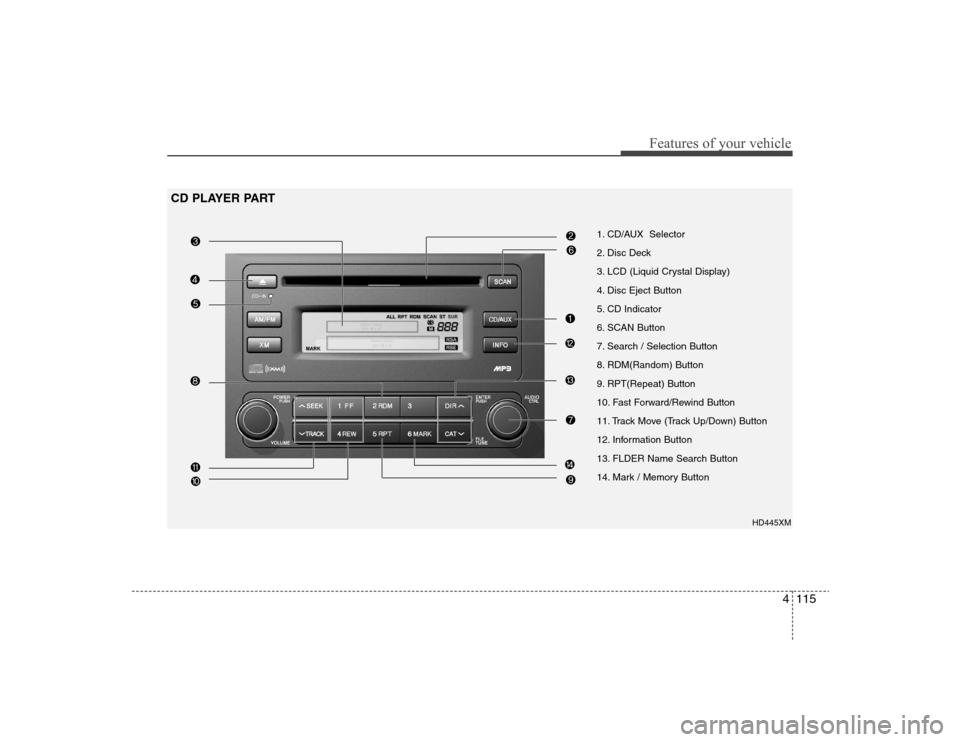
Features of your vehicle
1. CD/AUX Selector
2. Disc Deck
3. LCD (Liquid Crystal Display)
4. Disc Eject Button
5. CD Indicator
6. SCAN Button
7. Search / Selection Button
8. RDM(Random) Button
9. RPT(Repeat) Button
10. Fast Forward/Rewind Button
11. Track Move (Track Up/Down) Button
12. Information Button
13. FLDER Name Search Button
14. Mark / Memory Button
HD445XM
CD PLAYER PART
Page 189 of 360
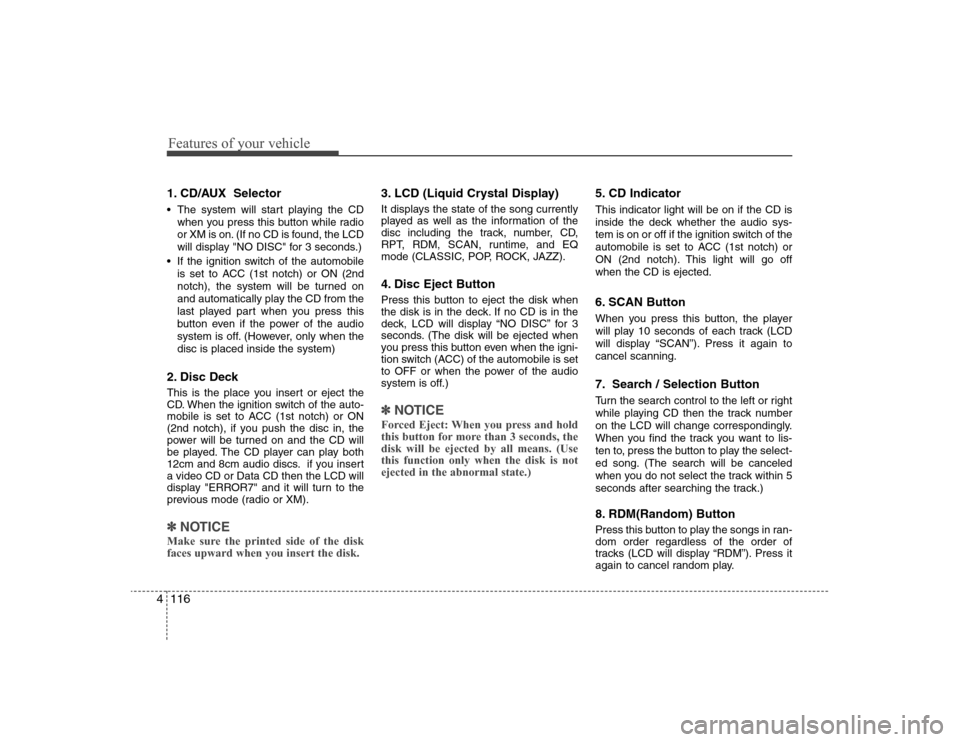
Features of your vehicle116 41. CD/AUX Selector The system will start playing the CD
when you press this button while radio
or XM is on. (If no CD is found, the LCD
will display "NO DISC" for 3 seconds.)
If the ignition switch of the automobile
is set to ACC (1st notch) or ON (2nd
notch), the system will be turned on
and automatically play the CD from the
last played part when you press this
button even if the power of the audio
system is off. (However, only when the
disc is placed inside the system)2. Disc DeckThis is the place you insert or eject the
CD. When the ignition switch of the auto-
mobile is set to ACC (1st notch) or ON
(2nd notch), if you push the disc in, the
power will be turned on and the CD will
be played. The CD player can play both
12cm and 8cm audio discs. if you insert
a video CD or Data CD then the LCD will
display "ERROR7" and it will turn to the
previous mode (radio or XM).✽ ✽
NOTICEMake sure the printed side of the disk
faces upward when you insert the disk.
3. LCD (Liquid Crystal Display)It displays the state of the song currently
played as well as the information of the
disc including the track, number, CD,
RPT, RDM, SCAN, runtime, and EQ
mode (CLASSIC, POP, ROCK, JAZZ).4. Disc Eject ButtonPress this button to eject the disk when
the disk is in the deck. If no CD is in the
deck, LCD will display “NO DISC” for 3
seconds. (The disk will be ejected when
you press this button even when the igni-
tion switch (ACC) of the automobile is set
to OFF or when the power of the audio
system is off.)✽ ✽
NOTICEForced Eject: When you press and hold
this button for more than 3 seconds, the
disk will be ejected by all means. (Use
this function only when the disk is not
ejected in the abnormal state.)
5. CD IndicatorThis indicator light will be on if the CD is
inside the deck whether the audio sys-
tem is on or off if the ignition switch of the
automobile is set to ACC (1st notch) or
ON (2nd notch). This light will go off
when the CD is ejected.6. SCAN ButtonWhen you press this button, the player
will play 10 seconds of each track (LCD
will display “SCAN”). Press it again to
cancel scanning.7. Search / Selection ButtonTurn the search control to the left or right
while playing CD then the track number
on the LCD will change correspondingly.
When you find the track you want to lis-
ten to, press the button to play the select-
ed song. (The search will be canceled
when you do not select the track within 5
seconds after searching the track.)8. RDM(Random) ButtonPress this button to play the songs in ran-
dom order regardless of the order of
tracks (LCD will display “RDM”). Press it
again to cancel random play.
Page 192 of 360
4119
Features of your vehicle
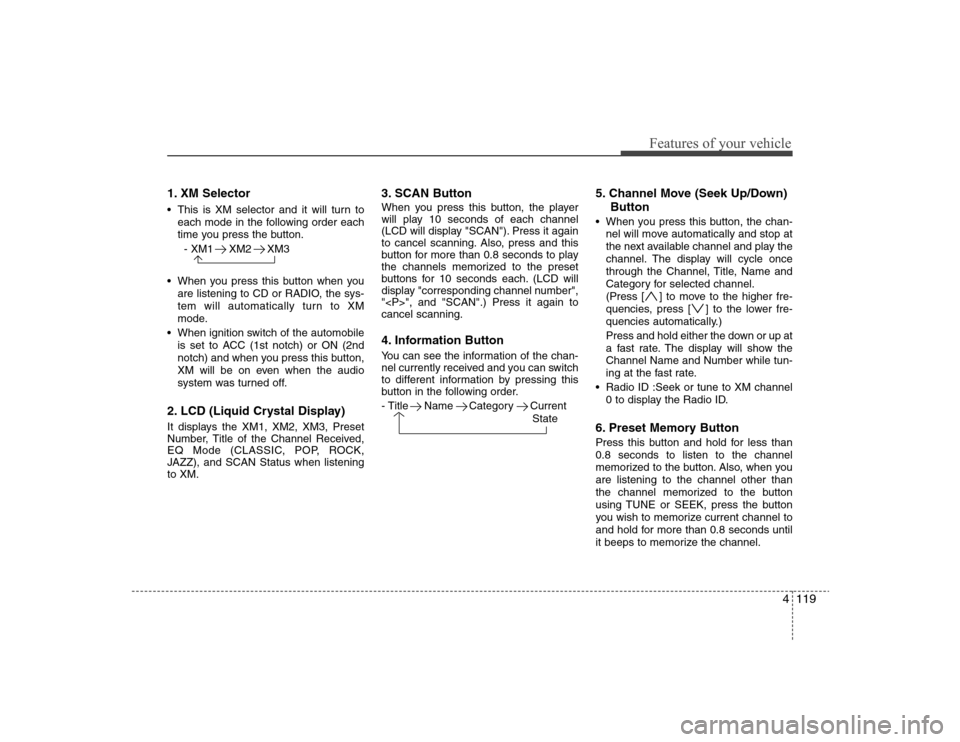
1. XM Selector This is XM selector and it will turn to
each mode in the following order each
time you press the button.
- XM1 XM2 XM3
When you press this button when you
are listening to CD or RADIO, the sys-
tem will automatically turn to XM
mode.
When ignition switch of the automobile
is set to ACC (1st notch) or ON (2nd
notch) and when you press this button,
XM will be on even when the audio
system was turned off.2. LCD (Liquid Crystal Display)It displays the XM1, XM2, XM3, Preset
Number, Title of the Channel Received,
EQ Mode (CLASSIC, POP, ROCK,
JAZZ), and SCAN Status when listening
to XM.
3. SCAN ButtonWhen you press this button, the player
will play 10 seconds of each channel
(LCD will display "SCAN"). Press it again
to cancel scanning. Also, press and this
button for more than 0.8 seconds to play
the channels memorized to the preset
buttons for 10 seconds each. (LCD will
display "corresponding channel number",
"
", and "SCAN".) Press it again to
cancel scanning.4. Information ButtonYou can see the information of the chan-
nel currently received and you can switch
to different information by pressing this
button in the following order.
- Title Name Category Current
State
5. Channel Move (Seek Up/Down)
Button When you press this button, the chan-
nel will move automatically and stop at
the next available channel and play the
channel. The display will cycle once
through the Channel, Title, Name and
Category for selected channel.
(Press [ ] to move to the higher fre-
quencies, press [ ] to the lower fre-
quencies automatically.)
Press and hold either the down or up at
a fast rate. The display will show the
Channel Name and Number while tun-
ing at the fast rate.
Radio ID :Seek or tune to XM channel
0 to display the Radio ID.6. Preset Memory ButtonPress this button and hold for less than
0.8 seconds to listen to the channel
memorized to the button. Also, when you
are listening to the channel other than
the channel memorized to the button
using TUNE or SEEK, press the button
you wish to memorize current channel to
and hold for more than 0.8 seconds until
it beeps to memorize the channel.
Page 196 of 360
4123
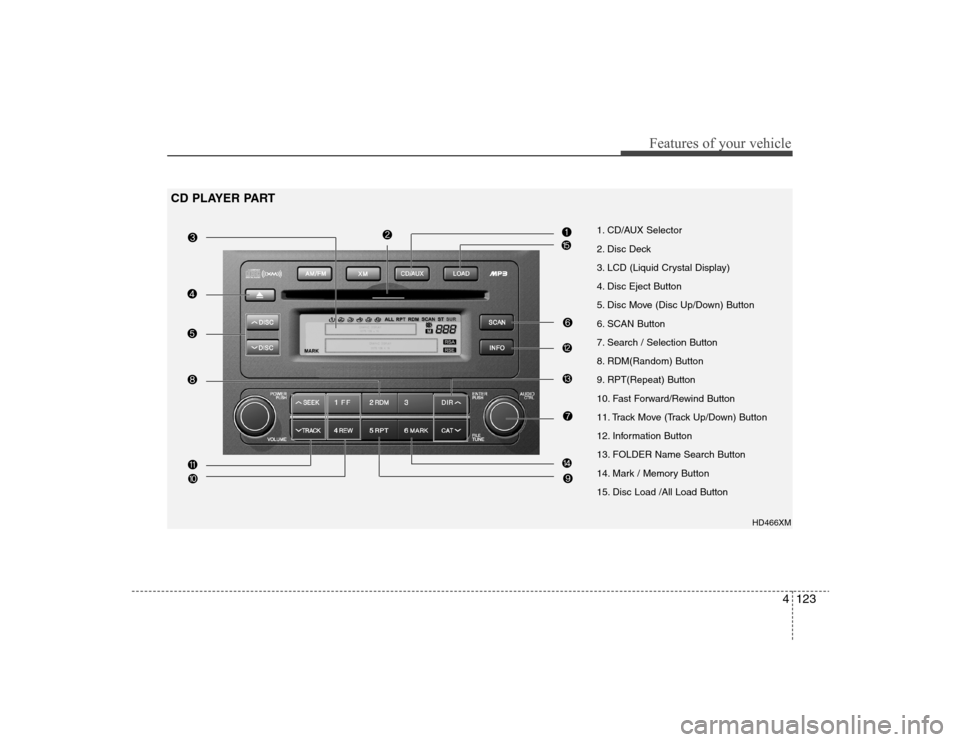
Features of your vehicle
1. CD/AUX Selector
2. Disc Deck
3. LCD (Liquid Crystal Display)
4. Disc Eject Button
5. Disc Move (Disc Up/Down) Button
6. SCAN Button
7. Search / Selection Button
8. RDM(Random) Button
9. RPT(Repeat) Button
10. Fast Forward/Rewind Button
11. Track Move (Track Up/Down) Button
12. Information Button
13. FOLDER Name Search Button
14. Mark / Memory Button
15. Disc Load /All Load Button
HD466XM
CD PLAYER PART
Page 197 of 360
Features of your vehicle124 41. CD/AUX Selector The system will start playing the CD
when you press this button while C186
radio or XM is on. (If no CD is found,
the LCD will display "NO DISC" for 3
seconds.)
If the ignition switch of the automobile
is set to ACC (1st notch) or ON (2nd
notch), the system will be turned on
and automatically play the CD from the
last played part when you press this
button even if the power of the audio
system is off (However, only when the
disc is placed inside the system)2. Disc DeckThis is the place you insert or eject the
CD. To open the deck, press [LOAD] but-
ton. This CD changer can only play audio
CD/MP3/WMA discs and 12cm discs.
Also, if you insert a video CD or a DATA
CD then the LCD will display "ERROR7"
and it will turn to the previous mode
(radio or XM). When the ignition switch of
the automobile is set to ACC (1st notch)
or ON (2nd notch), if you press [LOAD]
button the power will be on and you will
be able to insert the disc even when the
audio system's power is off.
✽ ✽
NOTICE• Do not use 8cm discs.
• The system will not play AAC/WAVE
formats.
• Make sure the printed side of the disk
faces upward when you insert the
disk.3. LCD (Liquid Crystal Display)It displays the state of the song currently
played as well as the information of the
disc including the track, number, CD,
RPT, RDM, SCAN, runtime, EQ mode
(CLASSIC, POP, ROCK, JAZZ), READ-
ING, WAIT, INSERT, NO DISC and so
forth.4. Disc Eject ButtonPress this button to eject the disk when
the disk is in the deck. If no CD is in the
deck, LCD will display “NO DISC” for 3
seconds. (The disk will be ejected when
you press this button even when the igni-
tion switch (ACC) of the automobile is set
to OFF or when the power of the audio
system is off.)✽ ✽
NOTICEALL EJECT: Press and hold this button
for more than 0.8 seconds to eject all
discs inside the deck in respective order.
5. Disc Move (Disc Up/Down)
ButtonIf you want to listen to another disk while
using the CD changer, press [DISC ] ,
[DISC ] button to move to the disc you
want to listent to and play the disc. If all 6
decks of the changer is not full, the num-
ber of the empty deck will not be select-
ed but only the decks with discs will be
played. When moving through discs, the
selected disc will be displayed as "U."6. SCAN ButtonWhen you press this button, the player
will play 10 seconds of each track (LCD
will display “SCAN”). Press it again to
cancel scanning.7. Search / Selection ButtonTurn the search control to the left or right
while playing CD then the track number
on the LCD will change correspondingly.
When you find the track you want to lis-
ten to, press the button to play the select-
ed song. (The search will be canceled
when you do not select the track within 5
seconds after searching the track.)
Page 200 of 360
4127
Features of your vehicle
1. XM Selector This is XM selector and it will turn to
each mode in the following order each
time you press the button.
- XM1 XM2 XM3
When you press this button when you
are listening to CD or RADIO, the sys-
tem will automatically turn to XM
mode.
When ignition switch of the automobile
is set to ACC (1st notch) or ON (2nd
notch) and when you press this button,
XM will be on even when the audio
system was turned off.2. LCD (Liquid Crystal Display)It displays the XM1, XM2, XM3, Preset
Number, Title of the Channel Received,
EQ Mode (CLASSIC, POP, ROCK,
JAZZ), and SCAN Status when listening
to XM.
3. SCAN ButtonWhen you press this button, the player
will play 10 seconds of each channel
(LCD will display "SCAN"). Press it again
to cancel scanning. Also, press and this
button for more than 0.8 seconds to play
the channels memorized to the preset
buttons for 10 seconds each. (LCD will
display "corresponding channel number",
"
", and "SCAN".) Press it again to
cancel scanning.4. Information ButtonYou can see the information of the chan-
nel currently received and you can switch
to different information by pressing this
button in the following order.
- Title Name Category Current
State
5. Channel Move (Seek Up/Down)
Button When you press this button, the chan-
nel will move automatically and stop at
the next available channel and play the
channel. The display will cycle once
through the Channel, Title, Name and
Category for selected channel.
(Press [ ] to move to the higher fre-
quencies, press [ ] to the lower fre-
quencies automatically.)
Press and hold either the down or up at
a fast rate. The display will show the
Channel Name and Number while tun-
ing at the fast rate.
Radio ID :Seek or tune to XM channel
0 to display the Radio ID.6. Preset Memory ButtonPress this button and hold for less than
0.8 seconds to listen to the channel
memorized to the button. Also, when you
are listening to the channel other than
the channel memorized to the button
using TUNE or SEEK, press the button
you wish to memorize current channel to
and hold for more than 0.8 seconds until
it beeps to memorize the channel.