lock Hyundai Elantra 2010 Workshop Manual
[x] Cancel search | Manufacturer: HYUNDAI, Model Year: 2010, Model line: Elantra, Model: Hyundai Elantra 2010Pages: 348, PDF Size: 5.78 MB
Page 168 of 348
495
Features of your vehicle
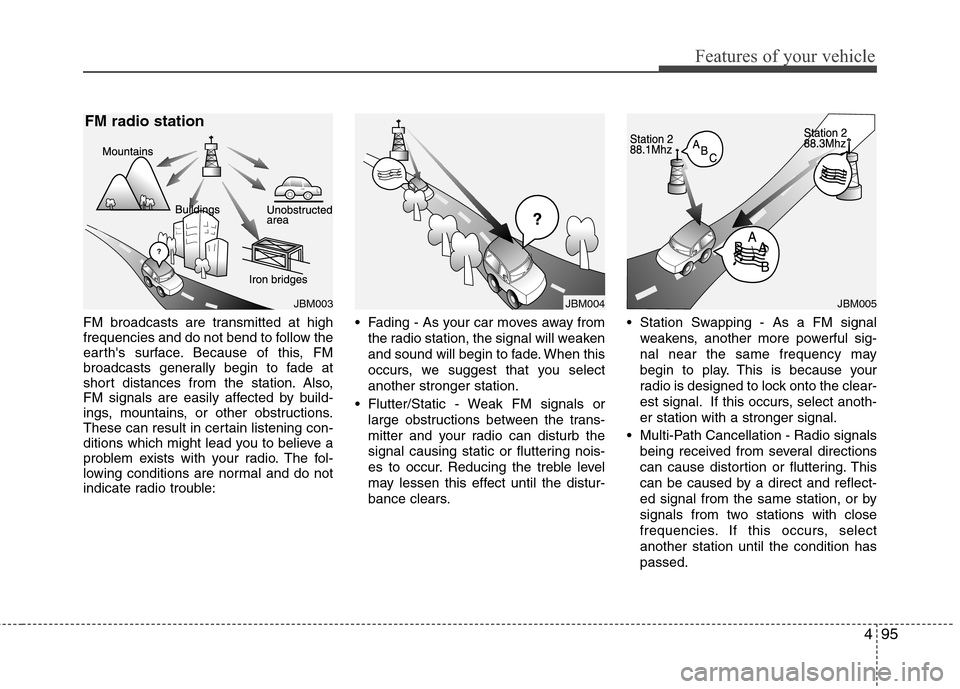
FM broadcasts are transmitted at high
frequencies and do not bend to follow the
earth's surface. Because of this, FM
broadcasts generally begin to fade at
short distances from the station. Also,
FM signals are easily affected by build-
ings, mountains, or other obstructions.
These can result in certain listening con-
ditions which might lead you to believe a
problem exists with your radio. The fol-
lowing conditions are normal and do not
indicate radio trouble: Fading - As your car moves away from
the radio station, the signal will weaken
and sound will begin to fade. When this
occurs, we suggest that you select
another stronger station.
Flutter/Static - Weak FM signals or large obstructions between the trans-
mitter and your radio can disturb the
signal causing static or fluttering nois-
es to occur. Reducing the treble level
may lessen this effect until the distur-
bance clears. Station Swapping - As a FM signal
weakens, another more powerful sig-
nal near the same frequency may
begin to play. This is because your
radio is designed to lock onto the clear-
est signal. If this occurs, select anoth-
er station with a stronger signal.
Multi-Path Cancellation - Radio signals being received from several directions
can cause distortion or fluttering. This
can be caused by a direct and reflect-
ed signal from the same station, or by
signals from two stations with close
frequencies. If this occurs, select
another station until the condition has
passed.
JBM003
FM radio station
¢¢¢
JBM004JBM005
Page 169 of 348
Features of your vehicle
96
4
Satellite radio reception
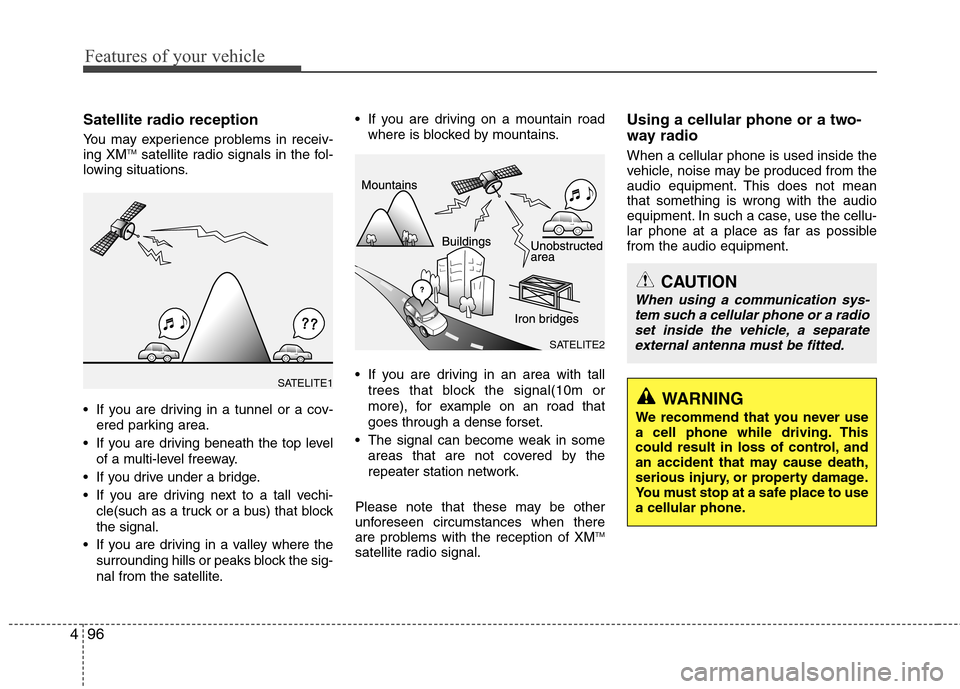
You may experience problems in receiv-
ing XMTMsatellite radio signals in the fol-
lowing situations.
If you are driving in a tunnel or a cov-
ered parking area.
If you are driving beneath the top level of a multi-level freeway.
If you drive under a bridge.
If you are driving next to a tall vechi- cle(such as a truck or a bus) that block
the signal.
If you are driving in a valley where the surrounding hills or peaks block the sig-
nal from the satellite. If you are driving on a mountain road
where is blocked by mountains.
If you are driving in an area with tall trees that block the signal(10m or
more), for example on an road that
goes through a dense forset.
The signal can become weak in some areas that are not covered by the
repeater station network.
Please note that these may be other
unforeseen circumstances when there
are problems with the reception of XM
TM
satellite radio signal.
Using a cellular phone or a two-
way radio
When a cellular phone is used inside the
vehicle, noise may be produced from the
audio equipment. This does not mean
that something is wrong with the audio
equipment. In such a case, use the cellu-
lar phone at a place as far as possible
from the audio equipment.
CAUTION
When using a communication sys- tem such a cellular phone or a radioset inside the vehicle, a separateexternal antenna must be fitted.
WARNING
We recommend that you never use
a cell phone while driving. This
could result in loss of control, and
an accident that may cause death,
serious injury, or property damage.
You must stop at a safe place to use
a cellular phone.
SATELITE1
SATELITE2
Page 174 of 348
4101
Features of your vehicle
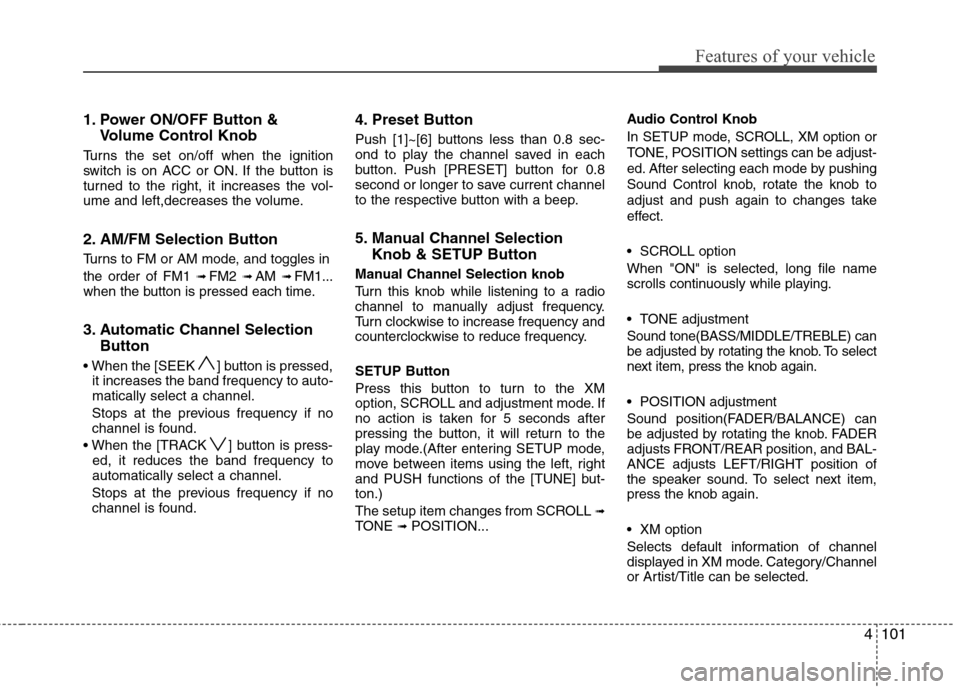
1. Power ON/OFF Button &Volume Control Knob
Turns the set on/off when the ignition
switch is on ACC or ON. If the button is
turned to the right, it increases the vol-
ume and left,decreases the volume.
2. AM/FM Selection Button
Turns to FM or AM mode, and toggles in
the order of FM1
➟ FM2 ➟ AM ➟ FM1...
when the button is pressed each time.
3. Automatic Channel Selection Button
] button is pressed,
it increases the band frequency to auto-
matically select a channel.
Stops at the previous frequency if no
channel is found.
] button is press- ed, it reduces the band frequency to
automatically select a channel.
Stops at the previous frequency if no
channel is found.
4. Preset Button
Push [1]~[6] buttons less than 0.8 sec-
ond to play the channel saved in each
button. Push [PRESET] button for 0.8
second or longer to save current channel
to the respective button with a beep.
5. Manual Channel Selection Knob & SETUP Button
Manual Channel Selection knob
Turn this knob while listening to a radio
channel to manually adjust frequency.
Turn clockwise to increase frequency and
counterclockwise to reduce frequency.
SETUP Button
Press this button to turn to the XM
option, SCROLL and adjustment mode. If
no action is taken for 5 seconds after
pressing the button, it will return to the
play mode.(After entering SETUP mode,
move between items using the left, right
and PUSH functions of the [TUNE] but-
ton.)
The setup item changes from SCROLL
➟TONE ➟ POSITION... Audio Control Knob
In SETUP mode, SCROLL, XM option or
TONE, POSITION settings can be adjust-
ed. After selecting each mode by pushing
Sound Control knob, rotate the knob to
adjust and push again to changes take
effect.
SCROLL option
When "ON" is selected, long file name
scrolls continuously while playing.
TONE adjustment
Sound tone(BASS/MIDDLE/TREBLE) can
be adjusted by rotating the knob. To select
next item, press the knob again.
POSITION adjustment
Sound position(FADER/BALANCE) can
be adjusted by rotating the knob. FADER
adjusts FRONT/REAR position, and BAL-
ANCE adjusts LEFT/RIGHT position of
the speaker sound. To select next item,
press the knob again.
XM option
Selects default information of channel
displayed in XM mode. Category/Channel
or Artist/Title can be selected.
Page 180 of 348
4107
Features of your vehicle
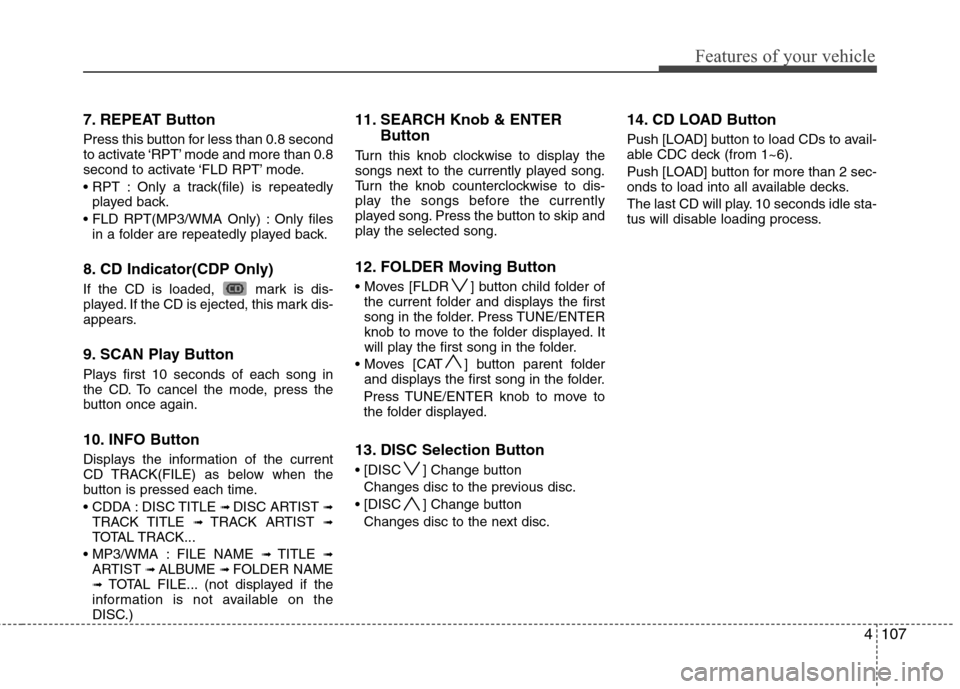
7. REPEAT Button
Press this button for less than 0.8 second
to activate ‘RPT’ mode and more than 0.8
second to activate ‘FLD RPT’ mode.
Only a track(file) is repeatedlyplayed back.
Only files in a folder are repeatedly played back.
8. CD Indicator(CDP Only)
If the CD is loaded, mark is dis-
played. If the CD is ejected, this mark dis-
appears.
9. SCAN Play Button
Plays first 10 seconds of each song in
the CD. To cancel the mode, press the
button once again.
10. INFO Button
Displays the information of the current
CD TRACK(FILE) as below when the
button is pressed each time.
DISC TITLE
➟ DISC ARTIST ➟TRACK TITLE ➟ TRACK ARTIST ➟TOTAL TRACK...
FILE NAME
➟ TITLE ➟ARTIST ➟ ALBUME ➟ FOLDER NAME➟TOTAL FILE... (not displayed if the
information is not available on the
DISC.)
11. SEARCH Knob & ENTER Button
Turn this knob clockwise to display the
songs next to the currently played song.
Turn the knob counterclockwise to dis-
play the songs before the currently
played song. Press the button to skip and
play the selected song.
12. FOLDER Moving Button
] button child folder of
the current folder and displays the first
song in the folder. Press TUNE/ENTER
knob to move to the folder displayed. It
will play the first song in the folder.
] button parent folder and displays the first song in the folder.
Press TUNE/ENTER knob to move to
the folder displayed.
13. DISC Selection Button
] Change button Changes disc to the previous disc.
] Change button Changes disc to the next disc.
14. CD LOAD Button
Push [LOAD] button to load CDs to avail-
able CDC deck (from 1~6).
Push [LOAD] button for more than 2 sec-
onds to load into all available decks.
The last CD will play. 10 seconds idle sta-
tus will disable loading process.
Page 183 of 348
Features of your vehicle
110
4
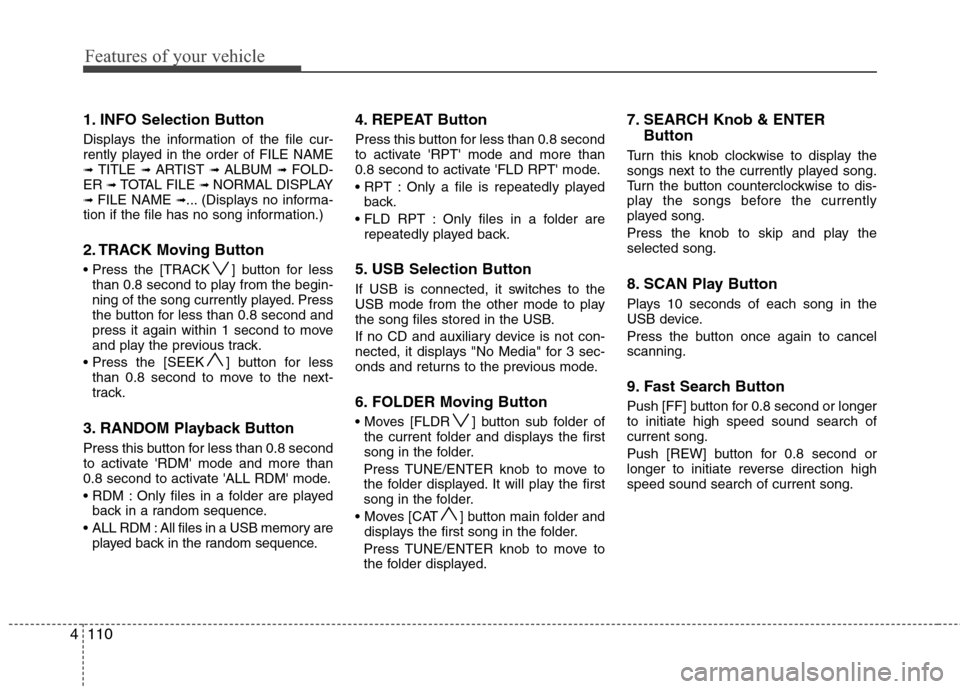
1. INFO Selection Button
Displays the information of the file cur-
rently played in the order of FILE NAME
➟ TITLE ➟ ARTIST ➟ ALBUM ➟ FOLD-
ER ➟ TOTAL FILE ➟ NORMAL DISPLAY➟ FILE NAME ➟... (Displays no informa-
tion if the file has no song information.)
2. TRACK Moving Button
] button for less than 0.8 second to play from the begin-
ning of the song currently played. Press
the button for less than 0.8 second and
press it again within 1 second to move
and play the previous track.
] button for less than 0.8 second to move to the next-
track.
3. RANDOM Playback Button
Press this button for less than 0.8 second
to activate 'RDM' mode and more than
0.8 second to activate 'ALL RDM' mode.
Only files in a folder are playedback in a random sequence.
ALL RDM : All files in a USB memory are played back in the random sequence.
4. REPEAT Button
Press this button for less than 0.8 second
to activate 'RPT' mode and more than
0.8 second to activate 'FLD RPT' mode.
Only a file is repeatedly playedback.
Only files in a folder are repeatedly played back.
5. USB Selection Button
If USB is connected, it switches to the
USB mode from the other mode to play
the song files stored in the USB.
If no CD and auxiliary device is not con-
nected, it displays "No Media" for 3 sec-
onds and returns to the previous mode.
6. FOLDER Moving Button
] button sub folder ofthe current folder and displays the first
song in the folder.
Press TUNE/ENTER knob to move to
the folder displayed. It will play the first
song in the folder.
] button main folder and displays the first song in the folder.
Press TUNE/ENTER knob to move to
the folder displayed.
7. SEARCH Knob & ENTER Button
Turn this knob clockwise to display the
songs next to the currently played song.
Turn the button counterclockwise to dis-
play the songs before the currently
played song.
Press the knob to skip and play the
selected song.
8. SCAN Play Button
Plays 10 seconds of each song in the
USB device.
Press the button once again to cancel
scanning.
9. Fast Search Button
Push [FF] button for 0.8 second or longer
to initiate high speed sound search of
current song.
Push [REW] button for 0.8 second or
longer to initiate reverse direction high
speed sound search of current song.
Page 188 of 348
4115
Features of your vehicle
Using an iPod when the exclusive cable is
connected to the multimedia terminal
inside the console on the right hand side
of the driver's seat.
When the iPod is connected, the 'iPod'
icon will be displayed on the top left cor-
ner of the display screen.
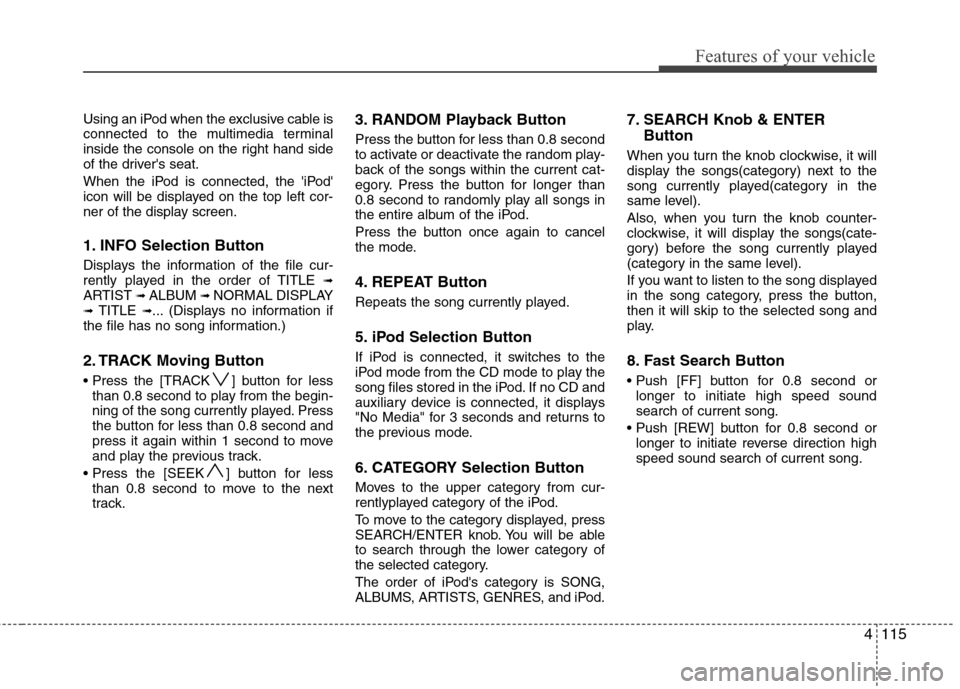
1. INFO Selection Button
Displays the information of the file cur-
rently played in the order of TITLE ➟ARTIST ➟ ALBUM ➟ NORMAL DISPLAY➟ TITLE ➟... (Displays no information if
the file has no song information.)
2. TRACK Moving Button
] button for less than 0.8 second to play from the begin-
ning of the song currently played. Press
the button for less than 0.8 second and
press it again within 1 second to move
and play the previous track.
] button for less than 0.8 second to move to the next
track.
3. RANDOM Playback Button
Press the button for less than 0.8 second
to activate or deactivate the random play-
back of the songs within the current cat-
egory. Press the button for longer than
0.8 second to randomly play all songs in
the entire album of the iPod.
Press the button once again to cancel
the mode.
4. REPEAT Button
Repeats the song currently played.
5. iPod Selection Button
If iPod is connected, it switches to the
iPod mode from the CD mode to play the
song files stored in the iPod. If no CD and
auxiliary device is connected, it displays
"No Media" for 3 seconds and returns to
the previous mode.
6. CATEGORY Selection Button
Moves to the upper category from cur-
rentlyplayed category of the iPod.
To move to the category displayed, press
SEARCH/ENTER knob. You will be able
to search through the lower category of
the selected category.
The order of iPod's category is SONG,
ALBUMS, ARTISTS, GENRES, and iPod.
7. SEARCH Knob & ENTER Button
When you turn the knob clockwise, it will
display the songs(category) next to the
song currently played(category in the
same level).
Also, when you turn the knob counter-
clockwise, it will display the songs(cate-
gory) before the song currently played
(category in the same level).
If you want to listen to the song displayed
in the song category, press the button,
then it will skip to the selected song and
play.
8. Fast Search Button
longer to initiate high speed sound
search of current song.
longer to initiate reverse direction high
speed sound search of current song.
Page 192 of 348
4119
Features of your vehicle
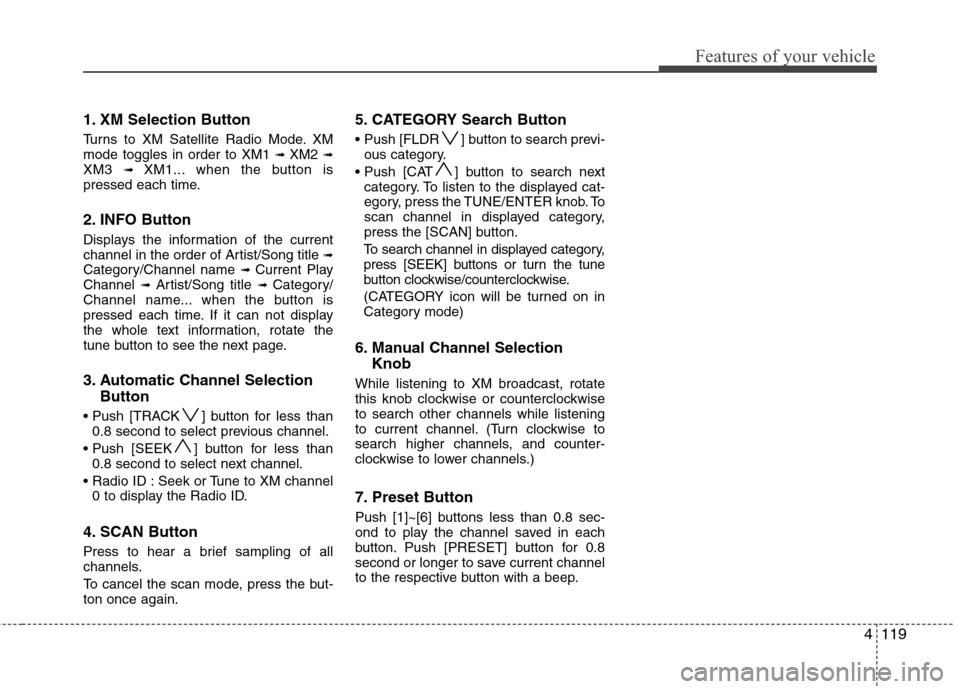
1. XM Selection Button
Turns to XM Satellite Radio Mode. XM
mode toggles in order to XM1 ➟ XM2 ➟XM3 ➟ XM1... when the button is
pressed each time.
2. INFO Button
Displays the information of the current
channel in the order of Artist/Song title ➟Category/Channel name ➟ Current Play
Channel ➟ Artist/Song title ➟ Category/
Channel name... when the button is
pressed each time. If it can not display
the whole text information, rotate the
tune button to see the next page.
3. Automatic Channel Selection Button
] button for less than
0.8 second to select previous channel.
] button for less than 0.8 second to select next channel.
Seek or Tune to XM channel 0 to display the Radio ID.
4. SCAN Button
Press to hear a brief sampling of all
channels.
To cancel the scan mode, press the but-
ton once again.
5. CATEGORY Search Button
Push [FLDR ] button to search previ-ous category.
] button to search next category. To listen to the displayed cat-
egory, press the TUNE/ENTER knob. To
scan channel in displayed category,
press the [SCAN] button.
To search channel in displayed category,
press [SEEK] buttons or turn the tune
button clockwise/counterclockwise.
(CATEGORY icon will be turned on in
Category mode)
6. Manual Channel Selection Knob
While listening to XM broadcast, rotate
this knob clockwise or counterclockwise
to search other channels while listening
to current channel. (Turn clockwise to
search higher channels, and counter-
clockwise to lower channels.)
7. Preset Button
Push [1]~[6] buttons less than 0.8 sec-
ond to play the channel saved in each
button. Push [PRESET] button for 0.8
second or longer to save current channel
to the respective button with a beep.
Page 195 of 348
53
Driving your vehicle
Before entering vehicle
• Be sure that all windows, outside mir-ror(s), and outside lights are clean.
Check the condition of the tires.
Check under the vehicle for any sign of leaks.
Be sure there are no obstacles behind you if you intend to back up.
Necessary inspections
Fluid levels, such as engine oil, engine
coolant, brake fluid, and washer fluid
should be checked on a regular basis,
with the exact interval depending on the
fluid. Further details are provided in
Section 7, “Maintenance”.
Before starting
Close and lock all doors.
Position the seat so that all controls areeasily reached.
Adjust the inside and outside rearview mirrors. Be sure that all lights work.
Check all gauges.
Check the operation of warning lights
when the ignition switch is turned to
the ON position.
Release the parking brake and make sure the brake warning light goes out.
For safe operation, be sure you are famil-
iar with your vehicle and its equipment.
BEFORE DRIVING
WARNING
All passengers must be properly
belted whenever the vehicle is mov-
ing. Refer to “Seat belts” in section
3 for more information on their
proper use.
WARNING
Always check the surrounding
areas near your vehicle for people,
especially children, before putting a
car into “Drive” or “Reverse”.
CALIFORNIA PROPOSI-
TION 65 WARNING
Engine exhaust and a wide variety
of automobile components and
parts, including components found
in the interior furnishings in a vehi-
cle, contain or emit chemicals
known to the State of California to
cause cancer and birth defects and
reproductive harm. In addition, cer-
tain fluids contained in vehicles
and certain products of component
wear contain or emit chemicals
known to the State of California to
cause cancer and birth defects or
other reproductive harm.
Page 196 of 348
Driving your vehicle
4
5
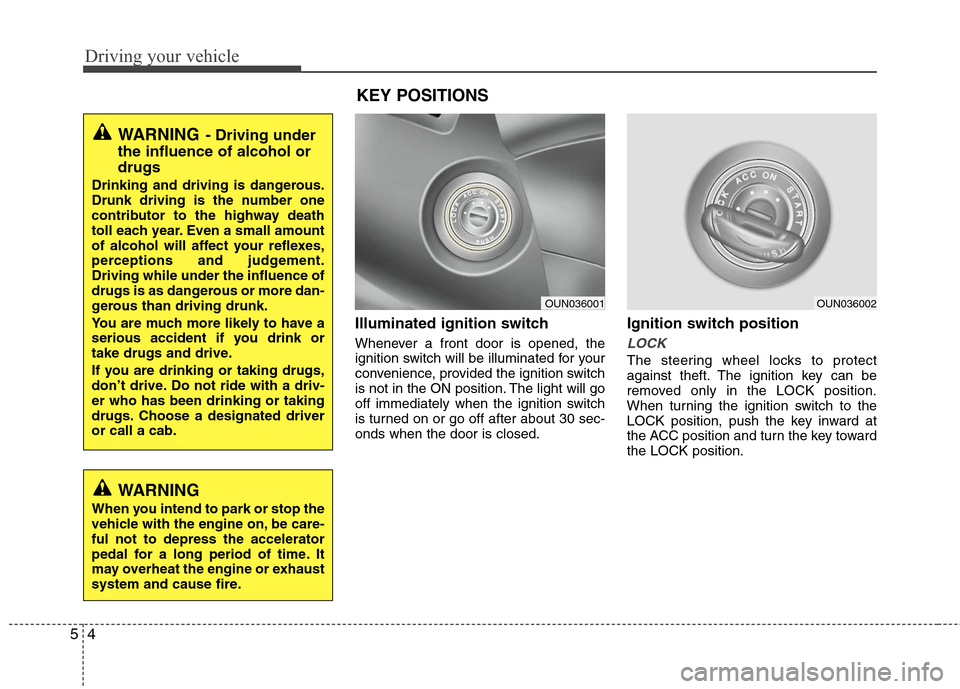
Illuminated ignition switch
Whenever a front door is opened, the
ignition switch will be illuminated for your
convenience, provided the ignition switch
is not in the ON position. The light will go
off immediately when the ignition switch
is turned on or go off after about 30 sec-
onds when the door is closed.
Ignition switch position
LOCK
The steering wheel locks to protect
against theft. The ignition key can be
removed only in the LOCK position.
When turning the ignition switch to the
LOCK position, push the key inward at
the ACC position and turn the key toward
the LOCK position.
OUN036001
OUN036002
WARNING- Driving under
the influence of alcohol or
drugs
Drinking and driving is dangerous.
Drunk driving is the number one
contributor to the highway death
toll each year. Even a small amount
of alcohol will affect your reflexes,
perceptions and judgement.
Driving while under the influence of
drugs is as dangerous or more dan-
gerous than driving drunk.
You are much more likely to have a
serious accident if you drink or
take drugs and drive.
If you are drinking or taking drugs,
don’t drive. Do not ride with a driv-
er who has been drinking or taking
drugs. Choose a designated driver
or call a cab.
KEY POSITIONS
WARNING
When you intend to park or stop the
vehicle with the engine on, be care-
ful not to depress the accelerator
pedal for a long period of time. It
may overheat the engine or exhaust
system and cause fire.
Page 197 of 348
55
Driving your vehicle
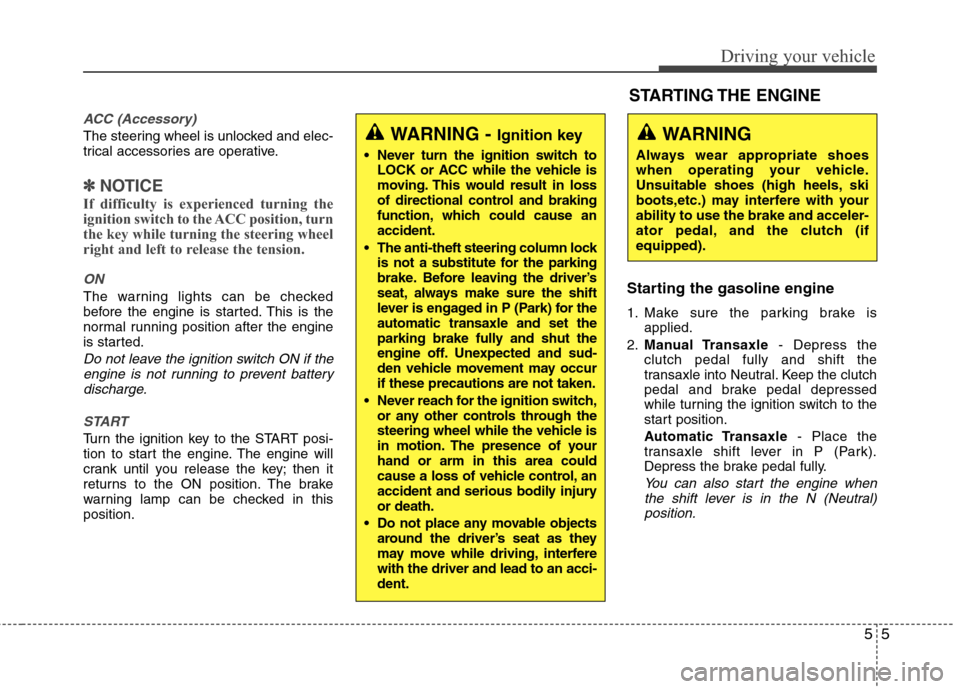
ACC (Accessory)
The steering wheel is unlocked and elec-
trical accessories are operative.
✽ ✽NOTICE
If difficulty is experienced turning the
ignition switch to the ACC position, turn
the key while turning the steering wheel
right and left to release the tension.
ON
The warning lights can be checked
before the engine is started. This is the
normal running position after the engine
is started.
Do not leave the ignition switch ON if the
engine is not running to prevent batterydischarge.
START
Turn the ignition key to the START posi-
tion to start the engine. The engine will
crank until you release the key; then it
returns to the ON position. The brake
warning lamp can be checked in this
position.
Starting the gasoline engine
1. Make sure the parking brake is applied.
2. Manual Transaxle - Depress the
clutch pedal fully and shift the
transaxle into Neutral. Keep the clutch
pedal and brake pedal depressed
while turning the ignition switch to the
start position.
Automatic Transaxle - Place the
transaxle shift lever in P (Park).
Depress the brake pedal fully.
You can also start the engine when the shift lever is in the N (Neutral)position.
WARNING - Ignition key
Never turn the ignition switch to
LOCK or ACC while the vehicle is
moving. This would result in loss
of directional control and braking
function, which could cause an
accident.
The anti-theft steering column lock is not a substitute for the parking
brake. Before leaving the driver’s
seat, always make sure the shift
lever is engaged in P (Park) for the
automatic transaxle and set the
parking brake fully and shut the
engine off. Unexpected and sud-
den vehicle movement may occur
if these precautions are not taken.
Never reach for the ignition switch, or any other controls through the
steering wheel while the vehicle is
in motion. The presence of your
hand or arm in this area could
cause a loss of vehicle control, an
accident and serious bodily injury
or death.
Do not place any movable objects around the driver’s seat as they
may move while driving, interfere
with the driver and lead to an acci-
dent.
WARNING
Always wear appropriate shoes
when operating your vehicle.
Unsuitable shoes (high heels, ski
boots,etc.) may interfere with your
ability to use the brake and acceler-
ator pedal, and the clutch (if
equipped).
STARTING THE ENGINE