ECO mode Hyundai Elantra 2014 User Guide
[x] Cancel search | Manufacturer: HYUNDAI, Model Year: 2014, Model line: Elantra, Model: Hyundai Elantra 2014Pages: 668, PDF Size: 35.58 MB
Page 178 of 668
Features of your vehicle
92
4
Operating the air conditioning sys-
tem in the recirculated air position
provides maximum cooling, howev-
er, continual operation in this mode
may cause the air inside the vehicle
to become stale.
During cooling operation, you may occasionally notice a misty air flow
because of rapid cooling and humid
air intake. This is a normal system
operation characteristic.
If you operate air conditioner excessively, the difference between
the temperature of the outside air
and that of the windshield could
cause the outer surface of the
windshield to fog up, causing loss
of visibility. In this case, set the
mode selection knob or button to
the position and fan speed
control to the lower speed.Climate control air filter
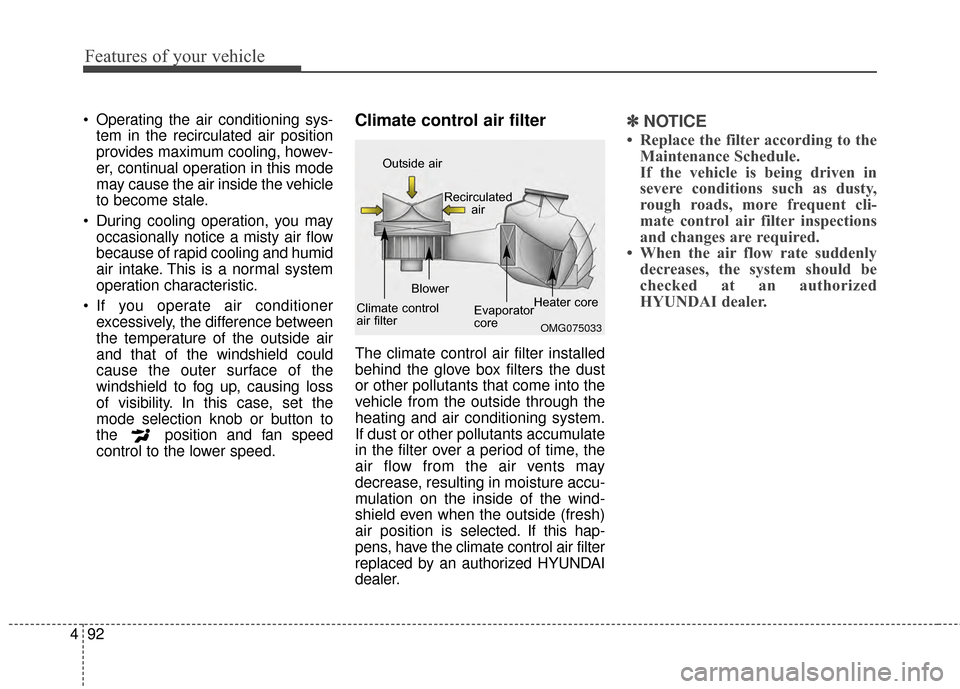
The climate control air filter installed
behind the glove box filters the dust
or other pollutants that come into the
vehicle from the outside through the
heating and air conditioning system.
If dust or other pollutants accumulate
in the filter over a period of time, the
air flow from the air vents may
decrease, resulting in moisture accu-
mulation on the inside of the wind-
shield even when the outside (fresh)
air position is selected. If this hap-
pens, have the climate control air filter
replaced by an authorized HYUNDAI
dealer.
✽ ✽ NOTICE
• Replace the filter according to the
Maintenance Schedule.
If the vehicle is being driven in
severe conditions such as dusty,
rough roads, more frequent cli-
mate control air filter inspections
and changes are required.
• When the air flow rate suddenly decreases, the system should be
checked at an authorized
HYUNDAI dealer.
OMG075033
Outside air
Recirculatedair
Climate control
air filter Blower
Evaporator
coreHeater core
Page 189 of 668
4103
Features of your vehicle
Operating the air conditioning sys-tem in the recirculated air position
provides maximum cooling, how-
ever, continual operation in this
mode may cause the air inside the
vehicle to become stale.
During cooling operation, you may occasionally notice a misty air flow
because of rapid cooling and
humid air intake. This is a normal
system operation characteristic.
If you operate air conditioner excessively, the difference
between the temperature of the
outside air and that of the wind-
shield could cause the outer sur-
face of the windshield to fog up,
causing loss of visibility. In this
case, set the mode selection knob
or button to the position and
fan speed control to the lower
speed.Climate control air filter
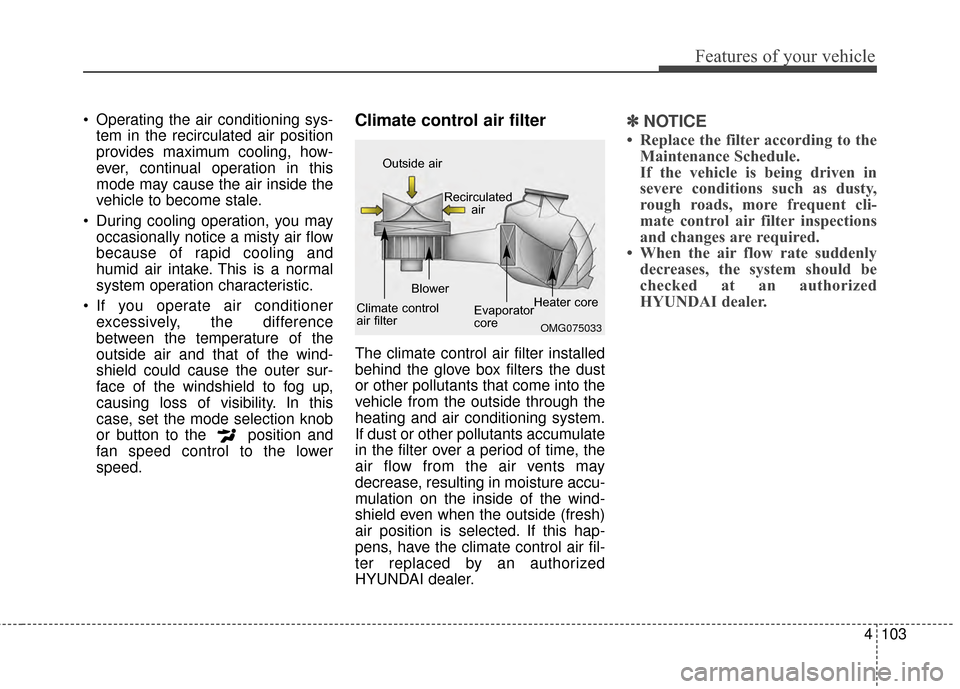
The climate control air filter installed
behind the glove box filters the dust
or other pollutants that come into the
vehicle from the outside through the
heating and air conditioning system.
If dust or other pollutants accumulate
in the filter over a period of time, the
air flow from the air vents may
decrease, resulting in moisture accu-
mulation on the inside of the wind-
shield even when the outside (fresh)
air position is selected. If this hap-
pens, have the climate control air fil-
ter replaced by an authorized
HYUNDAI dealer.
✽ ✽ NOTICE
• Replace the filter according to the
Maintenance Schedule.
If the vehicle is being driven in
severe conditions such as dusty,
rough roads, more frequent cli-
mate control air filter inspections
and changes are required.
• When the air flow rate suddenly decreases, the system should be
checked at an authorized
HYUNDAI dealer.
OMG075033
Outside air
Recirculatedair
Climate control
air filter Blower
Evaporator
coreHeater core
Page 207 of 668
4121
Features of your vehicle
Steering wheel audio control
(if equipped)
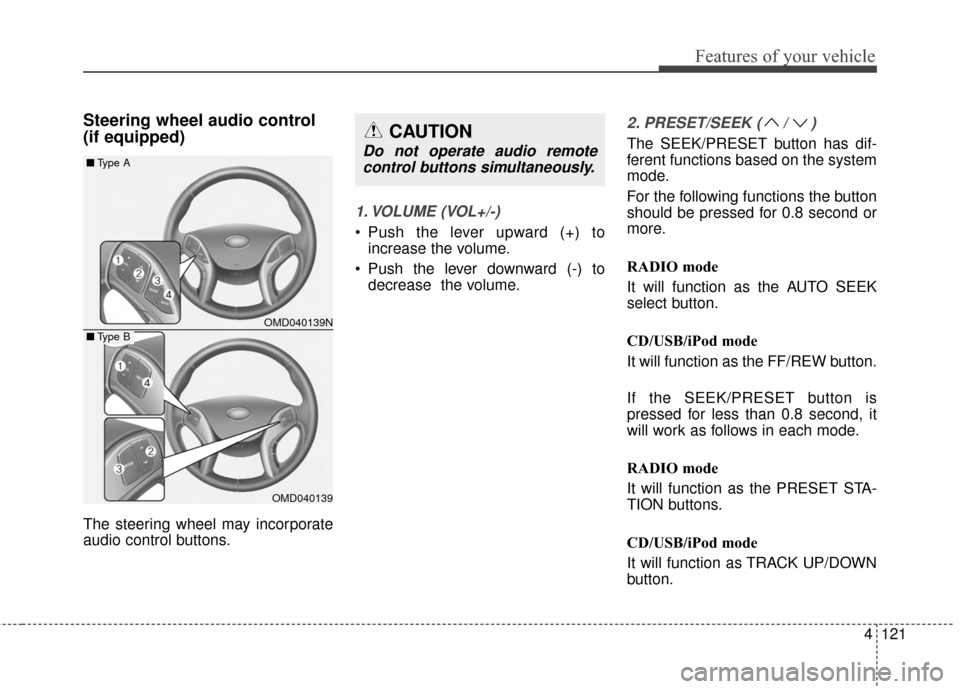
The steering wheel may incorporate
audio control buttons.
1. VOLUME (VOL+/-)
Push the lever upward (+) toincrease the volume.
Push the lever downward (-) to decrease the volume.
2. PRESET/SEEK ( / )
The SEEK/PRESET button has dif-
ferent functions based on the system
mode.
For the following functions the button
should be pressed for 0.8 second or
more.
RADIO mode
It will function as the AUTO SEEK
select button.
CD/USB/iPod mode
It will function as the FF/REW button.
If the SEEK/PRESET button is
pressed for less than 0.8 second, it
will work as follows in each mode.
RADIO mode
It will function as the PRESET STA-
TION buttons.
CD/USB/iPod mode
It will function as TRACK UP/DOWN
button.CAUTION
Do not operate audio remotecontrol buttons simultaneously.
OMD040139N
OMD040139
■ Type A
■Type B
Page 214 of 668
Features of your vehicle
128
4
✽
✽
NOTICE - USING THE
USB DEVICE
• To use an external USB device,
make sure the device is not con-
nected when starting up the
vehicle. Connect the device after
starting up.
• If you start the engine when the USB device is connected, it may
damage the USB device. (USB
flashdrives are very sensitive to
electric shock.)
• If the engine is started up or turned off while the external USB
device is connected, the external
USB device may not work.
• The System may not play unau- thenticated MP3 or WMA files.1) It can only play MP3 files with the compression rate
between 8Kbps~320Kbps.
2) It can only play WMA music files with the compression
rate between
8Kbps~320Kbps.
• Take precautions for static elec- tricity when connecting or dis-
connecting the external USB
device. (Continued)(Continued)
• An encrypted MP3 PLAYER is
not recognizable.
• Depending on the condition of the external USB device, the
connected external USB device
can be unrecognizable.
• When the formatted byte/sector setting of External USB device
is not either 512BYTE or
2048BYTE, then the device will
not be recognized.
• Use only a USB device format- ted to FAT 12/16/32.
• USB devices without USB I/F authentication may not be rec-
ognizable.
• Make sure the USB connection terminal does not come in con-
tact with the human body or
other objects.
• If you repeatedly connect or dis- connect the USB device in a
short period of time, it may
break the device.
• You may hear a strange noise when connecting or disconnect-
ing a USB device. (Continued)(Continued)
• If you disconnect the external
USB device during playback in
USB mode, the external USB
device can be damaged or may
malfunction. Therefore, discon-
nect the external USB device
when the audio is turned off or
in another mode. (e.g, Radio,
CD)
• Depending on the type and capacity of the external USB
device or the type of the files
stored in the device, there is a
difference in the time taken for
recognition of the device.
• Do not use the USB device for purposes other than playing
music files.
• Playing videos through the USB is not supported.
• Use of USB accessories such as rechargers or heaters using USB
I/F may lower performance or
cause trouble. (Continued)
Page 218 of 668
Features of your vehicle
132
4
✽
✽
NOTICE - WHEN CON-
NECTING A
Bluetooth®
PHONE
• Before connecting the head unit
with the mobile phone, check to
see that the mobile phone supports
Bluetooth
®features.
• Even if the phone supports Bluetooth
®, the phone will not be
found during device searches if the
phone has been set to hidden state
or the Bluetooth
®power is turned
off. Disable the hidden state or
turn on the Bluetooth
®power
prior to searching/connecting with
the Head unit.
• Bluetooth phone is automatically connected when the ignition is
turned on.
• If you do not want automatic con- nection with your Bluetooth
®
device, turn off the Bluetooth®fea-
ture within your mobile phone.
• The Handsfree call volume and quality may differ depending on
the mobile phone. (Continued)(Continued)
• Park the vehicle when connecting
the head unit with the mobile
phone.
• Bluetooth
®connection may
become intermittently disconnect-
ed in some mobile phones. Follow
these steps to try again. 1.Within the mobile phone, turn the Bluetooth
®function off/on
and try again.
2.Turn the mobile phone power Off/On and try again.
3.Completely remove the mobile phone battery, reboot, and then
again.
4.Reboot the Audio System and try again.
5. Delete all paired devices, pair and try again.
• Handsfree call quality and volume may differ depending on the
model of your mobile phone.
Page 219 of 668
4133
Features of your vehicle
✽
✽NOTICE - USING THE
VOICE RECOGNITION
• When using the voice recognition
feature, only commands listed
within the user's manual are sup-
ported.
• Be aware that during the opera- tion of the voice recognition sys-
tem, pressing any key other than
the key terminate voice recog-
nition mode.
• For superior voice recognition performance, position the micro-
phone used for voice recognition
above the head of the driver’s seat
and maintain a proper position
when saying commands.
• Within the following situations, voice recognition may not function
properly due to external sound.
- When the windows and sunroofare open
- When the wind of the cooling / heating device is strong
- When entering and passing through tunnels (Continued)(Continued)
- When driving on rugged anduneven roads
- During severe rain (heavy rains, windstorms)
• Phone related voice commands can be used only when a
Bluetooth
®Wireless Technology
device is connected.
• When making calls by stating a name, the corresponding contact
must be downloaded and stored
within the audio system.
• After downloading the Bluetooth
®
Wireless Technology phone book,
it takes some time to convert the
phone book data into voice infor-
mation. During this time, voice
recognition may not properly
operate.
• Pronounce the voice commands naturally and clearly as if in a nor-
mal conversation.
Page 223 of 668
4137
Features of your vehicle
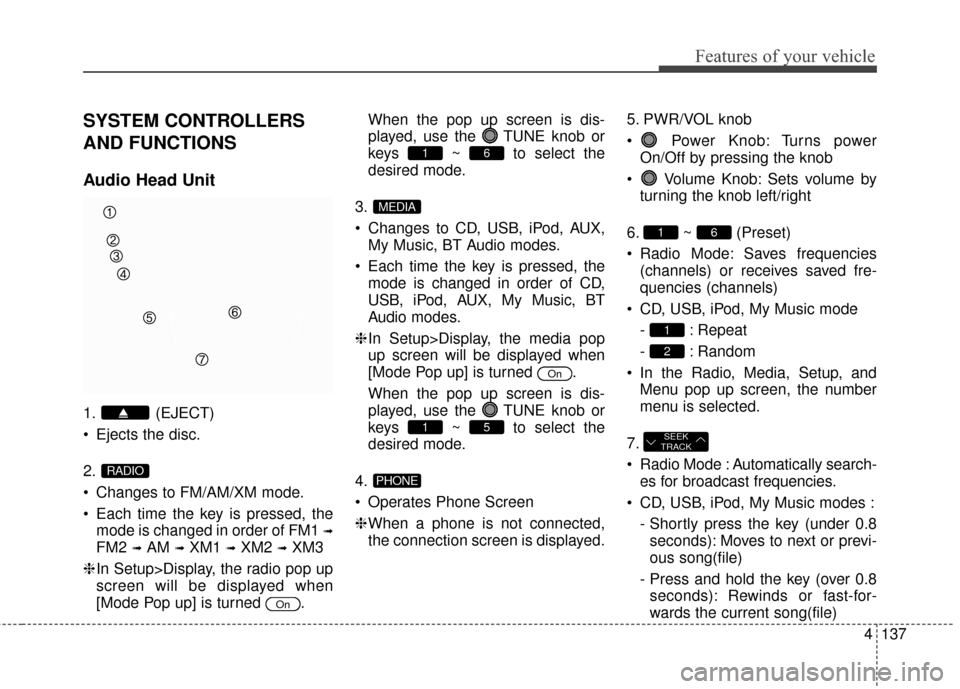
SYSTEM CONTROLLERS
AND FUNCTIONS
Audio Head Unit
1. (EJECT)
Ejects the disc.
2.
Changes to FM/AM/XM mode.
Each time the key is pressed, themode is changed in order of FM1
➟
FM2 ➟AM ➟XM1 ➟XM2 ➟XM3
❈ In Setup>Display, the radio pop up
screen will be displayed when
[Mode Pop up] is turned . When the pop up screen is dis-
played, use the TUNE knob or
keys ~ to select the
desired mode.
3.
Changes to CD, USB, iPod, AUX, My Music, BT Audio modes.
Each time the key is pressed, the mode is changed in order of CD,
USB, iPod, AUX, My Music, BT
Audio modes.
❈ In Setup>Display, the media pop
up screen will be displayed when
[Mode Pop up] is turned .
When the pop up screen is dis-
played, use the TUNE knob or
keys ~ to select the
desired mode.
4.
Operates Phone Screen
❈ When a phone is not connected,
the connection screen is displayed. 5. PWR/VOL knob
Power Knob: Turns power
On/Off by pressing the knob
Volume Knob: Sets volume by turning the knob left/right
6. ~ (Preset)
Radio Mode: Saves frequencies (channels) or receives saved fre-
quencies (channels)
CD, USB, iPod, My Music mode - : Repeat
- : Random
In the Radio, Media, Setup, and Menu pop up screen, the number
menu is selected.
7.
Radio Mode : Automatically search- es for broadcast frequencies.
CD, USB, iPod, My Music modes : - Shortly press the key (under 0.8seconds): Moves to next or previ-
ous song(file)
- Press and hold the key (over 0.8 seconds): Rewinds or fast-for-
wards the current song(file)
SEEK
TRACK
2
1
61
PHONE
51
On
MEDIA
61
On
RADIO
Page 224 of 668
Features of your vehicle
138
4
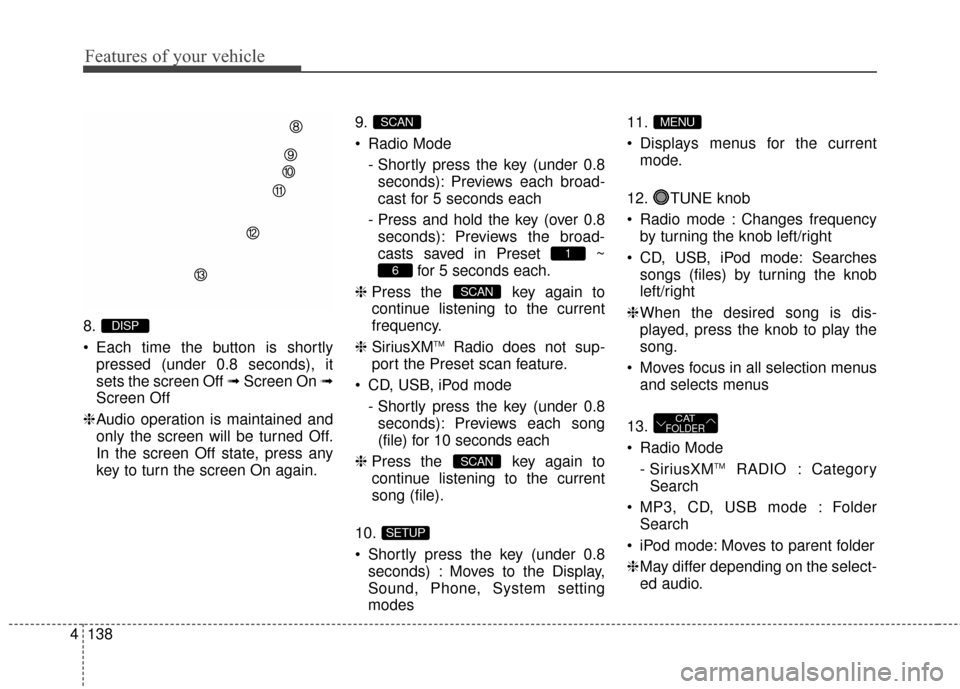
8.
Each time the button is shortly
pressed (under 0.8 seconds), it
sets the screen Off ➟ Screen On ➟
Screen Off
❈ Audio operation is maintained and
only the screen will be turned Off.
In the screen Off state, press any
key to turn the screen On again. 9.
Radio Mode
- Shortly press the key (under 0.8seconds): Previews each broad-
cast for 5 seconds each
- Press and hold the key (over 0.8 seconds): Previews the broad-
casts saved in Preset ~ for 5 seconds each.
❈ Press the key again to
continue listening to the current
frequency.
❈ SiriusXM
TMRadio does not sup-
port the Preset scan feature.
CD, USB, iPod mode - Shortly press the key (under 0.8seconds): Previews each song
(file) for 10 seconds each
❈ Press the key again to
continue listening to the current
song (file).
10.
Shortly press the key (under 0.8 seconds) : Moves to the Display,
Sound, Phone, System setting
modes 11.
Displays menus for the current
mode.
12. TUNE knob
Radio mode : Changes frequency by turning the knob left/right
CD, USB, iPod mode: Searches songs (files) by turning the knob
left/right
❈ When the desired song is dis-
played, press the knob to play the
song.
Moves focus in all selection menus and selects menus
13.
Radio Mode - SiriusXM
TMRADIO : Category
Search
MP3, CD, USB mode : Folder Search
iPod mode: Moves to parent folder
❈ May differ depending on the select-
ed audio.
CATFOLDER
MENU
SETUP
SCAN
SCAN
6
1
SCAN
DISP
Page 228 of 668
Features of your vehicle
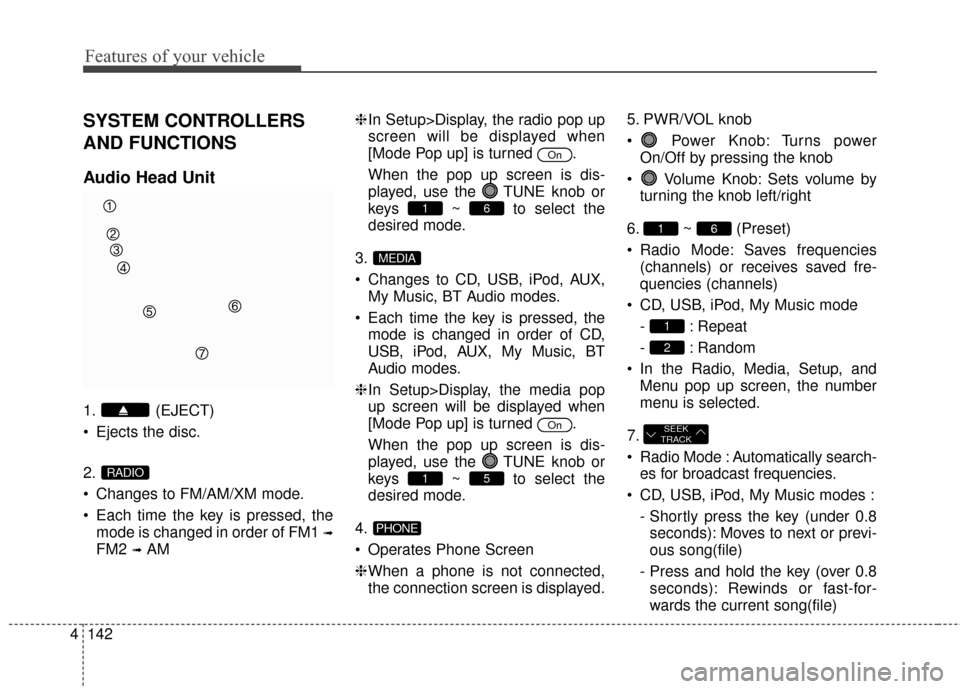
142
4
SYSTEM CONTROLLERS
AND FUNCTIONS
Audio Head Unit
1. (EJECT)
Ejects the disc.
2.
Changes to FM/AM/XM mode.
Each time the key is pressed, the
mode is changed in order of FM1
➟
FM2 ➟AM ❈
In Setup>Display, the radio pop up
screen will be displayed when
[Mode Pop up] is turned .
When the pop up screen is dis-
played, use the TUNE knob or
keys ~ to select the
desired mode.
3.
Changes to CD, USB, iPod, AUX, My Music, BT Audio modes.
Each time the key is pressed, the mode is changed in order of CD,
USB, iPod, AUX, My Music, BT
Audio modes.
❈ In Setup>Display, the media pop
up screen will be displayed when
[Mode Pop up] is turned .
When the pop up screen is dis-
played, use the TUNE knob or
keys ~ to select the
desired mode.
4.
Operates Phone Screen
❈ When a phone is not connected,
the connection screen is displayed. 5. PWR/VOL knob
Power Knob: Turns power
On/Off by pressing the knob
Volume Knob: Sets volume by turning the knob left/right
6. ~ (Preset)
Radio Mode: Saves frequencies (channels) or receives saved fre-
quencies (channels)
CD, USB, iPod, My Music mode - : Repeat
- : Random
In the Radio, Media, Setup, and Menu pop up screen, the number
menu is selected.
7.
Radio Mode : Automatically search- es for broadcast frequencies.
CD, USB, iPod, My Music modes : - Shortly press the key (under 0.8seconds): Moves to next or previ-
ous song(file)
- Press and hold the key (over 0.8 seconds): Rewinds or fast-for-
wards the current song(file)
SEEK
TRACK
2
1
61
PHONE
51
On
MEDIA
61
On
RADIO
Page 229 of 668
4143
Features of your vehicle
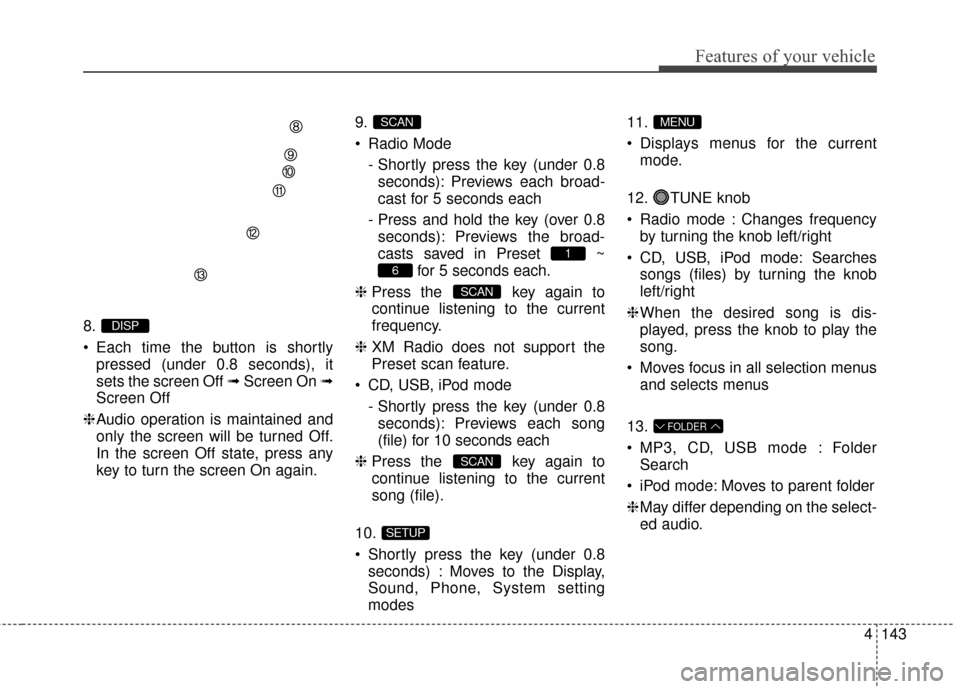
8.
Each time the button is shortlypressed (under 0.8 seconds), it
sets the screen Off ➟ Screen On ➟
Screen Off
❈ Audio operation is maintained and
only the screen will be turned Off.
In the screen Off state, press any
key to turn the screen On again. 9.
Radio Mode
- Shortly press the key (under 0.8seconds): Previews each broad-
cast for 5 seconds each
- Press and hold the key (over 0.8 seconds): Previews the broad-
casts saved in Preset ~ for 5 seconds each.
❈ Press the key again to
continue listening to the current
frequency.
❈ XM Radio does not support the
Preset scan feature.
CD, USB, iPod mode - Shortly press the key (under 0.8seconds): Previews each song
(file) for 10 seconds each
❈ Press the key again to
continue listening to the current
song (file).
10.
Shortly press the key (under 0.8 seconds) : Moves to the Display,
Sound, Phone, System setting
modes 11.
Displays menus for the current
mode.
12. TUNE knob
Radio mode : Changes frequency by turning the knob left/right
CD, USB, iPod mode: Searches songs (files) by turning the knob
left/right
❈ When the desired song is dis-
played, press the knob to play the
song.
Moves focus in all selection menus and selects menus
13.
MP3, CD, USB mode : Folder Search
iPod mode: Moves to parent folder
❈ May differ depending on the select-
ed audio.
FOLDER
MENU
SETUP
SCAN
SCAN
6
1
SCAN
DISP