radio Hyundai Elantra 2015 - RHD (UK. Australia) User Guide
[x] Cancel search | Manufacturer: HYUNDAI, Model Year: 2015, Model line: Elantra, Model: Hyundai Elantra 2015Pages: 498, PDF Size: 9.45 MB
Page 222 of 498
Features of your vehicle
142 4
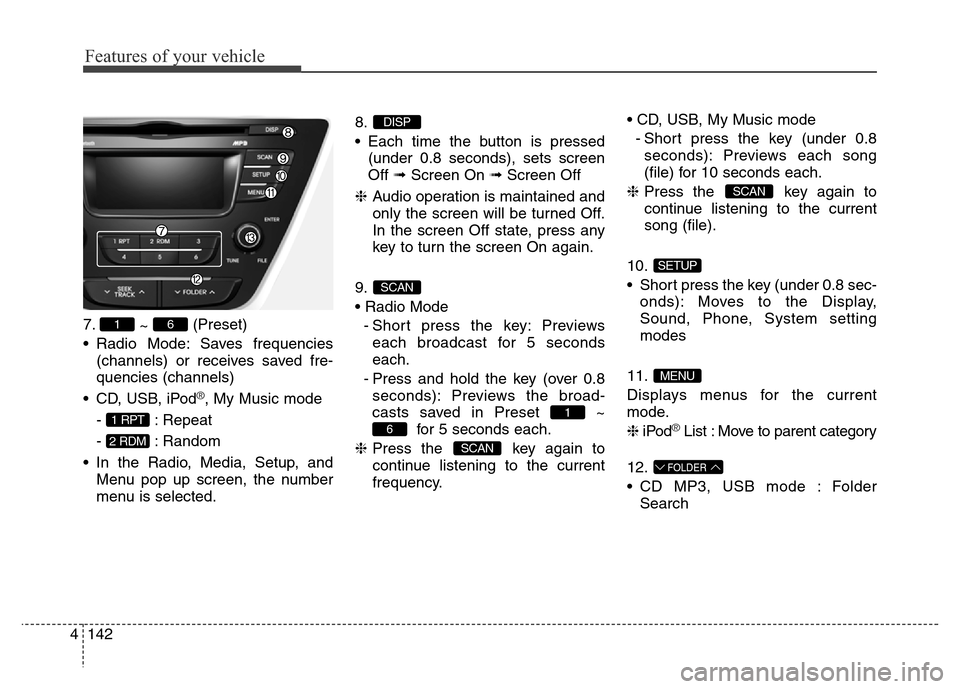
7.
~ (Preset)
• Radio Mode: Saves frequencies
(channels) or receives saved fre-
quencies (channels)
• CD, USB, iPod
®, My Music mode
- : Repeat
- : Random
• In the Radio, Media, Setup, and
Menu pop up screen, the number
menu is selected.8.
• Each time the button is pressed
(under 0.8 seconds), sets screen
Off ➟Screen On ➟Screen Off
❈Audio operation is maintained and
only the screen will be turned Off.
In the screen Off state, press any
key to turn the screen On again.
9.
• Radio Mode
- Short press the key: Previews
each broadcast for 5 seconds
each.
- Press and hold the key (over 0.8
seconds): Previews the broad-
casts saved in Preset ~
for 5 seconds each.
❈Press the key again to
continue listening to the current
frequency.• CD, USB, My Music mode
- Short press the key (under 0.8
seconds): Previews each song
(file) for 10 seconds each.
❈Press the key again to
continue listening to the current
song (file).
10.
• Short press the key (under 0.8 sec-
onds): Moves to the Display,
Sound, Phone, System setting
modes
11.
Displays menus for the current
mode.
❈iPod
®List : Move to parent category
12.
• CD MP3, USB mode : Folder
Search
FOLDER
MENU
SETUP
SCAN
SCAN
6
1
SCAN
DISP
2 RDM
1 RPT
61
Page 223 of 498
4143
Features of your vehicle
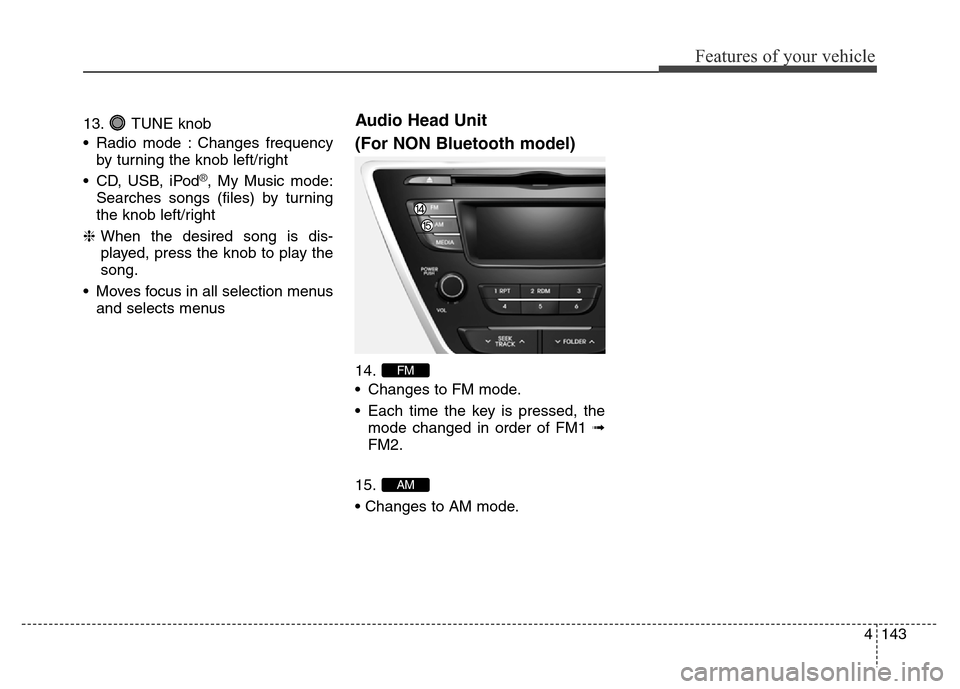
13. TUNE knob
• Radio mode : Changes frequency
by turning the knob left/right
• CD, USB, iPod
®, My Music mode:
Searches songs (files) by turning
the knob left/right
❈When the desired song is dis-
played, press the knob to play the
song.
• Moves focus in all selection menus
and selects menus
Audio Head Unit
(For NON Bluetooth model)
14.
• Changes to FM mode.
• Each time the key is pressed, the
mode changed in order of FM1 ➟
FM2.
15.
• Changes to AM mode.
AM
FM
Page 224 of 498
![Hyundai Elantra 2015 - RHD (UK. Australia) User Guide Features of your vehicle
144 4
SETUP
Display Settings
Press the key Select
[Display] through TUNE knob or
key Select menu through
TUNE knobMode Pop up
[Mode Pop up] Changes .
selection mode
• D](/img/35/14563/w960_14563-223.png "Hyundai Elantra 2015 - RHD (UK. Australia) User Guide Features of your vehicle
144 4
SETUP
Display Settings
Press the key Select
[Display] through TUNE knob or
key Select menu through
TUNE knobMode Pop up
[Mode Pop up] Changes .
selection mode
• D")
Features of your vehicle
144 4
SETUP
Display Settings
Press the key Select
[Display] through TUNE knob or
key Select menu through
TUNE knobMode Pop up
[Mode Pop up] Changes .
selection mode
• During On state, press the
or key to display the mode
change pop up screen.
• When the pop up screen is dis-
played, use the TUNE knob or
keys ~ to select the
desired mode.
Text Scroll
[Text Scroll] Set /
• : Maintains scroll
• : Scrolls only one (1) time.
Media Display
When playing an MP3 file, select the
desired display info from ‘Folder/File’
or ‘Album/Artist/Song’.
Sound Settings
Press the key Select
[Sound] through TUNE knob or
key Select menu through
TUNE knob
2 RDM
SETUP
Off
On
OffOn
61
MEDIA
RADIO
On
1 RPT
SETUP
Page 232 of 498
Features of your vehicle
152 4
RADIO
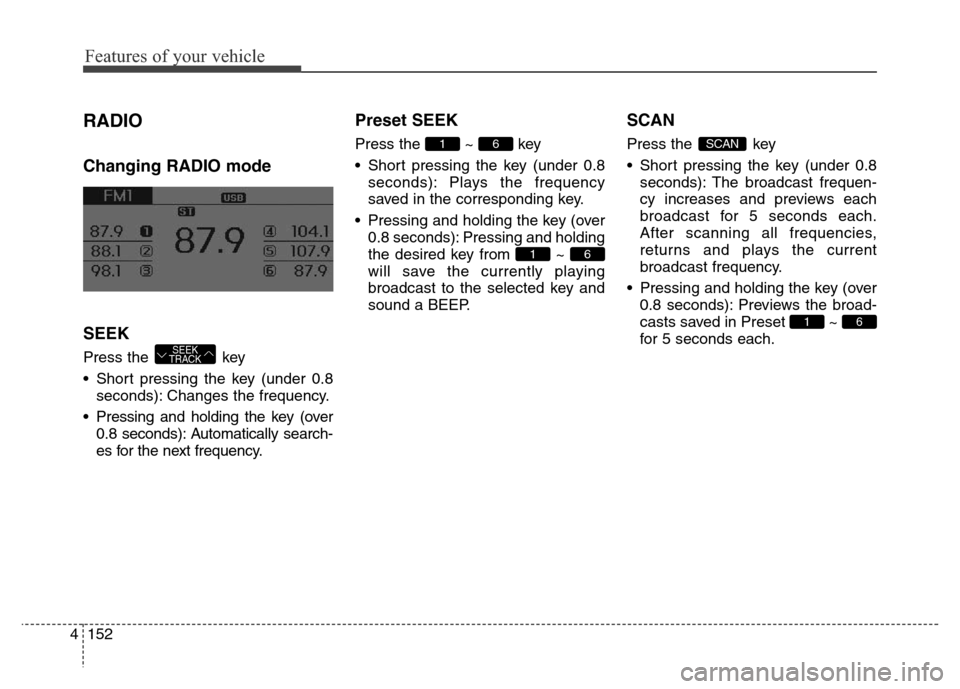
Changing RADIO mode
SEEK
Press the key
• Short pressing the key (under 0.8
seconds): Changes the frequency.
• Pressing and holding the key (over
0.8 seconds): Automatically search-
es for the next frequency.
Preset SEEK
Press the ~ key
• Short pressing the key (under 0.8
seconds): Plays the frequency
saved in the corresponding key.
• Pressing and holding the key (over
0.8 seconds): Pressing and holding
the desired key from ~
will save the currently playing
broadcast to the selected key and
sound a BEEP.
SCAN
Press the key
• Short pressing the key (under 0.8
seconds): The broadcast frequen-
cy increases and previews each
broadcast for 5 seconds each.
After scanning all frequencies,
returns and plays the current
broadcast frequency.
• Pressing and holding the key (over
0.8 seconds): Previews the broad-
casts saved in Preset ~
for 5 seconds each.
61
SCAN
61
61
SEEK
TRACK
Page 247 of 498
4167
Features of your vehicle
SYSTEM CONTROLS AND
FUNCTIONS
❈Display and settings may differ
depending on the selected audio.
Audio Head Unit
(for
Bluetooth®Wireless
Technologyequipped model)
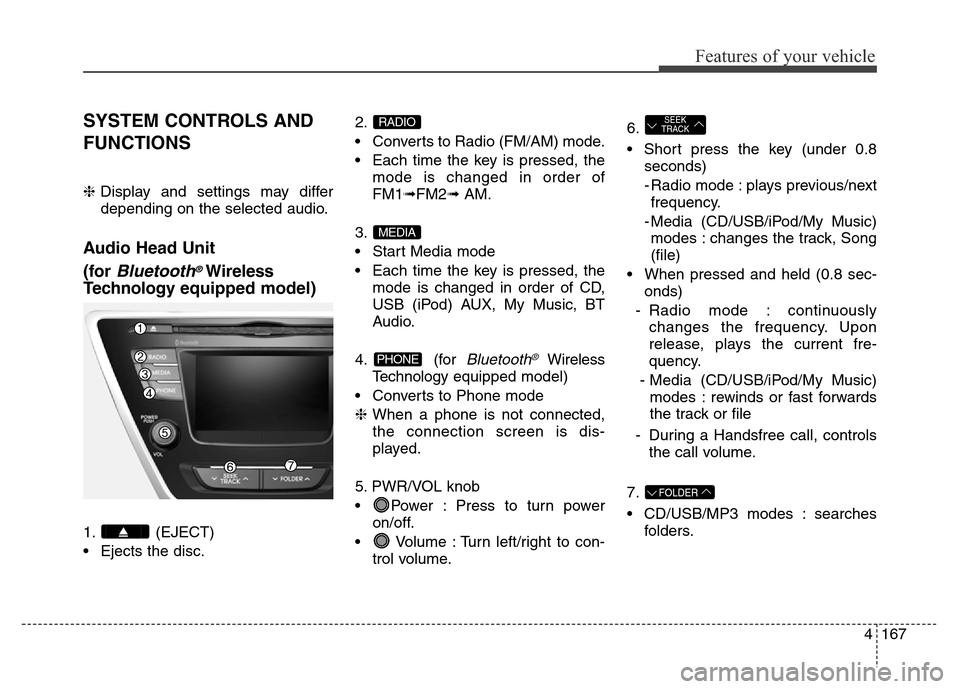
1. (EJECT)
• Ejects the disc.2.
• Converts to Radio (FM/AM) mode.
• Each time the key is pressed, the
mode is changed in order of
FM1➟FM2➟ AM.
3.
• Start Media mode
• Each time the key is pressed, the
mode is changed in order of CD,
USB (iPod) AUX, My Music, BT
Audio.
4. (for
Bluetooth®Wireless
Technologyequipped model)
• Converts to Phone mode
❈When a phone is not connected,
the connection screen is dis-
played.
5. PWR/VOL knob
• Power : Press to turn power
on/off.
• Volume : Turn left/right to con-
trol volume.6.
• Short press the key (under 0.8
seconds)
- Radio mode : plays previous/next
frequency.
- Media (CD/USB/iPod/My Music)
modes : changes the track, Song
(file)
• When pressed and held (0.8 sec-
onds)
- Radio mode : continuously
changes the frequency. Upon
release, plays the current fre-
quency.
- Media (CD/USB/iPod/My Music)
modes : rewinds or fast forwards
the track or file
- During a Handsfree call, controls
the call volume.
7.
• CD/USB/MP3 modes : searches
folders.
FOLDER
SEEK
TRACK
PHONE
MEDIA
RADIO
Page 248 of 498
Features of your vehicle
168 4
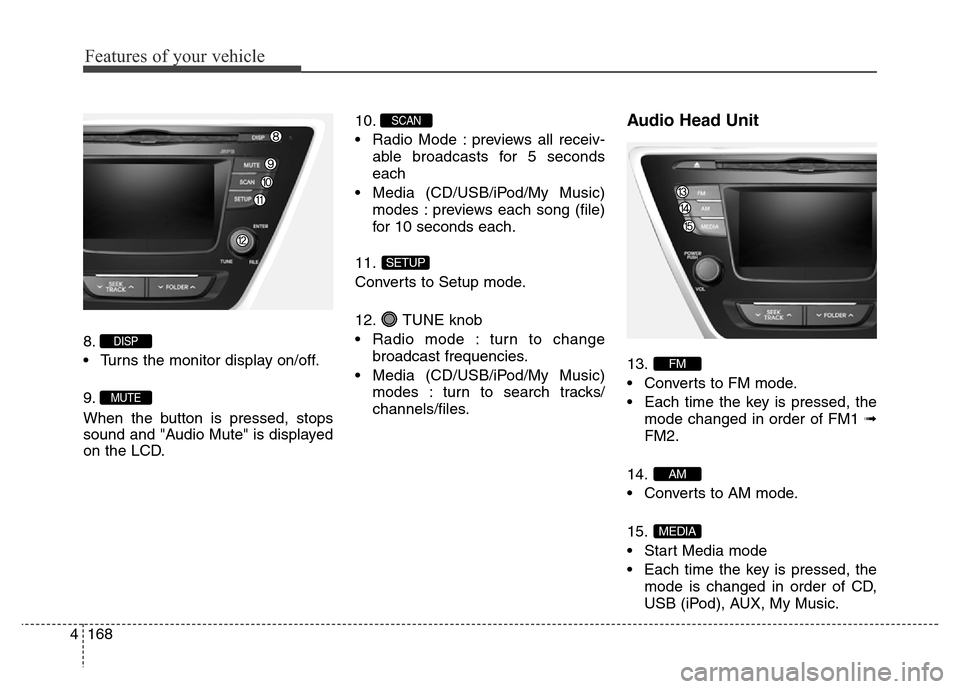
8.
• Turns the monitor display on/off.
9.
When the button is pressed, stops
sound and "Audio Mute" is displayed
on the LCD.10.
• Radio Mode : previews all receiv-
able broadcasts for 5 seconds
each
• Media (CD/USB/iPod/My Music)
modes : previews each song (file)
for 10 seconds each.
11.
Converts to Setup mode.
12. TUNE knob
• Radio mode : turn to change
broadcast frequencies.
• Media (CD/USB/iPod/My Music)
modes : turn to search tracks/
channels/files.
Audio Head Unit
13.
• Converts to FM mode.
• Each time the key is pressed, the
mode changed in order of FM1 ➟
FM2.
14.
• Converts to AM mode.
15.
• Start Media mode
• Each time the key is pressed, the
mode is changed in order of CD,
USB (iPod), AUX, My Music.
MEDIA
AM
FM
SETUP
SCAN
MUTE
DISP
Page 249 of 498
4169
Features of your vehicle
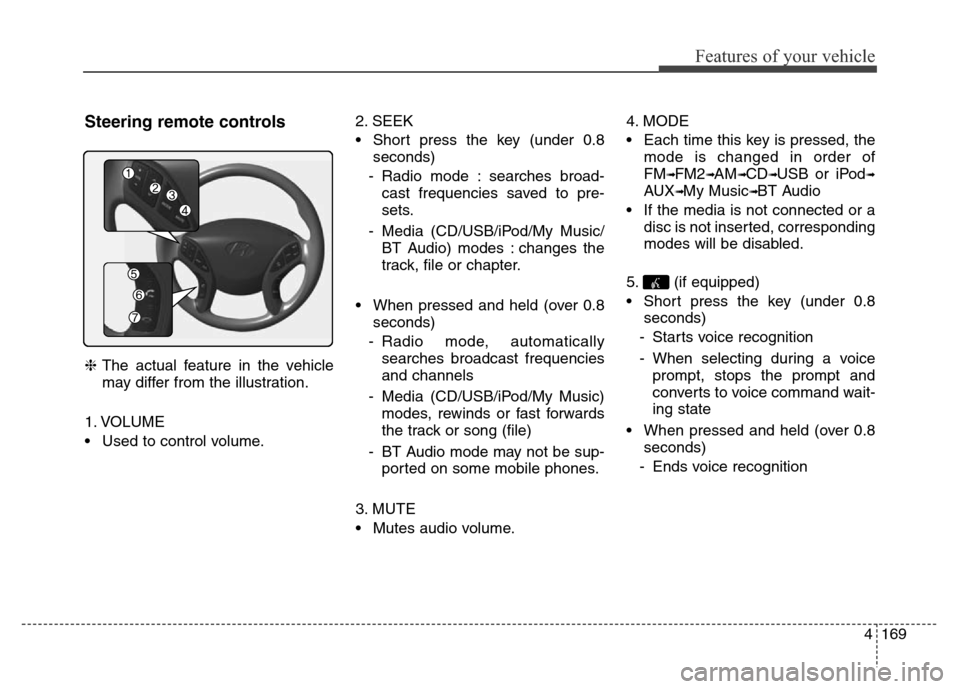
Steering remote controls
❈The actual feature in the vehicle
may differ from the illustration.
1. VOLUME
• Used to control volume.2. SEEK
• Short press the key (under 0.8
seconds)
- Radio mode : searches broad-
cast frequencies saved to pre-
sets.
- Media (CD/USB/iPod/My Music/
BT Audio) modes : changes the
track, file or chapter.
• When pressed and held (over 0.8
seconds)
- Radio mode, automatically
searches broadcast frequencies
and channels
- Media (CD/USB/iPod/My Music)
modes, rewinds or fast forwards
the track or song (file)
- BT Audio mode may not be sup-
ported on some mobile phones.
3. MUTE
• Mutes audio volume.4. MODE
• Each time this key is pressed, the
mode is changed in order of
FM
➟FM2➟AM➟CD➟USB or iPod➟
AUX➟My Music➟BT Audio
• If the media is not connected or a
disc is not inserted, corresponding
modes will be disabled.
5. (if equipped)
• Short press the key (under 0.8
seconds)
- Starts voice recognition
- When selecting during a voice
prompt, stops the prompt and
converts to voice command wait-
ing state
• When pressed and held (over 0.8
seconds)
- Ends voice recognition
Page 251 of 498
![Hyundai Elantra 2015 - RHD (UK. Australia) User Guide 4171
Features of your vehicle
RADIO MODE
Basic Mode Screen
1. Mode Display
Displays currently operating mode
2. Frequency
Displays the current frequency
3. Preset
Displays current preset number [1] ~](/img/35/14563/w960_14563-250.png "Hyundai Elantra 2015 - RHD (UK. Australia) User Guide 4171
Features of your vehicle
RADIO MODE
Basic Mode Screen
1. Mode Display
Displays currently operating mode
2. Frequency
Displays the current frequency
3. Preset
Displays current preset number [1] ~")
4171
Features of your vehicle
RADIO MODE
Basic Mode Screen
1. Mode Display
Displays currently operating mode
2. Frequency
Displays the current frequency
3. Preset
Displays current preset number [1] ~
[6]
4. Preset Display
Displays preset buttons
5. Autostore
Automatically saves frequencies with
superior reception to Preset buttonsSwitching to Radio Mode
Pressing the key will change
the operating mode in order of FM1
➟FM2➟AM
Press the or key to
change the mode in order of FM1
➟
FM2 and AM.
If [Mode Pop-up] is turned on within
[Display], then pressing the
key will display the Radio
Pop-up Mode screen.
Turn the TUNE knob to move to
another radio mode. Press the knob
to select.
RADIO
SETUP
AMFM
RADIO
Page 252 of 498
Features of your vehicle
172 4
Searching Radio Frequencies
Using Seek
Press the key to play the
previous/next frequency.
Using TUNE
Turn the TUNE knob to select the
desired frequency.
• FM : Increases/decreased by 100kHz
• AM : Increases/decreased by 9kHz
Using Radio Mode
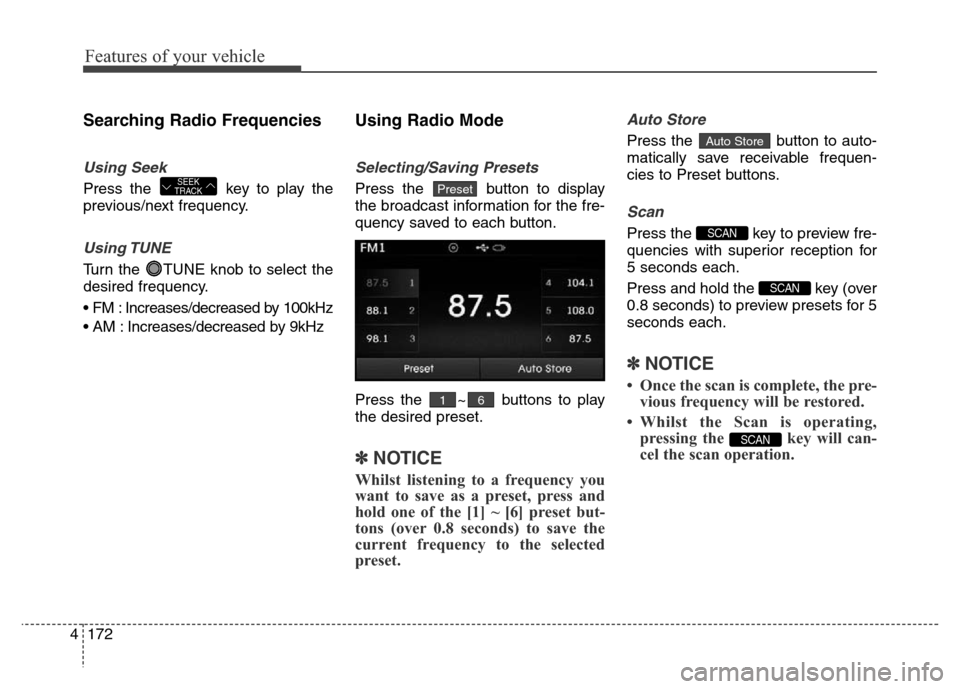
Selecting/Saving Presets
Press the button to display
the broadcast information for the fre-
quency saved to each button.
Press the ~ buttons to play
the desired preset.
✽NOTICE
Whilst listening to a frequency you
want to save as a preset, press and
hold one of the [1] ~ [6] preset but-
tons (over 0.8 seconds) to save the
current frequency to the selected
preset.
Auto Store
Press the button to auto-
matically save receivable frequen-
cies to Preset buttons.
Scan
Press the key to preview fre-
quencies with superior reception for
5 seconds each.
Press and hold the key (over
0.8 seconds) to preview presets for 5
seconds each.
✽NOTICE
• Once the scan is complete, the pre-
vious frequency will be restored.
• Whilst the Scan is operating,
pressing the key will can-
cel the scan operation.
SCAN
SCAN
SCAN
Auto Store
61
PresetSEEK
TRACK
Page 297 of 498
4217
Features of your vehicle
SETUP
(for
Bluetooth®Wireless
Technologyequipped model)
- AM910MDMG, AM911MDMG,
AM910MDMN, AM910MDEE,
AM911MDMN, AM910MDXN
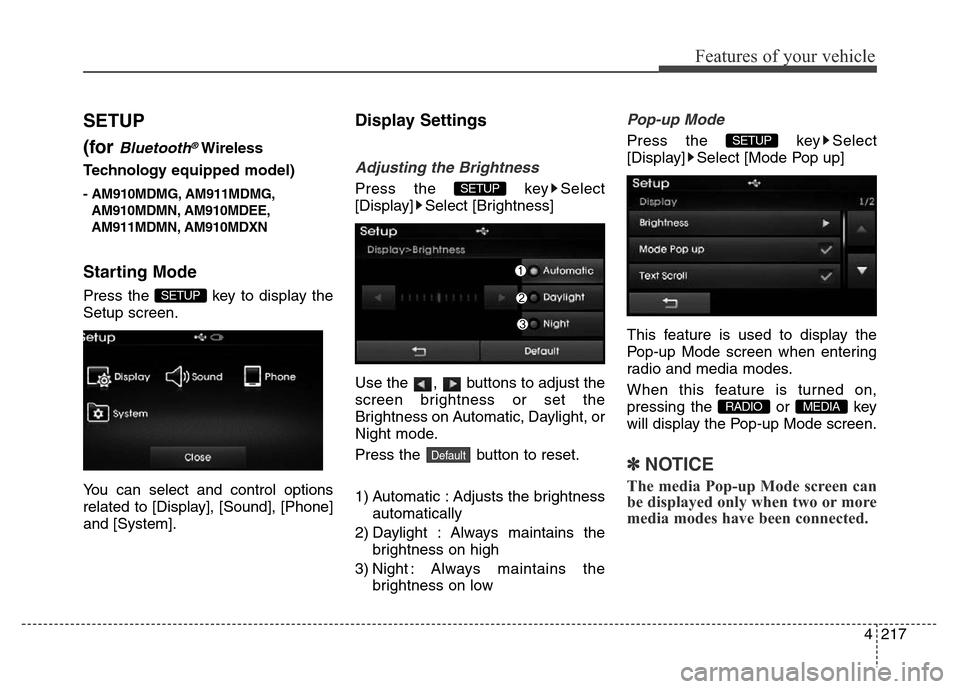
Starting Mode
Press the key to display the
Setup screen.
You can select and control options
related to [Display], [Sound], [Phone]
and [System].
Display Settings
Adjusting the Brightness
Press the key Select
[Display] Select [Brightness]
Use the , buttons to adjust the
screen brightness or set the
Brightness on Automatic, Daylight, or
Night mode.
Press the button to reset.
1) Automatic : Adjusts the brightness
automatically
2) Daylight : Always maintains the
brightness on high
3) Night : Always maintains the
brightness on low
Pop-up Mode
Press the key Select
[Display] Select [Mode Pop up]
This feature is used to display the
Pop-up Mode screen when entering
radio and media modes.
When this feature is turned on,
pressing the or key
will display the Pop-up Mode screen.
✽NOTICE
The media Pop-up Mode screen can
be displayed only when two or more
media modes have been connected.
MEDIA RADIO
SETUP
Default
SETUP
SETUP