navigation system HYUNDAI ELANTRA HYBRID 2021 User Guide
[x] Cancel search | Manufacturer: HYUNDAI, Model Year: 2021, Model line: ELANTRA HYBRID, Model: HYUNDAI ELANTRA HYBRID 2021Pages: 555, PDF Size: 56.08 MB
Page 227 of 555
Convenient Features
5 -74
ODN8A059204
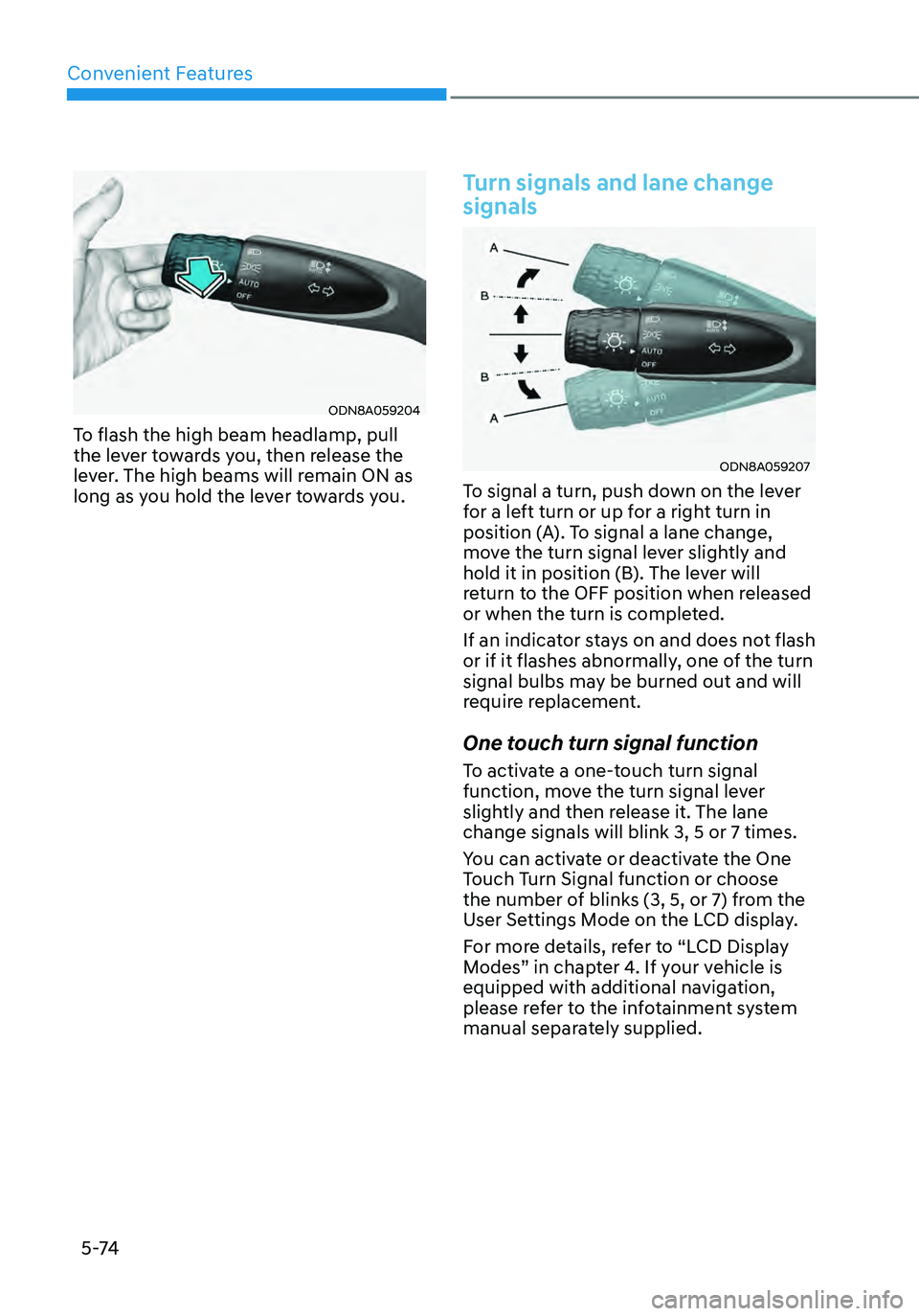
To flash the high beam headlamp, pull
the lever towards you, then release the
lever. The high beams will remain ON as
long as you hold the lever towards you.
Turn signals and lane change
signals
ODN8A059207
To signal a turn, push down on the lever
for a left turn or up for a right turn in
position (A). To signal a lane change,
move the turn signal lever slightly and
hold it in position (B). The lever will
return to the OFF position when released
or when the turn is completed.
If an indicator stays on and does not flash
or if it flashes abnormally, one of the turn
signal bulbs may be burned out and will
require replacement.
One touch turn signal function
To activate a one-touch turn signal
function, move the turn signal lever
slightly and then release it. The lane
change signals will blink 3, 5 or 7 times.
You can activate or deactivate the One
Touch Turn Signal function or choose
the number of blinks (3, 5, or 7) from the
User Settings Mode on the LCD display.
For more details, refer to “LCD Display
Modes” in chapter 4. If your vehicle is
equipped with additional navigation,
please refer to the infotainment system
manual separately supplied.
Page 228 of 555
05
5-75
Battery saver function
The purpose of this feature is to
help prevent the battery from being
discharged. The system automatically
turns off the parking lamp when the
driver turns the vehicle off and opens the
driver-side door.
With this feature, the parking lamps will
turn off automatically if the driver parks
on the side of road at night.
If necessary, to keep the lamps on when
the vehicle is turned off, perform the
following:
(1) Open the driver-side door.
(2) Turn the parking lamps OFF and ON
again using the headlamp switch on
the steering column.
Headlamp delay function
(if equipped)
If you place the ignition switch in the
ACC or OFF position with the headlamps
ON, the headlamps (and/or parking
lamps) remain on for about 5 minutes.
However, with the engine off if the
driver’s door is opened and closed, the
headlamps (and/or parking lamps) are
turned off after 15 seconds.
The headlamps (and/or parking lamps)
can be turned off by pressing the lock
button on the remote key or smart key
twice or turning the light switch to the
OFF or AUTO position. However, if you
turn the light switch to the AUTO position
when it is dark outside, the headlamps
will not be turned off.
You can activate or deactivate the
Headlamp Delay function from the User
Settings Mode in the LCD display.
For more details, refer to “LCD Display
Modes” in chapter 4. If your vehicle is
equipped with additional navigation,
please refer to the infotainment system
manual separately supplied.
NOTICE
If the driver exits the vehicle through
another door besides the driver
door, the battery saver function
does not operate and the headlamp
delay function does not turn OFF
automatically.
This may cause the battery to
discharge. To avoid battery discharge,
turn OFF the headlamps manually from
the headlamp switch before exiting the
vehicle.
Page 235 of 555
Convenient Features
5-82
Welcome system (if equipped)
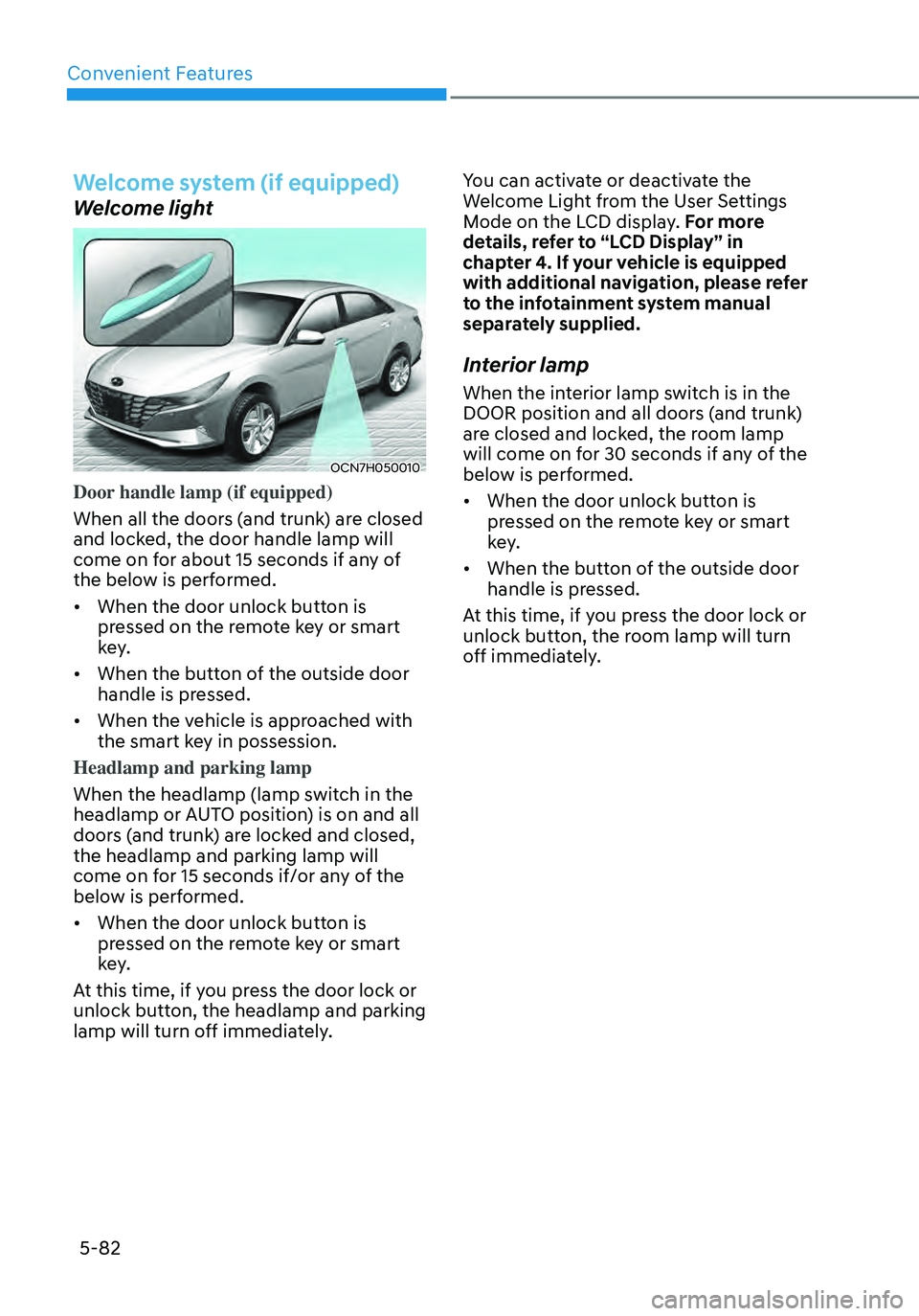
Welcome light
OCN7H050010
Door handle lamp (if equipped)
When all the doors (and trunk) are closed
and locked, the door handle lamp will
come on for about 15 seconds if any of
the below is performed.
• When the door unlock button is
pressed on the remote key or smart
key.
• When the button of the outside door
handle is pressed.
• When the vehicle is approached with
the smart key in possession.
Headlamp and parking lamp
When the headlamp (lamp switch in the
headlamp or AUTO position) is on and all
doors (and trunk) are locked and closed,
the headlamp and parking lamp will
come on for 15 seconds if/or any of the
below is performed.
• When the door unlock button is
pressed on the remote key or smart
key.
At this time, if you press the door lock or
unlock button, the headlamp and parking
lamp will turn off immediately. You can activate or deactivate the
Welcome Light from the User Settings
Mode on the LCD display. For more
details, refer to “LCD Display” in
chapter 4. If your vehicle is equipped
with additional navigation, please refer
to the infotainment system manual
separately supplied.
Interior lamp
When the interior lamp switch is in the
DOOR position and all doors (and trunk)
are closed and locked, the room lamp
will come on for 30 seconds if any of the
below is performed.
•
When the door unlock button is
pressed on the remote key or smart
key.
• When the button of the outside door
handle is pressed.
At this time, if you press the door lock or
unlock button, the room lamp will turn
off immediately.
Page 265 of 555
Convenient Features
5-112
Infotainment system (if equipped)
If your vehicle is equipped with
additional navigation, please refer to the
infotainment system manual separately
supplied.
Voice recognition (if equipped)
OCN7050081
A wide range of infotainment functions
can be commanded with voice
recognition.
If your vehicle is equipped with
additional navigation, please refer
to the infotainment system manual
separately supplied.
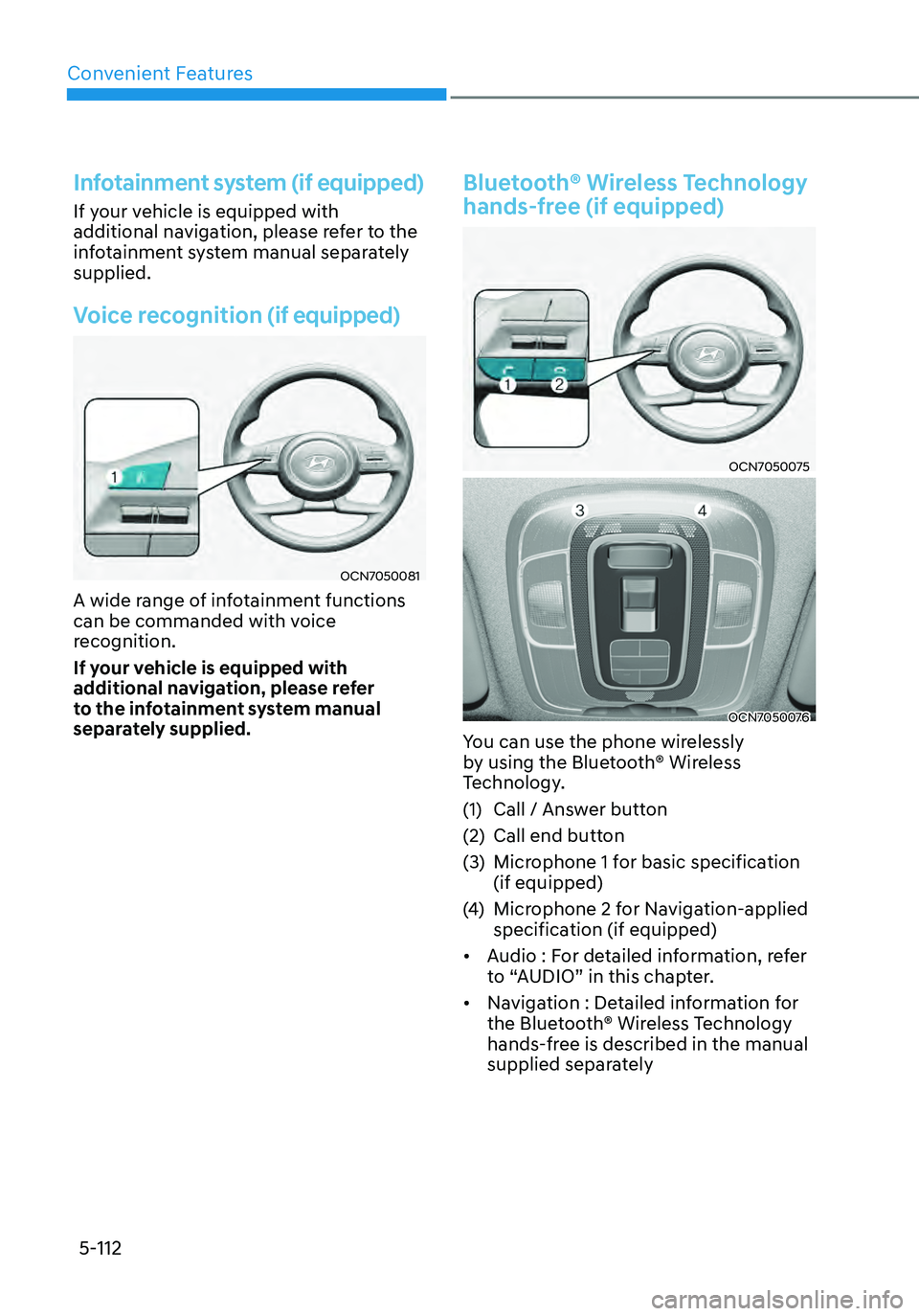
Bluetooth® Wireless Technology
hands-free (if equipped)
OCN7050075
OCN7050076
You can use the phone wirelessly
by using the Bluetooth® Wireless
Technology.
(1) Call / Answer button
(2) Call end button
(3) Microphone 1 for basic specification
(if equipped)
(4) Microphone 2 for Navigation-applied
specification (if equipped)
• Audio : For detailed information, refer
to “AUDIO” in this chapter.
• Navigation : Detailed information for
the Bluetooth® Wireless Technology
hands-free is described in the manual
supplied separately
Page 290 of 555
6-22
COASTING GUIDE (IF EQUIPPED)
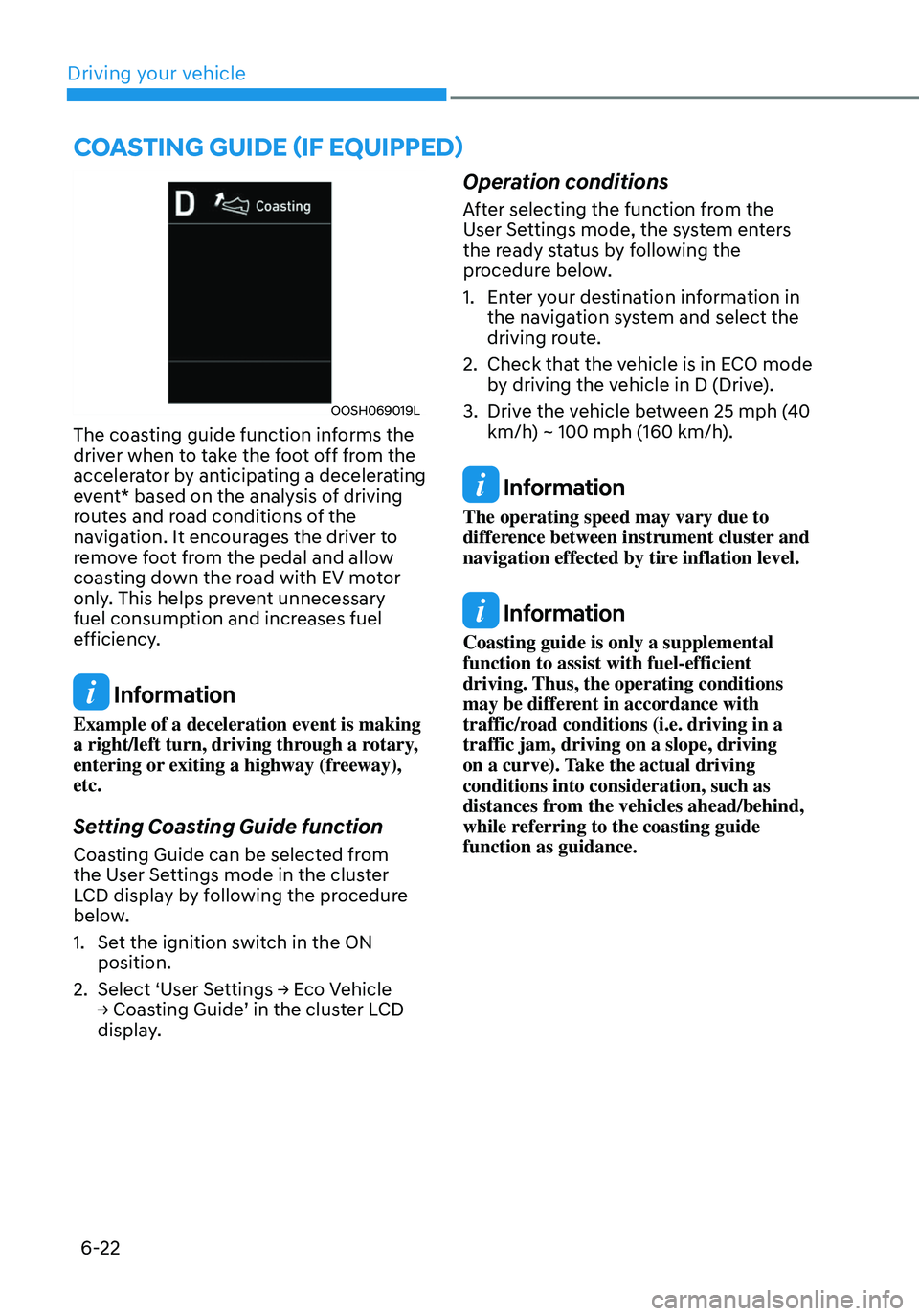
OOSH069019L
The coasting guide function informs the
driver when to take the foot off from the
accelerator by anticipating a decelerating
event* based on the analysis of driving
routes and road conditions of the
navigation. It encourages the driver to
remove foot from the pedal and allow
coasting down the road with EV motor
only. This helps prevent unnecessary
fuel consumption and increases fuel
efficiency.
Information
Example of a deceleration event is making
a right/left turn, driving through a rotary,
entering or exiting a highway (freeway),
etc.
Setting Coasting Guide function
Coasting Guide can be selected from
the User Settings mode in the cluster
LCD display by following the procedure
below.
1. Set the ignition switch in the ON
position.
2. Select ‘User Settings → Eco Vehicle → Coasting Guide’ in the cluster LCD display.
Operation conditions
After selecting the function from the
User Settings mode, the system enters
the ready status by following the
procedure below.
1. Enter your destination information in
the navigation system and select the
driving route.
2. Check that the vehicle is in ECO mode
by driving the vehicle in D (Drive).
3. Drive the vehicle between 25 mph (40
km/h) ~ 100 mph (160 km/h).
Information
The operating speed may vary due to
difference between instrument cluster and
navigation effected by tire inflation level.
Information
Coasting guide is only a supplemental
function to assist with fuel-efficient
driving. Thus, the operating conditions
may be different in accordance with
traffic/road conditions (i.e. driving in a
traffic jam, driving on a slope, driving
on a curve). Take the actual driving
conditions into consideration, such as
distances from the vehicles ahead/behind,
while referring to the coasting guide
function as guidance.
Driving your vehicle
Page 322 of 555
Driving SafetyForward Collision–Avoidance Assist (FCA) (Front view camera only) ...................7-2
Forward Collision–Avoidance Assist (FCA) (Sensor fusion) ..................................7-14
Lane Keeping Assist (LKA) ........................................................................\
..............7-30
Blind-Spot Collision-Avoidance Assist (BCA) .........................................................7-36
Safe Exit Assist (SEA) ........................................................................\
......................7-50
Driver Attention Warning (DAW) ........................................................................\
.....7-55
Driving ConvenienceCruise Control (CC) ........................................................................\
..........................7-61
Smart Cruise Control (SCC) ........................................................................\
............7-65
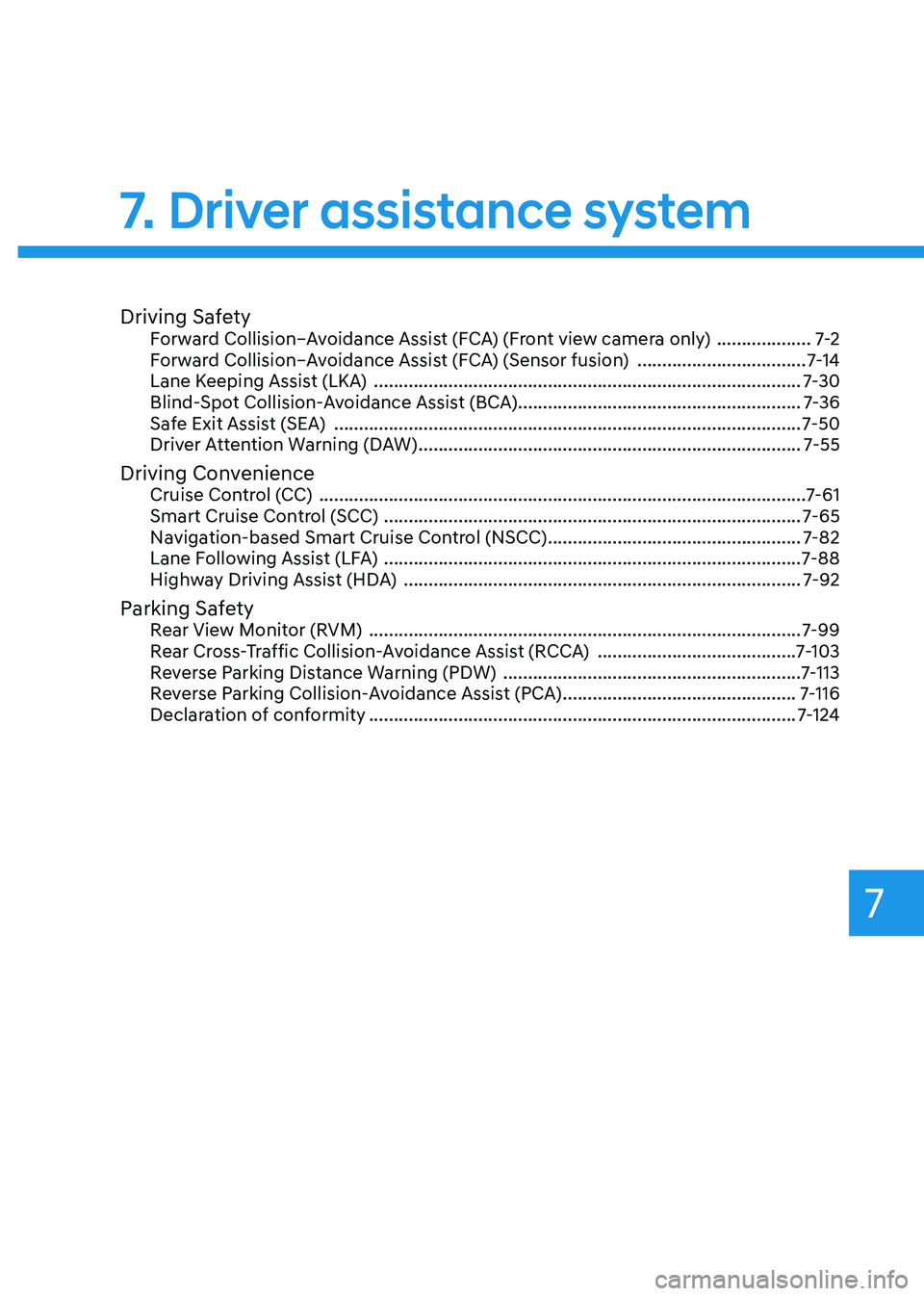
Navigation-based Smart Cruise Control (NSCC) ...................................................7-82
Lane Following Assist (LFA) ........................................................................\
............7-8 8
Highway Driving Assist (HDA) ........................................................................\
........7-9 2
Parking SafetyRear View Monitor (RVM) ........................................................................\
...............7-99
Rear Cross-Traffic Collision-Avoidance Assist (RCCA) ........................................7-10 3
Reverse Parking Distance Warning (PDW) ............................................................7-11 3
Reverse Parking Collision-Avoidance Assist (PCA) ...............................................7-11 6
Declaration of conformity ........................................................................\
..............7-12 4
7.Driver assistance system
Driver assistance system
7
Page 403 of 555
Driver assistance system
7-82
Navigation-based Smart Cruise Control
can help automatically adjust vehicle
speed when driving on highways (or
motorways) by using road information
from the navigation system while Smart
Cruise Control is operating.
Information
• Navigation-based Smart Cruise Control
is available only on controlled access
road of certain highways.
ÃControlled access road indicates
roads with limited entrances and
exits that allow uninterrupted high
speed traffic flow. Only passenger
cars and are allowed on controlled
access roads.
• Additional highways may be expanded
by future navigation updates.
Information
Navigation-based Smart Cruise Control
operates on main roads of highways (or
motorways), and does not operate on
interchanges or junctions.
Highway Curve Zone Auto Slowdown
If vehicle speed is high, Highway Curve
Zone Auto Slowdown function can
temporarily decelerate your vehicle or
limit acceleration to help you drive on
a curve based on the curve information
from the navigation.
Highway Set Speed Auto Change
Highway Set Speed Auto Change
function automatically changes Smart
Cruise Control set speed based on
the speed limit information from the
navigation.
Function settings
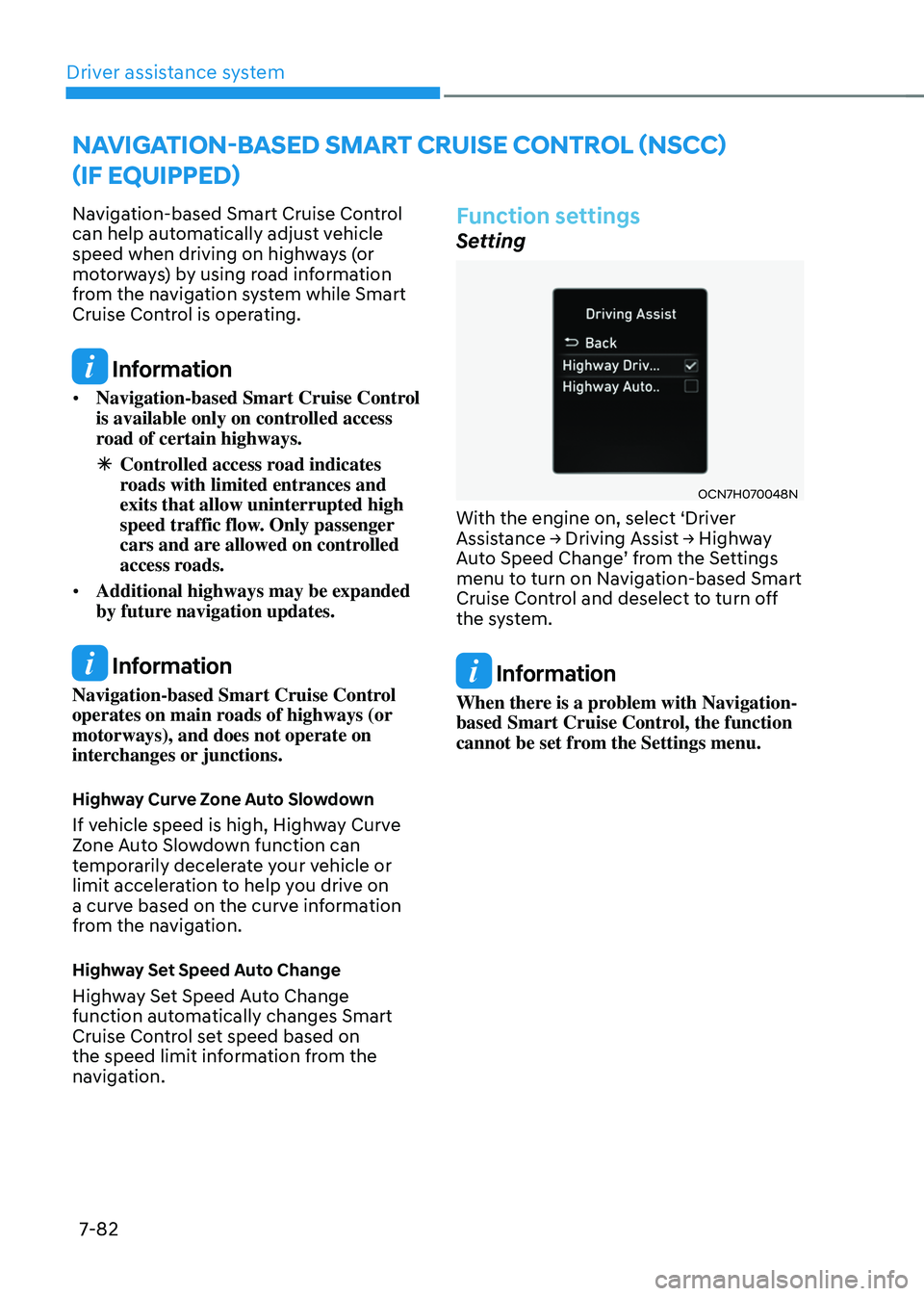
Setting
OCN7H070048N
With the engine on, select ‘Driver Assistance → Driving Assist → Highway Auto Speed Change’ from the Settings menu to turn on Navigation-based Smart
Cruise Control and deselect to turn off
the system.
Information
When there is a problem with Navigation-
based Smart Cruise Control, the function
cannot be set from the Settings menu.
NAVIGATION-BASED SMART CRUISE CONTROL (NSCC)
(IF EQUIPPED)
Page 405 of 555
Driver assistance system
7-84
Information
Highway Curve Zone Auto Slowdown and
Highway Set Speed Auto Change function
uses the same
symbol.
Highway Curve Zone Auto Slowdown
• Depending on the curve ahead on the
highway (or motorway), the vehicle
will decelerate, and after passing the
curve, the vehicle will accelerate to
Smart Cruise Control set speed.
• Vehicle deceleration time may differ
depending on the vehicle speed
and the degree of the curve on the
road. The higher the driving speed,
deceleration will start faster.
Highway Set Speed Auto Change
• Highway Set Speed Auto Change
function will operate when Smart
Cruise Control set speed and the
highway (or motorway) speed limit is
matched.
• While Highway Set Speed Auto
Change function is operating, when
the highway (or motorway) speed limit
changes, Smart Cruise Control set
speed automatically changes to the
changed speed limit.
• If Smart Cruise Control set speed is
adjusted different from the speed
limit, Highway Set Speed Auto Change
function will be in the standby state.
• If Highway Set Speed Auto Change
function has changed to the standby
state by driving on a road other than
the highway (or motorway) main road,
Highway Set Speed Auto Change
function will operate again when you
drive on the main road again without
setting the set speed. •
If Highway Set Speed Auto Change
function has changed to the standby
state by depressing the brake pedal
or pressing the switch on the steering wheel, press the switch to restart the function.
• Highway Set Speed Auto Change
function does not operate on highway
interchanges or junctions.
Information
• Highway Set Speed Auto Change
function only operates based on
the speed limits of the highway (or
motorway), it does not work with speed
cameras.
• When Highway Set Speed Auto Change
function is operating, the vehicle
automatically accelerates or decelerates
when the highway (or motorway) speed
limit changes.
• The maximum set speed for Highway
Set Speed Auto Change function is 86
mph (140 km/h).
• If the speed limit of a new road is not
updated in the navigation, Highway Set
Speed Auto Change function may not
operate properly.
• If the speed unit is set to a unit other
than the speed unit used in your
country, Highway Set Speed Auto
Change function may not operate
properly.
Page 406 of 555
07
7-85
Limitations of the function
Navigation-based Smart Cruise Control
may not operate normally under the
following circumstances:
• The navigation is not working properly
• Speed limit and road information in
the navigation is not updated
• The map information and the actual
road is different because of real-time
GPS data or map information error
• The navigation searches for a route
while driving
• GPS signals are blocked in areas such
as a tunnel
• The navigation is updated while
driving
• Map information is not transmitted
due to infotainment system's
abnormal operation
• A road that divides into two or more
roads and joins again
• The driver goes off course the route
set in the navigation
• The route to the destination is
changed or canceled by resetting the
navigation •
The vehicle enters a service station or
rest area
• The speed limit of some sections
changes according to the road
situations
• Android Auto or Car Play is operating
• The navigation cannot detect the
current vehicle position (ex: elevated
roads including overpass adjacent to
general roads or nearby roads exist in
a parallel way)
• The navigation is being updated while
driving
• The navigation is being restarted while
driving
• There is bad weather, such as heavy
rain, heavy snow, etc.
• Driving on a road under construction
• Driving on a road that is controlled
• Driving on a road that is sharply
curved
Page 407 of 555
Driver assistance system
7-86
WARNING
• Navigation-based Smart Cruise
Control is not a substitute for safe
driving practices, but a convenience
function. Always have your eyes on
the road, and it is the responsibility
of the driver to avoid violating traffic
laws.
• The navigation’s speed limit
information may differ from the
actual speed limit information on the
road. It is the driver's responsibility
to check the speed limit on the
actual driving road or lane.
• Navigation-based Smart Cruise
Control will automatically be
cancelled when you leave the
highway (or motorway) main road.
Always pay attention to road and
driving conditions while driving.
• Navigation-based Smart Cruise
Control may not operate due to the
existence of leading vehicles and
the driving conditions of the vehicle.
Always pay attention to road and
driving conditions while driving.
• When you are towing a trailer or
another vehicle, we recommend
that Navigation-based Smart Cruise
Control is turned off due to safety
reasons. •
After you pass through a tollgate on a
highway (or motorway), Navigation-
based Smart Cruise Control will
operate based on the first lane. If
you enter one of the other lanes, the
system may not operate properly.
• The vehicle will accelerate if the
driver depresses the accelerator
pedal while Navigation-based Smart
Cruise Control is operating, and
the system will not decelerate the
vehicle.
• If the driver accelerates and
releases the accelerator pedal while
Navigation-based Smart Cruise
Control is operating, the vehicle may
not decelerate sufficiently or may
rapidly decelerate to a safe speed.
• If the curve is too large or too small,
Navigation-based Smart Cruise
Control may not operate.
Information
• The time gap could occur between
the navigation’s guidance and when
Navigation-based Smart Cruise Control
operation starts and ends.
• The speed information on the cluster
and navigation may differ.
• Even if you are driving at a speed lower
than Smart Cruise Control set speed,
acceleration may be limited by the
curve sections ahead.
• If Navigation-based Smart Cruise
Control is operating while leaving the
main road to enter an interchange,
junction, rest area, etc., the system may
operate for a certain period of time.
• Deceleration by Navigation-based
Smart Cruise Control may feel it is not
sufficient due to road conditions such
as uneven road surfaces, narrow lanes,
etc.