lock HYUNDAI ELANTRA HYBRID 2021 Workshop Manual
[x] Cancel search | Manufacturer: HYUNDAI, Model Year: 2021, Model line: ELANTRA HYBRID, Model: HYUNDAI ELANTRA HYBRID 2021Pages: 555, PDF Size: 56.08 MB
Page 174 of 555
05
5-21
Remote Start with Digital Key
• When the shift lever of your vehicle
is in P (Park) and all of the doors
including trunk and hood is locked
and the vehicle is off, press the Door
Lock button in the Hyundai Digital
Key app then press the Remote Start
button within 4 seconds.
You can confirm the engine is on if the
hazard warning lights blinks two times
and the chime sounds.
• If you want to turn off the engine,
press Remote Engine Stop. Air
Conditioner / Heating system
maintains the same status as when
you last used the vehicle.
• Unless you put the registered digital
key(smartphone) on the interior
authentication pad (wireless charger)
when the remote start function is on,
the engine will turn off.
• If you do not get into the vehicle
within 10 minutes after the engine
turns on, the vehicle will turn off.
For more information, refer to the Engine
Start/Stop button in chapter 6.
Vehicle information Display
The digital key application displays
the vehicle information such as
driving or door conditions through the
communication with the vehicle.
• How to check : Select the vehicle
what you want to check and touch
the vehicle image, then vehicle
information display page will be
shown.
• Contents : accumulated odometer,
latest fuel economy, driving range,
fuel remaining, tire pressure, doors
lock/unlock status and last data
updated time.
ÃDisplayed vehicle data could be
differed from the current vehicle
condition.
ÃFor more information, please refer to
the ‘Tutorial’ on your Digital key app. Smartphone change/App deletion
If you change your smartphone or delete
the Hyundai Digital Key App, please refer
to the following to set up your Digital
Key:
Smartphone Change/ Reset
If you change or reset the smartphone,
the registered digital key in your previous
smartphone may not be used. Please
refer to following procedure to use the
digital key.
1. Install the digital key application and
log in.
2. If you are the owner, retry the Digital
key save process.
3. If you are the sharer, need to re-share
the key from owner.
App delete & reinstall/ Delete App data
You can re-download the digital key from
the server and follow these procedures.
1. Reinstall the application and log in.
2. Input the PIN number for user
verification.
3. If PIN is correct, digital key data
will be re-downloaded to your
smartphone and you can use it
without any further registration or
sharing.
Smartphone operability with Digital Key
The digital key application may not be
available to older type smartphones.
Please check the available smartphone
models with your dealer. NFC antenna
position on the smartphone can be
confirmed on each smartphone’s manual
or contact to customer service center of
the smartphone manufacturer.
Page 175 of 555
Convenient Features
5-22
CAUTION
• Do not leave the registered digital
key (smartphone) and card key in
your vehicle. Please carry around
your keys all the time.
• If you happen to lose your digital
key (smartphone) or card key
registered as a main user’s key, you
should immediately delete the key
on the vehicle’s key menu. For more
information, refer to the Digital Key
Deletion in this chapter.
• If you registered your digital key
(smartphone) or card key in the
vehicle, a message appears on the
instrument cluster and informs you
that the key is registered.
(Message: Digital key(s) active.)
• If you buy a used vehicle, you should
confirm the message and delete the
registered smartphone key and card
key. In this case, you should carry
your smart key.
• If you keep the NFC card of
the digital key on the interior
authentication pad (wireless
charger) while driving, it may cause a
malfunction of the NFC card.
• You should remove your NFC card
of the digital key on the interior
authentication pad after turning on
the engine.
• Hyundai digital key app may not
work properly when the NFC or
Bluetooth communication between
smartphone and car is poor.
• If the remote control operation
is executed where the mobile
connection is weak, Bluetooth
connection is poor due to other
Bluetooth devices or there is an
object such as metal or concrete, it
might be delayed or the operable
distance might decrease. You should
not cover the smartphone with your
hand or place other devices which
can cause frequency interference. It
may result in poor performance. •
If the remote control function is not
activated, please use NFC function to
lock or unlock the doors
• You should be careful not to
press the remote control button
on the digital key (smartphone)
accidentally.
• If the digital key (smartphone) is
discharged or defective or you
cannot use the digital key since the
vehicle battery is discharged, use the
inside door lock button to lock all of
the doors.
CAUTION
• Hyundai digital key app on the
smartphone and card key may not
work if any of the following occurs:
-Hyundai digital key app on the
smartphone is deleted. (Required
to reinstall the app)
-Account log in information of
Hyundai digital key app is expired.
(Required to re-log in)
-When you try to log in to another
smartphone instead of the
registered smartphone with same
user account.
-Smartphone rooting or app
hacking is detected.
-Smartphone battery or the vehicle
battery is discharged.
-Smartphone’s screen is off or
locked.
-NFC or Bluetooth is turned off on
the smartphone settings.
-Smartphone’s mobile network
setting is off or airplane mode is
activated.
-A credit card is overlapped in the
back of your smartphone or metal
or thick case is used.
-The card key is overlapped with
other credit cards or the key is
used as inserted in the wallet or
card wallet.
Page 178 of 555
05
5-25
• To delete the saved digital key (card
key), the smart key must be inside the
vehicle.
• The deleted digital key (card key) can
be re-registered before registering a
new digital key (card key).
• If you register a new digital key (card
key), the previously registered digital
key (card key) cannot be used again.
OCN7050128
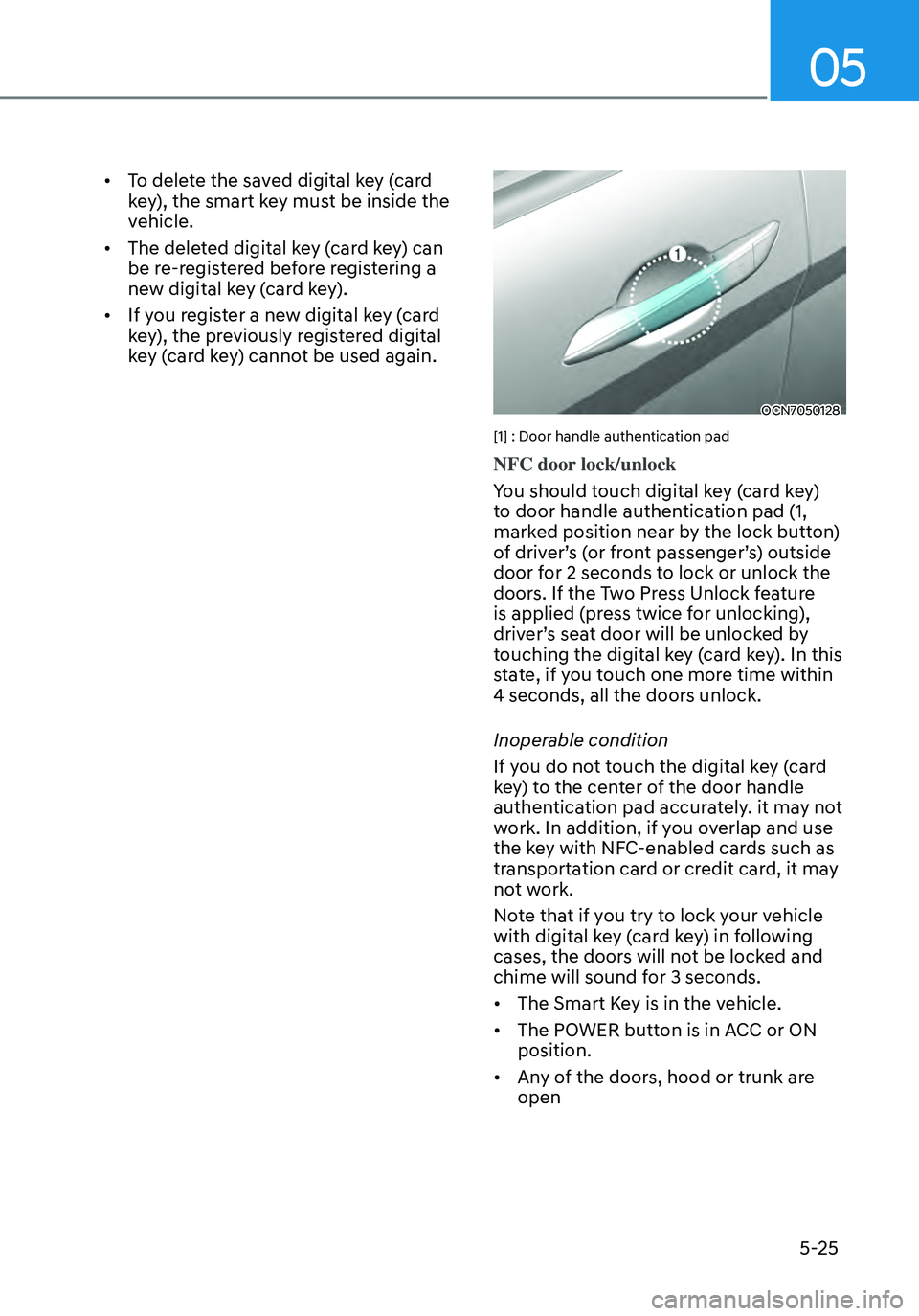
[1] : Door handle authentication pad
NFC door lock/unlock
You should touch digital key (card key)
to door handle authentication pad (1,
marked position near by the lock button)
of driver’s (or front passenger’s) outside
door for 2 seconds to lock or unlock the
doors. If the Two Press Unlock feature
is applied (press twice for unlocking),
driver’s seat door will be unlocked by
touching the digital key (card key). In this
state, if you touch one more time within
4 seconds, all the doors unlock.
Inoperable condition
If you do not touch the digital key (card
key) to the center of the door handle
authentication pad accurately. it may not
work. In addition, if you overlap and use
the key with NFC-enabled cards such as
transportation card or credit card, it may
not work.
Note that if you try to lock your vehicle
with digital key (card key) in following
cases, the doors will not be locked and
chime will sound for 3 seconds.
• The Smart Key is in the vehicle.
• The POWER button is in ACC or ON
position.
• Any of the doors, hood or trunk are
open
Page 180 of 555
05
5-27
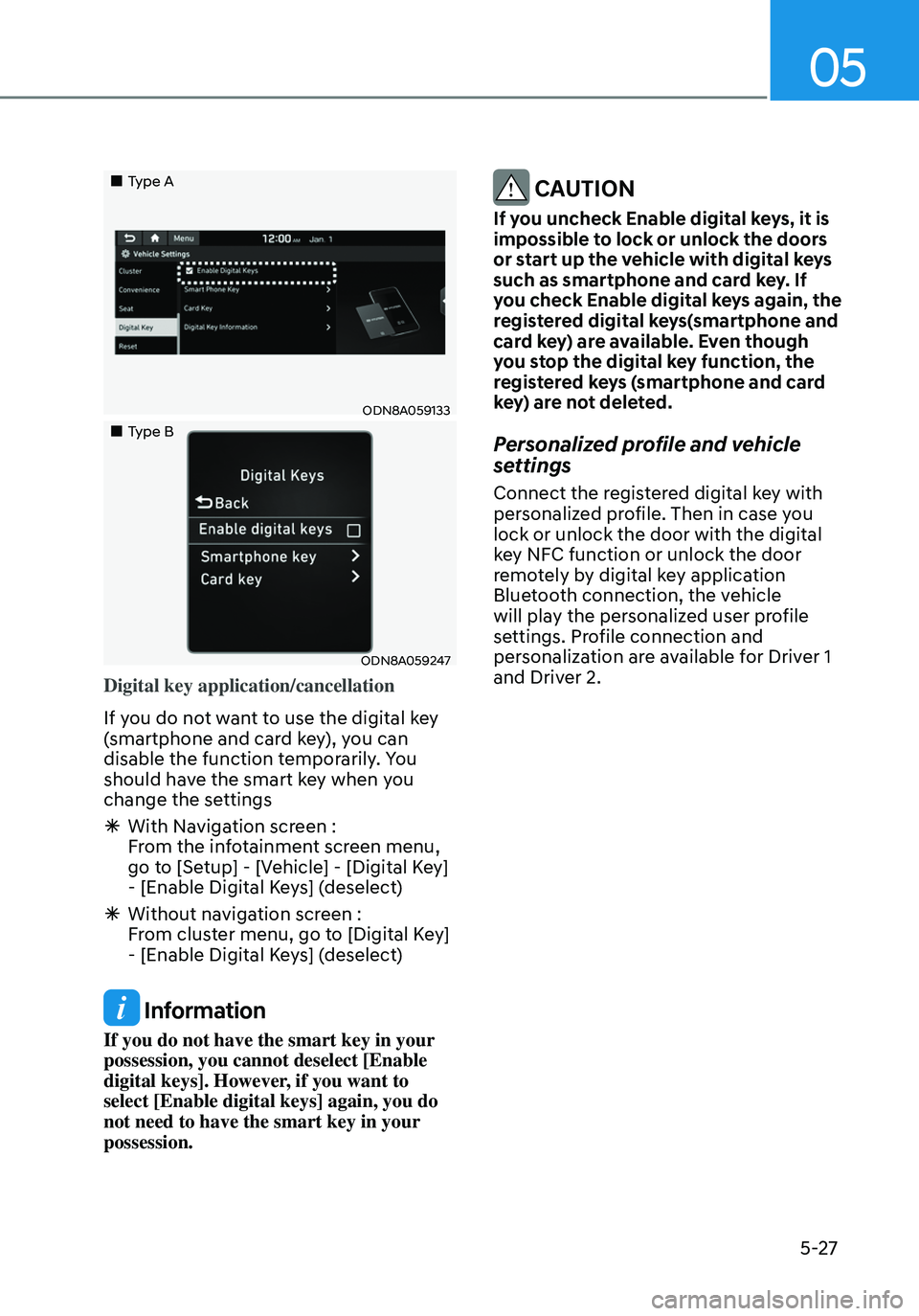
„„Type A
ODN8A059133
„„Type B
ODN8A059247
Digital key application/cancellation
If you do not want to use the digital key
(smartphone and card key), you can
disable the function temporarily. You
should have the smart key when you
change the settings
ÃWith Navigation screen :
From the infotainment screen menu,
go to [Setup] - [Vehicle] - [Digital Key]
- [Enable Digital Keys] (deselect)
ÃWithout navigation screen :
From cluster menu, go to [Digital Key]
- [Enable Digital Keys] (deselect)
Information
If you do not have the smart key in your
possession, you cannot deselect [Enable
digital keys]. However, if you want to
select [Enable digital keys] again, you do
not need to have the smart key in your
possession.
CAUTION
If you uncheck Enable digital keys, it is
impossible to lock or unlock the doors
or start up the vehicle with digital keys
such as smartphone and card key. If
you check Enable digital keys again, the
registered digital keys(smartphone and
card key) are available. Even though
you stop the digital key function, the
registered keys (smartphone and card
key) are not deleted.
Personalized profile and vehicle
settings
Connect the registered digital key with
personalized profile. Then in case you
lock or unlock the door with the digital
key NFC function or unlock the door
remotely by digital key application
Bluetooth connection, the vehicle
will play the personalized user profile
settings. Profile connection and
personalization are available for Driver 1
and Driver 2.
Page 181 of 555
Convenient Features
5-28
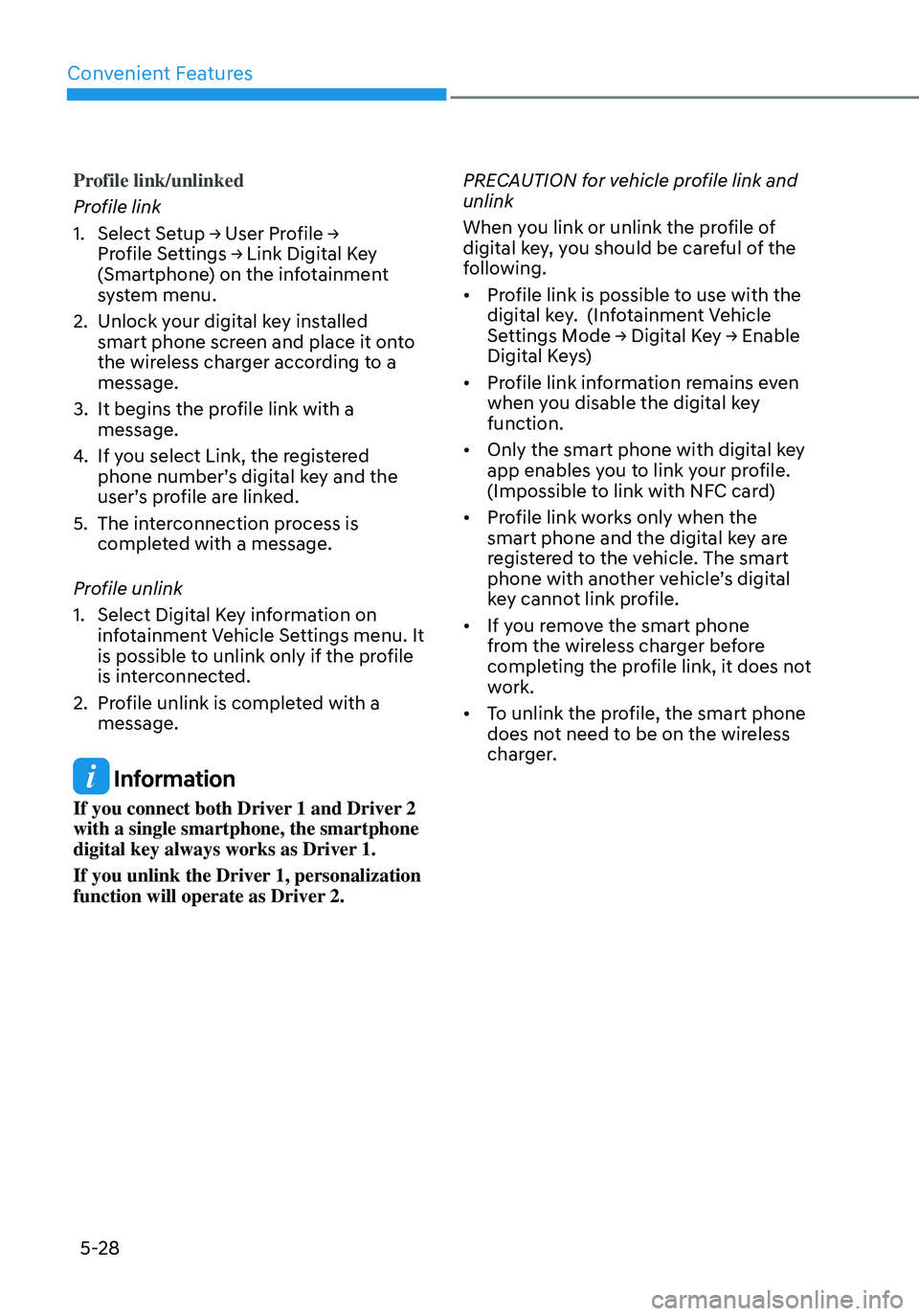
Profile link/unlinked
Profile link
1. Select Setup → User Profile → Profile Settings → Link Digital Key (Smartphone) on the infotainment
system menu.
2. Unlock your digital key installed smart phone screen and place it onto
the wireless charger according to a
message.
3. It begins the profile link with a message.
4. If you select Link, the registered phone number’s digital key and the
user’s profile are linked.
5. The interconnection process is completed with a message.
Profile unlink
1. Select Digital Ke y information on infotainment Vehicle Settings menu. It
is possible to unlink only if the profile
is interconnected.
2. Profile unlink is completed with a message.
Information
If you connect both Driver 1 and Driver 2
with a single smartphone, the smartphone
digital key always works as Driver 1.
If you unlink the Driver 1, personalization
function will operate as Driver 2. PRECAUTION for vehicle profile link and
unlink
When you link or unlink the profile of
digital key, you should be careful of the
following.
•
Profile link is possible to use with the
digital key. (Infotainment Vehicle
Settings Mode → Digital Key → Enable Digital Keys)
• Profile link information remains even
when you disable the digital key
function.
• Only the smart phone with digital key
app enables you to link your profile.
(Impossible to link with NFC card)
• Profile link works only when the
smart phone and the digital key are
registered to the vehicle. The smart
phone with another vehicle’s digital
key cannot link profile.
• If you remove the smart phone
from the wireless charger before
completing the profile link, it does not
work.
• To unlink the profile, the smart phone
does not need to be on the wireless
charger.
Page 182 of 555
05
5-29
Vehicle personalization operation
The personalization function linked with
digital key works as following conditions:
• Touch the driver’s door handle with
the profile linked smart phone to lock
or unlock the doors (Personalization
does not operate when locking or
unlocking the front passenger door.)
• Remote door unlock with the profile
linked smartphone digital key app.
The profile linked with digital key can be
changed manually in the infotainment
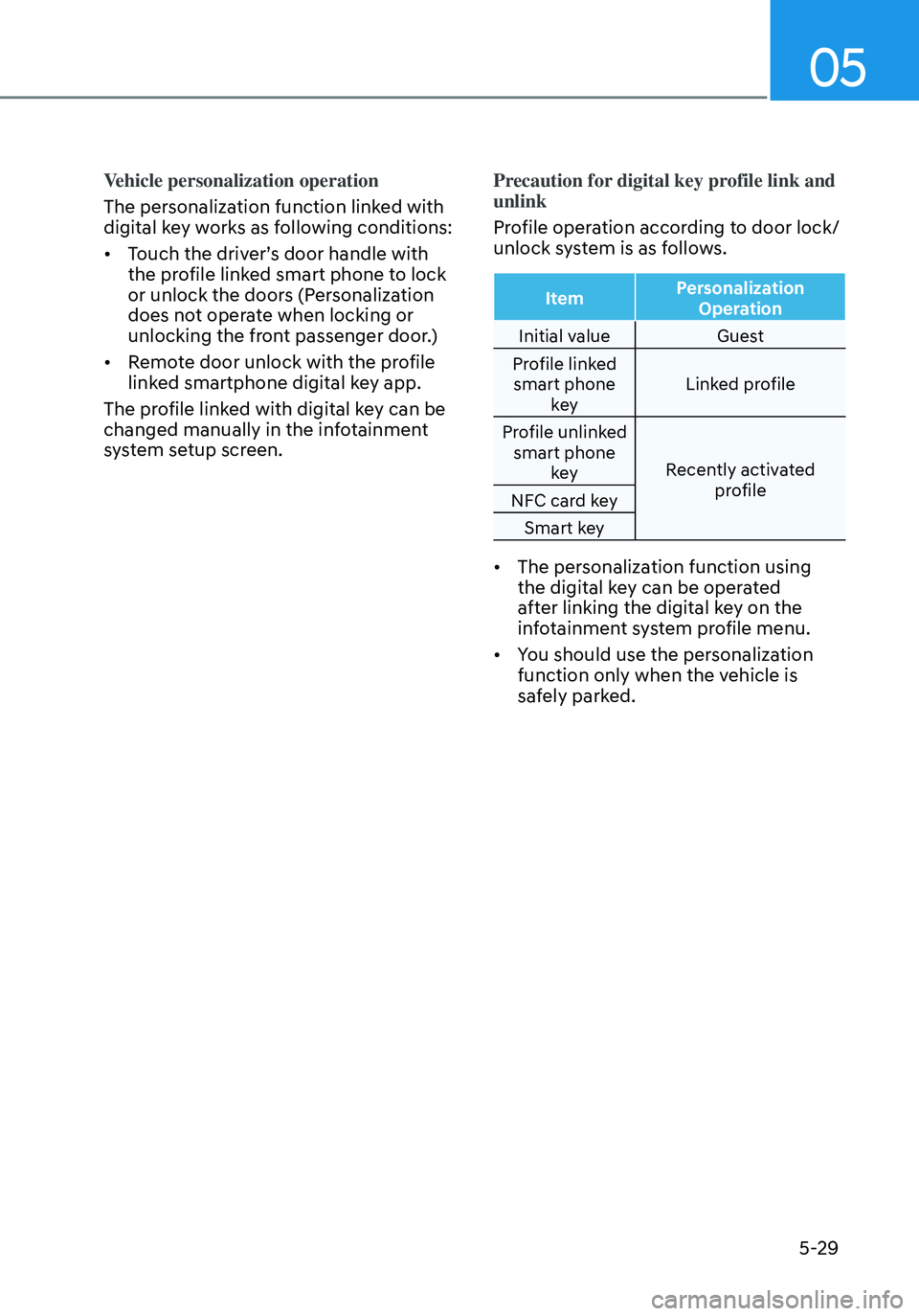
system setup screen. Precaution for digital key profile link and
unlink
Profile operation according to door lock/
unlock system is as follows.
Item
Personalization
Operation
Initial value Guest
Profile linked smart phone key Linked profile
Profile unlinked smart phone key Recently activated
profile
NFC card key
Smart key
• The personalization function using
the digital key can be operated
after linking the digital key on the
infotainment system profile menu.
• You should use the personalization
function only when the vehicle is
safely parked.
Page 183 of 555
Convenient Features
5-30
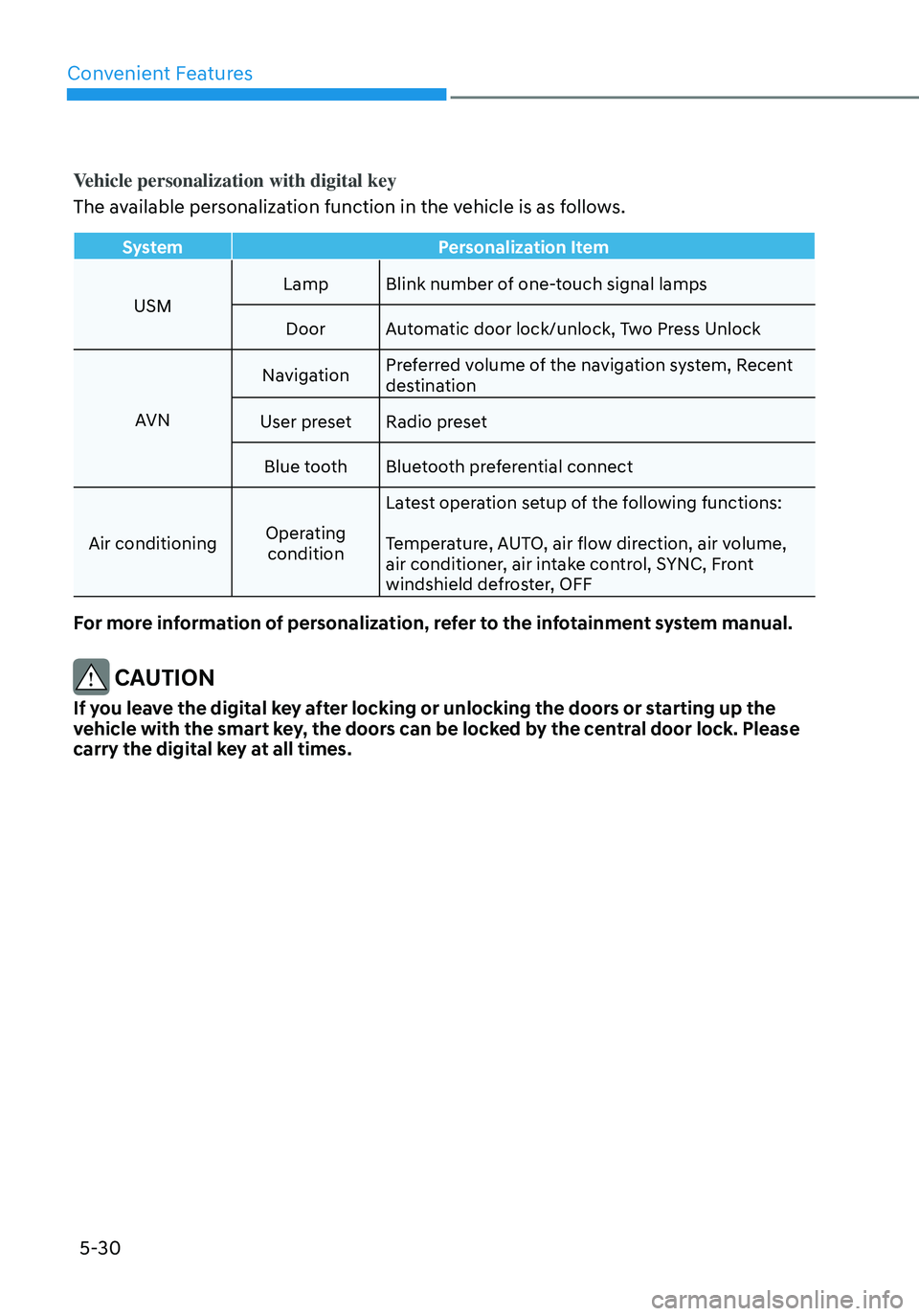
Vehicle personalization with digital key
The available personalization function in the vehicle is as follows.
SystemPersonalization Item
USM Lamp
Blink number of one-touch signal lamps
Door Automatic door lock/unlock, Two Press Unlock
AVN Navigation
Preferred volume of the navigation system, Recent
destination
User preset Radio preset
Blue tooth Bluetooth preferential connect
Air conditioning Operating
condition Latest operation setup of the following functions:
Temperature, AUTO, air flow direction, air volume,
air conditioner, air intake control, SYNC, Front
windshield defroster, OFF
For more information of personalization, refer to the infotainment system manual.
CAUTION
If you leave the digital key after locking or unlocking the doors or starting up the
vehicle with the smart key, the doors can be locked by the central door lock. Please
carry the digital key at all times.
Page 184 of 555
05
5-31
DOOR LOCKS
Operating Door Locks from
Outside the Vehicle
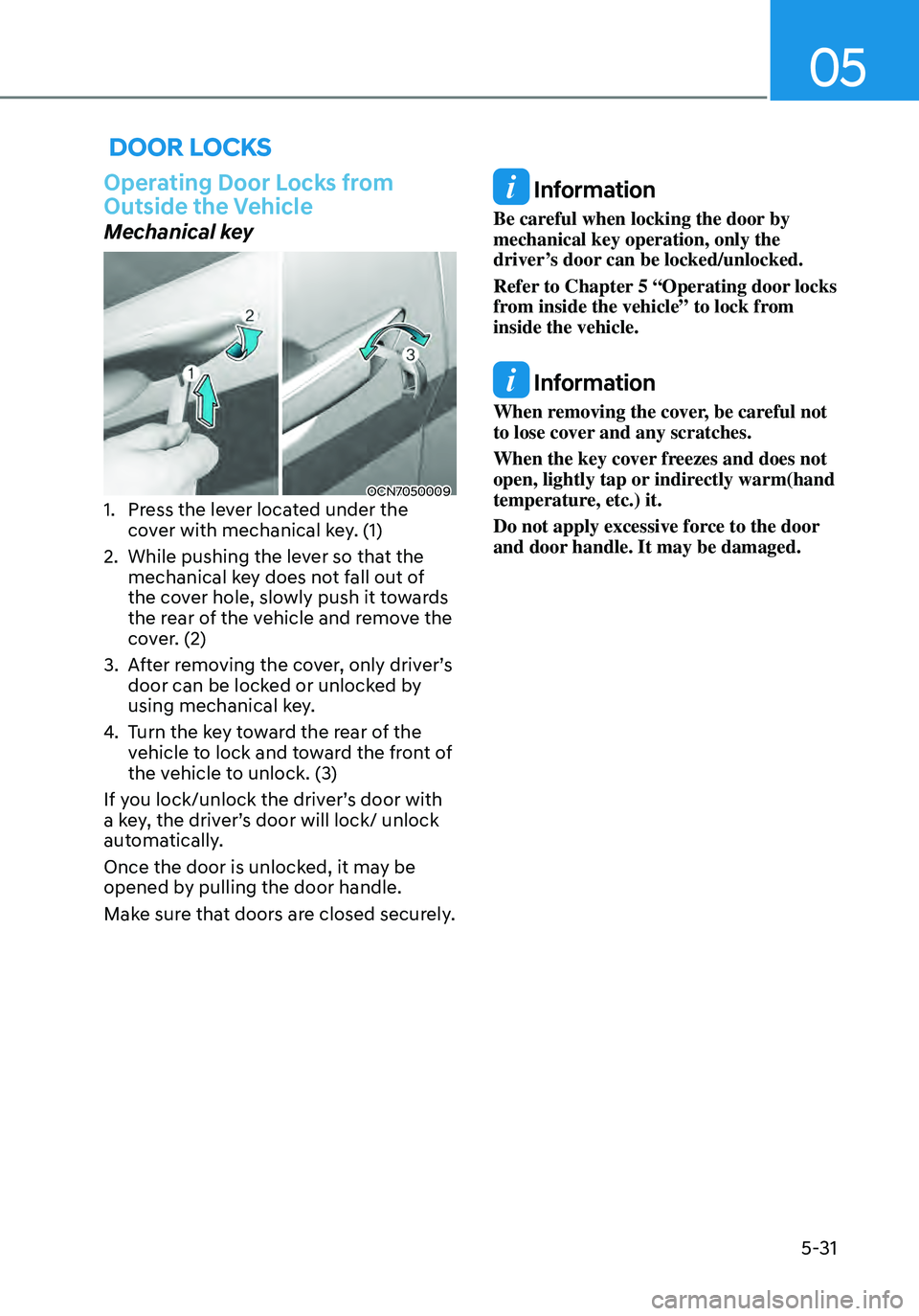
Mechanical key
OCN70500091. Press the lever located under the
cover with mechanical key. (1)
2. While pushing the lever so that the
mechanical key does not fall out of
the cover hole, slowly push it towards
the rear of the vehicle and remove the
cover. (2)
3. After removing the cover, only driver’s
door can be locked or unlocked by
using mechanical key.
4. Turn the key toward the rear of the
vehicle to lock and toward the front of
the vehicle to unlock. (3)
If you lock/unlock the driver’s door with
a key, the driver’s door will lock/ unlock
automatically.
Once the door is unlocked, it may be
opened by pulling the door handle.
Make sure that doors are closed securely.
Information
Be careful when locking the door by
mechanical key operation, only the
driver’s door can be locked/unlocked.
Refer to Chapter 5 “Operating door locks
from inside the vehicle” to lock from
inside the vehicle.
Information
When removing the cover, be careful not
to lose cover and any scratches.
When the key cover freezes and does not
open, lightly tap or indirectly warm(hand
temperature, etc.) it.
Do not apply excessive force to the door
and door handle. It may be damaged.
Page 185 of 555
Convenient Features
5-32
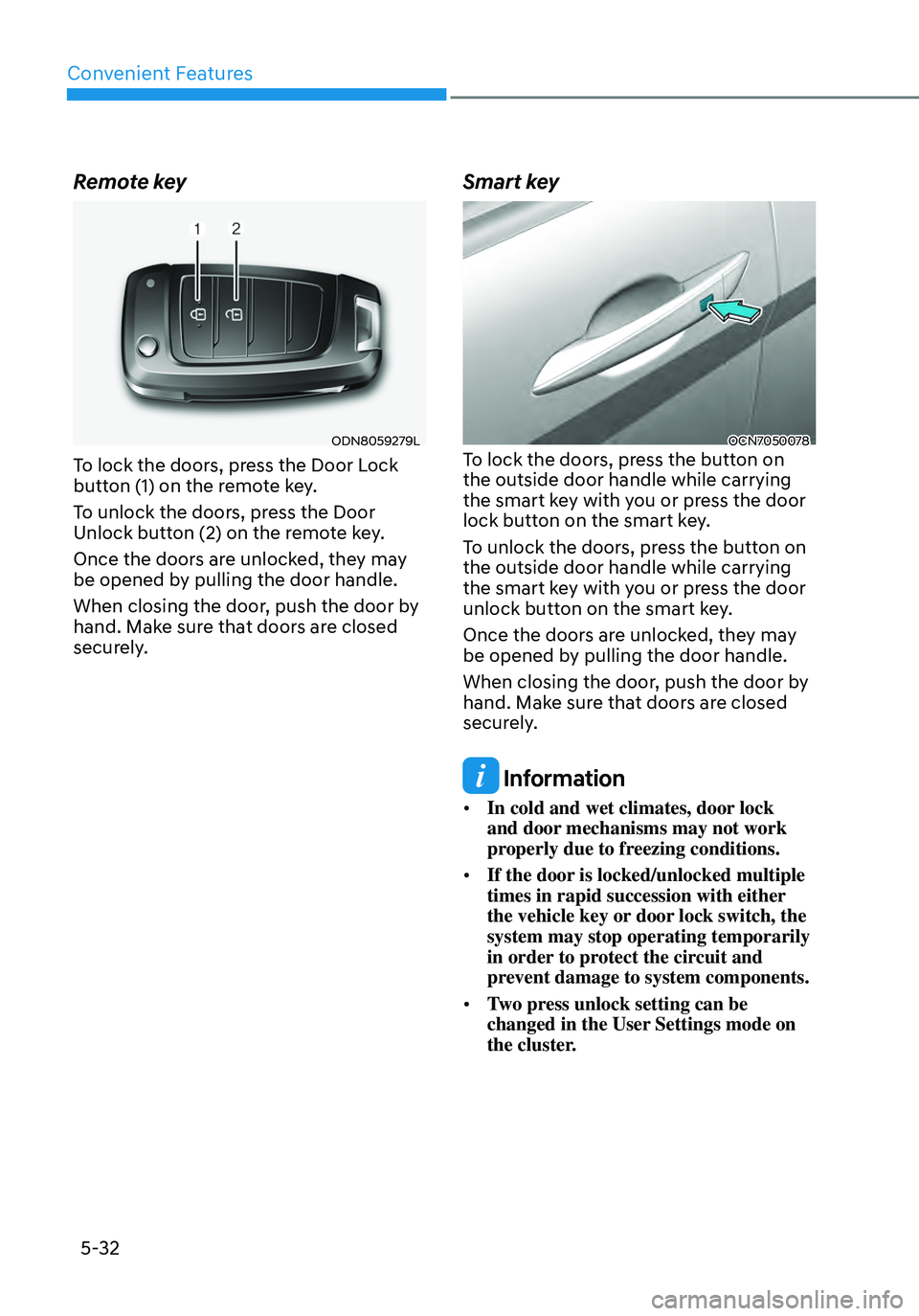
Remote key
ODN8059279L
To lock the doors, press the Door Lock
button (1) on the remote key.
To unlock the doors, press the Door
Unlock button (2) on the remote key.
Once the doors are unlocked, they may
be opened by pulling the door handle.
When closing the door, push the door by
hand. Make sure that doors are closed
securely.
Smart key
OCN7050078To lock the doors, press the button on
the outside door handle while carrying
the smart key with you or press the door
lock button on the smart key.
To unlock the doors, press the button on
the outside door handle while carrying
the smart key with you or press the door
unlock button on the smart key.
Once the doors are unlocked, they may
be opened by pulling the door handle.
When closing the door, push the door by
hand. Make sure that doors are closed
securely.
Information
• In cold and wet climates, door lock
and door mechanisms may not work
properly due to freezing conditions.
• If the door is locked/unlocked multiple
times in rapid succession with either
the vehicle key or door lock switch, the
system may stop operating temporarily
in order to protect the circuit and
prevent damage to system components.
• Two press unlock setting can be
changed in the User Settings mode on
the cluster.
Page 186 of 555
05
5-33
Operating Door Locks from
Inside the Vehicle
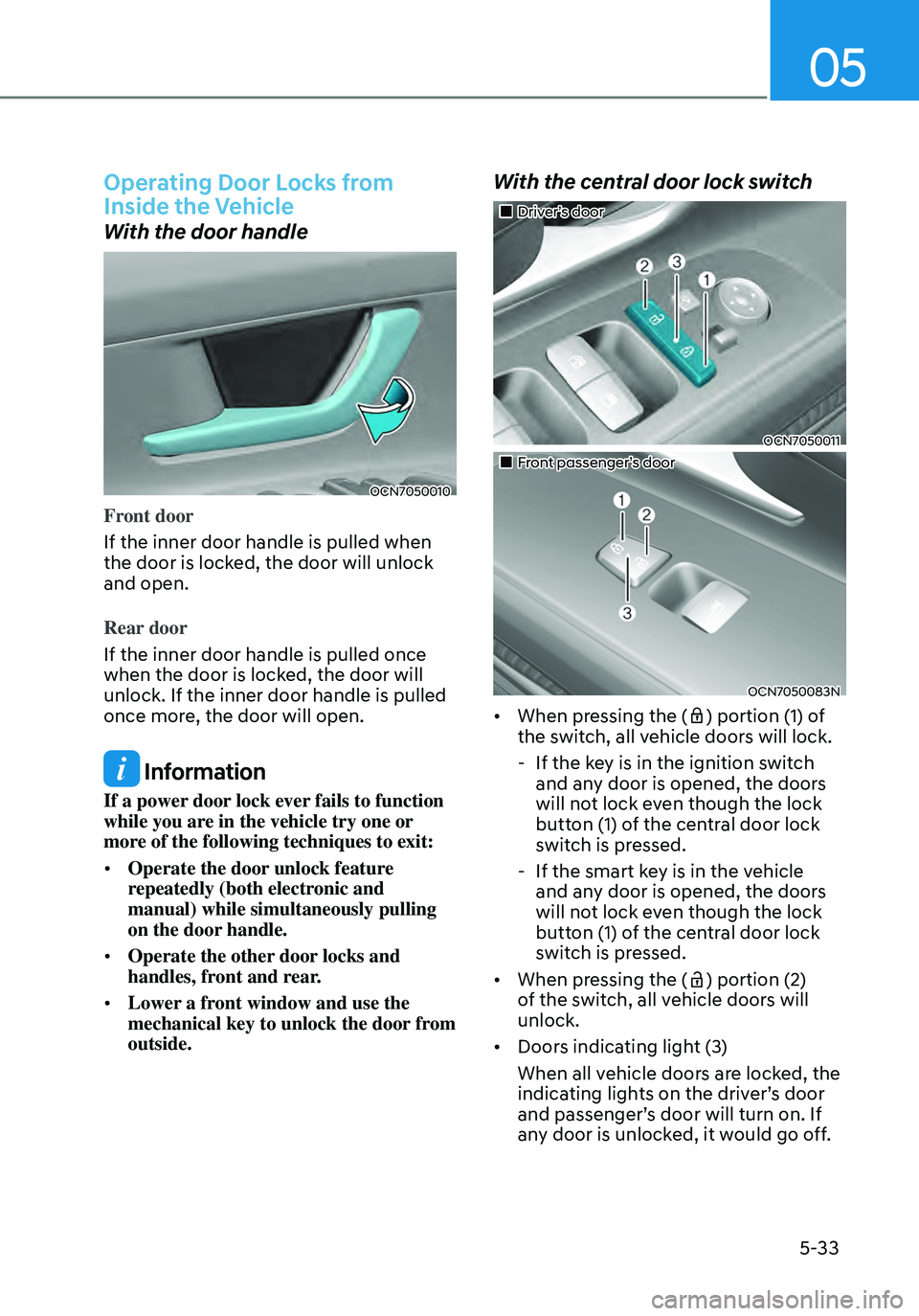
With the door handle
OCN7050010
Front door
If the inner door handle is pulled when
the door is locked, the door will unlock
and open.
Rear door
If the inner door handle is pulled once
when the door is locked, the door will
unlock. If the inner door handle is pulled
once more, the door will open.
Information
If a power door lock ever fails to function
while you are in the vehicle try one or
more of the following techniques to exit:
• Operate the door unlock feature
repeatedly (both electronic and
manual) while simultaneously pulling
on the door handle.
• Operate the other door locks and
handles, front and rear.
• Lower a front window and use the
mechanical key to unlock the door from
outside.
With the central door lock switch
„„Driver’s door
OCN7050011
„„Front passenger’s door
OCN7050083N
• When pressing the () portion (1) of the switch, all vehicle doors will lock.
-If the key is in the ignition switch
and any door is opened, the doors
will not lock even though the lock
button (1) of the central door lock
switch is pressed.
-If the smart key is in the vehicle
and any door is opened, the doors
will not lock even though the lock
button (1) of the central door lock
switch is pressed.
• When pressing the (
) portion (2) of the switch, all vehicle doors will
unlock.
• Doors indicating light (3)
When all vehicle doors are locked, the
indicating lights on the driver’s door
and passenger’s door will turn on. If
any door is unlocked, it would go off.