battery HYUNDAI ELANTRA LIMITED 2017 Owner's Manual
[x] Cancel search | Manufacturer: HYUNDAI, Model Year: 2017, Model line: ELANTRA LIMITED, Model: HYUNDAI ELANTRA LIMITED 2017Pages: 586, PDF Size: 15.29 MB
Page 208 of 586
3-114
Convenient features of your vehicle
If the driver gets out of the vehicle
through other doors (except dri-
ver’s door), the battery saver func-
tion does not operate and the
headlamp delay function does not
turn off automatically. Therefore, It
causes the battery to be dis-
charged. In this case, make sure
to turn off the lamp before getting
out of the vehicle.
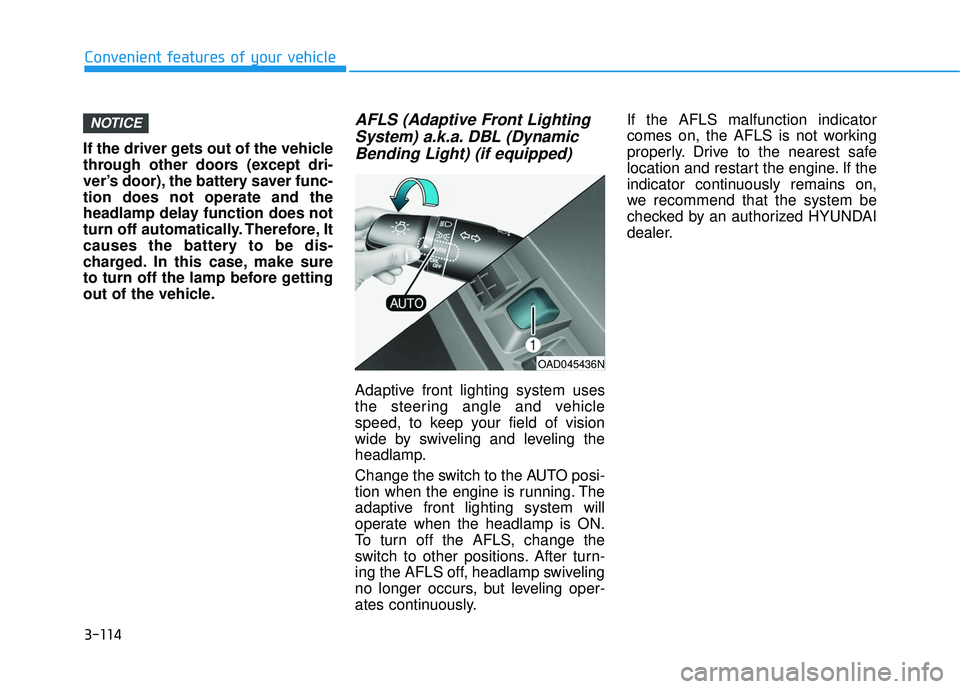
AFLS (Adaptive Front Lighting System) a.k.a. DBL (DynamicBending Light) (if equipped)
Adaptive front lighting system uses
the steering angle and vehicle
speed, to keep your field of vision
wide by swiveling and leveling the
headlamp.
Change the switch to the AUTO posi-
tion when the engine is running. The
adaptive front lighting system will
operate when the headlamp is ON.
To turn off the AFLS, change the
switch to other positions. After turn-
ing the AFLS off, headlamp swiveling
no longer occurs, but leveling oper-
ates continuously. If the AFLS malfunction indicator
comes on, the AFLS is not working
properly. Drive to the nearest safe
location and restart the engine. If the
indicator continuously remains on,
we recommend that the system be
checked by an authorized HYUNDAI
dealer.
NOTICE
OAD045436N
Page 209 of 586
3-115
Convenient features of your vehicle
3
Interior Lights
Do not use the interior lights for
extended periods when the engine
is turned off or the battery will dis-
charge.
Interior lamp AUTO cut
The interior lamps will automatically
go off approximately 20 minutes after
the engine is turned off and the
doors closed. If a door is opened, the
lamp will go off 40 minutes after the
engine is turned off. If the doors are
locked by the remote key or smart
key and the vehicle enters the armed
stage of the theft alarm system, the
lamps will go off five seconds later.
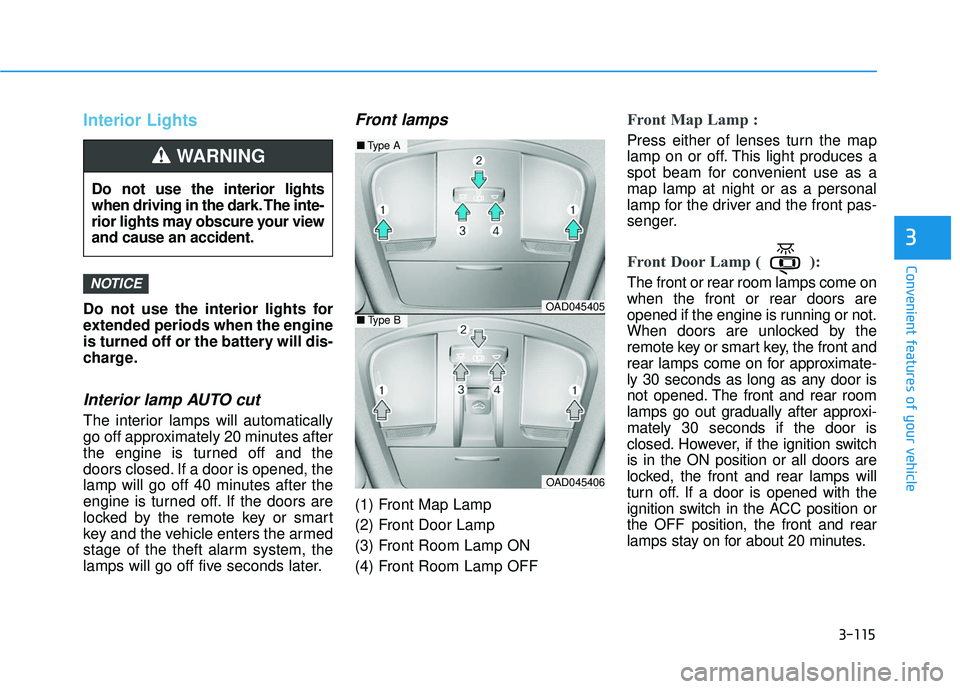
Front lamps
(1) Front Map Lamp
(2) Front Door Lamp
(3) Front Room Lamp ON
(4) Front Room Lamp OFF
Front Map Lamp :
Press either of lenses turn the map
lamp on or off. This light produces a
spot beam for convenient use as a
map lamp at night or as a personal
lamp for the driver and the front pas-
senger.
Front Door Lamp ( ):
The front or rear room lamps come on
when the front or rear doors are
opened if the engine is running or not.
When doors are unlocked by the
remote key or smart key, the front and
rear lamps come on for approximate-
ly 30 seconds as long as any door is
not opened. The front and rear room
lamps go out gradually after approxi-
mately 30 seconds if the door is
closed. However, if the ignition switch
is in the ON position or all doors are
locked, the front and rear lamps will
turn off. If a door is opened with the
ignition switch in the ACC position or
the OFF position, the front and rear
lamps stay on for about 20 minutes.NOTICE
Do not use the interior lights
when driving in the dark. The inte-
rior lights may obscure your view
and cause an accident.
WARNING
OAD045405
OAD045406
■Type A
■Type B
Page 227 of 586
3-133
Convenient features of your vehicle
3
A
AU
U T
TO
O M
M A
AT
TI
IC
C
C
C L
LI
IM
M A
AT
TE
E
C
C O
O N
NT
TR
R O
O L
L
S
S Y
Y S
ST
T E
EM
M
OAD045310
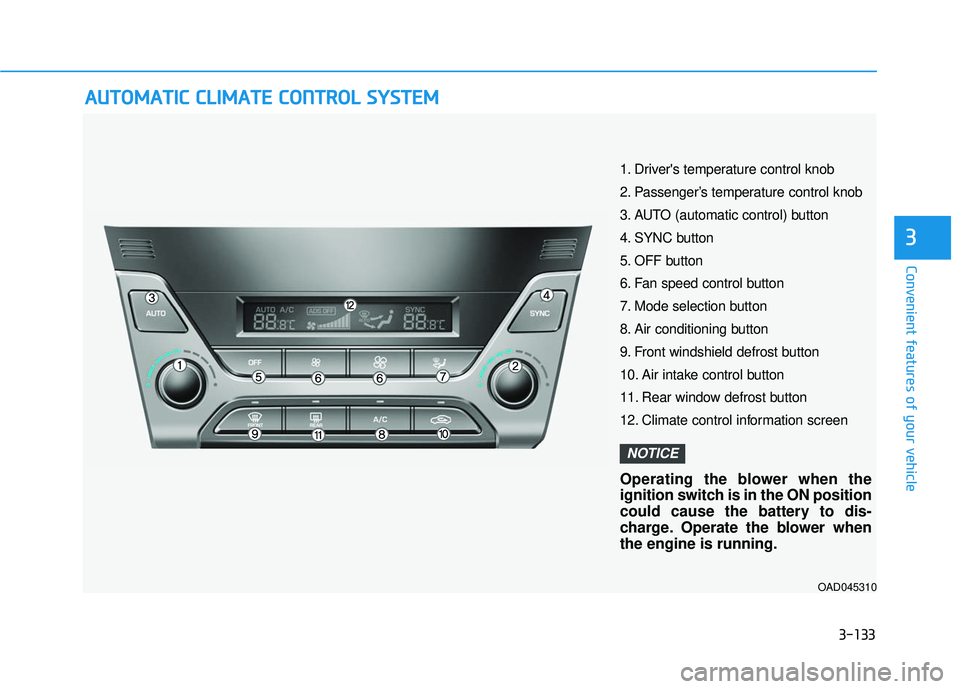
1. Driver's temperature control knob
2. Passenger’s temperature control knob
3. AUTO (automatic control) button
4. SYNC button
5. OFF button
6. Fan speed control button
7. Mode selection button
8. Air conditioning button
9. Front windshield defrost button
10. Air intake control button
11. Rear window defrost button
12. Climate control information screen
Operating the blower when the
ignition switch is in the ON position
could cause the battery to dis-
charge. Operate the blower when
the engine is running.
NOTICE
Page 233 of 586
3-139
Convenient features of your vehicle
3
Adjusting the driver and passen-
ger side temperature individually
Press the "SYNC" button again to
operate the driver and passenger
side temperature individually. The
button indicator will turn off.
Temperature conversion
If the battery has been discharged or
disconnected, the temperature mode
display will reset to Fahrenheit.
To change the temperature unit from
°F to °C or °C to °F:
- On the instrument cluster, go toUser Settings Mode ➝ Other
Features ➝Temperature Unit.
- Press the AUTO button for 3 sec- onds while pressing the OFF button.
(Automatic climate control system)
Both the temperature unit on the
cluster LCD display and climate con-
trol screen will change.
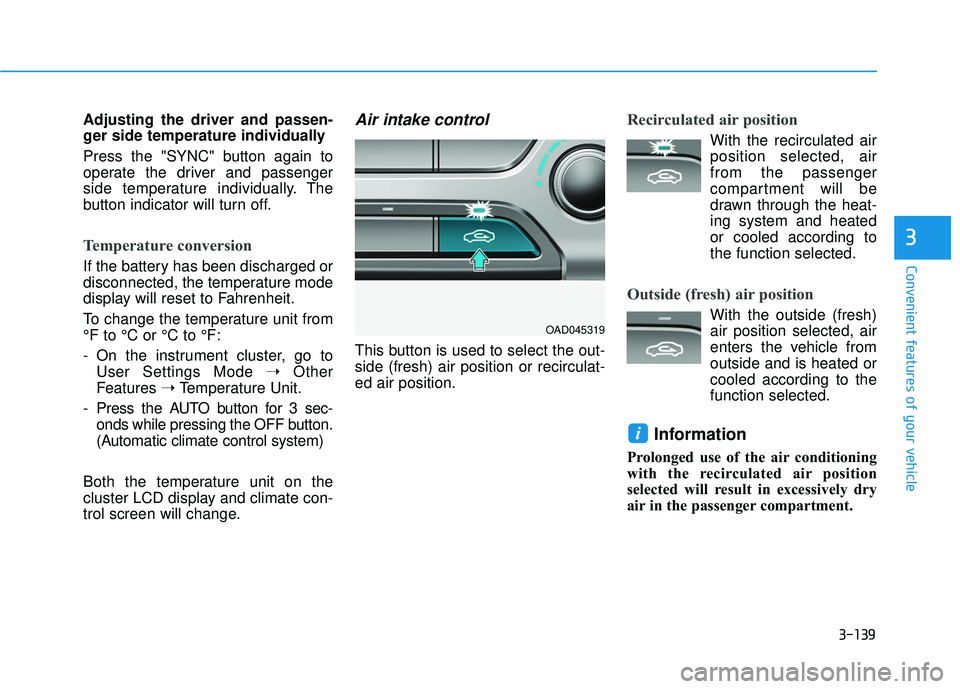
Air intake control
This button is used to select the out-
side (fresh) air position or recirculat-
ed air position.
Recirculated air position
With the recirculated air position selected, air
from the passenger
compartment will be
drawn through the heat-
ing system and heated
or cooled according to
the function selected.
Outside (fresh) air position
With the outside (fresh) air position selected, air
enters the vehicle from
outside and is heated or
cooled according to the
function selected.
Information
Prolonged use of the air conditioning
with the recirculated air position
selected will result in excessively dry
air in the passenger compartment.
i
OAD045319
Page 241 of 586
3-147
Convenient features of your vehicle
3
Defogging logic (if equipped)
To reduce the probability of fogging
up the inside of the windshield, the
air intake or air conditioning are con-
trolled automatically according to
certain conditions such as or
position. To cancel or return the
defogging logic, do the following.
Manual climate control system
1. Turn the ignition switch to the ONposition.
2. Press the defroster button ( ).
3. Press the air intake control button at least 5 times within 10 seconds.
The indicator on the air 3 seconds
immediately blinks 3 times with 0.5
seconds of interval. It indicates that
the defogging logic is canceled or
returned to the programmed status.
If the battery has been discharged or
disconnected, it resets to the defog
logic status.
Automatic climate control system
1. Turn the ignition switch to the ON position.
2. Press the defroster button ( ).
3. While pressing the air conditioning button (A/C), press the air intake
control button at least 5 times with-
in 3 seconds.
The climate control information
screen will blink 3 times with 0.5 sec-
onds of interval. It indicates that the
defogging logic is canceled or
returned to the programmed status.
If the battery has been discharged or
disconnected, it resets to the defog
logic status.
Page 249 of 586
3-155
Convenient features of your vehicle
3
To prevent damage to the Power
Outlets :
Use the power outlet only whenthe engine is running and
remove the accessory plug after
use. Using the accessory plug
for prolonged periods of time
with the engine off could cause
the battery to discharge.
Only use 12V electric acces- sories which are less than 180 W
(Watts) in electric capacity.
Adjust the air-conditioner or heater to the lowest operating
level when using the power outlet.
Close the cover when not in use.
Some electronic devices can cause electronic interference
when plugged into a vehicle’s
power outlet. These devices may
cause excessive audio static
and malfunctions in other elec-
tronic systems or devices used
in your vehicle.
(Continued)(Continued)
Push the plug in as far as it will
go. If good contact is not made,
the plug may overheat and the
fuse may open.
Plug in battery equipped electri- cal/electronic devices with
reverse current protection. The
current from the battery may
flow into the vehicle’s electri-
cal/electronic system and cause
system malfunction.
NOTICE
Avoid electrical shocks. Do not
place your fingers or foreign
objects (pin, etc.) into a power
outlet or touch the power outlet
with a wet hand.
WARNING
Page 266 of 586
(Continued)
• If your iPhone
®is connected to both
the Bluetooth®Wireless Technology
and USB, the sound may not be
properly played. In your iPhone
®,
select the Dock c onnector or
Bluetooth
®Wireless Technology to
change the sound output (source).
• iPod mode cannot be operated when the iPod
®cannot be recognized due
to versions that do not support com-
munication protocols.
• For fifth generation iPod
®Nano
devices, the iPod®may not be recog-
nized when the battery level is low.
Please charge the iPod
®for use.
• Search/play orders shown within the iPod
®device may differ with the
orders shown within the audio sys-
tem.
• If the iPod
®malfunctions due to an
iPod®device defect, reset the iPod®
and try again. (To learn more, refer to
your iPod®manual)
(Continued) (Continued)
• Some iPod
®s may not sync with the
System depending on its version. If
the Media is removed before the
Media is recognized, then the sys-
tem may not properly restore the
previously operated mode. (iPad
®
charging is not supported.)
Information - Using the AUX
device
• If an external device connector is connected with the AUX terminal,
then AUX mode will automatically
operate. Once the connector is dis-
connected, the previous mode will
be restored.
• AUX mode can be used only when an external audio player (cam-
corder, in-car DVD player, etc.) has
been connected.
• The AUX volume can be controlled separately from other audio modes.
• Connecting a connector jack to the AUX terminal without an external
device will convert the system to
AUX mode, but only output noise.
When an external device is not
being used, also remove the connec-
tor jack.
• When the external device power is connected to the power jack, play-
ing the external device may output
noise. In such cases, disconnect the
power connection before use.
• Fully insert the AUX cable to the AUX jack upon use.i
4-14
Multimedia System
Page 268 of 586
(Continued)
• Park the vehicle when connectingthe head unit with the mobile phone.
• Bluetooth
®connection may become
intermittently disconnected in some
mobile phones. Follow these steps to
try again.
1. Within the mobile phone, turn the Bluetooth
®function off/on and try
again.
2. Turn the mobile phone power Off/On and try again.
3. Completely remove the mobile phone battery, reboot, and then
again.
4. Reboot the Audio System and try again.
5. Delete all paired devices, pair and try again.
• Handsfree call quality and volume may differ depending on the model
of your mobile phone.
Information - Using the voicerecognition
• When using the voice recognition feature, only commands listed with-
in the user's manual are supported.
• Be aware that during the operation of the voice recognition system,
pressing any key other than the
key terminate the voice recognition
mode.
• For superior voice recognition per- formance, position the microphone
used for voice recognition above the
head of the driver’s seat and main-
tain a proper position when saying
commands.
• Within the following situations, voice recognition may not function
properly due to external sound.
- When the windows and sunroofare open
- When the wind of the cooling / heating device is strong
- When entering and passing through tunnels
(Continued)(Continued)
- When driving on rugged anduneven roads
- During severe rain (heavy rains, windstorms)
• Phone related voice commands can be used only when a Bluetooth
®
Wireless Technology device is con-
nected.
• When making calls by stating a name, the corresponding contact
must be downloaded and stored
within the audio system.
• After downloading the Bluetooth
®
Wireless Technology phone book, it
takes some times to convert the
phone book data into voice informa-
tion. During this time, voice recogni-
tion may not properly operate.
• Pronounce the voice commands nat- urally and clearly as if in a normal
conversation.
i
4-16
Multimedia System
Page 279 of 586
4-27
Multimedia System
4
Information
Turn on the car ignition before using
this device. Do not operate the audio
system for long periods of time with
the ignition turned off as such opera-
tions may lead to battery discharge. Do not subject the device to
severe shock or impact. Direct
pressure onto the front side of
the monitor may cause damage
to the LCD or touch screen.
When cleaning the device, make sure to turn off the device and
use a dry and smooth cloth.
Never use rough materials,
chemical cloths, or solvents
(alcohol, benzene, thinners, etc.)
as such materials may damage
the device panel or cause
color/quality deterioration.
Do not place beverages close to the audio system. Spilling bever-
ages may lead to system mal-
function.
Placing the audio system within an electromagnetic environment
may result in noise interference.
Information
In case of product malfunction, please
contact your dealer or vehicle service
center.
Information
- Using the USB Devices
• To use an external USB device, make sure the device is not connect-
ed when starting up the vehicle.
Connect the device after starting up.
• If you start the engine when the USB device is connected, it may
damage the USB device. (USB flash-
drives are very sensitive to electric
shock.)
• If the engine is started up or turned off while the external USB device is
connected, the external USB device
may not work.
• The System may not play unauthen- ticated MP3 or WMA files.
1) It can only play MP3 files with the compression rate between 8Kbps ~
320Kbps.
2) It can only play WMA music files with the compression rate between
8Kbps ~ 320Kbps.
• Take precautions for static electricity when connecting or disconnecting
the external USB device.
(Continued)
i
i
NOTICEi
Page 281 of 586
4-29
Multimedia System
4
(Continued)
• Some USB flash memory readers(such as CF, SD, micro SD, etc.) or
external-HDD type devices can be
unrecognizable.
• Music files protected by DRM (DIGI- TAL RIGHTS MANAGEMENT) are
not recognizable.
• The data in the USB memory may be lost while using this audio.
Always back up important data on a
personal storage device.
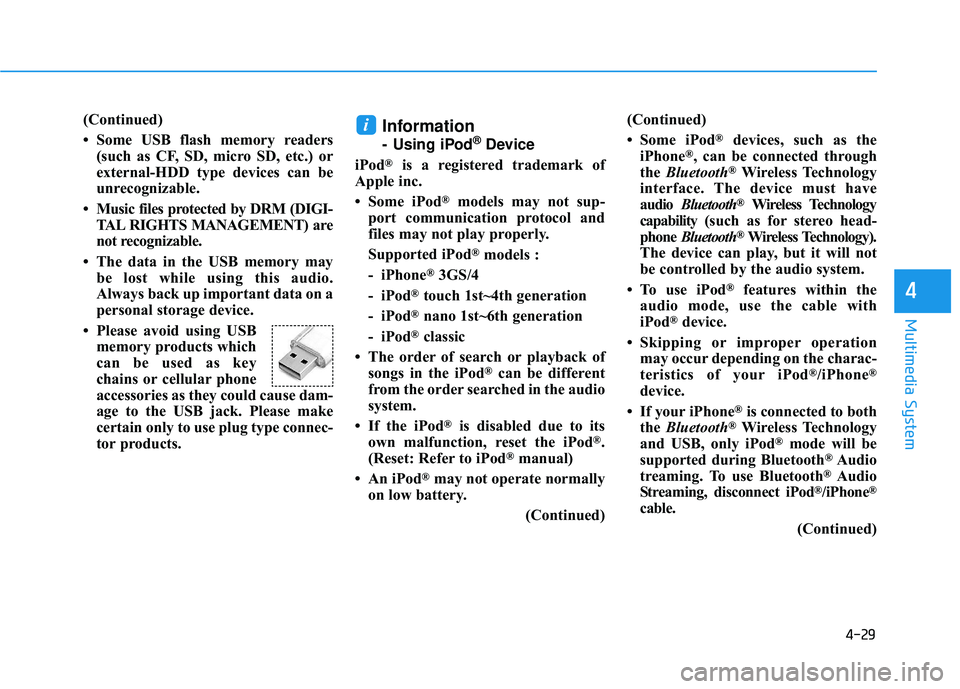
• Please avoid using USB memory products which
can be used as key
chains or cellular phone
accessories as they could cause dam-
age to the USB jack. Please make
certain only to use plug type connec-
tor products.Information
- Using iPod®Device
iPod
®is a registered trademark of
Apple inc.
• Some iPod
®models may not sup-
port communication protocol and
files may not play properly.
Supported iPod
®models :
- iPhone
®3GS/4
- iPod
®touch 1st~4th generation
- iPod
®nano 1st~6th generation
- iPod
®classic
• The order of search or playback of songs in the iPod
®can be different
from the order searched in the audio
system.
• If the iPod
®is disabled due to its
own malfunction, reset the iPod®.
(Reset: Refer to iPod®manual)
• An iPod
®may not operate normally
on low battery.
(Continued)(Continued)
• Some iPod
®devices, such as the
iPhone®, can be connected through
the Bluetooth®Wireless Technology
interface. The device must have
audio Bluetooth
®Wireless Technology
capability (such as for stereo head-
phone Bluetooth
®Wireless Technology).
The device can play, but it will not
be controlled by the audio system.
• To use iPod
®features within the
audio mode, use the cable with
iPod
®device.
• Skipping or improper operation may occur depending on the charac-
teristics of your iPod
®/iPhone®
device.
• If your iPhone
®is connected to both
the Bluetooth®Wireless Technology
and USB, only iPod®mode will be
supported during Bluetooth®Audio
treaming. To use Bluetooth®Audio
Streaming, disconnect iPod®/iPhone®
cable.
(Continued)
i