Eco HYUNDAI ELANTRA SE 2017 Owners Manual
[x] Cancel search | Manufacturer: HYUNDAI, Model Year: 2017, Model line: ELANTRA SE, Model: HYUNDAI ELANTRA SE 2017Pages: 586, PDF Size: 15.29 MB
Page 262 of 586
Do not place beverages close tothe audio system. Spilling bever-
ages may lead to system mal-
function.
If your audio system is not work- ing properly, have your vehicle
audio system inspected by an
authorized Hyundai dealer.
Placing the audio system within an electromagnetic environment
may result in noise interference.
Use caution to keep chemicals such as perfumes, cosmetics,
sun screen lotions, hand sanitiz-
ers, or air fresheners from con-
tacting any interior components.
Doing so may cause damage or
discoloration.
Information - Using CDs
• This device has been manufactured to be compatible with software
bearing the following logo marks.
• Do not clean discs with chemical solutions, such as record sprays,
antistatic sprays, antistatic liquids,
benzene, or thinners.
• After using a disc, put the disc back in its original case to prevent disc
scratches.
• Hold discs by their edges or within the center hole to prevent damages
to disc surfaces.
• Do not introduce foreign substances into the disc insert/eject slot.
Introducing foreign substances
could damage the device interior.
• Do not insert two discs simultane- ously.
• When using CD-R/CD-RW discs, differences in disc reading and play-
ing times may occur depending on
the disc manufacturer, production
method and the recording method
as used by the user.
(Continued)iNOTICE
4-10
Multimedia System
Operating the device while
driving could lead to acci-
dents due to a lack of atten-
tion to external surroundings.
First park the vehicle before
operating the device.
Adjust the volume to levels
that allow the driver to hear
sounds from outside of the
vehicle. Driving with the audio
volume at a level where exter-
nal sounds cannot be heard
may lead to an accident.
Pay attention to the volume
setting when turning the
device on. A sudden output of
extreme volume upon turning
the device on could lead to
hearing impairment. (Adjust
the volume to a suitable level
before turning off the device.)
CAUTION
Page 263 of 586
(Continued)
• Clean fingerprints and dust off thedisc surface (coated side) with a soft
cloth.
• The use of CD-R/CD-RW discs attached with labels may result in
disc slot jams or difficulties in disc
removal. Such discs may also result
in noise while playing.
• Some CD-R/CD-RW discs may not properly operate depending on the
disc manufacturer, production
method and the record method as
used by the user. If problems persist,
trying using a different CD as con-
tinued use may result in malfunc-
tions.
• The performance of this product may differ depending on the CD-
RW Drive Software.
• Copy-protected CDs such as S-type CDs may not function in the device.
DATA discs cannot be played.
(However, such discs may still oper-
ate but will do so abnormally.)
(Continued)(Continued)
• Do not use abnormally shaped discs
(8cm, heart-shaped, octagon-shaped)
as such discs could lead to malfunc-
tions.
• If the disc is straddled on the disc slot without removal for 10 seconds,
the disc will automatically be re-
inserted into the disc player.
• Only genuine audio CDs are sup- ported. Other discs may result in
recognition failure (e.g. copy CD-R,
CDs with labels)Information -Using the USB
device
• Connect the USB device after turn- ing on the engine. The USB device
may become damaged if it is already
connected when the ignition is
turned on.The USB device may not
operate properly if the car ignition
is turned on or off with the USB
device connected.
• Heed caution to static electricity when connecting/disconnecting USB
devices.
• Encoded MP3 Players will not be recognized when connected as an
external device.
• When connecting an external USB device, the device may not properly
recognize the USB is in some states.
• Only products formatted with byte/sectors under 64Kbyte will be
recognized.
• This device recognizes USB devices formatted in FAT 12/16/32 file for-
mats. This device does not recognize
files in NTFS file format.
(Continued)i
4-11
Multimedia System
4
Page 264 of 586
(Continued)
• Some USB devices may not be sup- ported due to compatibility issues.
• Avoid contact between the USB con- nector with bodily parts or foreign
objects.
• Repeated connecting/disconnecting of USB devices within short periods
of time may result in product mal-
function.
• A strange noise may occur when dis- connecting the USB.
• Make sure to connect/disconnect external USB devices with the audio
power turned off.
• The amount of time required to rec- ognize the USB device may differ
depending on the type, size or file
formats stored in the USB. Such dif-
ferences in time are not indications
of malfunctions.
• The device only supports USB devices used to play music files.
• USB images and videos are not sup- ported.
(Continued)(Continued)
• Do not use the USB I/F to charge batteries or USB accessories that
generate heat. Such acts may lead to
worsened performance or damage
to the device.
• The device may not recognize the USB device if separately purchased
USB hubs and extension cables are
being used. Connect the USB direct-
ly with the multimedia terminal of
the vehicle.
• When using mass storage USB devices with separate logical drives,
only files saved to the root drive can
be played.
• Files may not properly operate if application programs are installed
to the USBs.
• The device may not operate normal- ly if MP3 Players, cellular phones,
digital cameras, or other electronic
devices (USB devices not recognized
as portable disk drives) are connect-
ed with the device.
(Continued)(Continued)
• Charging through the USB may not
work for some mobile devices.
• The device may not support normal operation when using a USB memo-
ry type besides (Metal Cover Type)
USB Memory.
• The device may not support normal operation when using formats such
as HDD Type, CF, or SD Memory.
• The device will not support files locked by DRM (Digital Rights
Management.)
• USB memory sticks used by con- necting an Adaptor (SD Type or CF
Type) may not be properly recog-
nized.
• The device may not operate proper- ly when using USB HDDs or USBs
subject to connection failures
caused by vehicle vibrations. (e.g. i-
stick type)
(Continued)
4-12
Multimedia System
Page 265 of 586
(Continued)
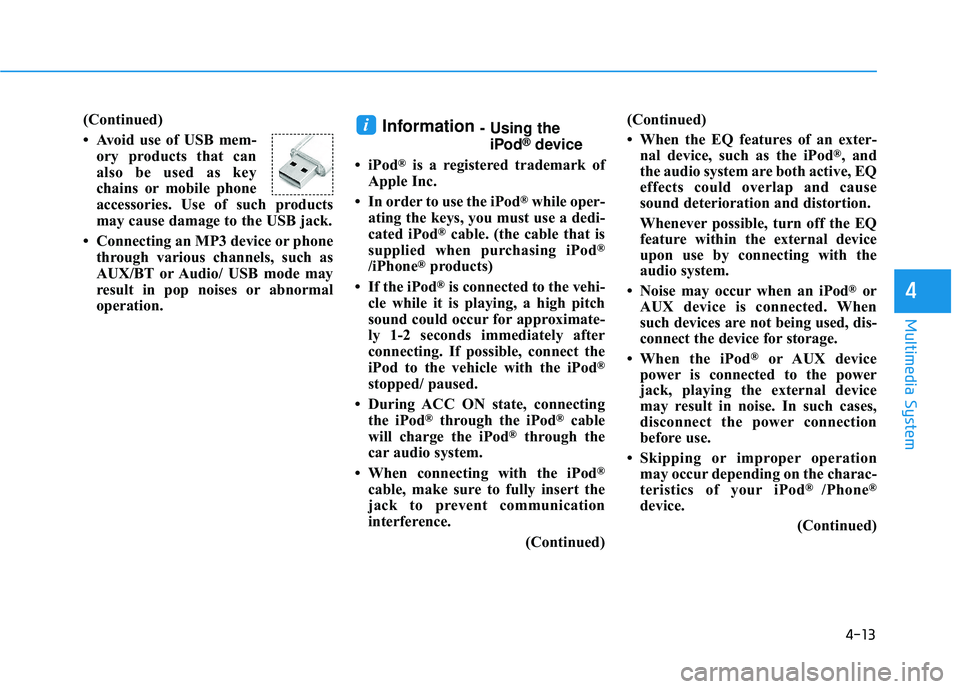
• Avoid use of USB mem-ory products that can
also be used as key
chains or mobile phone
accessories. Use of such products
may cause damage to the USB jack.
• Connecting an MP3 device or phone through various channels, such as
AUX/BT or Audio/ USB mode may
result in pop noises or abnormal
operation.Information - Using theiPod®device
• iPod
®is a registered trademark of
Apple Inc.
• In order to use the iPod
®while oper-
ating the keys, you must use a dedi-
cated iPod
®cable. (the cable that is
supplied when purchasing iPod®
/iPhone®products)
• If the iPod
®is connected to the vehi-
cle while it is playing, a high pitch
sound could occur for approximate-
ly 1-2 seconds immediately after
connecting. If possible, connect the
iPod to the vehicle with the iPod
®
stopped/ paused.
• During ACC ON state, connecting the iPod
®through the iPod®cable
will charge the iPod®through the
car audio system.
• When connecting with the iPod
®
cable, make sure to fully insert the
jack to prevent communication
interference. (Continued)(Continued)
• When the EQ features of an exter-
nal device, such as the iPod
®, and
the audio system are both active, EQ
effects could overlap and cause
sound deterioration and distortion.
Whenever possible, turn off the EQ
feature within the external device
upon use by connecting with the
audio system.
• Noise may occur when an iPod
®or
AUX device is connected. When
such devices are not being used, dis-
connect the device for storage.
• When the iPod
®or AUX device
power is connected to the power
jack, playing the external device
may result in noise. In such cases,
disconnect the power connection
before use.
• Skipping or improper operation may occur depending on the charac-
teristics of your iPod
® /Phone®
device.
(Continued)
i
4-13
Multimedia System
4
Page 266 of 586
(Continued)
• If your iPhone
®is connected to both
the Bluetooth®Wireless Technology
and USB, the sound may not be
properly played. In your iPhone
®,
select the Dock c onnector or
Bluetooth
®Wireless Technology to
change the sound output (source).
• iPod mode cannot be operated when the iPod
®cannot be recognized due
to versions that do not support com-
munication protocols.
• For fifth generation iPod
®Nano
devices, the iPod®may not be recog-
nized when the battery level is low.
Please charge the iPod
®for use.
• Search/play orders shown within the iPod
®device may differ with the
orders shown within the audio sys-
tem.
• If the iPod
®malfunctions due to an
iPod®device defect, reset the iPod®
and try again. (To learn more, refer to
your iPod®manual)
(Continued) (Continued)
• Some iPod
®s may not sync with the
System depending on its version. If
the Media is removed before the
Media is recognized, then the sys-
tem may not properly restore the
previously operated mode. (iPad
®
charging is not supported.)
Information - Using the AUX
device
• If an external device connector is connected with the AUX terminal,
then AUX mode will automatically
operate. Once the connector is dis-
connected, the previous mode will
be restored.
• AUX mode can be used only when an external audio player (cam-
corder, in-car DVD player, etc.) has
been connected.
• The AUX volume can be controlled separately from other audio modes.
• Connecting a connector jack to the AUX terminal without an external
device will convert the system to
AUX mode, but only output noise.
When an external device is not
being used, also remove the connec-
tor jack.
• When the external device power is connected to the power jack, play-
ing the external device may output
noise. In such cases, disconnect the
power connection before use.
• Fully insert the AUX cable to the AUX jack upon use.i
4-14
Multimedia System
Page 268 of 586
(Continued)
• Park the vehicle when connectingthe head unit with the mobile phone.
• Bluetooth
®connection may become
intermittently disconnected in some
mobile phones. Follow these steps to
try again.
1. Within the mobile phone, turn the Bluetooth
®function off/on and try
again.
2. Turn the mobile phone power Off/On and try again.
3. Completely remove the mobile phone battery, reboot, and then
again.
4. Reboot the Audio System and try again.
5. Delete all paired devices, pair and try again.
• Handsfree call quality and volume may differ depending on the model
of your mobile phone.
Information - Using the voicerecognition
• When using the voice recognition feature, only commands listed with-
in the user's manual are supported.
• Be aware that during the operation of the voice recognition system,
pressing any key other than the
key terminate the voice recognition
mode.
• For superior voice recognition per- formance, position the microphone
used for voice recognition above the
head of the driver’s seat and main-
tain a proper position when saying
commands.
• Within the following situations, voice recognition may not function
properly due to external sound.
- When the windows and sunroofare open
- When the wind of the cooling / heating device is strong
- When entering and passing through tunnels
(Continued)(Continued)
- When driving on rugged anduneven roads
- During severe rain (heavy rains, windstorms)
• Phone related voice commands can be used only when a Bluetooth
®
Wireless Technology device is con-
nected.
• When making calls by stating a name, the corresponding contact
must be downloaded and stored
within the audio system.
• After downloading the Bluetooth
®
Wireless Technology phone book, it
takes some times to convert the
phone book data into voice informa-
tion. During this time, voice recogni-
tion may not properly operate.
• Pronounce the voice commands nat- urally and clearly as if in a normal
conversation.
i
4-16
Multimedia System
Page 271 of 586
![HYUNDAI ELANTRA SE 2017 Owners Manual 4-19
Multimedia System
4
(7) [1] ~ [6] (Preset)
Radio mode : Saves frequencies (channels) or receives saved fre-
quencies (channels).
CD, USB, iPod
®, My Music* mode
- [RPT] : Repeat
- [RDM] : Rand](/img/35/56090/w960_56090-270.png "HYUNDAI ELANTRA SE 2017 Owners Manual 4-19
Multimedia System
4
(7) [1] ~ [6] (Preset)
Radio mode : Saves frequencies (channels) or receives saved fre-
quencies (channels).
CD, USB, iPod
®, My Music* mode
- [RPT] : Repeat
- [RDM] : Rand")
4-19
Multimedia System
4
(7) [1] ~ [6] (Preset)
Radio mode : Saves frequencies (channels) or receives saved fre-
quencies (channels).
CD, USB, iPod
®, My Music* mode
- [RPT] : Repeat
- [RDM] : Random
In the Radio, Media, Setup, and
Menu pop up screen, the number
menu is selected.
* if equipped (8)
DISP
Each short press toggles through the following modes : Screen Off
➟
Screen On ➟Screen Off.
Audio operation is maintained and only the Screen will be turned Off.
In the Screen Off state, press any button to turn the Screen On again. (9)
SCAN
Radio mode - Short press : Previews eachbroadcast for 5 seconds each.
- Press and hold : Previews the broadcasts saved in Preset [1] ~
[6] for 5 seconds each.
- Press the [SCAN] button again
to continue listening to the cur-
rent frequency.
CD, USB, My Music* mode - Short press : Previews eachsong (file) for 10 seconds each.
- Press the [SCAN] button again
to continue listening to the cur-
rent song (file).
* if equipped
(10) SETUP/CLOCK
Moves to the Display, Sound, Clock, Phone, System setting
menu.
Page 275 of 586
![HYUNDAI ELANTRA SE 2017 Owners Manual 4-23
Multimedia System
4
(7) [1] ~ [6] (Preset)
Radio mode : Saves frequencies (channels) or receives saved fre-
quencies (channels).
CD, USB, iPod
®, My Music* mode
- [RPT] : Repeat
- [RDM] : Rand](/img/35/56090/w960_56090-274.png "HYUNDAI ELANTRA SE 2017 Owners Manual 4-23
Multimedia System
4
(7) [1] ~ [6] (Preset)
Radio mode : Saves frequencies (channels) or receives saved fre-
quencies (channels).
CD, USB, iPod
®, My Music* mode
- [RPT] : Repeat
- [RDM] : Rand")
4-23
Multimedia System
4
(7) [1] ~ [6] (Preset)
Radio mode : Saves frequencies (channels) or receives saved fre-
quencies (channels).
CD, USB, iPod
®, My Music* mode
- [RPT] : Repeat
- [RDM] : Random
In the Radio, Media, Setup, and
Menu pop up screen, the number
menu is selected.
* if equipped (8)
DISP
Each short press toggles through the following modes : Screen Off
➟
Screen On ➟Screen Off.
Audio operation is maintained and only the Screen will be turned Off.
In the Screen Off state, press any button to turn the Screen On again. (9)
SCAN
Radio mode - Short press : Previews eachbroadcast for 5 seconds each.
- Press and hold : Previews the broadcasts saved in Preset [1] ~
[6] for 5 seconds each.
- Press the [SCAN] button again
to continue listening to the cur-
rent frequency.
- XM Radio does not support the Preset scan feature.
CD, USB, My Music* mode - Short press : Previews eachsong (file) for 10 seconds each.
- Press the [SCAN] button again
to continue listening to the cur-
rent song (file).
* if equipped
(10) SETUP/CLOCK
Moves to the Display, Sound, Clock, Phone, System setting
menu.
Page 277 of 586
4-25
Multimedia System
4
Information
- Using Compact Discs
• If the temperature inside the car is too high, open the car windows to
ventilate before using the system.
• It is illegal to copy and use MP3/WMA files without permis-
sion. Use CDs that are created only
by lawful means.
• Do not apply volatile agents, such as benzene or thinner, use normal
cleaners and magnetic sprays made
for CDs.
• To prevent the disc surface from getting damaged, hold CDs by the
edges or the center hole only.
• Clean the disc surface with a piece of soft cloth before playback (wipe it
from the center to the outside edge).
• Do not damage the disc surface or attach pieces of sticky tape or paper.
• Make certain only CDs are inserted into the CD player (Do not insert
more than one CD at a time).
• Keep CDs in their cases after use to protect them from scratches or dirt.
(Continued)(Continued)
• Depending on the type of CD-R/CD-
RW CDs, certain CDs may not oper-
ate normally depending on manu-
facturing company or recording
methods.
Information
- Playing an IncompatibleCopy Protected Audio CD
Some copy protected CDs, which do
not comply with international audio
CD standards (Red Book), may not
play on your car audio. Please note
that inabilities to properly play a copy
protected CD may indicate that the
CD is defective, not the CD player.
NOTE:
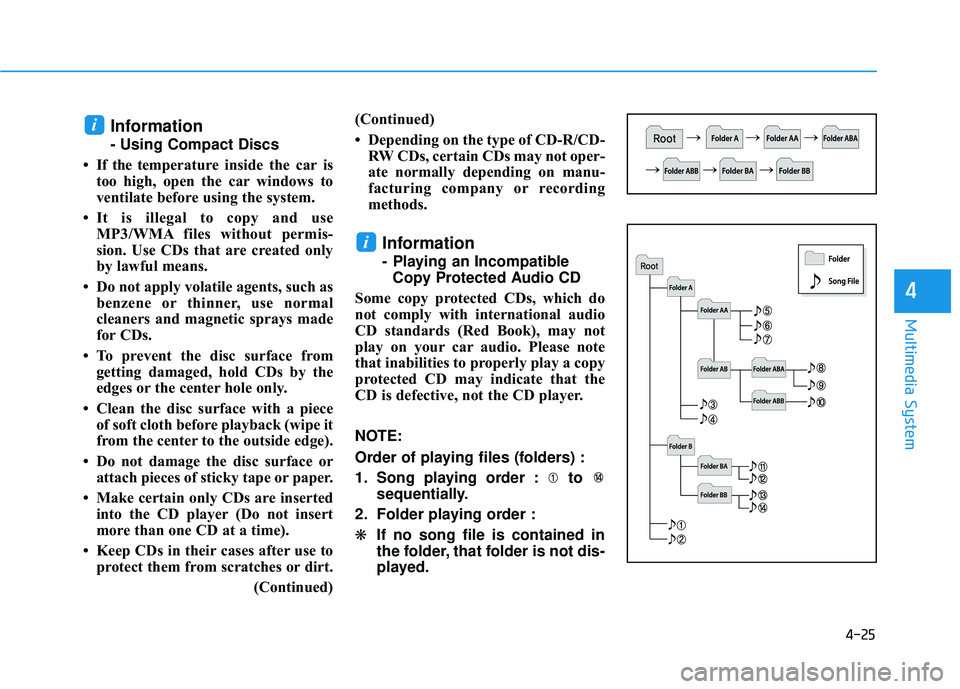
Order of playing files (folders) :
1. Song playing order : to sequentially.
2. Folder playing order :
❋ If no song file is contained in
the folder, that folder is not dis-
played.
i
i
Page 280 of 586
4-28
Multimedia System
(Continued)
• An encrypted MP3 PLAYER is not recognizable.
• Depending on the condition of the external USB device, the connected
external USB device can be unrec-
ognizable.
• When the formatted byte/sector set- ting of External USB device is not
either 512BYTE or 2048BYTE, then
the device will not be recognized.
• Use only a USB device formatted to FAT 12/16/32.
• USB devices without USB I/F authentication may not be recogniz-
able.
• Make sure the USB connection ter- minal does not come in contact with
the human body or other objects.
• If you repeatedly connect or discon- nect the USB device in a short peri-
od of time, it may break the device.
(Continued)(Continued)
• You may hear a strange noise when
connecting or disconnecting a USB
device.
• If you disconnect the external USB device during playback in USB
mode, the external USB device can
be damaged or may malfunction.
Therefore, disconnect the external
USB device when the audio is
turned off or in another mode. (e.g,
Radio)
• Depending on the type and capacity of the external USB device or the
type of files stored in the device,
there is a difference in the time for
recognition the device.
• Do not use the USB device for pur- poses other than playing music files.
• Playing videos through the USB is not supported.
• Use of USB accessories such as rechargers or heaters using USB I/F
may lower performance or cause
trouble.
(Continued)(Continued)
• If you use devices such as a USB hub
purchased separately, the vehicle’s
audio system may not recognize the
USB device. In this case, connect the
USB device directly to the multime-
dia terminal of the vehicle.
• If the USB device is divided by logi- cal drives, only the music files on the
highest-priority drive are recog-
nized by car audio.
• Devices such as MP3 Player/ Cellular phone/Digital camera can
be unrecognizable by standard USB
I/F.
• Charging through the USB may not be supported in some mobile
devices.
• USB HDD or USB types liable to connection failures due to vehicle
vibrations are not supported. (i-stick
type)
• Some non-standard USB devices (METAL COVER TYPE USB) can
be unrecognizable.
(Continued)