door lock HYUNDAI ELANTRA SEL 2021 User Guide
[x] Cancel search | Manufacturer: HYUNDAI, Model Year: 2021, Model line: ELANTRA SEL, Model: HYUNDAI ELANTRA SEL 2021Pages: 570, PDF Size: 52.21 MB
Page 143 of 570
05
5 -7
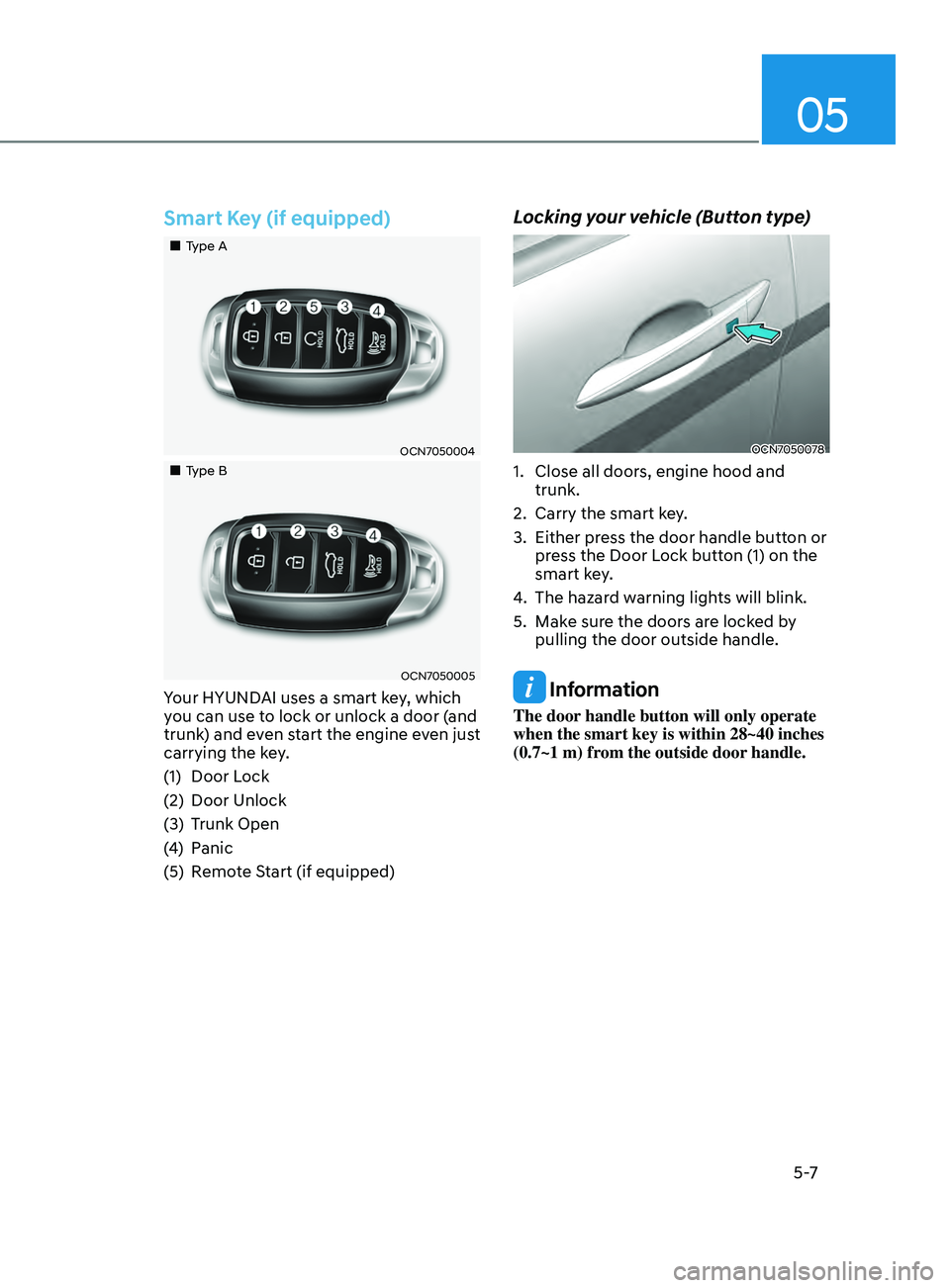
Smart Key (if equipped)
„„Type A
OCN7050004
„„Type B
OCN7050005
Your HYUNDAI uses a smart key, which
you can use to lock or unlock a door (and
trunk) and even start the engine even just
carrying the key.
(1)
Door Lock
(2)
Door Unlock
(3)
Trunk Open
(4
)
Panic
(5)
Remo
te Start (if equipped)
Locking your vehicle (Button type)
OCN7050078
1. Close all doors, engine hood and
trunk.
2.
Carry the smart ke
y.
3.
Either press the door handle butt
on or
press the Door Lock button (1) on the
smart key.
4.
The hazard w
arning lights will blink.
5.
Make sur
e the doors are locked by
pulling the door outside handle.
Information
The door handle button will only operate
when the smart key is within 28~40 inches
(0.7~1 m) from the outside door handle.
Page 144 of 570
Convenient Features
5-8
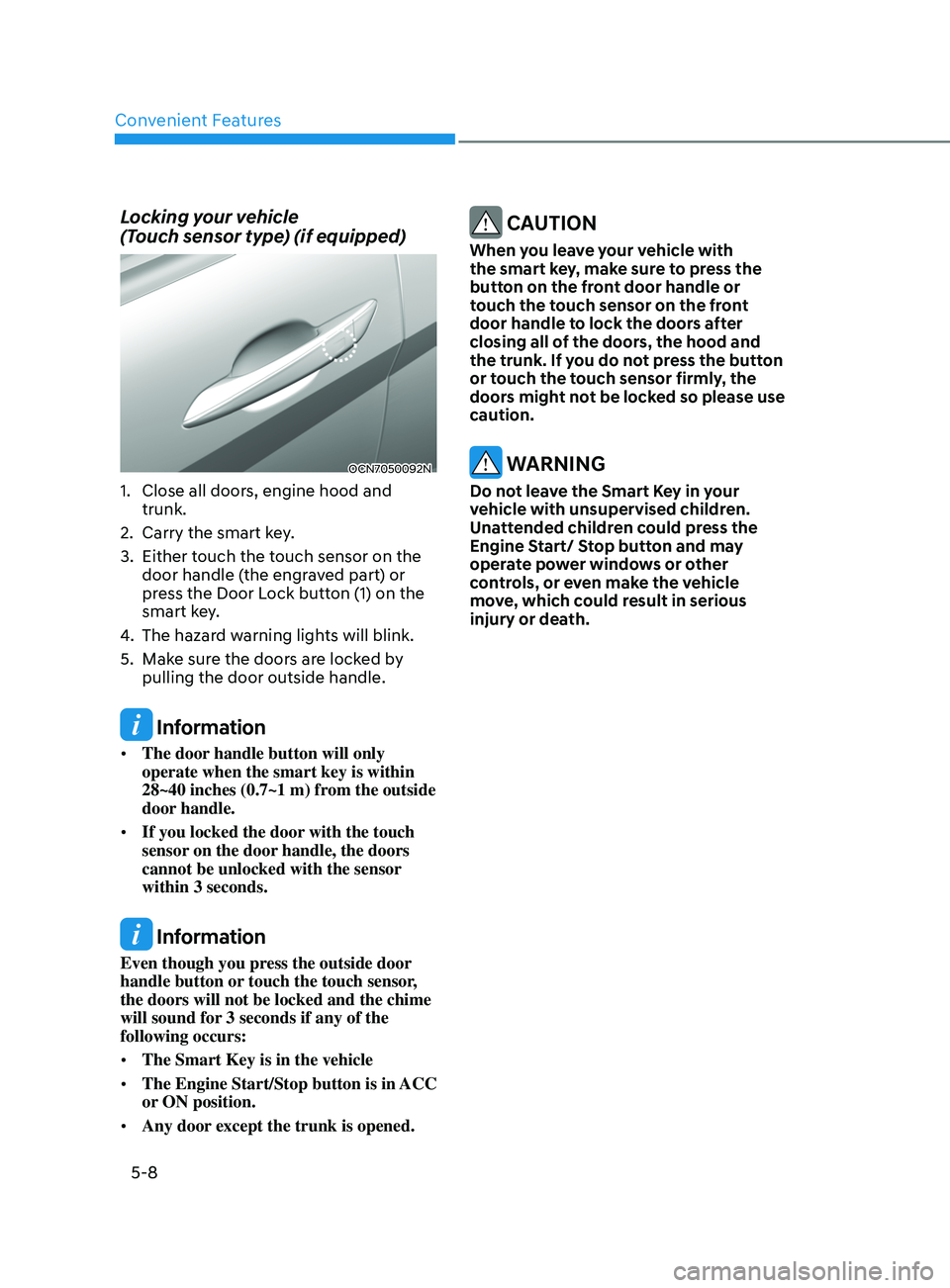
Locking your vehicle
(Touch sensor type) (if equipped)
OCN7050092N
1. Close all doors, engine hood and
trunk.
2.
Carry the smart ke
y.
3.
Either touch the t
ouch sensor on the
door handle (the engraved part) or
press the Door Lock button (1) on the
smart key.
4.
The hazard w
arning lights will blink.
5.
Make sur
e the doors are locked by
pulling the door outside handle.
Information
• The door handle button will only
operate when the smart key is within
28~40 inches (0.7~1 m) from the outside
door handle.
• If you locked the door with the touch
sensor on the door handle, the doors
cannot be unlocked with the sensor
within 3 seconds.
Information
Even though you press the outside door
handle button or touch the touch sensor,
the doors will not be locked and the chime
will sound for 3 seconds if any of the
following occurs:
• The Smart Key is in the vehicle
• The Engine Start/Stop button is in ACC
or ON position.
• Any door except the trunk is opened.
CAUTION
When you leave your vehicle with
the smart key, make sure to press the
button on the front door handle or
touch the touch sensor on the front
door handle to lock the doors after
closing all of the doors, the hood and
the trunk. If you do not press the button
or touch the touch sensor firmly, the
doors might not be locked so please use
caution.
WARNING
Do not leave the Smart Key in your
vehicle with unsupervised children.
Unattended children could press the
Engine Start/ Stop button and may
operate power windows or other
controls, or even make the vehicle
move, which could result in serious
injury or death.
Page 145 of 570
05
5-9
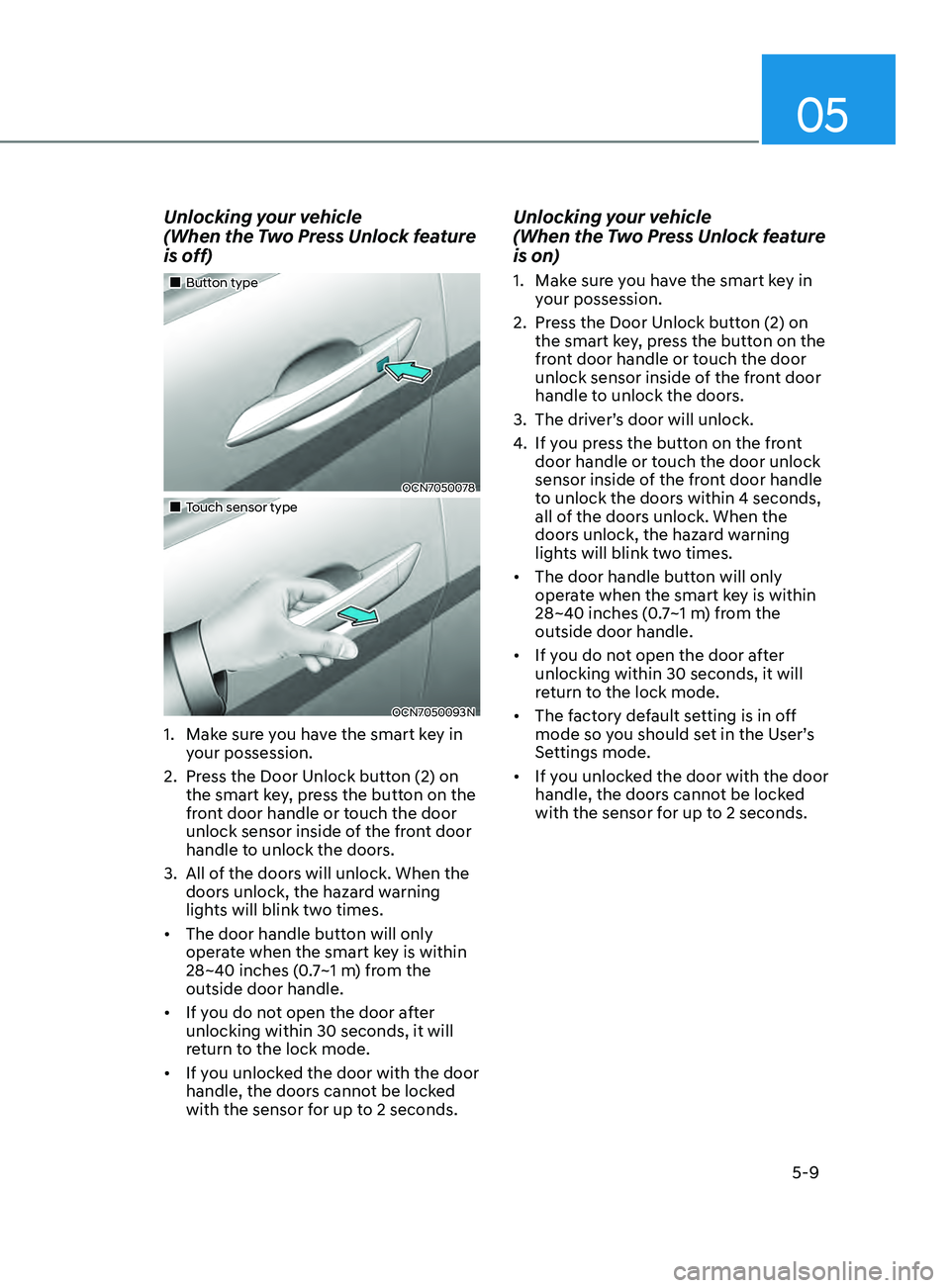
Unlocking your vehicle
(When the Two Press Unlock feature
is off)
„„Button type
OCN7050078
„„Touch sensor type
OCN7050093N
1. Make sure you have the smart key in
your possession.
2.
Press the Door Unlock butt
on (2) on
the smart key, press the button on the
front door handle or touch the door
unlock sensor inside of the front door
handle to unlock the doors.
3.
All of the door
s will unlock. When the
doors unlock, the hazard warning
lights will blink two times.
• The door handle button will only
operate when the smart key is within
28~40 inches (0.7~1 m) from the
outside door handle.
• If you do not open the door after
unlocking within 30 seconds, it will
return to the lock mode.
• If you unlocked the door with the door
handle, the doors cannot be locked
with the sensor for up to 2 seconds.
Unlocking your vehicle
(When the Two Press Unlock feature
is on)
1. Make sure you have the smart key in
y
our possession.
2.
Press the Door Unlock butt
on (2) on
the smart key, press the button on the
front door handle or touch the door
unlock sensor inside of the front door
handle to unlock the doors.
3.
The driver’
s door will unlock.
4.
If you pr
ess the button on the front
door handle or touch the door unlock
sensor inside of the front door handle
to unlock the doors within 4 seconds,
all of the doors unlock. When the
doors unlock, the hazard warning
lights will blink two times.
• The door handle button will only
operate when the smart key is within
28~40 inches (0.7~1 m) from the
outside door handle.
• If you do not open the door after
unlocking within 30 seconds, it will
return to the lock mode.
• The factory default setting is in off
mode so you should set in the User’s
Settings mode.
• If you unlocked the door with the door
handle, the doors cannot be locked
with the sensor for up to 2 seconds.
Page 146 of 570
Convenient Features
5-10
Two Press Unlock Feature
The priority for unlocking the driver door
only, or unlocking all the doors with
one press may be adjusted in the User
Settings mode in the cluster LCD display.
The Two Press Unlock feature, when
enabled, will require the user to press
the door unlock button once for driver
door only and twice for unlocking all the
doors.
Select or Deselect the Two Press Unlock
feature in the User Settings mode in the
cluster LCD display. The option can be
found under the following menu:
User
Se
ttings
→ Door → T
wo
Pr
ess
Unlock
Information
If you press the front passenger outside
door handle with the smart key in your
possession, all the doors will unlock.
Trunk opening
To open:
1.
Make sur
e you have the smart key
in your possession and either press
inside the trunk emblem or press the
Trunk Unlock button (3) on the smart
key for more than one second.
2.
Once the trunk is opened, the hazard
w
arning lights will blink two times.
• The trunk handle button will only
operate when the smart key is within
28~40 inches (0.7 ~1 m) from the trunk
handle.
• Once the trunk is opened and then
closed, the trunk will automatically
lock.
Panic button
Press and hold the Panic button (4) for
more than one second. The horn sounds
and hazard warning lights flash for about
30 seconds. To cancel the panic mode,
press any button on the smart key.
Page 147 of 570
05
5-11
Remote start (if equipped)
You can start the engine and turn on the
climate system by pressing the remote
start button (5) outside the vehicle.
To start and stop engine remotely :
1.
Press the door lock butt
on (1), and
then the hazard warning lights blink
once to alert you.
2.
Press the R
emote Start button (5)
for more than 2 seconds to start the
engine within 4 seconds after pressing
the door lock button (1).
3.
If you w
ant to stop the engine, press
the Remote Start button (5) again.
In case of the manual operation,
the climate control system will be
maintained even when the engine is
turned OFF. However, the automatic
operation is set to 22°C (72°F).
If someone without a designated smart
key rides your vehicle while remote
starting, the engine is automatically
stopped for security matter.
Information
After remotely starting the engine, the
engine will turn off automatically after
10 minutes if you do not ride your vehicle
matter.
CAUTION
• The remote start will not work if you
exceed the operating distance limit
(about 10 m).
• Avoid idling the engine for prolonged
periods to follow the emission
regulations in your country.
• Laws in your country may restrict the
use of remote start. You should check
country regulations before using this
remote starting system.
• It is only possible to start the engine
remotely when shifted to P (Park).
• If the hood or the trunk is opened,
you cannot start the engine
remotely.
Page 148 of 570
Convenient Features
5-12
Start-up
You can start the engine without
inserting the key. For detailed
information refer to the Engine Start/
Stop button in chapter 6.
Information
If the smart key is not moved for some
time, the detection function for smart key
operation will pause. Lift the smart key to
activate the detection again.
NOTICE
To prevent damaging the smart key:
• Keep the smart key away from water
or any liquid and fire. If the inside
of the smart key gets damp (due to
drinks or moisture), or is heated,
internal circuit may malfunction and
may void the vehicle warranty.
• Avoid dropping or throwing the
smart key.
• Protect the smart key from extreme
temperatures.
NOTICE
Always have the smart key with you
when leaving the vehicle. If the smart
key is left near the vehicle, the vehicle
battery may be discharged.
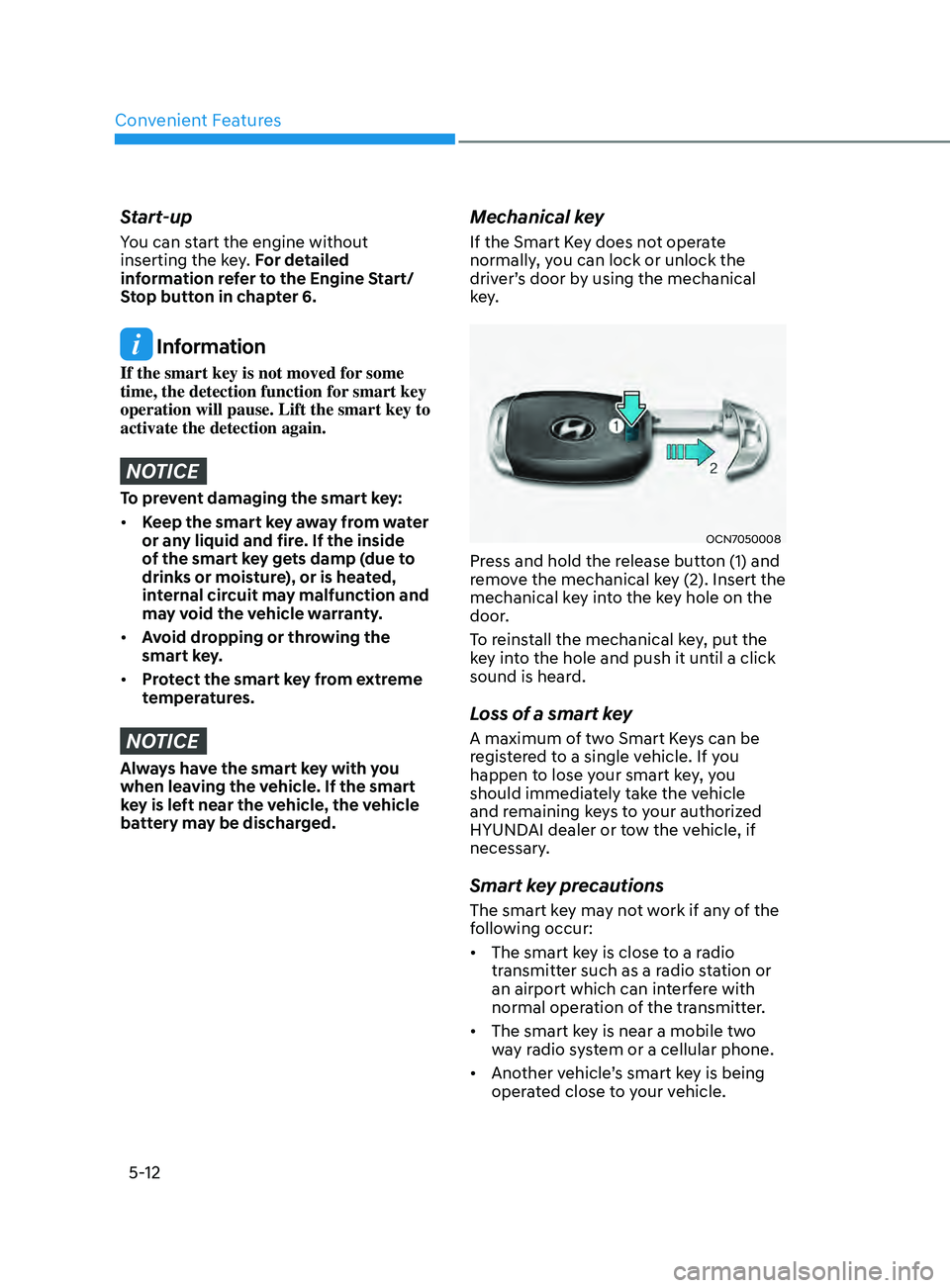
Mechanical key
If the Smart Key does not operate
normally, you can lock or unlock the
driver’s door by using the mechanical
key.
OCN7050008
Press and hold the release button (1) and
remove the mechanical key (2). Insert the
mechanical key into the key hole on the
door.
To reinstall the mechanical key, put the
key into the hole and push it until a click
sound is heard.
Loss of a smart key
A maximum of two Smart Keys can be
registered to a single vehicle. If you
happen to lose your smart key, you
should immediately take the vehicle
and remaining keys to your authorized
HYUNDAI dealer or tow the vehicle, if
necessary.
Smart key precautions
The smart key may not work if any of the
following occur:
• The smart key is close to a radio
transmitter such as a radio station or
an airport which can interfere with
normal operation of the transmitter.
• The smart key is near a mobile two
way radio system or a cellular phone.
• Another vehicle’s smart key is being
operated close to your vehicle.
Page 149 of 570
05
5-13
If the smart key does not work correctly,
open and close the door with the
mechanical key. If you have a problem
with the smart key, contact an authorized
HYUNDAI dealer.
If the smart key is in close proximity to
your mobile phone, the signal could be
blocked by your mobile phone’s normal
operational signals. This is specifically
relevant when the phone is active such
as making and receiving calls, text
messaging, and/or sending/receiving
emails. When possible, avoid keeping the
smart key and your mobile phone in the
same location such as a pants or jacket
pocket in order to avoid interference
between the two devices.
Information
This device complies with Part 15 of the
FCC rules.
Operation is subject to the following three
conditions:
1.
This device may not cause harmful
interference, and
2.
This device must accept any
interference r
eceived, including
interference that may cause undesired
operation.
3.
Changes or modifications not expr
essly
approved by the party responsible
for compliance could void the user’s
authority to operate the device.
NOTICE
Keep the smart key away from
electromagnetic materials that blocks
electromagnetic waves to the key
surface.
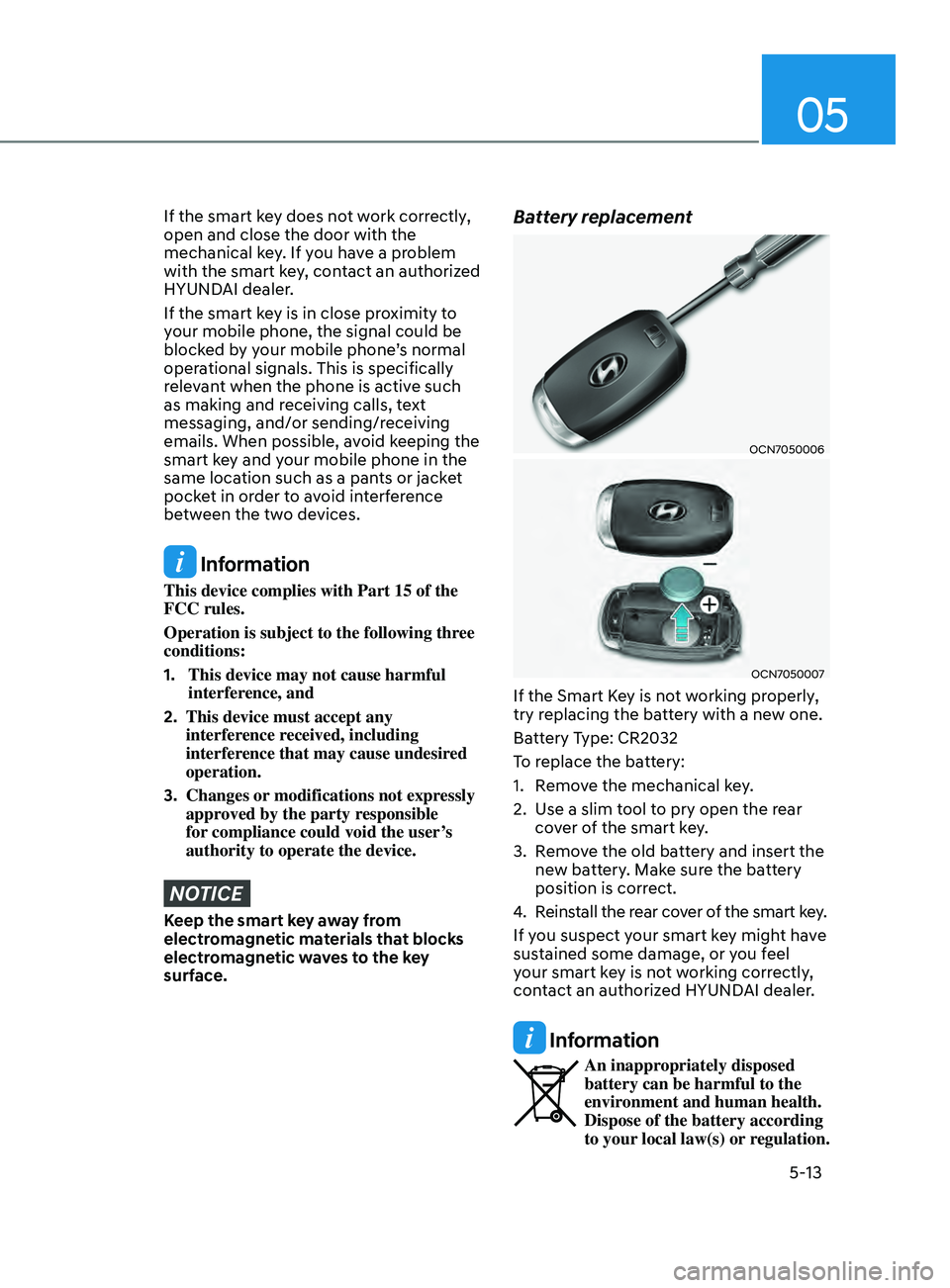
Battery replacement
OCN7050006
OCN7050007
If the Smart Key is not working properly,
try replacing the battery with a new one.
Battery Type: CR2032
To replace the battery:
1.
Remo
ve the mechanical key.
2.
Use a slim t
ool to pry open the rear
cover of the smart key.
3.
Remo
ve the old battery and insert the
new battery. Make sure the battery
position is correct.
4.
Reins
tall the rear cover of the smart key.
If you suspect your smart key might have
sustained some damage, or you feel
your smart key is not working correctly,
contact an authorized HYUNDAI dealer.
Information
An inappropriately disposed
battery can be harmful to the
environment and human health.
Dispose of the battery according
to your local law(s) or regulation.
Page 151 of 570
05
5-15
hyundai Digital Key
(if equipped)
Digital Key Application
To use Hyundai Digital Key mobile app,
you should install Hyundai digital key
application. Search ‘Hyundai digital key’
in the Google Play Store and download
the app. Please refer to the detailed
manual of the digital key app. The option
can be found under the following app
menu:
Menu → Application Info → Tutorial
Please note the manual before using the
app.
à This service is only av
ailable for
Android smartphones. Please confirm
supported/compatible devices on our
website.
WARNING
For used vehicle
If any of the digital key (smartphone key
or card key) is already registered when
you press ON button after unlocking
the doors, the message ‘Digital key(s)
active’ appears on the instrument
cluster once. If you buy a used vehicle,
you should confirm the message and
delete the registered smartphone key
and card key. In addition, please notify
the Hyundai Customer Care Center.
If the card key does not work properly,
please delete the card key and register
the smartphone key and re-register the
card key.
For vehicle maintenance
If you need to have your Digital Key
System repaired or replaced please
ensure you Smartphone Key is still
active. You may have to pair your phone
again.
In the case, re-initialize your Digital
Keys using the Hyundai Digital Key
mobile app.
Digital key (smartphone) NFC
function
You can use the Digital Key NFC (Near
Field Communication) function after
turning on your smartphone function in
the NFC settings. And you should unlock
& turn on smartphone screen to use it.
à To change the NF
C mode of the
smartphone, please refer to the
smartphone manual or contact
to the customer service center of
smartphone manufacturers.
Page 154 of 570
Convenient Features
5-18
Set up main vehicle
You can manage multiple digital keys
from the Digital key app. From the list of
digital keys you own, select the vehicle
you want to make your priority vehicle.
For more information, please refer to
the ‘Tutorial’ on your Digital key app.
OCN7050128
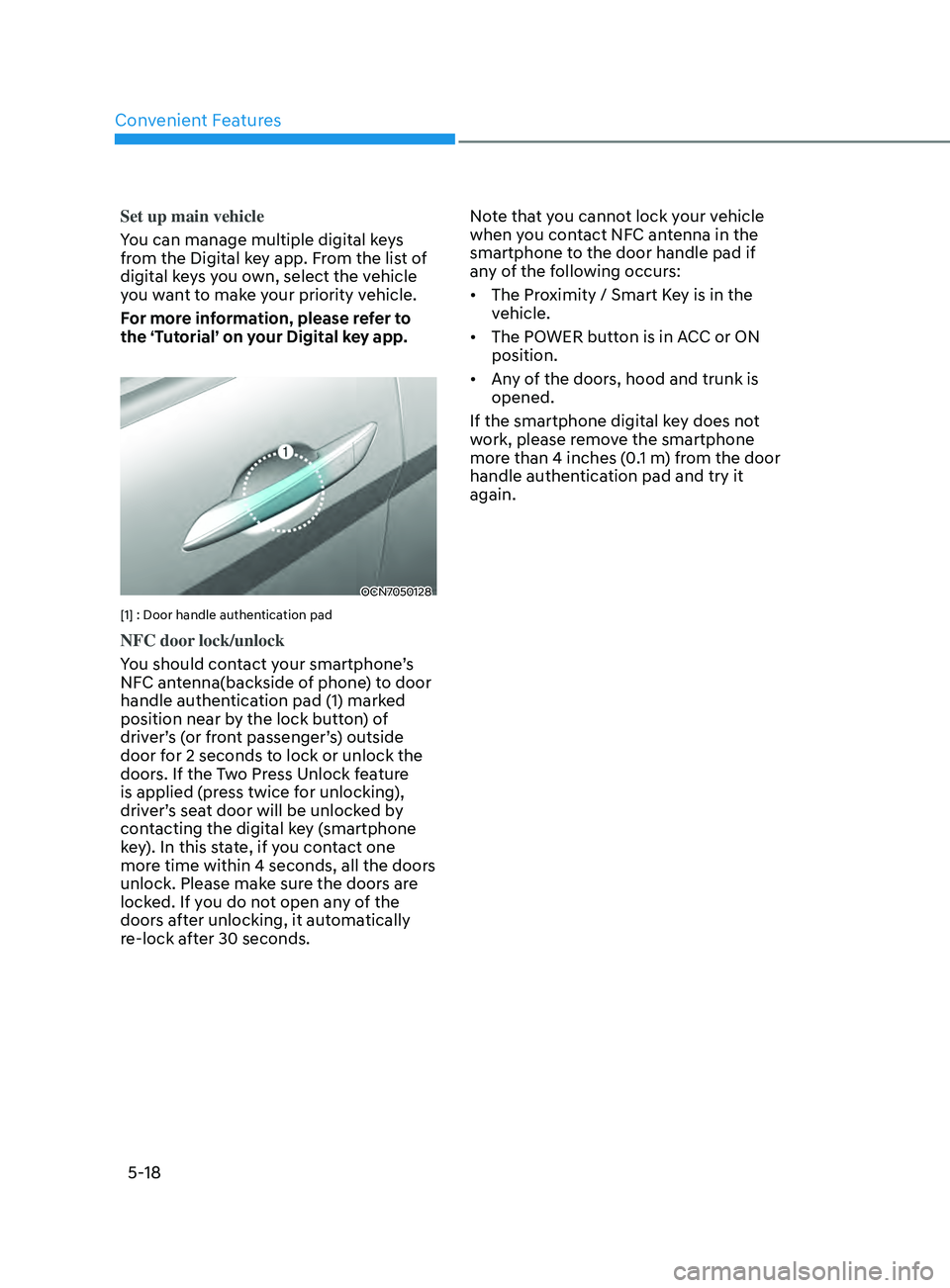
[1] : Door handle authentication pad
NFC door lock/unlock
You should contact your smartphone’s
NFC antenna(backside of phone) to door
handle authentication pad (1) marked
position near by the lock button) of
driver’s (or front passenger’s) outside
door for 2 seconds to lock or unlock the
doors. If the Two Press Unlock feature
is applied (press twice for unlocking),
driver’s seat door will be unlocked by
contacting the digital key (smartphone
key). In this state, if you contact one
more time within 4 seconds, all the doors
unlock. Please make sure the doors are
locked. If you do not open any of the
doors after unlocking, it automatically
re-lock after 30 seconds.Note that you cannot lock your vehicle
when you contact NFC antenna in the
smartphone to the door handle pad if
any of the following occurs:
•
The Proximity / Smart Key is in the
vehicle.
• The POWER button is in ACC or ON
position.
• Any of the doors, hood and trunk is
opened.
If the smartphone digital key does not
work, please remove the smartphone
more than 4 inches (0.1 m) from the door
handle authentication pad and try it
again.
Page 155 of 570
05
5-19
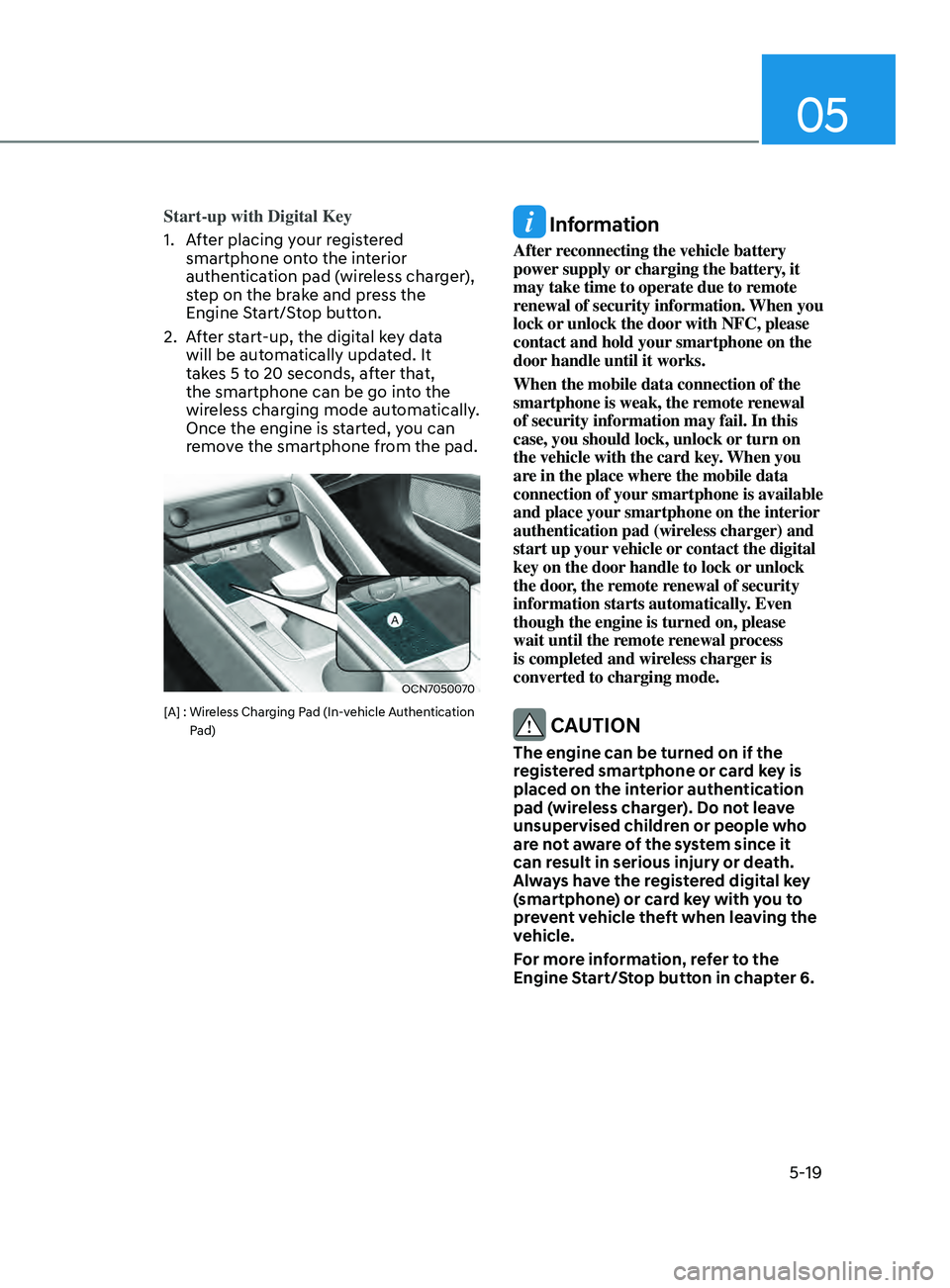
Start-up with Digital Key
1.
Aft
er placing your registered
smartphone onto the interior
authentication pad (wireless charger),
step on the brake and press the
Engine Start/Stop button.
2.
Aft
er start-up, the digital key data
will be automatically updated. It
takes 5 to 20 seconds, after that,
the smartphone can be go into the
wireless charging mode automatically.
Once the engine is started, you can
remove the smartphone from the pad.
OCN7050070
[A] : Wireless Charging Pad (In-vehicle Authentication
P
ad)
Information
After reconnecting the vehicle battery
power supply or charging the battery, it
may take time to operate due to remote
renewal of security information. When you
lock or unlock the door with NFC, please
contact and hold your smartphone on the
door handle until it works.
When the mobile data connection of the
smartphone is weak, the remote renewal
of security information may fail. In this
case, you should lock, unlock or turn on
the vehicle with the card key. When you
are in the place where the mobile data
connection of your smartphone is available
and place your smartphone on the interior
authentication pad (wireless charger) and
start up your vehicle or contact the digital
key on the door handle to lock or unlock
the door, the remote renewal of security
information starts automatically. Even
though the engine is turned on, please
wait until the remote renewal process
is completed and wireless charger is
converted to charging mode.
CAUTION
The engine can be turned on if the
registered smartphone or card key is
placed on the interior authentication
pad (wireless charger). Do not leave
unsupervised children or people who
are not aware of the system since it
can result in serious injury or death.
Always have the registered digital key
(smartphone) or card key with you to
prevent vehicle theft when leaving the
vehicle.
For more information, refer to the
Engine Start/Stop button in chapter 6.