navigation system HYUNDAI ELANTRA SEL 2021 User Guide
[x] Cancel search | Manufacturer: HYUNDAI, Model Year: 2021, Model line: ELANTRA SEL, Model: HYUNDAI ELANTRA SEL 2021Pages: 570, PDF Size: 52.21 MB
Page 314 of 570
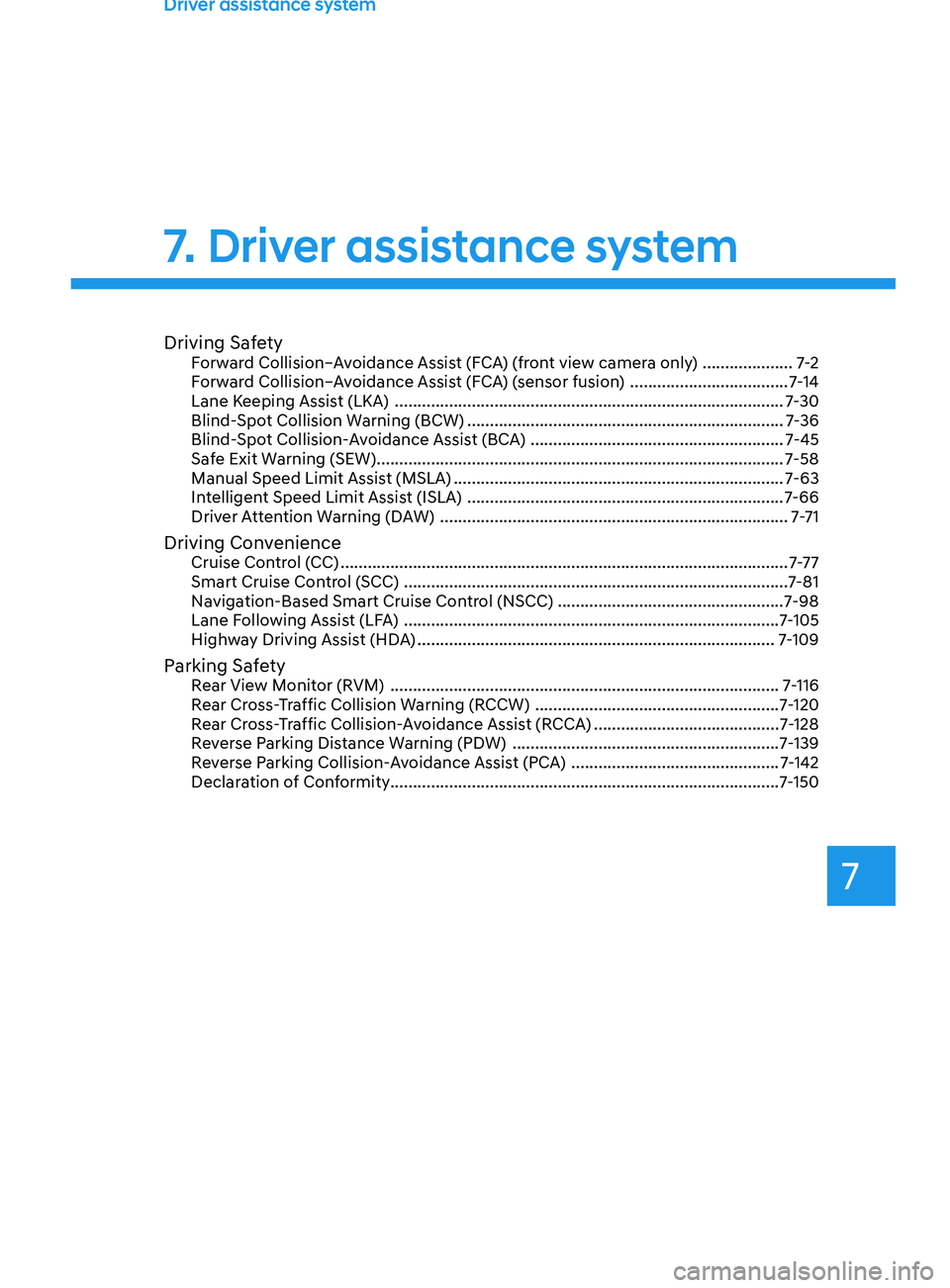
Driving SafetyForward Collision–Avoidance Assist (FCA) (front view camera only) ....................7-2
F orward Collision–Avoidance Assist (FCA) (sensor fusion) ................................... 7
-14
Lane Keeping Assist (LKA)
........................................................................\
.............. 7
-30
Blind-Spot Collision Warning (BCW)
...................................................................... 7
-36
Blind-Spot Collision-Avoidance Assist (BCA)
........................................................ 7
-45
Safe Exit Warning (SEW)
........................................................................\
.................. 7
-58
Manual Speed Limit Assist (MSLA)
........................................................................\
. 7-63
In
telligent Speed Limit Assist (ISLA)
...................................................................... 7
-66
Driver Attention Warning (DAW)
........................................................................\
..... 7
-7 1
Driving ConvenienceCruise Control (CC) ........................................................................\
...........................7-7 7
Smart Cruise Control (SCC) ........................................................................\
............. 7
-81
Navigation-Based Smart Cruise Control (NSCC) ..................................................7-98
Lane Following Assist (LFA)
........................................................................\
........... 7
-105
Highway Driving Assist (HDA)
........................................................................\
....... 7
-109
Parking SafetyRear View Monitor (RVM) ........................................................................\
..............7- 116
Rear Cross-Traffic Collision Warning (RCCW) ...................................................... 7
-120
Rear Cross-Traffic Collision-Avoidance Assist (RCCA)
......................................... 7
-128
Reverse Parking Distance Warning (PDW)
........................................................... 7
-139
Reverse Parking Collision-Avoidance Assist (PCA)
.............................................. 7
-142
Declaration of Conformity
........................................................................\
.............. 7
-150
7. Driver assistance system
Driver assistance system
7
Page 379 of 570
Driver assistance system
7-66
intelligent speed liMit assist (isla) (iF equipped)
Intelligent Speed Limit Assist uses
information from the detected road sign
and navigation system to inform the
driver of the speed limit and additional
information of the current road. Also,
the function helps the driver to maintain
within the speed limit of the road.
CAUTION
Intelligent Speed Limit Assist may not
operate properly if the system is used in
other countries.
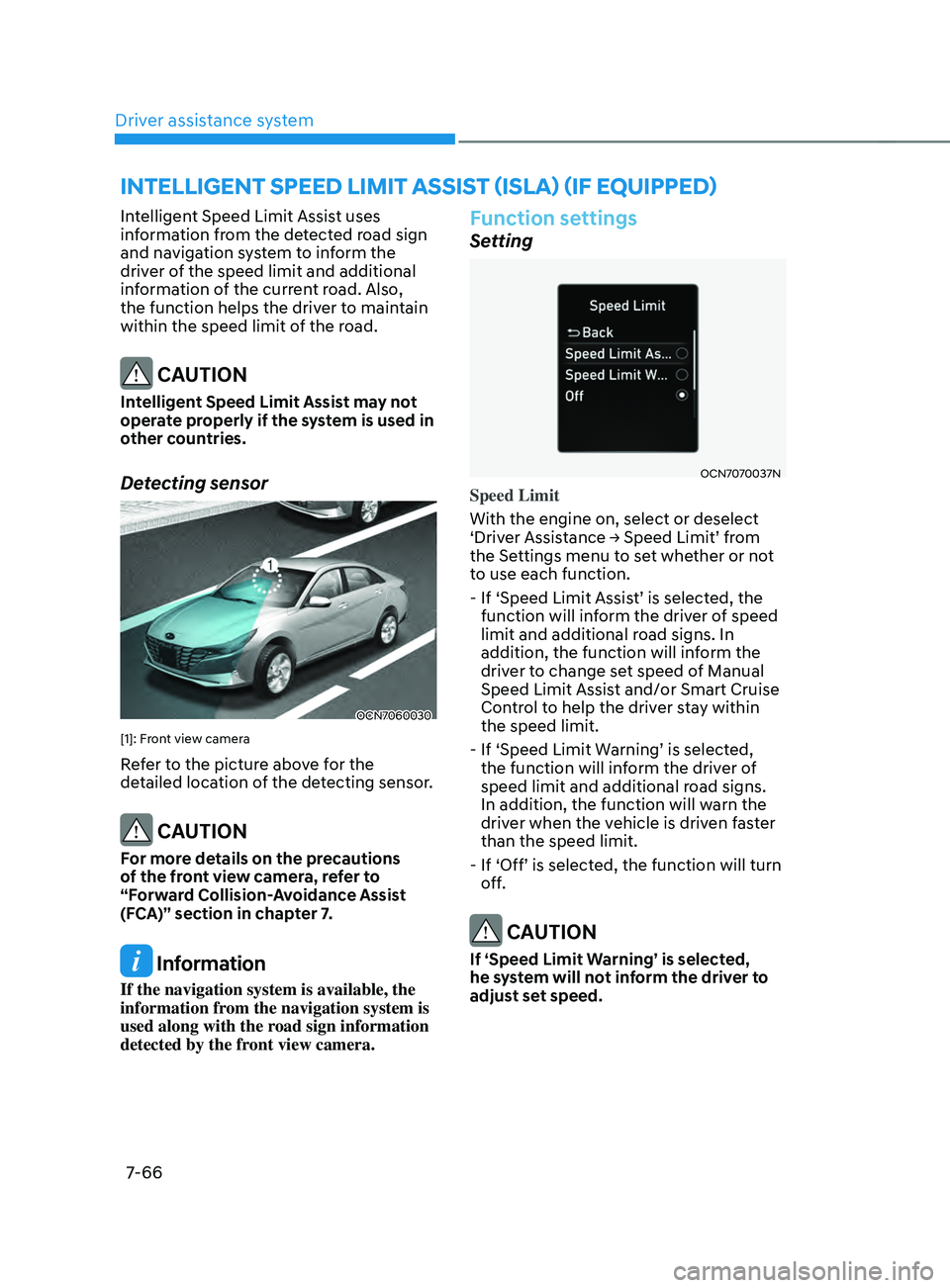
Detecting sensor
OCN7060030
[1]: Front view camera
Refer to the picture above for the
detailed location of the detecting sensor.
CAUTION
For more details on the precautions
of the front view camera, refer to
“Forward Collision-Avoidance Assist
(FCA)” section in chapter 7.
Information
If the navigation system is available, the
information from the navigation system is
used along with the road sign information
detected by the front view camera.
Function settings
Setting
OCN7070037N
Speed Limit
With the engine on, select or deselect
‘Driver
Assis
tance
→ Speed Limit’ fr
om
the Settings menu t
o set whether or not
to use each function.
-
If ‘Speed Limit Assis
t’
is select
ed,
the function will inf
orm the driver of speed
limit and additional road signs. In
addition, the function will inform the
driver to change set speed of Manual
Speed Limit Assist and/or Smart Cruise
Control to help the driver stay within
the speed limit.
-
If ‘Speed Limit W
arning’
is select
ed,
the function will inf
orm the driver of
speed limit and additional road signs.
In addition, the function will warn the
driver when the vehicle is driven faster
than the speed limit.
-
If ‘Off’ is select
ed,
the function will turn of
f.
CAUTION
If ‘Speed Limit Warning’ is selected,
he system will not inform the driver to
adjust set speed.
Page 411 of 570
Driver assistance system
7-98
Navigation-based Smart Cruise Control
can help automatically adjust vehicle
speed when driving on highways (or
motorways) by using road information
from the navigation system while Smart
Cruise Control is operating.
Information
• Navigation-based Smart Cruise Control
is available only on controlled access
road of certain highways.
ÃControlled access r
oad indicates
roads with limited entrances and
exits that allow uninterrupted high
speed traffic flow. Only passenger
cars and motorcycles are allowed on
controlled access roads.
• Additional highways may be expanded
by future navigation updates.
Information
Navigation-based Smart Cruise Control
operates on main roads of highways (or
motorways), and does not operate on
interchanges or junctions.
Highway Curve Zone Auto Slowdown
If vehicle speed is high, Highway Curve
Zone Auto Slowdown function can
temporarily decelerate your vehicle
or limit acceleration to help you drive
safely on a curve based on the curve
information from the navigation.
Highway Set Speed Auto Change
Highway Set Speed Auto Change
function automatically changes Smart
Cruise Control set speed based on
the speed limit information from the
navigation.
Function settings
Setting
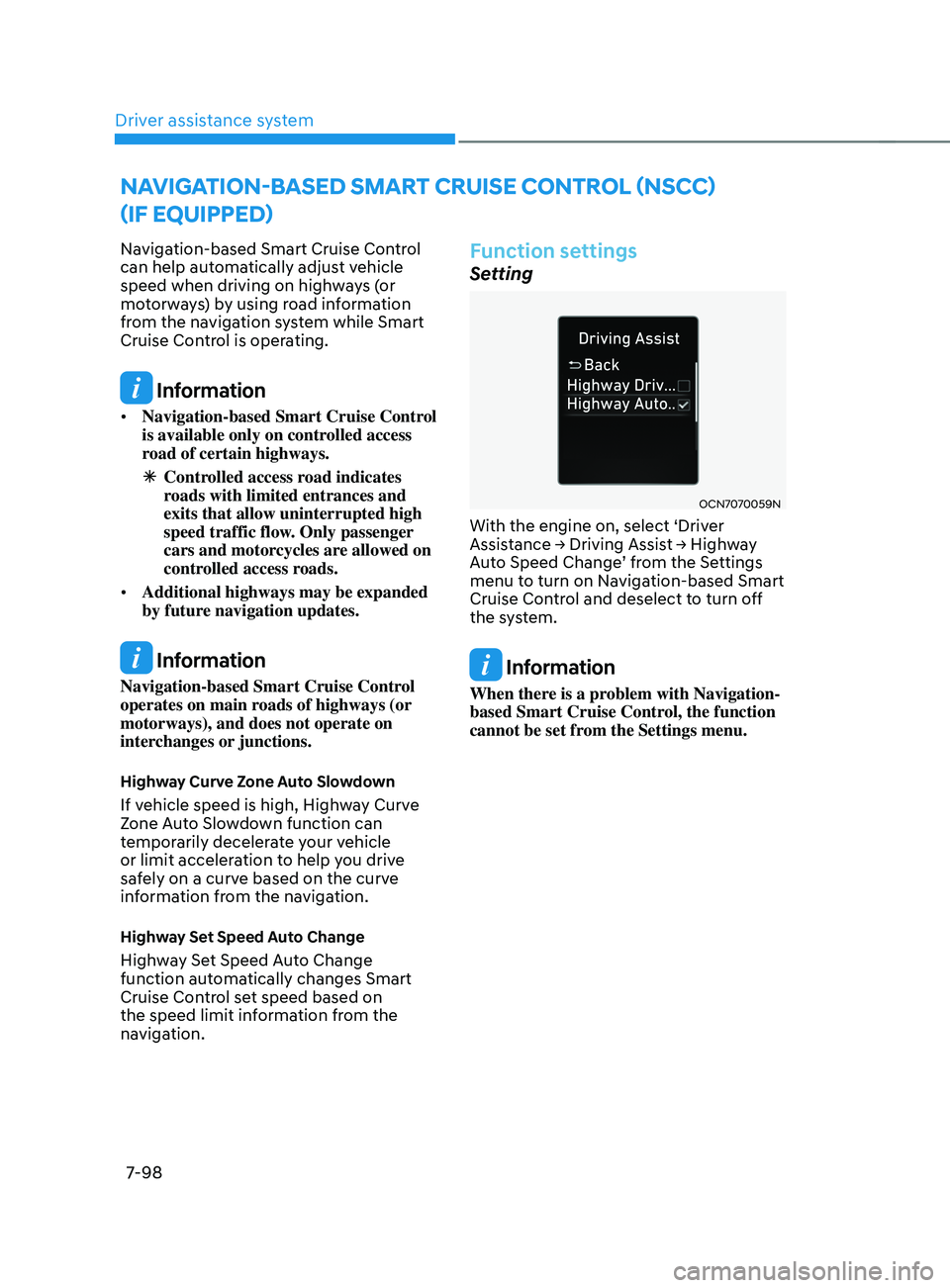
OCN7070059N
With the engine on, select ‘Driver
Assistance → Driving Assis
t → High way Aut
o
Speed Change
’
fr
om
the Se
ttings
menu to turn on Na
vigation-based Smart
Cruise Control and deselect to turn off
the system.
Information
When there is a problem with Navigation-
based Smart Cruise Control, the function
cannot be set from the Settings menu.
navigation-Based sMart Cruise Control (nsCC)
(i
F e
quipped)
Page 413 of 570
Driver assistance system
7-100
Information
Highway Curve Zone Auto Slowdown and
Highway Set Speed Auto Change function
uses the same
symbol.
Highway Curve Zone Auto Slowdown
• Depending on the curve ahead on the
highway (or motorway), the vehicle
will decelerate, and after passing the
curve, the vehicle will accelerate to
Smart Cruise Control set speed.
• Vehicle deceleration time may differ
depending on the vehicle speed
and the degree of the curve on the
road. The higher the driving speed,
deceleration will start faster.
Highway Set Speed Auto Change
• Highway Set Speed Auto Change
function will operate when Smart
Cruise Control set speed and the
highway (or motorway) speed limit is
matched.
• While Highway Set Speed Auto
Change function is operating, when
the highway (or motorway) speed limit
changes, Smart Cruise Control set
speed automatically changes to the
changed speed limit.
• If Smart Cruise Control set speed is
adjusted different from the speed
limit, Highway Set Speed Auto Change
function will be in the standby state.
• If Highway Set Speed Auto Change
function has changed to the standby
state by driving on a road other than
the highway (or motorway) main road,
Highway Set Speed Auto Change
function will operate again when you
drive on the main road again without
setting the set speed. •
If Highway Set Speed Auto Change
function has changed to the standby
state by depressing the brake pedal
or pressing the switch on the
steering wheel, press the switch
to restart the function.
• Highway Set Speed Auto Change
function does not operate on highway
interchanges or junctions.
Information
• Highway Set Speed Auto Change
function only operates based on
the speed limits of the highway (or
motorway), it does not work with speed
cameras.
• When Highway Set Speed Auto Change
function is operating, the vehicle
automatically accelerates or decelerates
when the highway (or motorway) speed
limit changes.
• The maximum set speed for Highway
Set Speed Auto Change function is 86
mph (140 km/h).
• If the speed limit of a new road is not
updated in the navigation, Highway Set
Speed Auto Change function may not
operate properly.
• If the speed unit is set to a unit other
than the speed unit used in your
country, Highway Set Speed Auto
Change function may not operate
properly.
Page 414 of 570
07
7-101
Limitations of the function
Navigation-based Smart Cruise Control
may not operate normally under the
following circumstances:
• The navigation is not working properly
• Speed limit and road information in
the navigation is not updated
• The map information and the actual
road is different because of real-time
GPS data or map information error
• The navigation searches for a route
while driving
• GPS signals are blocked in areas such
as a tunnel
• The navigation is updated while
driving
• Map information is not transmitted
due to infotainment system's
abnormal operation
• A road that divides into two or more
roads and joins again
• The driver goes off course the route
set in the navigation
• The route to the destination is
changed or canceled by resetting the
navigation •
The vehicle enters a service station or
rest area
• The speed limit of some sections
changes according to the road
situations
• Android Auto or Car Play is operating
• The navigation cannot detect the
current vehicle position (ex: elevated
roads including overpass adjacent to
general roads or nearby roads exist in
a parallel way)
• The navigation is being updated while
driving
• The navigation is being restarted while
driving
• There is bad weather, such as heavy
rain, heavy snow, etc.
• Driving on a road under construction
• Driving on a road that is controlled
• Driving on a road that is sharply
curved
• Driving on roads with intersections,
roundabouts, straight entrances and
exits, etc.
Page 415 of 570
![HYUNDAI ELANTRA SEL 2021 User Guide Driver assistance system
7-102
OCN7070107N[1] : Set route, [2] : Branch line, [3] : Driving route,
[4] : Main road, [5] : Curved road section
• When there is a difference between
the navigation se](/img/35/56089/w960_56089-414.png "HYUNDAI ELANTRA SEL 2021 User Guide Driver assistance system
7-102
OCN7070107N[1] : Set route, [2] : Branch line, [3] : Driving route,
[4] : Main road, [5] : Curved road section
• When there is a difference between
the navigation se")
Driver assistance system
7-102
OCN7070107N[1] : Set route, [2] : Branch line, [3] : Driving route,
[4] : Main road, [5] : Curved road section
• When there is a difference between
the navigation set route (branch line)
and the driving route (main road),
Highway Curve Zone Auto Slowdown
function may not operate until the
driving route is recognized as the
main road.
• When the vehicle's driving route
is recognized as the main road by
maintaining the main road instead
of the navigation set route, Highway
Curve Zone Auto Slowdown function
will operate. Depending on the
distance to the curve and the current
vehicle speed, vehicle deceleration
may not be sufficient or may
decelerate rapidly.
OCN7070108N[1] : Set route, [2] : Branch line, [3] : Driving route,
[4] : Main road, [5] : Curved road section
• When there is a difference between
the navigation route (main road)
and the driving route (branch line),
Highway Curve Zone Auto Slowdown
function will operate based on the
curve information on the main road.
• When it is judged that you are driving
out of the route by entering the
highway interchange or junction,
Highway Curve Zone Auto Slowdown
function will not operate.
Page 417 of 570
Driver assistance system
7-104
• After you pass through a tollgate on a
highway (or motorway), Navigation-
based Smart Cruise Control will
operate based on the first lane. If
you enter one of the other lanes, the
system may not operate properly.
• The vehicle will accelerate if the
driver depresses the accelerator
pedal while Navigation-based Smart
Cruise Control is operating, and
the system will not decelerate the
vehicle.
• If the driver accelerates and
releases the accelerator pedal while
Navigation-based Smart Cruise
Control is operating, the vehicle may
not decelerate sufficiently or may
rapidly decelerate to a safe speed.
• If the curve is too large or too small,
Navigation-based Smart Cruise
Control may not operate.
Information
• The time gap could occur between
the navigation’s guidance and when
Navigation-based Smart Cruise Control
operation starts and ends.
• The speed information on the cluster
and navigation may differ.
• Even if you are driving at a speed lower
than Smart Cruise Control set speed,
acceleration may be limited by the
curve sections ahead.
• If Navigation-based Smart Cruise
Control is operating while leaving the
main road to enter an interchange,
junction, rest area, etc., the system may
operate for a certain period of time.
• Deceleration by Navigation-based
Smart Cruise Control may feel it is not
sufficient due to road conditions such
as uneven road surfaces, narrow lanes,
etc.
Information
This device complies with Part 15 of the
FCC rules.
Operation is subject to the following three
conditions:
1.
This device may not cause harmful
interference, and
2.
This device must accept any
interference r
eceived, including
interference that may cause undesired
operation.
3.
Changes or modifications not expr
essly
approved by the party responsible
for compliance could void the user's
authority to operate the device.
Information
Radio frequency radiation exposure
information:
This equipment complies with FCC
radiation exposure limits set forth for an
uncontrolled environment.
This equipment should be installed and
operated with minimum distance of 8 in.
(20 cm) between the radiator (antenna)
and your body.
This transmitter must not be co-located or
operating in conjunction with any other
antenna or transmitter.
Page 426 of 570
07
7-113
Function standby
When Smart Cruise Control is
temporarily canceled while Highway
Driving Assist is operating, Highway
Driving Assist will be in the standby state.
At this time, Lane Following Assist will
operate normally.
Function malfunction and
limitations
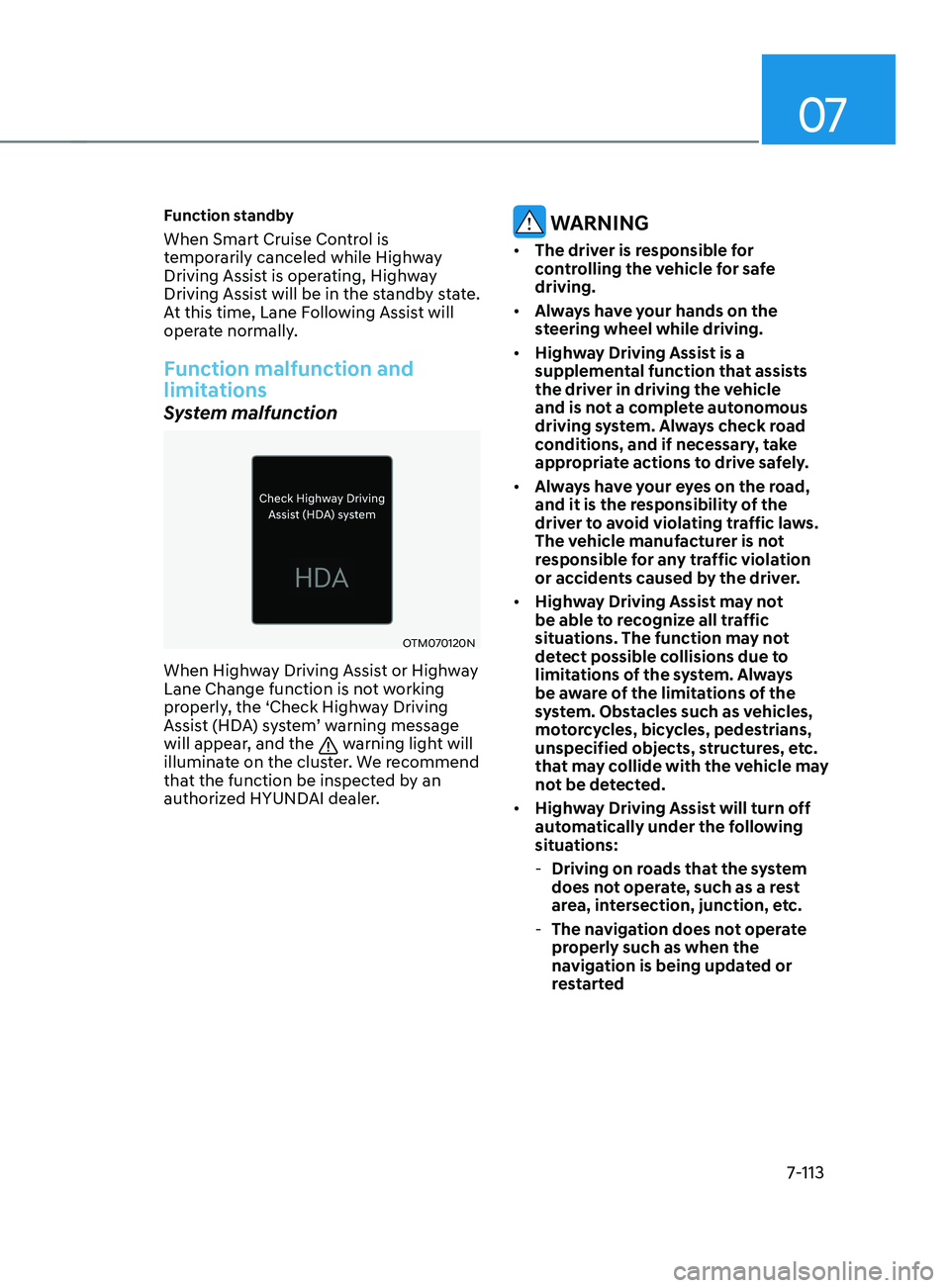
System malfunction
OTM070120N
When Highway Driving Assist or Highway
Lane Change function is not working
properly, the ‘Check Highway Driving
Assist (HDA) system’ warning message
will appear, and the
warning light will
illuminate on the cluster. We recommend
that the function be inspected by an
authorized HYUNDAI dealer.
WARNING
• The driver is responsible for
controlling the vehicle for safe
driving.
• Always have your hands on the
steering wheel while driving.
• Highway Driving Assist is a
supplemental function that assists
the driver in driving the vehicle
and is not a complete autonomous
driving system. Always check road
conditions, and if necessary, take
appropriate actions to drive safely.
• Always have your eyes on the road,
and it is the responsibility of the
driver to avoid violating traffic laws.
The vehicle manufacturer is not
responsible for any traffic violation
or accidents caused by the driver.
• Highway Driving Assist may not
be able to recognize all traffic
situations. The function may not
detect possible collisions due to
limitations of the system. Always
be aware of the limitations of the
system. Obstacles such as vehicles,
motorcycles, bicycles, pedestrians,
unspecified objects, structures, etc.
that may collide with the vehicle may
not be detected.
• Highway Driving Assist will turn off
automatically under the following
situations:
- Driving on roads that the system
does not operate, such as a rest
area, intersection, junction, etc.
- The navigation does not operate
properly such as when the
navigation is being updated or
restarted
Page 427 of 570
Driver assistance system
7-114
• Highway Driving Assist may
inadvertently operate or turn off
depending on road conditions
(navigation information) and
surroundings.
• Lane Following Assist function may
be temporarily disabled when the
front view camera cannot detect
lanes properly or the hands-off
warning is on.
• You may not hear the warning sound
of Highway Driving Assist if the
surrounding is noisy.
• If the vehicle is driven at high speed
above a certain speed at a curve,
your vehicle may drive to one side or
may depart from the driving lane.
• When you are towing a trailer or
another vehicle, we recommend that
Highway Driving Assist is turned off
due to safety reasons.
• The hands–off warning message
may appear early or late depending
on how the steering wheel is held or
road conditions. Always have your
hands on the steering wheel while
driving.
• For your safety, please read the
owner's manual before using the
Highway Driving Assist.
• Highway Driving Assist will not
operate when the engine is started,
or when the detecting sensors or
navigation is being initialized.Limitations of the function
Highway Driving Assist may not operate
normally, or may not operate under the
following circumstances:
• The map information and the
actual road is different because the
navigation is not updated
• The map information and the actual
road is different because of real-time
GPS data or map information error
• The infotainment system is overloaded
by simultaneously performing
functions such as route search, video
playback, voice recognition, etc.
• GPS signals are blocked in areas such
as a tunnel
• The driver goes off course or the
route to the destination is changed or
canceled by resetting the navigation
• The vehicle enters a service station or
rest area
• Android Auto or Car Play is operating
• The navigation cannot detect the
current vehicle position (ex: elevated
roads including overpass adjacent to
general roads or nearby roads exist in
a parallel way)
• White single dotted lane line or road
edge cannot be detected
• The road is temporarily controlled due
to construction, etc.
• There is no structure, such as a
medium strip, guardrails, etc., on the
road
• There is a changeable lane in the
direction of lane change
For more details on the limitations of
the front view camera, front radar, front
corner radar and rear corner radar, refer
to “Forward Collision-Avoidance Assist
(FCA)” section in chapter 7.
Page 475 of 570
Emergency Situations8-12
TPMS (Tire Pressure
Monitoring System)
malfunction indicator
The TPMS Malfunction Indicator
will illuminate after it blinks for
approximately one minute when there
is a problem with the Tire Pressure
Monitoring System.
We recommend that the system be
checked by an authorized HYUNDAI
dealer.
NOTICE
If there is a malfunction with the TPMS,
the Low Tire Pressure Position Telltale
will not be displayed even though the
vehicle has an under-inflated tire.
NOTICE
The TPMS Malfunction Indicator may
illuminate after blinking for one minute
if the vehicle is near electric power
supply cables or radio transmitters
such as police stations, government
and public offices, broadcasting
stations, military installations, airports,
transmitting towers, etc.
Additionally, the TPMS Malfunction
Indicator may illuminate if snow chains
are used or electronic devices such as
computers, chargers, remote starters,
navigation, etc. This may interfere with
normal operation of the TPMS.
Changing a tire with TPMS
If you have a flat tire, the Low Tire
Pressure and Position telltales will come
on. We recommend that the flat tire be
repaired by an authorized HYUNDAI
dealer as soon as possible or replace the
flat tire with the spare tire.
NOTICE
It is recommended that you do not use a
puncture-repairing agent not approved
by a HYUNDAI dealer to repair and/or
inflate a low pressure tire. Tire sealant
not approved by a HYUNDAI dealer may
damage the tire pressure sensor.
The spare tire (if equipped) does not
come with a tire pressure monitoring
sensor. When the low pressure tire or
the flat tire is replaced with the spare
tire, the Low Tire Pressure Telltale will
remain on. Also, the TPMS Malfunction
Indicator will illuminate after blinking
for one minute if the vehicle is driven
at speed above 15.5 mph (25km/h) for
approximately 10 minutes.
Once the original tire equipped with
a tire pressure monitoring sensor is
reinflated to the recommended pressure
and reinstalled on the vehicle, the
Low Tire Pressure Telltale and TPMS
Malfunction Indicator will go off within a
few minutes of driving.
If the indicators do not extinguish after a
few minutes, please visit an authorized
HYUNDAI dealer.