instrument cluster HYUNDAI ELANTRA SEL 2021 Owner's Manual
[x] Cancel search | Manufacturer: HYUNDAI, Model Year: 2021, Model line: ELANTRA SEL, Model: HYUNDAI ELANTRA SEL 2021Pages: 570, PDF Size: 52.21 MB
Page 112 of 570
Instrument Cluster4-26
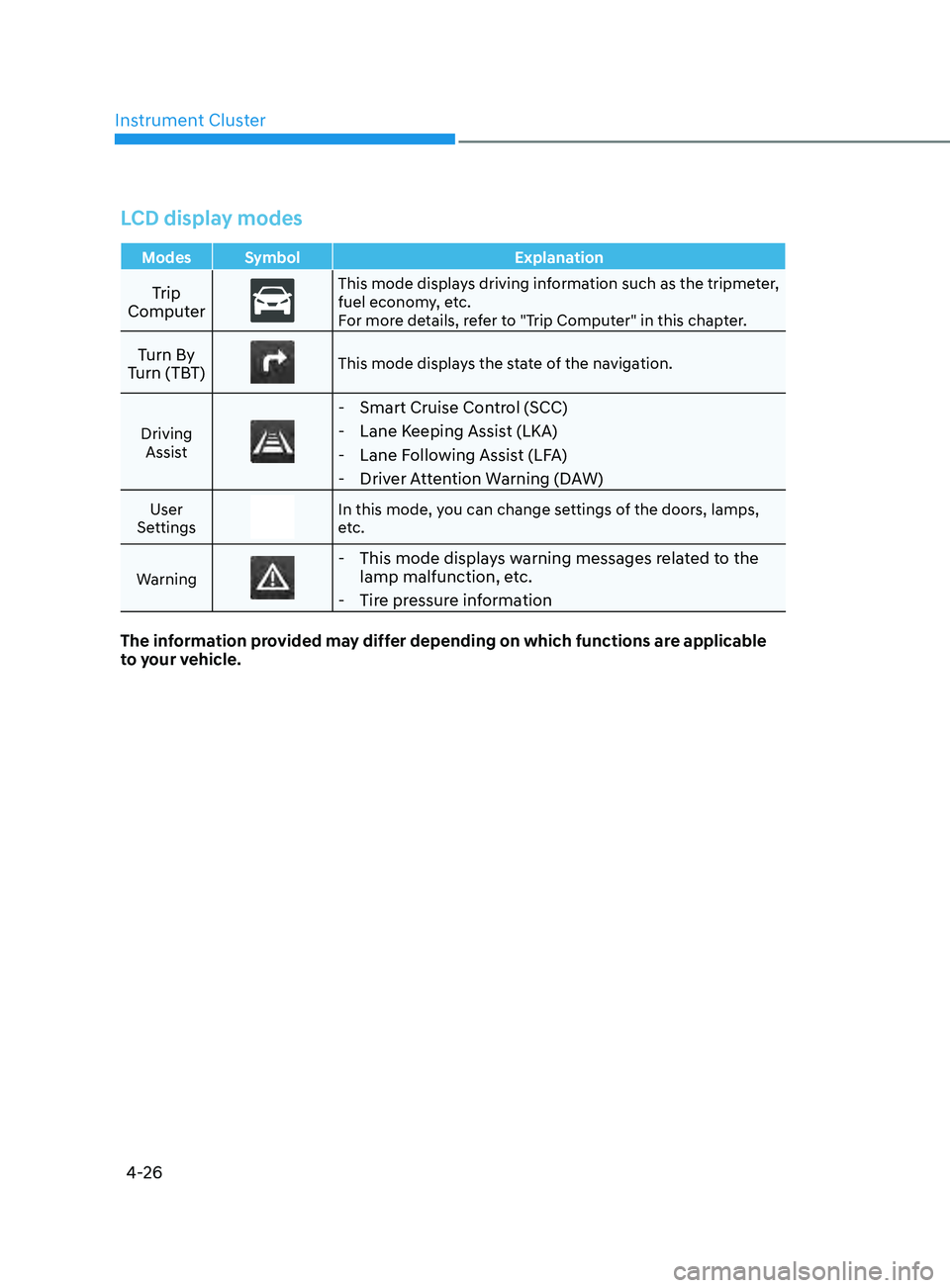
LCD display modes
Modes Symbol Explanation
Trip
ComputerThis mode displays driving information such as the tripmeter,
fuel economy, etc.
For more details, refer to "Trip Computer" in this chapter.
Turn By
Turn (TBT)This mode displays the state of the navigation.
Driving Assist
- Smart Cruise Control (SCC)
- Lane Keeping Assist (LKA)
- Lane Following Assist (LFA)
- Driver Attention Warning (DAW)
User
SettingsIn this mode, you can change settings of the doors, lamps,
etc.
Warning
- This mode displays warning messages related to the lamp malfunction, etc.
- Tire pressure information
The information provided may differ depending on which functions are applicable
to your vehicle.
Page 114 of 570
Instrument Cluster4-28
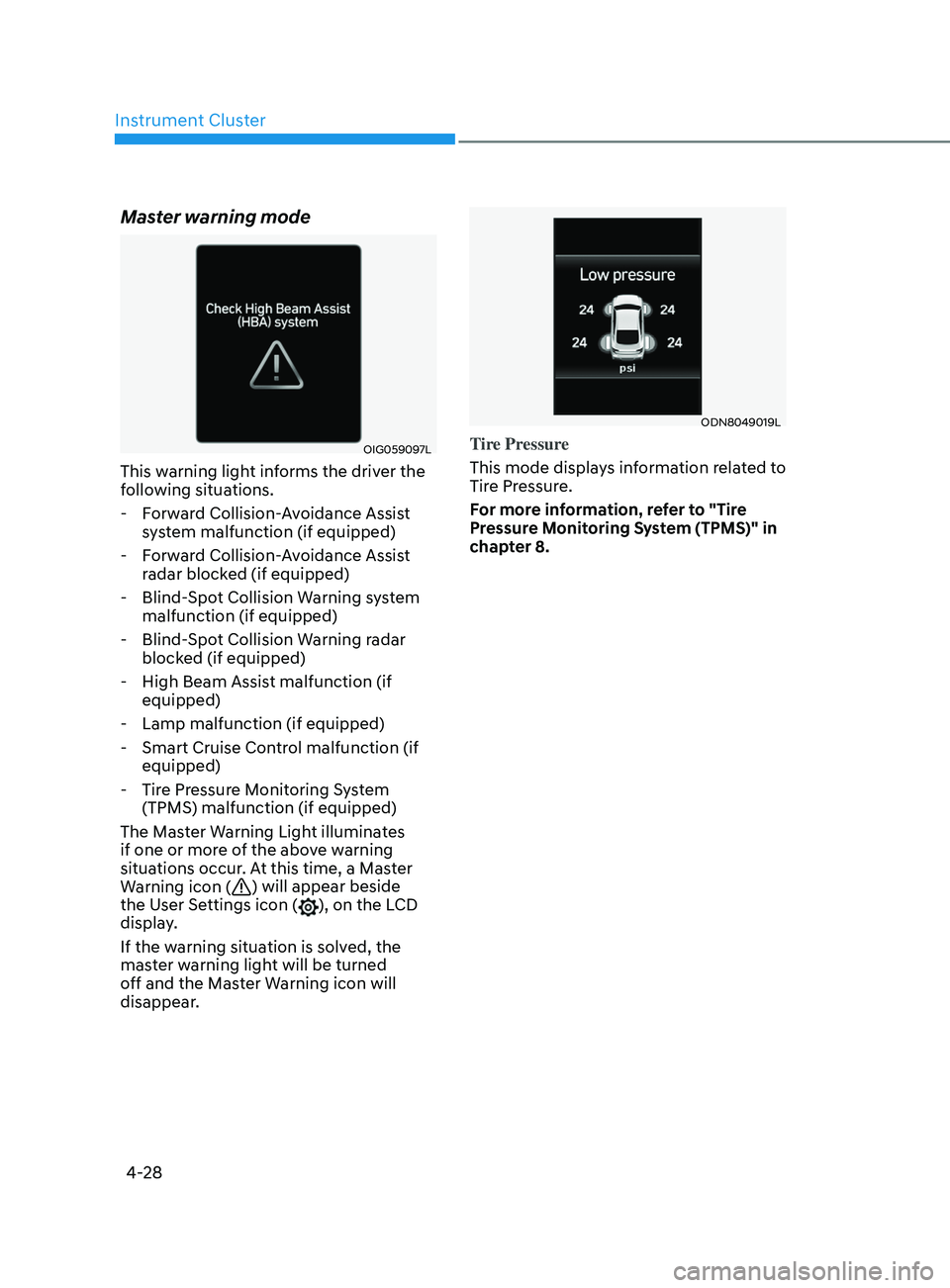
Master warning mode
OIG059097L
This warning light informs the driver the
following situations. - Forward Collision-Avoidance Assist system malfunction (if equipped)
- Forward Collision-Avoidance Assist radar blocked (if equipped)
- Blind-Spot Collision Warning system malfunction (if equipped)
- Blind-Spot Collision Warning radar blocked (if equipped)
- High Beam Assist malfunction (if equipped)
- Lamp malfunction (if equipped)
- Smart Cruise Control malfunction (if equipped)
- Tire Pressure Monitoring System (TPMS) malfunction (if equipped)
The Master Warning Light illuminates
if one or more of the above warning
situations occur. At this time, a Master
Warning icon (
) will appear beside
the User Settings icon (), on the LCD
display.
If the warning situation is solved, the
master warning light will be turned
off and the Master Warning icon will
disappear.
ODN8049019L
Tire Pressure
This mode displays information related to
Tire Pressure.
For more information, refer to "Tire
Pressure Monitoring System (TPMS)" in
chapter 8.
Page 115 of 570
04
4-29
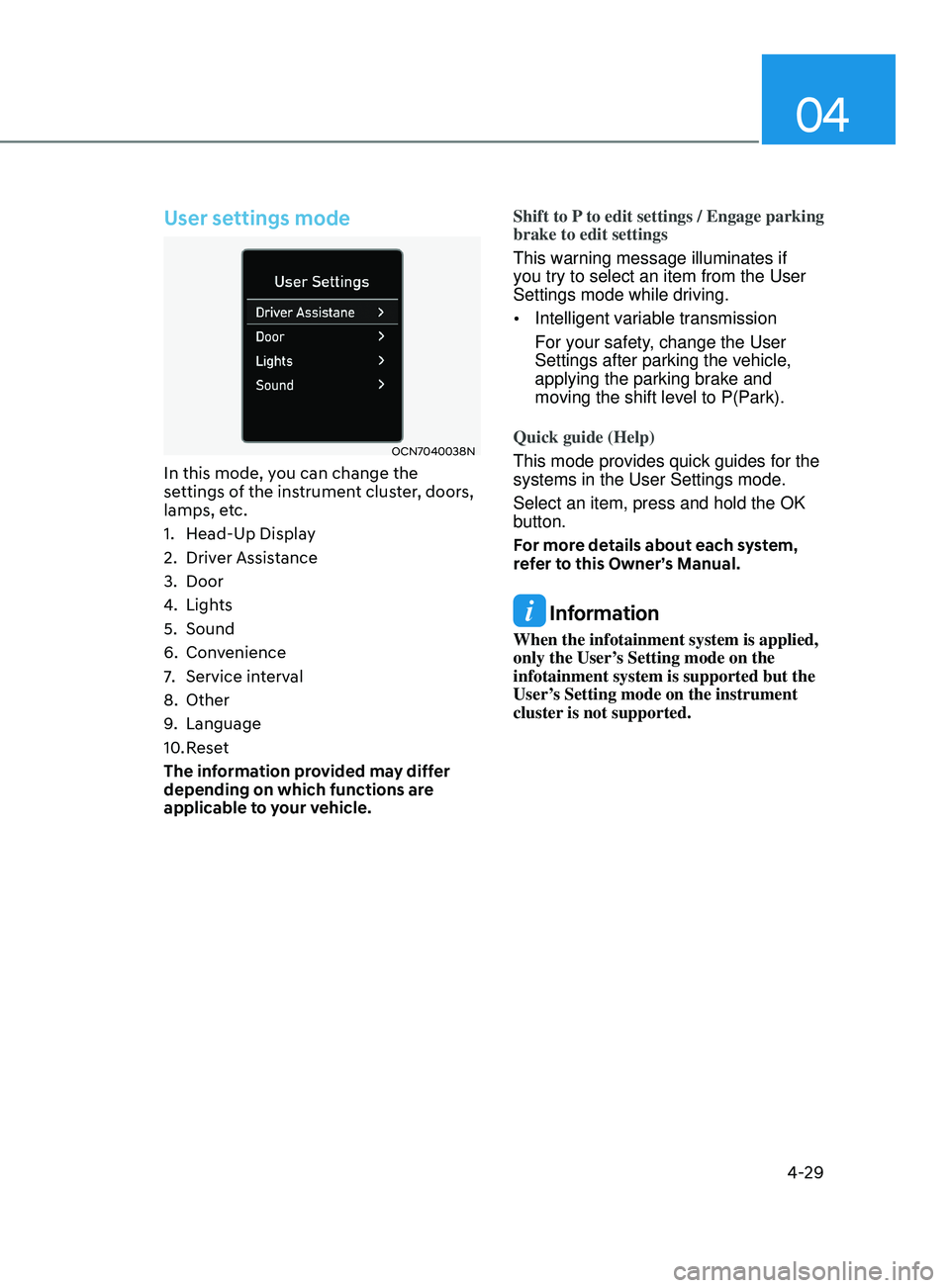
User settings mode
OCN7040038N
In this mode, you can change the
settings of the instrument cluster, doors,
lamps, etc.
1.
Head-Up Displa
y
2.
Driver Assis
tance
3.
Door
4.
Lights
5.
Sound
6.
Conv
enience
7.
Service int
erval
8.
Other
9.
Language
10.
Rese
t
The information provided may differ
depending on which functions are
applicable to your vehicle. Shift to P to edit settings / Engage parking
brake to edit settings
This warning message illuminates if
you try to select an item from the User
Settings mode while driving.
•
Intelligent variable transmission
For your safety, change the User
Settings after parking the vehicle,
applying the parking brake and
moving the shift level to P(Park).
Quick guide (Help)
This mode provides quick guides for the
systems in the User Settings mode.
Select an item, press and hold the OK
button.
For more details about each system,
refer to this Owner’s Manual.
Information
When the infotainment system is applied,
only the User’s Setting mode on the
infotainment system is supported but the
User’s Setting mode on the instrument
cluster is not supported.
Page 116 of 570
Instrument Cluster
4-30
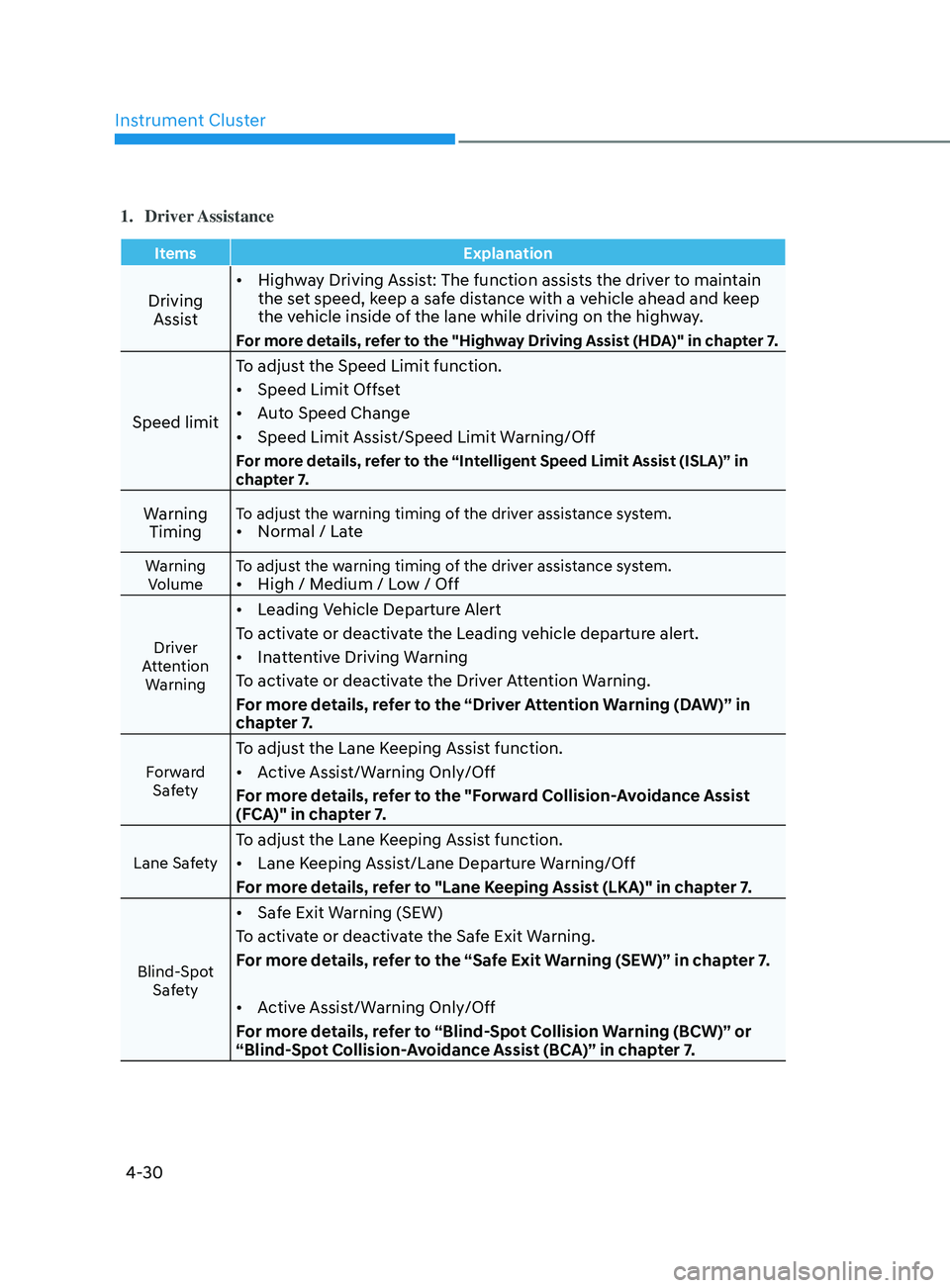
1. Driver Assistance
ItemsExplanation
Driving
Assist •
Highway Driving Assist: The function assists the driver to maintain
the set speed, keep a safe distance with a vehicle ahead and keep
the vehicle inside of the lane while driving on the highway.
For more details, refer to the "Highway Driving Assist (HDA)" in chapter 7.
Speed limit To adjust the Speed Limit function.
•
Speed Limit Offset
• Auto Speed Change
• Speed Limit Assist/Speed Limit Warning/Off
For more details, refer to the “Intelligent Speed Limit Assist (ISLA)” in
chapter 7.
Warning
TimingTo adjust the warning timing of the driver assistance system.• Normal / Late
Warning
Volume To adjust the warning timing of the driver assistance system.•
High / Medium / Low / Off
Driver
Attention Warning
• Leading Vehicle Departure Alert
To activate or deactivate the Leading vehicle departure alert.
• Inattentive Driving Warning
To activate or deactivate the Driver Attention Warning.
For more details, refer to the “Driver Attention Warning (DAW)” in
chapter 7.
Forward Safety
To adjust the Lane Keeping Assist function.
• Active Assist/Warning Only/Off
For more details, refer to the "Forward Collision-Avoidance Assist
(FCA)" in chapter 7.
Lane Safety
To adjust the Lane Keeping Assist function.
• Lane Keeping Assist/Lane Departure Warning/Off
For more details, refer to "Lane Keeping Assist (LKA)" in chapter 7.
Blind-Spot Safety
• Safe Exit Warning (SEW)
To activate or deactivate the Safe Exit Warning.
For more details, refer to the “Safe Exit Warning (SEW)” in chapter 7.
• Active Assist/Warning Only/Off
For more details, refer to “Blind-Spot Collision Warning (BCW)” or
“Blind-Spot Collision-Avoidance Assist (BCA)” in chapter 7.
Page 118 of 570
Instrument Cluster
4-32
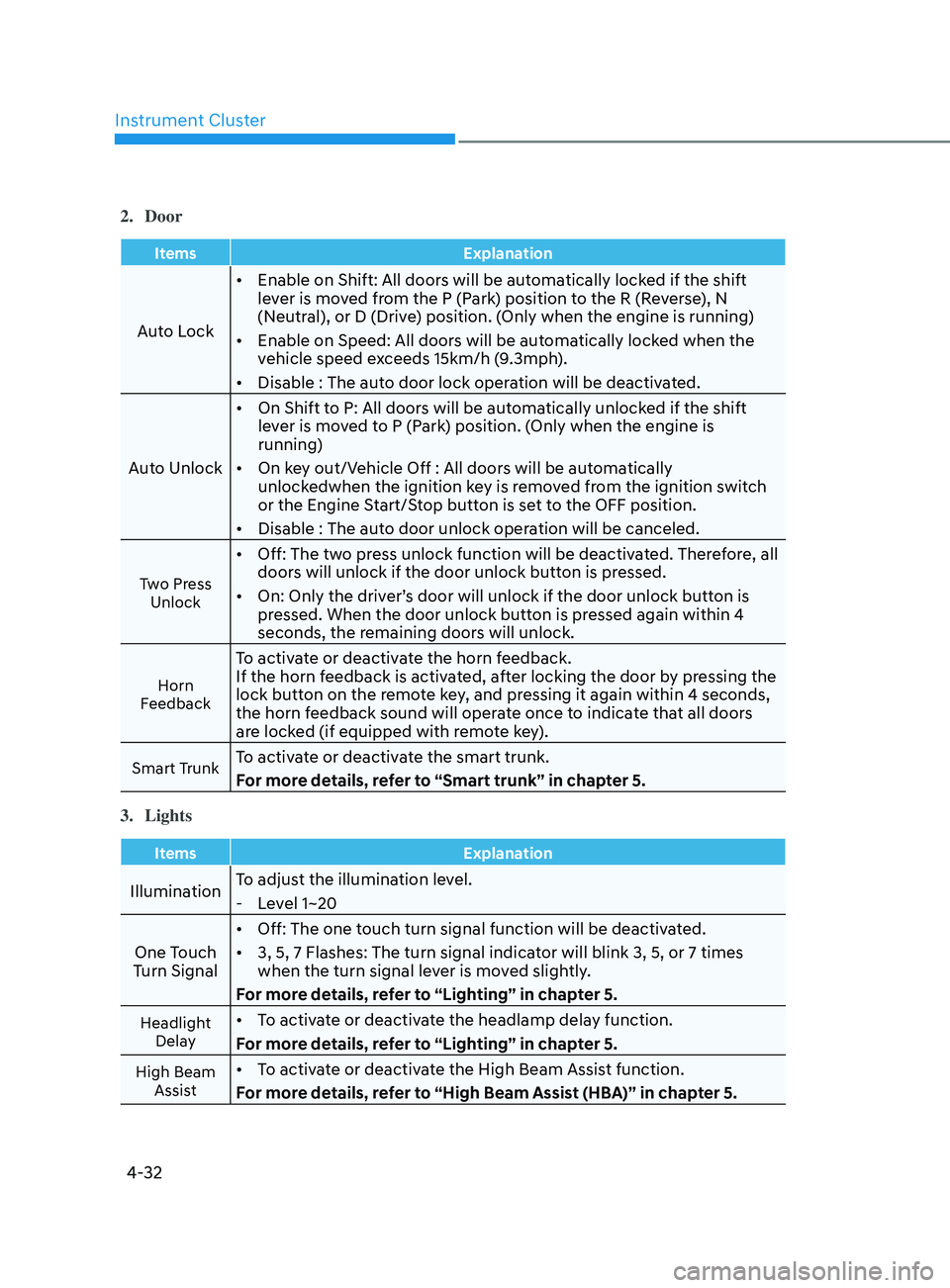
2. Door
ItemsExplanation
Auto Lock•
Enable on Shift: All doors will be automatically locked if the shift
lever is moved from the P (Park) position to the R (Reverse), N
(Neutral), or D (Drive) position. (Only when the engine is running)
• Enable on Speed: All doors will be automatically locked when the
vehicle speed exceeds 15km/h (9.3mph).
• Disable : The auto door lock operation will be deactivated.
Auto Unlock •
On Shift to P: All doors will be automatically unlocked if the shift
lever is moved to P (Park) position. (Only when the engine is
running)
• On key out/Vehicle Off : All doors will be automatically
unlockedwhen the ignition key is removed from the ignition switch
or the Engine Start/Stop button is set to the OFF position.
• Disable : The auto door unlock operation will be canceled.
Two Press
Unlock
• Off: The two press unlock function will be deactivated. Therefore, all
doors will unlock if the door unlock button is pressed.
• On: Only the driver’s door will unlock if the door unlock button is
pressed. When the door unlock button is pressed again within 4
seconds, the remaining doors will unlock.
Horn
Feedback
To activate or deactivate the horn feedback.
If the horn feedback is activated, after locking the door by pressing the
lock button on the remote key, and pressing it again within 4 seconds,
the horn feedback sound will operate once to indicate that all doors
are locked (if equipped with remote key).
Smart TrunkTo activate or deactivate the smart trunk.
For more details, refer to “Smart trunk” in chapter 5.
3.
Lights
Items Explanation
IlluminationTo adjust the illumination level. - Le
vel 1~20
One Touch
Turn Signal •
Off: The one touch turn signal function will be deactivated.
• 3, 5, 7 Flashes: The turn signal indicator will blink 3, 5, or 7 times
when the turn signal lever is moved slightly.
For more details, refer to “Lighting” in chapter 5.
Headlight Delay• To activate or deactivate the headlamp delay function.
For more details, refer to “Lighting” in chapter 5.
High Beam Assist• To activate or deactivate the High Beam Assist function.
For more details, refer to “High Beam Assist (HBA)” in chapter 5.
Page 120 of 570
Instrument Cluster
4-34
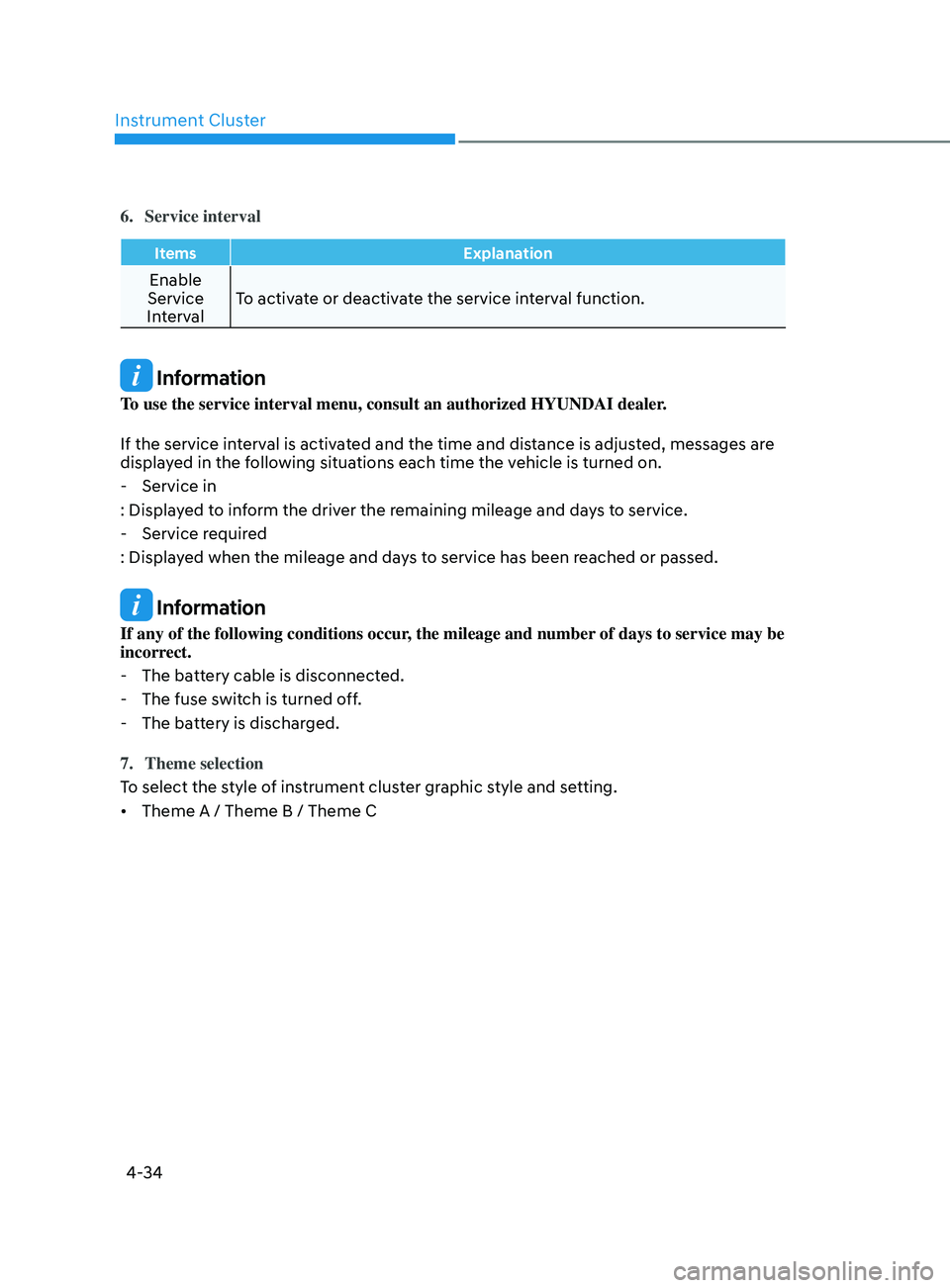
6. Service interval
ItemsExplanation
Enable
Service
Interval To activate or deactivate the service interval function.
Information
To use the service interval menu, consult an authorized HYUNDAI dealer.
If the service interval is activated and the time and distance is adjusted, messages are
displayed in the following situations each time the vehicle is turned on.
- Service in
: Display
ed to inform the driver the remaining mileage and days to service.
- Service requir
ed
: Displayed when the mileage and days to service has been reached or passed.
Information
If any of the following conditions occur, the mileage and number of days to service may be
incorrect.
- The batt
ery cable is disconnected.
- The fuse swit
ch is turned off.
- The batt
ery is discharged.
7.
Theme selection
To select the s
tyle of instrument cluster graphic style and setting.
• Theme A / Theme B / Theme C
Page 122 of 570
Instrument Cluster
4-36
Trip Computer
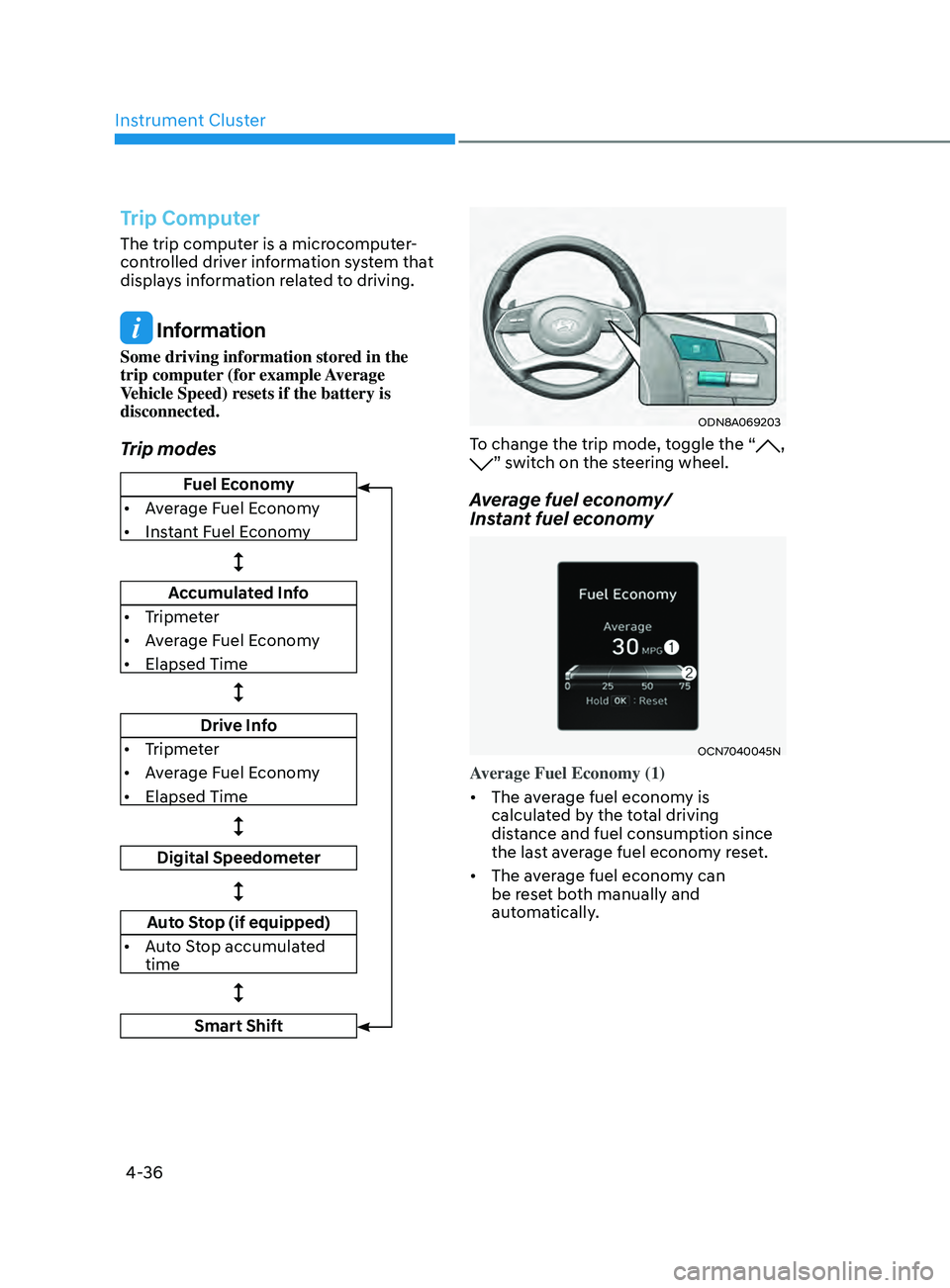
The trip computer is a microcomputer-
controlled driver information system that
displays information related to driving.
Information
Some driving information stored in the
trip computer (for example Average
Vehicle Speed) resets if the battery is
disconnected.
Trip modes
Fuel Economy
• Average Fuel Economy
• Instant Fuel Economy
Accumulated Info
• Tripmeter
• Average Fuel Economy
• Elapsed Time
Drive Info
• Tripmeter
• Average Fuel Economy
• Elapsed Time
Digital Speedometer
Auto Stop (if equipped)
• Auto Stop accumulated
time
Smart Shift
ODN8A069203
To change the trip mode, toggle the “, ” switch on the steering wheel.
Average fuel economy/
Instant fuel economy
OCN7040045N
Average Fuel Economy (1)
• The average fuel economy is
calculated by the total driving
distance and fuel consumption since
the last average fuel econ
omy r
eset.
• The average fuel economy can
be reset both manually and
automatically.
Page 124 of 570
Instrument Cluster
4-38
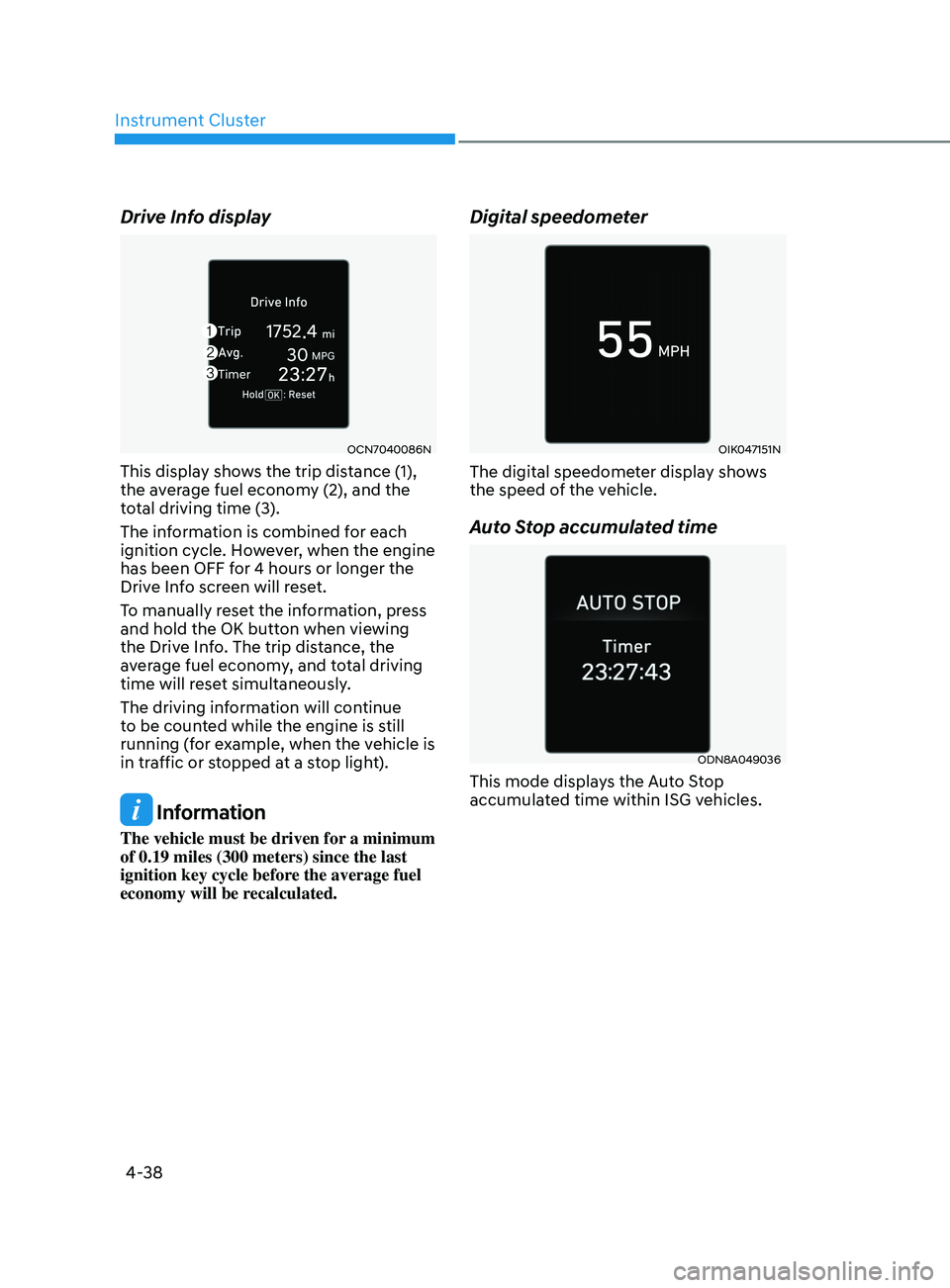
Drive Info display
OCN7040086N
This display shows the trip distance (1),
the average fuel economy (2), and the
total driving time (3).
The information is combined for each
ignition cycle. However, when the engine
has been OFF for 4 hours or longer the
Drive Info screen will reset.
To manually reset the information, press
and hold the OK button when viewing
the Drive Info. The trip distance, the
average fuel economy, and total driving
time will reset simultaneously.
The driving information will continue
to be counted while the engine is still
running (for example, when the vehicle is
in traffic or stopped at a stop light).
Information
The vehicle must be driven for a minimum
of 0.19 miles (300 meters) since the last
ignition key cycle before the average fuel
economy will be recalculated.
Digital speedometer
OIK047151N
The digital speedometer display shows
the speed of the vehicle.
Auto Stop accumulated time
ODN8A049036
This mode displays the Auto Stop
accumulated time within ISG vehicles.
Page 126 of 570
4-40
Instrument Cluster
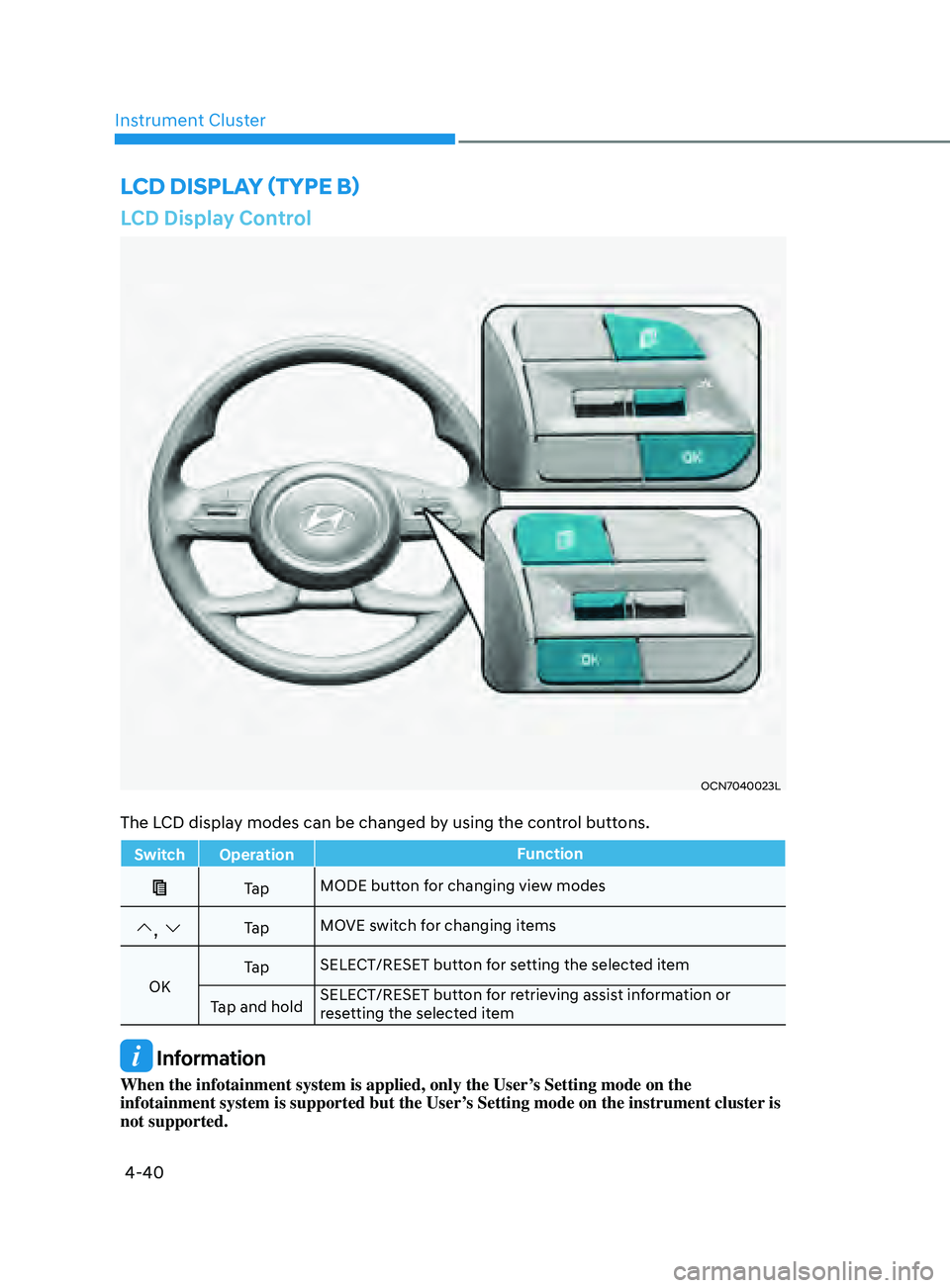
LCD Display Control
OCN7040023L
The LCD display modes can be changed by using the control buttons.
Switch OperationFunction
Ta pMODE button for changing view modes
, Ta pMOVE switch for changing items
OK Ta p
SELECT/RESET button for setting the selected item
Tap and hold SELECT/RESET button for retrieving assist information or
resetting the selected item
Information
When the infotainment system is applied, only the User’s Setting mode on the
infotainment system is supported but the User’s Setting mode on the instrument cluster is
not supported.
LCD DispLay (TypE B)
Page 128 of 570
Instrument Cluster
4-42
Utility group
The Utility group displays information
related to vehicle driving parameters
including fuel economy and trip distance
information.
Utility Items
The utility items appear as well in utility
view mode, driving assist view mode and
turn by turn view mode. The utility items
in utility view mode display in the center
of the instrument cluster but the items in
other modes show up on the right side of
the instrument cluster.
The information provided may differ
depending on which functions are
applicable to your vehicle
Driving Information
The trip distance for each ignition cycle,
fuel economy (undisplayed item in fuel
economy: driving speed), trip time
are shown. Press and hold OK button
to initialize set up. When the engine
has been OFF for 4 hours or longer
the average fuel economy will reset
automatically.
Information after Refueling
The vehicle information such as trip
distance, fuel economy (undisplayed
item in fuel economy: driving speed)
and trip time is displayed after refueling.
Press and hold OK button to initialize set
up.Accumulated Information
The vehicle information such as trip
distance, fuel economy (undisplayed
item in fuel economy: driving speed)
and trip time is displayed after manual
initialization.
Digital Speed Display
It shows current vehicle speed.
Auto Stop accumulated time
This mode displays the Auto Stop
accumulated time within ISG vehicles.
Driver Attention Warning
Display the status of the Driver Attention
Warning system. When the engine is
off or the vehicle comes to a stop, the
system is reset. Press and hold OK button
to initialize set up.
Tire pressure
Smart shift