jack Hyundai Elantra Touring 2012 User Guide
[x] Cancel search | Manufacturer: HYUNDAI, Model Year: 2012, Model line: Elantra Touring, Model: Hyundai Elantra Touring 2012Pages: 402, PDF Size: 5.49 MB
Page 219 of 402
4143
Features of your vehicle
(Continued)
If the USB device is divided by logical drives, only the music fileson the highest-priority drive arerecognized by car audio.
Devices such as MP3 Player/ Cellular phone/Digital camera canbe unrecognizable by standardUSB I/F can be unrecognizable.
Some non-standard USB devices (METAL COVER TYPE USB) can beunrecognizable.
Some USB flash memory readers (such as CF, SD, microSD, etc.) orexternal-HDD type devices can beunrecognizable.
Music files protected by DRM (DIGITAL RIGHTS MANAGEMENT)are not recognizable.
The data in the USB memory may be lost while using this audio.Always back up important data ona personal storage device.
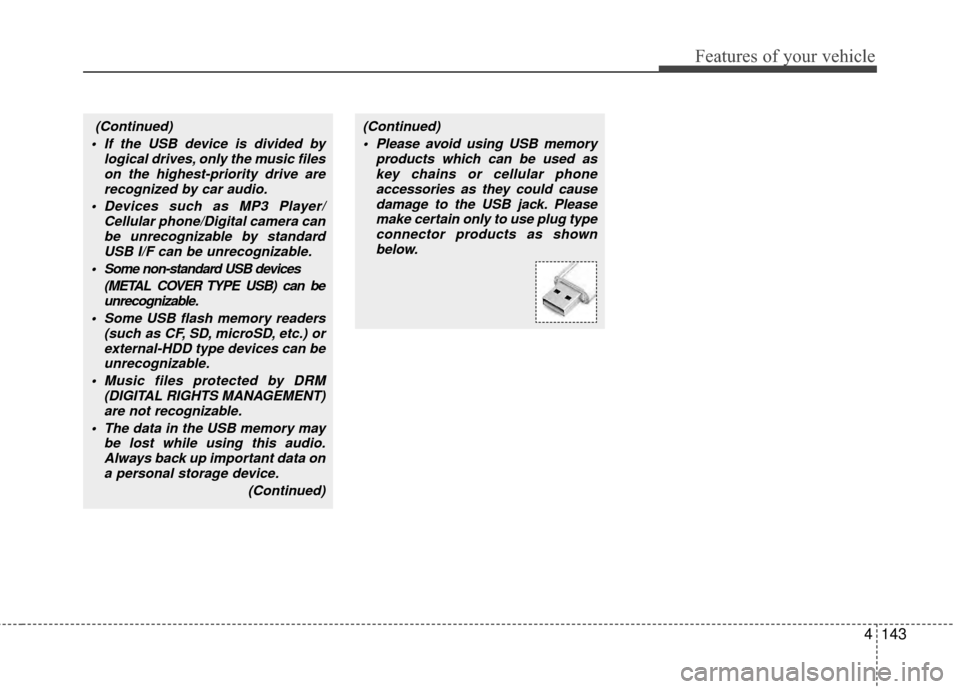
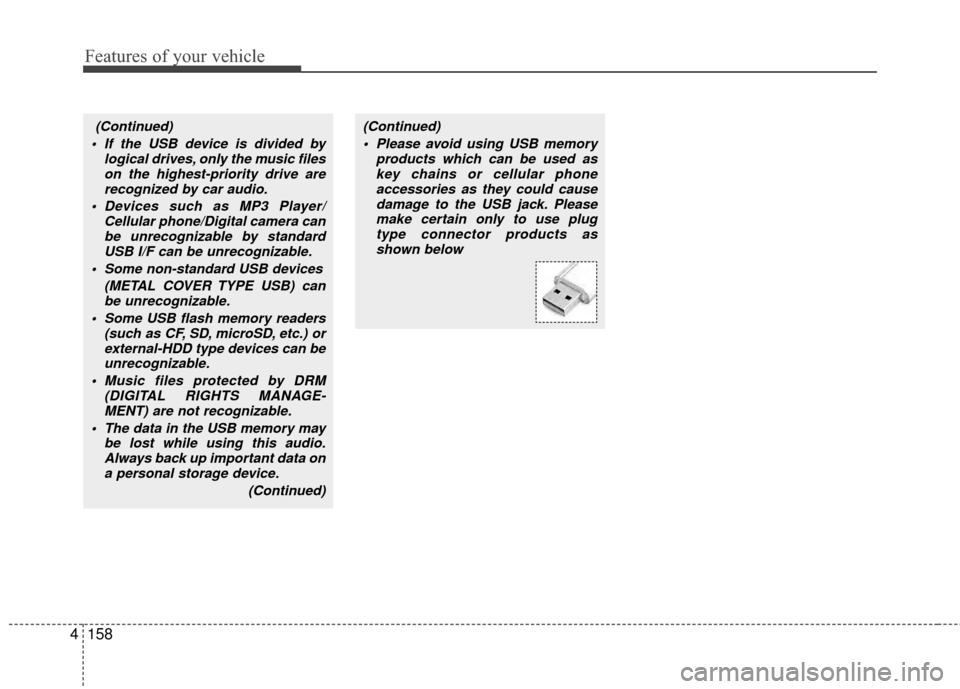
(Continued)(Continued) Please avoid using USB memory products which can be used askey chains or cellular phoneaccessories as they could causedamage to the USB jack. Pleasemake certain only to use plug type connector products as shownbelow.
Page 221 of 402
4145
Features of your vehicle
In case the iPod exclusive cable is con-
nected to the multimedia jack inside the
console on the right hand side of the dri-
ver’s seat. When the iPod is connected,
the ‘iPod’ icon will be displayed on the top
right corner of the display screen.
1. iPod Selection Button
If iPod is connected, it switches to the
iPod mode from the CD mode to play the
song files stored in the iPod.
If there are no CD and AUX, it displays
‘NO MEDIA’.
2. TRACK Moving Button
Press the [TRACK ] button for less
than 0.8 second to play from the begin-
ning of the song currently played.
Press the button for less than 0.8 sec-
ond and press it again within 1 second
to move to and play the previous track.
Press the button for 0.8 second or
longer to play the song in reverse direc-
tion in fast speed.
Press the [TRACK ] button for less
than 0.8 second to move to the next
track.
Press the button for 0.8 second or
longer to play the song in forward direc-
tion in fast speed.
3. INFO Button
Displays the information of the file current-
ly played in the order of FILE NAME ➟TITLE ➟ ARTIST ➟ ALBUM ➟ FILE NAME➟… (Displays no information if the file
has no song information.)
4. CATEGORY Selection Button
Moves to the upper category from cur-
rently played category of the iPod.
You will be able to search through the
lower category of the selected category.
The order of iPod’s category is SONG,
ALBUMES, ARTISTS, GENRES, and
iPod. (Refer to the iPod user’s manual for
more information)
5. SEARCH Knob & ENTER Button
When you turn the button clockwise, it
will display the songs (category) next to
the song currently played (category in
the same level).
Also, when you turn the button counter-
clockwise, it will display the songs (cate-
gory) before the song currently played
(category in the same level).
If you want to listen to the song displayed
in the song category, press the button,
then it will skip to the selected song and
play.
6. RANDOM Playback Button
Press the button for less than 0.8 second
to activate or deactivate the random play-
back of the songs within the current cat-
egory.
Press the button for longer than 0.8 sec-
ond to randomly play all songs in the
entire album of the iPod.
Press the button once again to cancel the
mode.
7. REPEAT Button
Repeats the song currently played.
Page 226 of 402
Features of your vehicle
150
4
1. FM Selection ButtonTurns to FM mode and toggles FM1 and
FM2 when the button is pressed each
time.
2. AM Selection Button
Turns to AM mode, and toggles in the
order of AM1 ➟ AM2 ➟ AM1... when the
button is pressed each time.
3. CD/AUX Selection Button
If the auxiliary device is connected, it
switches to the AUX mode from the other
mode to play the sound from the auxiliary
player.
If the CD is loaded, turns to CD mode,
and if a device is connected to AUX then
it toggles CD
➟ AUX ➟ CD... when the
button is pressed each time.(It will not
turn to AUX if the auxiliary device is not
connected)
If no CD and auxiliary device is not con-
nected, it displays "NO Media" for 3 sec-
onds and returns to the previous mode.
4. Automatic Channel Selection Button
When the [SEEK ] button is pressed,
it reduces the band frequency by
100khz to automatically select channel.
Stops at the previous frequency if no
channel is found.
When the [SEEK ] button is pressed, it increases the band frequency by
100khz to automatically select channel.
Stops at the previous frequency if no
channel is found.
5. Power ON/OFF Button & Volume Control Knob
Turns on/off the set when the IGNI-
TION SWITCH is on ACC or ON. If the
button is turned to the right, it increas-
es the volume and left, decreases the
volume.
In AUX mode, the volume and tone (BASS, MID, TRE) are adjusted in a
separate way.
If you pull out AUX from a jack and
insert it again, then only volume goes
back to step 10.
6. SCAN Button
If this button is pressed, the frequencies
will become increased and receive the
corresponding broadcasts. This function
will play the frequencies for 5 seconds
(XM MODE:10 seconds) each and find
other broadcasts as the frequency
increases. Press the button again when
desire to continue listening to the cur-
rently playing broadcast.
7. Screen ON/ OFF Button
Turns off/on the displayed data and light
on LCD.
The screen and light will be turned on by
pressing any button except [DISP ] but-
ton when the screen is turned off.
8. INFO Button
Displays the information of the channel
currently played.
Page 232 of 402
Features of your vehicle
156
4
In case USB is connected to the multi-
media jack inside the console on the right
hand side of the driver’s seat. When USB
is connected, the ‘USB’ icon will be dis-
played on the top right corner of the dis-
play screen.
1. USB Selection Button
If USB is connected, it switches to the
USB mode from the other mode to play
the song files stored in the USB. If no CD
and auxiliary device is not connected, it
displays "NO Media" for 3 seconds and
returns to the previous mode.
2. TRACK Moving Button
Press the [TRACK ] button for less
than 0.8 second to play from the begin-
ning of the song currently played.
Press the button for less than 0.8 sec-
ond and press it again within 1 second
to move to and play the previous track.
Press the button for 0.8 second or
longer to play the song in reverse direc-
tion in fast speed.
Press the [TRACK ] button button for less than 0.8 second to move to the
next track. Press the button for 0.8 sec-
ond or longer to play the song in for-
ward direction in fast speed.
3. INFO Button
Displays the information of the file current-
ly played in the order of FILE NAME ➟TITLE ➟ ARTIST ➟ ALBUM ➟ FOLDER ➟TOTAL FILE ➟ FILE NAME ➟… (Displays
no information if the file has no song infor-
mation.)
4. FOLDER Moving Button
Moves [FLDR ] button child folder of
the current folder and displays the first
song in the folder. Press TUNE/ENTER
knob to move to the folder displayed. It
will play the first song in the folder.
Moves [FLDR ] button parent folder and displays the first song in the folder.
Press TUNE/ENTER knob to move to
the folder displayed. It will play the first
song in the folder.
5. SEARCH Knob & ENTER Button
Turn this button clockwise to display the
songs next to the currently played song.
Turn the button counterclockwise to dis-
play the songs before the currently
played song. Press the button to skip to
and play the selected song.
6. RANDOM Playback Button
Press the button for less than 0.8 second
to start or stop the random playback of
the songs in the current folder.
Press the button for more than 0.8 sec-
ond to randomly play the entire songs in
the USB device.
Press the button again to cancel the mode.
7. REPEAT Button
Press the button for less than 0.8 second
to repeat the song currently played.
Press the button for more than 0.8 sec-
ond to repeat the entire songs in the USB
device.
8. SCAN Button
Plays 10 seconds of each song in the
USB device.
Press the button once again to cancel
scanning.
Page 234 of 402
Features of your vehicle
158
4
(Continued)
If the USB device is divided by logical drives, only the music fileson the highest-priority drive arerecognized by car audio.
Devices such as MP3 Player/ Cellular phone/Digital camera canbe unrecognizable by standardUSB I/F can be unrecognizable.
Some non-standard USB devices (METAL COVER TYPE USB) canbe unrecognizable.
Some USB flash memory readers (such as CF, SD, microSD, etc.) orexternal-HDD type devices can beunrecognizable.
Music files protected by DRM (DIGITAL RIGHTS MANAGE-MENT) are not recognizable.
The data in the USB memory may be lost while using this audio.Always back up important data ona personal storage device.
(Continued)(Continued) Please avoid using USB memory products which can be used askey chains or cellular phoneaccessories as they could causedamage to the USB jack. Pleasemake certain only to use plug type connector products asshown below
Page 236 of 402
Features of your vehicle
160
4
In case the iPod exclusive cable is con-
nected to the multimedia jack inside the
console on the right hand side of the dri-
ver’s seat. When the iPod is connected,
the ‘iPod’ icon will be displayed on the top
right corner of the display screen.
1. iPod Selection Button
If iPod is connected, it switches to the
iPod mode from the CD mode to play the
song files stored in the iPod.
If there are no CD and AUX, it displays
‘NO MEDIA’.
2. TRACK Moving Button
Press the [TRACK ] button for less
than 0.8 second to play from the begin-
ning of the song currently played.
Press the button for less than 0.8 sec-
ond and press it again within 1 second
to move to and play the previous track.
Press the button for 0.8 second or
longer to play the song in reverse
direction in fast speed. Press the [TRACK ] button for less
than 0.8 second to move to the next
track.
Press the button for 0.8 second or
longer to play the song in forward direc-
tion in fast speed.
3. INFO Button
Displays the information of the file current-
ly played in the order of FILE NAME ➟TITLE ➟ ARTIST ➟ ALBUM ➟ FILE NAME➟… (Displays no information if the file
has no song information.)
4. CATEGORY Selection Button
Moves to the upper category from cur-
rently played category of the iPod.
You will be able to search through the
lower category of the selected category.
The order of iPod’s category is SONG,
ALBUMES, ARTISTS, GENRES, and
iPod. (Refer to the iPod user’s manual for
more information)
5. SEARCH Knob & ENTER Button
When you turn the button clockwise, it
will display the songs (category) next to
the song currently played (category in
the same level).
Also, when you turn the button counter-
clockwise, it will display the songs (cate-
gory) before the song currently played
(category in the same level).
If you want to listen to the song displayed
in the song category, press the button,
then it will skip to the selected song and
play.
6. RANDOM Playback Button
Press the button for less than 0.8 second
to activate or deactivate the random play-
back of the songs within the current cat-
egory.
Press the button for longer than 0.8 sec-
ond to randomly play all songs in the
entire album of the iPod.
Press the button once again to cancel the
mode.
7. REPEAT Button
Repeats the song currently played.
Page 269 of 402
Driving your vehicle
30
5
E100000AFD
Your vehicle's fuel economy depends
mainly on your style of driving, where you
drive and when you drive.
Each of these factors affects how many
miles (kilometers) you can get from a gal-
lon (liter) of fuel. To operate your vehicle
as economically as possible, use the fol-
lowing driving suggestions to help save
money in both fuel and repairs:
Drive smoothly. Accelerate at a moder-
ate rate. Don't make "jack-rabbit" starts
or full-throttle shifts and maintain a
steady cruising speed. Don't race
between stoplights. Try to adjust your
speed to that of the other traffic so you
don't have to change speeds unneces-
sarily. Avoid heavy traffic whenever
possible. Always maintain a safe dis-
tance from other vehicles so you can
avoid unnecessary braking. This also
reduces brake wear.
Drive at a moderate speed. The faster you drive, the more fuel your car uses.
Driving at a moderate speed, especial-
ly on the highway, is one of the most
effective ways to reduce fuel consump-
tion. Don't "ride" the brake or clutch pedal.
This can increase fuel consumption
and also increase wear on these com-
ponents. In addition, driving with your
foot resting on the brake pedal may
cause the brakes to overheat, which
reduces their effectiveness and may
lead to more serious consequences.
Take care of your tires. Keep them inflated to the recommended pressure.
Incorrect inflation, either too much or
too little, results in unnecessary tire
wear. Check the tire pressures at least
once a month.
Be sure that the wheels are aligned correctly. Improper alignment can
result from hitting curbs or driving too
fast over irregular surfaces. Poor align-
ment causes faster tire wear and may
also result in other problems as well as
greater fuel consumption.
Keep your car in good condition. For better fuel economy and reduced
maintenance costs, maintain your car
in accordance with the maintenance
schedule in Section 7. If you drive your
car in severe conditions, more frequent
maintenance is required (see Section
7 for details). Keep your car clean. For maximum
service, your vehicle should be kept
clean and free of corrosive materials. It
is especially important that mud, dirt,
ice, etc. not be allowed to accumulate
on the underside of the car. This extra
weight can result in increased fuel con-
sumption and also contribute to corro-
sion.
Travel lightly. Don't carry unnecessary weight in your car. Weight reduces fuel
economy.
Don't let the engine idle longer than necessary. If you are waiting (and not
in traffic), turn off your engine and
restart only when you're ready to go.
Remember, your vehicle does not require extended warm-up. After the
engine has started, allow the engine to
run for 10 to 20 seconds prior to plac-
ing the vehicle in gear. In very cold
weather, however, give your engine a
slightly longer warm-up period.
Don't "lug" or "over-rev" the engine. Lugging is driving too slowly in too
high a gear resulting in the engine
bucking. If this happens, shift to a lower
gear. Over-revving is racing the engine
beyond its safe limit. This can be avoid-
ed by shifting at the recommended
speeds.
ECONOMICAL OPERATION
Page 303 of 402
What to do in an emergency
12
6
IF YOU HAVE A FLAT TIRE
F070100AFD-EU
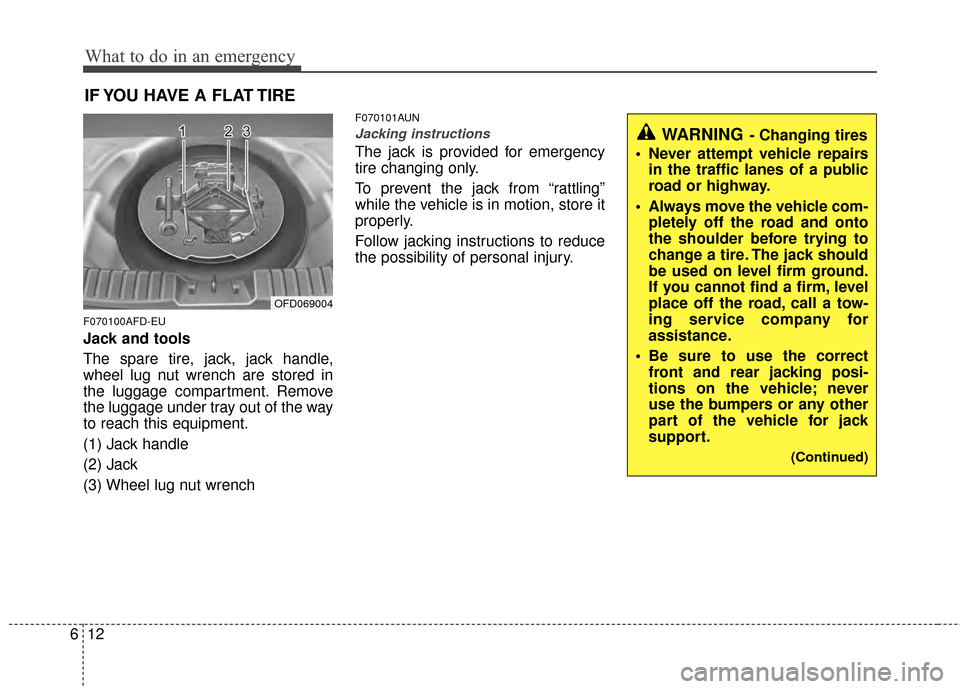
Jack and tools
The spare tire, jack, jack handle,
wheel lug nut wrench are stored in
the luggage compartment. Remove
the luggage under tray out of the way
to reach this equipment.
(1) Jack handle
(2) Jack
(3) Wheel lug nut wrench
F070101AUN
Jacking instructions
The jack is provided for emergency
tire changing only.
To prevent the jack from “rattling”
while the vehicle is in motion, store it
properly.
Follow jacking instructions to reduce
the possibility of personal injury.
OFD069004
WARNING- Changing tires
Never attempt vehicle repairs in the traffic lanes of a public
road or highway.
Always move the vehicle com- pletely off the road and onto
the shoulder before trying to
change a tire. The jack should
be used on level firm ground.
If you cannot find a firm, level
place off the road, call a tow-
ing service company for
assistance.
Be sure to use the correct front and rear jacking posi-
tions on the vehicle; never
use the bumpers or any other
part of the vehicle for jack
support.
(Continued)
Page 304 of 402
613
What to do in an emergency
F070200AFD
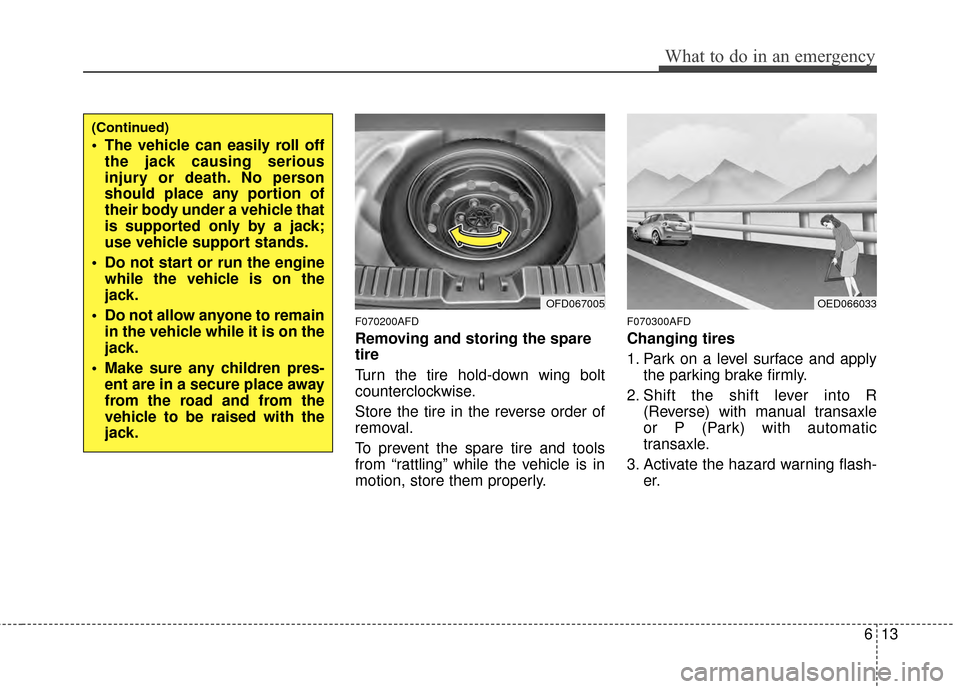
Removing and storing the spare
tire
Turn the tire hold-down wing bolt
counterclockwise.
Store the tire in the reverse order of
removal.
To prevent the spare tire and tools
from “rattling” while the vehicle is in
motion, store them properly.
F070300AFD
Changing tires
1. Park on a level surface and applythe parking brake firmly.
2. Shift the shift lever into R (Reverse) with manual transaxle
or P (Park) with automatic
transaxle.
3. Activate the hazard warning flash- er.
OFD067005
(Continued)
The vehicle can easily roll offthe jack causing serious
injury or death. No person
should place any portion of
their body under a vehicle that
is supported only by a jack;
use vehicle support stands.
Do not start or run the engine while the vehicle is on the
jack.
Do not allow anyone to remain in the vehicle while it is on the
jack.
Make sure any children pres- ent are in a secure place away
from the road and from the
vehicle to be raised with the
jack.
OED066033
Page 305 of 402
What to do in an emergency
14
6
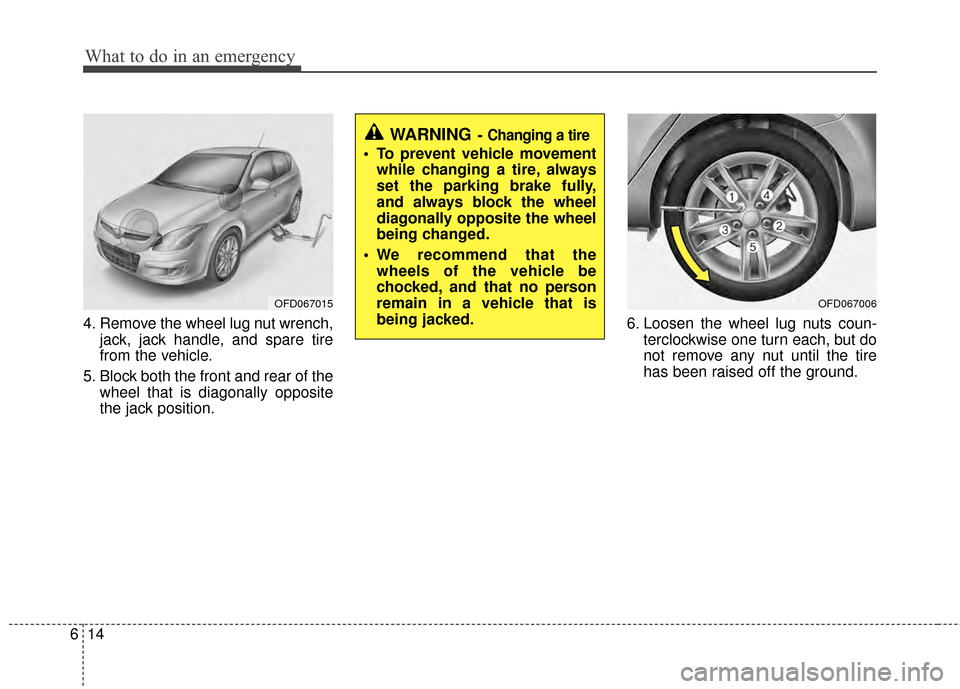
4. Remove the wheel lug nut wrench,
jack, jack handle, and spare tire
from the vehicle.
5. Block both the front and rear of the wheel that is diagonally opposite
the jack position. 6. Loosen the wheel lug nuts coun-
terclockwise one turn each, but do
not remove any nut until the tire
has been raised off the ground.
OFD067015OFD067006
WARNING- Changing a tire
To prevent vehicle movementwhile changing a tire, always
set the parking brake fully,
and always block the wheel
diagonally opposite the wheel
being changed.
We recommend that the wheels of the vehicle be
chocked, and that no person
remain in a vehicle that is
being jacked.