key Hyundai Elantra Touring 2012 Owner's Guide
[x] Cancel search | Manufacturer: HYUNDAI, Model Year: 2012, Model line: Elantra Touring, Model: Hyundai Elantra Touring 2012Pages: 402, PDF Size: 5.49 MB
Page 183 of 402
4107
Features of your vehicle
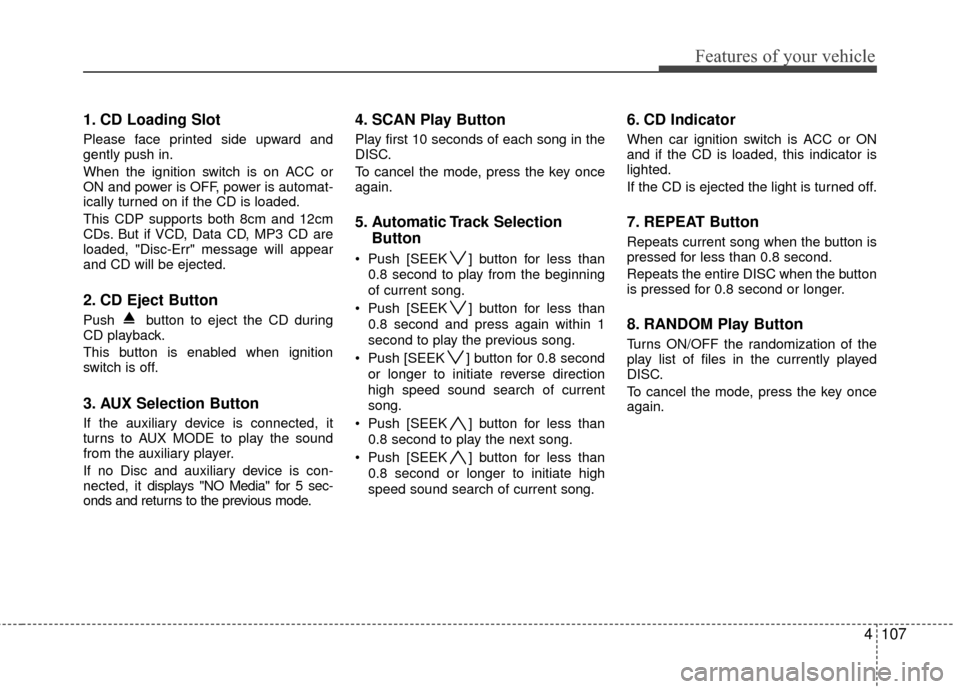
1. CD Loading Slot
Please face printed side upward and
gently push in.
When the ignition switch is on ACC or
ON and power is OFF, power is automat-
ically turned on if the CD is loaded.
This CDP supports both 8cm and 12cm
CDs. But if VCD, Data CD, MP3 CD are
loaded, "Disc-Err" message will appear
and CD will be ejected.
2. CD Eject Button
Push button to eject the CD during
CD playback.
This button is enabled when ignition
switch is off.
3. AUX Selection Button
If the auxiliary device is connected, it
turns to AUX MODE to play the sound
from the auxiliary player.
If no Disc and auxiliary device is con-
nected, it displays "NO Media" for 5 sec-
onds and returns to the previous mode.
4. SCAN Play Button
Play first 10 seconds of each song in the
DISC.
To cancel the mode, press the key once
again.
5. Automatic Track SelectionButton
Push [SEEK ] button for less than
0.8 second to play from the beginning
of current song.
Push [SEEK ] button for less than 0.8 second and press again within 1
second to play the previous song.
Push [SEEK ] button for 0.8 second or longer to initiate reverse direction
high speed sound search of current
song.
Push [SEEK ] button for less than 0.8 second to play the next song.
Push [SEEK ] button for less than 0.8 second or longer to initiate high
speed sound search of current song.
6. CD Indicator
When car ignition switch is ACC or ON
and if the CD is loaded, this indicator is
lighted.
If the CD is ejected the light is turned off.
7. REPEAT Button
Repeats current song when the button is
pressed for less than 0.8 second.
Repeats the entire DISC when the button
is pressed for 0.8 second or longer.
8. RANDOM Play Button
Turns ON/OFF the randomization of the
play list of files in the currently played
DISC.
To cancel the mode, press the key once
again.
Page 188 of 402
Features of your vehicle
112
4
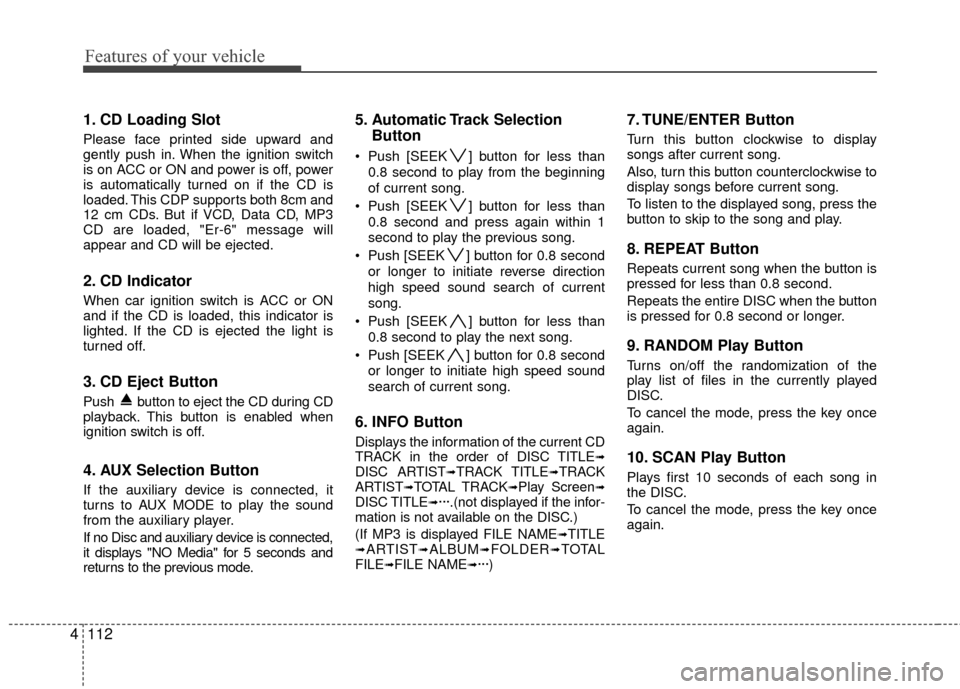
1. CD Loading Slot
Please face printed side upward and
gently push in. When the ignition switch
is on ACC or ON and power is off, power
is automatically turned on if the CD is
loaded. This CDP supports both 8cm and
12 cm CDs. But if VCD, Data CD, MP3
CD are loaded, "Er-6" message will
appear and CD will be ejected.
2. CD Indicator
When car ignition switch is ACC or ON
and if the CD is loaded, this indicator is
lighted. If the CD is ejected the light is
turned off.
3. CD Eject Button
Push button to eject the CD during CD
playback. This button is enabled when
ignition switch is off.
4. AUX Selection Button
If the auxiliary device is connected, it
turns to AUX MODE to play the sound
from the auxiliary player.
If no Disc and auxiliary device is connected,
it displays "NO Media" for 5 seconds and
returns to the previous mode.
5. Automatic Track Selection
Button
Push [SEEK ] button for less than
0.8 second to play from the beginning
of current song.
Push [SEEK ] button for less than 0.8 second and press again within 1
second to play the previous song.
Push [SEEK ] button for 0.8 second or longer to initiate reverse direction
high speed sound search of current
song.
Push [SEEK ] button for less than 0.8 second to play the next song.
Push [SEEK ] button for 0.8 second or longer to initiate high speed sound
search of current song.
6. INFO Button
Displays the information of the current CD
TRACK in the order of DISC TITLE➟DISC ARTIST➟TRACK TITLE➟TRACK
ARTIST➟TOTAL TRACK➟Play Screen➟DISC TITLE➟···.(not displayed if the infor-
mation is not available on the DISC.)
(If MP3 is displayed FILE NAME
➟TITLE➟ARTIST➟ALBUM➟FOLDER➟TOTAL
FILE➟FILE NAME➟···)
7. TUNE/ENTER Button
Turn this button clockwise to display
songs after current song.
Also, turn this button counterclockwise to
display songs before current song.
To listen to the displayed song, press the
button to skip to the song and play.
8. REPEAT Button
Repeats current song when the button is
pressed for less than 0.8 second.
Repeats the entire DISC when the button
is pressed for 0.8 second or longer.
9. RANDOM Play Button
Turns on/off the randomization of the
play list of files in the currently played
DISC.
To cancel the mode, press the key once
again.
10. SCAN Play Button
Plays first 10 seconds of each song in
the DISC.
To cancel the mode, press the key once
again.
Page 191 of 402
4115
Features of your vehicle
In case USB is connected to the multi-
media jack inside the console on the right
hand side of the driver’s seat. When USB
is connected, the ‘USB’ icon will be dis-
played on the top right corner of the dis-
play screen.
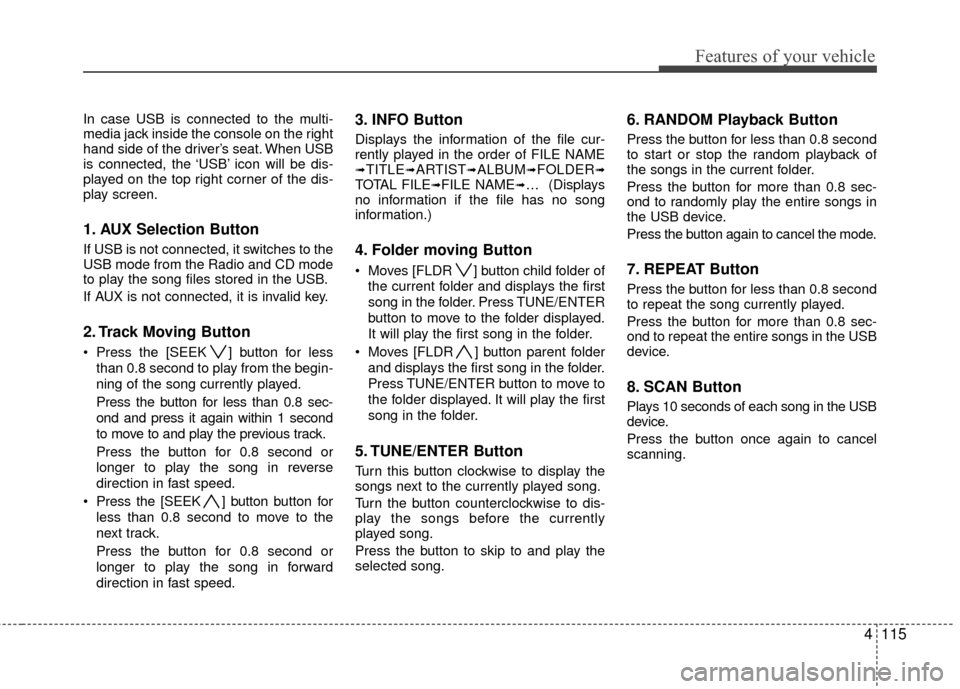
1. AUX Selection Button
If USB is not connected, it switches to the
USB mode from the Radio and CD mode
to play the song files stored in the USB.
If AUX is not connected, it is invalid key.
2. Track Moving Button
Press the [SEEK ] button for lessthan 0.8 second to play from the begin-
ning of the song currently played.
Press the button for less than 0.8 sec-
ond and press it again within 1 second
to move to and play the previous track.
Press the button for 0.8 second or
longer to play the song in reverse
direction in fast speed.
Press the [SEEK ] button but ton for
less than 0.8 second to move to the
next track.
Press the button for 0.8 second or
longer to play the song in forward
direction in fast speed.
3. INFO Button
Displays the information of the file cur-
rently played in the order of FILE NAME
➟TITLE➟ARTIST➟ALBUM➟FOLDER➟TOTAL FILE➟FILE NAME➟… (Displays
no information if the file has no song
information.)
4. Folder moving Button
Moves [FLDR ] button child folder of
the current folder and displays the first
song in the folder. Press TUNE/ENTER
button to move to the folder displayed.
It will play the first song in the folder.
Moves [FLDR ] button parent folder and displays the first song in the folder.
Press TUNE/ENTER button to move to
the folder displayed. It will play the first
song in the folder.
5. TUNE/ENTER Button
Turn this button clockwise to display the
songs next to the currently played song.
Turn the button counterclockwise to dis-
play the songs before the currently
played song.
Press the button to skip to and play the
selected song.
6. RANDOM Playback Button
Press the button for less than 0.8 second
to start or stop the random playback of
the songs in the current folder.
Press the button for more than 0.8 sec-
ond to randomly play the entire songs in
the USB device.
Press the button again to cancel the mode.
7. REPEAT Button
Press the button for less than 0.8 second
to repeat the song currently played.
Press the button for more than 0.8 sec-
ond to repeat the entire songs in the USB
device.
8. SCAN Button
Plays 10 seconds of each song in the USB
device.
Press the button once again to cancel
scanning.
Page 193 of 402
4117
Features of your vehicle
(Continued) If the USB device is divided by logical drives, only the music fileson the highest-priority drive arerecognized by car audio.
Devices such as MP3 Player/ Cellular phone/Digital camera canbe unrecognizable by standardUSB I/F can be unrecognizable.
Some non-standard USB devices (METAL COVER TYPE USB) canbe unrecognizable.
Some USB flash memory readers (such as CF, SD, microSD, etc.) orexternal-HDD type devices can beunrecognizable.
Music files protected by DRM (DIGITAL RIGHTS MANAGE-MENT) are not recognizable.
The data in the USB memory may be lost while using this audio.Always back up important data ona personal storage device.
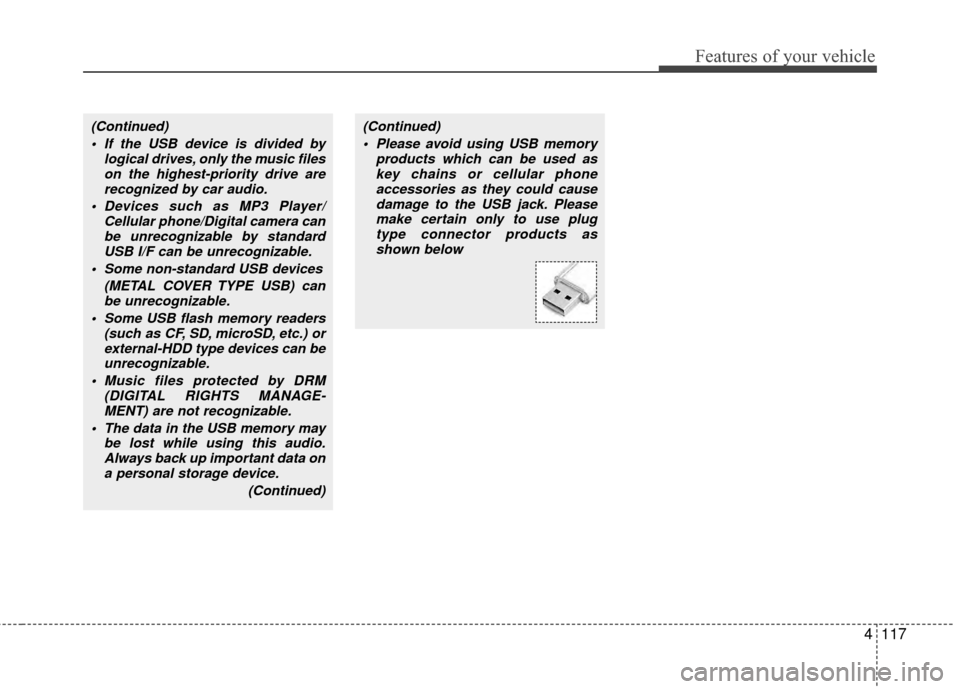
(Continued)(Continued) Please avoid using USB memory products which can be used askey chains or cellular phoneaccessories as they could causedamage to the USB jack. Pleasemake certain only to use plug type connector products asshown below
Page 202 of 402
Features of your vehicle
126
4
10. RANDOM Play Button
Turns on/off the randomization of the play
list of files in the currently played DISC.
To cancel the mode, press the key once
again.
11. DISC Selection Button
[DISC ] Change Button
Changes disc to the previous disc.
[DISC ] Change Button Changes disc to the next disc.
12. SCAN Play Button
Plays first 10 seconds of each song in the
DISC.
To cancel the mode, press the key once
again.
13. FOLDER Moving Button
Moves [FLDR ] button child folder ofthe current folder and displays the first
song in the folder. Press TUNE/ENTER
button to move to the folder displayed.
It will play the first song in the folder.
Moves [FLDR ] button parent folder and displays the first song in the folder.
Press TUNE/ENTER button to move to
the folder displayed. It will play the first
song in the folder.
Page 204 of 402
Features of your vehicle
128
4
In case USB is connected to the multi-
media jack inside the console on the right
hand side of the driver’s seat. When USB
is connected, the ‘USB’ icon will be dis-
played on the top right corner of the dis-
play screen.
1.AUX Selection Button
If USB is not connected, it switches to the
USB mode from the Radio and CD mode
to play the song files stored in the USB.
If AUX is not connected, it is invalid key.
2. Track Moving Button
Press the [SEEK ] button for less
than 0.8 second to play from the begin-
ning of the song currently played.
Press the button for less than 0.8 sec-
ond and press it again within 1 second
to move to and play the previous track.
Press the button for 0.8 second or
longer to play the song in reverse
direction in fast speed.
Press the [SEEK ] button but ton for
less than 0.8 second to move to the
next track.
Press the button for 0.8 second or
longer to play the song in forward
direction in fast speed.
3. INFO Button
Displays the information of the file cur-
rently played in the order of FILE NAME
➟TITLE➟ARTIST➟ALBUM➟FOLDER➟TOTAL FILE➟FILE NAME➟… (Displays
no information if the file has no song
information.)
4. Folder moving Button
Moves [FLDR ] button child folder of
the current folder and displays the first
song in the folder. Press TUNE/ENTER
button to move to the folder displayed.
It will play the first song in the folder.
Moves [FLDR ] button parent folder and displays the first song in the folder.
Press TUNE/ENTER button to move to
the folder displayed. It will play the first
song in the folder.
5. TUNE/ENTER Button
Turn this button clockwise to display the
songs next to the currently played song.
Turn the button counterclockwise to dis-
play the songs before the currently
played song.
Press the button to skip to and play the
selected song.
6. RANDOM Playback Button
Press the button for less than 0.8 second
to start or stop the random playback of
the songs in the current folder.
Press the button for more than 0.8 sec-
ond to randomly play the entire songs in
the USB device.
Press the button again to cancel the mode.
7. REPEAT Button
Press the button for less than 0.8 second
to repeat the song currently played.
Press the button for more than 0.8 sec-
ond to repeat the entire songs in the USB
device.
8. SCAN Button
Plays 10 seconds of each song in the USB
device.
Press the button once again to cancel
scanning.
Page 206 of 402
Features of your vehicle
130
4
(Continued)
If the USB device is divided by logical drives, only the music fileson the highest-priority drive arerecognized by car audio.
Devices such as MP3 Player/ Cellular phone/Digital camera canbe unrecognizable by standardUSB I/F can be unrecognizable.
Some non-standard USB devices (METAL COVER TYPE USB) canbe unrecognizable.
Some USB flash memory readers (such as CF, SD, microSD, etc.) orexternal-HDD type devices can beunrecognizable.
Music files protected by DRM (DIGITAL RIGHTS MANAGE-MENT) are not recognizable.
The data in the USB memory may be lost while using this audio.Always back up important data ona personal storage device.
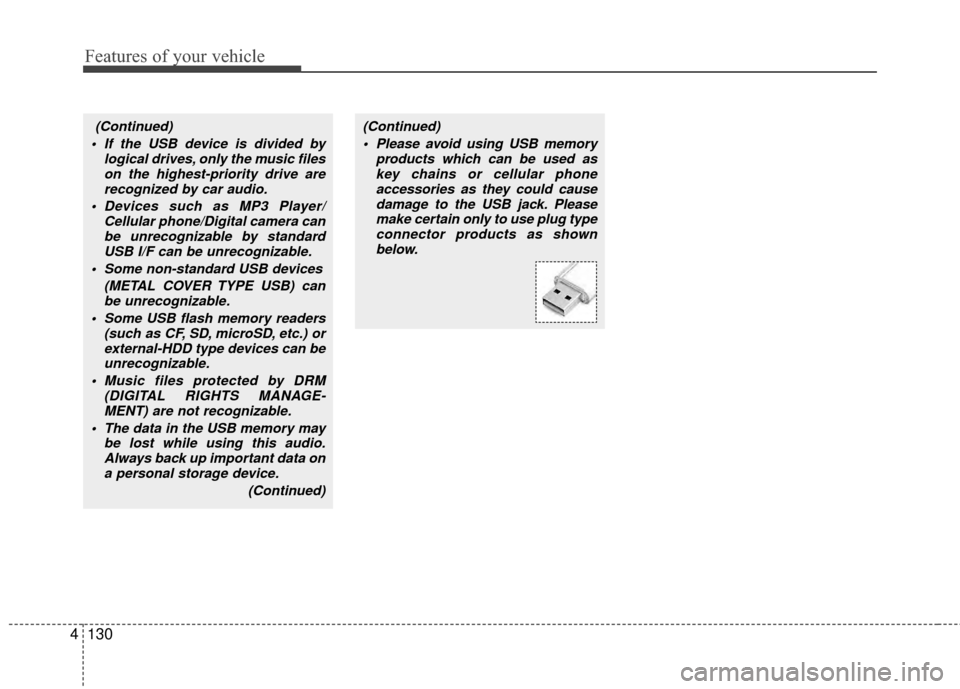
(Continued)(Continued) Please avoid using USB memory products which can be used askey chains or cellular phoneaccessories as they could causedamage to the USB jack. Pleasemake certain only to use plug type connector products as shownbelow.
Page 219 of 402
4143
Features of your vehicle
(Continued)
If the USB device is divided by logical drives, only the music fileson the highest-priority drive arerecognized by car audio.
Devices such as MP3 Player/ Cellular phone/Digital camera canbe unrecognizable by standardUSB I/F can be unrecognizable.
Some non-standard USB devices (METAL COVER TYPE USB) can beunrecognizable.
Some USB flash memory readers (such as CF, SD, microSD, etc.) orexternal-HDD type devices can beunrecognizable.
Music files protected by DRM (DIGITAL RIGHTS MANAGEMENT)are not recognizable.
The data in the USB memory may be lost while using this audio.Always back up important data ona personal storage device.
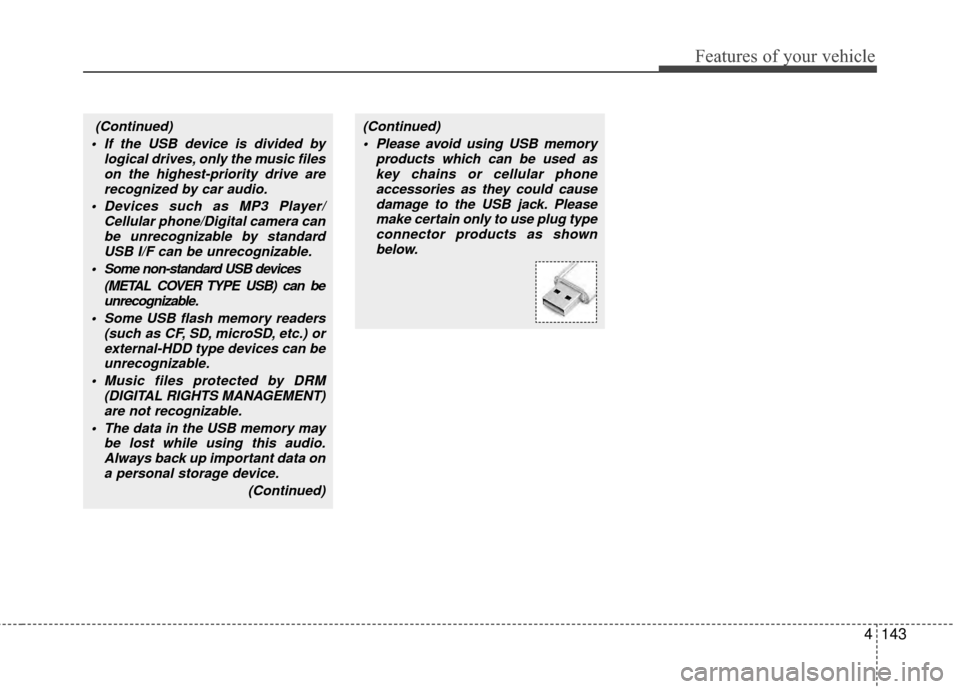
(Continued)(Continued) Please avoid using USB memory products which can be used askey chains or cellular phoneaccessories as they could causedamage to the USB jack. Pleasemake certain only to use plug type connector products as shownbelow.
Page 234 of 402
Features of your vehicle
158
4
(Continued)
If the USB device is divided by logical drives, only the music fileson the highest-priority drive arerecognized by car audio.
Devices such as MP3 Player/ Cellular phone/Digital camera canbe unrecognizable by standardUSB I/F can be unrecognizable.
Some non-standard USB devices (METAL COVER TYPE USB) canbe unrecognizable.
Some USB flash memory readers (such as CF, SD, microSD, etc.) orexternal-HDD type devices can beunrecognizable.
Music files protected by DRM (DIGITAL RIGHTS MANAGE-MENT) are not recognizable.
The data in the USB memory may be lost while using this audio.Always back up important data ona personal storage device.
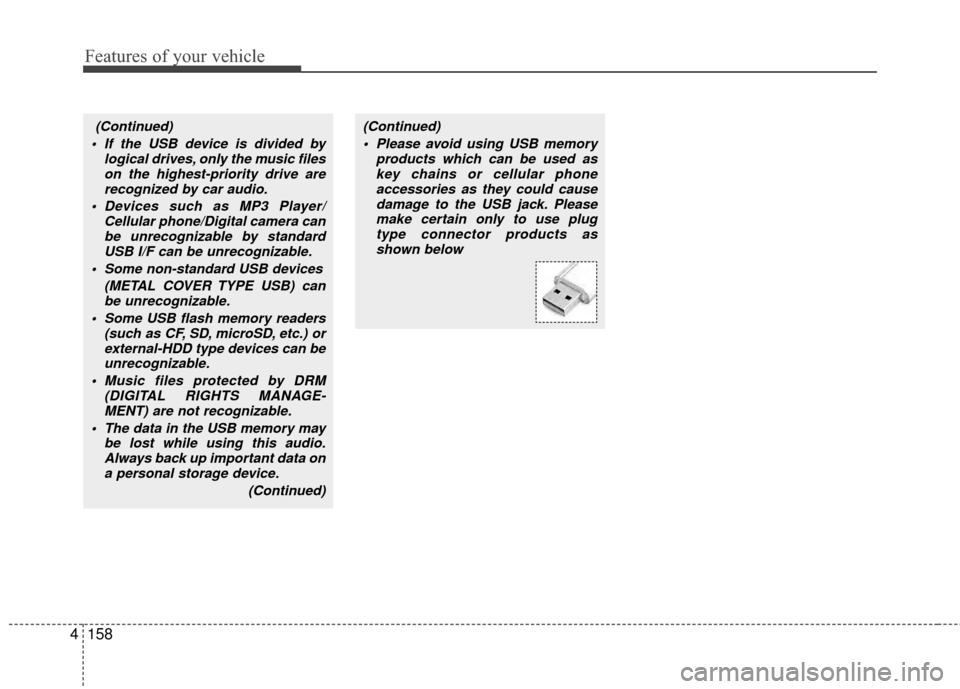
(Continued)(Continued) Please avoid using USB memory products which can be used askey chains or cellular phoneaccessories as they could causedamage to the USB jack. Pleasemake certain only to use plug type connector products asshown below
Page 240 of 402
5
Before driving / 5-3
Key positions / 5-5
Starting the engine / 5-6
Manual transaxle / 5-7
Automatic transaxle / 5-10
Brake system / 5-16
Cruise control system / 5-26
Economical operation / 5-30
Special driving conditions / 5-32
Winter driving / 5-36
Trailer towing / 5-40
Vehicle load limit / 5-48
Vehicle weight / 5-52
Driving your vehicle