adjust Hyundai Elantra Touring 2012 Service Manual
[x] Cancel search | Manufacturer: HYUNDAI, Model Year: 2012, Model line: Elantra Touring, Model: Hyundai Elantra Touring 2012Pages: 402, PDF Size: 5.49 MB
Page 209 of 402
4133
Features of your vehicle
✽
✽NOTICE FOR USING THE
iPod®DEVICE
• Some iPod models might not sup-
port the communication protocol
and the files will not be played.
Supported iPod models:
- iPod Mini
- iPod 4th(Photo) ~ 6th(Classic)
generation
- iPod Nano 1st~4th generation
- iPod Touch 1st~2nd generation
• The order of search or playback of songs in the iPod can be different
from the order searched in the
audio system.
• If the iPod disabled due to its own malfunction, reset the iPod. (Reset:
Refer to iPod manual)
• An iPod may not operate normally on low battery.
• Some iPod devices, such as the iPhone, can be connected through the
Bluetooth
®wireless technology inter-
face. The device must have audio
Bluetooth
®wireless technology capa-
bility (such as for stereo headphone
Bluetooth
®wireless technology). The
device can play, but it will not be con-
trolled by the audio system.
CAUTION IN USING THE
iPod
®DEVICE
The Hyundai iPod Power Cable is needed in order to operate iPodwith the audio buttons on theaudio system. The USB cable pro-vided by Apple may cause mal-function and should not be usedfor Hyundai vehicles.
\b The Hyundai iPod Power Cablemay be purchased through yourHyundai Dealership.
When connecting iPod with the iPod Power Cable, insert the con-nector to the multimedia socketcompletely. If not inserted com-pletely, communications betweeniPod and audio may be interrupted.
When adjusting the sound effects of the iPod and the audio system,the sound effects of both deviceswill overlap and might reduce ordistort the quality of the sound.
(Continued)
(Continued) Deactivate (turn off) the equalizer
function of an iPod when adjust-ing the audio system’s volume,and turn off the equalizer of theaudio system when using theequalizer of an iPod.
When the iPod cable is connect- ed, the system can be switched toAUX mode even without iPoddevice and may cause noise.
Disconnect the iPod cable whenyou are not using the iPod device.
When not using iPod with car audio, detach the iPod cable fromiPod. Otherwise, iPod may remain in accessory mode, and may notwork properly.
Page 211 of 402
4135
Features of your vehicle
1. FM Selection Button
Turns to FM mode and toggles FM1 and
FM2 when the button is pressed each
time.
2. AM Selection Button
Turns to AM mode when the button is
pressed.
3. CD/AUX Selection Button
If the auxiliary device is connected, it
switches to the AUX mode from the other
mode to play the sound from the auxiliary
player.
If the CD is loaded, turns to CD mode,
and if a device is connected to AUX then
it toggles CD
➟ AUX ➟ CD... when the
button is pressed each time.(It will not
turn to AUX if the auxiliary device is not
connected)
If no CD and auxiliary device is not con-
nected, it displays "NO Media" for 3 sec-
onds and returns to the previous mode.
4. Automatic Channel Selection Button
When the [SEEK ] button is pressed,
it reduces the band frequency by
100kHz to automatically select chan-
nel. Stops at the previous frequency if
no channel is found.
When the [SEEK ] button is pressed, it increases the band frequency by
100kHz to automatically select chan-
nel. Stops at the previous frequency if
no channel is found.
5. Power ON/OFF Button & Volume Control Knob
Turns on/off the set when the IGNI-
TION SWITCH is on ACC or ON. If the
button is turned to the right, it increas-
es the volume and left, decreases the
volume.
In AUX mode, the volume and tone (BASS, MID, TRE) are adjusted in a
separate way.
If you pull out AUX from a jack and
insert it again, then only volume goes
back to step 10.
6. SCAN Button
If this button is pressed, the frequencies
will become increased and receive the
corresponding broadcasts. This function
will play the frequencies for 5 seconds
(XM MODE:10 seconds) each and find
other broadcasts as the frequency
increases. Press the button again when
desire to continue listening to the cur-
rently playing broadcast.
7. Screen ON/ OFF Button
Turns on/off the display data and light on
LCD.
The screen and light will be turned on by
pressing any button except [DISP ] but-
ton when the screen is turned off.
8. INFO Button
Displays the information of the channel
currently played.
Page 212 of 402
Features of your vehicle
136
4
9. SETUP/CLOCKButton
Press this button to turn to the SOUND,
XM setting, clock setting, time display,
SCROLL, SDVC, temperature display
and adjustment mode.
If no action is taken for 5 seconds after
pressing the button, it will return to the play
mode.(After entering SETUP mode, move
between items using the left, right and
PUSH functions of the [TUNE] button.)
The setup item changes from AUDIO
➟XM➟CLOCK➟TIME➟SCROLL➟SDVC➟TEMP➟P.BASS➟AUDIO
10. Manual Channel Selection
Knob & SETUP Button
Turn this button clockwise by one notch
to increase frequency by 0.2MHz from
current frequency.
Turn this button counterclockwise by one
notch to decrease frequency by 0.2MHz
from current frequency.
11. Preset Button
Push [1]~[6] buttons less than 0.8 second
to play the channel saved in each button.
Push [PRESET] button for 0.8 second or
longer to save current channel to the
respective button with a beep.
Page 222 of 402
Features of your vehicle
146
4
✽
✽
NOTICE FOR USING THE
iPod®DEVICE
• Some iPod models might not sup-
port the communication protocol
and the files will not be played.
Supported iPod models:
- iPod Mini
- iPod 4th(Photo) ~ 6th(Classic)
generation
- iPod Nano 1st~4th generation
- iPod Touch 1st~2nd generation
• The order of search or playback of songs in the iPod can be different
from the order searched in the
audio system.
• If the iPod disabled due to its own malfunction, reset the iPod. (Reset:
Refer to iPod manual)
• An iPod may not operate normally on low battery.
• Some iPod devices, such as the iPhone, can be connected through
the Bluetooth
®wireless technology
interface. The device must have
audio Bluetooth
®wireless technolo-
gy capability (such as for stereo
headphone Bluetooth
®wireless
technology). The device can play,
but it will not be controlled by the
audio system.
CAUTION IN USING THE
iPod®DEVICE
The Hyundai iPod Power Cable is
needed in order to operate iPodwith the audio buttons on theaudio system. The USB cable pro-vided by Apple may cause mal-function and should not be usedfor Hyundai vehicles.
\b The Hyundai iPod Power Cablemay be purchased through yourHyundai Dealership.
When connecting iPod with the iPod Power Cable, insert the con-nector to the multimedia socketcompletely. If not inserted com-pletely, communications betweeniPod and audio may be interrupted.
When adjusting the sound effects of the iPod and the audio system,the sound effects of both deviceswill overlap and might reduce ordistort the quality of the sound.
(Continued)
(Continued) Deactivate (turn off) the equalizer function of an iPod when adjust-ing the audio system’s volume,and turn off the equalizer of the audio system when using theequalizer of an iPod.
When the iPod cable is connect- ed, the system can be switched toAUX mode even without iPoddevice and may cause noise.Disconnect the iPod cable whenyou are not using the iPod device.
When not using iPod with car audio, detach the iPod cable fromiPod. Otherwise, iPod may remain in accessory mode, and may notwork properly.
Page 226 of 402
Features of your vehicle
150
4
1. FM Selection ButtonTurns to FM mode and toggles FM1 and
FM2 when the button is pressed each
time.
2. AM Selection Button
Turns to AM mode, and toggles in the
order of AM1 ➟ AM2 ➟ AM1... when the
button is pressed each time.
3. CD/AUX Selection Button
If the auxiliary device is connected, it
switches to the AUX mode from the other
mode to play the sound from the auxiliary
player.
If the CD is loaded, turns to CD mode,
and if a device is connected to AUX then
it toggles CD
➟ AUX ➟ CD... when the
button is pressed each time.(It will not
turn to AUX if the auxiliary device is not
connected)
If no CD and auxiliary device is not con-
nected, it displays "NO Media" for 3 sec-
onds and returns to the previous mode.
4. Automatic Channel Selection Button
When the [SEEK ] button is pressed,
it reduces the band frequency by
100khz to automatically select channel.
Stops at the previous frequency if no
channel is found.
When the [SEEK ] button is pressed, it increases the band frequency by
100khz to automatically select channel.
Stops at the previous frequency if no
channel is found.
5. Power ON/OFF Button & Volume Control Knob
Turns on/off the set when the IGNI-
TION SWITCH is on ACC or ON. If the
button is turned to the right, it increas-
es the volume and left, decreases the
volume.
In AUX mode, the volume and tone (BASS, MID, TRE) are adjusted in a
separate way.
If you pull out AUX from a jack and
insert it again, then only volume goes
back to step 10.
6. SCAN Button
If this button is pressed, the frequencies
will become increased and receive the
corresponding broadcasts. This function
will play the frequencies for 5 seconds
(XM MODE:10 seconds) each and find
other broadcasts as the frequency
increases. Press the button again when
desire to continue listening to the cur-
rently playing broadcast.
7. Screen ON/ OFF Button
Turns off/on the displayed data and light
on LCD.
The screen and light will be turned on by
pressing any button except [DISP ] but-
ton when the screen is turned off.
8. INFO Button
Displays the information of the channel
currently played.
Page 227 of 402
4151
Features of your vehicle
9. SETUP/CLOCK Button
Press this button to turn to the SOUND,
xm setting, clock setting, time display,
SCROLL, SDVC, temperature display
and adjustment mode.
If no action is taken for 5 seconds after
pressing the button, it will return to the play
mode.(After entering SETUP mode, move
between items using the left, right and
PUSH functions of the [TUNE] button.)
The setup item changes from AUDIO
➟XM ➟ CLOCK ➟ TIME ➟ SCROLL ➟SDVC ➟ TEMP ➟ AUDIO ➟...
10. Manual Channel SelectionKnob & SETUP Button
Turn this button clockwise by one notch
to increase frequency by 0.2Mhz from
current frequency.
Turn this button counterclockwise by one
notch to decrease frequency by 0.2Mhz
from current frequency.
11. Preset Button
Push [1]~[6] buttons less than 0.8 second
to play the channel saved in each button.
Push [PRESET] button for 0.8 second or
longer to save current channel to the
respective button with a beep.
Page 237 of 402
4161
Features of your vehicle
✽
✽NOTICE FOR USING THE
iPod®DEVICE
• Some iPod models might not sup-
port the communication protocol
and the files will not be played.
Supported iPod models:
- iPod Mini
- iPod 4th(Photo) ~ 6th(Classic)
generation
- iPod Nano 1st~4th generation
- iPod Touch 1st~2nd generation
• The order of search or playback of songs in the iPod can be different
from the order searched in the
audio system.
• If the iPod disabled due to its own malfunction, reset the iPod. (Reset:
Refer to iPod manual)
• An iPod may not operate normally on low battery.
• Some iPod devices, such as the iPhone, can be connected through
the Bluetooth
®wireless technology
interface. The device must have
audio Bluetooth
®wireless technolo-
gy capability (such as for stereo
headphone Bluetooth
® wireless
technology). The device can play,
but it will not be controlled by the
audio system.
CAUTION IN USING THE
iPod®DEVICE
The Hyundai iPod Power Cable is
needed in order to operate iPodwith the audio buttons on theaudio system. The USB cable pro-vided by Apple may cause mal-function and should not be usedfor Hyundai vehicles.
\b The Hyundai iPod Power Cablemay be purchased through yourHyundai Dealership.
When connecting iPod with the iPod Power Cable, insert the con-nector to the multimedia socketcompletely. If not inserted com-pletely, communications betweeniPod and audio may be interrupted.
When adjusting the sound effects of the iPod and the audio system,the sound effects of both deviceswill overlap and might reduce ordistort the quality of the sound.
(Continued)
(Continued) Deactivate (turn off) the equalizer function of an iPod when adjust-ing the audio system’s volume,and turn off the equalizer of the audio system when using theequalizer of an iPod.
When the iPod cable is connect- ed, the system can be switched toAUX mode even without iPoddevice and may cause noise.Disconnect the iPod cable whenyou are not using the iPod device.
When not using iPod with car audio, detach the iPod cable fromiPod. Otherwise, iPod may remain in accessory mode, and may notwork properly.
Page 243 of 402
Driving your vehicle
45
E020300AUN
Before starting
Close and lock all doors.
Position the seat so that all controls areeasily reached.
Adjust the inside and outside rearview mirrors.
Be sure that all lights work.
Check all gauges.
Check the operation of warning lights when the ignition switch is turned to
the ON position.
Release the parking brake and make sure the brake warning light goes out.
For safe operation, be sure you are famil-
iar with your vehicle and its equipment.
WARNING- Driving under
the influence of alcohol or
drugs
Drinking and driving is dangerous.
Drunk driving is the number one
contributor to the highway death
toll each year. Even a small amount
of alcohol will affect your reflexes,
perceptions and judgement.
Driving while under the influence of
drugs is as dangerous or more dan-
gerous than driving drunk.
You are much more likely to have a
serious accident if you drink or
take drugs and drive.
If you are drinking or taking drugs,
don’t drive. Do not ride with a driv-
er who has been drinking or taking
drugs. Choose a designated driver
or call a cab.
WARNING
When you intend to park or stop
the vehicle with the engine on, be
careful not to depress the accel-
erator pedal for a long period of
time. It may overheat the engine
or exhaust system and cause fire.
When you make a sudden stop or turn the steering wheel rapidly,
loose objects may drop on the
floor and it could interfere with
the operation of the foot pedals,
possibly causing an accident.
Keep all things in the vehicle
safely stored.
If you do not focus on driving, it may cause an accident. Be care-
ful when operating what may dis-
turb driving such as audio or
heater. It is the responsibility of
the driver to always drive safely.
WARNING
All passengers must be properly
belted whenever the vehicle is mov-
ing. Refer to “Seat belts” in section
3 for more information on their
proper use.
WARNING
Always check the surrounding
areas near your vehicle for people,
especially children, before putting a
car into D (Drive) or R (Reverse).
Page 250 of 402
511
Driving your vehicle
E060100AFD-EU
Automatic transaxle operation
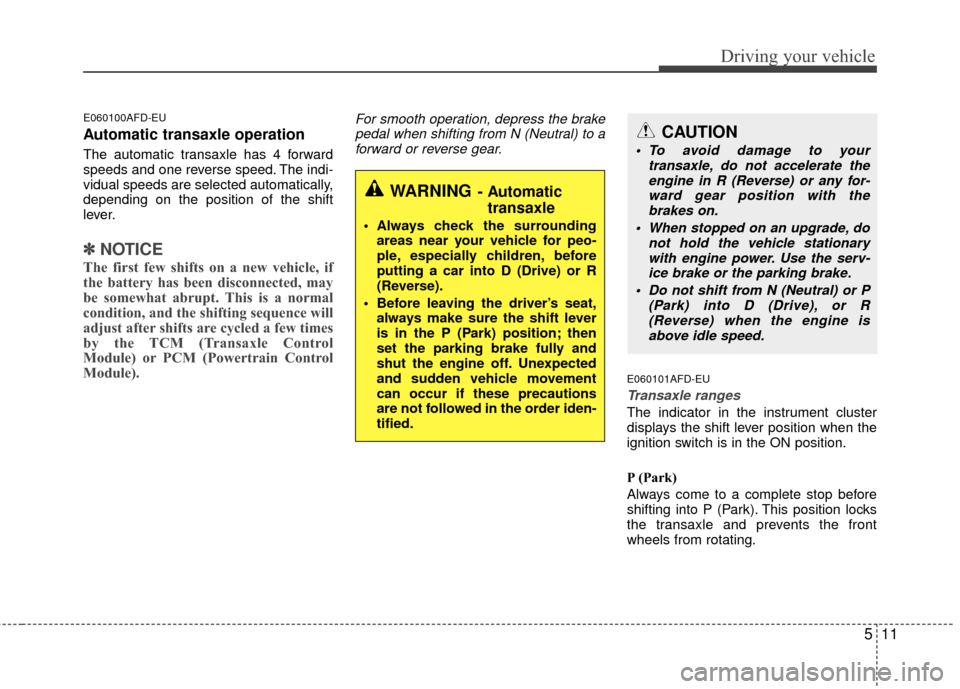
The automatic transaxle has 4 forward
speeds and one reverse speed. The indi-
vidual speeds are selected automatically,
depending on the position of the shift
lever.
✽ ✽NOTICE
The first few shifts on a new vehicle, if
the battery has been disconnected, may
be somewhat abrupt. This is a normal
condition, and the shifting sequence will
adjust after shifts are cycled a few times
by the TCM (Transaxle Control
Module) or PCM (Powertrain Control
Module).
For smooth operation, depress the brake
pedal when shifting from N (Neutral) to aforward or reverse gear.
E060101AFD-EU
Transaxle ranges
The indicator in the instrument cluster
displays the shift lever position when the
ignition switch is in the ON position.
P (Park)
Always come to a complete stop before
shifting into P (Park). This position locks
the transaxle and prevents the front
wheels from rotating.
WARNING- Automatic transaxle
Always check the surrounding
areas near your vehicle for peo-
ple, especially children, before
putting a car into D (Drive) or R
(Reverse).
Before leaving the driver’s seat, always make sure the shift lever
is in the P (Park) position; then
set the parking brake fully and
shut the engine off. Unexpected
and sudden vehicle movement
can occur if these precautions
are not followed in the order iden-
tified.
CAUTION
To avoid damage to your transaxle, do not accelerate theengine in R (Reverse) or any for- ward gear position with thebrakes on.
When stopped on an upgrade, do not hold the vehicle stationarywith engine power. Use the serv-ice brake or the parking brake.
Do not shift from N (Neutral) or P (Park) into D (Drive), or R(Reverse) when the engine isabove idle speed.
Page 255 of 402
Driving your vehicle
16
5
E070100AUN
Power brakes
Your vehicle has power-assisted brakes
that adjust automatically through normal
usage.
In the event that the power-assisted
brakes lose power because of a stalled
engine or some other reason, you can
still stop your vehicle by applying greater
force to the brake pedal than you nor-
mally would. The stopping distance, how-
ever, will be longer.
When the engine is not running, the
reserve brake power is partially depleted
each time the brake pedal is applied. Do
not pump the brake pedal when the
power assist has been interrupted.
Pump the brake pedal only when neces-
sary to maintain steering control on slip-
pery surfaces.
E070101AUN
In the event of brake failure
If service brakes fail to operate while the
vehicle is in motion, you can make an
emergency stop with the parking brake.
The stopping distance, however, will be
much greater than normal.
BRAKE SYSTEM
(Continued)
When descending a long or steep
hill, shift to a lower gear and
avoid continuous application of
the brakes. Continuous brake
application will cause the brakes
to overheat and could result in a
temporary loss of braking per-
formance.
Wet brakes may impair the vehi- cle’s ability to safely slow down;
the vehicle may also pull to one
side when the brakes are applied.
Applying the brakes lightly will
indicate whether they have been
affected in this way. Always test
your brakes in this fashion after
driving through deep water. To
dry the brakes, apply them lightly
while maintaining a safe forward
speed until brake performance
returns to normal.
Always, confirm the position of the brake and accelerator pedal
before driving. If you don't check
the position of the accelerator
and brake pedal before driving,
you may depress the accelerator
instead of the brake pedal. It may
cause a serious accident.
WARNING- Parking brake
Applying the parking brake while
the vehicle is moving at normal
speeds can cause a sudden loss of
control of the vehicle. If you must
use the parking brake to stop the
vehicle, use great caution in apply-
ing the brake.
WARNING - Brakes
Do not drive with your foot rest-ing on the brake pedal. This will
create abnormal high brake tem-
peratures, excessive brake lining
and pad wear, and increased
stopping distances.
(Continued)