Radio Hyundai Genesis 2010 User Guide
[x] Cancel search | Manufacturer: HYUNDAI, Model Year: 2010, Model line: Genesis, Model: Hyundai Genesis 2010Pages: 399, PDF Size: 10 MB
Page 202 of 399
4125
Features of your vehicle
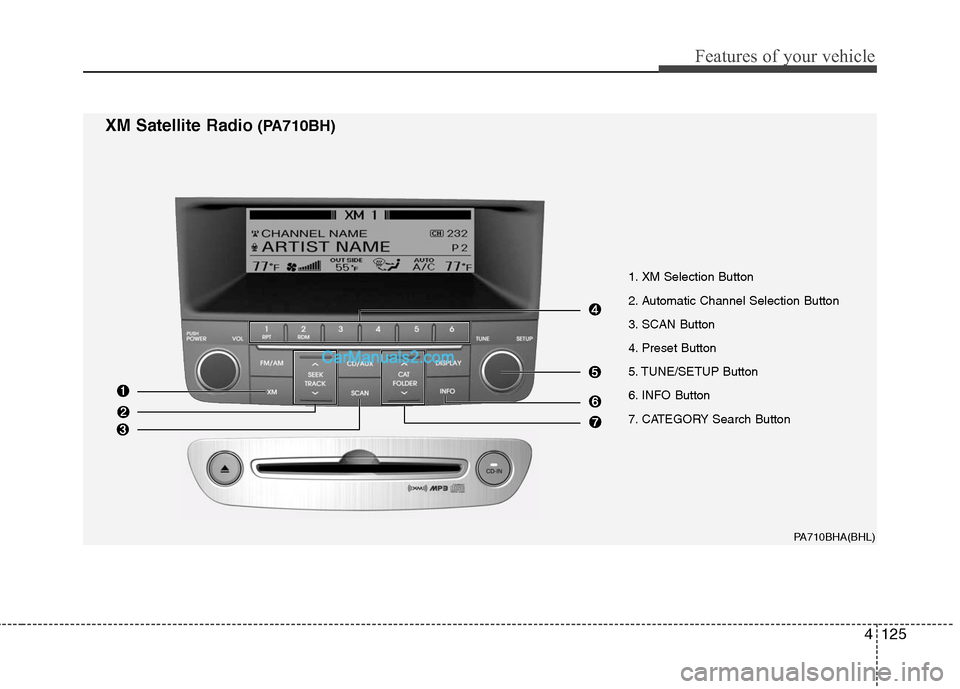
1. XM Selection Button
2. Automatic Channel Selection Button
3. SCAN Button
4. Preset Button
5. TUNE/SETUP Button
6. INFO Button
7. CATEGORY Search Button
PA710BHA(BHL)
XM Satellite Radio(PA710BH)
Page 203 of 399
Features of your vehicle
126 4
1. XM Selection Button
Turns to XM Satellite Radio Mode.
XM mode toggles in order to XM1
➟XM2➟XM3➟XM1... when the button is pressed
each time.
2. Automatic Channel Selection
Button
] button for less than 0.8
second to select previous channel.
] button for 0.8 second
or longer to continuously move to previ-
ous channel.
] button for less than 0.8
second to select next channel.
] button for 0.8 second
or longer to continuously move to next
channel.
Seek or Tune to XM channel
0 to display the Radio ID.
3. SCAN Button
Press to hear a brief sampling of all
channels. To cancel the scan mode,
press the button once again.
4. Preset Button
Push [1]~[6] buttons less than 0.8 sec-
ond to play the channel saved in each
button. Push pre-set button for 0.8 sec-
ond or longer to save the current channel
to the respective button with a beep.
5. TUNE/SETUP Button
Turn this button clockwise to display
channels after.
Also, turn this button counterclockwise to
display channels before current channel.
XM setup mode : It will be able to change
the XM display. (ex, Display by category/
channel or artist/song title.)
6. INFO Button
Displays the information of the current
channel in the order of Artist/Song title➟Category/Channel name➟Current Play
Channel➟Artist/Song title➟Category/Cha-
nnel name... when the button is pressed
each time.
If it can not display the whole text infor-
mation, rotate the tune button to see the
next page.
7. CATEGORY Search Button
Push [CAT ] button to search previ-
ous category.
Push [CAT ] button to search next
category.
To listen to the displayed category, press
the TUNE/SETUP button.
To scan channel in displayed category,
press the scan button.
To search channel in displayed category,
press seek buttons or turn the tune but-
ton clockwise/counterclockwise.
(CATEGORY icon will be turned on in
Category mode)
Page 204 of 399
4127
Features of your vehicle
PA760BHA(BHL)
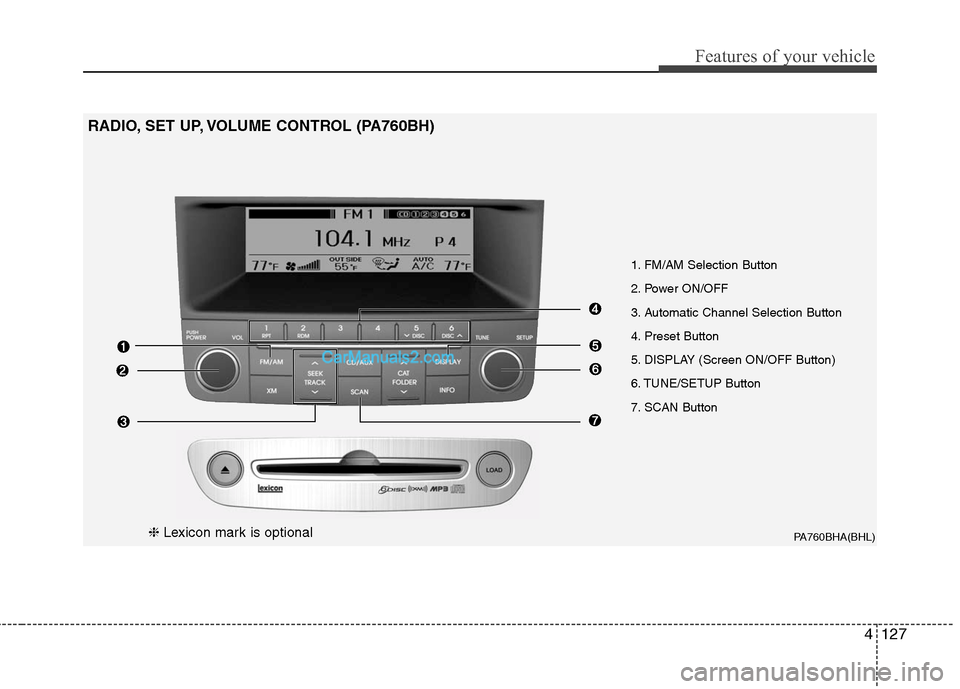
1. FM/AM Selection Button
2. Power ON/OFF
3. Automatic Channel Selection Button
4. Preset Button
5. DISPLAY (Screen ON/OFF Button)
6. TUNE/SETUP Button
7. SCAN Button
RADIO, SET UP, VOLUME CONTROL (PA760BH)
❈Lexicon mark is optional
Page 216 of 399
4139
Features of your vehicle
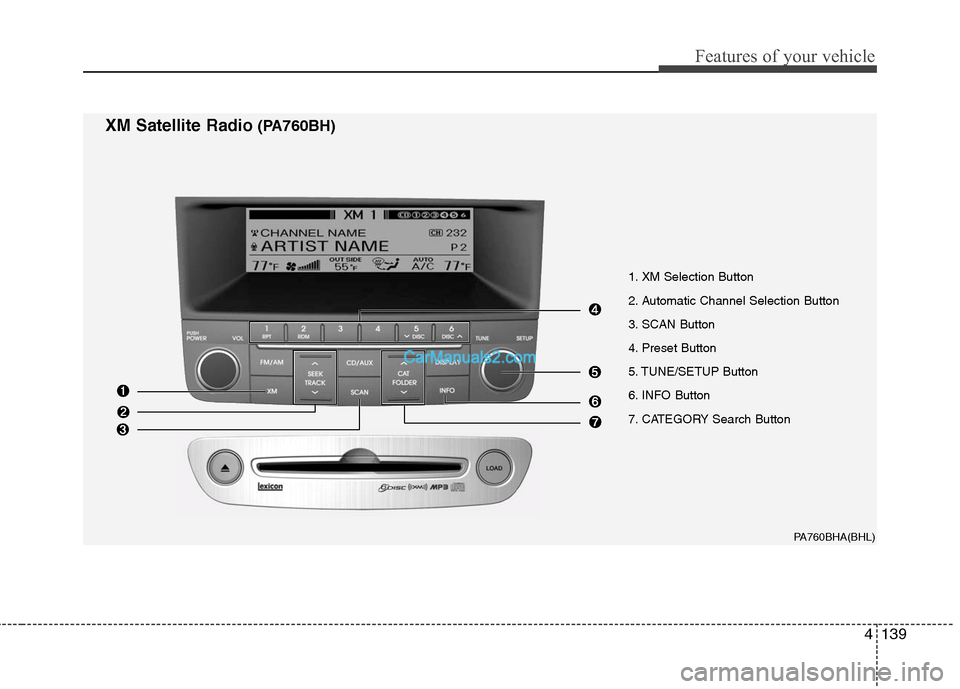
1. XM Selection Button
2. Automatic Channel Selection Button
3. SCAN Button
4. Preset Button
5. TUNE/SETUP Button
6. INFO Button
7. CATEGORY Search Button
PA760BHA(BHL)
XM Satellite Radio(PA760BH)
Page 217 of 399
Features of your vehicle
140 4
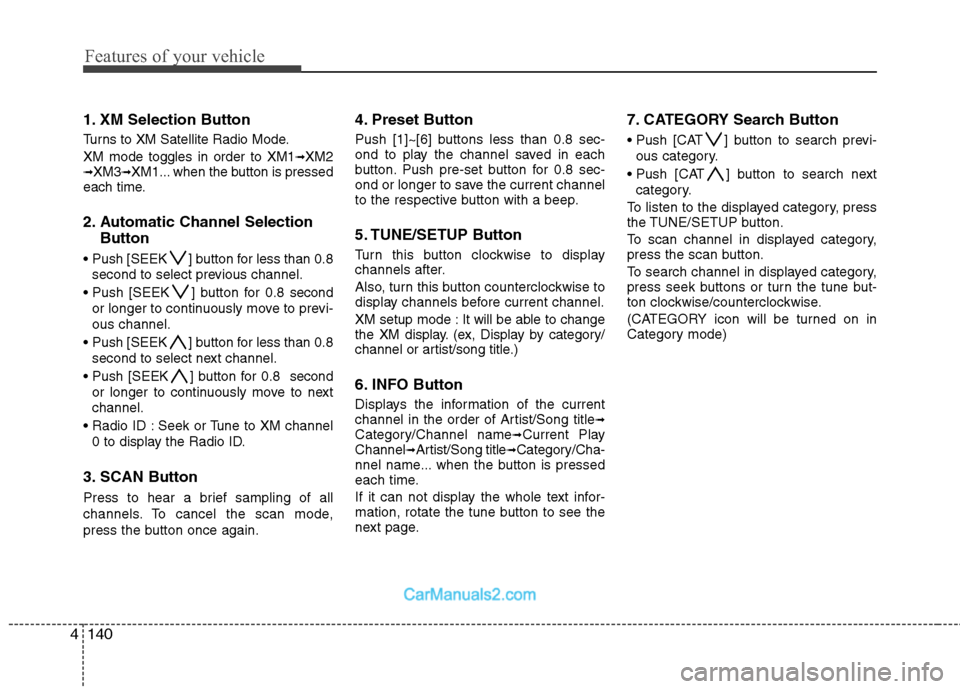
1. XM Selection Button
Turns to XM Satellite Radio Mode.
XM mode toggles in order to XM1
➟XM2➟XM3➟XM1... when the button is pressed
each time.
2. Automatic Channel Selection
Button
] button for less than 0.8
second to select previous channel.
] button for 0.8 second
or longer to continuously move to previ-
ous channel.
] button for less than 0.8
second to select next channel.
] button for 0.8 second
or longer to continuously move to next
channel.
Seek or Tune to XM channel
0 to display the Radio ID.
3. SCAN Button
Press to hear a brief sampling of all
channels. To cancel the scan mode,
press the button once again.
4. Preset Button
Push [1]~[6] buttons less than 0.8 sec-
ond to play the channel saved in each
button. Push pre-set button for 0.8 sec-
ond or longer to save the current channel
to the respective button with a beep.
5. TUNE/SETUP Button
Turn this button clockwise to display
channels after.
Also, turn this button counterclockwise to
display channels before current channel.
XM setup mode : It will be able to change
the XM display. (ex, Display by category/
channel or artist/song title.)
6. INFO Button
Displays the information of the current
channel in the order of Artist/Song title➟Category/Channel name➟Current Play
Channel➟Artist/Song title➟Category/Cha-
nnel name... when the button is pressed
each time.
If it can not display the whole text infor-
mation, rotate the tune button to see the
next page.
7. CATEGORY Search Button
Push [CAT ] button to search previ-
ous category.
Push [CAT ] button to search next
category.
To listen to the displayed category, press
the TUNE/SETUP button.
To scan channel in displayed category,
press the scan button.
To search channel in displayed category,
press seek buttons or turn the tune but-
ton clockwise/counterclockwise.
(CATEGORY icon will be turned on in
Category mode)
Page 218 of 399
4141
Features of your vehicle
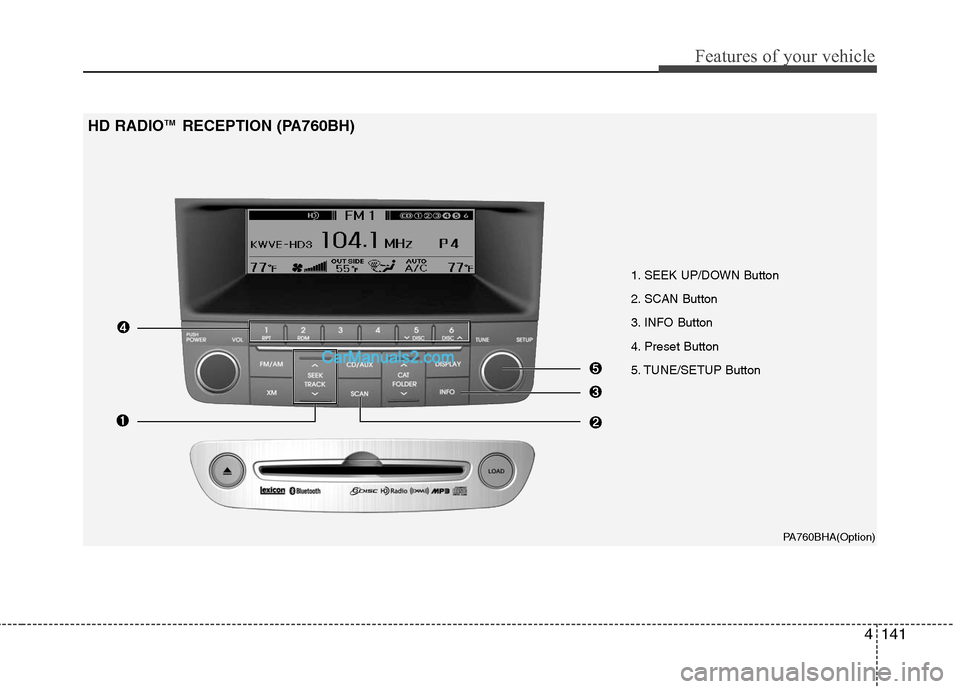
PA760BHA(Option)
1. SEEK UP/DOWN Button
2. SCAN Button
3. INFO Button
4. Preset Button
5. TUNE/SETUP Button
HD RADIOTM RECEPTION (PA760BH)
Page 219 of 399
Features of your vehicle
142 4
HD RADIOTMINFORMATION
Licensing information
HD RadioTMTechnology Manufactured is
Under License From iBiquity Digital
Corporation. U.S. and Foreign Patents.
HD Radio
TMand the HD and HD Radio
logos are proprietary trademarks of
iBiquity Digital Corporation.
Availability information
HD RadioTM reception is available in the
United States, including Alaska and
Hawaii.
What is HD RadioTMtechnology?
This audio system is able to receive stan-
dard analog FM/AM radio broadcasting
as well as digital HD Radio
TMFM/AM
broadcasting.
HD Radio
TMtechnology provides digital
and analog reception using existing FM
and AM broadcasting frequencies.Currently, radio stations broadcasting an
HD Radio
TMsignal are operating in a
hybrid mode of both, analog and digital,
in order to reach both receivers. In both
modes, analog and digital, the broad-
casted program contents is the
same(except of multicasting, see below).
Eventually, as analog receivers are
replaced by digital ones, radio stations
may be able to turn off their analog
broadcasting and use only the digital
one.
Multicasting
HD RadioTMFM stations are able to
broadcast multiple digital program
streams(channels) over a single FM fre-
quency. For example, a HD Radio
TMFM
station can run a main channel of music
and a sub channel of news(or even two
different music channels) at one frequen-
cy.
Only the program content of the main
channel is also broadcasted analog.
HD RadioTMsignal delay
To overcome the delay that digital sys-
tems inherently produce, HD RadioTM
technology first uses the audio signal of
the analog broadcasting when you tune
to an AM station or to the main channel
of a FM station. After that, the system will
blend from analog to digital signal.
Normally, this blending is very smooth. If
you experience a skip in program content
of several seconds, the radio station has
not implemented HD Radio
TMbroadcast-
ing correctly. This is not a problem with
your audio system.
Due to the fact that sub channels are only
broadcasting digital, blending from analog
to digital signal is not possible if you tune
to a sub channel. In this case playback of
the sub channel starts after several sec-
onds, this is a normal function.
Page 220 of 399
4143
Features of your vehicle
Automatic switching between dig-
ital and analog broadcasting
If the digital signal reception is lost, the
system switches automatically to the
analog signal. As soon as the digital sig-
nal is available again it will switch back.
Due to the fact that sub channels are
only broadcasted digital, first the system
mutes playback if you have tuned to a
sub channel and the digital signal is lost.
Additionally, the main line shows the
message No HD signal in place of station
name.
Second, after 1 minute with the digital
signal lost, the system will automatically
tune to the analog signal of the corre-
sponding frequency.
Text based information
HD RadioTMstations are able to broad-
cast text based information, e.g. station
name, song title and artist name. The
Driver Information System is able to dis-
play this information.
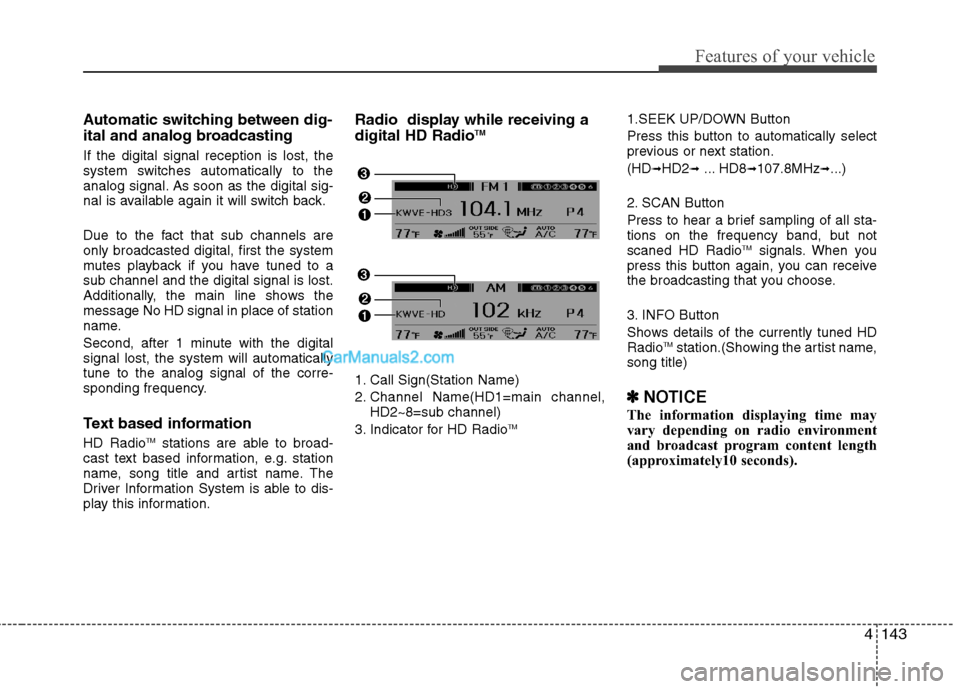
Radio display while receiving a
digital HD RadioTM
1. Call Sign(Station Name)
2. Channel Name(HD1=main channel,
HD2~8=sub channel)
3. Indicator for HD Radio
TM
1.SEEK UP/DOWN Button
Press this button to automatically select
previous or next station.
(HD
➟HD2➟... HD8➟107.8MHz➟...)
2. SCAN Button
Press to hear a brief sampling of all sta-
tions on the frequency band, but not
scaned HD Radio
TMsignals. When you
press this button again, you can receive
the broadcasting that you choose.
3. INFO Button
Shows details of the currently tuned HD
Radio
TMstation.(Showing the artist name,
song title)
✽ ✽
NOTICE
The information displaying time may
vary depending on radio environment
and broadcast program content length
(approximately10 seconds).
Page 221 of 399
Features of your vehicle
144 4
4. Preset Button
ond to play the channel saved in each
button.
longer to save current channel to the
respective button with a beep.
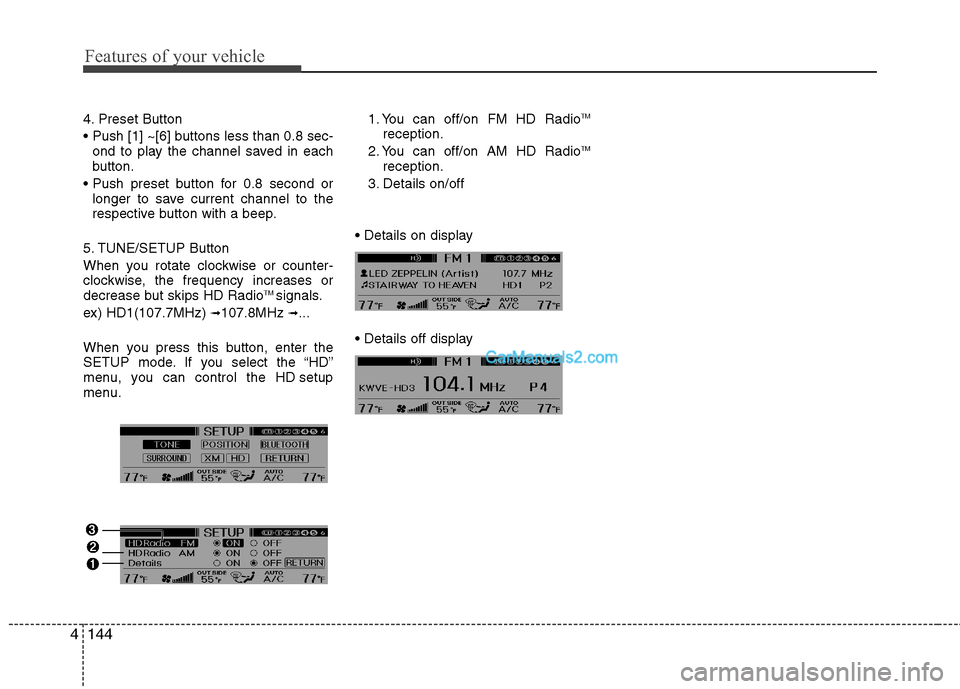
5. TUNE/SETUP Button
When you rotate clockwise or counter-
clockwise, the frequency increases or
decrease but skips HD Radio
TM signals.
ex) HD1(107.7MHz)
➟107.8MHz ➟...
When you press this button, enter the
SETUP mode. If you select the “HD”
menu, you can control the HD setup
menu.1. You can off/on FM HD Radio
TM
reception.
2. You can off/on AM HD RadioTM
reception.
3. Details on/off
Page 300 of 399
69
What to do in an emergency
F060200ABH
TPMS (Tire Pressure
Monitoring System)
malfunction indicator
The TPMS malfunction indicator
comes on and stays on when there is
a problem with the Tire Pressure
Monitoring System. The system is
able to correctly detect an under-
inflation warning at the same time as
system failure then it will illuminate
both the TPMS malfunction and the
low tire pressure telltale. If the Front
Left sensor fails, the TPMS malfunc-
tion indicator illuminates, but if the
Front Right, Rear Left, or Rear Right
tire is under-inflated, the low tire
pressure and position telltales may
illuminate together with the TPMS
malfunction indicator.
Have the system checked by an
authorized HYUNDAI dealer as soon
as possible to determine the cause
of the problem.WARNING - Low pressure
damage
Significantly low tire pressure
makes the vehicle unstable and
can contribute to loss of vehicle
control and increased braking
distances.
Continued driving on low pres-
sure tires can cause the tires to
overheat and fail.
TPMS
CAUTION
The TPMS malfunction indica-
tor may be illuminated if the
vehicle is moving around elec-
tric power supply cables or
radio transmitter such as at
police stations, government
and public offices, broadcast-
ing stations, military installa-
tions, airports, or transmitting
towers, etc. This can interfere
with normal operation of the
Tire Pressure Monitoring
System (TPMS).
The TPMS malfunction indica-
tor may be illuminated if snow
chains are used or some sep-
arate electronic devices such
as notebook computer, mobile
charger, remote starter or nav-
igation etc., are used in the
vehicle. This can interfere with
normal operation of the Tire
Pressure Monitoring System
(TPMS).
(Continued)