ECO mode Hyundai Genesis 2010 Owner's Guide
[x] Cancel search | Manufacturer: HYUNDAI, Model Year: 2010, Model line: Genesis, Model: Hyundai Genesis 2010Pages: 399, PDF Size: 10 MB
Page 209 of 399
Features of your vehicle
132 4
CAUTION IN USING
USB DEVICE
To use an external USB device,
make sure the device is not
mounted when starting up the
vehicle and mount the device
after starting up.
If you start the vehicle when the
USB device is mounted, it may
damage the USB device. (USB is
not ESA)
If the vehicle is started up or
turned off while the external USB
device is connected, the external
USB device may not work.
It may not play inauthentic MP3 or
WMA files.
1) It can only play MP3 files with
the compression rate between
8Kbps~320Kbps.
2) It can only play WMA music
files with the compression rate
between 8Kbps~320Kbps.
Take cautions for static electricity
when mounting or dismounting
the external USB device.
An encoded MP3 PLAYER is not
recognizable.
(Continued)
(Continued)
Depending on the condition of
the external USB device, the con-
nected external USB device can
be unrecognizable.
When the formatted byte/sector
setting of External USB devices is
not either 512BYTE or 2048BYTE,
then the device will not be recog-
nized.
Use only a USB device formatted
to FAT 12/16/32.
USB devices without USB I/F
authentication may not be recog-
nizable.
Make sure the USB connection
terminal does not come in contact
with a human body or any object.
If you repeat mounting or dis-
mounting USB device in a short
period of time, it may break the
device.
You might hear a strange noise
when mounting or dismounting a
USB device.
(Continued)(Continued)
If you dismount the external USB
device during playback in USB
mode, the external USB device can
be damaged or malfunction.
Therefore, mount the external USB
device when the engine is turned
off or in another mode.
Depending on the type and capac-
ity of the external USB device or
the type of the files stored in the
device, there is a difference in the
time taken for recognition of the
device, but this is not an indicator
of trouble and you only have to
wait.
Do not use the USB device for other
purposes than playing music files.
Use of USB accessories such as
a recharger or heater using USB
I/F may lower performance or
cause trouble.
If you use devices such as a USB
hub you purchased separately,
the vehicle’s audio system may
not recognize the USB device.
Connect the USB device directly
to the multimedia terminal of the
vehicle.
Page 212 of 399
4135
Features of your vehicle
Using a USB that is connected to the
multiple terminal inside the console on
the right hand side of the driver's seat.
1. RANDOM Play Button
Turns on/off the randomization of the
play list of files in the currently played
folder. Press the button for more than 0.8
second to randomly play the entire songs
in the USB device. To cancel the mode,
press the button once again.
2. REPEAT Button
Repeats current song when the button is
pressed for less than 0.8 second.
Repeats the entire folder when the button
is pressed for 0.8 second or longer.
3. CD/AUX Selection Button
If USB device is connected, it switches to
the USB mode from CD mode to play the
song files stored in the USB.
If the auxiliary device is connected, it
turns to AUX mode to play the sound
from the auxiliary player.
4. Automatic Track Selection
Button
Push [SEEK ] button for less than
0.8 second to play from the beginning
of current song.
Push [SEEK ] button for less than
0.8 second and press again within 1
seconds to play the previous song.
Push [SEEK ] button for 0.8 second
or longer to initiate reverse direction
high speed sound search of current
song.
Push [SEEK ] button for less than
0.8 second to play the next song.
Push [SEEK ] button for 0.8 second
or longer to initiate high speed sound
search of current song.
5. SCAN Play Button
Play first 10 seconds of each song in the
folder. To cancel the mode, press the but-
ton once again.
6. TUNE/SETUP Button
Turn this button clockwise to display
songs after the current song.
Also, turn this button counterclockwise to
display songs before the current song.
To listen to the displayed song, press the
button to skip to the song and play.
7. INFO Button
Displays the information of the file cur-
rently played in order of FILE➟TITLE➟ARTIST➟ALBUM➟FOLDER➟TOTAL➟Play Screen➟FILE... when the button is
pressed each time.
8. Folder Search Button
] button sub folder of
the current folder and display the first
song in the folder. Press TUNE/SETUP
button to move to the folder displayed. It
will play the first song in the folder.
] button main folder
and displays the first song in the folder.
Press TUNE/SETUP button to move to
the folder displayed. It will play the first
song in the folder.
(MP3 only)
Page 214 of 399
4137
Features of your vehicle
Using un iPod when the exclusive cable
is connected to the multiple terminal
inside the console on the right hand side
of the driver's seat.
1. RANDOM Playback Button
Press the button for less than 0.8 second
to activate or deactivate the random play-
back of the songs within the current cat-
egory. Press the button for longer than
0.8 second to randomly play all songs in
the entire album of the iPod. Press the
button once again to cancel the mode.
2. REPEAT Button
Repeats the song currently played.
3. CD/AUX Selection Button
If an iPod is connected, it switches to the
iPod mode to play the song files stored in
the iPod.
4. Automatic Track Selection
Button
Push [SEEK ] button for less than
0.8 second to play from the beginning
of the current song. Push [SEEK ] button for less than
0.8 second and press again within 1
seconds to play the previous song.
Push [SEEK ] button for 0.8 second
or longer to initiate reverse direction
high speed sound search of current
song.
Push [SEEK ] button for less than
0.8 second to play the next song.
Push [SEEK ] button for 0.8 second
or longer to initiate high speed sound
search of current song.
5. Category Selection Button
Press [CAT FOLDER
/ ] button to
move the category and display the first
song in the category. Press [TUNE/
SETUP] button to move to the category
displayed. It will play the first song in the
folder.
(PLAYLISTS
➟ARTISTS➟ALBUMS➟GEN
RES➟SONGS➟COMPOSERS➟PLAYLISTS➟...)
6. TUNE/SETUP Button
Turn this button clockwise or counter-
clockwise, it will display the category
menu. To select the displayed menu,
press the button.
7. INFO Button
Displays the information of the file cur-
rently played in order of TITLE➟ARTIST➟ALBUM➟Play Screen➟TITLE...
Page 217 of 399
Features of your vehicle
140 4
1. XM Selection Button
Turns to XM Satellite Radio Mode.
XM mode toggles in order to XM1
➟XM2➟XM3➟XM1... when the button is pressed
each time.
2. Automatic Channel Selection
Button
] button for less than 0.8
second to select previous channel.
] button for 0.8 second
or longer to continuously move to previ-
ous channel.
] button for less than 0.8
second to select next channel.
] button for 0.8 second
or longer to continuously move to next
channel.
Seek or Tune to XM channel
0 to display the Radio ID.
3. SCAN Button
Press to hear a brief sampling of all
channels. To cancel the scan mode,
press the button once again.
4. Preset Button
Push [1]~[6] buttons less than 0.8 sec-
ond to play the channel saved in each
button. Push pre-set button for 0.8 sec-
ond or longer to save the current channel
to the respective button with a beep.
5. TUNE/SETUP Button
Turn this button clockwise to display
channels after.
Also, turn this button counterclockwise to
display channels before current channel.
XM setup mode : It will be able to change
the XM display. (ex, Display by category/
channel or artist/song title.)
6. INFO Button
Displays the information of the current
channel in the order of Artist/Song title➟Category/Channel name➟Current Play
Channel➟Artist/Song title➟Category/Cha-
nnel name... when the button is pressed
each time.
If it can not display the whole text infor-
mation, rotate the tune button to see the
next page.
7. CATEGORY Search Button
Push [CAT ] button to search previ-
ous category.
Push [CAT ] button to search next
category.
To listen to the displayed category, press
the TUNE/SETUP button.
To scan channel in displayed category,
press the scan button.
To search channel in displayed category,
press seek buttons or turn the tune but-
ton clockwise/counterclockwise.
(CATEGORY icon will be turned on in
Category mode)
Page 219 of 399
Features of your vehicle
142 4
HD RADIOTMINFORMATION
Licensing information
HD RadioTMTechnology Manufactured is
Under License From iBiquity Digital
Corporation. U.S. and Foreign Patents.
HD Radio
TMand the HD and HD Radio
logos are proprietary trademarks of
iBiquity Digital Corporation.
Availability information
HD RadioTM reception is available in the
United States, including Alaska and
Hawaii.
What is HD RadioTMtechnology?
This audio system is able to receive stan-
dard analog FM/AM radio broadcasting
as well as digital HD Radio
TMFM/AM
broadcasting.
HD Radio
TMtechnology provides digital
and analog reception using existing FM
and AM broadcasting frequencies.Currently, radio stations broadcasting an
HD Radio
TMsignal are operating in a
hybrid mode of both, analog and digital,
in order to reach both receivers. In both
modes, analog and digital, the broad-
casted program contents is the
same(except of multicasting, see below).
Eventually, as analog receivers are
replaced by digital ones, radio stations
may be able to turn off their analog
broadcasting and use only the digital
one.
Multicasting
HD RadioTMFM stations are able to
broadcast multiple digital program
streams(channels) over a single FM fre-
quency. For example, a HD Radio
TMFM
station can run a main channel of music
and a sub channel of news(or even two
different music channels) at one frequen-
cy.
Only the program content of the main
channel is also broadcasted analog.
HD RadioTMsignal delay
To overcome the delay that digital sys-
tems inherently produce, HD RadioTM
technology first uses the audio signal of
the analog broadcasting when you tune
to an AM station or to the main channel
of a FM station. After that, the system will
blend from analog to digital signal.
Normally, this blending is very smooth. If
you experience a skip in program content
of several seconds, the radio station has
not implemented HD Radio
TMbroadcast-
ing correctly. This is not a problem with
your audio system.
Due to the fact that sub channels are only
broadcasting digital, blending from analog
to digital signal is not possible if you tune
to a sub channel. In this case playback of
the sub channel starts after several sec-
onds, this is a normal function.
Page 222 of 399
4145
Features of your vehicle
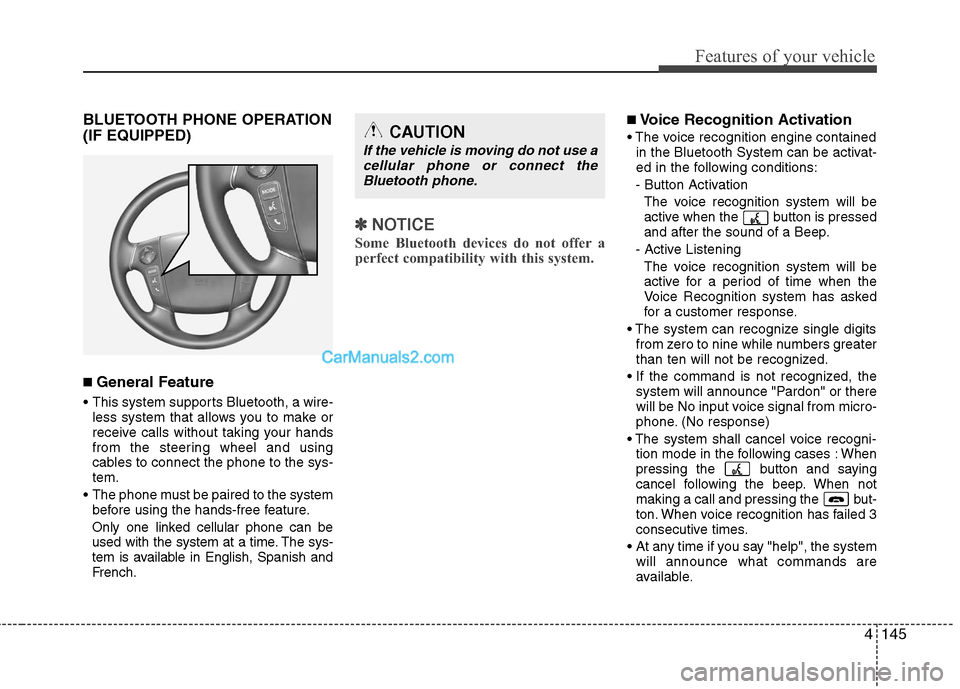
BLUETOOTH PHONE OPERATION
(IF EQUIPPED)
■ General Feature
This system supports Bluetooth, a wire-
less system that allows you to make or
receive calls without taking your hands
from the steering wheel and using
cables to connect the phone to the sys-
tem.
The phone must be paired to the system
before using the hands-free feature.
Only one linked cellular phone can be
used with the system at a time. The sys-
tem is available in English, Spanish and
French.
✽ ✽
NOTICE
Some Bluetooth devices do not offer a
perfect compatibility with this system.
■Voice Recognition Activation
in the Bluetooth System can be activat-
ed in the following conditions:
- Button Activation
The voice recognition system will be
active when the button is pressed
and after the sound of a Beep.
- Active Listening
The voice recognition system will be
active for a period of time when the
Voice Recognition system has asked
for a customer response.
from zero to nine while numbers greater
than ten will not be recognized.
system will announce "Pardon" or there
will be No input voice signal from micro-
phone. (No response)
tion mode in the following cases : When
pressing the button and saying
cancel following the beep. When not
making a call and pressing the but-
ton. When voice recognition has failed 3
consecutive times.
At any time if you say "help", the system
will announce what commands are
available.CAUTION
If the vehicle is moving do not use a
cellular phone or connect the
Bluetooth phone.
Page 275 of 399
Driving your vehicle
48 5
E100000AEN
Your vehicle's fuel economy depends
mainly on your style of driving, where you
drive and when you drive.
Each of these factors affects how many
miles (kilometers) you can get from a gal-
lon (liter) of fuel. To operate your vehicle
as economically as possible, use the fol-
lowing driving suggestions to help save
money in both fuel and repairs:
Drive smoothly. Accelerate at a moder-
ate rate. Don't make "jack-rabbit" starts
or full-throttle shifts and maintain a
steady cruising speed. Don't race
between stoplights. Try to adjust your
speed to that of the other traffic so you
don't have to change speeds unneces-
sarily. Avoid heavy traffic whenever
possible. Always maintain a safe dis-
tance from other vehicles so you can
avoid unnecessary braking. This also
reduces brake wear.
Drive at a moderate speed. The faster
you drive, the more fuel your car uses.
Driving at a moderate speed, especial-
ly on the highway, is one of the most
effective ways to reduce fuel consump-
tion. Don't "ride" the brake pedal. This can
increase fuel consumption and also
increase wear on these components.
In addition, driving with your foot rest-
ing on the brake pedal may cause the
brakes to overheat, which reduces
their effectiveness and may lead to
more serious consequences.
Take care of your tires. Keep them
inflated to the recommended pressure.
Incorrect inflation, either too much or
too little, results in unnecessary tire
wear. Check the tire pressures at least
once a month.
Be sure that the wheels are aligned
correctly. Improper alignment can
result from hitting curbs or driving too
fast over irregular surfaces. Poor align-
ment causes faster tire wear and may
also result in other problems as well as
greater fuel consumption. Keep your car in good condition. For
better fuel economy and reduced
maintenance costs, maintain your car
in accordance with the maintenance
schedule in section 7. If you drive your
car in severe conditions, more frequent
maintenance is required (see section 7
for details).
Keep your car clean. For maximum
service, your vehicle should be kept
clean and free of corrosive materials. It
is especially important that mud, dirt,
ice, etc. not be allowed to accumulate
on the underside of the car. This extra
weight can result in increased fuel con-
sumption and also contribute to corro-
sion.
Travel lightly. Don't carry unnecessary
weight in your car. Weight reduces fuel
economy.
Don't let the engine idle longer than
necessary. If you are waiting (and not
in traffic), turn off your engine and
restart only when you're ready to go.
ECONOMICAL OPERATION
Page 356 of 399
741
Maintenance
Cold Tire Pressure: The amount of
air pressure in a tire, measured in
pounds per square inch (psi) or kilo-
pascals (kPa) before a tire has built
up heat from driving.
Curb Weight: This means the weight
of a motor vehicle with standard and
optional equipment including the
maximum capacity of fuel, oil and
coolant, but without passengers and
cargo.
DOT Markings: A code molded into
the sidewall of a tire signifying that
the tire is in compliance with the U.S.
Department of Transportation motor
vehicle safety standards. The DOT
code includes the Tire Identification
Number (TIN), an alphanumeric des-
ignator which can also identify the
tire manufacturer, production plant,
brand and date of production.
GVWR: Gross Vehicle Weight Rating
GAWR FRT: Gross Axle Weight
Rating for the Front Axle.
GAWR RR: Gross Axle Weight
Rating for the Rear axle.Intended Outboard Sidewall: The
side of an asymmetrical tire, that
must always face outward when
mounted on a vehicle.
Kilopascal (kPa): The metric unit for
air pressure.
Load Index: An assigned number
ranging from 1 to 279 that corre-
sponds to the load carrying capacity
of a tire.
Maximum Inflation Pressure: The
maximum air pressure to which a
cold tire may be inflated. The maxi-
mum air pressure is molded onto the
sidewall.
Maximum Load Rating: The load
rating for a tire at the maximum per-
missible inflation pressure for that
tire.
Maximum Loaded Vehicle Weight:
The sum of curb weight; accessory
weight; vehicle capacity weight; and
production options weight.
Normal Occupant Weight:The
number of occupants a vehicle is
designed to seat multiplied by 150
pounds (68 kg).Occupant Distribution: Designated
seating positions.
Outward Facing Sidewall:The side
of a asymmetrical tire that has a par-
ticular side that faces outward when
mounted on a vehicle. The outward
facing sidewall bears white lettering
or bears manufacturer, brand, and/or
model name molding that is higher or
deeper than the same moldings on
the inner facing sidewall.
Passenger (P-Metric) Tire: A tire
used on passenger cars and some
light duty trucks and multipurpose
vehicles.
Recommended Inflation Pressure:
Vehicle manufacturer's recommend-
ed tire inflation pressure and shown
on the tire placard.
Radial Ply Tire: A pneumatic tire in
which the ply cords that extend to the
beads are laid at 90 degrees to the
centerline of the tread.
Rim: A metal support for a tire and
upon which the tire beads are seat-
ed.
Sidewall: The portion of a tire
between the tread and the bead.
Page 357 of 399
Maintenance
42 7
Speed Rating: An alphanumeric
code assigned to a tire indicating the
maximum speed at which a tire can
operate.
Traction: The friction between the
tire and the road surface. The
amount of grip provided.
Tr e a d: The portion of a tire that
comes into contact with the road.
Treadwear Indicators: Narrow
bands, sometimes called "wear
bars," that show across the tread of a
tire when only 2/32 inch of tread
remains.
UTQGS: Uniform Tire Quality
Grading Standards, a tire information
system that provides consumers with
ratings for a tire's traction, tempera-
ture and treadwear. Ratings are
determined by tire manufacturers
using government testing proce-
dures. The ratings are molded into
the sidewall of the tire.
Vehicle Capacity Weight: The num-
ber of designated seating positions
multiplied by 150 lbs. (68 kg) plus the
rated cargo and luggage load.Vehicle Maximum Load on the
Tire: Load on an individual tire due to
curb and accessory weight plus
maximum occupant and cargo
weight.
Vehicle Normal Load on the Tire:
Load on an individual tire that is
determined by distributing to each
axle its share of the curb weight,
accessory weight, and normal occu-
pant weight and driving by 2.
Vehicle Placard: A label permanent-
ly attached to a vehicle showing the
original equipment tire size and rec-
ommended inflation pressure.
All season tires
HYUNDAI specifies all season tires
on some models to provide good
performance for use all year round,
including snowy and icy road condi-
tions. All season tires are identified
by ALL SEASON and/or M+S (Mud
and Snow) on the tire sidewall. Snow
tires have better snow traction than
all season tires and may be more
appropriate in some areas.Summer tires
HYUNDAI specifies summer tires on
some models to provide superior
performance on dry roads. Summer
tire performance is substantially
reduced in snow and ice. Summer
tires do not have the tire traction rat-
ing M+S (Mud and Snow) on the tire
side wall. if you plan to operate your
vehicle in snowy or icy conditions.
HYUNDAI recommends the use of
snow tires or all season tires on all
four wheels.
Snow tires
If you equip your car with snow tires,
they should be the same size and
have the same load capacity as the
original tires. Snow tires should be
installed on all four wheels; other-
wise, poor handling may result.
Snow tires should carry 4 psi (28
kPa) more air pressure than the
pressure recommended for the stan-
dard tires on the tire label on the dri-
ver's side of the center pillar, or up to
the maximum pressure shown on the
tire sidewall, whichever is less.