display Hyundai Genesis 2011 User Guide
[x] Cancel search | Manufacturer: HYUNDAI, Model Year: 2011, Model line: Genesis, Model: Hyundai Genesis 2011Pages: 409, PDF Size: 38.54 MB
Page 138 of 409
461
Features of your vehicle
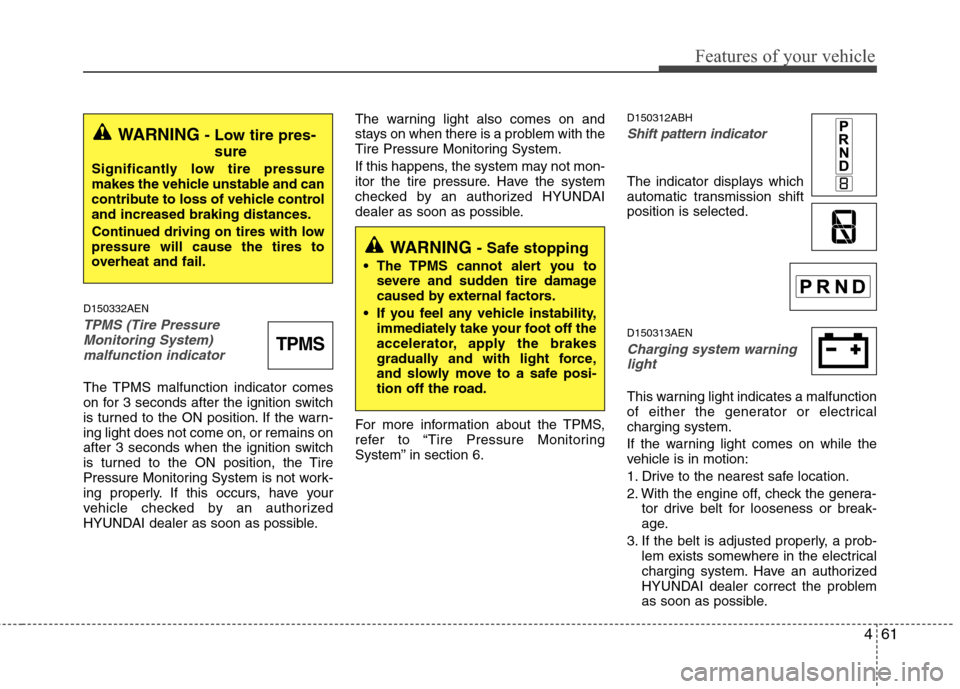
D150332AEN
TPMS (Tire Pressure
Monitoring System)
malfunction indicator
The TPMS malfunction indicator comes
on for 3 seconds after the ignition switch
is turned to the ON position. If the warn-
ing light does not come on, or remains on
after 3 seconds when the ignition switch
is turned to the ON position, the Tire
Pressure Monitoring System is not work-
ing properly. If this occurs, have your
vehicle checked by an authorized
HYUNDAI dealer as soon as possible.The warning light also comes on and
stays on when there is a problem with the
Tire Pressure Monitoring System.
If this happens, the system may not mon-
itor the tire pressure. Have the system
checked by an authorized HYUNDAI
dealer as soon as possible.
For more information about the TPMS,
refer to “Tire Pressure Monitoring
System” in section 6.
D150312ABH
Shift pattern indicator
The indicator displays which
automatic transmission shift
position is selected.
D150313AEN
Charging system warning
light
This warning light indicates a malfunction
of either the generator or electrical
charging system.
If the warning light comes on while the
vehicle is in motion:
1. Drive to the nearest safe location.
2. With the engine off, check the genera-
tor drive belt for looseness or break-
age.
3. If the belt is adjusted properly, a prob-
lem exists somewhere in the electrical
charging system. Have an authorized
HYUNDAI dealer correct the problem
as soon as possible.
WARNING - Low tire pres-
sure
Significantly low tire pressure
makes the vehicle unstable and can
contribute to loss of vehicle control
and increased braking distances.
Continued driving on tires with low
pressure will cause the tires to
overheat and fail.
TPMS
WARNING - Safe stopping
The TPMS cannot alert you to
severe and sudden tire damage
caused by external factors.
If you feel any vehicle instability,
immediately take your foot off the
accelerator, apply the brakes
gradually and with light force,
and slowly move to a safe posi-
tion off the road.
Page 151 of 409
Features of your vehicle
74 4
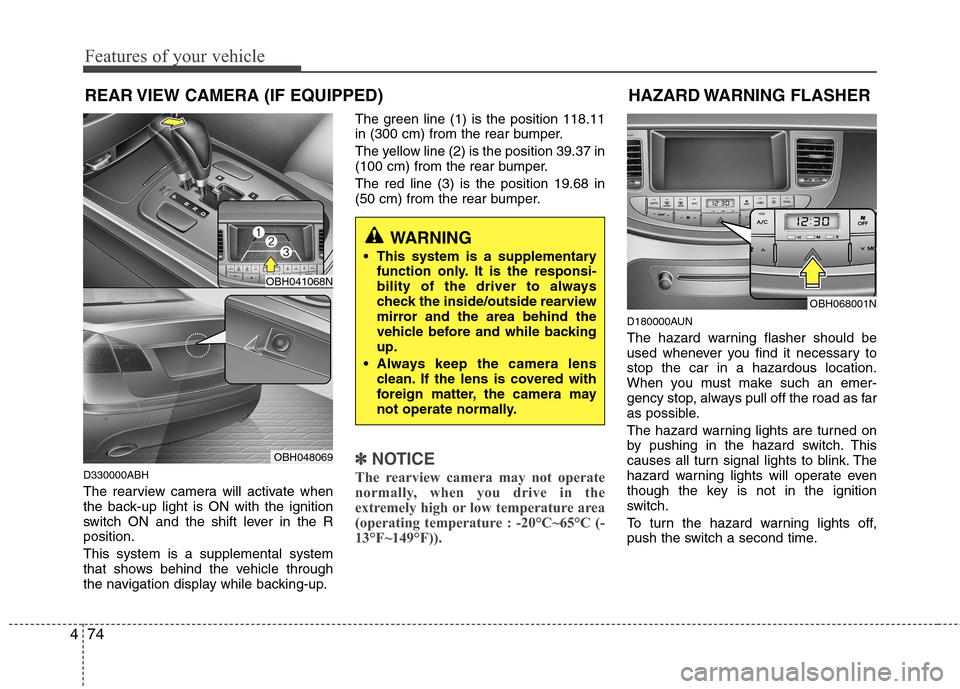
REAR VIEW CAMERA (IF EQUIPPED)
D330000ABH
The rearview camera will activate when
the back-up light is ON with the ignition
switch ON and the shift lever in the R
position.
This system is a supplemental system
that shows behind the vehicle through
the navigation display while backing-up.The green line (1) is the position 118.11
in (300 cm) from the rear bumper.
The yellow line (2) is the position 39.37 in
(100 cm) from the rear bumper.
The red line (3) is the position 19.68 in
(50 cm) from the rear bumper.
✽ ✽
NOTICE
The rearview camera may not operate
normally, when you drive in the
extremely high or low temperature area
(operating temperature : -20°C~65°C (-
13°F~149°F)).
D180000AUN
The hazard warning flasher should be
used whenever you find it necessary to
stop the car in a hazardous location.
When you must make such an emer-
gency stop, always pull off the road as far
as possible.
The hazard warning lights are turned on
by pushing in the hazard switch. This
causes all turn signal lights to blink. The
hazard warning lights will operate even
though the key is not in the ignition
switch.
To turn the hazard warning lights off,
push the switch a second time.
HAZARD WARNING FLASHER
OBH068001N
WARNING
This system is a supplementary
function only. It is the responsi-
bility of the driver to always
check the inside/outside rearview
mirror and the area behind the
vehicle before and while backing
up.
Always keep the camera lens
clean. If the lens is covered with
foreign matter, the camera may
not operate normally.
OBH041068N
OBH048069
Page 169 of 409
Features of your vehicle
92 4
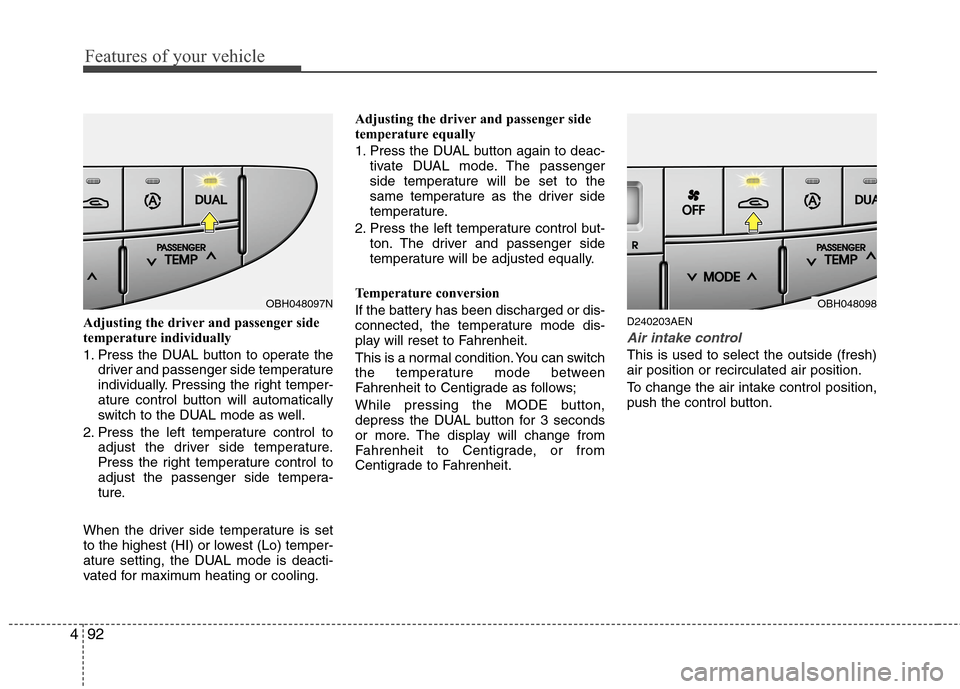
Adjusting the driver and passenger side
temperature individually
1. Press the DUAL button to operate the
driver and passenger side temperature
individually. Pressing the right temper-
ature control button will automatically
switch to the DUAL mode as well.
2. Press the left temperature control to
adjust the driver side temperature.
Press the right temperature control to
adjust the passenger side tempera-
ture.
When the driver side temperature is set
to the highest (HI) or lowest (Lo) temper-
ature setting, the DUAL mode is deacti-
vated for maximum heating or cooling.Adjusting the driver and passenger side
temperature equally
1. Press the DUAL button again to deac-
tivate DUAL mode. The passenger
side temperature will be set to the
same temperature as the driver side
temperature.
2. Press the left temperature control but-
ton. The driver and passenger side
temperature will be adjusted equally.
Temperature conversion
If the battery has been discharged or dis-
connected, the temperature mode dis-
play will reset to Fahrenheit.
This is a normal condition. You can switch
the temperature mode between
Fahrenheit to Centigrade as follows;
While pressing the MODE button,
depress the DUAL button for 3 seconds
or more. The display will change from
Fahrenheit to Centigrade, or from
Centigrade to Fahrenheit.D240203AEN
Air intake control
This is used to select the outside (fresh)
air position or recirculated air position.
To change the air intake control position,
push the control button.
OBH048097NOBH048098
Page 184 of 409
4107
Features of your vehicle
D280601AUN
Hour (1)
Pressing the H button with your finger, a
pencil or similar object will advance the
time displayed by one hour.
D280602AUN
Minute (2)
Pressing the M button with your finger, a
pencil or similar object will advance the
time displayed by one minute.
D280603ABH
Reset (3)
To clear away minutes, press the R but-
ton with your finger, a pencil or similar
object. Then the clock will be set precise-
ly on the hour.
For example, if the R button is pressed
while the time is between 9:01 and 9:29,
the display will be reset to 9:00.
9:01 ~ 9:29 display changed to 9:00
9:30 ~ 9:59 display changed to 10:00
D280604AEN
Display conversion
To change the 12 hour format to the 24
hour format, press the R button until the
display blinks.
For example, if the R button is pressed
while the time is 10:15 p.m., the display
will be changed to 22:15.
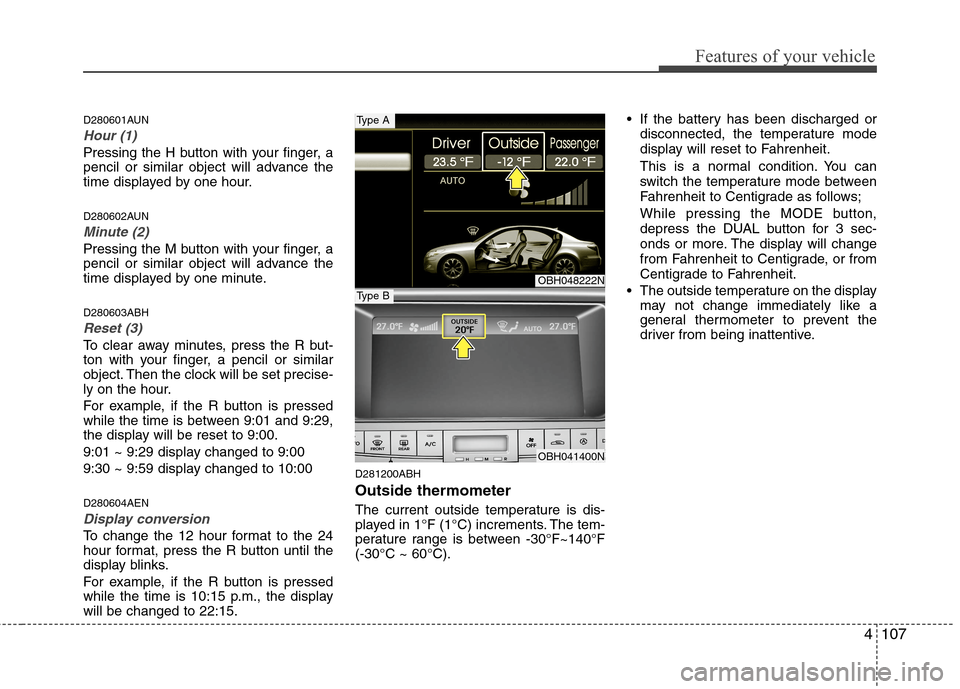
D281200ABH
Outside thermometer
The current outside temperature is dis-
played in 1°F (1°C) increments. The tem-
perature range is between -30°F~140°F
(-30°C ~ 60°C). If the battery has been discharged or
disconnected, the temperature mode
display will reset to Fahrenheit.
This is a normal condition. You can
switch the temperature mode between
Fahrenheit to Centigrade as follows;
While pressing the MODE button,
depress the DUAL button for 3 sec-
onds or more. The display will change
from Fahrenheit to Centigrade, or from
Centigrade to Fahrenheit.
The outside temperature on the display
may not change immediately like a
general thermometer to prevent the
driver from being inattentive.
OBH048222N
OBH041400N
Type A
Type B
Page 193 of 409
Features of your vehicle
116 4
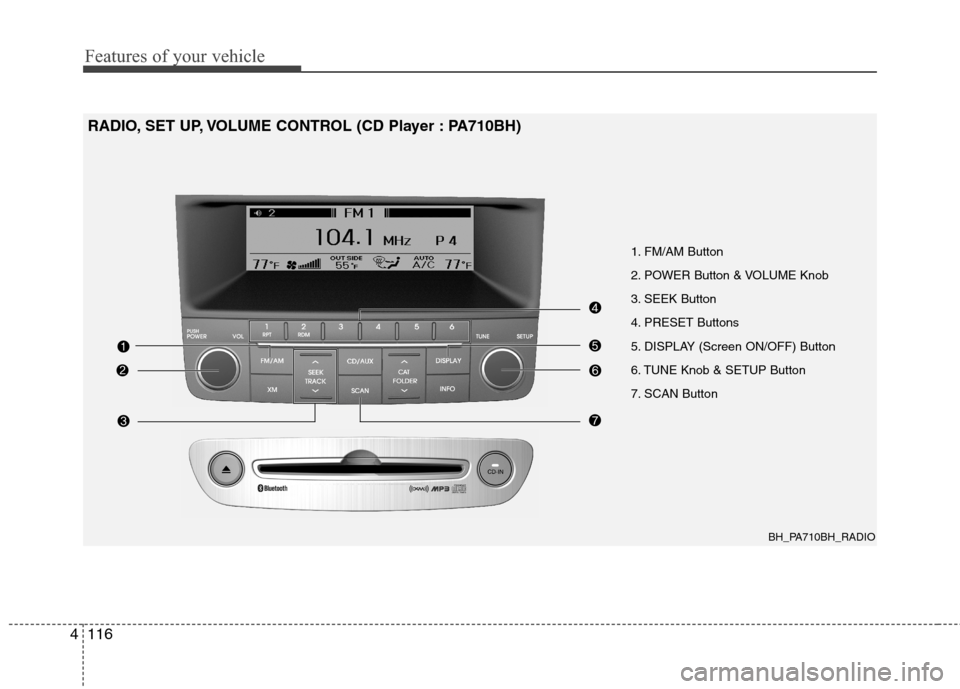
BH_PA710BH_RADIO
1. FM/AM Button
2. POWER Button & VOLUME Knob
3. SEEK Button
4. PRESET Buttons
5. DISPLAY (Screen ON/OFF) Button
6. TUNE Knob & SETUP Button
7. SCAN Button
RADIO, SET UP, VOLUME CONTROL (CD Player : PA710BH)
Page 194 of 409
4117
Features of your vehicle
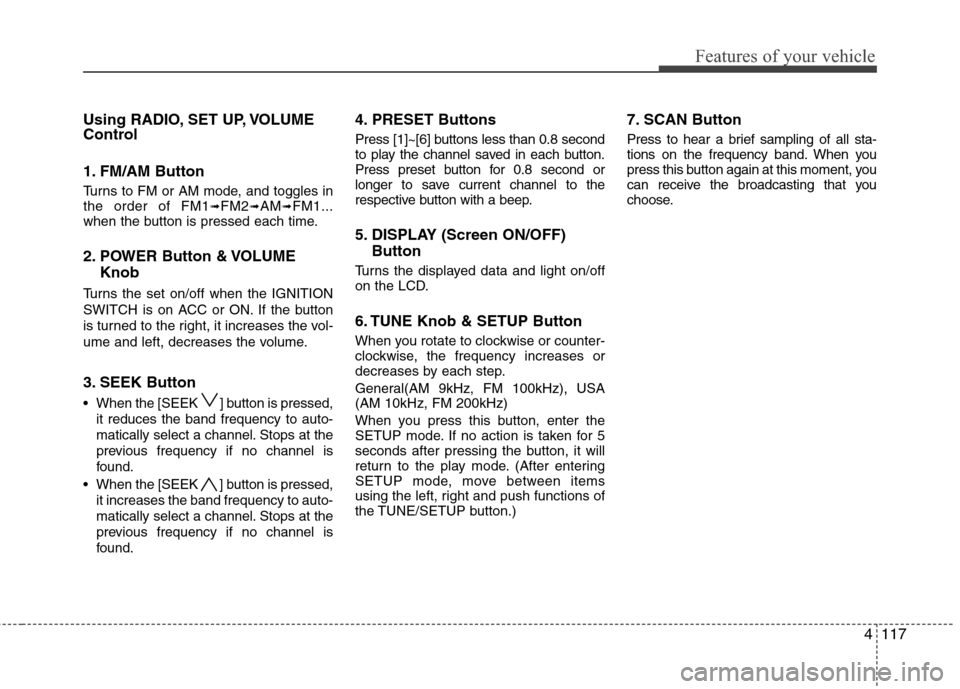
Using RADIO, SET UP, VOLUME
Control
1. FM/AM Button
Turns to FM or AM mode, and toggles in
the order of FM1➟FM2➟AM➟FM1...
when the button is pressed each time.
2. POWER Button & VOLUME
Knob
Turns the set on/off when the IGNITION
SWITCH is on ACC or ON. If the button
is turned to the right, it increases the vol-
ume and left, decreases the volume.
3. SEEK Button
When the [SEEK ] button is pressed,
it reduces the band frequency to auto-
matically select a channel. Stops at the
previous frequency if no channel is
found.
When the [SEEK ] button is pressed,
it increases the band frequency to auto-
matically select a channel. Stops at the
previous frequency if no channel is
found.
4. PRESET Buttons
Press [1]~[6] buttons less than 0.8 second
to play the channel saved in each button.
Press preset button for 0.8 second or
longer to save current channel to the
respective button with a beep.
5. DISPLAY (Screen ON/OFF)
Button
Turns the displayed data and light on/off
on the LCD.
6. TUNE Knob & SETUP Button
When you rotate to clockwise or counter-
clockwise, the frequency increases or
decreases by each step.
General(AM 9kHz, FM 100kHz), USA
(AM 10kHz, FM 200kHz)
When you press this button, enter the
SETUP mode. If no action is taken for 5
seconds after pressing the button, it will
return to the play mode. (After entering
SETUP mode, move between items
using the left, right and push functions of
the TUNE/SETUP button.)
7. SCAN Button
Press to hear a brief sampling of all sta-
tions on the frequency band. When you
press this button again at this moment, you
can receive the broadcasting that you
choose.
Page 196 of 409
4119
Features of your vehicle
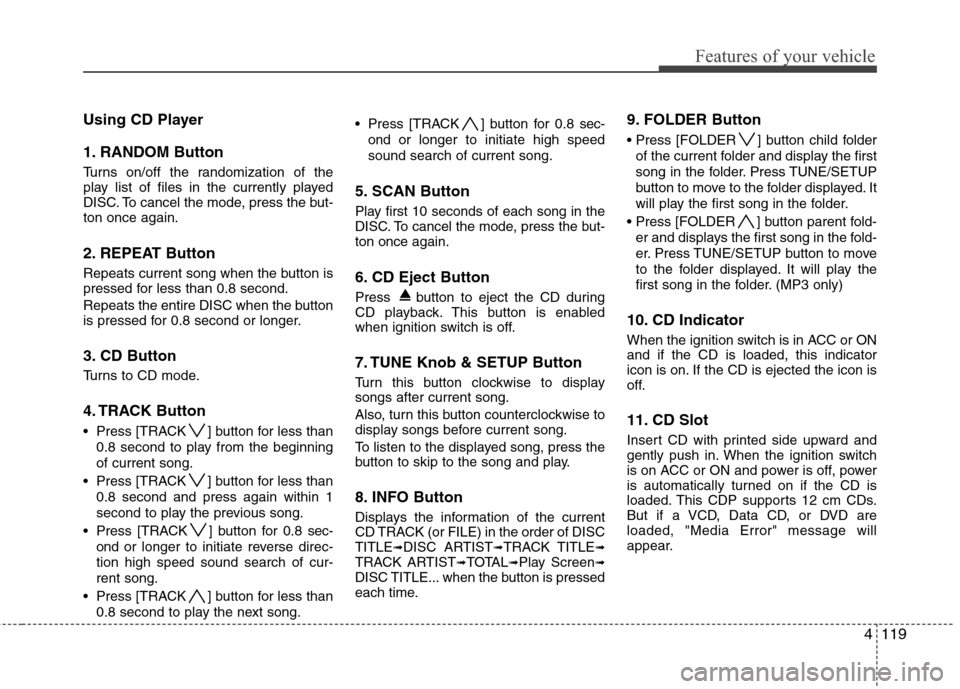
Using CD Player
1. RANDOM Button
Turns on/off the randomization of the
play list of files in the currently played
DISC. To cancel the mode, press the but-
ton once again.
2. REPEAT Button
Repeats current song when the button is
pressed for less than 0.8 second.
Repeats the entire DISC when the button
is pressed for 0.8 second or longer.
3. CD Button
Turns to CD mode.
4. TRACK Button
Press [TRACK ] button for less than
0.8 second to play from the beginning
of current song.
Press [TRACK ] button for less than
0.8 second and press again within 1
second to play the previous song.
Press [TRACK ] button for 0.8 sec-
ond or longer to initiate reverse direc-
tion high speed sound search of cur-
rent song.
Press [TRACK ] button for less than
0.8 second to play the next song. Press [TRACK ] button for 0.8 sec-
ond or longer to initiate high speed
sound search of current song.
5. SCAN Button
Play first 10 seconds of each song in the
DISC. To cancel the mode, press the but-
ton once again.
6. CD Eject Button
Press button to eject the CD during
CD playback. This button is enabled
when ignition switch is off.
7. TUNE Knob & SETUP Button
Turn this button clockwise to display
songs after current song.
Also, turn this button counterclockwise to
display songs before current song.
To listen to the displayed song, press the
button to skip to the song and play.
8. INFO Button
Displays the information of the current
CD TRACK (or FILE) in the order of DISC
TITLE
➟DISC ARTIST➟TRACK TITLE➟TRACK ARTIST➟TOTAL➟Play Screen➟DISC TITLE... when the button is pressed
each time.
9. FOLDER Button
Press [FOLDER ] button child folder
of the current folder and display the first
song in the folder. Press TUNE/SETUP
button to move to the folder displayed. It
will play the first song in the folder.
Press [FOLDER ] button parent fold-
er and displays the first song in the fold-
er. Press TUNE/SETUP button to move
to the folder displayed. It will play the
first song in the folder. (MP3 only)
10. CD Indicator
When the ignition switch is in ACC or ON
and if the CD is loaded, this indicator
icon is on. If the CD is ejected the icon is
off.
11. CD Slot
Insert CD with printed side upward and
gently push in. When the ignition switch
is on ACC or ON and power is off, power
is automatically turned on if the CD is
loaded. This CDP supports 12 cm CDs.
But if a VCD, Data CD, or DVD are
loaded, "Media Error" message will
appear.
Page 200 of 409
4123
Features of your vehicle
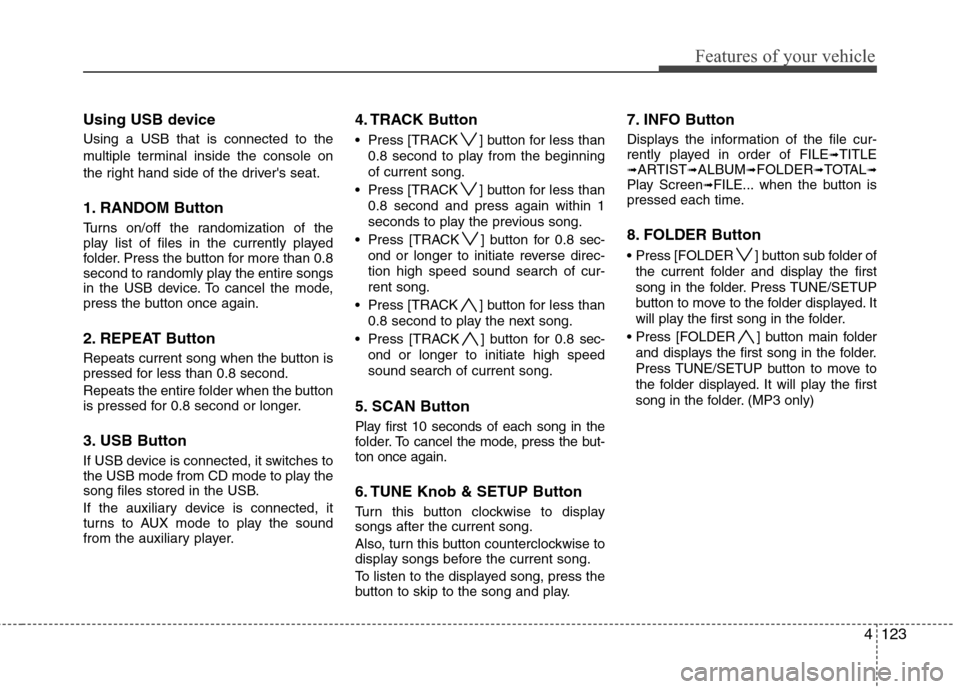
Using USB device
Using a USB that is connected to the
multiple terminal inside the console on
the right hand side of the driver's seat.
1. RANDOM Button
Turns on/off the randomization of the
play list of files in the currently played
folder. Press the button for more than 0.8
second to randomly play the entire songs
in the USB device. To cancel the mode,
press the button once again.
2. REPEAT Button
Repeats current song when the button is
pressed for less than 0.8 second.
Repeats the entire folder when the button
is pressed for 0.8 second or longer.
3. USB Button
If USB device is connected, it switches to
the USB mode from CD mode to play the
song files stored in the USB.
If the auxiliary device is connected, it
turns to AUX mode to play the sound
from the auxiliary player.
4. TRACK Button
Press [TRACK ] button for less than
0.8 second to play from the beginning
of current song.
Press [TRACK ] button for less than
0.8 second and press again within 1
seconds to play the previous song.
Press [TRACK ] button for 0.8 sec-
ond or longer to initiate reverse direc-
tion high speed sound search of cur-
rent song.
Press [TRACK ] button for less than
0.8 second to play the next song.
Press [TRACK ] button for 0.8 sec-
ond or longer to initiate high speed
sound search of current song.
5. SCAN Button
Play first 10 seconds of each song in the
folder. To cancel the mode, press the but-
ton once again.
6. TUNE Knob & SETUP Button
Turn this button clockwise to display
songs after the current song.
Also, turn this button counterclockwise to
display songs before the current song.
To listen to the displayed song, press the
button to skip to the song and play.
7. INFO Button
Displays the information of the file cur-
rently played in order of FILE➟TITLE➟ARTIST➟ALBUM➟FOLDER➟TOTAL➟Play Screen➟FILE... when the button is
pressed each time.
8. FOLDER Button
Press [FOLDER ] button sub folder of
the current folder and display the first
song in the folder. Press TUNE/SETUP
button to move to the folder displayed. It
will play the first song in the folder.
] button main folder
and displays the first song in the folder.
Press TUNE/SETUP button to move to
the folder displayed. It will play the first
song in the folder. (MP3 only)
Page 202 of 409
4125
Features of your vehicle
Using iPod® ®
Using an iPod when the exclusive cable
is connected to the multiple terminal
inside the console on the right hand side
of the driver's seat.
1. RANDOM Button
Press the button for less than 0.8 second
to activate or deactivate the random play-
back of the songs within the current cat-
egory. Press the button for longer than
0.8 second to randomly play all songs in
the entire album of the iPod. Press the
button once again to cancel the mode.
2. REPEAT Button
Repeats the song currently played.
3. iPod Button
If an iPod is connected, the system
switches to the iPod mode to play the
song files stored in the iPod.
4. TRACK Button
Press the [TRACK ] button for less
than 0.8 second to play from the begin-
ning of the current song. Press the [TRACK ] button for less
than 0.8 second and press again with-
in 1 seconds to play the previous song.
Press the [TRACK ] button for 0.8
second or longer to initiate reverse
direction high speed sound search of
current song.
Press the [TRACK ] button for less
than 0.8 second to play the next song.
Press the [TRACK ] button for 0.8
second or longer to initiate high speed
sound search of current song.
5. CATEGORY Button
Press [CAT FOLDER
/ ] button to
move the category and display the first
song in the category. Press [TUNE/
SETUP] button to move to the category
displayed. It will play the first song in the
folder.
(PLAYLISTS
➟ ARTISTS ➟ ALBUMS ➟
GENRES ➟ SONGS ➟ COMPOSERS ➟
PLAYLISTS ➟...)
6. TUNE Knob & SETUP Button
Turn this button clockwise or counter-
clockwise, it will display the category
menu. To select the displayed menu,
press the button.
7. INFO Button
Displays the information of the file cur-
rently played in order of TITLE➟ARTIST➟ALBUM➟Play Screen➟TITLE...
Page 205 of 409
Features of your vehicle
128 4
Using XM Satellite Radio
1. XM Button
Turns to XM Satellite Radio Mode.
XM mode toggles in order to XM1
➟XM2➟XM3➟XM1... when the button is pressed
each time.
2. SEEK Button
] button for less
than 0.8 second to select previous
channel.
] button for 0.8 sec-
ond or longer to continuously move to
previous channel.
] button for less
than 0.8 second to select next channel.
] button for 0.8 sec-
ond or longer to continuously move to
next channel.
Seek or Tune to XM channel
0 to display the Radio ID.
3. SCAN Button
Press to hear a brief sampling of all
channels. To cancel the scan mode,
press the button once again.
4. PRESET Buttons
Push [1]~[6] buttons less than 0.8 sec-
ond to play the channel saved in each
button. Push pre-set button for 0.8 sec-
ond or longer to save the current channel
to the respective button with a beep.
5. TUNE Knob & SETUP Button
Turn this button clockwise to display
channels after.
Also, turn this button counterclockwise to
display channels before current channel.
XM setup mode : It will be able to change
the XM display. (ex, Display by category/
channel or artist/song title.)
6. INFO Button
Displays the information of the current
channel in the order of Artist/Song title➟Category/Channel name➟Current Play
Channel➟Artist/Song title➟Category/Cha-
nnel name... when the button is pressed
each time.
If the complete text information is not dis-
played, rotate the tune button to see the
next page.
7. CAT/FOLDER Button
Press [CAT ] button to search previ-
ous category.
Press [CAT ] button to search next
category.
To listen to the displayed category, press
the TUNE/SETUP button.
To scan channel in displayed category,
press the scan button.
To search channel in displayed category,
press seek buttons or turn the tune but-
ton clockwise/counterclockwise.
(CATEGORY icon will be turned on in
Category mode)