music Hyundai Genesis 2011 Owner's Manual
[x] Cancel search | Manufacturer: HYUNDAI, Model Year: 2011, Model line: Genesis, Model: Hyundai Genesis 2011Pages: 409, PDF Size: 38.54 MB
Page 197 of 409
Features of your vehicle
120 4
CAUTION IN USING
USB DEVICE
To use an external USB device,
make sure the device is not con-
nected when starting up the vehi-
cle. Connect the device after
starting up.
If you start the engine when the
USB device is connected, it may
damage the USB device. (USB
flashdrives are very sensitive to
electric shock.)
If the engine is started up or
turned off while the external USB
device is connected, the external
USB device may not work.
It may not play inauthentic MP3 or
WMA files.
1) It can only play MP3 files with
the compression rate between
8Kbps~320Kbps.
2) It can only play WMA music
files with the compression rate
between 8Kbps~320Kbps.
Take precautions for static electrici-
ty when connecting or disconnect-
ing the external USB device.
(Continued)
(Continued)
An encrypted MP3 PLAYER is not
recognizable.
Depending on the condition of
the external USB device, the con-
nected external USB device can
be unrecognizable.
When the formatted byte/sector
setting of External USB device is
not either 512BYTE or 2048BYTE,
then the device will not be recog-
nized.
Use only a USB device formatted
to FAT 12/16/32.
USB devices without USB I/F
authentication may not be recog-
nizable.
Make sure the USB connection
terminal does not come in contact
with the human body or other
objects.
If you repeatedly connect or dis-
connect the USB device in a short
period of time, it may break the
device.
You may hear a strange noise
when connecting or disconnect-
ing a USB device.
(Continued)(Continued)
If you disconnect the external USB
device during playback in USB
mode, the external USB device can
be damaged or may malfunction.
Therefore, disconnect the external
USB device when the audio is
turned off or in another mode. (e.g,
Radio, XM or CD)
Depending on the type and capac-
ity of the external USB device or
the type of the files stored in the
device, there is a difference in the
time taken for recognition of the
device.
Do not use the USB device for pur-
poses other than playing music
files.
Use of USB accessories such as
rechargers or heaters using USB
I/F may lower performance or
cause trouble.
If you use devices such as a USB
hub purchased separately, the
vehicle’s audio system may not
recognize the USB device. In that
case, connect the USB device
directly to the multimedia termi-
nal of the vehicle.
(Continued)
Page 198 of 409
4121
Features of your vehicle
(Continued)
Please avoid using USB memory
products which can be used as
key chains or cellular phone
accessories as they could cause
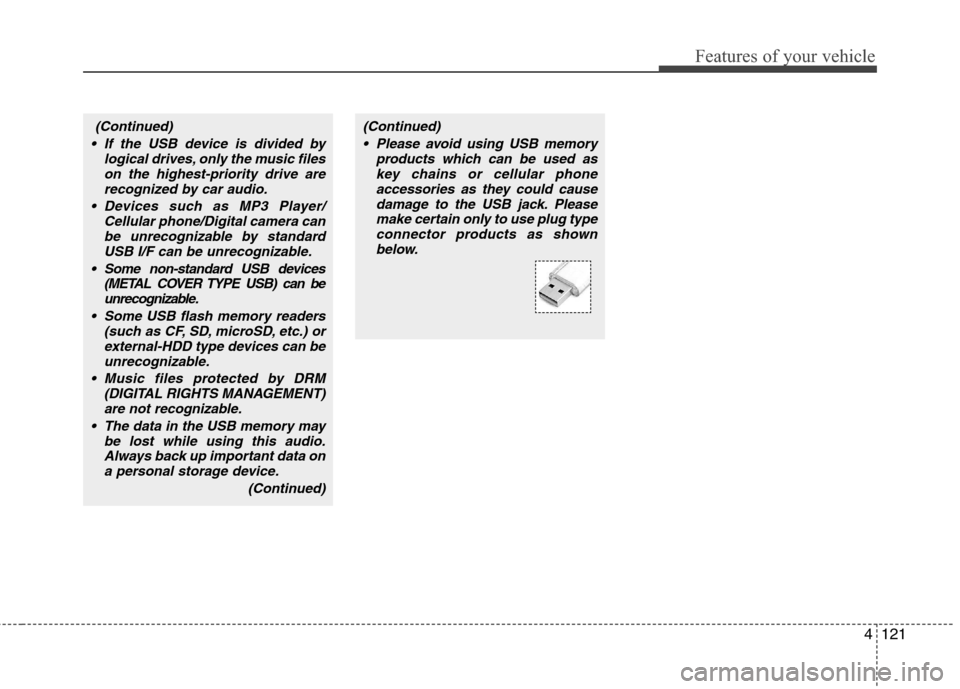
damage to the USB jack. Please
make certain only to use plug type
connector products as shown
below.(Continued)
If the USB device is divided by
logical drives, only the music files
on the highest-priority drive are
recognized by car audio.
Devices such as MP3 Player/
Cellular phone/Digital camera can
be unrecognizable by standard
USB I/F can be unrecognizable.
Some non-standard USB devices
(METAL COVER TYPE USB) can be
unrecognizable.
Some USB flash memory readers
(such as CF, SD, microSD, etc.) or
external-HDD type devices can be
unrecognizable.
Music files protected by DRM
(DIGITAL RIGHTS MANAGEMENT)
are not recognizable.
The data in the USB memory may
be lost while using this audio.
Always back up important data on
a personal storage device.
(Continued)
Page 211 of 409
Features of your vehicle
134 4
CAUTION IN USING
USB DEVICE
To use an external USB device,
make sure the device is not con-
nected when starting up the vehi-
cle. Connect the device after
starting up.
If you start the engine when the
USB device is connected, it may
damage the USB device. (USB
flashdrives are very sensitive to
electric shock.)
If the engine is started up or
turned off while the external USB
device is connected, the external
USB device may not work.
It may not play inauthentic MP3 or
WMA files.
1) It can only play MP3 files with
the compression rate between
8Kbps~320Kbps.
2) It can only play WMA music
files with the compression rate
between 8Kbps~320Kbps.
Take precautions for static electrici-
ty when connecting or disconnect-
ing the external USB device.
(Continued)
(Continued)
An encrypted MP3 PLAYER is not
recognizable.
Depending on the condition of
the external USB device, the con-
nected external USB device can
be unrecognizable.
When the formatted byte/sector
setting of External USB device is
not either 512BYTE or 2048BYTE,
then the device will not be recog-
nized.
Use only a USB device formatted
to FAT 12/16/32.
USB devices without USB I/F
authentication may not be recog-
nizable.
Make sure the USB connection
terminal does not come in contact
with the human body or other
objects.
If you repeatedly connect or dis-
connect the USB device in a short
period of time, it may break the
device.
You may hear a strange noise
when connecting or disconnect-
ing a USB device.
(Continued)(Continued)
If you disconnect the external USB
device during playback in USB
mode, the external USB device can
be damaged or may malfunction.
Therefore, disconnect the external
USB device when the audio is
turned off or in another mode. (e.g,
Radio, XM or CD)
Depending on the type and capac-
ity of the external USB device or
the type of the files stored in the
device, there is a difference in the
time taken for recognition of the
device.
Do not use the USB device for pur-
poses other than playing music
files.
Use of USB accessories such as
rechargers or heaters using USB
I/F may lower performance or
cause trouble.
If you use devices such as a USB
hub purchased separately, the
vehicle’s audio system may not
recognize the USB device. In that
case, connect the USB device
directly to the multimedia termi-
nal of the vehicle.
(Continued)
Page 212 of 409
4135
Features of your vehicle
(Continued)
Please avoid using USB memory
products which can be used as
key chains or cellular phone
accessories as they could cause
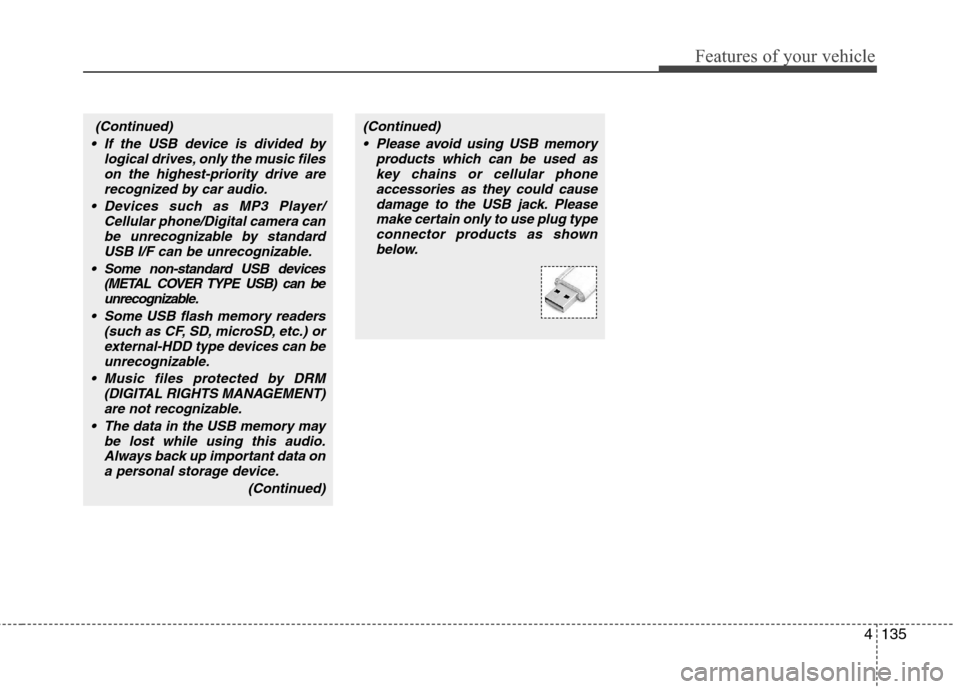
damage to the USB jack. Please
make certain only to use plug type
connector products as shown
below.(Continued)
If the USB device is divided by
logical drives, only the music files
on the highest-priority drive are
recognized by car audio.
Devices such as MP3 Player/
Cellular phone/Digital camera can
be unrecognizable by standard
USB I/F can be unrecognizable.
Some non-standard USB devices
(METAL COVER TYPE USB) can be
unrecognizable.
Some USB flash memory readers
(such as CF, SD, microSD, etc.) or
external-HDD type devices can be
unrecognizable.
Music files protected by DRM
(DIGITAL RIGHTS MANAGEMENT)
are not recognizable.
The data in the USB memory may
be lost while using this audio.
Always back up important data on
a personal storage device.
(Continued)
Page 221 of 409
Features of your vehicle
144 4
HD RADIOTMINFORMATION
Licensing information
HD RadioTMTechnology is Manufactured
Under License From iBiquity Digital
Corporation. U.S. and Foreign Patents.
HD Radio
TMand the HD and HD Radio
logos are proprietary trademarks of
iBiquity Digital Corporation.
Availability information
HD RadioTM reception is available in the
United States, including Alaska and
Hawaii.
What is HD RadioTMtechnology?
The vehicle audio system (if equipped) is
able to receive standard analog FM/AM
radio broadcasting as well as digital HD
Radio
TMFM/AM broadcasting.
HD RadioTMtechnology provides digital
and analog reception using existing FM
and AM broadcasting frequencies.Currently, radio stations broadcasting an
HD Radio
TMsignal are operating in a
hybrid mode of both, analog and digital,
in order to reach both receivers. In both
modes, analog and digital, the broad-
casted program contents are the
same(except during multicasting, see
below).
Eventually, as analog receivers are
replaced by digital ones, radio stations
may be able to turn off their analog
broadcasting and use only the digital
broadcasting.
Multicasting
HD RadioTMFM stations are able to
broadcast multiple digital program
streams(channels) over a single FM fre-
quency. For example, a HD Radio
TMFM
station can run a main channel of music
and a sub channel of news(or even two
different music channels) at one frequen-
cy.
Only the program content of the main
channel is in broadcasted analog.
HD RadioTMsignal delay
To overcome the delay that digital sys-
tems inherently produce, HD RadioTM
technology first uses the audio signal of
the analog broadcasting when you tune
to an AM station or to the main channel
of a FM station. After that, the system will
blend from analog to digital signal.
Normally, this blending is very smooth. If
you experience a skip in program content
of several seconds, the radio station has
not implemented HD Radio
TMbroadcast-
ing correctly. This is not a problem with
your audio system.
Due to the fact that sub channels are only
broadcasting digital, blending from analog
to digital signal is not possible if you tune
to a sub channel. In this case playback of
the sub channel starts after several sec-
onds. This is a normal function.
Page 224 of 409
4147
Features of your vehicle
BLUETOOTH®PHONE OPERATION
(IF EQUIPPED)
■What is Bluetooth®?
Bluetooth®is a wireless technology that
allows multiple short range, low-powered
devices like hands-free, stereo headset,
wireless remote control, etc. to be connect-
ed. For more information, visit
the
Bluetooth®website at www.Bluetooth.com
■ General Feature
®
hands-free and stereo-headset features.
- HANDS-FREE feature: Making or
receiving calls wirelessly through
voice recognition.
- STEREO-HEADSET feature: Playing
music from cellular phones (that sup-
ports A2DP feature) wirelessly.
Bluetooth
®system supports 3 types of
languages:
- English
- Canadian French
- US Spanish
✽ ✽
NOTICE
• The phone must be paired to the sys-
tem before using Bluetooth® features.
• Only one selected(linked) cellular
phone can be used with the system at
a time.
• Some phones are not fully compatible
with this system.
■Bluetooth®Language Setting
The system language can be changed by
the following steps:
1. Power on the audio system with the
volume set to an audible level.
2. Press and hold button on the
steering wheel until the audio displays
“Please Wait”.
- The Bluetooth
®system will reply in
currently selected language that it is
changing to the next language.
- System language cycles between
English, Canadian French and US
Spanish.
3. When completed, the audio display
returns to normal.
4. Repeat steps 2 and 3 for the next lan-
guage selection.
✽ ✽
NOTICE
The phone needs to be paired again
after changing system language.
• Avoid resting your thumb or finger on
the as the language could unin-
tentionally change.
Page 230 of 409
4153
Features of your vehicle
■Using the head unit as Bluetooth
music
The head unit supports A2DP (Audio
Advanced Distribution Profile) and
AVRCP(Audio Video Remote Control
Profile).
Both profiles are available for listening to
MP3 music via Bluetooth cellular phone
supporting above Bluetooth profiles.
To play MP3 music from the Bluetooth
cellular phone, press the [CD/AUX] but-
ton until “MP3 Play” is displayed on the
LCD.
Then try playing music by phone.
When playing music from the Bluetooth
cellular phone, the head unit displays
MP3 MODE.
✽ ✽
NOTICE
• Not only MP3 files, but all the sounds
that the phone supports can be heard
by the audio system.
• Bluetooth cellular phones must fea-
ture A2DP and AVRCP functions.
• Some A2DP and AVRCP Bluetooth
cellular phones may not play music
through the head unit on the first try.
Please try the below;
i.e :Menu➟ ➟
Filemanager➟ ➟
Music➟ ➟
Option➟ ➟
Play via Bluetooth • Please refer to User's Guide of your
phone for more detailed information.
• To stop music, try stop music by the
phone or change audio mode to
AM/FM/XM, CD, iPod, etc.