diagnostic Hyundai Genesis 2015 Blue Link Manual
[x] Cancel search | Manufacturer: HYUNDAI, Model Year: 2015, Model line: Genesis, Model: Hyundai Genesis 2015Pages: 18, PDF Size: 2.07 MB
Page 2 of 18

Blue link User’s Manual I 1
Welcome to Blue link ........................................................................\
........................ 1
enrolling in Blue link ........................................................................\
................. 2
s etting Blue link Preferences and a lerts ...................................................4
Blue link Features Overview ........................................................................\
... 6
a ccessing Blue link Features
smart Phone Mobile a pplication ......................................................... 8
Using Blue link in your c ar ..................................................................... 10
Using Blue link Online ........................................................................\
.... 11
In-Vehicle a pps ........................................................................\
.................. 12
In-Vehicle Wi-Fi ........................................................................\
................... 12
a ssurance c ar care In-Vehicle a pp ..................................................... 13
l ocation sharing In-Vehicle a pp .......................................................... 13
Blue link Features
Blue link c onnected c are Package
Safety a utomatic collision notification and a ssistance .................... 14
sOs emergency a ssistance ............................................................. 15
enhanced r oadside assistance ..................................................... 16
Car Care Monthly Vehicle Health r eport ..................................................... 17
a utomatic Diagnostic Trouble c ode notification ...................18
s ervice link ........................................................................\
................... 18
On-Demand Diagnostics ................................................................. 19
Driving Information ........................................................................\
... 19
Maintenance a lert ........................................................................\
...... 20
Blue link r emote Package
Convenience r emote Door Unlock/l ock .............................................................. 21
r emote Horn/lights ........................................................................\
.. 22
r emote start with climate c ontrol* ............................................ 23
c ar Finder ........................................................................\
...................... 25
Safeguard s tolen Vehicle recovery ................................................................... 26
s tolen Vehicle slowdown ................................................................ 26
Vehicle Immobilization ..................................................................... 27
Panic notification ........................................................................\
....... 27
a larm notification ........................................................................\
...... 27
Valet alert ........................................................................\
...................... 28
Geo-Fence ........................................................................\
..................... 28
speed a lert ........................................................................\
................... 29
c urfew alert........................................................................\
.................. 29
Blue link Guidance Package
Destination s earch Powered by Google ............................................ 30
Index ........................................................................\
.......................................... 33
Welcome to
Blue link® is a dynamic, telematics technology that allows Hyundai vehicles
to send—and receive—important and useful information.
The system uses an enhanced cellular network, with automatic roaming, that
optimizes connections and prioritizes emergency requests. In your vehicle,
Blue link uses voice-response technology, with the addition of GPs and
a live assistance team for selected needs.
With Blue link you get…
• automatic emergency assistance, in the unfortunate event of
a collision.
• The convenience of Destination s earch, Powered by Google
TM, as well
as the ability to remotely operate various vehicle features.
•
The peace of mind that comes with in-vehicle, on-demand diagnostics,
and more…
In addition, selected features incorporate notifications
via your choice of
text messaging or email.
Please note that selected Blue link features and notifications require
that you first input information or set preferences online
. (see Blue
link Features Overview, pages 6-7.)
a n available smart phone mobile app gives you direct access to selected
r emote features such as r emote start with climate c ontrol* and remote
Door l ock/Unlock.
Please note: Hyundai Blue link s ervice is only available in the
50 United states.
TaBle OF cOnTenT s
Features
accessible via the
Mobile app
* not available on all models * not available on all models
Google is a registered trademark of Google Inc.
Page 3 of 18
Blue link User’s Manual I 3
2 I Blue link User’s Manual
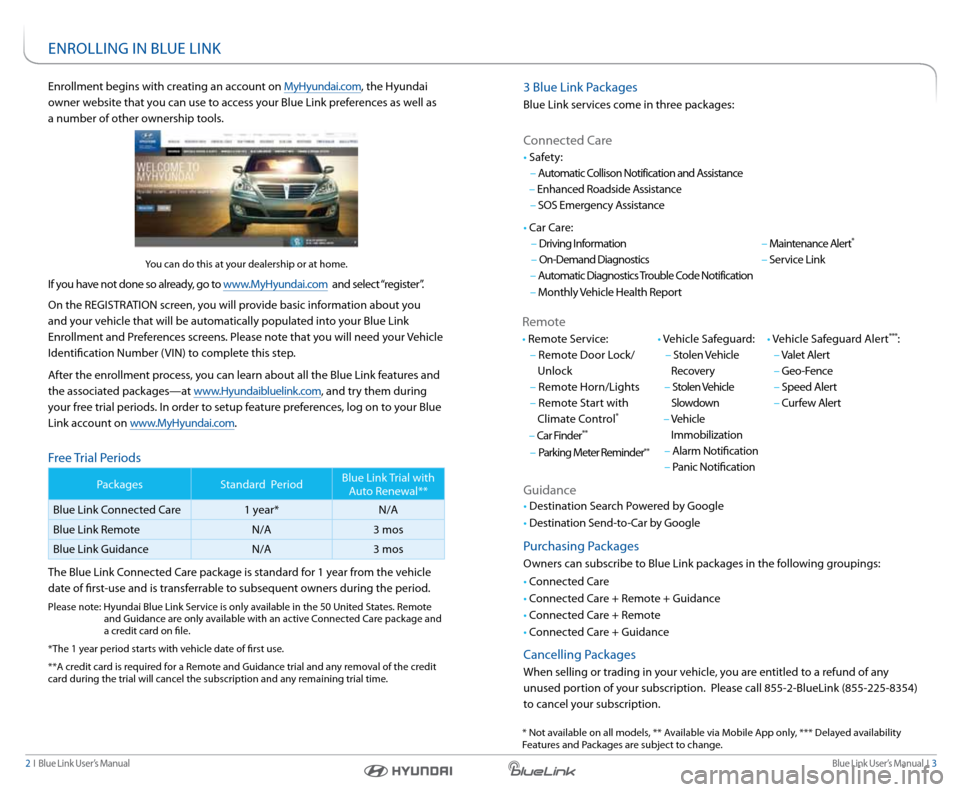
3 Blue link Packages
Blue link services come in three packages:
connected c are
r emote
• r emote s ervice:
– r emote Door l ock/
Unlock
– r emote Horn/lights
– r emote s tart with
climate c ontrol
*
– c ar Finder**
– Parking Meter r eminder**
• Vehicle safeguard:
– stolen Vehicle
r ecovery
– stolen Vehicle
slowdown
– Vehicle
Immobilization
– alarm notification
– Panic notification • Vehicle s
afeguard a lert***:
– Valet a lert
– Geo-Fence
– speed a lert
– curfew a lert
• c
ar c are:
– Driving Information
– On-Demand Diagnostics
– a utomatic Diagnostics Trouble c ode notification
– Monthly Vehicle Health r eport
–
Maintenance a lert
*
– service link
• s
afety:
– a utomatic c ollison notification and a ssistance
– enhanced r oadside assistance
– sOs emergency a ssistance
Guidance
• Destination s earch Powered by Google
• Destination s end-to-car by Google
Purchasing Packages
Owners can subscribe to Blue link packages in the following groupings:
• c onnected c are
• c onnected c are + remote + Guidance
• c onnected c are + remote
• c onnected c are + Guidance
cancelling Packages
When selling or trading in your vehicle, you are entitled to a refund of any
unused portion of your subscription. Please call 855-2-Bluelink (855-225-8354)
to cancel your subscription.
enrollment begins with creating an account on MyHyundai.com, the Hyundai
owner website that you can use to access your Blue link preferences as well as
a number of other ownership tools.
you can do this at your dealership or at home.
If you have not done so already, go to www.MyHyundai.com and select “register”.
On the reGIsTra TIOn screen, you will provide basic information about you
and your vehicle that will be automatically populated into your Blue link
enrollment and Preferences screens. Please note that you will need your Vehicle
Identification number (VIn) to complete this step.
a fter the enrollment process, you can learn about all the Blue link features and
the associated packages—at www.Hyundaibluelink.com, and try them during
your free trial periods. In order to setup feature preferences, log on to your Blue
link account on www.MyHyundai.com.
Free Trial Periods
Packages standard Period Blue link Trial with
a uto r enewal**
Blue link c onnected c are 1 year* n/a
Blue link r emote n/a3 mos
Blue link Guidance n/a3 mos
The Blue link c onnected care package is standard for 1 year from the vehicle
date of first-use and is transferrable to subsequent owners during the period.
Please note: Hyundai Blue link s ervice is only available in the 50 United s tates. remote
and Guidance are only available with an active c onnected care package and
a credit card on file.
*The 1 year period starts with vehicle date of first use.
**a credit card is required for a r emote and Guidance trial and any removal of the credit
card during the trial will cancel the subscription and any remaining trial time.
enr OllInG In BlUe lInk
* not available on all models, ** a vailable via Mobile app only, *** Delayed availability
Features and Packages are subject to change.
Page 5 of 18
Blue link User’s Manual I 7
6 I Blue link User’s Manual
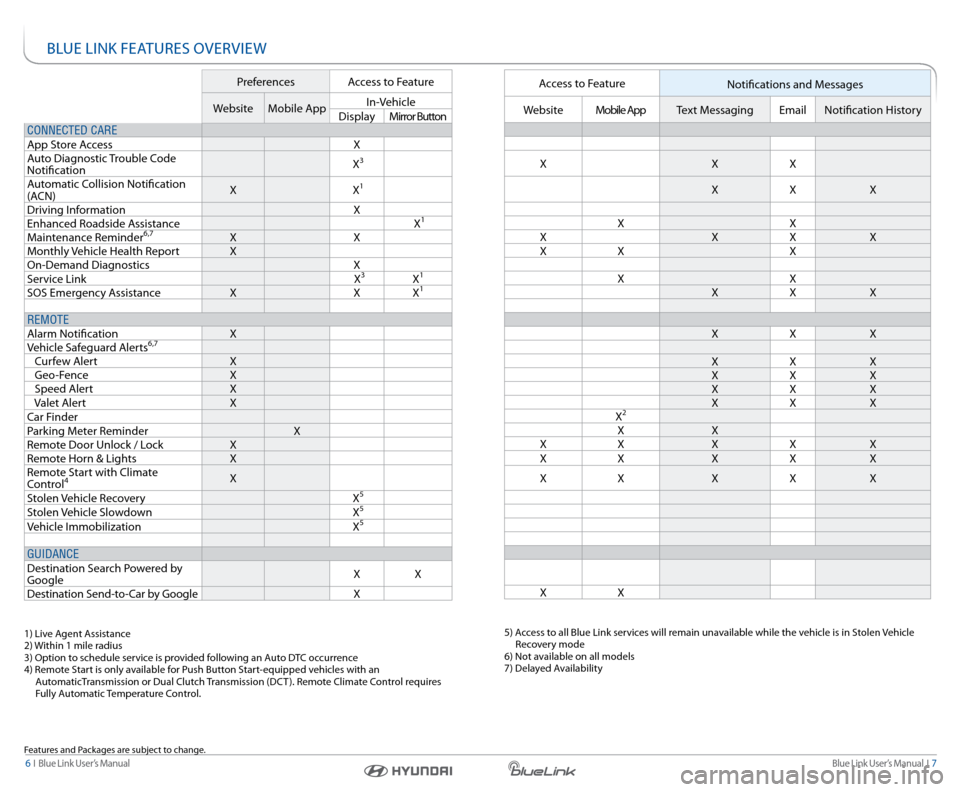
Bl Ue lInk Fea TUres OVerVIeW
Preferences access to Feature
Website Mobile app In-Vehicle
Display Mirror Button
CONNECTED CARE
a pp s tore a ccess X
a uto Diagnostic Trouble c ode
notification X
3
a
utomatic c ollision notification
( acn) X
X1
Driving Information X
enhanced r oadside assistance X1
Maintenance reminder6,7X X
Monthly Vehicle Health r eportX
On-Demand Diagnostics X
s ervice link X
3X1
sOs emergency assistance X XX1
REMOTE
alarm notification X
Vehicle s afeguard a lerts
6,7
curfew a lert X
Geo-Fence X
speed a lert X
Valet a lert X
c ar Finder
Parking Meter r eminder X
r emote Door Unlock / l ockX
r emote Horn & lights X
r emote s tart with climate
c ontrol
4X
s tolen Vehicle recovery X
5
stolen Vehicle slowdown X5
Vehicle Immobilization X5
GUIDANCE
Destination search Powered by
Google X
X
Destination s end-to-car by Google X
1) live agent assistance
2) Within 1 mile radius
3) Option to schedule service is provided following an a uto DTc occurrence
4) r emote s tart is only available for Push Button s tart-equipped vehicles with an
a utomaticTransmission or Dual clutch Transmission (Dc T ). remote climate c ontrol requires
Fully a utomatic Temperature c ontrol.
Features and Packages are subject to change.
access to Feature
notifications and Messages
Website Mobile app Text Messaging emailnotification History
X XX
X X X
X X
X XX X
X X X
X X
X X X
X X X
X X X
X X X
X X X
X X X
X
2
X X
X X XX X
X X XX X
X X XX X
X X
5) access to all Blue link services will remain unavailable while the vehicle is in s tolen Vehicle
r ecovery mode
6) not available on all models
7) Delayed a vailability
Page 10 of 18
Blue link User’s Manual I 17
16 I Blue link User’s Manual
Monthly Vehicle Health r eport
Thirty days after your new Hyundai vehicle purchase, you can begin receiving a
comprehensive diagnostic evaluation involving most aspects of your vehicle’s
performance (e.g., systems check, mileage attained, upcoming maintenance,
etc.).
In order to receive your Monthly Vehicle Health r eport, you must first
log on to www.MyHyundai.com, select the Blue link logo for your applicable
vehicle, then select Monthly Vehicle Health r eport.
• Once set up, you will receive vehicle diagnostic reports via the
email address provided in your www.MyHyundai.com notification
settings.
By default, you will receive your Monthly Vehicle r eport on the
same day of the month as your vehicle purchase.
• To review the report online, log on to www.MyHyundai.com and click on
“Vehicle r eport” in the sub menu.
Monthly Vehicle Health r eport (actual monthly vehicle report may appear differently depending upon vehicle and equipment)
assUrance car care FeaTUres
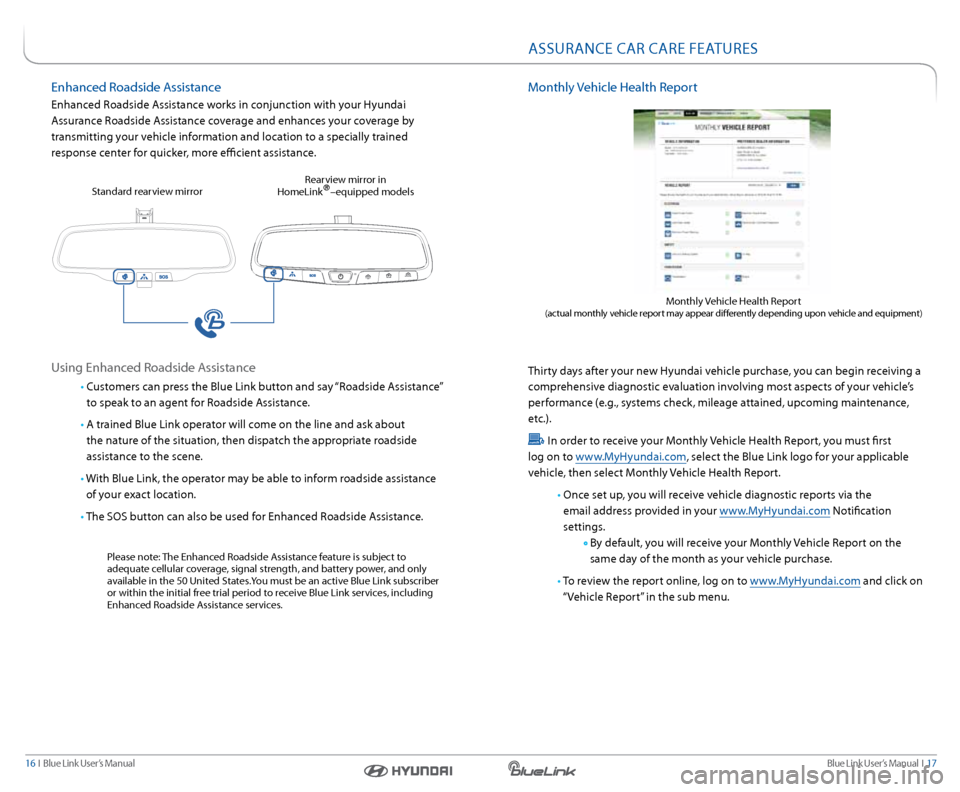
enhanced r oadside assistance
enhanced r oadside assistance works in conjunction with your Hyundai
a ssurance r oadside assistance coverage and enhances your coverage by
transmitting your vehicle information and location to a specially trained
response center for quicker, more efficient assistance.
Using enhanced r oadside assistance
• customers can press the Blue link button and say “r oadside assistance”
to speak to an agent for r oadside assistance.
• a trained Blue link operator will come on the line and ask about
the nature of the situation, then dispatch the appropriate roadside
assistance to the scene.
• With Blue link, the operator may be able to inform roadside assistance
of your exact location.
• The sOs button can also be used for enhanced r oadside assistance.
Please note: The enhanced r oadside assistance feature is subject to
adequate cellular coverage, signal strength, and battery power, and only
available in the 50 United s tates.you must be an active Blue link subscriber
or within the initial free trial period to receive Blue link services, including
enhanced r oadside assistance services.
s
tandard rearview mirror r
earview mirror in
Homelink
®–equipped models
Page 11 of 18
Blue link User’s Manual I 19
18 I Blue link User’s Manual
Features accessible via the
Genesis Intelligent a ssistant
app
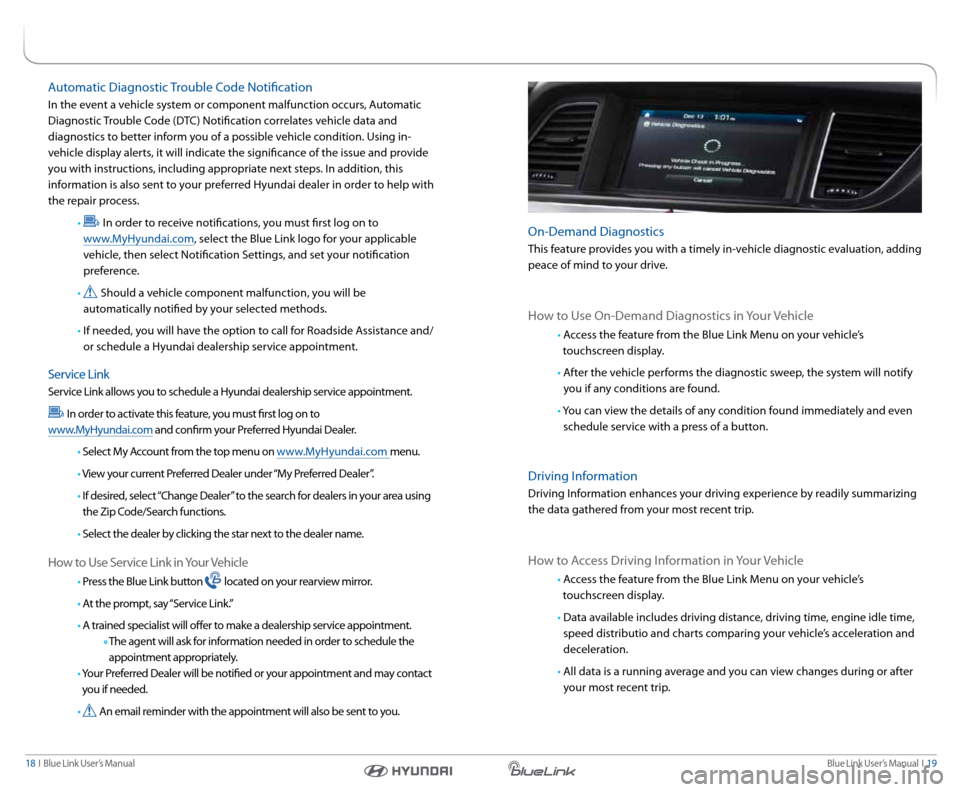
On-Demand Diagnostics
This feature provides you with a timely in-vehicle diagnostic evaluation, adding
peace of mind to your drive.
How to Use On-Demand Diagnostics in your Vehicle
• access the feature from the Blue link Menu on your vehicle’s
touchscreen display.
• after the vehicle performs the diagnostic sweep, the system will notify
you if any conditions are found.
• y ou can view the details of any condition found immediately and even
schedule service with a press of a button.
Driving Information
Driving Information enhances your driving experience by readily summarizing
the data gathered from your most recent trip.
How to a ccess Driving Information in your Vehicle
• access the feature from the Blue link Menu on your vehicle’s
touchscreen display.
• Data available includes driving distance, driving time, engine idle time,
speed distributio and charts comparing your vehicle’s acceleration and
deceleration.
• all data is a running average and you can view changes during or after
your most recent trip.
a utomatic Diagnostic Trouble c ode notification
In the event a vehicle system or component malfunction occurs, a utomatic
Diagnostic Trouble c ode (DTc) notification correlates vehicle data and
diagnostics to better inform you of a possible vehicle condition. Using in-
vehicle display alerts, it will indicate the significance of the issue and provide
you with instructions, including appropriate next steps. In addition, this
information is also sent to your preferred Hyundai dealer in order to help with
the repair process.
•
In order to receive notifications, you must first log on to
www.MyHyundai.com, select the Blue link logo for your applicable
vehicle, then select notification s ettings, and set your notification
preference.
•
should a vehicle component malfunction, you will be
automatically notified by your selected methods.
• If needed, you will have the option to call for r oadside assistance and/
or schedule a Hyundai dealership service appointment.
s ervice link
service link allows you to schedule a Hyundai dealership service appointment.
In order to activate this feature, you must first log on to
www.MyHyundai.com and confirm your Preferred Hyundai Dealer.
• s elect My a ccount from the top menu on www.MyHyundai.com menu.
• View your current Preferred Dealer under “My Preferred Dealer”.
• If desired, select “ change Dealer” to the search for dealers in your area using
the Zip c ode/search functions.
• s elect the dealer by clicking the star next to the dealer name.
How to Use s ervice link in your Vehicle
• Press the Blue link button located on your rearview mirror.
• a t the prompt, say “s ervice link.”
• a trained specialist will offer to make a dealership service appointment.
The agent will ask for information needed in order to schedule the
appointment appropriately.
• y our Preferred Dealer will be notified or your appointment and may contact
you if needed.
•
a n email reminder with the appointment will also be sent to you.
Page 18 of 18

Blue link User’s Manual I 33
32 I Blue link User’s Manual
alarm notification ........................................................................\
............................... 27
a ssurance c ar care In-Vehicle a pp ....................................................................... 13
a utomatic c ollision notification and a ssistance ............................................. 14
a utomatic Diagnostic Trouble c ode notification ............................................ 18
Blue link Features (Operation chart) ................................................................... 6
c ar Finder ........................................................................\
.......................................... 25
c urfew a lert ........................................................................\
.......................................... 29
Destination s earch Powered by Google ............................................................. 30
Driving Information ........................................................................\
............................ 19
enhanced r oadside assistance ........................................................................\
...... 16
Geo-Fence ........................................................................\
........................................... 28
In-Vehicle a pps ........................................................................\
.................................... 12
In-Vehicle Wi-Fi ........................................................................\
..................................... 12
Maintenance a lert ........................................................................\
.............................. 20
Monthly Vehicle Health r eport ........................................................................\
...... 17
On-Demand Diagnostics ........................................................................\
.................. 19
Panic notification ........................................................................\
................................ 27
r emote Door Unlock/l ock ........................................................................\
............... 21
r emote Horn/lights ........................................................................\
........................... 22
r emote s tart with climate c ontrol ....................................................................... 23
s ervice link ........................................................................\
.......................................... 18
sOs emergency a ssistance ........................................................................\
.............. 15
smart Phone Mobile a pplication ........................................................................\
.. 8
speed a lert ........................................................................\
.......................................... 29
s tolen Vehicle recovery ........................................................................\
.................... 26
s tolen Vehicle slowdown ........................................................................\
................. 26
Using Blue link in your c ar ........................................................................\
.............. 10
Using Blue link Online ........................................................................\
...................... 11
Valet a lert ........................................................................\
............................................. 28
Vehicle Immobilization ........................................................................\
...................... 27
InDeXnOTes