ESP Hyundai Genesis Coupe 2012 User Guide
[x] Cancel search | Manufacturer: HYUNDAI, Model Year: 2012, Model line: Genesis Coupe, Model: Hyundai Genesis Coupe 2012Pages: 391, PDF Size: 6.59 MB
Page 135 of 391
Features of your vehicle
58
4
D170000AEN
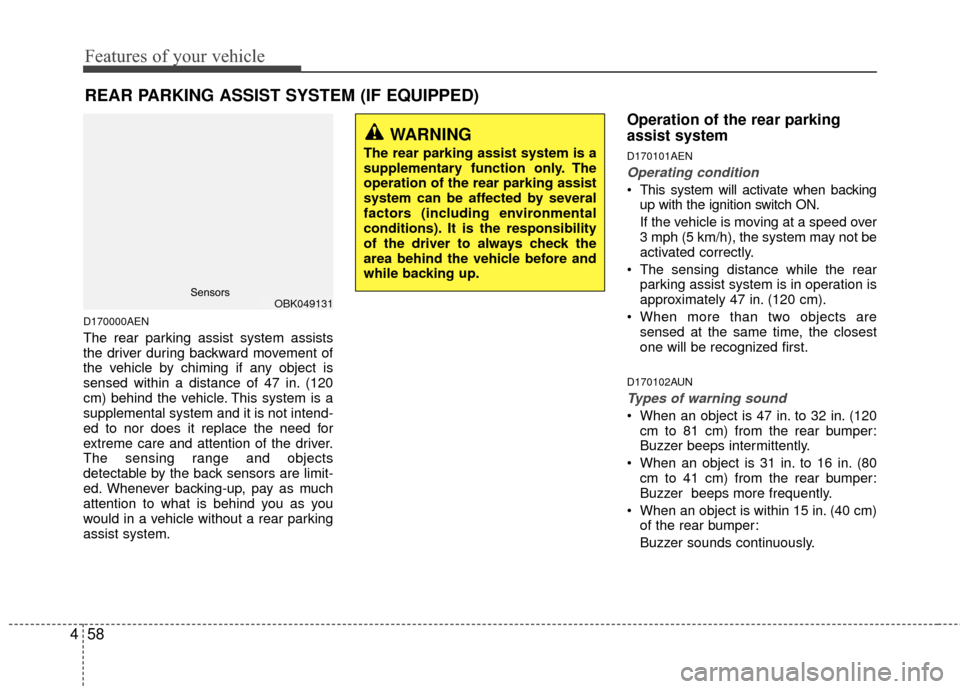
The rear parking assist system assists
the driver during backward movement of
the vehicle by chiming if any object is
sensed within a distance of 47 in. (120
cm) behind the vehicle. This system is a
supplemental system and it is not intend-
ed to nor does it replace the need for
extreme care and attention of the driver.
The sensing range and objects
detectable by the back sensors are limit-
ed. Whenever backing-up, pay as much
attention to what is behind you as you
would in a vehicle without a rear parking
assist system.
Operation of the rear parking
assist system
D170101AEN
Operating condition
This system will activate when backing
up with the ignition switch ON.
If the vehicle is moving at a speed over
3 mph (5 km/h), the system may not be
activated correctly.
The sensing distance while the rear parking assist system is in operation is
approximately 47 in. (120 cm).
When more than two objects are sensed at the same time, the closest
one will be recognized first.
D170102AUN
Types of warning sound
When an object is 47 in. to 32 in. (120cm to 81 cm) from the rear bumper:
Buzzer beeps intermittently.
When an object is 31 in. to 16 in. (80 cm to 41 cm) from the rear bumper:
Buzzer beeps more frequently.
When an object is within 15 in. (40 cm) of the rear bumper:
Buzzer sounds continuously.
REAR PARKING ASSIST SYSTEM (IF EQUIPPED)
OBK049131
Sensors
WARNING
The rear parking assist system is a
supplementary function only. The
operation of the rear parking assist
system can be affected by several
factors (including environmental
conditions). It is the responsibility
of the driver to always check the
area behind the vehicle before and
while backing up.
Page 137 of 391
Features of your vehicle
60
4
✽
✽
NOTICE
This system can only sense objects with-
in the range and location of the sensors;
It can not detect objects in other areas
where sensors are not installed. Also,
small or slim objects, such as poles or
objects located between sensors may not
be detected by the sensors.
Always visually check behind the vehi-
cle when backing up.
Be sure to inform any drivers of the
vehicle that may be unfamiliar with the
system regarding the systems capabili-
ties and limitations.
D170400AEN
Self-diagnosis
If you don’t hear an audible warning
sound or if the buzzer sounds intermit-
tently when shifting the gear to the R
(Reverse) position, this may indicate a
malfunction in the rear parking assist sys-
tem. If this occurs, have your vehicle
checked by an authorized HYUNDAI
dealer as soon as possible.
D180000AUN
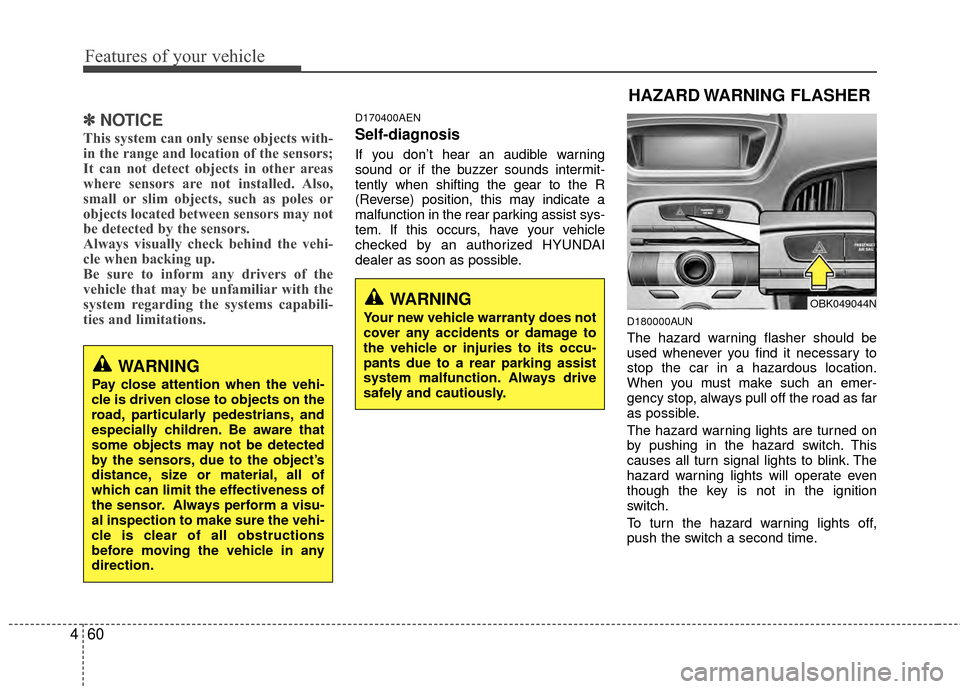
The hazard warning flasher should be
used whenever you find it necessary to
stop the car in a hazardous location.
When you must make such an emer-
gency stop, always pull off the road as far
as possible.
The hazard warning lights are turned on
by pushing in the hazard switch. This
causes all turn signal lights to blink. The
hazard warning lights will operate even
though the key is not in the ignition
switch.
To turn the hazard warning lights off,
push the switch a second time.
WARNING
Pay close attention when the vehi-
cle is driven close to objects on the
road, particularly pedestrians, and
especially children. Be aware that
some objects may not be detected
by the sensors, due to the object’s
distance, size or material, all of
which can limit the effectiveness of
the sensor. Always perform a visu-
al inspection to make sure the vehi-
cle is clear of all obstructions
before moving the vehicle in any
direction.
WARNING
Your new vehicle warranty does not
cover any accidents or damage to
the vehicle or injuries to its occu-
pants due to a rear parking assist
system malfunction. Always drive
safely and cautiously.
HAZARD WARNING FLASHER
OBK049044N
Page 183 of 391
Features of your vehicle
106
4
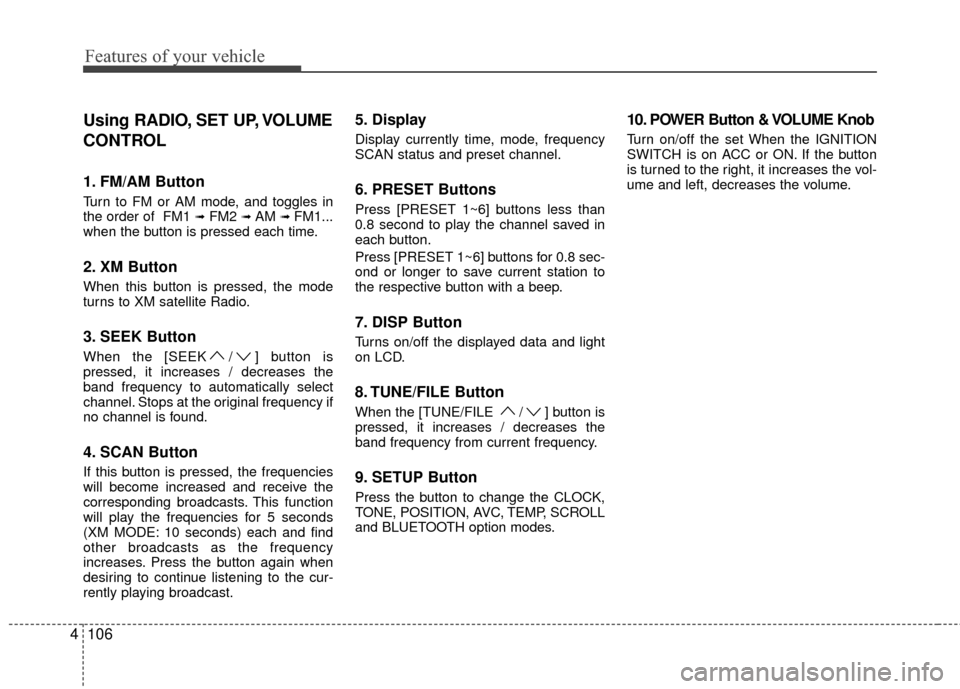
Using RADIO, SET UP, VOLUME
CONTROL
1. FM/AM Button
Turn to FM or AM mode, and toggles in
the order of FM1 ➟FM2 ➟ AM ➟ FM1...
when the button is pressed each time.
2. XM Button
When this button is pressed, the mode
turns to XM satellite Radio.
3. SEEK Button
When the [SEEK / ] button is
pressed, it increases / decreases the
band frequency to automatically select
channel. Stops at the original frequency if
no channel is found.
4. SCAN Button
If this button is pressed, the frequencies
will become increased and receive the
corresponding broadcasts. This function
will play the frequencies for 5 seconds
(XM MODE: 10 seconds) each and find
other broadcasts as the frequency
increases. Press the button again when
desiring to continue listening to the cur-
rently playing broadcast.
5. Display
Display currently time, mode, frequency
SCAN status and preset channel.
6. PRESET Buttons
Press [PRESET 1~6] buttons less than
0.8 second to play the channel saved in
each button.
Press [PRESET 1~6] buttons for 0.8 sec-
ond or longer to save current station to
the respective button with a beep.
7. DISP Button
Turns on/off the displayed data and light
on LCD.
8. TUNE/FILE Button
When the [TUNE/FILE / ] button is
pressed, it increases / decreases the
band frequency from current frequency.
9. SETUP Button
Press the button to change the CLOCK,
TONE, POSITION, AVC, TEMP, SCROLL
and BLUETOOTH option modes.
10. POWER Button & VOLUME Knob
Turn on/off the set When the IGNITION
SWITCH is on ACC or ON. If the button
is turned to the right, it increases the vol-
ume and left, decreases the volume.
Page 195 of 391
Features of your vehicle
118
4
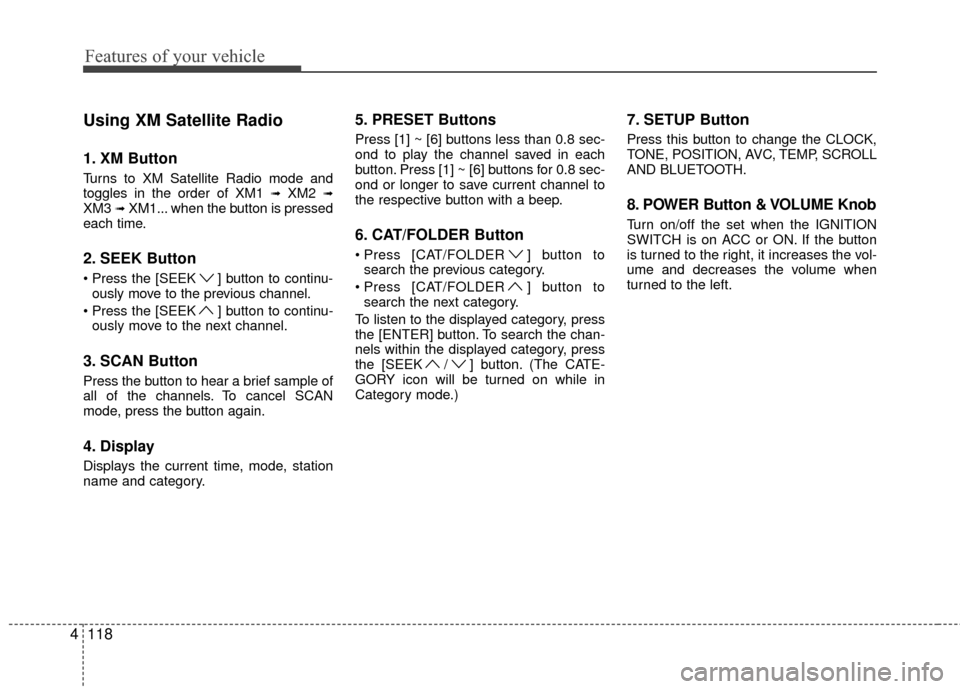
Using XM Satellite Radio
1. XM Button
Turns to XM Satellite Radio mode and
toggles in the order of XM1 ➟XM2 ➟XM3 ➟XM1... when the button is pressed
each time.
2. SEEK Button
] button to continu- ously move to the previous channel.
] button to continu- ously move to the next channel.
3. SCAN Button
Press the button to hear a brief sample of
all of the channels. To cancel SCAN
mode, press the button again.
4. Display
Displays the current time, mode, station
name and category.
5. PRESET Buttons
Press [1] ~ [6] buttons less than 0.8 sec-
ond to play the channel saved in each
button. Press [1] ~ [6] buttons for 0.8 sec-
ond or longer to save current channel to
the respective button with a beep.
6. CAT/FOLDER Button
[CAT/FOLDER ] button tosearch the previous category.
[CAT/FOLDER ] button to search the next category.
To listen to the displayed category, press
the [ENTER] button. To search the chan-
nels within the displayed category, press
the [SEEK / ] button. (The CATE-
GORY icon will be turned on while in
Category mode.)
7. SETUP Button
Press this button to change the CLOCK,
TONE, POSITION, AVC, TEMP, SCROLL
AND BLUETOOTH.
8. POWER Button & VOLUME Knob
Turn on/off the set when the IGNITION
SWITCH is on ACC or ON. If the button
is turned to the right, it increases the vol-
ume and decreases the volume when
turned to the left.
Page 198 of 391
4121
Features of your vehicle
■Bluetooth®wireless technology
Language Setting
The system language can be changed by
the following steps:
1. Power on the audio system with the
volume set to an audible level.
2. Press and hold button on the steering wheel until the audio displays
“Please Wait”.
- The Bluetooth
®wireless technology
system will reply in currently selected
language that it is changing to the next
language.
- System language cycles between English, US Spanish.
3. When completed, the audio display returns to normal.
4. Repeat steps 2 and 3 for the next lan- guage selection.
NOTE:
The phone needs to be paired again
after changing system language.
- Avoid resting your thumb or fingeron the as the language could
unintentionally change.
■Voice Recognition Activation
in the Bluetooth®wireless technology
System can be activated in the follow-
ing conditions:
- Button Activation The voice recognition system will be
active when the button is pressed
and after the sound of a Beep.
- Active Listening The voice recognition system will be
active for a period of time when the
Voice Recognition system has asked
for a customer response.
from zero to nine while numbers greater
than ten will not be recognized.
system will announce "Pardon" or No
input voice signal from microphone. (No
response)
tion mode in following cases : When
pressing the button and saying
cancel following the beep. When not
making a call and pressing the but-
ton 0.8 second or longer When voice
recognition has failed 3 consecutive
times.
will announce what commands are
available.
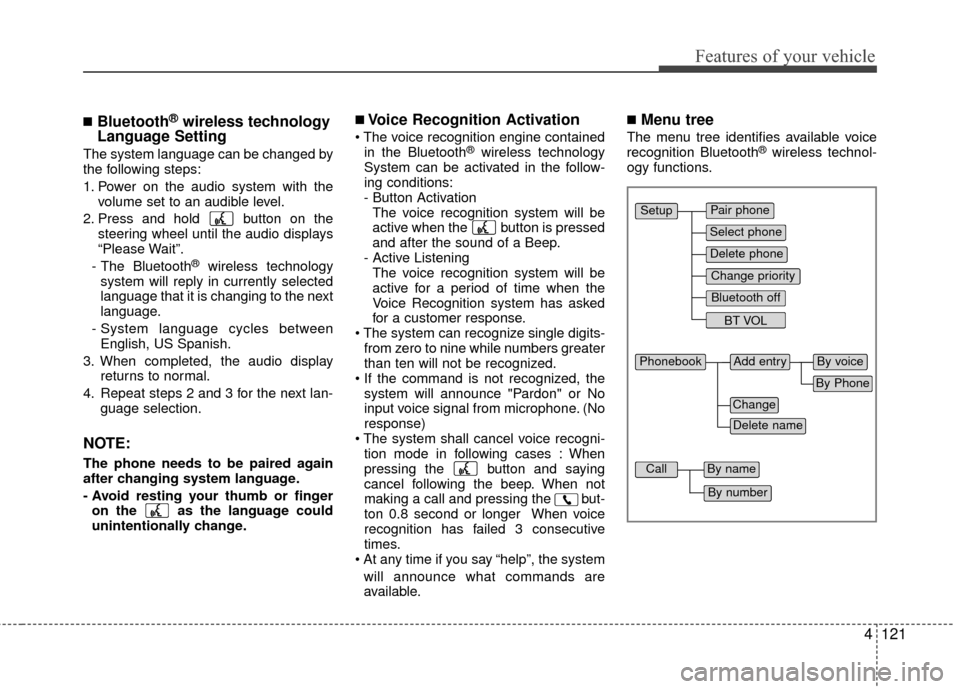
■Menu tree
The menu tree identifies available voice
recognition Bluetooth®wireless technol-
ogy functions.
Pair phone
Select phone
Change priority
Delete phone
Bluetooth off
BT VOL
Setup
Add entryPhonebook
Change
Delete name
By Phone
By voice
CallBy name
By number
Page 201 of 391
Features of your vehicle
124
4
6. By manual operation:
- Select “PRIORITY” in PHONE menu,then select desired phone from the
list.
Bluetooth
®wireless tech-
nology Volume
Bluetooth
®wireless technology system
volume can be adjusted separately from
main volume of the audio system.
Volume control is available by manual
operation only.
Select “BT Volume” in BLUETOOTH
menu, adjust volume to desired level by
rotating the TUNE/SETUP knob, then
press the knob to confirm.
®wireless technol-
ogy ON/OFF
Bluetooth
®wireless technology system
can be enabled (ON) or disabled (OFF)
by this menu.
- If Bluetooth®wireless technology is dis-
abled, all the commands related to
Bluetooth
®wireless technology system
prompts whether you wish to turn
Bluetooth
®wireless technology ON or
not.
1. Press button.
2. Say “Set Up”
3. Say “Bluetooth Off ” after prompt.
4. Say “Yes” to confirm.
5. By manual operation:
- Select “BT Off ” in PHONE menu, thenafter announcement, say “YES” to
confirm.
■Phone Book (In-Vehicle)
Phone numbers and voice tags can be
registered. Entries registered in the
phone can also be transferred.
1. Press button.
2. Say "Phonebook".
- The system replies with all availablecommands.
- To skip the information message, press again and then a beep is heard.
3. Say "Add Entry".
4. Say "By Voice" to proceed.
5. Say the name of the entry when prompted.
6. Say “Yes”to confirm.
7. Say the phone number of that entry when prompted. 8. Say “Store” if phone number input is
finished.
9. Say a phone number type. “Home”, “Work”, “Mobile”, “Other” or “Default” is
available.
10. Say “Yes” to complete adding entry.
11. Say “Yes” to store additional location for this contact, or say “Cancel” to fin-
ish the process.✽ ✽NOTICE
• The system can recognize single digits
from zero to nine. Numbers that are
ten or greater cannot be recognized.
• You can enter each digit individually or group digits together in preferred
string lengths.
• To speed up input, it is a good idea to group all digits into a continuous
string.
• Recommend to enter the numbers con- stituted an grouping within all digit
numbers to dial 995 / 734 / 0000
• The display corresponding to each operation appears on the screen as fol-
lows:
• Input operation example: 1. Say: “Nine, nine, five”
➟Display: “995”
2. And say: “Seven, three, four”
➟Display: “995734”
Page 206 of 391
4129
Features of your vehicle
Using RADIO, SET UP, VOLUME
CONTROL
1. FM/AM Button
Turn to FM or AM mode, and toggles in
the order of FM1 ➟FM2 ➟ AM ➟ FM1...
when the button is pressed each time.
2. XM Button
When this button is pressed, the mode
turns to XM satellite Radio.
3. SEEK Button
When the [SEEK / ] button is
pressed, it increases / decreases the
band frequency to automatically select
channel. Stops at the original frequency if
no channel is found.
4. SCAN Button
If this button is pressed, the frequencies
will become increased and receive the
corresponding broadcasts. This function
will play the frequencies for 5 seconds
(XM MODE: 10 seconds) each and find
other broadcasts as the frequency
increases. Press the button again when
desiring to continue listening to the cur-
rently playing broadcast.
5. Display
Display currently time, mode, frequency
SCAN status and preset channel.
6. PRESET Buttons
Press [PRESET 1~6] buttons less than
0.8 second to play the channel saved in
each button.
Press [PRESET 1~6] buttons for 0.8 sec-
ond or longer to save current station to
the respective button with a beep.
7. DISP Button
Turns on/off the displayed data and light
on LCD.
8. TUNE/FILE Button
When the [TUNE/FILE / ] button is
pressed, it increases / decreases the
band frequency from current frequency.
9. SETUP Button
Press the button to change the CLOCK,
TONE, POSITION, AVC, TEMP, SCROLL
and BLUETOOTH option modes.
10. POWER Button & VOLUME Knob
Turn on/off the set When the IGNITION
SWITCH is on ACC or ON. If the button
is turned to the right, it increases the vol-
ume and left, decreases the volume.
Page 218 of 391
4141
Features of your vehicle
Using XM Satellite Radio
1. XM Button
Turns to XM Satellite Radio mode and
toggles in the order of XM1 ➟XM2 ➟XM3➟XM1... when the button is pressed each
time.
2. SEEK Button
] button to continu- ously move to the previous channel.
] button to continu- ously move to the next channel.
3. SCAN Button
Press the button to hear a brief sample of
all of the channels. To cancel SCAN
mode, press the button again.
4. Display
Displays the current time, mode, station
name and category.
5. PRESET Buttons
Press [1] ~ [6] buttons less than 0.8 sec-
ond to play the channel saved in each
button. Press [1] ~ [6] button for 0.8 sec-
ond or longer to save current channel to
the respective button with a beep.
6. CAT/FOLDER Button
[CAT/FOLDER ] button tosearch the previous category.
[CAT/FOLDER ] button to search the next category.
To listen to the displayed category, press
the [ENTER] button. To search the chan-
nels within the displayed category, press
the [SEEK / ] button. (The CATE-
GORY icon will be turned on while in
Category mode.)
7. SETUP Button
Press this button to change the CLOCK,
TONE, POSITION, AVC, TEMP, SCROLL
AND BLUETOOTH.
8. POWER Button & VOLUME Knob
Turn on/off the set when the IGNITION
SWITCH is on ACC or ON. If the button
is turned to the right, it increases the vol-
ume and decreases the volume when
turned to the left.
Page 221 of 391
Features of your vehicle
144
4
■Bluetooth®wireless technology
Language Setting
The system language can be changed by
the following steps:
1. Power on the audio system with the
volume set to an audible level.
2. Press and hold button on the steering wheel until the audio displays
“Please Wait”.
- The Bluetooth
®wireless technology
system will reply in currently selected
language that it is changing to the next
language.
- System language cycles between English, US Spanish.
3. When completed, the audio display returns to normal.
4. Repeat steps 2 and 3 for the next lan- guage selection.
NOTE:
The phone needs to be paired again
after changing system language.
- Avoid resting your thumb or fingeron the as the language could
unintentionally change.
■Voice Recognition Activation
in the Bluetooth®wireless technology
System can be activated in the follow-
ing conditions:
- Button Activation The voice recognition system will be
active when the button is pressed
and after the sound of a Beep.
- Active Listening The voice recognition system will be
active for a period of time when the
Voice Recognition system has asked
for a customer response.
from zero to nine while numbers greater
than ten will not be recognized.
system will announce "Pardon" or No
input voice signal from microphone. (No
response)
tion mode in following cases : When
pressing the button and saying
cancel following the beep. When not
making a call and pressing the but-
ton 0.8 second or longer When voice
recognition has failed 3 consecutive
times.
will announce what commands are
available.
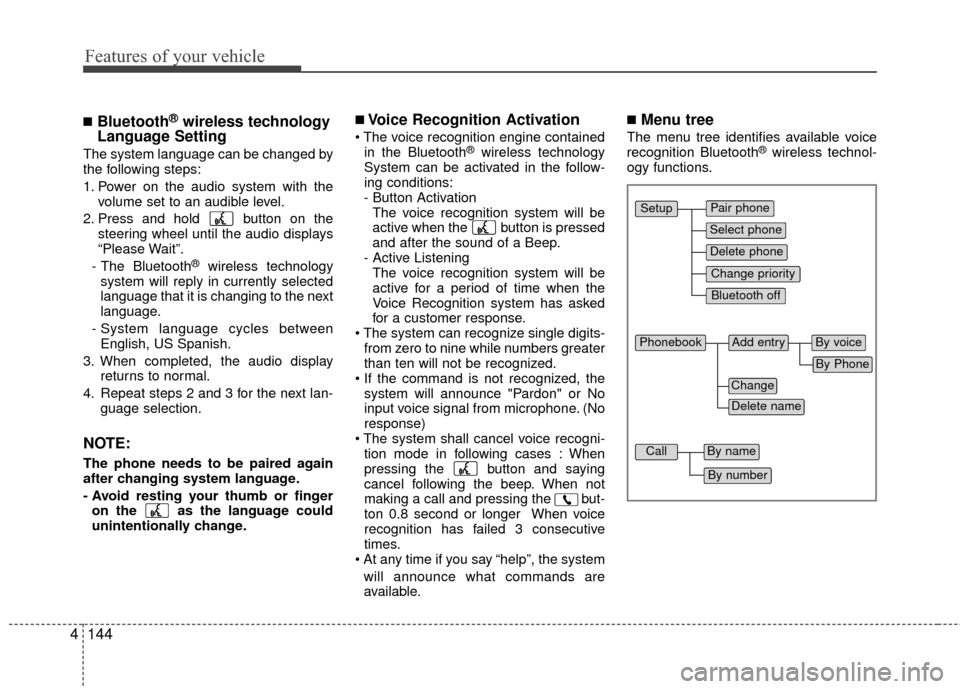
■Menu tree
The menu tree identifies available voice
recognition Bluetooth®wireless technol-
ogy functions.
Pair phone
Select phone
Change priority
Delete phone
Bluetooth off
Setup
Add entryPhonebook
Change
Delete name
By Phone
By voice
CallBy name
By number
Page 224 of 391
4147
Features of your vehicle
6. By manual operation:- Select “PRIORITY” in PHONE menu,then select desired phone from the
list.
Bluetooth
®wireless tech-
nology Volume
Bluetooth
®wireless technology system
volume can be adjusted separately from
main volume of the audio system.
Volume control is available by manual
operation only.
Select “BT Volume” in BLUETOOTH
menu, adjust volume to desired level by
rotating the TUNE/SETUP knob, then
press the knob to confirm.
®wireless technol-
ogy ON/OFF
Bluetooth
®wireless technology system
can be enabled (ON) or disabled (OFF)
by this menu.
- If Bluetooth®wireless technology is dis-
abled, all the commands related to
Bluetooth
®wireless technology system
prompts whether you wish to turn
Bluetooth
®wireless technology ON or
not.
1. Press button.
2. Say “Set Up”
3. Say “Bluetooth Off ” after prompt.
4. Say “Yes” to confirm.
5. By manual operation:
- Select “BT Off ” in PHONE menu, thenafter announcement, say “YES” to
confirm.
■Phone Book (In-Vehicle)
Phone numbers and voice tags can be
registered. Entries registered in the
phone can also be transferred.
1. Press button.
2. Say "Phonebook".
- The system replies with all availablecommands.
- To skip the information message, press again and then a beep is heard.
3. Say "Add Entry".
4. Say "By Voice" to proceed.
5. Say the name of the entry when prompted.
6. Say “Yes”to confirm.
7. Say the phone number of that entry when prompted. 8. Say “Store” if phone number input is
finished.
9. Say a phone number type. “Home”, “Work”, “Mobile”, “Other” or “Default” is
available.
10. Say “Yes” to complete adding entry.
11. Say “Yes” to store additional location for this contact, or say “Cancel” to fin-
ish the process.✽ ✽NOTICE
• The system can recognize single digits
from zero to nine. Numbers that are
ten or greater cannot be recognized.
• You can enter each digit individually or group digits together in preferred
string lengths.
• To speed up input, it is a good idea to group all digits into a continuous
string.
• Recommend to enter the numbers con- stituted an grouping within all digit
numbers to dial 995 / 734 / 0000
• The display corresponding to each operation appears on the screen as fol-
lows:
• Input operation example: 1. Say: “Nine, nine, five”
➟Display: “995”
2. And say: “Seven, three, four”
➟Display: “995734”