reset HYUNDAI GENESIS G80 2013 User Guide
[x] Cancel search | Manufacturer: HYUNDAI, Model Year: 2013, Model line: GENESIS G80, Model: HYUNDAI GENESIS G80 2013Pages: 432, PDF Size: 29.24 MB
Page 188 of 432
4109
Features of your vehicle
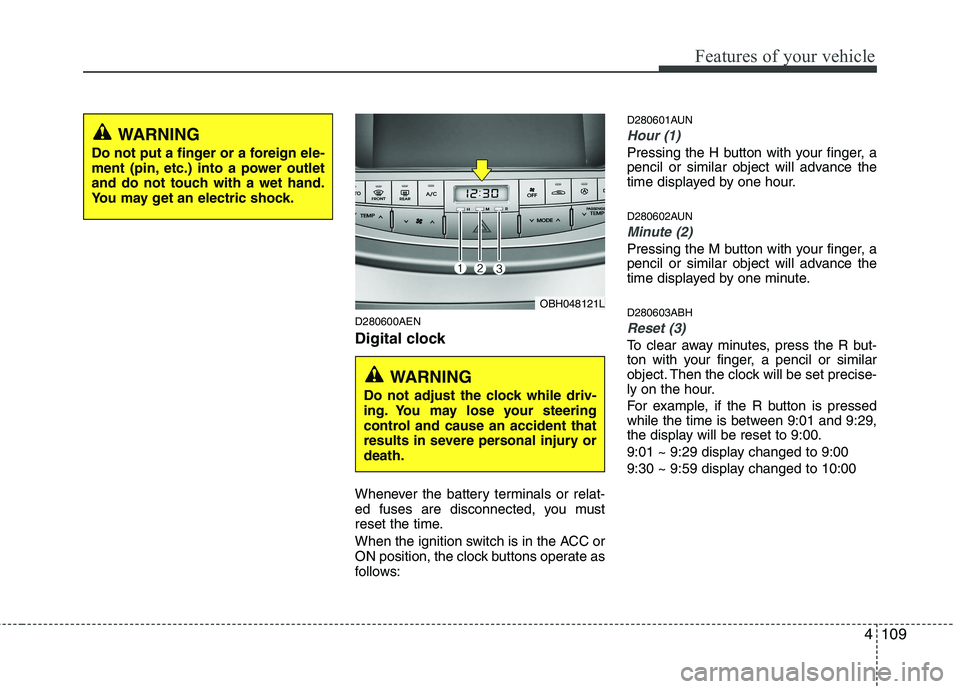
D280600AEN
Digital clock
Whenever the battery terminals or relat-
ed fuses are disconnected, you must
reset the time.
When the ignition switch is in the ACC or
ON position, the clock buttons operate as
follows:
D280601AUN
Hour (1)
Pressing the H button with your finger, a
pencil or similar object will advance the
time displayed by one hour.
D280602AUN
Minute (2)
Pressing the M button with your finger, a
pencil or similar object will advance the
time displayed by one minute.
D280603ABH
Reset (3)
To clear away minutes, press the R but-
ton with your finger, a pencil or similar
object. Then the clock will be set precise-
ly on the hour.
For example, if the R button is pressed
while the time is between 9:01 and 9:29,
the display will be reset to 9:00.
9:01 ~ 9:29 display changed to 9:00
9:30 ~ 9:59 display changed to 10:00
WARNING
Do not put a finger or a foreign ele-
ment (pin, etc.) into a power outlet
and do not touch with a wet hand.
You may get an electric shock.
OBH048121L
WARNING
Do not adjust the clock while driv-
ing. You may lose your steering
control and cause an accident that
results in severe personal injury or
death.
Page 189 of 432
Features of your vehicle
110 4
D280604AEN
Display conversion
To change the 12 hour format to the 24
hour format, press the R button until the
display blinks.
For example, if the R button is pressed
while the time is 10:15 p.m., the display
will be changed to 22:15.
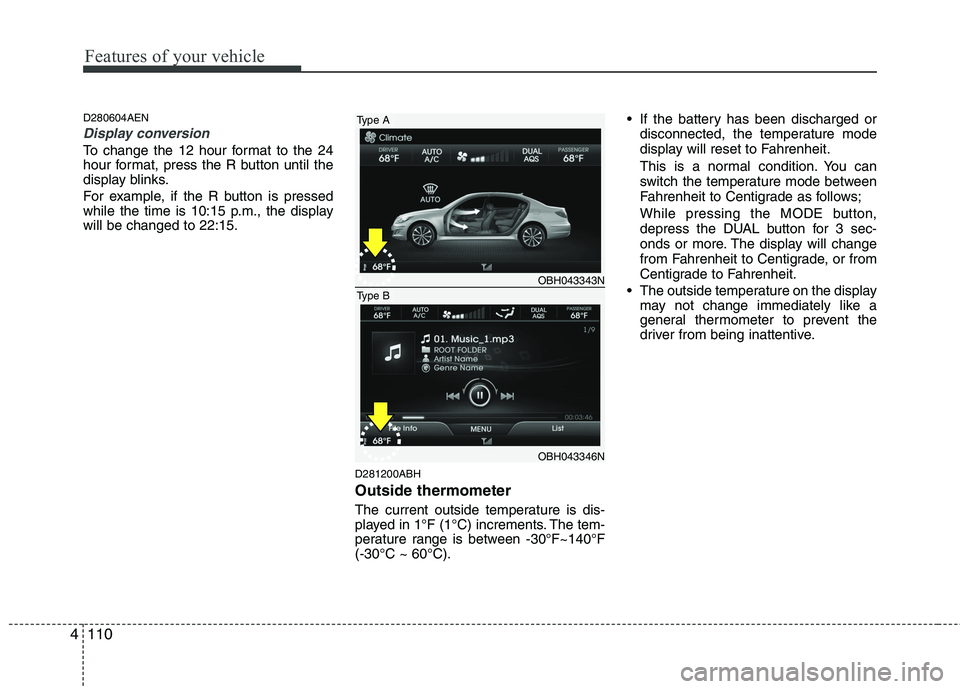
D281200ABH
Outside thermometer
The current outside temperature is dis-
played in 1°F (1°C) increments. The tem-
perature range is between -30°F~140°F
(-30°C ~ 60°C). If the battery has been discharged or
disconnected, the temperature mode
display will reset to Fahrenheit.
This is a normal condition. You can
switch the temperature mode between
Fahrenheit to Centigrade as follows;
While pressing the MODE button,
depress the DUAL button for 3 sec-
onds or more. The display will change
from Fahrenheit to Centigrade, or from
Centigrade to Fahrenheit.
The outside temperature on the display
may not change immediately like a
general thermometer to prevent the
driver from being inattentive.
OBH043343N
OBH043346N
Type A
Type B
Page 195 of 432
Features of your vehicle
116 4
D300204ABH
VOLUME ( / ) (1)
Press the up button ( ) to increase
volume.
Press the down button ( ) to
decrease volume.
D300203AEN
SEEK/PRESET ( / ) (2)
If the SEEK/PRESET button is pressed
for 0.8 second or more, it will work as fol-
lows in each mode.
RADIO mode
It will function as the AUTO SEEK select
button. It will SEEK until you release the
button.
CD player mode
It will function as the FF/REW button.
CD changer mode
It will function as the DISC UP/DOWN
button.
If the SEEK/PRESET button is pressed
for less than 0.8 second, it will work as
follows in each mode.RADIO mode
It will function as the PRESET STATION
select buttons.
CD player mode
It will function as the TRACK UP/DOWN
button.
CD changer mode
It will function as the TRACK UP/DOWN
button.
Detailed information for audio control
buttons is included in the following pages
in this section.
D300205ABH
MODE (3)
Press the MODE button to select Radio,
CD (Compact Disc) or CDC (Compact
Disc Changer, if equipped).
D300205AEN
MUTE (4) (if equipped)
Press the MUTE button to cancel the
sound.
Press the MUTE button again to acti-
vate the sound.
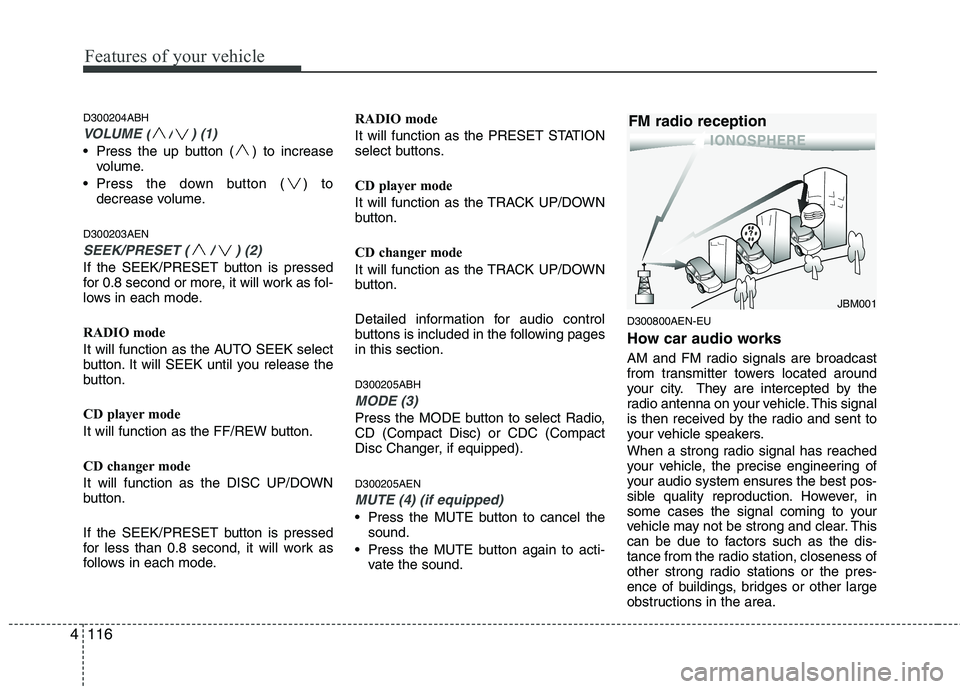
D300800AEN-EU
How car audio works
AM and FM radio signals are broadcast
from transmitter towers located around
your city. They are intercepted by the
radio antenna on your vehicle. This signal
is then received by the radio and sent to
your vehicle speakers.
When a strong radio signal has reached
your vehicle, the precise engineering of
your audio system ensures the best pos-
sible quality reproduction. However, in
some cases the signal coming to your
vehicle may not be strong and clear. This
can be due to factors such as the dis-
tance from the radio station, closeness of
other strong radio stations or the pres-
ence of buildings, bridges or other large
obstructions in the area.
¢¢¢
JBM001
FM radio reception
Page 199 of 432
Features of your vehicle
120 4
BH_PA710BH_RADIO
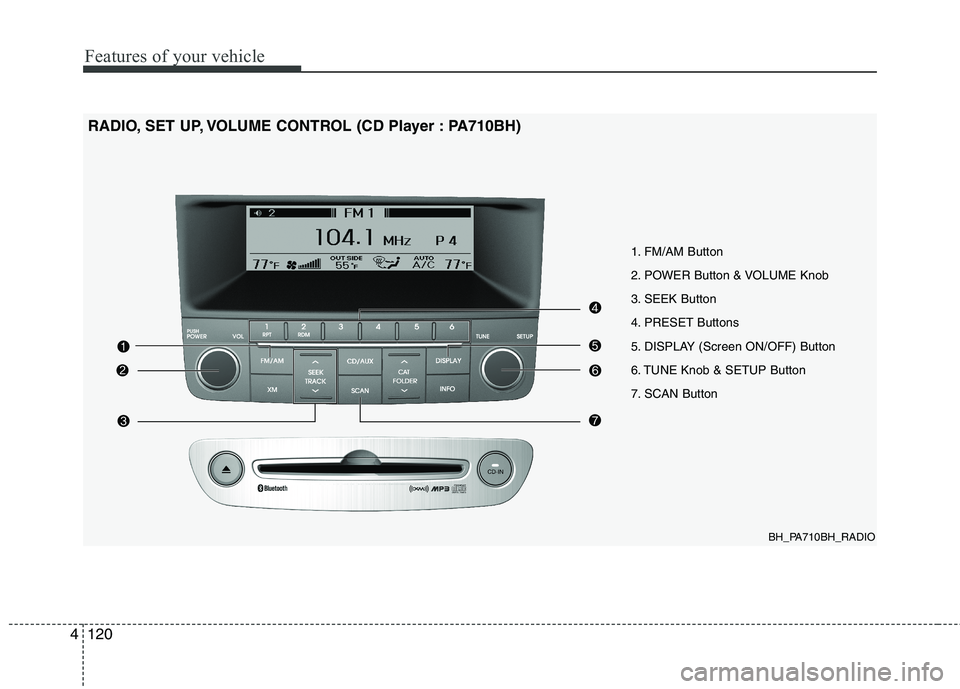
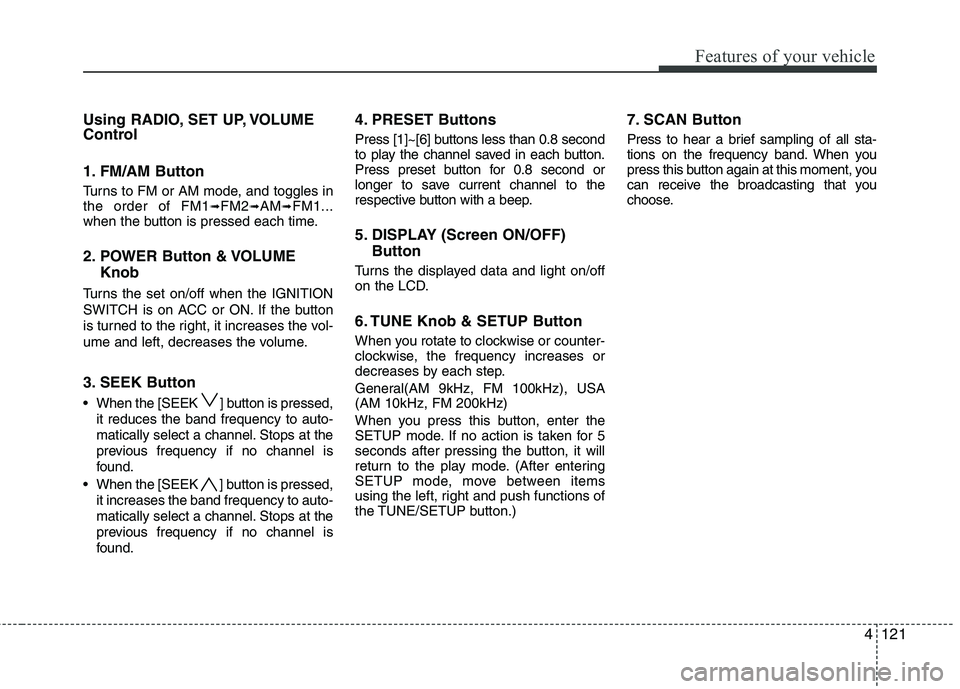
1. FM/AM Button
2. POWER Button & VOLUME Knob
3. SEEK Button
4. PRESET Buttons
5. DISPLAY (Screen ON/OFF) Button
6. TUNE Knob & SETUP Button
7. SCAN Button
RADIO, SET UP, VOLUME CONTROL (CD Player : PA710BH)
Page 200 of 432
4121
Features of your vehicle
Using RADIO, SET UP, VOLUME
Control
1. FM/AM Button
Turns to FM or AM mode, and toggles in
the order of FM1➟FM2➟AM➟FM1...
when the button is pressed each time.
2. POWER Button & VOLUME
Knob
Turns the set on/off when the IGNITION
SWITCH is on ACC or ON. If the button
is turned to the right, it increases the vol-
ume and left, decreases the volume.
3. SEEK Button
When the [SEEK ] button is pressed,
it reduces the band frequency to auto-
matically select a channel. Stops at the
previous frequency if no channel is
found.
When the [SEEK ] button is pressed,
it increases the band frequency to auto-
matically select a channel. Stops at the
previous frequency if no channel is
found.
4. PRESET Buttons
Press [1]~[6] buttons less than 0.8 second
to play the channel saved in each button.
Press preset button for 0.8 second or
longer to save current channel to the
respective button with a beep.
5. DISPLAY (Screen ON/OFF)
Button
Turns the displayed data and light on/off
on the LCD.
6. TUNE Knob & SETUP Button
When you rotate to clockwise or counter-
clockwise, the frequency increases or
decreases by each step.
General(AM 9kHz, FM 100kHz), USA
(AM 10kHz, FM 200kHz)
When you press this button, enter the
SETUP mode. If no action is taken for 5
seconds after pressing the button, it will
return to the play mode. (After entering
SETUP mode, move between items
using the left, right and push functions of
the TUNE/SETUP button.)
7. SCAN Button
Press to hear a brief sampling of all sta-
tions on the frequency band. When you
press this button again at this moment, you
can receive the broadcasting that you
choose.
Page 209 of 432
Features of your vehicle
130 4
✽
✽
NOTICE FOR USING THE
iPod®DEVICE
• Some iPod®models might not sup-
port the communication protocol
and the files will not be played.
Supported iPod
®models:
- iPod®Mini
- iPod®4th(Photo) ~ 6th(Classic)
generation
- iPod
®Nano 1st~4th generation
- iPod®Touch 1st~2nd generation
• The order of search or playback of
songs in the iPod
®can be different
from the order searched in the
audio system.
• If the iPod
®disabled due to its own
malfunction, reset the iPod®.
(Reset: Refer to iPod®manual)
• An iPod®may not operate normally
on low battery.
• Some iPod
®devices, such as the
iPhone, can be connected through the
Bluetooth
®Wireless Technology inter-
face. The device must have audio
Bluetooth
®Wireless Technology capa-
bility (such as for stereo headphone
Bluetooth
® Wireless Technology). The
device can play, but it will not be con-
trolled by the audio system.
CAUTION IN USING THE
iPod®DEVICE
The HYUNDAI iPod®Power Cable
is needed in order to operate
iPod
®with the audio buttons on
the audio system. The USB cable
provided by Apple may cause
malfunction and should not be
used for HYUNDAI vehicles.
❋ The HYUNDAI iPod®Power Cable
may be purchased through your
HYUNDAI Dealership.
When connecting iPod
®with the
iPod®Power Cable, insert the con-
nector to the multimedia socket
completely. If not inserted com-
pletely, communications between
iPod
®and audio may be interrupted.
When adjusting the sound effects of
the iPod
®and the audio system, the
sound effects of both devices will
overlap and might reduce or distort
the quality of the sound.
Deactivate (turn off) the equalizer
function of an iPod
®when adjust-
ing the audio system’s volume,
and turn off the equalizer of the
audio system when using the
equalizer of an iPod
®.
(Continued)
(Continued)
When the iPod®cable is connected,
the system can be switched to AUX
mode even without iPod
®device
and may cause noise.Disconnect
the iPod
®cable when you are not
using the iPod®device.
When not using iPod®with car
audio, detach the iPod®cable from
iPod®. Otherwise, iPod®may
remain in accessory mode, and
may not work properly.
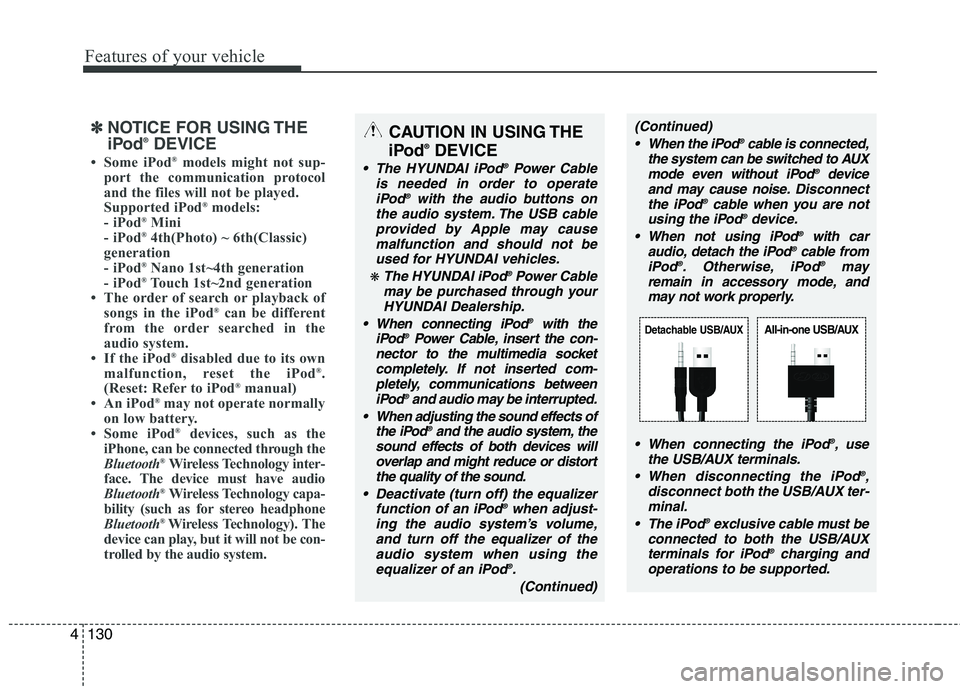
When connecting the iPod
®, use
the USB/AUX terminals.
When disconnecting the iPod
®,
disconnect both the USB/AUX ter-
minal.
The iPod
®exclusive cable must be
connected to both the USB/AUX
terminals for iPod
®charging and
operations to be supported.
Detachable USB/AUXAll-in-one USB/AUX
Page 210 of 432
4131
Features of your vehicle
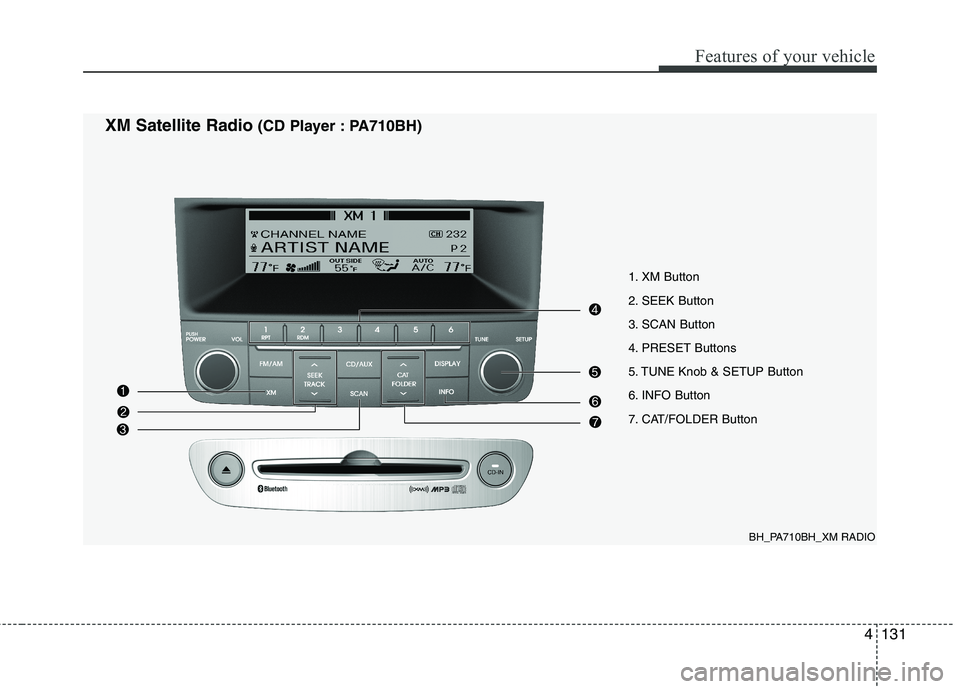
1. XM Button
2. SEEK Button
3. SCAN Button
4. PRESET Buttons
5. TUNE Knob & SETUP Button
6. INFO Button
7. CAT/FOLDER Button
BH_PA710BH_XM RADIO
XM Satellite Radio(CD Player : PA710BH)
Page 211 of 432
Features of your vehicle
132 4
Using XM Satellite Radio
1. XM Button
Turns to XM Satellite Radio Mode.
XM mode toggles in order to XM1
➟XM2➟XM3➟XM1... when the button is pressed
each time.
2. SEEK Button
] button for less
than 0.8 second to select previous
channel.
] button for 0.8 sec-
ond or longer to continuously move to
previous channel.
] button for less
than 0.8 second to select next channel.
] button for 0.8 sec-
ond or longer to continuously move to
next channel.
Seek or Tune to XM channel
0 to display the Radio ID.
3. SCAN Button
Press to hear a brief sampling of all
channels. To cancel the scan mode,
press the button once again.
4. PRESET Buttons
Push [1]~[6] buttons less than 0.8 sec-
ond to play the channel saved in each
button. Push pre-set button for 0.8 sec-
ond or longer to save the current channel
to the respective button with a beep.
5. TUNE Knob & SETUP Button
Turn this button clockwise to display
channels after.
Also, turn this button counterclockwise to
display channels before current channel.
XM setup mode : It will be able to change
the XM display. (ex, Display by category/
channel or artist/song title.)
6. INFO Button
Displays the information of the current
channel in the order of Artist/Song title➟Category/Channel name➟Current Play
Channel➟Artist/Song title➟Category/Cha-
nnel name... when the button is pressed
each time.
If the complete text information is not dis-
played, rotate the tune button to see the
next page.
7. CAT/FOLDER Button
Press [CAT ] button to search previ-
ous category.
Press [CAT ] button to search next
category.
To listen to the displayed category, press
the TUNE/SETUP button.
To scan channel in displayed category,
press the scan button.
To search channel in displayed category,
press seek buttons or turn the tune but-
ton clockwise/counterclockwise.
(CATEGORY icon will be turned on in
Category mode)
Page 212 of 432
4133
Features of your vehicle
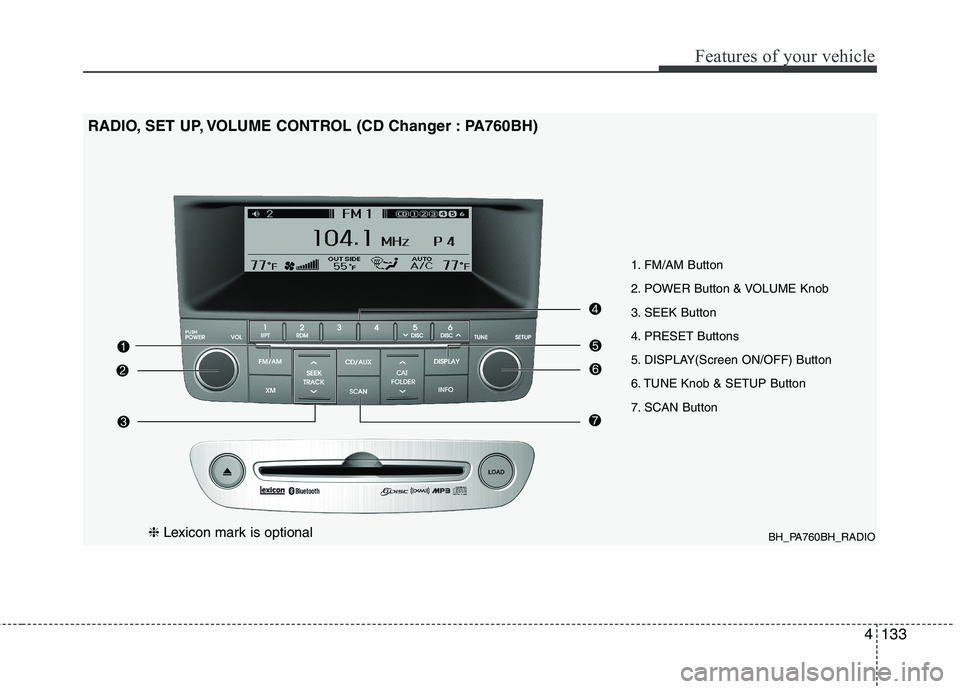
BH_PA760BH_RADIO
1. FM/AM Button
2. POWER Button & VOLUME Knob
3. SEEK Button
4. PRESET Buttons
5. DISPLAY(Screen ON/OFF) Button
6. TUNE Knob & SETUP Button
7. SCAN Button
RADIO, SET UP, VOLUME CONTROL (CD Changer : PA760BH)
❈Lexicon mark is optional
Page 213 of 432
Features of your vehicle
134 4
Using RADIO, SET UP, VOLUME
Control
1. FM/AM Button
Turns to FM or AM mode, and toggles in
the order of FM1➟FM2➟AM➟FM1...
when the button is pressed each time.
2. POWER Button & VOLUME
Knob
Turns the set on/off when the IGNITION
SWITCH is on ACC or ON. If the button
is turned to the right, it increases the vol-
ume and left, decreases the volume.
3. SEEK Button
When the [SEEK ] button is pressed,
it reduces the band frequency to auto-
matically select a channel. Stops at the
previous frequency if no channel is
found.
When the [SEEK ] button is pressed,
it increases the band frequency to auto-
matically select a channel. Stops at the
previous frequency if no channel is
found.
4. PRESET Buttons
Push [1]~[6] buttons less than 0.8 second
to play the channel saved in each button.
Push pre-set button for 0.8 second or
longer to save the current channel to the
respective button with a beep.
5. DISPLAY(Screen ON/OFF)
Button
Turns on/off the displayed data and light
on the LCD.
6. TUNE Knob & SETUP Button
When you rotate to clockwise or counter-
clockwise, the frequency increases or
decreases by each step.
General(AM 9kHz, FM 100kHz), USA
(AM 10kHz, FM 200kHz)
When you press this button, enter the
SETUP mode. If no action is taken for 5
seconds after pressing the button, it will
return to the play mode. (After entering
SETUP mode, move between items
using the left, right and push functions of
the TUNE/SETUP button.)
❇ SURROUND is only Lexicon model.
7. SCAN Button
Press to hear a brief sampling of all sta-
tions on the frequency band. When you
press this button again at this moment, you
can receive the broadcasting that you
choose.