change time HYUNDAI GENESIS G80 2015 User Guide
[x] Cancel search | Manufacturer: HYUNDAI, Model Year: 2015, Model line: GENESIS G80, Model: HYUNDAI GENESIS G80 2015Pages: 432, PDF Size: 29.24 MB
Page 159 of 432
Features of your vehicle
80 4
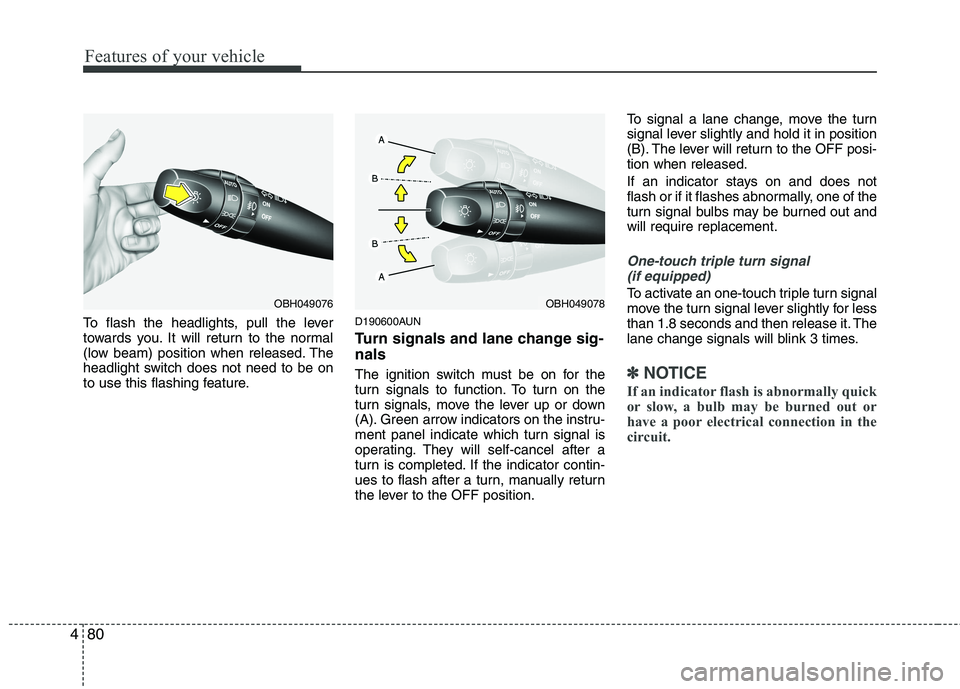
To flash the headlights, pull the lever
towards you. It will return to the normal
(low beam) position when released. The
headlight switch does not need to be on
to use this flashing feature.D190600AUN
Turn signals and lane change sig-
nals
The ignition switch must be on for the
turn signals to function. To turn on the
turn signals, move the lever up or down
(A). Green arrow indicators on the instru-
ment panel indicate which turn signal is
operating. They will self-cancel after a
turn is completed. If the indicator contin-
ues to flash after a turn, manually return
the lever to the OFF position.To signal a lane change, move the turn
signal lever slightly and hold it in position
(B). The lever will return to the OFF posi-
tion when released.
If an indicator stays on and does not
flash or if it flashes abnormally, one of the
turn signal bulbs may be burned out and
will require replacement.
One-touch triple turn signal
(if equipped)
To activate an one-touch triple turn signal
move the turn signal lever slightly for less
than 1.8 seconds and then release it. The
lane change signals will blink 3 times.
✽ ✽
NOTICE
If an indicator flash is abnormally quick
or slow, a bulb may be burned out or
have a poor electrical connection in the
circuit.
OBH049078OBH049076
Page 177 of 432
Features of your vehicle
98 4
D230503AEN
Air conditioning
HYUNDAI Air Conditioning Systems are
filled with environmentally friendly
R-134a refrigerant.
1. Start the engine. Push the air condi-
tioning button.
2. Set the mode to the position.
3. Set the air intake control to the outside
air or recirculated air position.
4. Adjust the fan speed control and tem-
perature control to maintain maximum
comfort.
✽ ✽
NOTICE
• When using the air conditioning sys-
tem, monitor the engine temperature
gauge closely while driving up hills or
in heavy traffic when outside temper-
atures are high. Air conditioning sys-
tem operation may cause engine over-
heating. Continue to use the blower
fan but turn the air conditioning sys-
tem off if the engine temperature
gauge indicates engine overheating.
• When opening the windows in humid
weather air conditioning may create
water droplets inside the vehicle.
Since excessive water droplets may
cause damage to electrical equipment,
air conditioning should only be oper-
ated with the windows closed.
Air conditioning system operation tips
If the vehicle has been parked in direct
sunlight during hot weather, open the
windows for a short time to let the hot
air inside the vehicle escape.
To help reduce moisture inside of the
windows on rainy or humid days,
decrease the humidity inside the vehi-
cle by operating the air conditioning
system.
During air conditioning system opera-
tion, you may occasionally notice a
slight change in engine speed as the
air conditioning compressor cycles.
This is a normal system operation
characteristic.
Use the air conditioning system every
month only for a few minutes to ensure
maximum system performance.
Page 178 of 432
499
Features of your vehicle
When using the air conditioning sys-
tem, you may notice clear water drip-
ping (or even puddling) on the ground
under the passenger side of the vehi-
cle. This is a normal system operation
characteristic.
Operating the air conditioning system
in the recirculated air position provides
maximum cooling, however, continual
operation in this mode may cause the
air inside the vehicle to become stale.
After sufficient cooling has been
achieved, switch back from the recircu-
lated air to the fresh outside air posi-
tion.
During cooling operation, you may
occasionally notice a misty air flow
because of rapid cooling and humid air
intake. This is a normal system opera-
tion characteristic.
D230300AEN
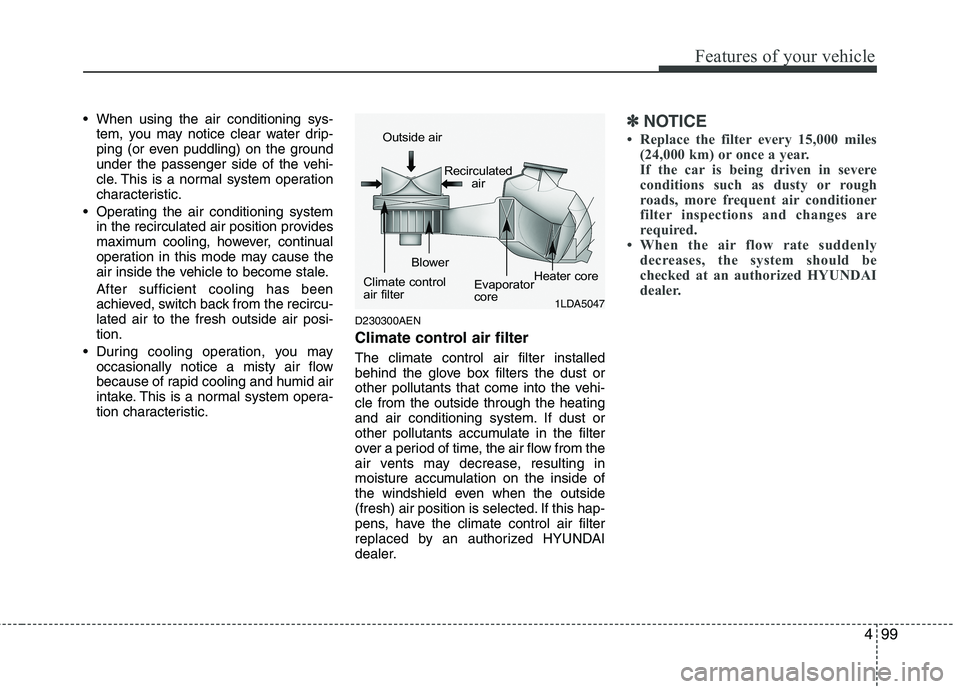
Climate control air filter
The climate control air filter installed
behind the glove box filters the dust or
other pollutants that come into the vehi-
cle from the outside through the heating
and air conditioning system. If dust or
other pollutants accumulate in the filter
over a period of time, the air flow from the
air vents may decrease, resulting in
moisture accumulation on the inside of
the windshield even when the outside
(fresh) air position is selected. If this hap-
pens, have the climate control air filter
replaced by an authorized HYUNDAI
dealer.
✽ ✽
NOTICE
• Replace the filter every 15,000 miles
(24,000 km) or once a year.
If the car is being driven in severe
conditions such as dusty or rough
roads, more frequent air conditioner
filter inspections and changes are
required.
• When the air flow rate suddenly
decreases, the system should be
checked at an authorized HYUNDAI
dealer.
1LDA5047
Outside air
Recirculated
air
Climate control
air filterBlower
Evaporator
coreHeater core
Page 188 of 432
4109
Features of your vehicle
D280600AEN
Digital clock
Whenever the battery terminals or relat-
ed fuses are disconnected, you must
reset the time.
When the ignition switch is in the ACC or
ON position, the clock buttons operate as
follows:
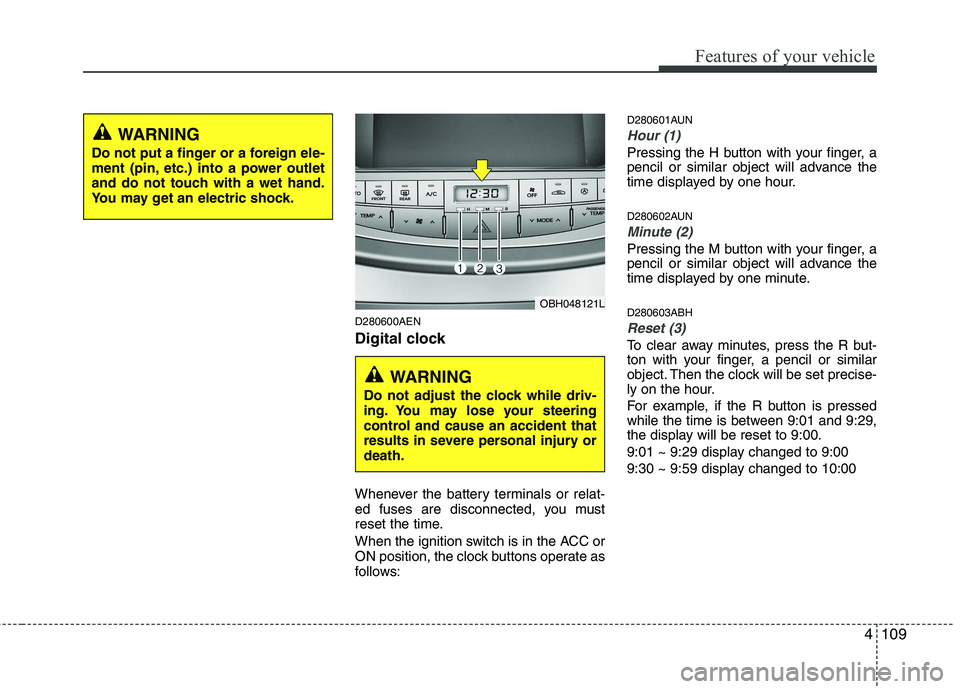
D280601AUN
Hour (1)
Pressing the H button with your finger, a
pencil or similar object will advance the
time displayed by one hour.
D280602AUN
Minute (2)
Pressing the M button with your finger, a
pencil or similar object will advance the
time displayed by one minute.
D280603ABH
Reset (3)
To clear away minutes, press the R but-
ton with your finger, a pencil or similar
object. Then the clock will be set precise-
ly on the hour.
For example, if the R button is pressed
while the time is between 9:01 and 9:29,
the display will be reset to 9:00.
9:01 ~ 9:29 display changed to 9:00
9:30 ~ 9:59 display changed to 10:00
WARNING
Do not put a finger or a foreign ele-
ment (pin, etc.) into a power outlet
and do not touch with a wet hand.
You may get an electric shock.
OBH048121L
WARNING
Do not adjust the clock while driv-
ing. You may lose your steering
control and cause an accident that
results in severe personal injury or
death.
Page 189 of 432
Features of your vehicle
110 4
D280604AEN
Display conversion
To change the 12 hour format to the 24
hour format, press the R button until the
display blinks.
For example, if the R button is pressed
while the time is 10:15 p.m., the display
will be changed to 22:15.
D281200ABH
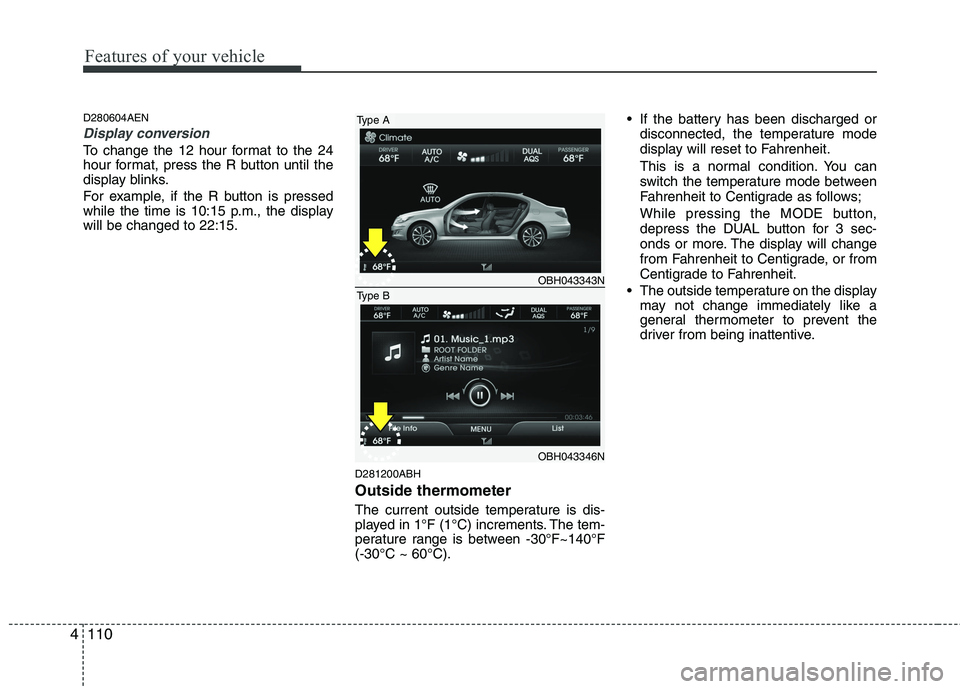
Outside thermometer
The current outside temperature is dis-
played in 1°F (1°C) increments. The tem-
perature range is between -30°F~140°F
(-30°C ~ 60°C). If the battery has been discharged or
disconnected, the temperature mode
display will reset to Fahrenheit.
This is a normal condition. You can
switch the temperature mode between
Fahrenheit to Centigrade as follows;
While pressing the MODE button,
depress the DUAL button for 3 sec-
onds or more. The display will change
from Fahrenheit to Centigrade, or from
Centigrade to Fahrenheit.
The outside temperature on the display
may not change immediately like a
general thermometer to prevent the
driver from being inattentive.
OBH043343N
OBH043346N
Type A
Type B
Page 211 of 432
Features of your vehicle
132 4
Using XM Satellite Radio
1. XM Button
Turns to XM Satellite Radio Mode.
XM mode toggles in order to XM1
➟XM2➟XM3➟XM1... when the button is pressed
each time.
2. SEEK Button
] button for less
than 0.8 second to select previous
channel.
] button for 0.8 sec-
ond or longer to continuously move to
previous channel.
] button for less
than 0.8 second to select next channel.
] button for 0.8 sec-
ond or longer to continuously move to
next channel.
Seek or Tune to XM channel
0 to display the Radio ID.
3. SCAN Button
Press to hear a brief sampling of all
channels. To cancel the scan mode,
press the button once again.
4. PRESET Buttons
Push [1]~[6] buttons less than 0.8 sec-
ond to play the channel saved in each
button. Push pre-set button for 0.8 sec-
ond or longer to save the current channel
to the respective button with a beep.
5. TUNE Knob & SETUP Button
Turn this button clockwise to display
channels after.
Also, turn this button counterclockwise to
display channels before current channel.
XM setup mode : It will be able to change
the XM display. (ex, Display by category/
channel or artist/song title.)
6. INFO Button
Displays the information of the current
channel in the order of Artist/Song title➟Category/Channel name➟Current Play
Channel➟Artist/Song title➟Category/Cha-
nnel name... when the button is pressed
each time.
If the complete text information is not dis-
played, rotate the tune button to see the
next page.
7. CAT/FOLDER Button
Press [CAT ] button to search previ-
ous category.
Press [CAT ] button to search next
category.
To listen to the displayed category, press
the TUNE/SETUP button.
To scan channel in displayed category,
press the scan button.
To search channel in displayed category,
press seek buttons or turn the tune but-
ton clockwise/counterclockwise.
(CATEGORY icon will be turned on in
Category mode)
Page 225 of 432
Features of your vehicle
146 4
Using XM Satellite Radio
1. XM Button
Turns to XM Satellite Radio Mode.
XM mode toggles in order to XM1
➟XM2➟XM3➟XM1... when the button is pressed
each time.
2. SEEK Button
] button for less
than 0.8 second to select previous
channel.
[SEEK ] button for 0.8 sec-
ond or longer to continuously move to
previous channel.
] button for less
than 0.8 second to select next channel.
] button for 0.8 sec-
ond or longer to continuously move to
next channel.
Seek or Tune to XM channel
0 to display the Radio ID.
3. SCAN Button
Press to hear a brief sampling of all
channels. To cancel the scan mode,
press the button once again.
4. PRESET Buttons
Push [1]~[6] buttons less than 0.8 sec-
ond to play the channel saved in each
button. Push pre-set button for 0.8 sec-
ond or longer to save the current channel
to the respective button with a beep.
5. TUNE Knob & SETUP Button
Turn this button clockwise to display
channels after.
Also, turn this button counterclockwise to
display channels before current channel.
XM setup mode : It will be able to change
the XM display. (ex, Display by category/
channel or artist/song title.)
6. INFO Button
Displays the information of the current
channel in the order of Artist/Song title➟Category/Channel name➟Current Play
Channel➟Artist/Song title➟Category/Cha-
nnel name... when the button is pressed
each time.
If the complete text information is not dis-
played, rotate the tune button to see the
next page.
7. CAT/FOLDER Button
Press [CAT ] button to search previ-
ous category.
Press [CAT ] button to search next
category.
To listen to the displayed category, press
the TUNE/SETUP button.
To scan channel in displayed category,
press the scan button.
To search channel in displayed category,
press seek buttons or turn the tune but-
ton clockwise/counterclockwise.
(CATEGORY icon will be turned on in
Category mode)
Page 230 of 432
4151
Features of your vehicle
BLUETOOTH®WIRELESS TECHNOLO-
GY PHONE OPERATION
(IF EQUIPPED)
■What is Bluetooth®Wireless
Technology?
Bluetooth®Wireless Technology allows
multiple short range, low-powered
devices like hands-free, stereo headset,
wireless remote control, etc. to be con-
nected. For more information, visit
theBluetooth®Wireless Technology website
at www.Bluetooth.com.
■ General Feature
Bluetooth®
Wireless Technology hands-free and
stereo-headset features.
- HANDS-FREE feature: Making or
receiving calls wirelessly through
voice recognition.
- STEREO-HEADSET feature: Playing
music from cellular phones (that sup-
ports A2DP feature) wirelessly.
Bluetooth®Wireless Technology system
supports 3 types of languages:
- English
- Canadian French
- US Spanish
✽ ✽
NOTICE
• The phone must be paired to the sys-
tem before using Bluetooth®Wireless
Technology features.
• Only one selected(linked) cellular
phone can be used with the system at
a time.
• Some phones are not fully compatible
with this system.
■Bluetooth®Wireless Technology
Language Setting
The system language can be changed by
the following steps:
1. Power on the audio system with the
volume set to an audible level.
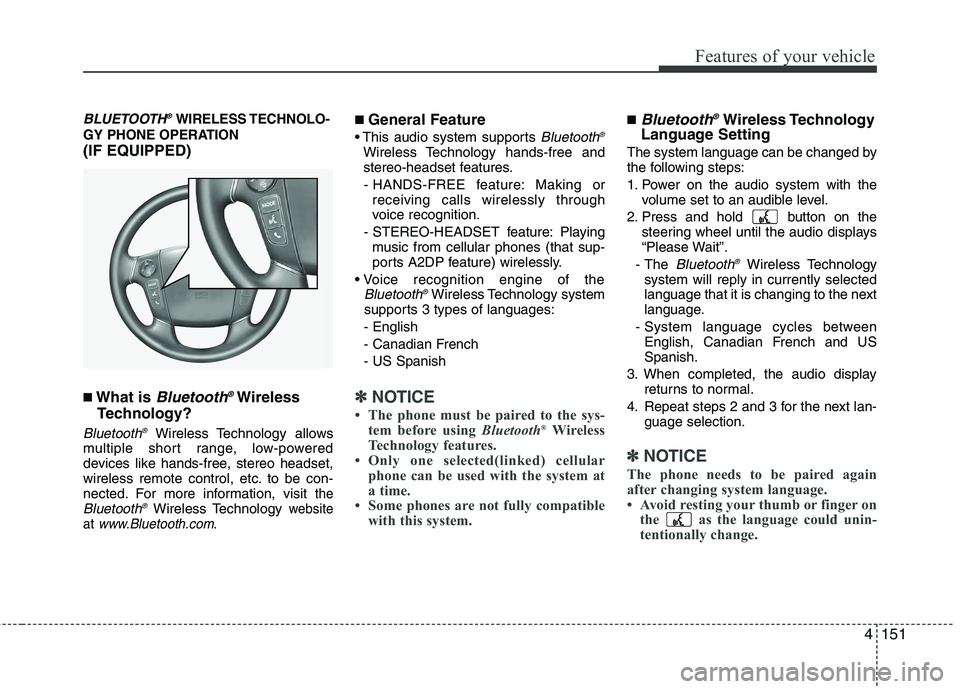
2. Press and hold button on the
steering wheel until the audio displays
“Please Wait”.
- The
Bluetooth®Wireless Technology
system will reply in currently selected
language that it is changing to the next
language.
- System language cycles between
English, Canadian French and US
Spanish.
3. When completed, the audio display
returns to normal.
4. Repeat steps 2 and 3 for the next lan-
guage selection.
✽ ✽
NOTICE
The phone needs to be paired again
after changing system language.
• Avoid resting your thumb or finger on
the as the language could unin-
tentionally change.
Page 231 of 432
Features of your vehicle
152 4
■Voice Recognition Activation
in the Bluetooth®Wireless Technology
System can be activated in the follow-
ing conditions:
- Button Activation
The voice recognition system will be
active when the button is pressed
and after the sound of a Beep.
- Active Listening
The voice recognition system will be
active for a period of time when the
Voice Recognition system has asked
for a customer response.
from zero to nine while numbers greater
than ten will not be recognized.
system will announce "PARDON" or No
input voice signal from microphone. (No
response)
tion mode in following cases : When
pressing the button and saying
"CANCEL" following the beep. When not
making a call and pressing the button
0.8 second or longer. When voice recog-
nition has failed 3 consecutive times.
will announce what commands are
available.
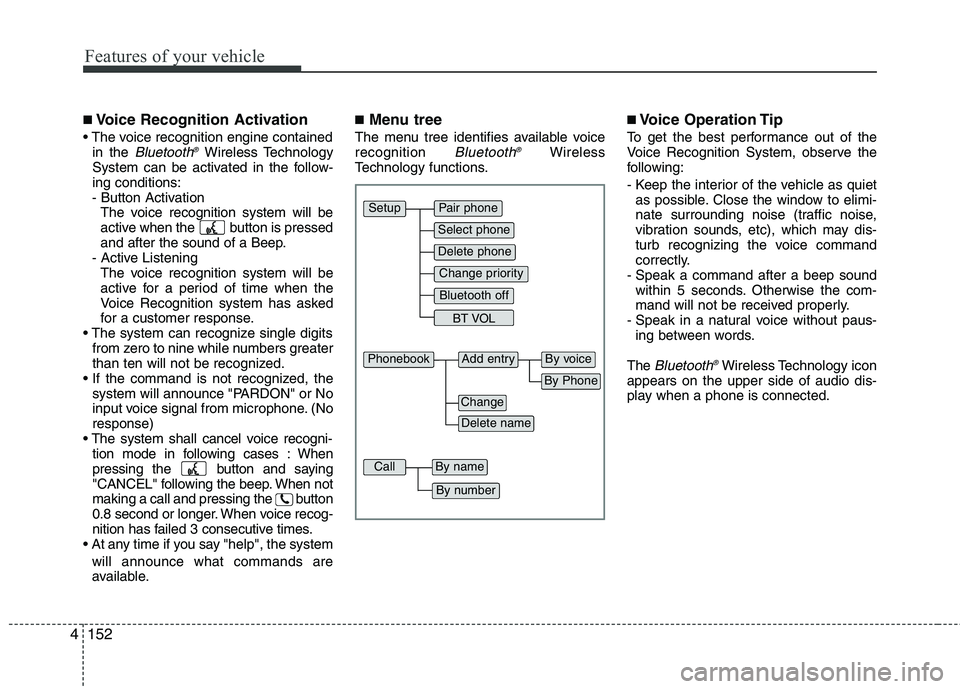
■Menu tree
The menu tree identifies available voice
recognition Bluetooth®Wireless
Technology functions.
■Voice Operation Tip
To get the best performance out of the
Voice Recognition System, observe the
following:
- Keep the interior of the vehicle as quiet
as possible. Close the window to elimi-
nate surrounding noise (traffic noise,
vibration sounds, etc), which may dis-
turb recognizing the voice command
correctly.
- Speak a command after a beep sound
within 5 seconds. Otherwise the com-
mand will not be received properly.
- Speak in a natural voice without paus-
ing between words.
The
Bluetooth®Wireless Technology icon
appears on the upper side of audio dis-
play when a phone is connected.
Pair phone
Select phone
Change priority
Delete phone
Bluetooth off
BT VOL
Setup
Add entryPhonebook
Change
Delete name
By Phone
By voice
CallBy name
By number
Page 237 of 432
Features of your vehicle
158 4
■Talking on the Phone
When talking on the phone, “Active Calls”
message and the other party’s phone
number (if available) are displayed on the
audio.
-
Press button for 0.8 second or longer
on the steering wheel.
✽ ✽
NOTICE
In the following situations, you or the
other party may have difficulty hearing
each other:
1. Speaking at the same time, your voice
may not reach the otherparties. (This
is not a malfunction.) Speak alter-
nately with the other party on the
phone.
2. Keep the Bluetooth
®Wireless
Technology volume to a low level.
High-level volume may result in dis-
tortion and echo.
3. When driving on a rough road.
4. When driving at high speeds.
5. When the window is open.
6. When the air conditioning vents are
facing the microphone.
7. When the sound of the air condition-
ing fan is loud.
■Using the head unit asBluetooth®Wireless Technology
music
The head unit supports A2DP (Audio
Advanced Distribution Profile) and
AVRCP(Audio Video Remote Control
Profile).
Both profiles are available for listening to
MP3 music via
Bluetooth®Wireless
Technology cellular phone supporting
above
Bluetooth®Wireless Technology
profiles.
To play MP3 music from the
Bluetooth®
Wireless Technology cellular phone,
press the [CD/AUX] button until “MP3
Play” is displayed on the LCD.
Then try playing music by phone.
When playing music from the
Bluetooth®
Wireless Technology cellular phone, the
head unit displays MP3 MODE.
✽ ✽
NOTICE
• Not only MP3 files, but all the sounds
that the phone supports can be heard
by the audio system.
•Bluetooth
®Wireless Technology cellu-
lar phones must feature A2DP and
AVRCP functions.
• Some A2DP and AVRCPBluetooth
®
Wireless Technology cellular phones
may not play music through the head
unit on the first try. Please try the
below;
i.e : Menu➟ ➟
Filemanager➟ ➟
Music➟ ➟
Option➟ ➟
Play via Bluetooth
• Please refer to User's Guide of your
phone for more detailed information.
• To stop music, try stop music by the
phone or change audio mode to
AM/FM/XM, CD, iPod
®, etc.