Display Hyundai Grand i10 2015 Owner's Guide
[x] Cancel search | Manufacturer: HYUNDAI, Model Year: 2015, Model line: Grand i10, Model: Hyundai Grand i10 2015Pages: 343, PDF Size: 29.47 MB
Page 175 of 343
4119
Features of your vehicle
Folder Search : MP3 CD, USB Mode
While file is playing (Folder
Up) key
Searches the next folder.
While file is playing (Folder
Down) key
❈ If a folder is selected by pressing the
TUNE knob, the first file within the
selected folder will be played.
Searching Songs (File)
Turning TUNE knob : Searches for songs (files)
Pressing TUNE knob : Plays select- ed song (file). MENU : Audio CD
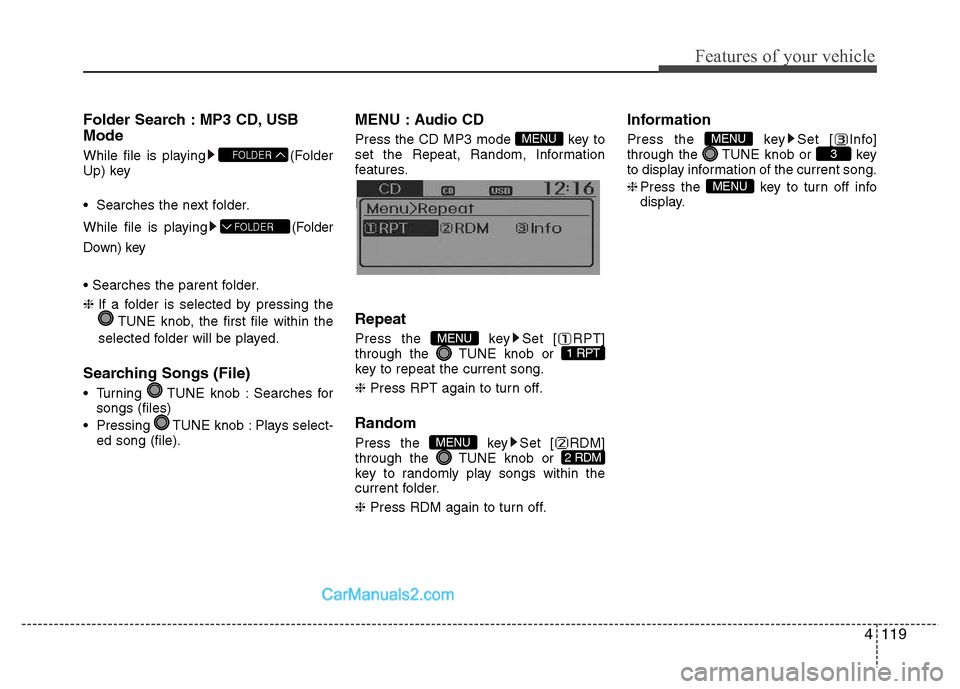
Press the CD MP3 mode key to
set the Repeat, Random, Information
features.
Information features. Repeat
Press the key Set [ RPT]
through the TUNE knob or
key to repeat the current song. ❈
Press RPT again to turn off.
Random
Press the key Set [ RDM]
through the TUNE knob or
key to randomly play songs within the
current folder. ❈ Press RDM again to turn off. Information
Press the key Set [ Info]
through the TUNE knob or key
to display information of the current song. ❈
Press the key to turn off info
display.
MENU
3MENU
2 RDMMENU
1 RPTMENU
MENU
FOLDER
FOLDER
Page 176 of 343
Features of your vehicle
120
4
MENU : MP3 CD / USB
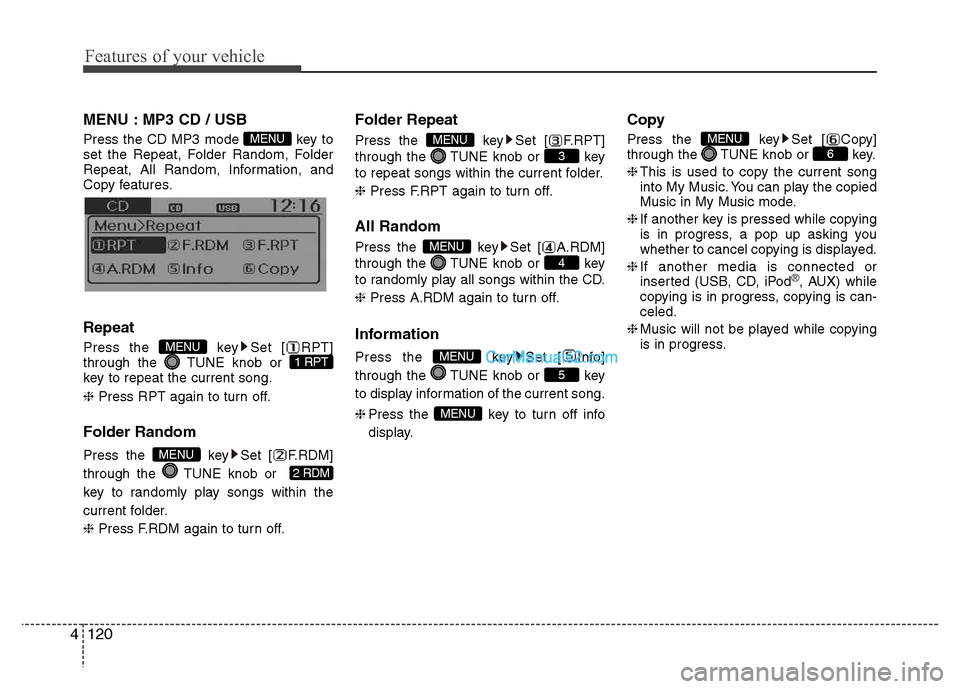
Press the CD MP3 mode key to
set the Repeat, Folder Random, Folder
Repeat, All Random, Information, and
Copy features.
Information, and Copy features. Repeat
Press the key Set [ RPT]
through the TUNE knob or
key to repeat the current song. ❈ Press RPT again to turn off.
Folder Random
Press the key Set [ F.RDM]
through the TUNE knob or
key to randomly play songs within the
current folder. ❈ Press F.RDM again to turn off. Folder Repeat
Press the key Set [ F.RPT]
through the TUNE knob or key
to repeat songs within the current folder. ❈
Press F.RPT again to turn off.
All Random
Press the key Set [ A.RDM]
through the TUNE knob or key
to randomly play all songs within the CD. ❈ Press A.RDM again to turn off.
Information
Press the key Set [ Info]
through the TUNE knob or key
to display information of the current song. ❈ Press the key to turn off info
display. Copy
Press the key Set [ Copy]
through the TUNE knob or key. ❈
This is used to copy the current song
into My Music. You can play the copied
Music in My Music mode.
❈ If another key is pressed while copying
is in progress, a pop up asking you
whether to cancel copying is displayed.
❈ If another media is connected or
inserted (USB, CD, iPod
®, AUX) while
copying is in progress, copying is can- celed.
❈ Music will not be played while copying
is in progress.
6MENU
MENU
5
MENU
4
MENU
3
MENU
2 RDM
MENU
1 RPTMENU
MENU
Page 177 of 343
![Hyundai Grand i10 2015 Owners Guide 4121
Features of your vehicle
MENU : iPod®
In iPod®mode, press the key to set
the Repeat, Random, Information and
Search features. Repeat
Press the key Set [ RPT]
through the TUNE knob or
key](/img/35/14790/w960_14790-176.png "Hyundai Grand i10 2015 Owners Guide 4121
Features of your vehicle
MENU : iPod®
In iPod®mode, press the key to set
the Repeat, Random, Information and
Search features. Repeat
Press the key Set [ RPT]
through the TUNE knob or
key")
4121
Features of your vehicle
MENU : iPod®
In iPod®mode, press the key to set
the Repeat, Random, Information and
Search features. Repeat
Press the key Set [ RPT]
through the TUNE knob or
key to repeat the current song. ❈ Press RPT again to turn repeat off. Random
Press the key Set [ RDM]
through the TUNE knob or
key.
Plays all songs within the currently play-
ing category in random order. ❈
Press RDM again to turn off.
Information
Press the key Set [ Info]
through the TUNE knob or key.
Displays information of the current song.❈ Press the key to turn off info
display. Search
Press the key Set [ Search]
through the TUNE knob or key.
Displays iPod
®category list.
❈ Searching iPod®category is
key pressed, move to parent category.MENU
4MENU
MENU
3MENU
2 RDMMENU
1 RPTMENU
MENU
Page 178 of 343
Features of your vehicle
122
4
MENU : My Music Mode (if equipped)
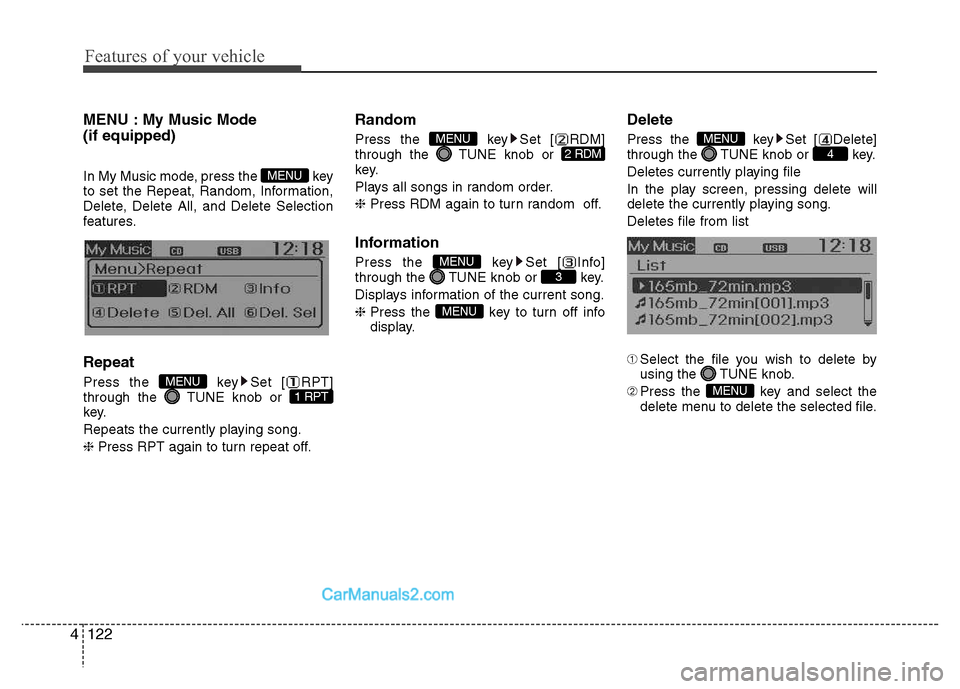
In My Music mode, press the key
to set the Repeat, Random, Information,
Delete, Delete All, and Delete Selection
features. Repeat
Press the key Set [ RPT]
through the TUNE knob or
key.
Repeats the currently playing song.❈ Press RPT again to turn repeat off. Random
Press the key Set [ RDM]
through the TUNE knob or
key.
Plays all songs in random order.❈
Press RDM again to turn random off.
Information
Press the key Set [ Info]
through the TUNE knob or key.
Displays information of the current song.❈ Press the key to turn off info
display. Delete
Press the key Set [ Delete]
through the TUNE knob or key.
Deletes currently playing file
In the play screen, pressing delete will
delete the currently playing song. Deletes file from list ➀
Select the file you wish to delete by
using the TUNE knob.
➁ Press the key and select the
delete menu to delete the selected file.
MENU
4MENU
MENU
3MENU
2 RDMMENU
1 RPTMENU
MENU
Page 180 of 343
Features of your vehicle
124
4
BASIC METHOD OF USE :
USB / iPod®
(for non CD player)
Press the key to change the mode
in order of USB(iPod
®) ➟ AUX .
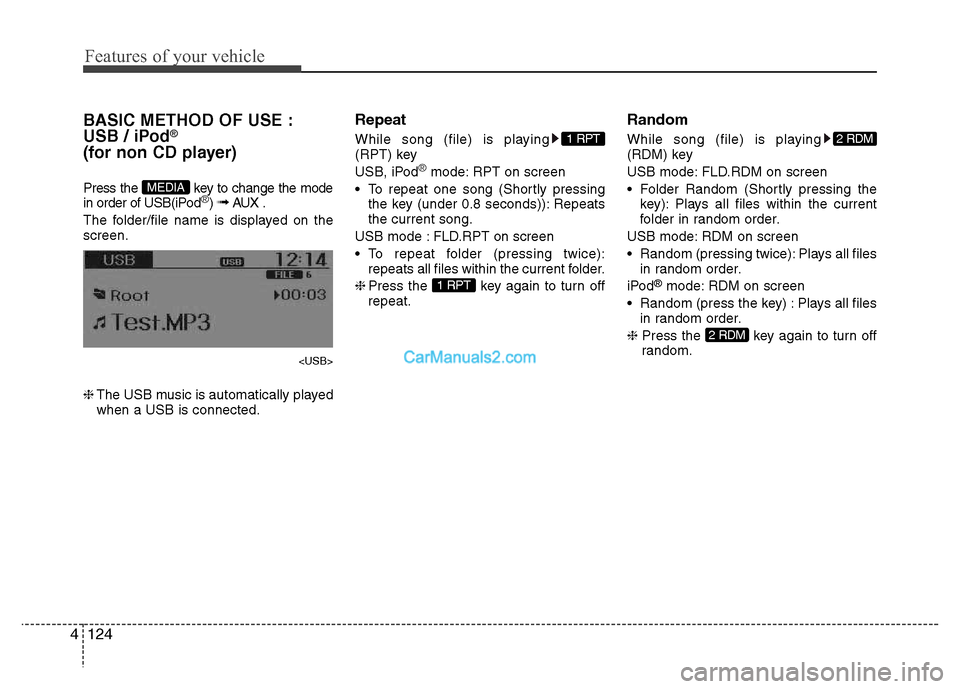
The folder/file name is displayed on the screen.
❈ The USB music is automatically played
when a USB is connected. Repeat
While song (file) is playing
(RPT) key
USB, iPod
®mode: RPT on screen
To repeat one song (Shortly pressing the key (under 0.8 seconds)): Repeats the current song.
USB mode : FLD.RPT on screen
To repeat folder (pressing twice): repeats all files within the current folder.
❈ Press the key again to turn off
repeat. Random
While song (file) is playing
(RDM) key
USB mode: FLD.RDM on screen
Folder Random (Shortly pressing the
key): Plays all files within the current
folder in random order.
USB mode: RDM on screen
Random (pressing twice): Plays all files in random order.
iPod ®
mode: RDM on screen
Random (press the key) : Plays all files in random order.
❈ Press the key again to turn off
random.
2 RDM
2 RDM
1 RPT
1 RPT
MEDIA
Page 181 of 343
![Hyundai Grand i10 2015 Owners Guide 4125
Features of your vehicle
MENU : iPod®
In iPod®mode, press the key to set
the Repeat, Random, Information and
Search features. Repeat
Press the key Set [ RPT]
through the TUNE knob or
key](/img/35/14790/w960_14790-180.png "Hyundai Grand i10 2015 Owners Guide 4125
Features of your vehicle
MENU : iPod®
In iPod®mode, press the key to set
the Repeat, Random, Information and
Search features. Repeat
Press the key Set [ RPT]
through the TUNE knob or
key")
4125
Features of your vehicle
MENU : iPod®
In iPod®mode, press the key to set
the Repeat, Random, Information and
Search features. Repeat
Press the key Set [ RPT]
through the TUNE knob or
key to repeat the current song. ❈ Press RPT again to turn repeat off. Random
Press the key Set [ RDM]
through the TUNE knob or
key.
Plays all songs within the currently play-
ing category in random order. ❈
Press RDM again to turn off.
Information
Press the key Set [ Info]
through the TUNE knob or key.
Displays information of the current song.❈ Press the key to turn off info
display. Search
Press the key Set [ Search]
through the TUNE knob or key.
Displays iPod
®category list.
❈ Searching iPod®category is
key pressed, move to parent category.MENU
4MENU
MENU
3MENU
2 RDMMENU
1 RPTMENU
MENU
Page 183 of 343
![Hyundai Grand i10 2015 Owners Guide 4127
Features of your vehicle
MENU : USB
Press the USB mode key to set
the Repeat, Folder Random, Folder
Repeat, All Random, Information, and
features. Repeat
Press the key Set [ RPT]
through th](/img/35/14790/w960_14790-182.png "Hyundai Grand i10 2015 Owners Guide 4127
Features of your vehicle
MENU : USB
Press the USB mode key to set
the Repeat, Folder Random, Folder
Repeat, All Random, Information, and
features. Repeat
Press the key Set [ RPT]
through th")
4127
Features of your vehicle
MENU : USB
Press the USB mode key to set
the Repeat, Folder Random, Folder
Repeat, All Random, Information, and
features. Repeat
Press the key Set [ RPT]
through the TUNE knob or
key to repeat the current song. ❈Press RPT again to turn off.
Folder Random
Press the key Set [ F.RDM]
through the TUNE knob or
key to randomly play songs within the
current folder. ❈ Press F.RDM again to turn off. Folder Repeat
Press the key Set [ F.RPT]
through the TUNE knob or key
to repeat songs within the current folder. ❈
Press F.RPT again to turn off.
All Random
Press the key Set [ A.RDM]
through the TUNE knob or key
to randomly play all songs within the
USB. ❈ Press A.RDM again to turn off.
Information
Press the key Set [ Info]
through the TUNE knob or key
to display information of the current song. ❈ Press the key to turn off info
display. AUX
AUX is used to play external MEDIA cur-
rently connected with the AUX terminal.
AUX mode will automatically start when
an external device is connected with the
AUX terminal.
If an external device is connected, you
can also press the key to change
to AUX mode. ❈
AUX mode cannot be started unless
there is an external device connected
to the AUX terminal.
✽✽ NOTICE - USING THE AUX
Fully insert the AUX cable into the AUX
terminal for use.
MEDIA
MENU
5
MENU
4
MENU
3
MENU
2 RDM
MENU
1 RPTMENU
MENU
Page 185 of 343
PHONE (if equipped)
Before using the
Bluetooth®Wireless
Technologyphone features
Bluetooth®Wireless
Technology
phone, you must first pair
and connect the
Bluetooth®Wireless
Technology
mobile phone.
If the mobile phone is not paired or con- nected, it is not possible to enter Phone
mode. Once a phone is paired or con-nected, the guidance screen will be dis-
played.
(IGN/ACC ON), the
Bluetooth®Wireless
Technology
phone will be automatically
connected. Even if you are outside, the
Bluetooth®Wireless Technologyphone will
be automatically connected once you are
in the vicinity of the vehicle. If you do not
want automatic
Bluetooth®Wireless
Technology
phone connection, set the
Bluetooth®Wireless Technologypower to
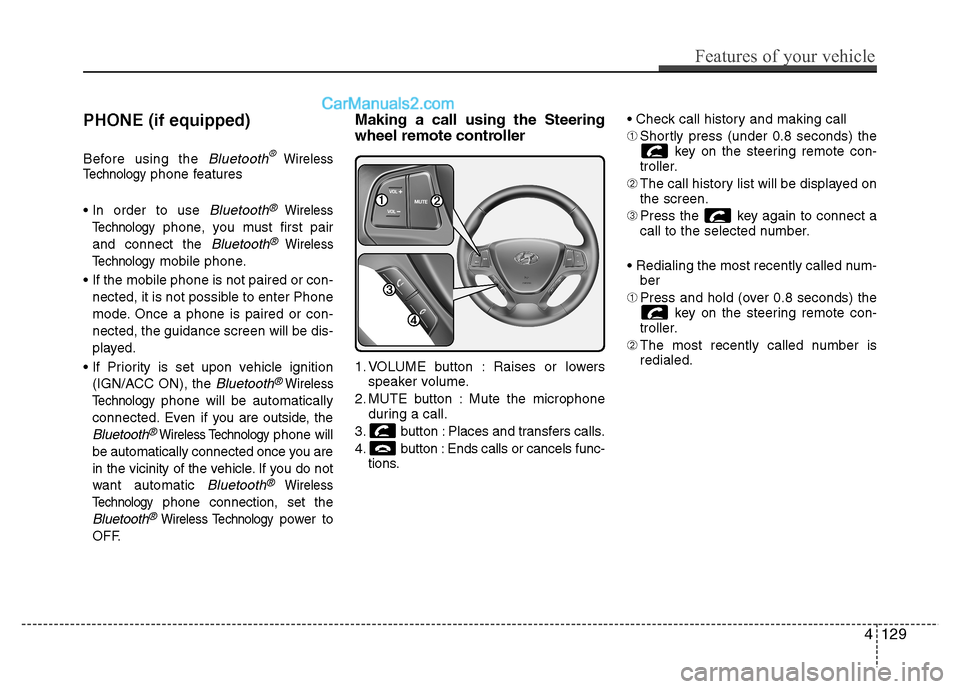
OFF. Making a call using the Steering
wheel remote controller
1. VOLUME button : Raises or lowers
speaker volume.
2. MUTE button : Mute the microphone during a call.
3. button : Places and transfers calls.
4. button : Ends calls or cancels func- tions. ➀
Shortly press (under 0.8 seconds) the
key on the steering remote con-
troller.
➁ The call history list will be displayed on
the screen.
➂ Press the key again to connect a
call to the selected number.
ber
➀ Press and hold (over 0.8 seconds) the
key on the steering remote con-
troller.
➁ The most recently called number is
redialed.
Features of your vehicle
129
4
Page 186 of 343
![Hyundai Grand i10 2015 Owners Guide Phone MENU
Press the key to display three
menus (Call History, Contacts, PhoneSetup).
Call history
Press the key Set [ History]
through the TUNE knob or key.
The call history is displayed an](/img/35/14790/w960_14790-185.png "Hyundai Grand i10 2015 Owners Guide Phone MENU
Press the key to display three
menus (Call History, Contacts, PhoneSetup).
Call history
Press the key Set [ History]
through the TUNE knob or key.
The call history is displayed an")
Phone MENU
Press the key to display three
menus (Call History, Contacts, PhoneSetup).
Call history
Press the key Set [ History]
through the TUNE knob or key.
The call history is displayed and can be
used to select a number and make a call.
If call history does not exist, a screen
asking whether to download call history
is displayed. (The download feature may
not be supported in some mobilephones)Contacts
Press the key Set [ Contacts]
through the TUNE knob or key.
The Contacts are displayed and can be
used to select a number and make a call. ❈
If more than one number is saved to
one contact, then a screen showing
the mobile phone number, Home and
office number is displayed. Select the
desired number to make the call.
❈ If Contacts do not exist, a screen ask-
ing whether to download Contacts is
displayed. (The download feature may
not be supported in some mobilephones) Phone Setup
Press the key Set [ Setup]
through the TUNE knob or key. The
Bluetooth®Wireless Technology
mobile phone setup screen is displayed.
For more information, refer to “PhoneSetup”.
3PHONE
2
RDM
PHONE
1
RPTPHONE
PHONE
4130
Features of your vehicle
Page 187 of 343
✽✽NOTICE - USING THE
Bluetooth®Wireless Technology
CELLULAR PHONE
Do not use a cellular phone or perform Bluetooth ®
Wireless Technology set-
tings (e.g. pairing a phone) while driv-
ing.
Some Bluetooth ®
Wireless Technology -
enabled phones may not be recognized
by the system or fully compatible with
the system.
Before using Bluetooth®
Wireless
Technology related features of the
audio system, refer your phone’s User’s
Manual for phone-side Bluetooth®
Wireless Technology operations.
The phone must be paired to the audio system to use Bluetooth®
Wireless
Technology related features.
You will not be able to use the hands-
free feature when your phone (in the
car) is outside of the cellular service
area (e.g. in a tunnel, in a underground,
in a mountainous area, etc.). (Continued)(Continued)
If the cellular phone signal is poor or
the vehicles interior noise is too loud, it
may be difficult to hear the other per-
son’s voice during a call.
Do not place the phone near or inside metallic objects, otherwise communica-
tions with Bluetooth®
Wireless
Technology system or cellular service
stations can be disturbed.
While a phone is connected through
Bluetooth ®
Wireless Technology your
phone may discharge quicker than
usual for additional Bluetooth®
Wireless Technology-related opera-
tions.
Some cellular phones or other devices may cause interference noise or mal-
function to audio system. In this case,
store the device in a different location
may resolve the condition.
Phone contact names should be saved
in English or they may not be displayed
correctly. (Continued)(Continued)
If Priority is set upon vehicle
ignition(IGN/ACC ON), the Bluetooth®
Wireless Technology phone will be
automatically connected.
Even if you are outside, the Bluetooth®
Wireless Technology phone will be
automatically connected once you are
in the vicinity of the vehicle.
If you do not want automatic
Bluetooth ®
Wireless Technology con-
nection, turn the Bluetooth®
Wireless
Technology feature off.
The hands-free call volume and quality may differ depending on the mobile
phone type.
Bluetooth ®
Wireless Technology fea-
tures can be used only when the mobile
phone has been paired and connected
with the device. For more information
on pairing and connecting Bluetooth®
Wireless Technology enabled mobile
phones, refer to the “Phone Setup” sec-
tion. (Continued)
Features of your vehicle
131
4