reset Hyundai Grand Santa Fe 2013 User Guide
[x] Cancel search | Manufacturer: HYUNDAI, Model Year: 2013, Model line: Grand Santa Fe, Model: Hyundai Grand Santa Fe 2013Pages: 718, PDF Size: 13.5 MB
Page 180 of 718
483
Features of your vehicle
✽NOTICE
• The average vehicle speed is not
displayed if the driving distance is
less than 50 meters (0.03 miles) or
the driving time is less than 10 sec-
onds since the ignition switch or
Engine Start/Stop button is turned
to ON.
• Even if the vehicle is not in motion,
the average vehicle speed keeps
going while the engine is running.
Elapsed Time (3)
• The elapsed time is the total driv-
ing time since the last elapsed time
reset.
- Time range (hh:mm): 00:00 ~ 99:59
• To reset the elapsed time, press
the SELECT/RESET button on
the steering wheel for more than 1
second when the elapsed time is
displayed.
✽NOTICE
Even if the vehicle is not in motion,
the elapsed time keeps going while
the engine is running.
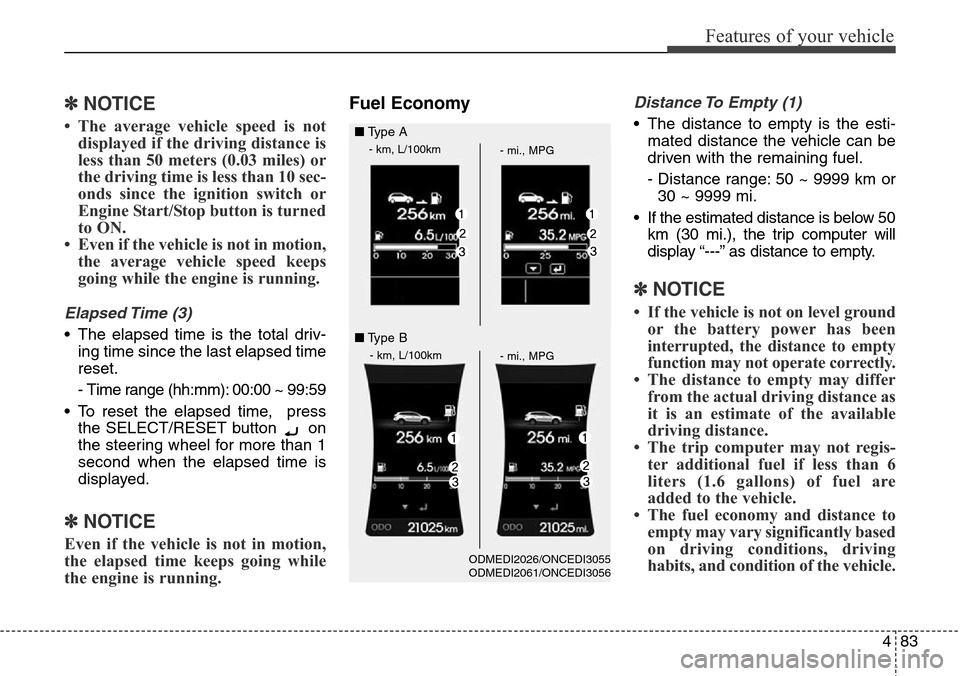
Fuel EconomyDistance To Empty (1)
• The distance to empty is the esti-
mated distance the vehicle can be
driven with the remaining fuel.
- Distance range: 50 ~ 9999 km or
30 ~ 9999 mi.
• If the estimated distance is below 50
km (30 mi.), the trip computer will
display “---” as distance to empty.
✽NOTICE
• If the vehicle is not on level ground
or the battery power has been
interrupted, the distance to empty
function may not operate correctly.
• The distance to empty may differ
from the actual driving distance as
it is an estimate of the available
driving distance.
• The trip computer may not regis-
ter additional fuel if less than 6
liters (1.6 gallons) of fuel are
added to the vehicle.
• The fuel economy and distance to
empty may vary significantly based
on driving conditions, driving
habits, and condition of the vehicle.
■Type A
- km, L/100km
- mi., MPG
- km, L/100km
- mi., MPG
■Type B
ODMEDI2026/ONCEDI3055
ODMEDI2061/ONCEDI3056
Page 181 of 718
Features of your vehicle
84 4
Average Fuel Economy (2)
• The average fuel economy is calcu-
lated by the total driving distance
and fuel consumption since the last
average fuel economy reset.
- Fuel economy range: 0.0 ~ 99.9
L/ 100km or MPG
• The average fuel economy can be
reset both manually and automati-
cally.
Manual reset
To clear the average fuel economy
manually, press the SELECT/RESET
button on the steering wheel for
more than 1 second when the aver-
age fuel economy is displayed.Automatic reset
To make the average fuel economy
be reset automatically whenever refu-
eling, select the “Auto Reset” mode in
User Setting menu of the LCD display
(Refer to “LCD Display”).
Under “Auto Reset” mode, the aver-
age fuel economy will be cleared to
zero (---) when the vehicle speed
exceeds 1 km/h after refueling more
than 6 liters (1.6 gallons).
✽NOTICE
The average fuel economy is not dis-
played for more accurate calculation
if the vehicle does not drive more
than 10 seconds or 50 meters (0.03
miles) since the ignition switch or
Engine Start/Stop button is turned
to ON.
Instant Fuel Economy (3)
• This mode displays the instant fuel
economy during the last few sec-
onds when the vehicle speed is
more than 10 km/h (6.2 MPH).
- Fuel economy range: 0 ~ 30
L/100km or 0 ~ 50 MPG
Page 269 of 718
Features of your vehicle
172 4
If your vehicle is equipped with the
auto defogging system, it is automat-
ically activated when the conditions
are met. However, if you would like to
cancel the auto defogging system,
press the front defroster button 4
times within 2 seconds while press-
ing the AUTO button. The indicator of
front defroster button will blink 3
times to notify you that the system is
cancelled. To use the auto defogging
system again, follow the procedures
mentioned above.
If the battery has been disconnected
or discharged, it resets to the auto
defogging status.✽NOTICE
If the A/C off is manually selected
while the auto defogging system is
on, the auto defogging indicator will
blink 3 times to give notice that the
A/C off can not be selected.
CAUTION
Do not remove the sensor cover
located on the upper end of the
driver side windshield glass.
Damage to the system parts
could occur and may not be cov-
ered by your vehicle warranty.
Page 288 of 718
4191
Features of your vehicle
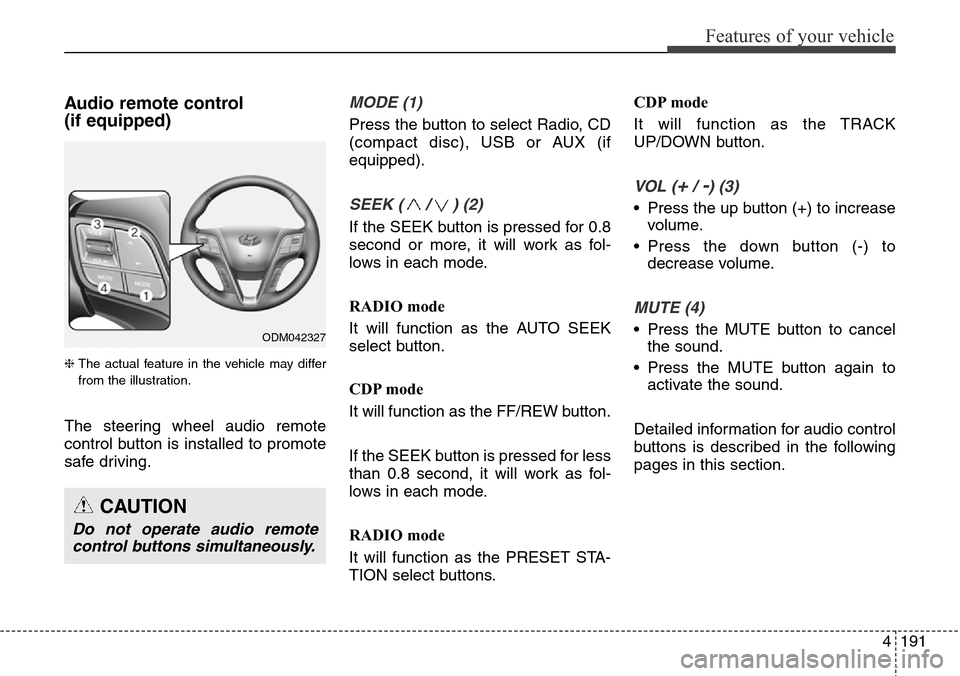
Audio remote control
(if equipped)
❈ The actual feature in the vehicle may differ
from the illustration.
The steering wheel audio remote
control button is installed to promote
safe driving.
MODE (1)
Press the button to select Radio, CD
(compact disc), USB or AUX (if
equipped).
SEEK ( / ) (2)
If the SEEK button is pressed for 0.8
second or more, it will work as fol-
lows in each mode.
RADIO mode
It will function as the AUTO SEEK
select button.
CDP mode
It will function as the FF/REW button.
If the SEEK button is pressed for less
than 0.8 second, it will work as fol-
lows in each mode.
RADIO mode
It will function as the PRESET STA-
TION select buttons.CDP mode
It will function as the TRACK
UP/DOWN button.
VOL (+/ -) (3)
• Press the up button (+) to increase
volume.
• Press the down button (-) to
decrease volume.
MUTE (4)
• Press the MUTE button to cancel
the sound.
• Press the MUTE button again to
activate the sound.
Detailed information for audio control
buttons is described in the following
pages in this section.
CAUTION
Do not operate audio remote
control buttons simultaneously.
ODM042327
Page 297 of 718
Features of your vehicle
200 4
✽NOTICE - USING THE iPod®
DEVICE
• Some iPod®models may not sup-
port communication protocol and
files may not properly play.
Supported iPod
®models:
- iPod®Mini
- iPod®4th (Photo) ~ 6th (Classic)
generation
- iPod
®Nano 1st~4th generation
- iPod®Touch 1st~2nd generation
• The order of search or playback of
songs in the iPod
®can be different
from the order searched in the
audio system.
• If the iPod
®disabled due to its
own malfunction, reset the iPod®.
(Reset: Refer to iPod®manual)
• An iPod®may not operate nor-
mally on low battery.
(Continued)(Continued)
• Some iPod
®devices, such as the
iPhone®, can be connected through
the Bluetooth®Wireless Technology
interface. The device must have
audio Bluetooth
®Wireless
Technology capability (such as for
stereo headphone Bluetooth
®
Wireless Technology ). The device
can play, but it will not be con-
trolled by the audio system.
• To use iPod
®features within the
audio, use the cable provided upon
purchasing an iPod
®d device.
• Skipping or improper operation may
occur depending on the characteris-
tics of your iPod
®/iPhone®device.
• If your iPhone®is connected to both
the Bluetooth®Wireless Technology
and USB, the sound may not be prop-
erly played. In your iPhone
®, select
the Dock connector orBluetooth®
Wireless Technology to change the
sound output (source).
(Continued)
(Continued)
• When connecting iPod®with the
iPod®Power Cable, insert the con-
nector to the multimedia socket
completely. If not inserted com-
pletely, communications between
iPod
®and audio may be interrupt-
ed.
• When adjusting the sound effects
of the iPod
®and the audio system,
the sound effects of both devices
will overlap and might reduce or
distort the quality of the sound.
• Deactivate (turn off) the equalizer
function of an iPod
®when adjust-
ing the audio system’s volume, and
turn off the equalizer of the audio
system when using the equalizer of
an iPod
®.
• When not using iPod®with car
audio, detach the iPod®cable from
iPod®. Otherwise, iPod®may
remain in accessory mode, and
may not work properly.
Page 301 of 718
Features of your vehicle
204 4
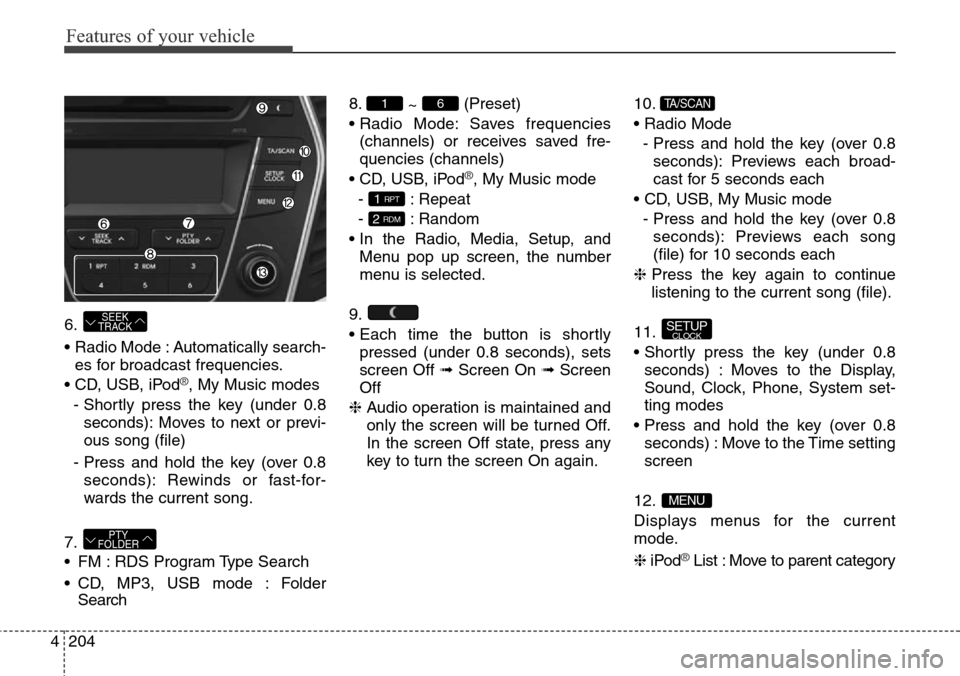
6.
• Radio Mode : Automatically search-
es for broadcast frequencies.
• CD, USB, iPod
®, My Music modes
- Shortly press the key (under 0.8
seconds): Moves to next or previ-
ous song (file)
- Press and hold the key (over 0.8
seconds): Rewinds or fast-for-
wards the current song.
7.
• FM : RDS Program Type Search
• CD, MP3, USB mode : Folder
Search8.
~ (Preset)
• Radio Mode: Saves frequencies
(channels) or receives saved fre-
quencies (channels)
• CD, USB, iPod
®, My Music mode
- : Repeat
- : Random
• In the Radio, Media, Setup, and
Menu pop up screen, the number
menu is selected.
9.
• Each time the button is shortly
pressed (under 0.8 seconds), sets
screen Off ➟Screen On ➟Screen
Off
❈ Audio operation is maintained and
only the screen will be turned Off.
In the screen Off state, press any
key to turn the screen On again.10.
• Radio Mode
- Press and hold the key (over 0.8
seconds): Previews each broad-
cast for 5 seconds each
• CD, USB, My Music mode
- Press and hold the key (over 0.8
seconds): Previews each song
(file) for 10 seconds each
❈ Press the key again to continue
listening to the current song (file).
11.
• Shortly press the key (under 0.8
seconds) : Moves to the Display,
Sound, Clock, Phone, System set-
ting modes
• Press and hold the key (over 0.8
seconds) : Move to the Time setting
screen
12.
Displays menus for the current
mode.
❈iPod
®List : Move to parent category
MENU
SETUPCLOCK
TA/SCAN
2 RDM
1 RPT
61
PTY
FOLDER
SEEK
TRACK
Page 304 of 718
4207
Features of your vehicle
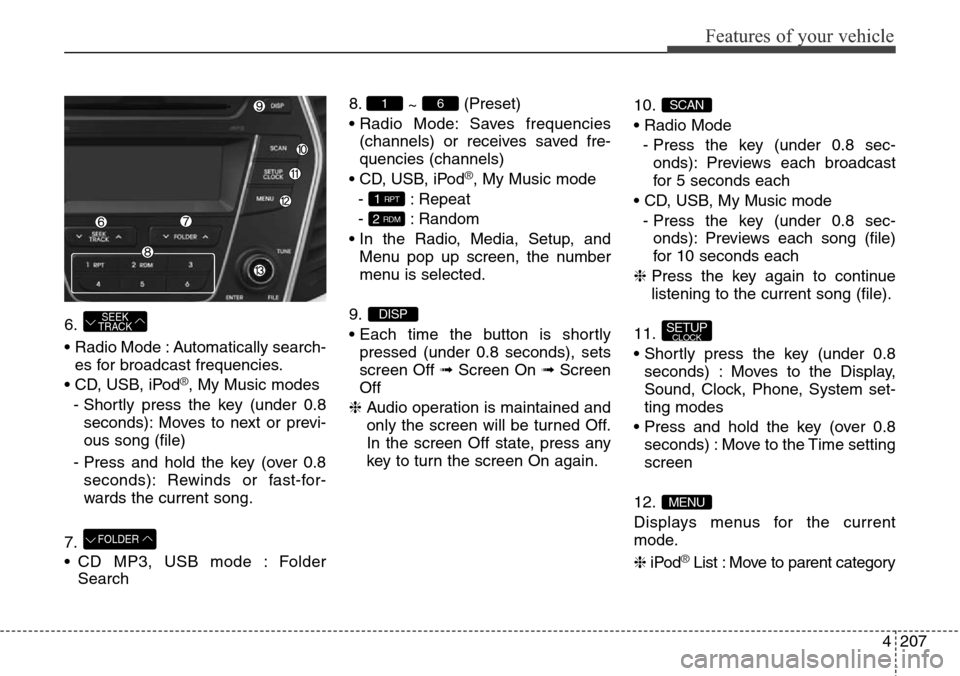
6.
• Radio Mode : Automatically search-
es for broadcast frequencies.
• CD, USB, iPod
®, My Music modes
- Shortly press the key (under 0.8
seconds): Moves to next or previ-
ous song (file)
- Press and hold the key (over 0.8
seconds): Rewinds or fast-for-
wards the current song.
7.
• CD MP3, USB mode : Folder
Search8.
~ (Preset)
• Radio Mode: Saves frequencies
(channels) or receives saved fre-
quencies (channels)
• CD, USB, iPod
®, My Music mode
- : Repeat
- : Random
• In the Radio, Media, Setup, and
Menu pop up screen, the number
menu is selected.
9.
• Each time the button is shortly
pressed (under 0.8 seconds), sets
screen Off ➟Screen On ➟Screen
Off
❈ Audio operation is maintained and
only the screen will be turned Off.
In the screen Off state, press any
key to turn the screen On again.10.
• Radio Mode
- Press the key (under 0.8 sec-
onds): Previews each broadcast
for 5 seconds each
• CD, USB, My Music mode
- Press the key (under 0.8 sec-
onds): Previews each song (file)
for 10 seconds each
❈ Press the key again to continue
listening to the current song (file).
11.
• Shortly press the key (under 0.8
seconds) : Moves to the Display,
Sound, Clock, Phone, System set-
ting modes
• Press and hold the key (over 0.8
seconds) : Move to the Time setting
screen
12.
Displays menus for the current
mode.
❈iPod
®List : Move to parent category
MENU
SETUPCLOCK
SCAN
DISP
2 RDM
1 RPT
61
FOLDER
SEEK
TRACK
Page 326 of 718
4229
Features of your vehicle
RADIO (for RDS model)
Changing RADIO mode
Press the key to change the
mode in order of FM1
➟ FM2 ➟ FMA
➟ AM ➟ AMA.
Press the or key to
change the mode in order of FM1
➟
FM2 and AM.
[Mode Pop up] On state : Displays
the change radio mode pop up
screen. While the pop up screen is
displayed, you can change the
radio mode ( : FM1
➟ FM2 ➟
FMA ➟ AM ➟ AMA / : FM1 ➟
FM2 / : AM) through the
tune knob or ~ keys.
SEEK
Press the key
• Shortly pressing the key (under 0.8
seconds): Changes the frequency.
• Pressing and holding the key (over
0.8 seconds): Automatically search-
es for the next frequency.
Preset SEEK
Press the ~ key
• Shortly pressing the key (under 0.8
seconds): Plays the frequency
saved in the corresponding key.
• Pressing and holding the key (over
0.8 seconds): Pressing and holding
the desired key from ~
will save the currently playing
broadcast to the selected key and
sound a BEEP.
SCAN
Press the key
• Pressing and holding the key (over
0.8 seconds): The broadcast fre-
quency increases and previews
each broadcast for 5 seconds each.
After scanning all frequencies,
returns and plays the current
broadcast frequency.TA/SCAN
61
61
SEEK
TRACK
51
AM
FM
RADIO
AMFM
RADIO
Page 327 of 718
Features of your vehicle
230 4
Selecting through manual
search
Turn the TUNE knob left/right to
adjust the frequency.
• AM104DMEE/ AM114DMEE
- FM : Changes by 50KHz
- AM : Changes by 9khz
Traffic Announcement (TA)
Shortly pressing the key
(under 0.8 seconds): Set /
TA Traffic Announcement) mode.
PTY Up/Down
• Press the key when
searching PTY in RDS Broadcasting
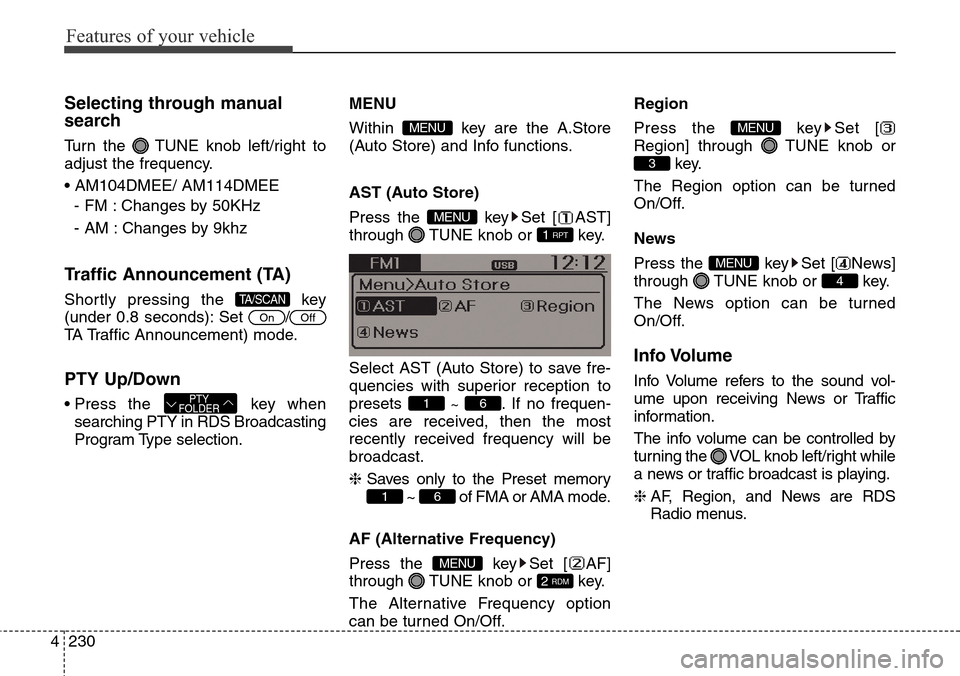
Program Type selection.MENU
Within key are the A.Store
(Auto Store) and Info functions.
AST (Auto Store)
Press the key Set [ AST]
through TUNE knob or key.
Select AST (Auto Store) to save fre-
quencies with superior reception to
presets ~ . If no frequen-
cies are received, then the most
recently received frequency will be
broadcast.
❈ Saves only to the Preset memory
~ of FMA or AMA mode.
AF (Alternative Frequency)
Press the key Set [ AF]
through TUNE knob or key.
The Alternative Frequency option
can be turned On/Off.Region
Press the key Set [
Region] through TUNE knob or
key.
The Region option can be turned
On/Off.
News
Press the key Set [ News]
through TUNE knob or key.
The News option can be turned
On/Off.
Info Volume
Info Volume refers to the sound vol-
ume upon receiving News or Traffic
information.
The info volume can be controlled by
turning the VOL knob left/right while
a news or traffic broadcast is playing.
❈ AF, Region, and News are RDS
Radio menus.
4
MENU
3
MENU
2 RDM
MENU
61
61
1 RPT
MENU
MENU
PTY
FOLDER
OffOn
TA/SCAN
Page 328 of 718
4231
Features of your vehicle
RADIO
Changing RADIO mode
Changing RADIO mode
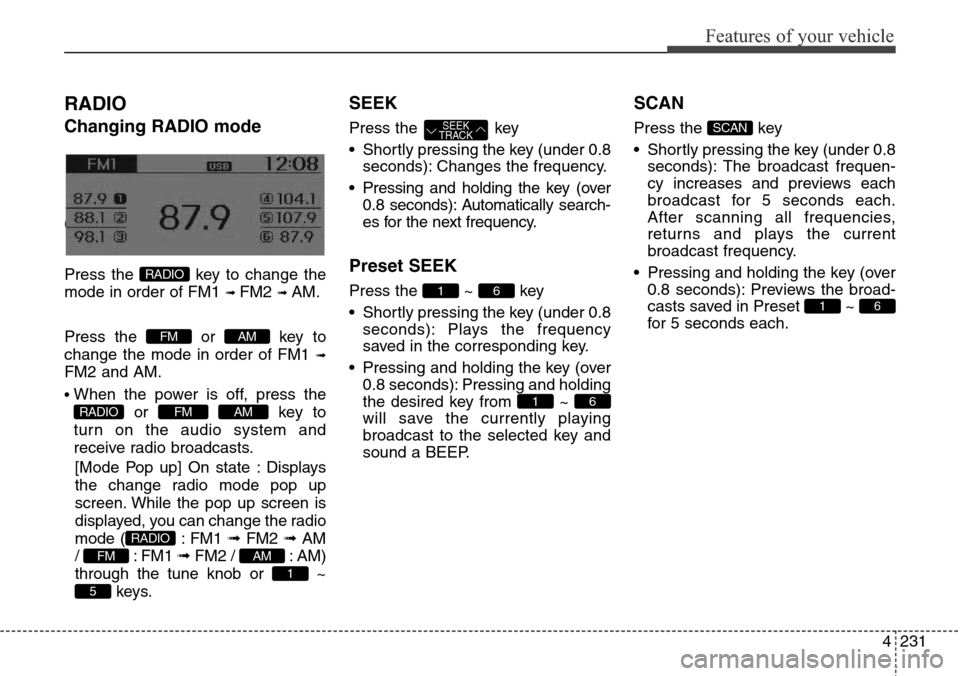
Press the key to change the
mode in order of FM1
➟ FM2 ➟ AM.
Press the or key to
change the mode in order of FM1
➟
FM2 and AM.
• When the power is off, press the
or key to
turn on the audio system and
receive radio broadcasts.
[Mode Pop up] On state : Displays
the change radio mode pop up
screen. While the pop up screen is
displayed, you can change the radio
mode ( : FM1 ➟ FM2 ➟ AM
/ : FM1 ➟FM2 / : AM)
through the tune knob or ~
keys.
SEEK
Press the key
• Shortly pressing the key (under 0.8
seconds): Changes the frequency.
• Pressing and holding the key (over
0.8 seconds): Automatically search-
es for the next frequency.
Preset SEEK
Press the ~ key
• Shortly pressing the key (under 0.8
seconds): Plays the frequency
saved in the corresponding key.
• Pressing and holding the key (over
0.8 seconds): Pressing and holding
the desired key from ~
will save the currently playing
broadcast to the selected key and
sound a BEEP.
SCAN
Press the key
• Shortly pressing the key (under 0.8
seconds): The broadcast frequen-
cy increases and previews each
broadcast for 5 seconds each.
After scanning all frequencies,
returns and plays the current
broadcast frequency.
• Pressing and holding the key (over
0.8 seconds): Previews the broad-
casts saved in Preset ~
for 5 seconds each.
61
SCAN
61
61
SEEK
TRACK
5
1
AMFM
RADIO
AMFMRADIO
AMFM
RADIO