audio HYUNDAI I10 2010 User Guide
[x] Cancel search | Manufacturer: HYUNDAI, Model Year: 2010, Model line: I10, Model: HYUNDAI I10 2010Pages: 354, PDF Size: 37.04 MB
Page 163 of 354
Features of your vehicle
84
4
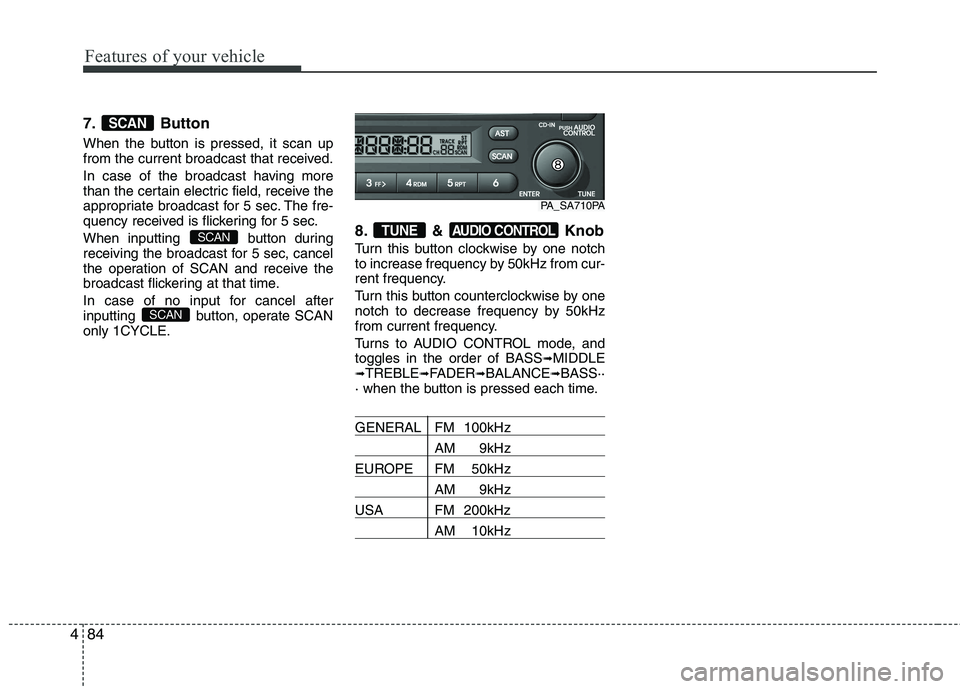
7. Button
When the button is pressed, it scan up
from the current broadcast that received.
In case of the broadcast having more
than the certain electric field, receive the
appropriate broadcast for 5 sec. The fre-
quency received is flickering for 5 sec.
When inputting button during
receiving the broadcast for 5 sec, cancel
the operation of SCAN and receive the
broadcast flickering at that time.
In case of no input for cancel after
inputting button, operate SCAN
only 1CYCLE. 8. & Knob
Turn this button clockwise by one notch
to increase frequency by 50kHz from cur-
rent frequency.
Turn this button counterclockwise by one
notch to decrease frequency by 50kHz
from current frequency.
Turns to AUDIO CONTROL mode, and toggles in the order of BASS
➟
MIDDLE
➟ TREBLE ➟FADER ➟BALANCE ➟BASS··
· when the button is pressed each time.
GENERAL FM 100kHz
AM 9kHz
EUROPE FM 50kHz
AM 9kHz
USA FM 200kHz
AM 10kHz
AUDIO CONTROLTUNE
SCAN
SCAN
SCAN
PA_SA710PA
Page 167 of 354
Features of your vehicle
88
4
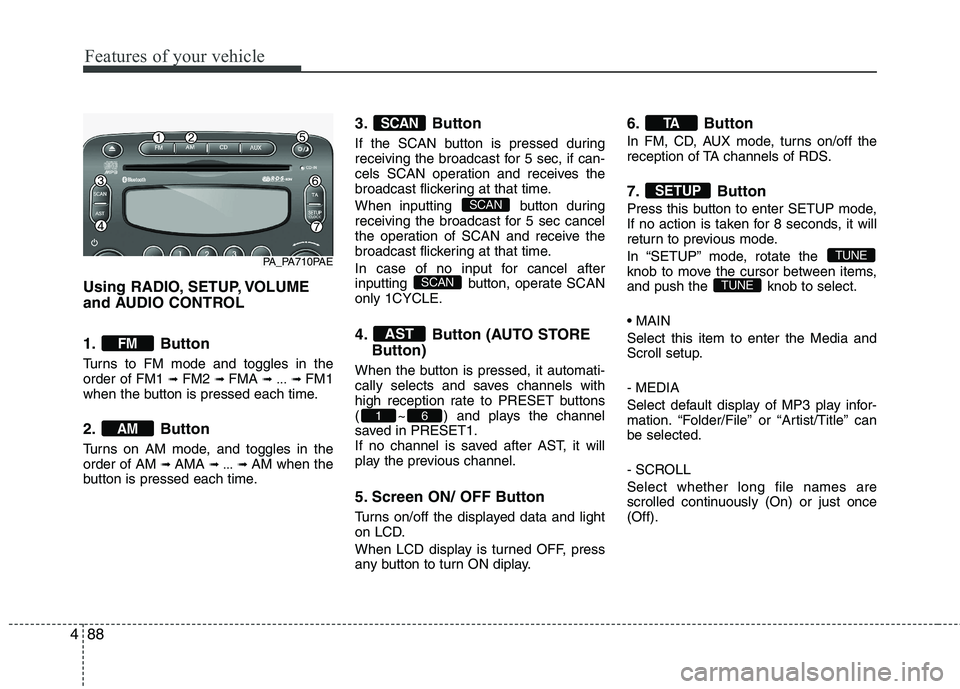
Using RADIO, SETUP, VOLUME
and AUDIO CONTROL
1. Button
Turns to FM mode and toggles in the order of FM1 ➟ FM2 ➟ FMA ➟ ... ➟ FM1
when the button is pressed each time.
2. Button
Turns on AM mode, and toggles in the order of AM ➟ AMA ➟ ... ➟ AM when the
button is pressed each time. 3. Button
If the SCAN button is pressed during
receiving the broadcast for 5 sec, if can-
cels SCAN operation and receives the
broadcast flickering at that time.
When inputting button during
receiving the broadcast for 5 sec cancel
the operation of SCAN and receive the
broadcast flickering at that time.
In case of no input for cancel after
inputting button,
operate SCAN
only 1CYCLE. 4.
Button (AUTO STORE
Button)
When the button is pressed, it automati-
cally selects and saves channels with
high reception rate to PRESET buttons
( ~ ) and plays the channel
saved in PRESET1.
If no channel is saved after AST, it will
play the previous channel.
5. Screen ON/ OFF Button
Turns on/off the displayed data and light
on LCD.
When LCD display is turned OFF, press
any button to turn ON diplay. 6. Button
In FM, CD, AUX mode, turns on/off the
reception of TA channels of RDS.
7. Button
Press this button to enter SETUP mode,
If no action is taken for 8 seconds, it will
return to previous mode.
In “SETUP” mode, rotate the
knob to move the cursor between items,
and push the knob to select. Select this item to enter the Media and
Scroll setup. - MEDIA
Select default display of MP3 play infor-
mation. “Folder/File” or “Artist/Title” canbe selected.
- SCROLL Select whether long file names are
scrolled continuously (On) or just once(Off).
TUNE
TUNE
SETUP
TA
61
AST
SCAN
SCAN
SCAN
AM
FM
PA_PA710PAE
Page 168 of 354
489
Features of your vehicle
Select this item to enter the BASS, MID-
DLE, TREBLE, FADER and BALANCE
TUNE mode. The mode selected is
shown on the display. After selecting
each mode, rotate the Audio control knob
clockwise or counterclockwise.
- BASS Control
To increase the BASS, rotate the knob
clockwise, while to decrease the BASS,
rotate the knob counterclockwise.
- MIDDLE Control
To increase the MIDDLE, rotate the knob
clockwise, while to decrease the MID-
DLE, rotate the knob counterclockwise.
- TREBLE Control
To increase the TREBLE, rotate the knob
clockwise, while to decrease the TRE-
BLE, rotate the knob counterclockwise.
- FADER Control
Turn the control knob clockwise to
emphasize rear speaker sound (front
speaker sound will be attenuated). When
the control knob is turned counterclock-
wise, front speaker sound will be empha-
sized (rear speaker sound will be attenu-ated).- BALANCE Control
Rotate the knob clockwise to emphasize
right speaker sound (left speaker sound
will be attenuated). When the control
knob is turned counter clockwise, left
speaker sound will be emphasized (right
speaker sound will be attenuated).
This function creates virtual sound
effects and allows adjustments to the
Bass level. Off
➟Low ➟Mid ➟High ➟Off...
❈ AM Mode is not supported.
❈ CD Changer model is not supported.
Select this item to enter BLUETOOTH
setup mode. Refer to “BLUETOOTH
PHONE OPERATION” section for
detailed information.
Select this item to enter Clock setup
mode. Adjust the hour and press the
button to set. Adjust the minute
and press te button to complete
and exit from clock adjustment mode.
Pressing the button while in
power off, screen will allow the user to
make immediately adjustments to the
clock.
RDS menuancludesAF/News/REGION/
TA Vol/ Time menu sequentially.
- AF (AF MENU indication is possible with RDS MENU)
Select this item to turn the AF (Alternate
Frequency) feature ON or OFF.
- NEWS (NEWS MENU indication is pos- sible with RDS MENU)
Turns the automatic NEWS reception
feature ON or OFF.
SETUP
ENTER
ENTER
Page 169 of 354
Features of your vehicle
90
4
- REGION (REGION MENU indication is
possible with RDS MENU)
Selects whether REGION code is used
(ON) or not (OFF) once the radio deter-
mines the AF jump condition. If AUTO isselected, AF jump condition is deter-mined automatically via PI reception sta-
tus.
- TA VOL (TA VOL MENU indication is possible with RDS MENU)
Adjusts the TA (Traffic Announcement)
volume level according to normal audio
volume level. - Time
Select this item to enter “Automatic Time
setting” mode (Auto, manual). ❋ Auto is Automatic RDS Time.
Select this item to enter Clock setup
mode. (12/24Hr., Auto, Time)
- 12/24 Hr.
Select “12/24 Hr.” button to enter Time
Format menu. - Time
Select “Time” button to enter Time set- ting. Adjust the hour and press the
button to set. Adjust the minute and
press the button to complete
and exit from clock adjustment mode.
Pressing the button while in
power off, screen will allow the user to
make immediately adjustments to the
clock.
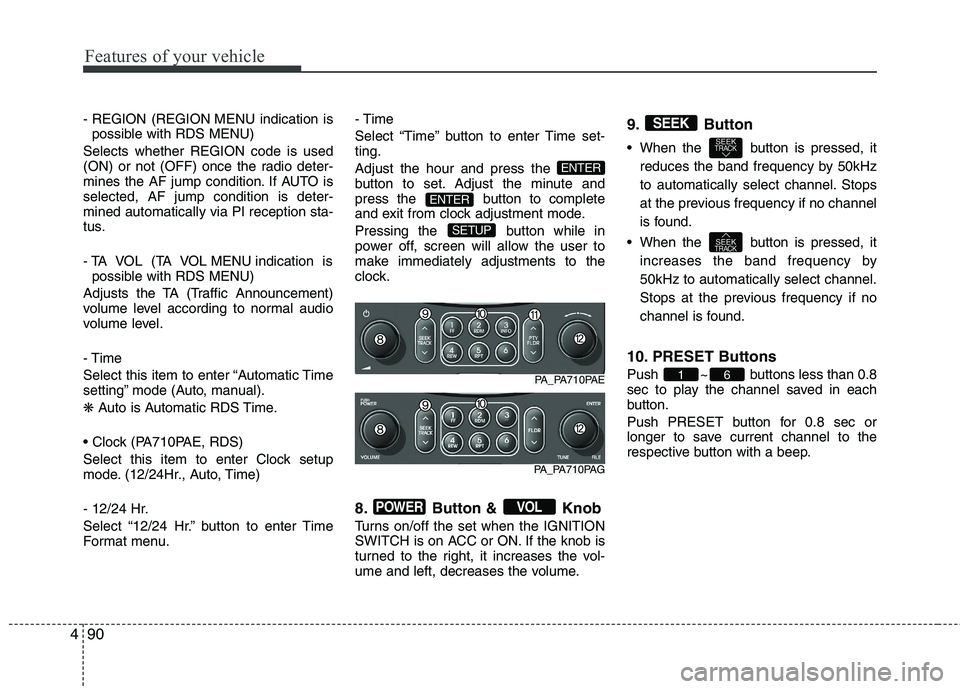
8. Button & Knob
Turns on/off the set when the IGNITION
SWITCH is on ACC or ON. If the knob is
turned to the right, it increases the vol-
ume and left, decreases the volume.9. Button
When the button is pressed, it
reduces the band frequency by 50kHz
to automatically select channel. Stops
at the previous frequency if no channel
is found.
When the button is pressed, it increases the band frequency by50kHz to automatically select channel.
Stops at the previous frequency if no
channel is found.
10. PRESET Buttons
Push ~ buttons less than 0.8
sec to play the channel saved in each
button.
Push PRESET button for 0.8 sec or
longer to save current channel to the
respective button with a beep.
61
SEEKTRACK
SEEKTRACK
SEEK
VOLPOWER
SETUP
ENTER
ENTER
PA_PA710PAE
PA_PA710PAG
Page 174 of 354
495
Features of your vehicle
CAUTION IN USING
USB DEVICE
To use an external USB device, make sure the device is not con-nected when starting up the vehi-cle. Connect the device afterstarting up.
If you start the engine when the USB device is connected, it maydamage the USB device. (USBflashdrives are very sensitive to
electric shock.)
If the engine is started up or turned off while the external USBdevice is connected, the externalUSB device may not work.
It may not play inauthentic MP3 or WMA files.
1) It can only play MP3 files with the compression rate between8Kbps~320Kbps.
2) It can only play WMA music files with the compression ratebetween 8Kbps~320Kbps.
Take precautions for static elec- tricity when connecting or dis-connecting the external USB
device.
(Continued)
(Continued) An encrypted MP3 PLAYER is not recognizable.
Depending on the condition of the external USB device, the con-
nected external USB device can be unrecognizable.
When the formatted byte/sector setting of External USB device isnot either 512BYTE or 2048BYTE,
then the device will not be recog- nized.
Use only a USB device formatted to FAT 12/16/32.
USB devices without USB I/F authentication may not be recog-nizable.
Make sure the USB connection terminal does not come in con-tact with the human body or other
objects.
If you repeatedly connect or dis- connect the USB device in a shortperiod of time, it may break thedevice.
You may hear a strange noise when connecting or disconnect-ing a USB device.
(Continued)(Continued) If you disconnect the external USB device during playback inUSB mode, the external USBdevice can be damaged or may
malfunction. Therefore, discon-nect the external USB device when the audio is turned off or in
another mode. (e.g, Radio or CD)
Depending on the type and capacity of the external USBdevice or the type of the filesstored in the device, there is a dif-
ference in the time taken forrecognition of the device.
Do not use the USB device for purposes other than playingmusic files.
Use of USB accessories such as rechargers or heaters using USBI/F may lower performance orcause trouble.
If you use devices such as a USB hub purchased separately, thevehicle’s audio system may not recognize the USB device. In thatcase, connect the USB device
directly to the multimedia termi- nal of the vehicle.
(Continued)
Page 175 of 354
Features of your vehicle
96
4
(Continued)
If the USB device is divided by logical drives, only the music fileson the highest-priority drive arerecognized by car audio.
Devices such as MP3 Player/ Cellular phone/Digital camera canbe unrecognizable by standardUSB I/F can be unrecognizable.
Some non-standard USB devices (METAL COVER TYPE USB) canbe unrecognizable.
Some USB flash memory readers (such as CF, SD, microSD, etc.) orexternal-HDD type devices can be
unrecognizable.
Music files protected by DRM (DIGITAL RIGHTS MANAGE-MENT) are not recognizable.
The data in the USB memory may be lost while using this audio.Always back up important data ona personal storage device.
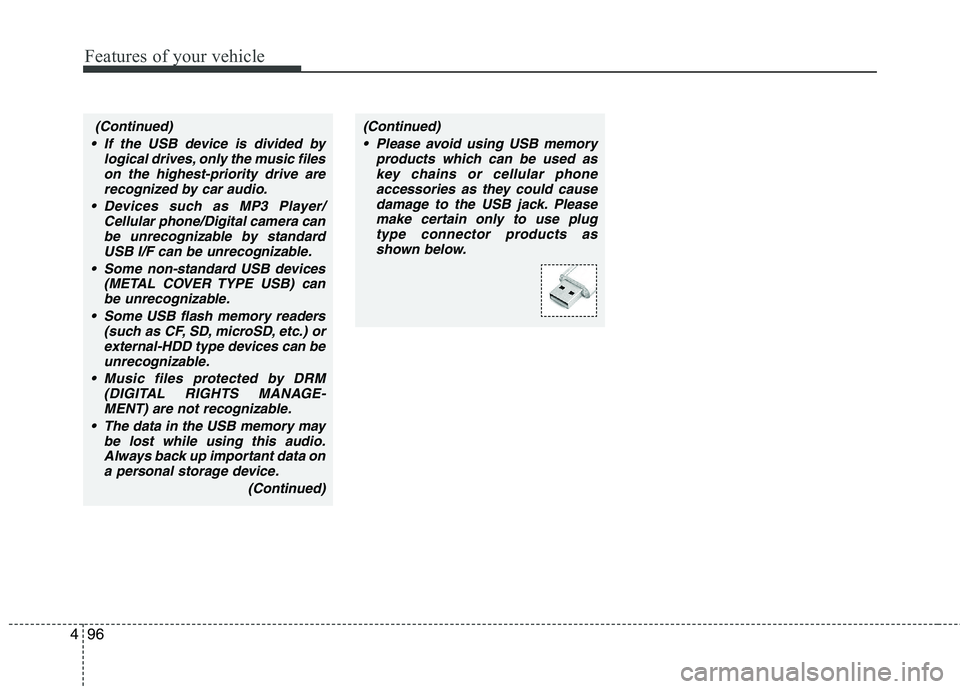
(Continued)(Continued) Please avoid using USB memory products which can be used askey chains or cellular phoneaccessories as they could cause
damage to the USB jack. Pleasemake certain only to use plug type connector products as
shown below.
Page 178 of 354
499
Features of your vehicle
✽✽NOTICE FOR USING THE
iPodDEVICE
Some iPod models might not support the communication protocol and the
files will not be played.
Supported iPod models:
- iPod Mini
- iPod 4th (Photo) ~ 6th (Classic) gen-
eration
- iPod Nano 1st~4th generation
- iPod Touch 1st~2nd generation
The order of search or playback of songs in the iPod can be different
from the order searched in the audio
system.
If the iPod disabled due to its own malfunction, reset the iPod. (Reset:
Refer to iPod manual)
An iPod may not operate normally on
low battery.
Some iPod devices, such as the
iPhone, can be connected through the
Bluetooth® interface. The device
must have audio Bluetooth® capabili-
ty (such as for stereo headphone
Bluetooth®). The device can play, but
it will not be controlled by the audio
system.(Continued)
When the iPod cable is connect- ed, the system can be switched toAUX mode even without iPoddevice and may cause noise.
Disconnect the iPod cable whenyou are not using the iPod device.
When not using iPod with car audio, detach the iPod cable from
iPod. Otherwise, iPod may remainin accessory mode, and may notwork properly.CAUTION IN USING THE
iPod DEVICE
The Hyundai iPod Power Cable is needed in order to operate iPod
with the audio buttons on theaudio system. The USB cable pro-vided by Apple may cause mal- function and should not be used
for Hyundai vehicles.
❋
❋ The Hyundai iPod Power Cable
may be purchased throughyour Hyundai Dealership.
When connecting iPod with the iPod Power Cable, insert the con-nector to the multimedia socketcompletely. If not inserted com- pletely, communications between
iPod and audio may be interrupt-ed.
When adjusting the sound effects of the iPod and the audio system,the sound effects of both devices
will overlap and might reduce or distort the quality of the sound.
Deactivate (turn off) the equalizer function of an iPod when adjust-
ing the audio system’s volume,and turn off the equalizer of theaudio system when using theequalizer of an iPod.
(Continued)
Page 181 of 354
Features of your vehicle
102
4
CAUTION IN USING
BLUETOOTH ®
CELLULAR
PHONE
Do not use a cellular phone or perform Bluetooth®settings (e.g.
pairing a phone) while driving.
Some Bluetooth
®-enabled phones
may not be recognized by the system or fully compatible withthe system.
Before using Bluetooth
®related
features of the audio system, refer your phone’s User’s Manual for phone-side Bluetooth
®opera-
tions.
The phone must be paired to the audio system to use Bluetooth®
related features.
You will not be able to use the
hands-free feature when yourphone (in the car) is outside of
the cellular service area (e.g. in atunnel, in a underground, in a mountainous area, etc.).
If the cellular phone signal is poor or the vehicles interior noise is
too loud, it may be difficult to hearthe other person’s voice during a call.
(Continued)
(continued) Do not place the phone near or inside metallic objects, otherwise
communications with Bluetooth
®
system or cellular service sta-tions can be disturbed.
While a phone is connected through Bluetooth
®your phone
may discharge quicker than usual for additional Bluetooth
®-related
operations.
Some cellular phones or other devices may cause interferencenoise or malfunction to audio
system. In this case, storing thedevice in a different location mayresolve the situation.
Page 183 of 354
Features of your vehicle
104
4
■
Bluetooth ®
Language Setting
The system language can be changed by
the following steps:
1. Power on the audio system with the volume set to an audible level.
2. Press and hold button on the steering wheel until the audio displays
“Please Wait”.
- The Bluetooth ®
system will reply in
currently selected language that it is
changing to the next language.
- System language cycles between FRENCH/GERMAN/UK ENGLISH
SPANISH/DUTCH/ITALIAN/DANISH/
RUSSIAN/POLISH/SWEDISH.
3. When completed, the audio display returns to normal.
4. Repeat steps 2 and 3 for the next lan- guage selection.
NOTE:
The phone needs to be paired again
after changing system language.
- Avoid resting your thumb or finger on the button as the language
could unintentionally change. ■
Voice Recognition Activation
in the Bluetooth ®
System can be acti-
vated in the following conditions:
- Button Activation
The voice recognition system will be
active when the button is pressed
and after the sound of a Beep.
- Active Listening The voice recognition system will be
active for a period of time when the
Voice Recognition system has asked
for a customer response.
from zero to nine while number greater
than ten will not be recognized.
system will announce "Pardon" or No
input voice signal from microphone. (Noresponse)
tion mode in following cases : When
pressing the button and saying
cancel following the beep. When notmaking a call and pressing the
button. When voice recognition has
failed 3 consecutive times.
will announce what commands are
available.
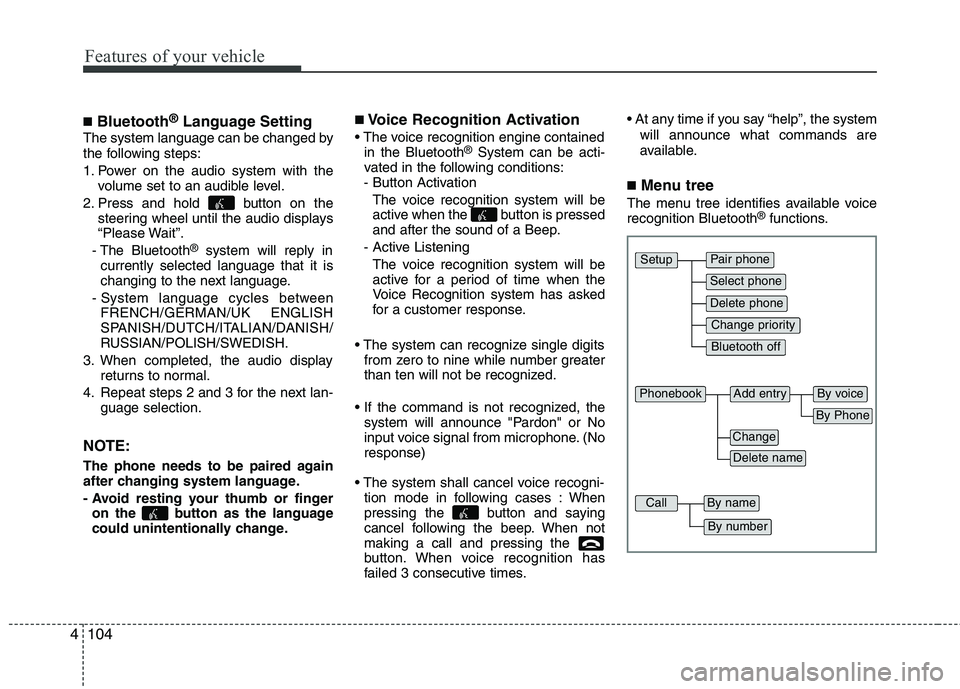
■ Menu tree
The menu tree identifies available voice recognition Bluetooth ®
functions.
Pair phone
Select phone
Change priority
Delete phone
Bluetooth off
Setup
Add entryPhonebook
Change
Delete name
By Phone
By voice
CallBy name
By number
Page 184 of 354
4105
Features of your vehicle
■Voice Operation Tip
To get the best performance out of the
Voice Recognition System, observe the
followings:
- Keep the interior of the vehicle as quiet as possible. Close the window to elim-
inate surrounding noise (traffic noise,
vibration sounds, etc), which may dis-
turb recognizing the voice command
correctly.
- Speak a command after a beep sound within 5 seconds. Otherwise the com-
mand will not be received properly.
- Speak in a natural voice without paus- ing between words.
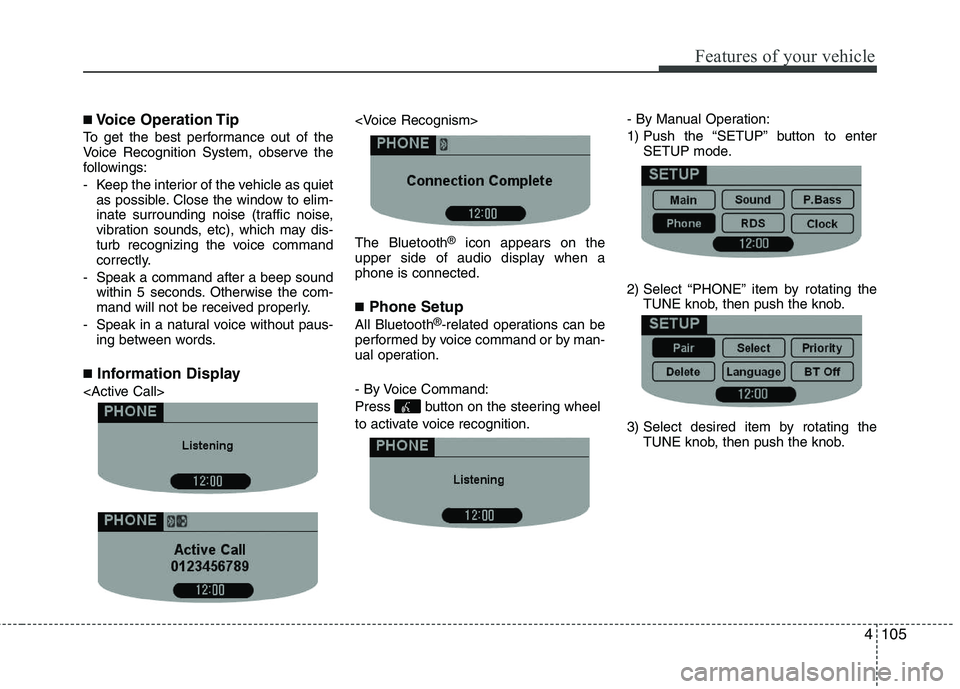
■ Information Display
®
icon appears on the
upper side of audio display when a phone is connected. ■ Phone Setup
All Bluetooth ®
-related operations can be
performed by voice command or by man-
ual operation.
- By Voice Command:
Press button on the steering wheel
to activate voice recognition. - By Manual Operation:
1) Push the “SETUP” button to enter
SETUP mode.
2) Select “PHONE” item by rotating the TUNE knob, then push the knob.
3) Select desired item by rotating the TUNE knob, then push the knob.