display HYUNDAI I20 2012 User Guide
[x] Cancel search | Manufacturer: HYUNDAI, Model Year: 2012, Model line: I20, Model: HYUNDAI I20 2012Pages: 207, PDF Size: 2.46 MB
Page 170 of 207
Features of your vehicle
98 4
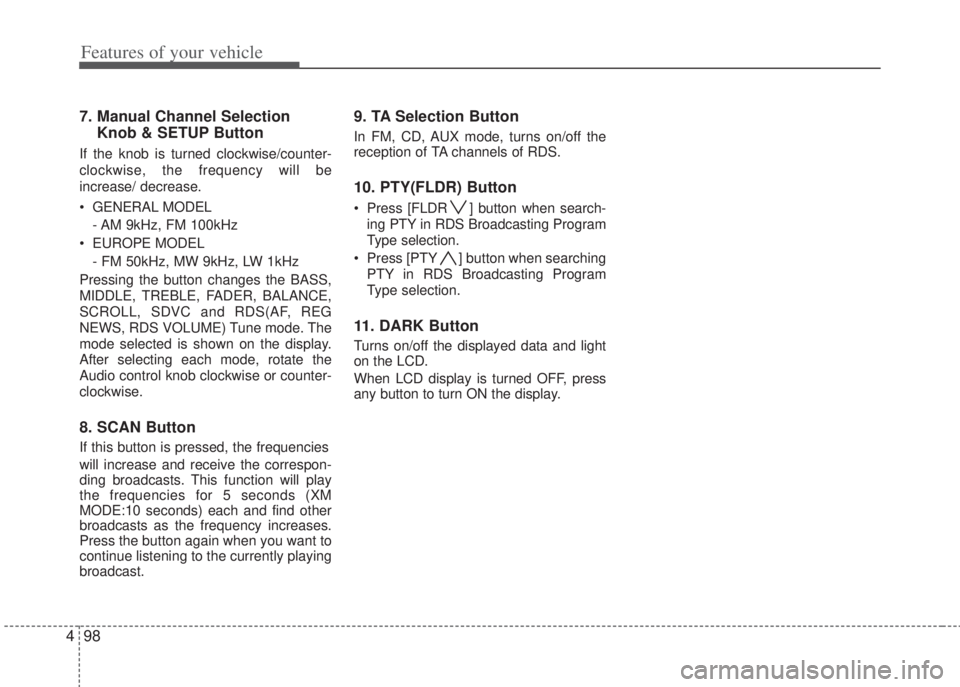
7. Manual Channel Selection
Knob & SETUP Button
If the knob is turned clockwise/counter-
clockwise, the frequency will be
increase/ decrease.
• GENERAL MODEL
- AM 9kHz, FM 100kHz
• EUROPE MODEL
- FM 50kHz, MW 9kHz, LW 1kHz
Pressing the button changes the BASS,
MIDDLE, TREBLE, FADER, BALANCE,
SCROLL, SDVC and RDS(AF, REG
NEWS, RDS VOLUME) Tune mode. The
mode selected is shown on the display.
After selecting each mode, rotate the
Audio control knob clockwise or counter-
clockwise.
8. SCAN Button
If this button is pressed, the frequencies
will increase and receive the correspon-
ding broadcasts. This function will play
the frequencies for 5 seconds (XM
MODE:10 seconds) each and find other
broadcasts as the frequency increases.
Press the button again when you want to
continue listening to the currently playing
broadcast.
9. TA Selection Button
In FM, CD, AUX mode, turns on/off the
reception of TA channels of RDS.
10. PTY(FLDR) Button
• Press [FLDR ] button when search-
ing PTY in RDS Broadcasting Program
Type selection.
• Press [PTY ] button when searching
PTY in RDS Broadcasting Program
Type selection.
11. DARK Button
Turns on/off the displayed data and light
on the LCD.
When LCD display is turned OFF, press
any button to turn ON the display.
Page 173 of 207
4101
Features of your vehicle
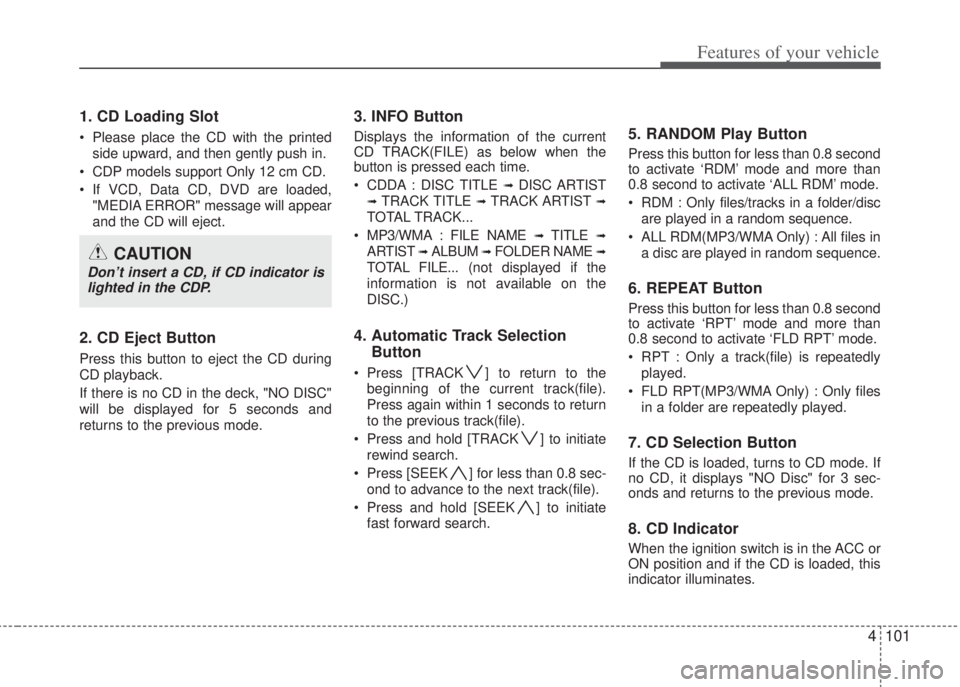
1. CD Loading Slot
• Please place the CD with the printed
side upward, and then gently push in.
• CDP models support Only 12 cm CD.
• If VCD, Data CD, DVD are loaded,
"MEDIA ERROR" message will appear
and the CD will eject.
2. CD Eject Button
Press this button to eject the CD during
CD playback.
If there is no CD in the deck, "NO DISC"
will be displayed for 5 seconds and
returns to the previous mode.
3. INFO Button
Displays the information of the current
CD TRACK(FILE) as below when the
button is pressed each time.
• CDDA : DISC TITLE
➟ DISC ARTIST
➟ TRACK TITLE ➟ TRACK ARTIST ➟
TOTAL TRACK...
• MP3/WMA : FILE NAME
➟ TITLE ➟
ARTIST ➟ ALBUM ➟ FOLDER NAME ➟
TOTAL FILE... (not displayed if the
information is not available on the
DISC.)
4. Automatic Track Selection
Button
• Press [TRACK ] to return to the
beginning of the current track(file).
Press again within 1 seconds to return
to the previous track(file).
• Press and hold [TRACK ] to initiate
rewind search.
• Press [SEEK ] for less than 0.8 sec-
ond to advance to the next track(file).
• Press and hold [SEEK ] to initiate
fast forward search.
5. RANDOM Play Button
Press this button for less than 0.8 second
to activate ‘RDM’ mode and more than
0.8 second to activate ‘ALL RDM’ mode.
• RDM : Only files/tracks in a folder/disc
are played in a random sequence.
• ALL RDM(MP3/WMA Only) : All files in
a disc are played in random sequence.
6. REPEAT Button
Press this button for less than 0.8 second
to activate ‘RPT’ mode and more than
0.8 second to activate ‘FLD RPT’ mode.
• RPT : Only a track(file) is repeatedly
played.
• FLD RPT(MP3/WMA Only) : Only files
in a folder are repeatedly played.
7. CD Selection Button
If the CD is loaded, turns to CD mode. If
no CD, it displays "NO Disc" for 3 sec-
onds and returns to the previous mode.
8. CD Indicator
When the ignition switch is in the ACC or
ON position and if the CD is loaded, this
indicator illuminates.
CAUTION
Don’t insert a CD, if CD indicator is
lighted in the CDP.
Page 174 of 207
Features of your vehicle
102 4
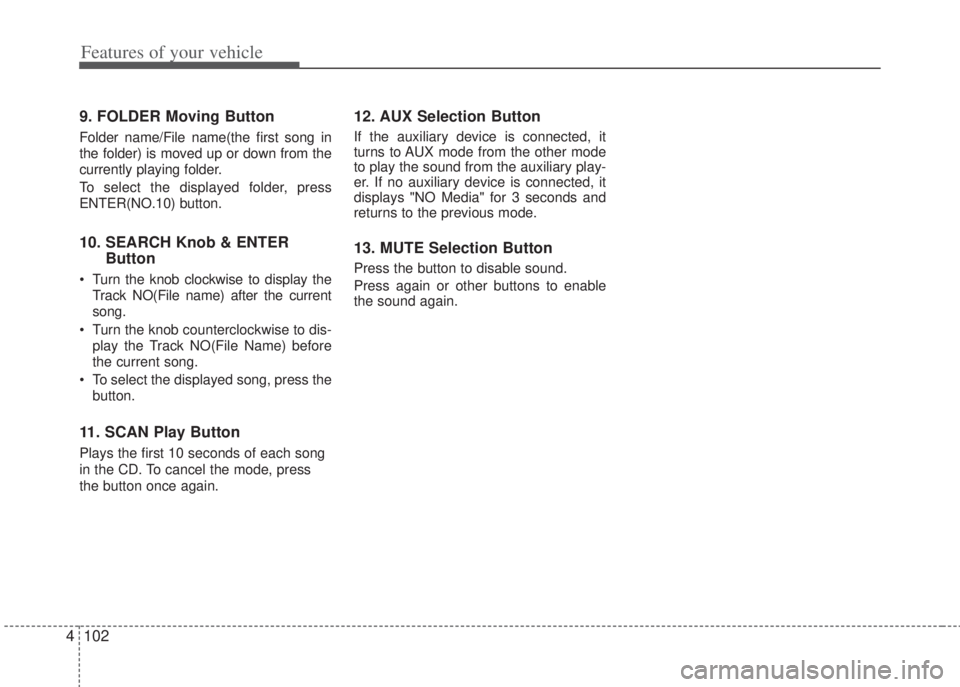
9. FOLDER Moving Button
Folder name/File name(the first song in
the folder) is moved up or down from the
currently playing folder.
To select the displayed folder, press
ENTER(NO.10) button.
10. SEARCH Knob & ENTER
Button
• Turn the knob clockwise to display the
Track NO(File name) after the current
song.
• Turn the knob counterclockwise to dis-
play the Track NO(File Name) before
the current song.
• To select the displayed song, press the
button.
11. SCAN Play Button
Plays the first 10 seconds of each song
in the CD. To cancel the mode, press
the button once again.
12. AUX Selection Button
If the auxiliary device is connected, it
turns to AUX mode from the other mode
to play the sound from the auxiliary play-
er. If no auxiliary device is connected, it
displays "NO Media" for 3 seconds and
returns to the previous mode.
13. MUTE Selection Button
Press the button to disable sound.
Press again or other buttons to enable
the sound again.
Page 179 of 207
4107
Features of your vehicle
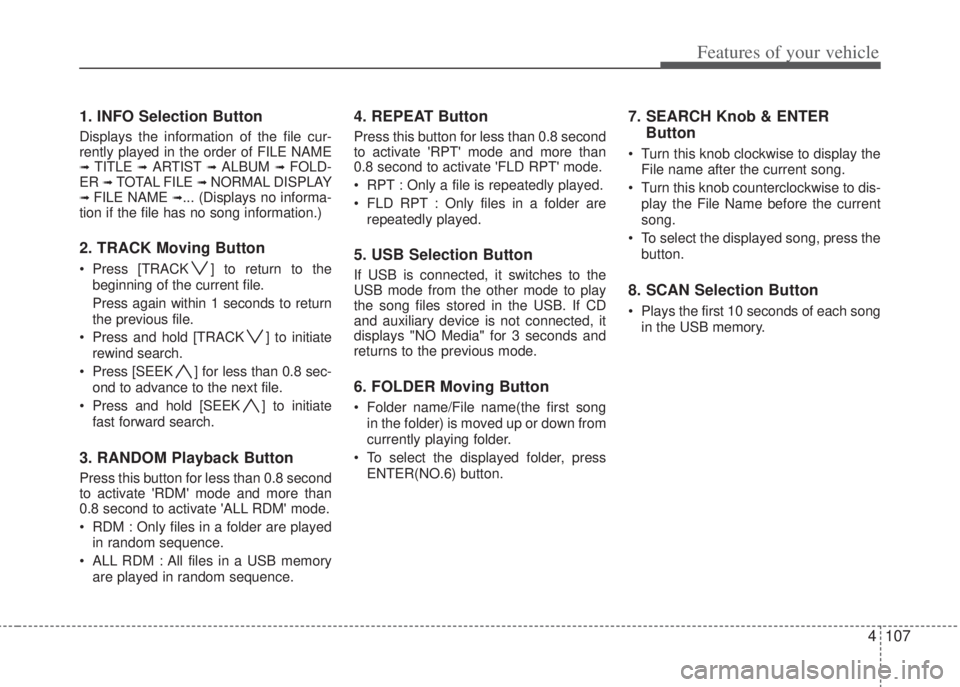
1. INFO Selection Button
Displays the information of the file cur-
rently played in the order of FILE NAME
➟ TITLE ➟ ARTIST ➟ ALBUM ➟ FOLD-
ER ➟ TOTAL FILE ➟ NORMAL DISPLAY➟ FILE NAME ➟... (Displays no informa-
tion if the file has no song information.)
2. TRACK Moving Button
• Press [TRACK ] to return to the
beginning of the current file.
Press again within 1 seconds to return
the previous file.
• Press and hold [TRACK ] to initiate
rewind search.
• Press [SEEK ] for less than 0.8 sec-
ond to advance to the next file.
• Press and hold [SEEK ] to initiate
fast forward search.
3. RANDOM Playback Button
Press this button for less than 0.8 second
to activate 'RDM' mode and more than
0.8 second to activate 'ALL RDM' mode.
• RDM : Only files in a folder are played
in random sequence.
• ALL RDM : All files in a USB memory
are played in random sequence.
4. REPEAT Button
Press this button for less than 0.8 second
to activate 'RPT' mode and more than
0.8 second to activate 'FLD RPT' mode.
• RPT : Only a file is repeatedly played.
• FLD RPT : Only files in a folder are
repeatedly played.
5. USB Selection Button
If USB is connected, it switches to the
USB mode from the other mode to play
the song files stored in the USB. If CD
and auxiliary device is not connected, it
displays "NO Media" for 3 seconds and
returns to the previous mode.
6. FOLDER Moving Button
• Folder name/File name(the first song
in the folder) is moved up or down from
currently playing folder.
• To select the displayed folder, press
ENTER(NO.6) button.
7. SEARCH Knob & ENTER
Button
• Turn this knob clockwise to display the
File name after the current song.
• Turn this knob counterclockwise to dis-
play the File Name before the current
song.
• To select the displayed song, press the
button.
8. SCAN Selection Button
• Plays the first 10 seconds of each song
in the USB memory.
Page 182 of 207
Features of your vehicle
110 4
The iPod exclusive cable is connected to
the multiple terminal inside the console
on the left hand side of the driver's seat.
When the iPod is connected, the 'iPod'
icon will be displayed on the top left cor-
ner of the display screen.
1. INFO Selection Button
Displays the information of the file cur-
rently played in the order of TITLE ➟ARTIST ➟ ALBUM ➟ NORMAL DISPLAY➟ TITLE ➟... (Displays no information if
the file has no song information.)
2. TRACK Moving Button
• Press [TRACK ] to return to the
beginning of the current file and press
again within 1 second to return the pre-
vious track file.
• Press and hold [TRACK ] to initiate
rewind search.
• Press [SEEK ] for less than 0.8 sec-
ond to advance to the next file.
• Press and hold [SEEK ] to initiate
fast forward search.
3. RANDOM Playback Button
Press the button for less than 0.8 second
to activate or deactivate the random
playback of the songs within the current
category. Press the button for longer
than 0.8 second to randomly play all
songs in the entire album of the iPod.
Press the button once again to cancel
the mode.
4. REPEAT Button
Repeats the song currently played.
5. iPod Selection Button
If iPod is connected, it switches to the
iPod mode from the CD mode to play the
song files stored in the iPod. If CD and
auxiliary device is not connected, it dis-
plays "NO Media" for 3 seconds and
returns to the previous mode.
6. CATEGORY Selection Button
Moves to the upper category from cur-
rently playing category of the iPod. You
will be able to search through the lower
category of the selected category. The
order of iPod's category is SONG,
ALBUMS, ARTISTS, GENRES, and iPod.
7. SEARCH Knob & ENTER
Button
When you turn the button clockwise, it
will display the songs(category) next to
the song currently played(category in the
same level). Also, when you turn the but-
ton counterclockwise, it will display the
songs(category) before the song current-
ly played(category in the same level).
If you want to listen to the song displayed
in the song category, press the button,
then it will skip to the selected song.
Page 183 of 207
4111
Features of your vehicle
✽NOTICE FOR USING iPod
DEVICE
• Some iPod models might not sup-
port the communication protocol
and the files will not be played.
(iPod models supported: Mini, 4G,
Photo, Nano, 5G)
• The order of search or playback of
songs in the iPod can be different
from the order searched in the
audio system.
• If the iPod crashes due to its own
trouble, reset the iPod. (Reset:
Refer to iPod manual)
• An iPod may not operate normally
on low battery.
CAUTION IN USING
iPod DEVICE
• You need the power cable exclu-
sive for an iPod in order to oper-
ate an iPod with the buttons on
the audio system. The PC cable
provided by Apple may cause a
malfunction and do not use it for
vehicle use.
• When connecting the device with
an iPod cable, push in the jack
fully not to interfere with commu-
nication.
• When adjusting the sound effects
of an iPod and the audio system,
the sound effects of both devices
will overlap and might reduce or
distort the quality of the sound.
• Deactivate (turn off) the equalizer
function of an iPod when adjust-
ing the audio system’s volume,
and turn off the equalizer of the
audio system when using the
equalizer of an iPod.
(Continued)
(Continued)
• When the iPod cable is connected,
the system can be switched to the
AUX mode even without the iPod
device and can cause noise.
Disconnect the iPod cable when
you are not using the iPod device.
• When the iPod is not used with the
audio system, the iPod cable has
to be separated from the iPod
device. Origin display of iPod may
not be displayed.
Page 194 of 207
511
Driving your vehicle
E060100APB
Automatic transaxle operation
The automatic transaxle has 4 forward
speeds and one reverse speed. The indi-
vidual speeds are selected automatically,
depending on the position of the shift
lever.
To move the shift lever from the P (Park)
position, the brake pedal must be
depressed and the lock release button
must be pressed.
✽NOTICE
The first few shifts on a new vehicle, if
the battery has been disconnected, may
be somewhat abrupt. This is a normal
condition, and the shifting sequence will
adjust after shifts are cycled a few times
by the TCM (Transaxle Control
Module) or PCM (Powertrain Control
Module).
For smooth operation, depress the brake
pedal when shifting from N (Neutral) to a
forward or reverse gear.
E060101APB
Transaxle ranges
The indicator light in the instrument clus-
ter displays the shift lever position when
the ignition switch is in the ON position.
P (Park)
Always come to a complete stop before
shifting into P (Park). This position locks
the transaxle and prevents the front
wheels from rotating.
WARNING- Automatic
transaxle
• Always check the surrounding
areas near your vehicle for peo-
ple, especially children, before
shifting a shift lever into D (Drive)
or R (Reverse).
• Before leaving the driver’s seat,
always make sure the shift lever
is in the P (Park) position; then
set the parking brake fully and
shut the engine off. Unexpected
and sudden vehicle movement
can occur if these precautions
are not followed in the order iden-
tified.
CAUTION
• To avoid damage to your
transaxle, do not accelerate the
engine in R (Reverse) or any for-
ward gear position with the
brakes on.
• When stopped on an upgrade, do
not hold the vehicle with engine
power. Use the service brake or
the parking brake.
• Do not shift from N (Neutral) or P
(Park) into D (Drive), or R
(Reverse) when the engine is
above idle speed.