child lock HYUNDAI I30 2012 Owner's Manual
[x] Cancel search | Manufacturer: HYUNDAI, Model Year: 2012, Model line: I30, Model: HYUNDAI I30 2012Pages: 635, PDF Size: 40.66 MB
Page 469 of 635
Safety system of your vehicle
56
3
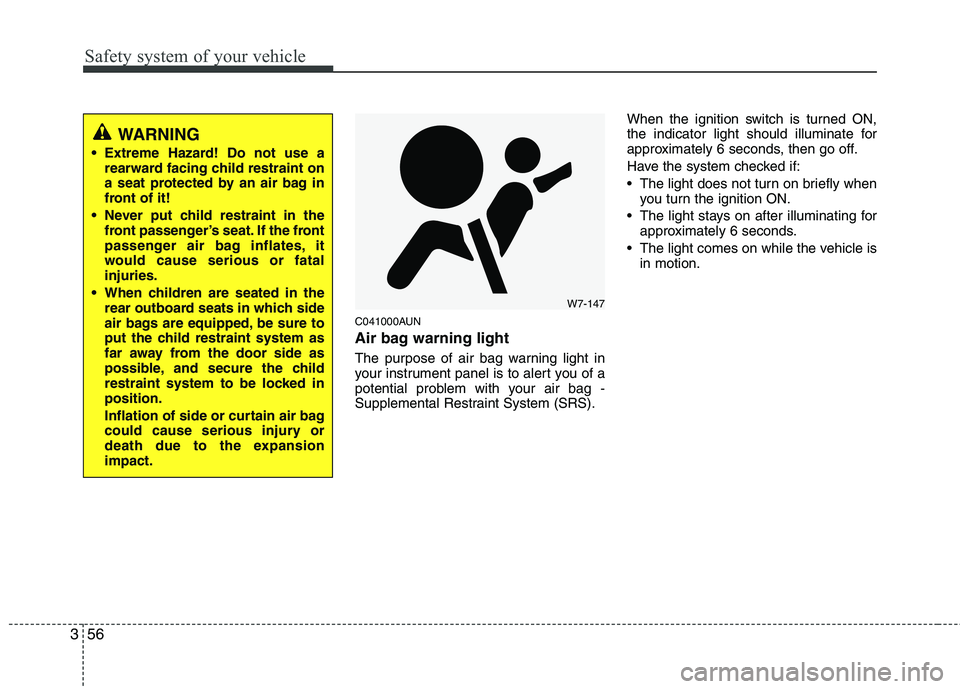
C041000AUN
Air bag warning light
The purpose of air bag warning light in
your instrument panel is to alert you of a
potential problem with your air bag -
Supplemental Restraint System (SRS). When the ignition switch is turned ON,
the indicator light should illuminate for
approximately 6 seconds, then go off.
Have the system checked if:
The light does not turn on briefly when
you turn the ignition ON.
The light stays on after illuminating for approximately 6 seconds.
The light comes on while the vehicle is in motion.
WARNING
Extreme Hazard! Do not use a rearward facing child restraint on
a seat protected by an air bag in
front of it!
Never put child restraint in the front passenger’s seat. If the front
passenger air bag inflates, it
would cause serious or fatalinjuries.
When children are seated in the rear outboard seats in which side
air bags are equipped, be sure to
put the child restraint system as
far away from the door side as
possible, and secure the child
restraint system to be locked inposition.
Inflation of side or curtain air bag
could cause serious injury or
death due to the expansionimpact.
W7-147
Page 474 of 635
Features of your vehicle
2
4
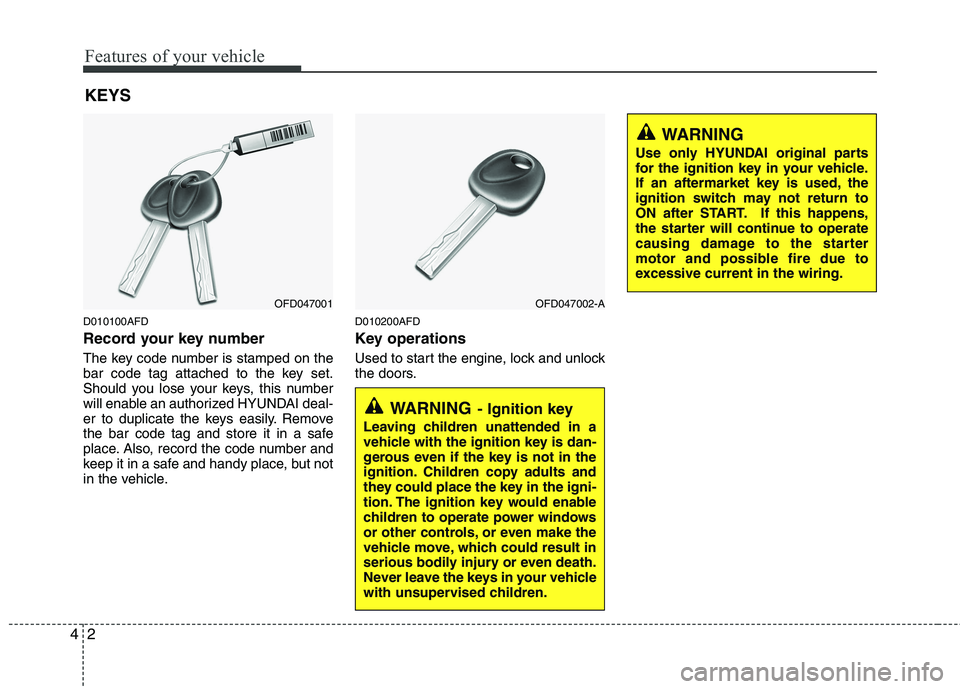
D010100AFD
Record your key number
The key code number is stamped on the
bar code tag attached to the key set.
Should you lose your keys, this number
will enable an authorized HYUNDAI deal-
er to duplicate the keys easily. Remove
the bar code tag and store it in a safe
place. Also, record the code number and
keep it in a safe and handy place, but not
in the vehicle. D010200AFD
Key operations
Used to start the engine, lock and unlock
the doors.
KEYS
WARNING
- Ignition key
Leaving children unattended in a
vehicle with the ignition key is dan-
gerous even if the key is not in the
ignition. Children copy adults and
they could place the key in the igni-
tion. The ignition key would enable
children to operate power windows
or other controls, or even make the
vehicle move, which could result in
serious bodily injury or even death.
Never leave the keys in your vehicle
with unsupervised children.
OFD047001OFD047002-A
WARNING
Use only HYUNDAI original parts
for the ignition key in your vehicle.
If an aftermarket key is used, the
ignition switch may not return to
ON after START. If this happens,
the starter will continue to operate
causing damage to the starter
motor and possible fire due to
excessive current in the wiring.
Page 482 of 635
Features of your vehicle
10
4
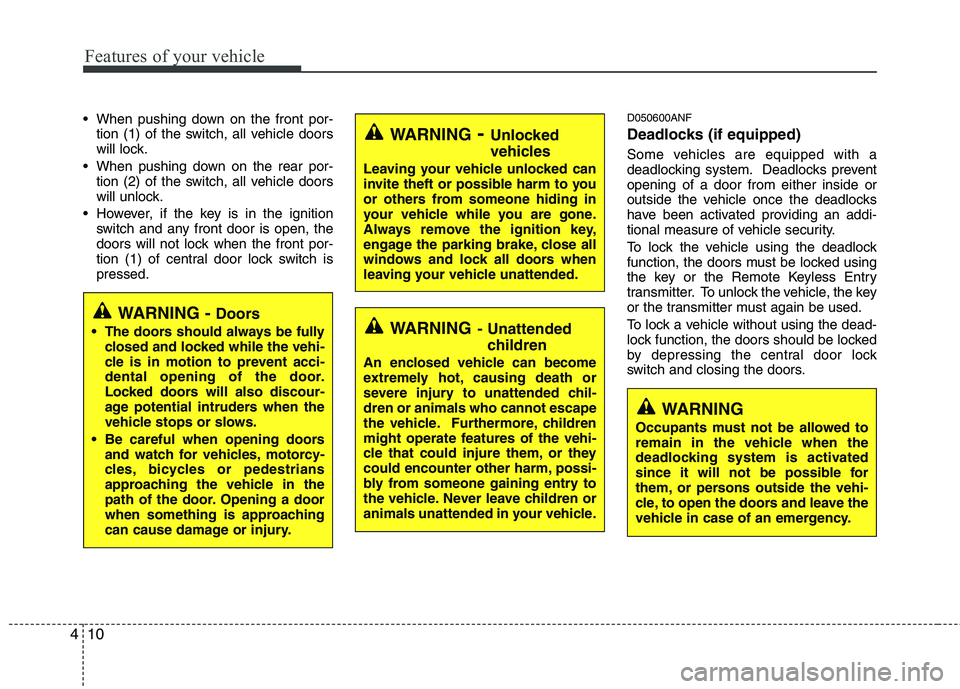
When pushing down on the front por-
tion (1) of the switch, all vehicle doors
will lock.
When pushing down on the rear por- tion (2) of the switch, all vehicle doors
will unlock.
However, if the key is in the ignition switch and any front door is open, the
doors will not lock when the front por-
tion (1) of central door lock switch ispressed. D050600ANF
Deadlocks (if equipped)
Some vehicles are equipped with a
deadlocking system. Deadlocks preventopening of a door from either inside or
outside the vehicle once the deadlocks
have been activated providing an addi-
tional measure of vehicle security.
To lock the vehicle using the deadlock
function, the doors must be locked using
the key or the Remote Keyless Entry
transmitter. To unlock the vehicle, the key
or the transmitter must again be used.
To lock a vehicle without using the dead-
lock function, the doors should be locked
by depressing the central door lock
switch and closing the doors.
WARNING
- Unlocked
vehicles
Leaving your vehicle unlocked can
invite theft or possible harm to you
or others from someone hiding in
your vehicle while you are gone.
Always remove the ignition key,
engage the parking brake, close all
windows and lock all doors when
leaving your vehicle unattended.
WARNING - Unattended
children
An enclosed vehicle can become
extremely hot, causing death or
severe injury to unattended chil-dren or animals who cannot escape
the vehicle. Furthermore, children
might operate features of the vehi-
cle that could injure them, or they
could encounter other harm, possi-
bly from someone gaining entry to
the vehicle. Never leave children or
animals unattended in your vehicle.WARNING - Doors
The doors should always be fully closed and locked while the vehi-
cle is in motion to prevent acci-
dental opening of the door.
Locked doors will also discour-
age potential intruders when the
vehicle stops or slows.
Be careful when opening doors and watch for vehicles, motorcy-
cles, bicycles or pedestrians
approaching the vehicle in the
path of the door. Opening a door
when something is approaching
can cause damage or injury.
WARNING
Occupants must not be allowed to
remain in the vehicle when the
deadlocking system is activated
since it will not be possible for
them, or persons outside the vehi-
cle, to open the doors and leave the
vehicle in case of an emergency.
Page 483 of 635
411
Features of your vehicle
D050300AUN
Impact sensing door unlock sys- tem (if equipped)
All doors will be automatically unlocked
when the impact is delivered to impact
sensors while the ignition switch ON.
However, the doors may not be unlocked
if mechanical problems occur with the
door lock system or battery. D050400AFD
Speed sensing door lock system (if equipped)
Type A
When the speed of the vehicle keeps above
40 km/h for 1 second, it will automatically
lock all doors. For activation of this feature,
contact an authorized HYUNDAI dealer.
Type B
When the speed of the vehicle keeps above
15 km/h for 1 second, it will automatically
lock all doors. For activation of this feature,
contact an authorized HYUNDAI dealer.
✽✽NOTICE
An authorized HYUNDAI dealer can select
some auto door lock/unlock features as fol-
lows;
Speed sensing auto door locking
Auto door unlock when the ignition key is
removed from the ignition switch
If you want to select a door lock/unlock fea-
ture, consult an authorized HYUNDAI
dealer.
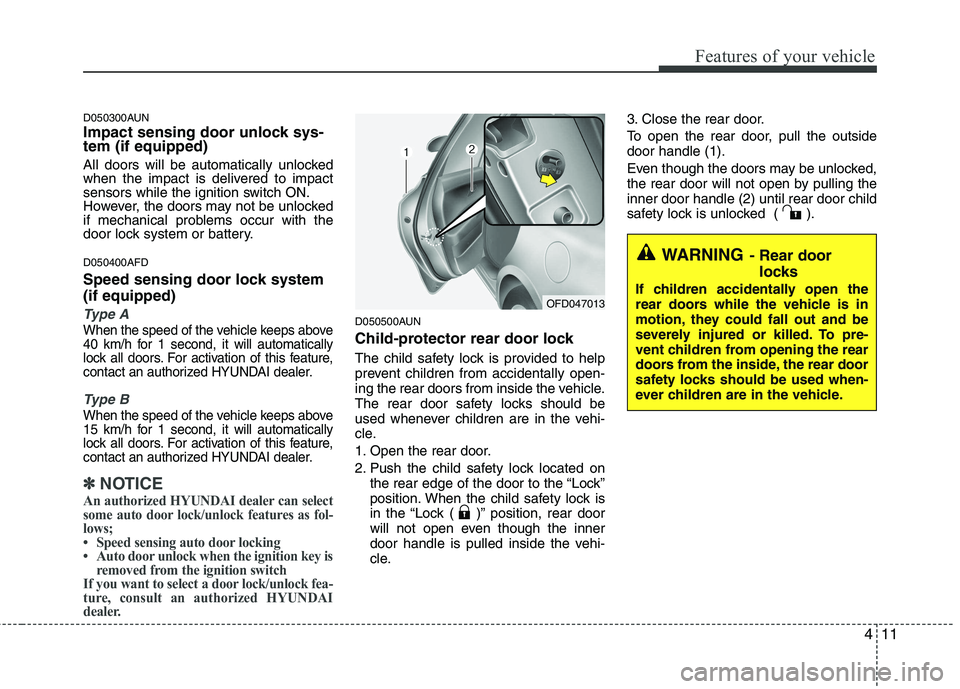
D050500AUN
Child-protector rear door lock
The child safety lock is provided to help
prevent children from accidentally open-
ing the rear doors from inside the vehicle.
The rear door safety locks should be
used whenever children are in the vehi-
cle.
1. Open the rear door.
2. Push the child safety lock located on
the rear edge of the door to the “Lock”
position. When the child safety lock is
in the “Lock ( )” position, rear door
will not open even though the inner
door handle is pulled inside the vehi-
cle. 3. Close the rear door.
To open the rear door, pull the outside door handle (1).
Even though the doors may be unlocked,
the rear door will not open by pulling theinner door handle (2) until rear door child
safety lock is unlocked ( ).
WARNING
- Rear door
locks
If children accidentally open the
rear doors while the vehicle is in
motion, they could fall out and be
severely injured or killed. To pre-
vent children from opening the rear
doors from the inside, the rear door
safety locks should be used when-
ever children are in the vehicle.
OFD047013
Page 489 of 635
417
Features of your vehicle
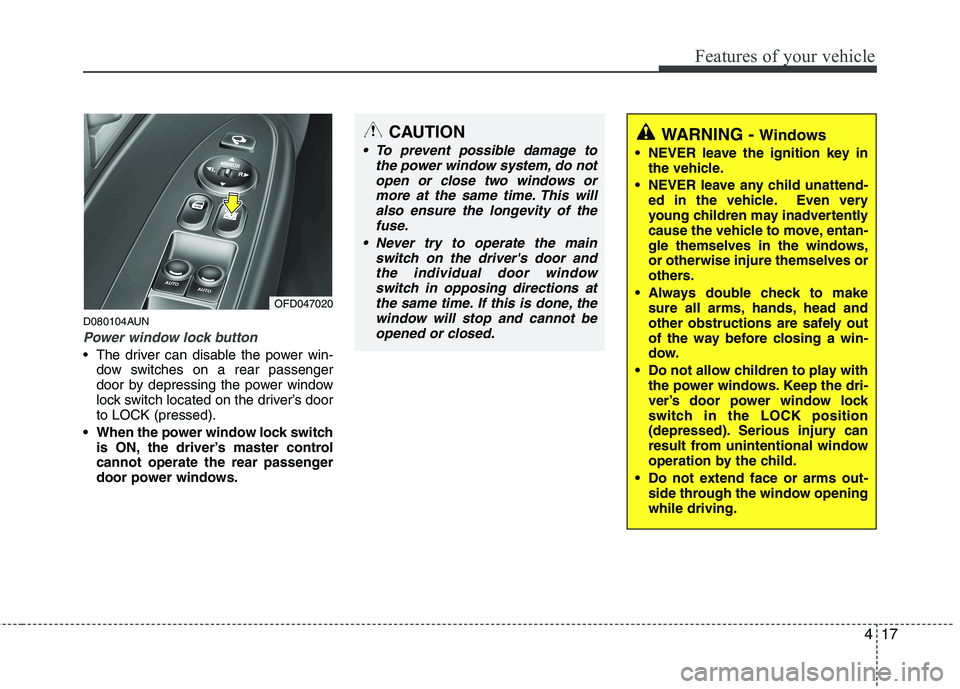
D080104AUN
Power window lock button
The driver can disable the power win-dow switches on a rear passenger
door by depressing the power window
lock switch located on the driver’s doorto LOCK (pressed).
When the power window lock switch is ON, the driver’s master control
cannot operate the rear passenger
door power windows.
OFD047020
CAUTION
To prevent possible damage to
the power window system, do not
open or close two windows or more at the same time. This willalso ensure the longevity of the fuse.
Never try to operate the main switch on the driver's door andthe individual door windowswitch in opposing directions at
the same time. If this is done, thewindow will stop and cannot beopened or closed.WARNING - Windows
NEVER leave the ignition key in the vehicle.
NEVER leave any child unattend- ed in the vehicle. Even very
young children may inadvertently
cause the vehicle to move, entan-
gle themselves in the windows,or otherwise injure themselves or
others.
Always double check to make sure all arms, hands, head and
other obstructions are safely out
of the way before closing a win-
dow.
Do not allow children to play with the power windows. Keep the dri-
ver’s door power window lock
switch in the LOCK position
(depressed). Serious injury can
result from unintentional window
operation by the child.
Do not extend face or arms out- side through the window openingwhile driving.
Page 591 of 635
4119
Features of your vehicle
In case USB is connected to the multi-
media jack inside the console on the right
hand side of the driver’s seat. When USB
is connected, the ‘USB’ icon will be dis-
played on the top right corner of the dis-
play screen.
1.AUX Selection Button
If USB is connected, it switches to the
USB mode from the CD mode to play the
song files stored in the USB.
If there are no CD and USB, it displays ‘NO MEDIA’.
2. Track Moving Button
Press the [SEEK ] button for lessthan 0.8 second to play from the begin-
ning of the song currently played.
Press the button for less than 0.8 sec-
ond and press it again within 1 second
to move to and play the previous track.
Press the button for 0.8 second or
longer to play the song in reverse
direction in fast speed.
Press the [SEEK ] button for less
than 0.8 second to move to the next
track. Press the button for 0.8 second
or longer to play the song in forward
direction in fast speed. 3. INFO Button
Displays the information of the file cur-
rently played in the order of FILE NAME➟
TITLE ➟ARTIST ➟ALBUM ➟FOLDER ➟
TOTAL FILE ➟FILE NAME ➟… (Displays
no information if the file has no song
information.)
4. Folder moving Button
Moves [FLDR ] button child folder of
the current folder and displays the first
song in the folder. Press TUNE/ENTER
button to move to the folder displayed.
It will play the first song in the folder.
Moves [FLDR ] button parent folder and displays the first song in the folder.
Press TUNE/ENTER button to move to
the folder displayed. It will play the first
song in the folder.
5. TUNE/ENTER Button
Turn this button clockwise to display the
songs next to the currently played song.
Turn the button counterclockwise to dis-
play the songs before the currently
played song.
Press the button to skip to and play the selected song. 6. RANDOM Playback Button
Press the button for less than 0.8 second
to start or stop the random playback of
the songs in the current folder.
Press the button for more than 0.8 sec-
ond to randomly play the entire songs in
the USB device.
Press the button again to cancel the mode.
7. REPEAT Button
Press the button for less than 0.8 second
to repeat the song currently played.
Press the button for more than 0.8 sec-
ond to repeat the entire songs in the USB
device.
8. SCAN Button
Plays 10 seconds of each song in the
USB device.
Press the button once again to cancel scanning.
Page 604 of 635
Features of your vehicle
132
4
In case USB is connected to the multi-
media jack inside the console on the right
hand side of the driver’s seat. When USB
is connected, the ‘USB’ icon will be dis-
played on the top right corner of the dis-
play screen.
1.AUX Selection Button
If USB is connected, it switches to the
USB mode from the CD mode to play the
song files stored in the USB.
If there are no CD and USB, it displays ‘NO MEDIA’.
2. Track Moving Button
Press the [SEEK ] button for less
than 0.8 second to play from the begin-
ning of the song currently played.
Press the button for less than 0.8 sec-
ond and press it again within 1 second
to move to and play the previous track.
Press the button for 0.8 second or
longer to play the song in reverse
direction in fast speed.
Press the [SEEK ] button for less
than 0.8 second to move to the next
track. Press the button for 0.8 second
or longer to play the song in forward
direction in fast speed. 3. INFO Button
Displays the information of the file cur-
rently played in the order of FILE NAME➟
TITLE ➟ARTIST ➟ALBUM ➟FOLDER ➟
TOTAL FILE ➟FILE NAME ➟… (Displays
no information if the file has no song
information.)
4. Folder moving Button
Moves [FLDR ] button child folder of
the current folder and displays the first
song in the folder. Press TUNE/ENTER
button to move to the folder displayed.
It will play the first song in the folder.
Moves [FLDR ] button parent folder and displays the first song in the folder.
Press TUNE/ENTER button to move to
the folder displayed. It will play the first
song in the folder.
5. TUNE/ENTER Button
Turn this button clockwise to display the
songs next to the currently played song.
Turn the button counterclockwise to dis-
play the songs before the currently
played song.
Press the button to skip to and play the selected song. 6. RANDOM Playback Button
Press the button for less than 0.8 second
to start or stop the random playback of
the songs in the current folder.
Press the button for more than 0.8 sec-
ond to randomly play the entire songs in
the USB device.
Press the button again to cancel the mode.
7. REPEAT Button
Press the button for less than 0.8 second
to repeat the song currently played.
Press the button for more than 0.8 sec-
ond to repeat the entire songs in the USB
device.
8. SCAN Button
Plays 10 seconds of each song in the USB
device.
Press the button once again to cancel scanning.
Page 617 of 635
4145
Features of your vehicle
In case USB is connected to the multi-
media jack inside the console on the right
hand side of the driver’s seat. When USB
is connected, the ‘USB’ icon will be dis-
played on the top right corner of the dis-
play screen.
1. AUX Selection Button
If USB is not connected, it switches to the USB mode from the Radio and CD mode
to play the song files stored in the USB.
If AUX is not connected, it is invalid key.
2. Track Moving Button
Press the [SEEK ] button for lessthan 0.8 second to play from the begin-
ning of the song currently played.
Press the button for less than 0.8 sec-
ond and press it again within 1 second
to move to and play the previous track.
Press the button for 0.8 second or
longer to play the song in reverse
direction in fast speed.
Press the [SEEK ] button but ton for
less than 0.8 second to move to the
next track.
Press the button for 0.8 second or
longer to play the song in forward
direction in fast speed. 3. INFO Button
Displays the information of the file cur-
rently played in the order of FILE NAME➟
TITLE ➟ARTIST ➟ALBUM ➟FOLDER ➟
TOTAL FILE ➟FILE NAME ➟… (Displays
no information if the file has no song
information.)
4. Folder moving Button
Moves [FLDR ] button child folder of
the current folder and displays the first
song in the folder. Press TUNE/ENTER
button to move to the folder displayed.
It will play the first song in the folder.
Moves [FLDR ] button parent folder and displays the first song in the folder.
Press TUNE/ENTER button to move to
the folder displayed. It will play the first
song in the folder.
5. TUNE/ENTER Button
Turn this button clockwise to display the
songs next to the currently played song.
Turn the button counterclockwise to dis-
play the songs before the currently
played song.
Press the button to skip to and play the selected song. 6. RANDOM Playback Button
Press the button for less than 0.8 second
to start or stop the random playback of
the songs in the current folder.
Press the button for more than 0.8 sec-
ond to randomly play the entire songs in
the USB device.
Press the button again to cancel the mode.
7. REPEAT Button
Press the button for less than 0.8 second
to repeat the song currently played.
Press the button for more than 0.8 sec-
ond to repeat the entire songs in the USB
device.
8. SCAN Button
Plays 10 seconds of each song in the USB
device.
Press the button once again to cancel scanning.
Page 630 of 635
Features of your vehicle
158
4
In case USB is connected to the multi-
media jack inside the console on the right
hand side of the driver’s seat. When USB
is connected, the ‘USB’ icon will be dis-
played on the top right corner of the dis-
play screen.
1.AUX Selection Button
If USB is not connected, it switches to the USB mode from the Radio and CD mode
to play the song files stored in the USB.
If AUX is not connected, it is invalid key.
2. Track Moving Button
Press the [SEEK ] button for less
than 0.8 second to play from the begin-
ning of the song currently played.
Press the button for less than 0.8 sec-
ond and press it again within 1 second
to move to and play the previous track.
Press the button for 0.8 second or
longer to play the song in reverse
direction in fast speed.
Press the [SEEK ] button but ton for
less than 0.8 second to move to the
next track.
Press the button for 0.8 second or
longer to play the song in forward
direction in fast speed. 3. INFO Button
Displays the information of the file cur-
rently played in the order of FILE NAME➟
TITLE ➟ARTIST ➟ALBUM ➟FOLDER ➟
TOTAL FILE ➟FILE NAME ➟… (Displays
no information if the file has no song
information.)
4. Folder moving Button
Moves [FLDR ] button child folder of
the current folder and displays the first
song in the folder. Press TUNE/ENTER
button to move to the folder displayed.
It will play the first song in the folder.
Moves [FLDR ] button parent folder and displays the first song in the folder.
Press TUNE/ENTER button to move to
the folder displayed. It will play the first
song in the folder.
5. TUNE/ENTER Button
Turn this button clockwise to display the
songs next to the currently played song.
Turn the button counterclockwise to dis-
play the songs before the currently
played song.
Press the button to skip to and play the selected song. 6. RANDOM Playback Button
Press the button for less than 0.8 second
to start or stop the random playback of
the songs in the current folder.
Press the button for more than 0.8 sec-
ond to randomly play the entire songs in
the USB device.
Press the button again to cancel the mode.
7. REPEAT Button
Press the button for less than 0.8 second
to repeat the song currently played.
Press the button for more than 0.8 sec-
ond to repeat the entire songs in the USB
device.
8. SCAN Button
Plays 10 seconds of each song in the USB
device.
Press the button once again to cancel scanning.